Have you ever tried to crop an image in WordPress, only to get stuck with an annoying “There has been an error cropping your image” notification? If that sounds familiar, you’re not alone.
Running into the WordPress There has been an error cropping your image issue can be really frustrating, especially when you’re on a deadline. It’s like hitting a roadblock right when you need everything to go smoothly.
Picture this: you capture an amazing sunset photo and can’t wait to share it with your readers. Just as you’re about to upload it, WordPress serves up that pesky error. It’s as if you’ve planned a surprise party but forgot the cake.
But don’t worry, dealing with this hiccup doesn’t have to feel like fixing a leaky pipe. We’ve got some straightforward solutions to help you out.
Whether it’s adjusting the file size or modifying a few settings, you can tackle these fixes without needing a tech degree. With a bit of patience and our guidance, your images will be the perfect fit for your site. Let’s get started and solve this issue together!
The WordPress There has been an error cropping your image issue can happen for a variety of reasons. It could be something related to the image files, the settings on your browser, conflicts with plugins or themes, PHP limits, or even your server settings. You should examine each of these potential causes to pinpoint and resolve the problem. And don’t forget to regularly backup your site to keep your data safe.
1. Verify your image file
Before you move on to more complicated solutions, take a moment to check your image file. Sometimes, the issue might be with the image itself.

First, open the image on your computer to see if it displays correctly. If the image appears corrupted or won’t open, you may need to create a new file.
Next, check if the image uploaded without issues. Re-uploading the image to WordPress sometimes fixes the problem.
Also, ensure your image isn’t exceeding the size limits for your site. If the file is too large, WordPress might struggle to process it. You might need to resize or compress the image before trying to upload it again.

By verifying these basics, you may quickly resolve the WordPress There has been an error cropping your image issue.
2. Tackle browser problems
At times, your browser may be the root of WordPress errors. A quick look at your browser settings might help solve the image cropping error in WordPress.
Begin by clearing your browser’s cache, as it might be causing display problems. After clearing, check if this resolves the error.

You can also try using incognito mode, which doesn’t use cached data or cookies. This can help bypass hidden issues.
Look for any blockers in your browser settings, like those blocking cookies, which may cause errors in WordPress.

If none of these work, try using a different browser. Sometimes a switch is all it takes to fix the WordPress There has been an error cropping your image issue.
3. Fix conflicts with plugins and themes
Plugins and themes may sometimes interfere with WordPress, leading to errors like the WordPress There has been an error cropping your image issue.
Consider if you recently added or updated a plugin. Such changes might cause plugin conflicts. To check, deactivate all plugins. If the error disappears, one of the plugins may be causing it.

Reactivate each plugin one-by-one, checking for errors each time to identify the problematic plugin.
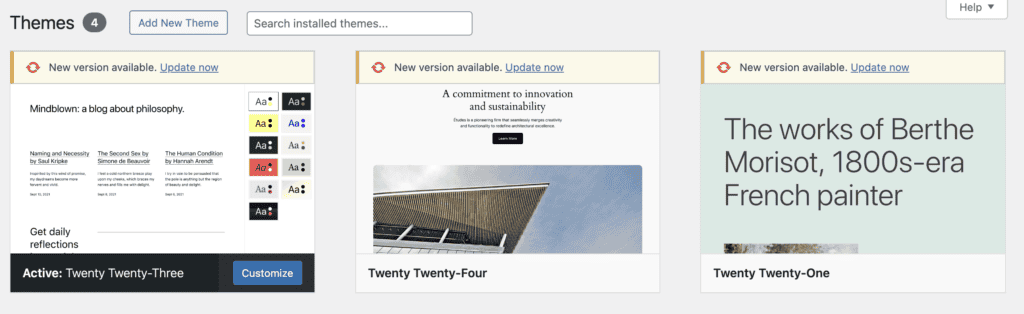
If plugins aren’t the issue, your theme might be. If you have installed or updated a theme recently, switch to a default WordPress theme like Twenty Twenty-Two to see if it resolves the problem.
4. Inspect PHP settings
Low PHP memory or timeout settings can cause issues for WordPress, including image cropping errors.
To address this, edit the wp-config.php file, which contains vital settings for your site.
Add this code before the line /* That's all, stop editing! Happy blogging. */:
define('WP_MEMORY_LIMIT', '256M');
ini_set('max_execution_time', '300');
Increasing these limits gives WordPress more resources to handle tasks. Check if this resolves the WordPress There has been an error cropping your image issue after making changes.
5. Review file permissions
Correct file permissions are crucial for WordPress to manage images and other files. Wrong permissions can prevent WordPress from processing images correctly.
Ensure the folders storing your images have the right permissions. Images are usually stored in the wp-content/uploads folder. Confirm that this folder and its contents have the correct settings.
For directories like uploads, permissions should be set to 755. This allows WordPress to read and write files securely. Individual files should have permissions set to 644, ensuring proper access and control.
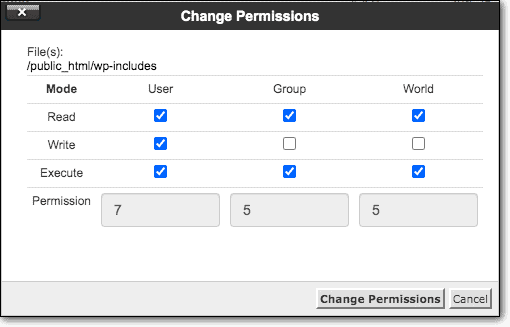
Proper permissions can solve many upload and processing errors. Recheck these settings to overcome the image cropping issue.
6. Analyze error logs
When faced with errors like image cropping issues, WordPress logs can be a valuable resource. They provide details on what might be going wrong.

Start by accessing your server error logs. These contain records of any server-related problems. Look for messages or codes that might identify the problem.
Use your browser’s Inspect tool to spot page errors. Take note of any warnings or error messages related to the image issue.
If you find a specific error, try fixing it. For more complex issues, contact your web host for support.
7. Check server configuration
Switching PHP modules might feel technical, but it can help fix the image cropping error. WordPress uses two modules for image processing: Imagick and the GD Library.
Imagick is the default, but switching to the GD Library can sometimes solve issues. Add this code to your theme’s functions.php file to switch:
function wpb_image_editor_default_to_gd( $editors ) {
$gd_editor = 'WP_Image_Editor_GD';
$editors = array_diff( $editors, array( $gd_editor ) );
array_unshift( $editors, $gd_editor );
return $editors;
}
add_filter( 'wp_image_editors', 'wpb_image_editor_default_to_gd' );
Check if the GD Library is installed by running php -m | grep gd in your server’s command line. If it’s not installed, use the following installation steps appropriate for your operating system.
For Ubuntu or Debian systems, install the GD Library using sudo apt-get install php-gd.
If you’re on CentOS or RHEL, use sudo yum install php-gd.
Ensure to uncomment the line extension=gd in the php.ini file to enable the GD Library.
Don’t forget to restart your web server for changes to take effect. On Apache servers, use sudo systemctl restart apache2. On nginx servers, use sudo systemctl restart php7.4-fpm (replace php7.4 with your current WordPress PHP version) and sudo systemctl restart nginx, in that order.
Once these steps are completed, verify if the image cropping issue is resolved.
How to prevent the WordPress There has been an error cropping your image error?
Avoiding the WordPress There has been an error cropping your image issue can make your website run more smoothly. Here are some straightforward steps you can take:
- Use security plugins: Security plugins help safeguard your server from threats. Consider using plugins like MalCare, which monitors site activities and prevents unauthorized changes.
- Optimize images: Use tools to reduce image sizes and dimensions before uploading. This not only helps prevent errors but also improves your site’s speed.
- Choose a reliable host: Select a hosting provider with robust resources, such as Cloudways or Kinsta. They offer solid support for WordPress.
- Keep everything updated: Regularly update WordPress, along with your themes and plugins. Updates often contain bug fixes that can help prevent problems.
- Select trusted plugins: Install plugins from reputable sources. Ensure they are well-maintained and compatible with your version of WordPress.
- Set upload limits: Define maximum upload sizes and dimensions in your WordPress settings. This can help avoid issues with large files.
- Schedule regular backups: Regular backups can be a lifesaver if something goes wrong. Use a tool like BlogVault for automated, off-site encrypted backups to keep your data secure.
- Track server resources: Keep an eye on your PHP memory limits and execution times. Increase them if necessary to ensure WordPress runs smoothly.
- Verify permissions: Make sure file and directory permissions are set correctly. Check particularly in the wp-content/uploads folder.
- Use a CDN: A Content Delivery Network can improve the delivery of media files. This can enhance performance and reducing errors.
Final thoughts
Solving the WordPress There has been an error cropping your image problem might seem challenging, but each step you take can get you closer to a solution. Begin by ensuring your image file is correct. Next, address any browser-related issues. It’s important to make sure your plugins and themes are compatible. Adjusting your server settings or correcting file permissions might also be necessary. These steps can help you get back to showcasing your creativity.
While tackling this issue, it’s crucial to keep your site secure and efficient. BlogVault is a great option for this. It provides automatic backups stored safely off-site. This protects your data without burdening your site. Additionally, it includes an emergency connector for recovering sites, even if they crash. BlogVault is an excellent choice for safeguarding and managing your WordPress site efficiently.
FAQs
How to crop an image in WordPress?
To crop an image in WordPress, open your media library from the dashboard. Click the image you want to edit. Then, click Edit Image under the image preview. You will see some editing tools above the image. Click the Crop icon, drag your mouse to select the part you want, and click the Crop button again. Once happy with the result, click Save. Your cropped image is now ready to use on your site.
How do I stop WordPress from cropping images?
To prevent WordPress from cropping images, adjust the media settings. Go to Settings in your WordPress dashboard, then Media. You’ll see sizes like thumbnail, medium, and large. Set the width and height to 0 for these sizes to stop automatic cropping. Save your changes. Now, your images will keep their original size unless you crop them manually.
Why is my image cropped in WordPress?
WordPress may crop your image due to default media settings. It creates different image sizes, like thumbnails, to suit various layouts. These settings may crop images to fit certain dimensions. To check, go to Settings, then Media on your dashboard. Themes or plugins might also have image-size settings that crop images. Adjust these settings to keep your images in their original size.

Anurag traded algorithms for adverbs when he switched from being a software engineer to being a writer. Editor by day, he chases F1 by night!