Seeing s WordPress error that seems to be a pluggable.php error? It’s likely an issue with your files. We’ll show you how to fix it in a few steps.
I’ve seen it happen countless times: you’re updating a WordPress plugin or theme when suddenly your site breaks. A cryptic “pluggable.php” error message appears on your dashboard—or worse, your visitors see it splashed across your homepage. Is your website inaccessible to customers? Maybe you’re losing sales.
Through years of troubleshooting WordPress errors, I’ve learned that these errors can be resolved systematically. In this article, I’ll walk you through the root causes and proven troubleshooting steps to get your site back online quickly.
Create a staging site to troubleshoot the pluggable.php errors. Fixing the error usually involves solving conflicts with WordPress core functions. Fixing them may require editing or replacing core files. So, be cautious.
Understanding the pluggable.php error
WordPress includes a file called pluggable.php that contains essential functions for user authentication, cookies, and other critical operations. What makes these functions special is that they’re designed to be “pluggable,” meaning plugins and themes can override them with their own versions if needed.
The most common scenario for this WordPress issue is when plugins or themes attempt to redefine functions that already exist in the pluggable.php file. When WordPress loads, it processes various files in a specific order, and if two pieces of code try to declare the same function name, PHP throws a fatal error and your site crashes. This isn’t just a minor hiccup—it’s PHP protecting your site from potentially dangerous conflicts that could corrupt data or compromise security.
Solving plugin conflicts is one of the most common ways to fix the error. When multiple plugins attempt to override the same pluggable function, it creates a collision that WordPress cannot resolve. When a theme update fails, a similar conflict occurs. I’ve also seen small coding errors—missing brackets, incorrect function names, or improper conditional checks—can trigger these errors when WordPress attempts to load the conflicting code.
Fixing pluggable.php errors
Now that you understand what’s happening behind the scenes when pluggable.php errors strike, let’s focus on getting your site back online.
Step 1: Remove Whitespace Before PHP Tags
Fixing errors like Site is experiencing technical errors or this one starts by checking for whitespace that might be causing issues. This is often the culprit behind . It’s something I always check first because it’s both common and easy to fix once you know what to look for.
- Open your theme’s functions.php file: You can use your hosting control panel’s file manager or FTP client. We’re using Cyberduck to connect to our server.
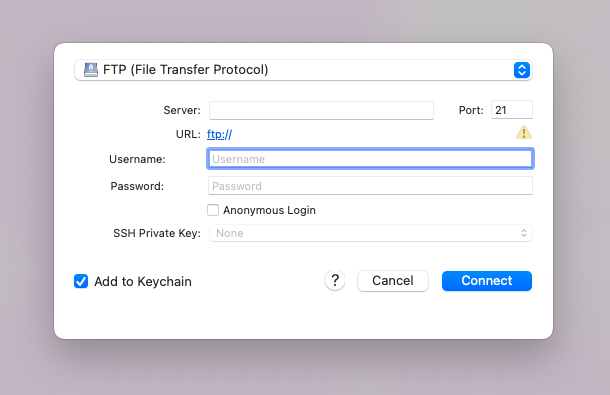
- Look at the very first line of the file—the PHP opening tag should be positioned as the absolute first characters with no spaces, tabs, or blank lines before it. Even a single character before that opening tag can cause WordPress to send output before it’s ready, triggering the pluggable.php error.
- Pay attention to the end of these files too. If a file contains only PHP code with no HTML, it’s actually better to omit the closing PHP tag entirely. If you do see a closing tag, make sure there’s absolutely nothing after it—no spaces, blank lines, or hidden characters that could cause output after the PHP code executes.
Step 2: Check for Plugin Conflicts
Fixing a plugin conflict is the next step. A conflict happens when two or more plugins attempt to declare the same function, or when a plugin tries to override a WordPress core function that’s already been modified by another plugin.
The most effective way to identify plugin conflicts is through systematic elimination:
- Deactivate all plugins at once through your WordPress dashboard. If you can’t access your dashboard due to the error, rename the plugins folder via FTP or your hosting file manager from “plugins” to “plugins-disabled” to automatically deactivate everything.
- Test your site after deactivating all plugins. If the error disappears, you know a plugin was causing the conflict.
- Reactivate plugins one by one, checking your site after each activation. When the error returns, you’ve found your problematic plugin.
When you find the conflicting plugin, you can either look for an updated version, find an alternative plugin with similar functionality, or contact the plugin developer for support.
Step 3: Switch to Default Theme
Fixing a failed theme update might be the solution to the pluggable.php error. Themes can cause these errors when they attempt to override WordPress core functions improperly or when they contain outdated code that conflicts with current WordPress versions. I’ve encountered numerous cases where custom themes or heavily modified themes create function redeclaration errors that only surface after WordPress updates.
Temporarily switching to a default WordPress theme is the quickest way to determine if your theme is causing the problem:

- Access your WordPress dashboard and navigate to Appearance > Themes. If you can’t access the dashboard due to the error, you’ll need to switch themes via FTP or your hosting file manager.
- Activate a default WordPress theme like Twenty Twenty-Four, Twenty Twenty-Three, or any other theme that comes pre-installed with WordPress. These themes are thoroughly tested and unlikely to cause pluggable.php conflicts.
- Test your site immediately after switching themes. If the error disappears, you’ve confirmed that your original theme was causing the conflict.
- If you need to switch via FTP, navigate to your site’s root directory, then to wp-content/themes/. Rename your current theme’s folder (add “-disabled” to the end) and WordPress will automatically fall back to a default theme.
- Check your site’s functionality thoroughly while using the default theme. Make sure all your plugins work correctly and that there are no other errors appearing.
If switching to a default theme resolves the error, the issue lies within your original theme’s code. This could be due to outdated functions in the theme’s functions.php file, conflicts with specific plugins, or improper function declarations. You’ll need to either update your theme, contact the theme developer for support, or have a developer review the theme’s code to identify and fix the problematic functions.
Step 4: Replace WordPress Core Files (Last Resort)
When all other troubleshooting steps have failed, replacing the WordPress core files becomes the final option. This step is often necessary when the core files themselves have become corrupted. This could be due to a failed update, a hack, or improper modifications to files like pluggable.php.
- Go to wordpress.org/download and download the latest version of WordPress.

- Save the .zip file to your computer and extract it.
- Open the extracted WordPress folder and delete the wp-content directory to avoid overwriting your themes, plugins, or uploads.
- Connect to your website’s root directory (where WordPress is installed).
- Drag and drop the new WordPress core files (excluding wp-content) into your site’s root directory.
- When prompted, choose to overwrite existing files.
- Ensure files are set to 644 and folders to 755.
- These settings help maintain security and prevent permission-related issues.
- Visit your homepage and admin area (/wp-admin) to confirm everything is working.
- If WordPress prompts you to update the database, follow the instructions.
How to prevent pluggable.php errors?
Once you’ve resolved a pluggable.php error, the next step is making sure it doesn’t come back. These errors usually happen when custom code tries to redefine a core function after WordPress has already defined it—leading to those infamous “Cannot redeclare” or “Headers already sent” messages.
- Update WordPress correctly: To update WordPress safely, take precautions like backups and creating a staging site to test the updates first. Make sure there are no conflicts. Then, push the changes to the live site.
- Use Action and Filter Hooks: Never modify core WordPress files directly. Instead, use WordPress’s built-in action and filter hooks to extend or modify functionality. Hooks allow you to add or change behavior without touching the core, ensuring future updates don’t break your site or cause redeclaration issues.
- Use unique prefixes for custom functions: Function name collisions are a common source of pluggable.php errors. Always use a unique prefix for your custom functions (e.g., mytheme_send_email() instead of send_email()). This prevents your code from accidentally clashing with WordPress core or plugin functions.
- Avoid direct includes of core files: Don’t manually include core files like pluggable.php, functions.php, or load.php in your code. WordPress loads these files automatically and in a specific order—manually including them can break that order and trigger redeclaration errors.
- Use must-use plugins: Must-Use (MU) plugins are loaded before regular plugins, making them ideal for overriding pluggable functions if absolutely necessary. If you need to override a function from pluggable.php, put your custom code in an MU plugin. Make sure the MU plugin is in the /wp-content/mu-plugins/ directory and the function is defined before WordPress loads the original.
Final thoughts
pluggable.php errors may seem like minor coding issues, but they can seriously impact your site’s user experience, cause functionality breakdowns, and interfere with routine maintenance like updates or backups.
Since troubleshooting often involves digging into core WordPress files, there’s always a risk of causing more problems if you’re not careful.
Use BlogVault, for backups, before making any changes, and whenever possible. This way, if anything happens, you can restore your site. Additionally, do your troubleshooting on a staging site. This keeps your visitors unaffected while you test solutions safely.
FAQs
What are the 4 types of errors in PHP?
PHP errors generally fall into four main categories:
Parse Errors (Syntax Errors): Caused by incorrect code syntax, such as missing semicolons or brackets.
Fatal Errors: Stop the script entirely. Often caused by calling undefined functions or classes.
Warning Errors: Don’t stop execution, but indicate something went wrong (e.g., missing file includes).
Notice Errors: Minor issues like using undefined variables. They don’t stop the script, but they should be addressed.
How to fix pluggable PHP file errors in WordPress?
To fix pluggable.php errors:
Check for conflicting plugins or themes that may be redefining functions already declared in pluggable.php.
Look for extra spaces or characters before <?php or after ?> in any PHP file—these can cause “headers already sent” issues.
As a last resort, replace WordPress core files with a fresh copy (excluding wp-content).
What is pluggable PHP?
pluggable.php is a core WordPress file that contains functions which can be overridden by plugins or themes, but only if they haven’t already been declared.
How to resolve a PHP error?
Read the error message carefully—it usually tells you the file, line number, and type of error.
Enable debugging by adding this to wp-config.php:
define( ‘WP_DEBUG’, true );
Fix syntax issues, missing includes, or function conflicts based on the error details.
Check for plugin or theme conflicts if the error is coming from non-core files.
To resolve a PHP error:

Shreya has been a writer for as long as she can remember. Now, she writes articles that help WordPress users manage the sites that they're proud of, with little to no coding