You’ve probably faced that annoying 500 Internal Server Error before, and now a similar problem, the wp-admin/admin-ajax.php 500 (internal server error), is popping up.
It seems to appear just when you’re in the middle of something crucial. Suddenly, you’re juggling the need to solve the problem and deciphering complex tech jargon.
But don’t stress—just like the usual 500 error, we have fixes for this one too. Let’s look at how you can sort it out and get your site back on track.
The wp-admin/admin-ajax.php 500 (Internal Server Error) is a server issue typically caused by AJAX request complications, often due to plugin or theme conflicts. Consider using a backup plugin to ensure you have a recent copy of your site, in case the troubleshooting process causes further issues.”
Understanding the wp-admin/admin-ajax.php 500 (Internal Server Error)
This error shows up when something goes off track with AJAX requests—the background tasks in WordPress. AJAX is quite crucial because it allows parts of a webpage to update without needing the whole page to reload. This makes your site run smoother.
However, things can go wrong if a plugin or theme sends incorrect data, triggering this error. This might happen due to a faulty plugin update, a conflict between themes, or changes in how your site has been set up.
As a result, you might see forms not working properly, parts of your page or site not loading, or interactive features not functioning as they should. The error message doesn’t give much detail—it just suggests there’s a problem on the server that you need to check out further.
Fixing the wp-admin/admin-ajax.php 500 Internal Server Error
Before diving into fixes, let’s try to pinpoint the root cause of the error. Here’s how you can start:
Check for recent changes
Review any updates or changes made to your plugins or themes lately. Did the error appear around the same time? Even minor modifications can cause issues if they affect how AJAX operates. Look back at recent changes to identify possible culprits.
Review server logs
Your server logs can be a goldmine of information. They’ll show you any unusual activity or errors that happened when the problem occurred. This will give you clues about what might be causing the issue.
Enable debugging
Turning on debugging mode can provide a detailed look at what’s wrong. You can enable it by adding these lines to your wp-config.php file:
define('WP_DEBUG', true);

define('WP_DEBUG_LOG', true);

define('WP_DEBUG_DISPLAY', false);
This setup creates a debug.log file in your wp-content folder that includes detailed error messages.
Disable your plugins
Try switching off all your plugins and see if the error disappears. If it does, reactivate them one by one to find the problematic one. If you can’t access the wp-admin dashboard, use FTP to disable plugins:
1. Connect using an FTP client like FileZilla or Cyberduck.

2. Go to the wp-content directory. Rename the plugins folder to something like plugins_disabled. Check to see if the error is gone. If so, rename the folder back to plugins.
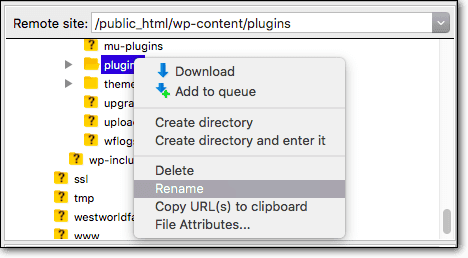
3. Then, in the plugins folder, rename each plugin folder individually.
4. After each rename, check if the error returns. This helps to pinpoint the plugin causing the issue.
Switch to the default theme
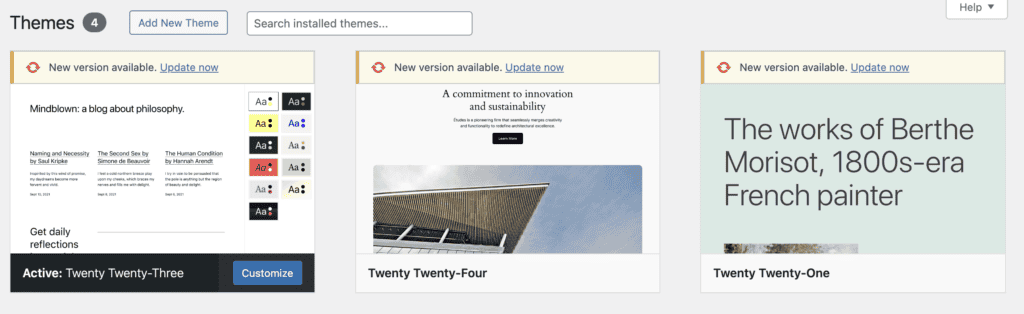
Switch your theme to a default one, such as Twenty Twenty-Four. If the error vanishes, your theme might be the issue. Here’s how to switch themes using FTP if you can’t access the admin area:
1. Connect to your server using an FTP client like FileZilla or Cyberduck.
2. Navigate to the wp-content directory. Open the themes folder.

3. Rename your active theme’s folder (e.g., to theme-disabled), forcing WordPress to use a default theme.
Increase memory limit
Your site might need more memory for its tasks. By default, WordPress limits memory usage—usually to 64M or 128M. If that’s insufficient, increase it by adding this line to your wp-config.php file:
define('WP_MEMORY_LIMIT', '256M');This raises the limit to 256M, which can be useful if your scripts need more memory. Remember, 256M isn’t fixed. You can increase it more if necessary, but proceed with caution.
Check file permissions
Make sure your file permissions are set correctly. If not, admin-ajax.php might not function properly. Directories typically should be set to 755 and files to 644. If they’re incorrect, adjust the permissions to fix them.

Consult your host
Reach out to your hosting provider’s support team. They might spot issues you can’t see. Occasionally, the problem might be on their end, and they can adjust server settings to help resolve the issue.
How is the wp-admin/admin-ajax.php 500 error different from a standard HTTP 500 error?
Here’s a simple table to explain the differences between the WordPress-specific wp-admin/admin-ajax.php 500 error and a typical HTTP 500 error:
| wp-admin/admin-ajax.php 500 (internal server error) | HTTP 500 internal server error |
| Specific to WordPress | General server error |
| Issues with AJAX requests, often due to plugins, themes, or code | Can occur anywhere on a website, not limited to WordPress |
| Affects dynamic features like forms and interactive elements | Affects the entire site or server, broader in scope |
| WordPress-specific components such as plugins and themes | Server settings or general issues outside of WordPress |
| Problems within WordPress affecting AJAX operations | Normal HTTP 500 Error: Broader server issues or configurations |
Best practices to prevent the wp-admin/admin-ajax.php 500 error
Here are some easy steps to help keep your site free from the wp-admin/admin-ajax.php 500 error:
Keep everything updated
Regularly update WordPress, your themes, and plugins. Updates often include bug fixes and enhancements to keep things running smoothly.

Backup your site regularly
Think of it like saving your progress in a game. Regularly backing up your site ensures that if something goes wrong, you won’t lose everything.

Use trusted sources
Only download themes and plugins from reliable places like the official WordPress repository or well-known developers. This reduces the risk of accidentally adding bad code or poorly designed components.
Monitor site performance
Keep an eye on your site’s speed and performance. This helps you catch slowdowns or issues early so you can fix them before they become bigger problems.
Limit active plugins
Avoid having too many plugins running at once. Too many can slow down your site and increase the risk of conflicts and errors. Regularly review and deactivate plugins you no longer need.
Test changes on a staging site
Before making major changes, test them out on a staging site. This way, you ensure new updates or modifications don’t mess up your live site.

Enable error logging
Turning on error logging lets you catch issues as they happen. It provides a detailed record of errors, helping you diagnose and fix problems more effectively.
Optimize code for performance
Make sure your code is clean and efficient. This boosts your site’s speed and reduces the chance of errors, improving the overall user experience.
Ensure Sufficient server resources
Check that your server has enough resources like CPU, RAM, and bandwidth to handle your site’s traffic. This helps prevent slowdowns and errors, especially during busy times.
Choose a Reliable Hosting Provider
Pick a hosting provider known for good performance and support. A dependable host keeps your site stable and secure, and they can assist when issues arise.
Parting thoughts
The 500 Internal Server Error, particularly the wp-admin/admin-ajax.php variant, is a server-side issue linked to AJAX requests. Unlike general HTTP 500 errors that can occur anywhere, the AJAX error is unique to WordPress.
To tackle these, examine your plugins, themes, server resources, and enable debugging. By staying updated and using reliable themes and plugins, you can keep your site running smoothly.
FAQs
What is error 500 in AJAX WordPress?
Error 500 in AJAX WordPress is a server-side problem that happens when AJAX requests aren’t processed properly. This usually stems from plugin or theme conflicts, lack of server resources, or incorrect file settings. It impacts dynamic site features like forms and interactive components.
How to increase PHP memory limit in WordPress?
To raise the PHP memory limit in WordPress, add this line to your wp-config.php file: define(‘WP_MEMORY_LIMIT’, ‘256M’);. Doing this increases the memory allocation, allowing your site to handle larger processes more efficiently.
How to check WP memory limit?
To find out the WP memory limit, insert the following line into your theme’s functions.php file: echo ‘Memory Limit: ‘ . WP_MEMORY_LIMIT;. This will display the current memory limit on your site, showing you how much memory is allocated. Be sure to remove this code afterward to keep your site clean from unnecessary information.
Where is my wp-config file?
You’ll find your wp-config.php file in the root directory (usually named public_html or www) of your WordPress installation. You can access it via your hosting control panel’s file manager or through an FTP client.

Shivani enjoys crafting guides that make every aspect of using WordPress simple and easy to follow. When she's not glued to her laptop, you can find her buried in a good book or occasionally, painting.