Running a WordPress site means there are tasks you want to happen automatically. Maybe you want to schedule posts, send out email updates, or clear out old files from your database. These tasks can be automated using cron jobs.
Cron jobs help keep your website running smoothly without you having to remember every little thing. They are like a set of reminders that tell your site when to do something.
But what if your automation stops working, or you need to make changes to these tasks? This is where WP-CLI comes in handy. WP-CLI is a tool you run from your computer’s command line. It lets you manage WordPress tasks quickly—without logging into the admin dashboard.
Using WP-CLI, you can test if your cron service is working, check which cron jobs you have, and fix problems if anything goes wrong. If you have ever wondered why an email didn’t go out on time or a post didn’t get published, WP-CLI can help you find and solve the issue fast.
In this article, we will show you step-by-step how to use WP-CLI to manage cron jobs on your WordPress site.
WP-CLI lets you manage WordPress cron jobs quickly from the command line. You can check, run, schedule, or delete cron tasks with simple commands. Always backup your site first so you can recover it if anything goes wrong.
Test the cron service
Before you start managing cron jobs with WP-CLI, you need to be sure the cron service is working on your site. If the cron service is not working, none of your scheduled tasks will run when you need them to. It is like setting an alarm and finding out it never rings.
You can check this easily with one command. Open your terminal and type:
wp cron testAfter you run this command, you will see a message on your screen. If everything is set up right, you will get a Success message saying, “WP-Cron spawning is working as expected.” This means your site is ready for cron jobs.

If you see an Error message saying, “The DISABLE_WP_CRON constant is set to true,” it means cron is turned off for your site. You need to fix this before you can manage cron jobs.

To fix this error, edit your wp-config.php file and find the following line:
define('DISABLE_WP_CRON', true);You can either change it to false or delete that line completely.

The wp cron event command is your main tool for managing cron jobs on your WordPress site. It helps you see, run, delete, schedule, or unschedule the automated tasks your site depends on.
Think of this as your control center for cron jobs. With just a few simple commands, you can take full charge of all your scheduled tasks. No need to click through menus in the WordPress dashboard. Everything happens right from your terminal.
Check your cron jobs
Before making any changes to cron jobs, it is important to see which ones are already on your site. You do not want to delete or change a task by mistake.
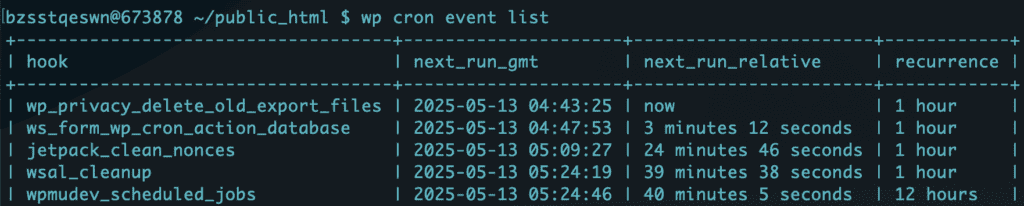
To check your current cron jobs, open your terminal and enter the following command:
wp cron event listThis command shows you a list of all the scheduled cron events on your WordPress site. It also displays the “hooks” for each job. Hooks are like the names or labels for each task. You will need these names if you want to run, delete, or manage a specific cron job later.
Run your cron jobs
Sometimes you may want to run a cron job right away, instead of waiting for its scheduled time. WP-CLI makes this easy.
To run a specific cron job, use this command:
wp cron event run <hook>Replace <hook> with the name of the cron job you want to run. The hook is like an ID for each job. You would have found these hook names by listing your cron jobs, as shown above.

If you need to run several cron jobs at once, just add their hooks one after the other, separated by spaces:
wp cron event run <hook1> <hook2> <hook3>WP-CLI is also smart with hook names ending in numbers, like cron_job_1 or cron_job_2. If you type only cron_job as the hook, the command will find and run all jobs with that base name and any number attached.
Want to run every scheduled cron job on your site at once? Use the following command:
wp cron event run --allThis is a quick way to make sure all your jobs get processed right away. It is helpful when you need to test your site or clear a backlog.
Delete your cron jobs
Sometimes you need to remove old or unwanted cron jobs from your site. WP-CLI gives you a quick way to do this.
To delete a single cron job, use this command:
wp cron event delete <hook>You can also delete more than one cron job at the same time. Just write their hooks, separated by spaces:
wp cron event delete <hook1> <hook2>If your cron jobs use similar names with different numbers or suffixes, you can use only the main part of the hook. For example, typing just task_name will remove all jobs with that base name.
To delete every cron job on your site at once, use this command:
wp cron event delete --allThis is helpful when you want to make a fresh start or clear out unnecessary tasks quickly.
Schedule/Unschedule your cron jobs
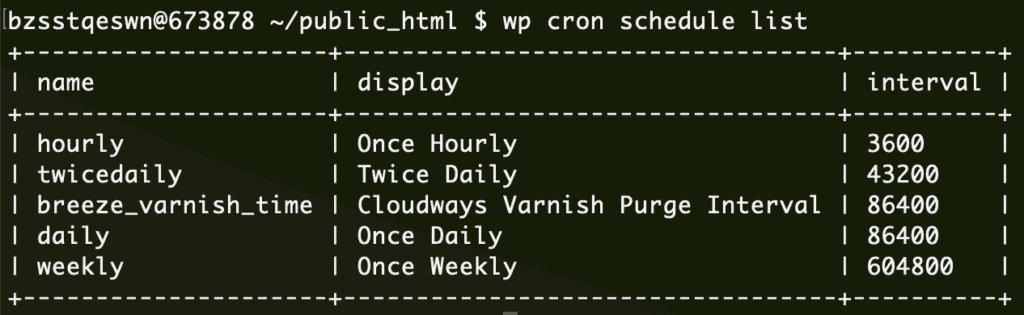
Before you schedule a new cron job, you need to know what timing options your site allows. Schedules might include hourly, daily, or weekly. To see these, type:
wp cron schedule listThis command will show all the available schedules from which you can choose.
To schedule a new cron job, use:
wp cron event schedule <hook>If you want your job to run on a set schedule, add the schedule type after the hook. For example, to schedule a job with the “hourly” setting, type:
wp cron event schedule <hook> hourlyTo run a cron job immediately and then schedule it for future runs, type:
wp cron event schedule <hook> now hourlyYou can also schedule a job for a specific time in the future. For example, to run a job an hour from now, use:
wp cron event schedule <hook> '+1 hour'You can change the value in quotes. Use times like ‘30 May 2025’, ‘+1 week’, or ‘next Monday’ for different needs.
To unschedule a job, the command is simple:
wp cron event unschedule <hook>You can schedule or unschedule many jobs at once by listing their hooks separated by spaces, like this:
wp cron event schedule <hook1> <hook2>

wp cron event unschedule <hook1> <hook2>
Just like the previous commands, the schedule/unschedule commands work for all jobs with name and any numbers at the end. This makes managing lots of similar jobs quick and easy.
WP-CLI cron—Troubleshooting common issues
When using WP-CLI to manage cron jobs, you might run into a few common problems. Here are easy ways to fix them:
- “Error: WP-Cron spawning is disabled.” This means your cron jobs will not run automatically. Open your wp-config.php file and look for this line:
define('DISABLE_WP_CRON', true);If you want to run cron jobs by hand, leave it as it is. If not, remove or comment out the line to turn automatic cron back on. - Scheduled cron events not running as expected. Sometimes, your scheduled tasks might not run. Use this command to run all due events now:
wp cron event run --due-nowAlso, check your plugin or theme code for mistakes in the hooks attached to your cron jobs. Make sure your server allows loopback HTTP requests because WordPress needs these to run cron jobs. - “Error: Could not spawn cron.” Your server might have trouble connecting to itself. This can happen if there is a firewall or the server blocks these requests. Check your server settings and logs for errors. Fix any misconfigurations or ask your hosting support for help.
- Cron events stuck in the past or not clearing. Sometimes a cron job does not finish or stays on the list. Delete these jobs using:
wp cron event delete <hook>Check the function linked to the job for any errors or memory problems. Old plugins or themes might cause this, so ensure you keep everything updated. - Memory or timeout errors when running cron events. Big tasks may use too much memory or take too long. Raise PHP’s memory limit in wp-config.php with:
define('WP_MEMORY_LIMIT', '256M');You can also increase max execution time in your php.ini file. If your tasks are still slow, try making them smaller or breaking them up. - Permissions errors when running WP-CLI cron commands. You may not have the right file permissions to run certain commands. Make sure your user can access and edit the WordPress files and folders. Only use
sudoif it is safe to do so. - WP-CLI cannot find your WordPress installation. If you see “not a WordPress install” errors, make sure you are in the right directory. Go to your WordPress root folder, or use the
--path=/your/wordpress/pathoption with your command.

Final thoughts
WP-CLI makes managing cron jobs on your WordPress site easier and faster. You can check, run, schedule, or even delete cron jobs in just a few steps. When problems come up, WP-CLI gives you helpful commands to fix them quickly.
Before you start making changes, always backup your site. This keeps your site and your users’ data safe. We recommend using BlogVault for your backups. BlogVault gives you real-time backups, stores them off-site, and keeps them encrypted. If something goes wrong, you can restore your site with just one click. It is simply easy and gives you peace of mind.
FAQs
What does WP-Cron do?
WP-Cron is a tool in WordPress that helps your site do things automatically. It runs tasks like sending emails, checking for updates, or publishing scheduled posts. You do not have to do these jobs yourself. WP-Cron takes care of them in the background.
How to run WP-Cron manually?
To run WP-Cron manually, you can use a simple command in WP-CLI. Type wp cron event run --all in your terminal while in your WordPress folder. This will make all the scheduled WP-Cron jobs run right away.
How to enable WP-Cron?
To enable WP-Cron, open your wp-config.php file. Look for the line that says define('DISABLE_WP_CRON', true);. Delete this line or change true to false. Save the file. WP-Cron is now enabled and will run tasks automatically.

Anurag traded algorithms for adverbs when he switched from being a software engineer to being a writer. Editor by day, he chases F1 by night!