You clicked Update, watched the little spinner turn, and waited for an “updated successfully” message that never arrived. Instead, you’re looking at a red error, a page that has displayed “Briefly unavailable for scheduled maintenance” for ten minutes, or a site that loads but looks as though someone quietly stripped out its styling. You may even be searching for “WordPress theme update failed” and wondering what to do next.
If your stomach just dropped, that’s a perfectly normal reaction, and I’d guess you’re tempted to click Update again and hope for the best. Hold off for now, because a failed WordPress theme update looks far scarier than it usually is. Your site isn’t lost, and whatever went wrong is almost always small and specific.
You don’t need to be technical to sort this out. This guide follows the same order I’d use to update a WordPress theme safely, so by the end you’ll understand what the error is really saying, why it happened, and how to get back to a fully updated site without making anything worse.
TL;DR: Save a copy of your site with a reliable WordPress backup plugin before you change any files.. If your site is stuck in maintenance mode, remove only the hidden
.maintenancefile and then check whether the theme actually updated. For other errors, check compatibility, permissions, storage, plugins, and server logs before you retry.
Decode what your site is telling you
The order of the steps below makes more sense once you know what WordPress is doing behind the scenes, and the easiest way to picture it is a house move. Understanding that sequence is what lets you read the error on your screen instead of guessing at it.
Why updates stall halfway
WordPress downloads the new theme, hangs a “closed for maintenance” sign on the door, clears out the old theme’s files, carries the new ones in, and finally takes the sign down. When something interrupts that sequence, you’re left mid-move, with the sign still up, some old furniture gone, and boxes half unpacked. Your whole job is to work out which stage stalled, and your site will usually tell you if you know how to read it.
The four symptoms you’re most likely seeing
Most failed updates show up as one of these, and each one points to a different stage of the move:
- “Briefly unavailable for scheduled maintenance” means the sign is still on the door, because WordPress left its maintenance file behind when the update stopped.
- “Could not move,” “could not remove,” or “could not replace” the old theme means WordPress received the package but tripped while unpacking it or swapping files, which usually points to permissions, ownership, storage, or a server restriction.
- A new theme that’s active but looks broken means the update may have only partly finished, or that the new release clashes with your WordPress or PHP version, a plugin, or custom code.
- “Publishing failed” or “The response is not a valid JSON response” is often a separate editor problem even when the timing feels related. It involves the REST API, the channel the editor uses to talk to your site, and it can come from URL or SSL settings (SSL is the certificate behind HTTPS), permalinks (your pages’ URL structure), authentication (login and permission checks), firewalls (filters that block suspicious traffic), or browser errors.
That last one catches a lot of people, because a broken editor and a failed update can land on the same afternoon without being connected, so let the symptom in front of you lead. Whichever one you’re facing, the next move is the same.
Protect your site before you touch a file
Every repair from here involves touching files, and that always carries some risk, so before you fix anything you’ll want a guaranteed way back to exactly where you are right now. Start by backing up your site, then write down:
- Which theme is active and its current version
- The exact error message, word for word
- Whether your public site and wp-admin (the dashboard you log in to) still load
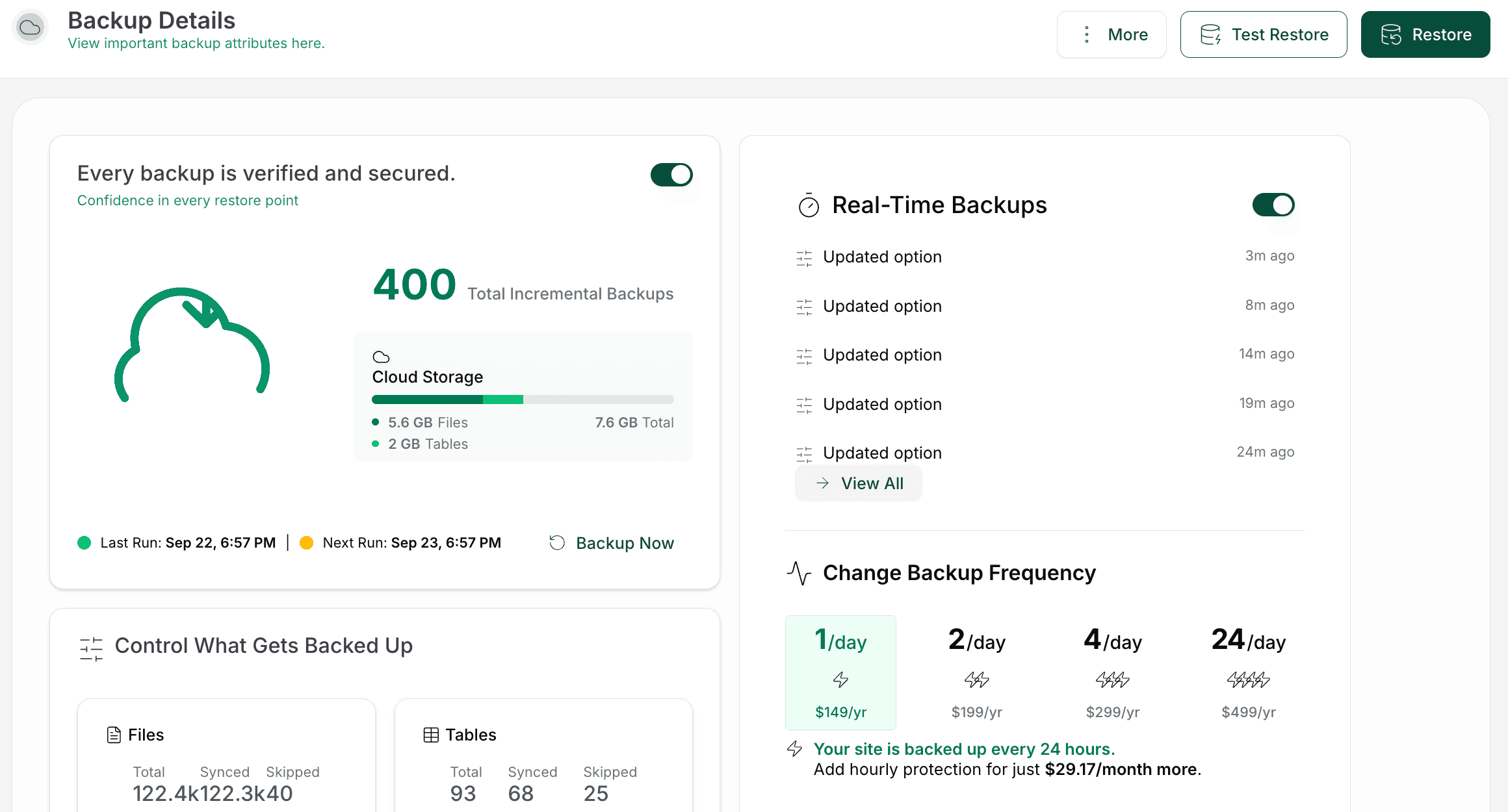
With that recorded, create a fresh backup with your backup plugin and make sure it covers both your database and your files. A backup is only as good as your ability to restore it, so learn how to test your WordPress backup before you actually need it.
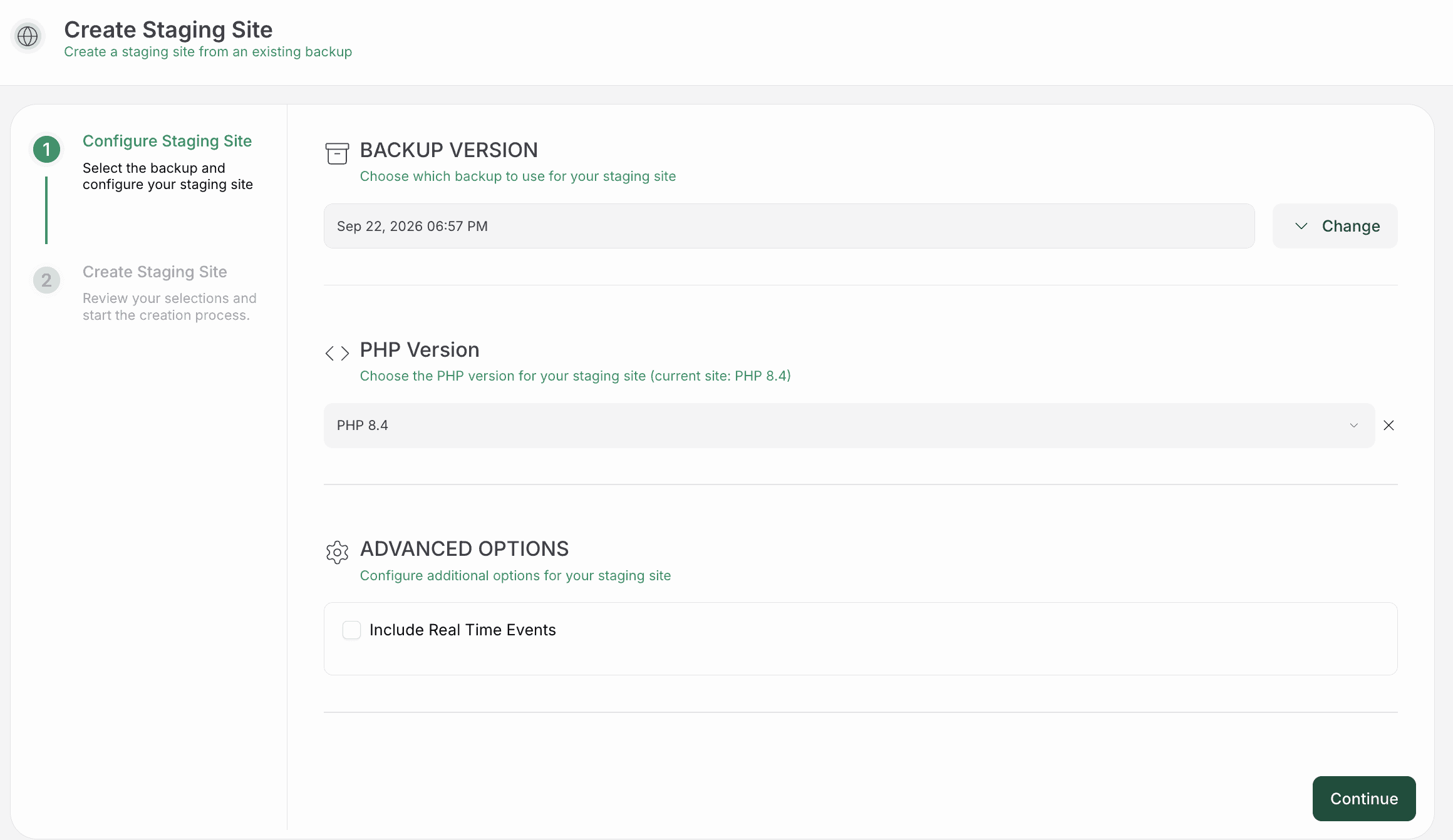
If you can, create a WordPress staging site and try your repairs there instead of on the live site. It gives you a private copy where you can experiment without a single visitor noticing.. And this is the mistake I see most often: if your public site still works and the theme is still on its old version, leave it alone while you investigate, because clicking Update again can stack a second partial replacement on top of the first and make the original problem much harder to diagnose.
Get past the maintenance screen
With a backup in hand, you can take on the most alarming symptom first, which is a site that won’t let anyone in, including you. When an update starts, WordPress drops a small hidden file called .maintenance into your site’s root directory (the main folder that holds your WordPress installation) and deletes it once the update finishes, so if the update dies partway, the file stays behind and the sign stays up.
The fix is to remove that one hidden file and nothing else. Since wp-admin is probably out of reach, you’ll use your host’s file manager or FTP/SFTP, which lets you access your site’s files directly on the server. Files that begin with a dot are hidden by default in most of those tools, so if you can’t see .maintenance, switch on the option to show hidden files before assuming it isn’t there.
Once it’s gone, load your public site, sign in to wp-admin, and check the active theme’s version under Dashboard #.maintenance gives you your access back but doesn’t finish the update. If the version hasn’t changed or files seem to be missing, the real repair is still ahead of you, and that calls for some detective work.
Track down what stopped the update
Now that you can get into your site, the error message you wrote down earlier tells you which stage to suspect, since an update can stall while downloading, extracting, writing, moving, or cleaning up files. The checks below run from the ones you can do yourself to the ones that need your host, so work through them in order.
Check that the theme fits your setup
Start with the theme itself, because an incompatible release can fail or break a site all on its own. Confirm that the new version supports the WordPress and PHP versions you’re running. PHP is the programming language WordPress runs on, and you’ll usually find your version under Tools #
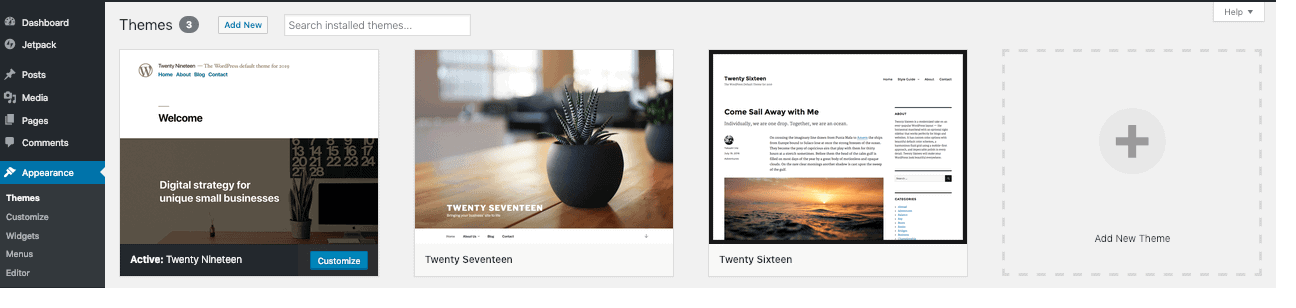
From there, read the theme’s official documentation and review any plugins that touch the editor, page layouts, ecommerce, forms, or theme functionality, since those are the usual suspects. If the vendor has changed how updates work or now requires an account or license check, follow their official instructions.
Confirm where the theme came from
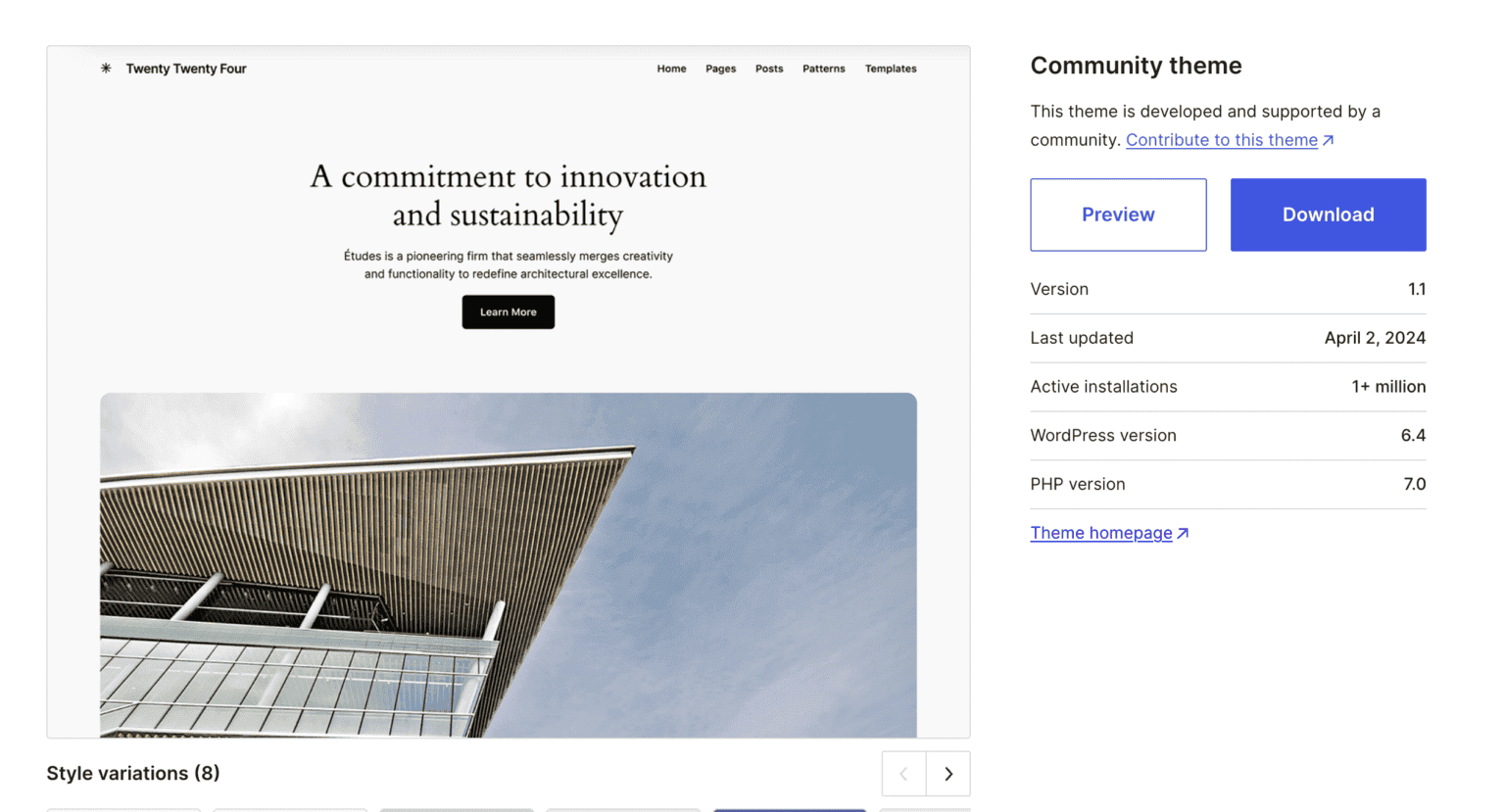
Once compatibility checks out, the next question is how your theme gets its updates in the first place. A theme from WordPress.org normally updates through WordPress itself, while a premium theme may need an authenticated vendor account or a ZIP that you download from the vendor.
If the dashboard keeps failing while downloading or validating the package, grab a fresh ZIP from the official source and follow the correct process to update the WordPress theme from a ZIP file. Make sure it’s the right theme, the right version, unmodified, and not bundled with anything else. A clean ZIP is a workaround rather than a diagnosis, so don’t let it replace the checks that follow. If your theme and its source both look sound, the trouble is more likely on the server, starting with whether there’s enough room to work.
Make sure WordPress has room to work
An update needs space to download the package, unpack it, move the old theme aside, and sometimes hold a temporary copy, so it will die halfway if your server has run out of disk space, account quota (the storage limit on your hosting plan), or inodes. Inodes are the records a filesystem uses to keep track of files, and you can run out of them while still seeing plenty of free disk space, which is why this cause catches so many people off guard. Ask your host to check:
- Disk space and account quotas
- Inode usage
- The PHP temporary directory, the scratch folder PHP uses while handling downloads
- The
wp-content/upgradeandwp-content/themesfolders
It’s tempting to delete unrelated files just to free up room, but find out what’s eating the storage first. If storage turns out to be fine, the next thing to confirm is whether WordPress is actually allowed to change the files it needs.
Confirm WordPress is allowed to change the files
Space alone isn’t enough, because WordPress also has to be able to create, write, move, and remove files. Permissions decide who may read or change a file, and ownership decides which server account the file belongs to, so permissions can look perfectly correct while ownership still stops PHP or the web server from changing a directory (those are the programs that run WordPress and deliver your pages). That mismatch is easy to miss and routine for your host to spot.
Ask your host or a qualified administrator to inspect wp-content/themes, wp-content/upgrade, the temporary backup directory, and the accounts that PHP and the web server run as. You’ll often see 755 for directories and 644 for files, but those are common settings rather than universal rules, and the right ones depend on your host and PHP setup.
Rule out plugin conflicts and server restrictions
If your theme, storage, and permissions all look healthy, something may be interrupting the update from the outside. On staging, deactivate your plugins and retry the update, then switch them back on one at a time until the problem returns, and the last plugin you activated is your conflict. Without staging, take a backup and plan the test for a maintenance window, which is simply a quiet stretch when few people are visiting.
You’ll also want your host to review:
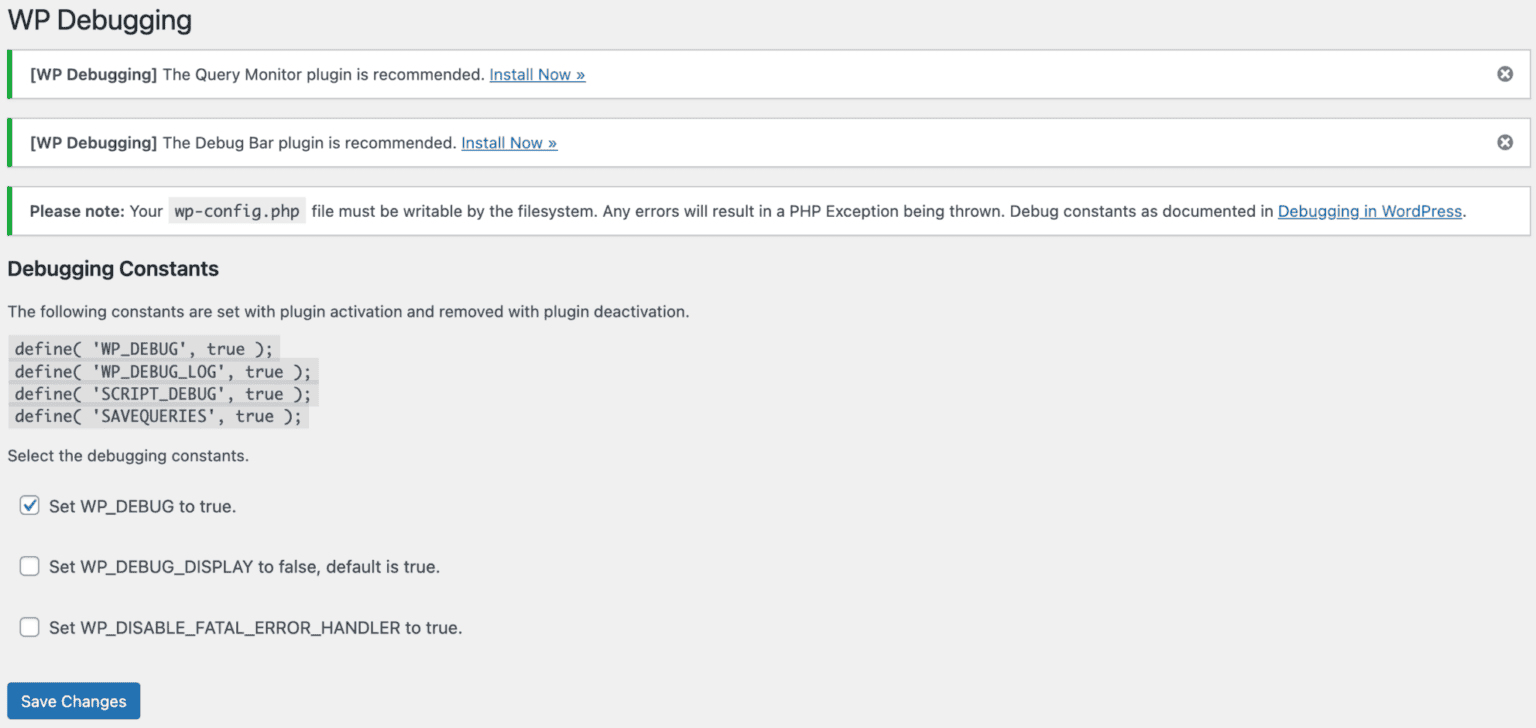
- WordPress, PHP, and web-server error logs, which can reveal the specific error that interrupted the update
- PHP memory and execution limits, meaning how much memory and time a script is allowed
- Blocked outbound requests, where your server is stopped from reaching out to download files
- Firewall rules and hosting security policies
A firewall or hosting restriction can interrupt a download or block a file move while WordPress shows only a vague, generic error, so don’t be surprised if the real answer is buried in a log. And if every check comes back clean but the dashboard still won’t budge, there’s one route left.
Update the theme by hand as a last resort
Uploading the theme yourself can get around a blocked updater, provided you’ve backed up your site and confirmed that the ZIP came from the official repository or vendor. Before you upload anything, find out whether your site uses a child theme, a small companion theme that holds your custom template changes so they stay separate from the main (parent) theme.
It’s a great safety net, but it doesn’t protect everything, and these may still need their own backup:
- Customizer settings, the built-in panel for adjusting how your site looks
- Snippets, small bits of custom code added to your site
- Theme settings
- Direct edits to the parent theme
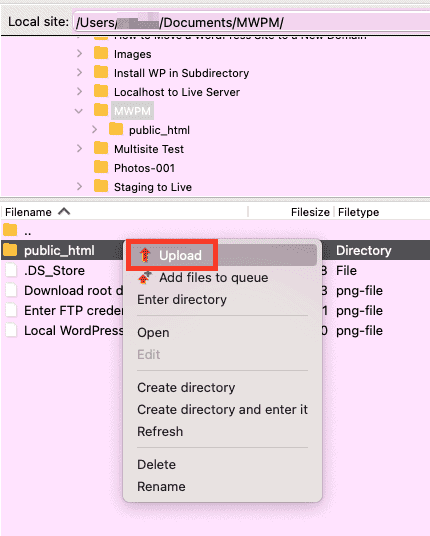
Keep a copy of your current theme before replacing anything, and open the ZIP first to check its folder structure, since some vendor packages wrap the real theme files in an extra folder.
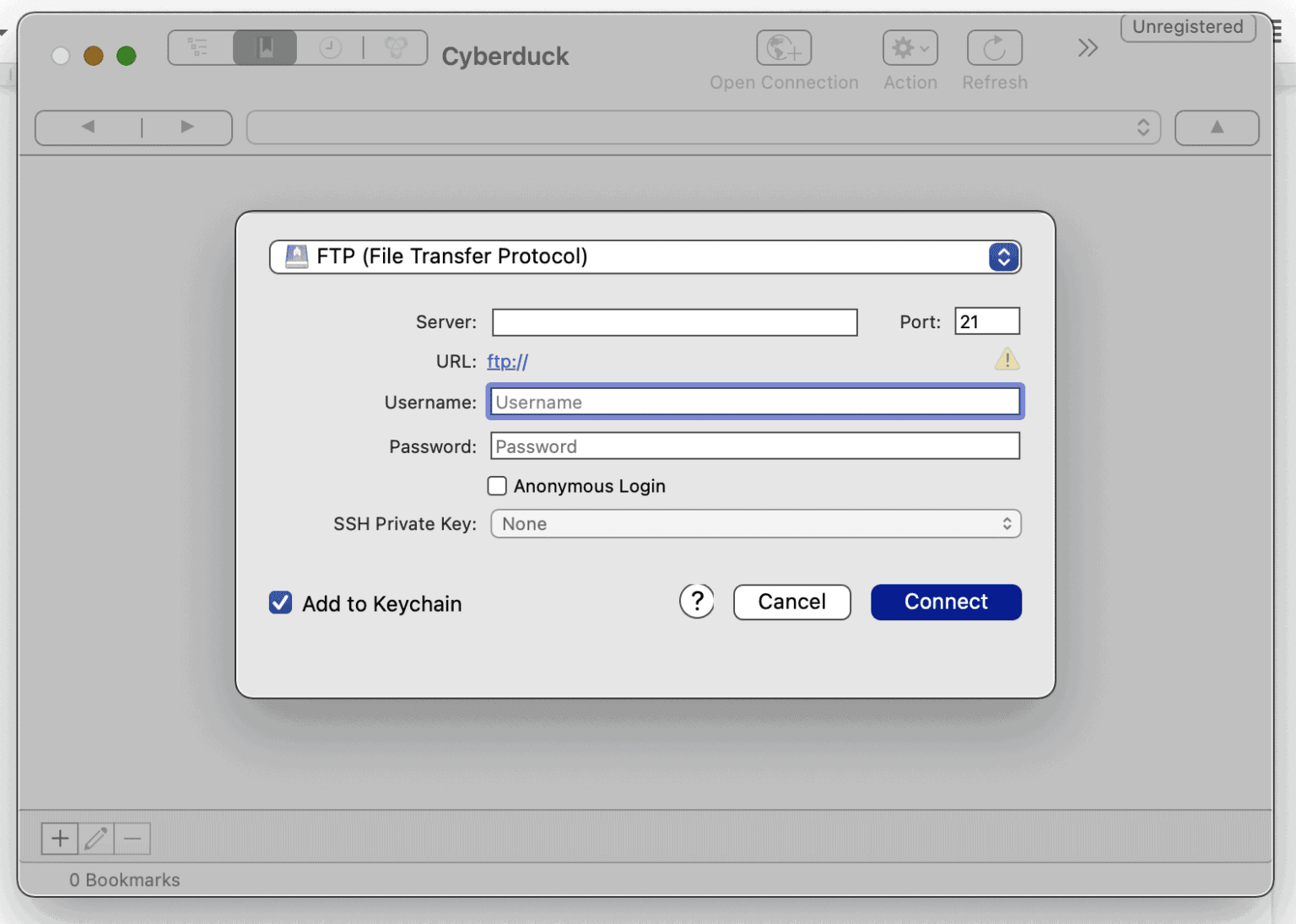
That care pays off because a manual replacement can overwrite your parent-theme edits, remove files that no longer exist in the new release, land in a wrongly named folder, or activate the wrong theme directory. None of that is frightening once you know to look for it, and staging is the best place to find out. If FTP/SFTP, ownership, or deciding which files to replace feels shaky, hand the job to your host or a qualified WordPress developer. With a premium theme, stick to the vendor’s official download and support process, and never use modified packages to get around licensing or account checks.
If the manually updated theme still breaks your site, roll back the WordPress theme update and investigate the compatibility issue on staging before trying the update again.
Confirm the update actually finished
However, the new files got into place, a homepage that loads still isn’t proof you’re done, for the same reason a cleared maintenance screen wasn’t. The update is finished only when both the theme version and the site itself check out, so run through this list:
- Confirm the version matches the release you meant to install and that Dashboard #
Updates stops offering it - Load your homepage and your most important pages
- Test menus, forms, ecommerce features, widgets, and images
- Try logged-in and logged-out views
- Check Site Health for new errors, and your host and PHP logs for new failures
- Make sure your theme settings and Customizer values are still there
- Verify that child-theme behavior and your custom code are unchanged
After that, clear your caches. A cache is a saved copy of your pages kept so they load faster, and it can live in a plugin, at your host, in a CDN (a content delivery network, which serves cached copies of your files from servers around the world), or in your browser.
A stale copy can hide a change that actually worked, though a browser cache alone won’t normally stop WordPress from writing theme files, so don’t blame it for a genuine update error.
Make the next update a non-event
Once everything checks out, the best use of your relief is making sure this never catches you off guard again. The safest setup rests on three things: a current backup, a tested restore process, and a staging site. Set your backup plugin to run regularly and keep copies away from your hosting account, so that a server problem can’t take your safety net down with it. A few habits round it out:
- Test major theme updates on staging before they touch your live site
- Follow a safe WordPress update process to keep WordPress, PHP, themes, and plugins on supported versions.
- Read release notes (the vendor’s summary of what changed) before you click Update
- Put customizations in a child theme instead of editing the parent directly
- Apply security updates through a process that lets you recover if something goes wrong
- Keep a security plugin running
That last habit is the one people skip, so it’s worth explaining why it belongs on your list: a security plugin detects threats and blocks suspicious activity, which a backup can’t do, while a backup gets a broken site back, which a security plugin can’t. You want both.
FAQs
What should I do first when a WordPress theme update fails?
Stop retrying, save any unsaved content, and confirm that you have a current backup, then note the exact error and check whether your site and wp-admin load. The sections on protecting your site and getting past the maintenance screen cover what comes next.
Why can’t WordPress remove or move the old theme?
Most often the PHP process lacks the ownership or permission to change the theme directory, but a full disk, exhausted inodes, an account quota, an unwritable wp-content/upgrade folder, temporary-directory trouble, or a server restriction can produce the identical message.
Can file permissions or disk space stop a theme update?
Yes, and they fail in different ways: running short on space or inodes stops WordPress from unpacking the theme at all, while a permissions or ownership problem stops it from swapping the new files in. Check both before you blame anything else.
How do I update a theme without losing customizations?
Treat your customizations as things that need their own backup, including child-theme files, Customizer and theme settings, snippets, and any direct edits to the parent theme. Back those up along with the site, test on staging if you can, and use a clean official ZIP if you’re updating by hand.
What’s the difference between a failed theme update and “Publishing failed”?
A failed theme update shows up in the updater or leaves your site broken or stuck in maintenance mode, whereas “Publishing failed,” “Updating failed” while saving a post, and “The response is not a valid JSON response” point to the editor and REST API side of things. For those, start with URLs, SSL, permalinks, authentication, firewalls, and browser errors.
Conclusion
If you started this article staring at an error and wondering how bad things were, you now know the shape of the problem: a failed theme update is a move that stalled halfway, not a house that burned down. Every symptom on your screen was pointing at one stalled stage, which is exactly what makes it fixable, however unnerving it looked at first.
With your next calm afternoon, restore your most recent backup onto a staging copy and see whether it comes back whole, since that’s the only real test of your safety net and finding a gap now costs you an hour instead of a crisis. And if any of the file-level steps in this guide made you hesitate, bring in your host early, because a rushed fix costs far more than a quick question.

Shivani enjoys crafting guides that make every aspect of using WordPress simple and easy to follow. When she's not glued to her laptop, you can find her buried in a good book or occasionally, painting.