You’re seeing the following text on the screen: “Update failed. Could not remove the old plugin: error. We get it. It’s confusing. One minute you’re performing regular maintenance tasks like updates and the next, everything has come to a halt. This article will walk you through the solutions.
There are several reasons why WordPress might throw this error your way. It could be due to file permission issues, server restrictions, or even a lingering process that refuses to let go. As WordPress experts, we’ve faced this problem countless times. We’re here to help you navigate WordPress errors like this.
Troubleshooting the “Update failed: could not remove the old plugin” error may require modifications to your WordPress core files. To ensure the safety of your website, it’s crucial to take a comprehensive backup before starting any changes. This way, you can restore your site if something goes wrong.
What causes the “Update failed: could not remove the old plugin” error?
The “update failed: could not remove the old plugin” error in WordPress can be frustrating, but understanding the root causes can help you tackle it effectively. Here are some common reasons why this error might crop up:
- File Permissions: One of the most frequent culprits behind this error is incorrect file or folder permissions. If the permissions are not set correctly, WordPress may find it impossible to delete or update existing files.
- Insufficient Disk Space: Surprisingly, sometimes the error is as simple as running out of disk space. Without adequate space, file operations—including plugin updates—cannot be completed successfully.
- Plugin Conflicts: The myriad of plugins available can sometimes work against you. Conflicts with other plugins or themes can cause failed updates.
- Server Configuration: Certain server setups might be the underlying problem. For example, restricted access due to a specific .htaccess file configuration can prevent updates from proceeding smoothly.
How to fix the “Update failed: could not remove the old plugin” error?
Now that we’ve pinpointed the potential causes of the “update failed: could not remove the old plugin” error, it’s time to shift our focus towards practical solutions. We’ll go over a few different ways to do so, in this section.
1. Error Logs
When grappling with elusive errors like “update failed: could not remove the old plugin,” server WordPress logs can serve as invaluable tools for diagnosis. These logs provide detailed insights into underlying issues, often highlighting specific errors related to file permissions or server settings that are not immediately apparent.

Here’s how you can access and interpret error logs to get to the bottom of the problem:
- Connect to Your Server: Begin by connecting to your server using an FTP client, like FileZilla, or through your hosting provider’s file manager. Ensure you have the necessary FTP credentials or access to the hosting control panel.
- Locate wp-config.php: Once connected, navigErroate to the root directory of your WordPress installation. Here, you’ll find the wp-config.php file, which contains critical configuration settings for your site.
- Edit wp-config.php: Open the wp-config.php file for editing. Look for the line that reads:
define('WP_DEBUG', false);If it isn’t present, you can add it manually.
- Enable Debugging: Change the line to:
define('WP_DEBUG', true); This is to activate the debugging mode, which will log all PHP errors and warnings.
- Save Configuration Changes: Save the changes to wp-config.php and re-upload it to your server if you’re using an FTP client.
- Reproduce the Error: Perform the plugin update again to trigger the error, which will be logged into the debug.log file for detailed analysis.
- Access Debug Logs: Return to the wp-content directory on your server using your FTP or file manager. Open or download the debug.log file to examine entries related to the error. Pay special attention to messages indicating file permissions or server configuration issues.
- Analyze and Act: Based on the insights from the debug log, take corrective action whether adjusting file permissions, fixing server settings, or addressing plugin conflicts.
- Disable Debugging Post-Issue: Once you’ve resolved the issue, remember to set define(‘WP_DEBUG’, false); in your wp-config.php file to turn off debugging and optimize server performance.
2. File and Folder Permissions
One of the key steps in resolving the “update failed: could not remove the old plugin” error is to ensure your WordPress files and folders have the correct permissions. Typically, folder permissions should be set to 755, and file permissions should be 644.
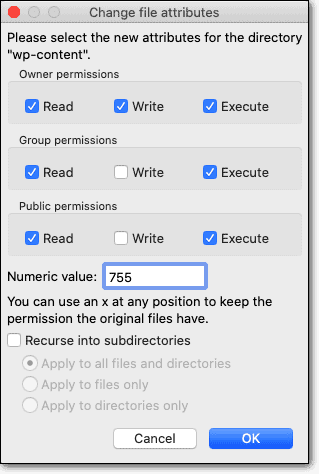
Ensuring that these WordPress file permissions are properly configured allows the web server to manage deletions, updates, and other file operations effectively. Here’s how you can review and modify these permissions using Cyberduck, a reliable FTP client:
- Launch Cyberduck: Open the Cyberduck application on your computer. Make sure you have your FTP credentials ready,
- as you’ll need them to connect to your WordPress hosting server.
- Connect to Your Server: Click on “Open Connection” in Cyberduck. Enter your FTP credentials—Host, Username, Password, and Port (usually 21 for FTP connections). Click “Connect” to access your server files.
- Navigate to Plugins Folder: Once connected, navigate through your WordPress installation to locate the wp-content/plugins directory. This is where all your plugin files are stored.
- Review Folder Permissions: Right-click on the plugins folder and select “Info” to open the Info panel. In the Permissions section, ensure that the folder permission is set to 755. If it’s not, click on the permission setting and enter 755. Don’t forget to apply changes recursively to subfolders if prompted.
- Adjust File Permissions: Within the plugins folder, review individual plugin files. You can do this by right-clicking on a file, selecting “Info,” and checking that file permissions are set to 644. Make adjustments as necessary for each file to avoid any discrepancies.
- Verify Web Server Write Permissions: To ensure that your web server can write to these locations—crucial for updates—verify that your server user is listed as the owner of the folders and files. If you aren’t sure, consult with your hosting provider or refer to their documentation for assistance.
3. Plugin Conflicts
WordPress plugin conflicts are another frequent culprit behind the “update failed: could not remove the old plugin” error. When multiple plugins or themes are trying to perform opposing functions, they can interfere with each other, disrupting the update process. Fortunately, identifying and resolving these conflicts isn’t as daunting as it may seem. Here’s how you can tackle plugin conflicts head-on:
- Access Your WordPress Dashboard: Start by logging into your WordPress admin panel. This will allow you to manage plugins directly through the interface, making it easier to identify potential conflicts.
- Identify Active Plugins: Navigate to the “Plugins” section on your dashboard to see a list of all your installed plugins. Note the ones that are currently active. Conflicts often arise between newly installed or recently updated plugins and existing setups.
- Deactivate All Plugins: The quickest way to pinpoint a conflict is by deactivating all your plugins temporarily. In the “Plugins” section, select all plugins and choose “Deactivate” from the bulk actions dropdown menu. This deactivation helps determine if a specific plugin is causing the issue.
- Reactivate Plugins One by One: After deactivating all plugins, reactivate them one by one, testing the update process after each activation. Navigate to your “Plugins” page, activate a plugin, and check if the “update failed” error persists. Continue this process until you identify the problematic plugin.
- Check for Theme Conflicts: Sometimes, it’s not a plugin but a theme causing the issue. Temporarily switch to a default WordPress theme like Twenty Twenty-One and reattempt the plugin update to see if the theme is the cause.
- Resolve the Conflict: Once you’ve identified the conflicting plugin, consider these options:
- Check if there’s a newer version of the affected plugin that resolves compatibility issues.
- If a plugin consistently conflicts with others, look for alternative plugins that offer similar functionality without causing issues.
- Reach out to the plugin developers for support. They might provide a fix or offer guidance on specific settings to adjust.
4. Review Disk Space
Insufficient disk space is a less obvious but surprisingly common barrier to successful plugin updates in WordPress. When your hosting account runs low on available storage, it can impede the system’s ability to perform file operations such as updates, leading to error messages like “update failed: could not remove the old plugin.”

Luckily, checking and managing your disk space efficiently can alleviate this issue. Here’s how to address disk space constraints:
- Log into Your Hosting Account: Begin by accessing your hosting platform’s control panel. Most hosting providers offer a user-friendly dashboard where you can easily monitor various aspects of your account, including disk space usage.
- Check Disk Space Usage: Look for the section in your hosting control panel that displays disk space usage. This is often labeled as “Disk Usage” or “Resource Usage.” Here, you’ll typically find a breakdown of how much space is being used and how much is still available.
- Evaluate Usage: If your disk space usage is approaching or has exceeded the allotted capacity, it could be why plugin updates are failing. High usage can stem from large volumes of media files, backup archives, or outdated files lingering on your server.
- Free Up Space: To create more room, consider these steps:
- Remove Unnecessary Files: Delete any unnecessary files, backups, or unused themes and plugins stored on your server.
- Optimize Media Library: Consider compressing or removing unused images and media files from your WordPress media library. Plugins like Smush can help with image optimization.
- Utilize Cloud Storage: Move large files or backups to cloud storage solutions, such as Google Drive or Dropbox, to reduce local consumption of server space.
- Upgrade Hosting Plan: If you’re persistently running into disk space limitations, upgrading your hosting plan could be a more sustainable solution. Many hosting providers offer flexible packages with additional storage that can accommodate growing site requirements.
5. Manually Update the Plugin
When automatic updates fail, a manual update of your WordPress plugin can help with errors. . This process involves directly replacing the old plugin files with the latest version using an FTP client or your hosting provider’s file manager. Here’s how to carry out a manual update step by step:
- Download the Latest Plugin Version: Start by visiting the WordPress Plugin Repository, or the plugin’s official website, to download the latest version of the plugin you wish to update. Ensure you save the file on your computer in a location where you can easily find it.
- Extract the Plugin Files: If the plugin comes in a compressed ZIP format, extract the files onto your computer. This will be the folder that you will upload to your WordPress installation.
- Access Your Site: Launch your FTP client and connect to your website using your FTP credentials. Navigate to the wp-content/plugins directory where your existing plugins are stored.
- Backup the Existing Plugin: Before making any changes, it’s a good idea to back up the existing plugin folder. You can do this by downloading it to your local machine or renaming the folder online (e.g., adding “_old” to the folder name).
- Replace Old Plugin Files: Once backed up, delete the current plugin folder from the plugins directory. With the deletion complete, upload the new, extracted plugin folder into the same location using your FTP client or file manager.
- Verify and Activate (If Necessary): After the upload, log into your WordPress dashboard and navigate to the “Plugins” section. Verify that the plugin appears correctly and is activated. If it’s not activated, simply click “Activate.”
- Test the Update: To ensure everything is functioning correctly, run a few tests on your website. Check the plugin’s features and monitor for any abnormalities. This step is crucial to confirm that the manual update achieved the desired results without introducing any new issues.
6. Review Server Configuration
Sometimes the key to resolving the “update failed: could not remove the old plugin” error lies within your server’s configuration. Restrictions imposed by a .htaccess file or server security settings can inadvertently block necessary file operations. Addressing these configurations requires a careful examination of your server setup to ensure nothing is obstructing plugin updates. Here’s how you can tackle potential server configuration issues:
- Log into Your WordPress Dashboard: Begin by accessing your WordPress admin panel. You’ll be using this interface to reset the .htaccess file, so ensure you have administrative privileges.
- Navigate to Permalink Settings: On the left-hand menu, find “Settings” and hover over it to reveal a drop-down menu. Click on “Permalinks” to access the permalink settings page.
- Confirm Current Permalink Structure: Before making any changes, make note of your current permalink structure. This ensures that you can revert to the same structure after resetting the .htaccess file.
- Save Changes to Reset .htaccess: You don’t need to change any settings on this page to reset the .htaccess file. Simply scroll to the bottom and click the Save Changes button. This action prompts WordPress to regenerate the .htaccess file automatically.
- Verify Changes: After saving, WordPress will have rewritten the .htaccess file with default settings tailored for your current permalink structure. This can often resolve issues related to server restrictions and correct any misconfigurations.
- Test Plugin Updates: With the .htaccess file reset, attempt to update your plugins again. This step helps to verify if resetting the .htaccess file resolved the “update failed” error.
How to prevent the “Update failed: Could not remove the old plugin” error?
Preventing errors like “update failed: could not remove the old plugin” is essential for maintaining a smooth-running WordPress site. While troubleshooting and fixing these issues is necessary when they occur, establishing preventive measures can save time and frustration in the long run. Proactively safeguarding your site can enhance its stability, security, and overall performance. In this section, we’ll explore strategies that help avert such errors before they happen, ensuring your plugins update seamlessly every time.
- Set Correct Permissions: Ensure that your file permissions are configured correctly, with directories set to 755 and files to 644. This setup grants WordPress the necessary access to modify and manage files without compromising security. Consistently verifying permissions prevents issues that could block updates and modifications.
- Monitor Disk Space: Regularly check your server’s available disk space to ensure it remains sufficient. Adequate disk space allows your website to perform operations like updates smoothly. By keeping a close watch on storage usage, you can take action to free up space or upgrade, preventing interruption of critical updates.
- Update Regularly: Keeping your WordPress core, themes, and plugins current is essential for avoiding compatibility issues and potential errors. Regular updates ensure you benefit from the latest features and security patches, which strengthens your site against vulnerabilities that might lead to errors during updates.
- Backup Regularly: Implementing a routine backup strategy, covering both files and databases, provides a safety net. Backups allow you to quickly restore your site in case of unexpected errors during updates, minimizing downtime and restoring normal operations without hassle.
- Avoid Plugin Conflicts: Testing any new plugins in a staging environment before integrating them into your live site is a critical step. This preemptive testing helps identify and resolve conflicts without risking your site’s functionality, keeping your live environment stable and error-free.
- Strong Hosting Environment: Choosing a reliable hosting provider with a well-configured server environment is foundational in preventing update errors. A reputable host supports optimal server settings and security measures that facilitate smooth operations and reduce the likelihood of encountering issues.
- Error Monitoring: Enabling error monitoring tools helps detect and address issues proactively. With real-time alerts and logs, you can identify potential problems before they escalate, allowing for swift corrections and maintaining the seamless functioning of your site.
Final Thoughts
Encountering the “update failed: could not remove the old plugin” error can indeed be a frustrating and disruptive experience, particularly when you’re striving to maintain optimal performance and security on your WordPress site. However, it’s important to remember that this issue is entirely fixable with the right approach and understanding.
Addressing this error often requires making changes to core files and configurations. Taking regular backups can save you a lot of heartache if things go wrong. Use robust backup plugins as your safety net.
FAQs
How do I fix plugin update failed in WordPress?
To fix a plugin update failure in WordPress, start by checking for file permission issues by ensuring that directories are set to 755 and files to 644. Next, verify that your server has sufficient disk space available for update operations. Examine server error logs for additional insights into any underlying issues. If permissions and disk space are not the problem, try manually updating the plugin. Download the latest version from the WordPress repository and replace the old plugin files via FTP or your hosting file manager. Also, check for potential conflicts with other plugins or themes by deactivating them temporarily.
Why can’t I delete a plugin in WordPress?
Inability to delete a plugin often ties back to file permission issues or server configurations. First, ensure that your server permissions are set appropriately, typically 755 for directories and 644 for files, so WordPress can manage deletions. Another reason could be a conflict with another process. Make sure no other plugins or themes are currently using the plugin in question. Additionally, check for restrictions in your server settings, like those in your .htaccess file or server security settings, that could be blocking deletion.
How to fix WordPress updating failed publishing failed error?
This issue often occurs due to connectivity problems with WordPress’s REST API or permalinks. Start by resetting your permalinks via the WordPress dashboard—navigate to Settings > Permalinks, and click “Save Changes” without modifying anything. Ensure your site URL and WordPress Address in the Settings > General are configured correctly. Furthermore, check for conflicts with third-party plugins or security measures that might be interfering with the REST API. Inspect console errors via your browser’s developer tools for additional context specific to the failed update or publish actions.
How to fix an automated WordPress update has failed to complete?
When an automated WordPress update fails, begin by deleting the .maintenance file from your site’s root directory. This file causes WordPress to get stuck in maintenance mode. Next, check if there’s sufficient disk space and review error logs for details on what blocked the update. Manually updating WordPress might be necessary if the automated update keeps failing. Download the latest WordPress files from WordPress.org, replace core files via FTP, and ensure your wp-config.php settings are correct. Maintain regular backups to quickly restore your site if required after such manual interventions.

Shreya has been a writer for as long as she can remember. Now, she writes articles that help WordPress users manage the sites that they're proud of, with little to no coding