You’re trying to visit your website, but instead, you come across the ERR_EMPTY_RESPONSE WordPress error. Your site refuses to load, leaving you feeling frustrated.
As the seconds tick by, your anxiety increases. Is this problem affecting all your visitors? Are potential visitors unable to access your site right now? It’s stressful to think you might be losing valuable traffic.
But there’s no need to worry; we’re here to assist you. This guide will provide simple steps to help you identify and resolve the issue. Let’s get your site back up and running smoothly.
The err_empty_response WordPress error occurs when your server doesn’t send data back to your browser, leaving your site inaccessible. Fix this by checking your internet connection, clearing your cache, and troubleshooting carefully to prevent further issues.
Understanding the ERR_EMPTY_RESPONSE WordPress error
Seeing the ERR_EMPTY_RESPONSE error means your browser reached out to your website, but the server didn’t return anything.
Normally, when you visit a site, the server sends over all the necessary elements like text and images to display the page. However, with this error, the server remains silent, giving your browser nothing to show.
This situation can be quite puzzling because it feels like reaching a dead end with no clues. It signals a disruption in the communication between your server and browser, typically due to a network or server issue, rather than a problem with the website itself.
Unlike a timeout error, which indicates the server took too long to respond, the ERR_EMPTY_RESPONSE error signifies no response at all.
The challenging part is that the error doesn’t specify what went wrong. It’s a general alert, similar to the 500 internal server error, which requires further investigation to expose the root cause.
Primary steps to fix the err_empty_response WordPress error
Here are some basic steps to help you resolve the err_empty_response error and get your site back online:
1. Check your internet connection
Start by ensuring your internet connection is stable. A weak or unstable connection can sometimes cause the err_empty_response error. Try accessing your site from another device to determine if the issue is with your network. A reliable connection is vital to resolve this error.
2. Use incognito mode

Open your site in incognito mode. This browsing mode doesn’t save your history or cookies, providing a fresh start. If your site loads in incognito, the problem might be related to cache, extensions, or settings.
3. Clear browser cache and cookies

Clear your cache and cookies. This is to remove outdated or corrupted files that might be causing issues. This step also ensures you’re loading the most recent version of your site.
4. Disable browser extensions

Lastly, disable all your browser extensions. These small add-ons can sometimes interfere and cause errors. Click on the three dots at the top right of your screen, go to Extensions, and then Manage Extensions.

Switch them off. If your site starts working, enable them one by one to identify which extension is causing the problem.

Advanced fixed to solve the ERR_EMPTY_RESPONSE WordPress error
If the basic solutions haven’t resolved the issue, don’t worry—there are more options to try:
1. Reset network settings
Resetting your network settings can sometimes resolve the problem, especially if there are IP or DNS issues involved.
On Windows, open the Command prompt and enter these commands one by one:
netsh int ip reset

ipconfig /release

ipconfig /renew

ipconfig /flushdns
On a Mac, open Terminal and type:
sudo dscacheutil -flushcache; sudo killall -HUP mDNSResponder2. Flush your DNS cache
Clearing your DNS cache can help if outdated IP addresses are causing issues.
On Windows, open the Command prompt and type:
ipconfig /flushdnsOn a Mac, use Terminal and type:
sudo dscacheutil -flushcache; sudo killall -HUP mDNSResponder3. Disable Plugins via FTP
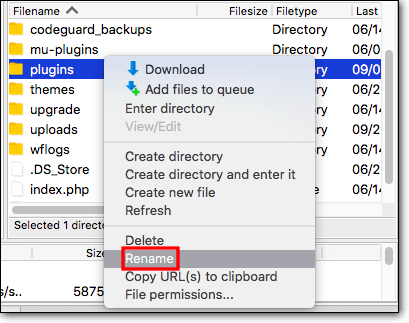
If you suspect plugins are causing the problem, access your WordPress files using FTP. Navigate to the /wp-content/plugins/ folder and rename it to something like plugins_dis.
Check your site to see if it works now. If it does, plugins are likely the cause. Rename each plugin folder individually to deactivate them, and then reactivate them one by one while checking your site to find the problematic plugin.
4. Revert to a default WordPress theme
Your current theme might be causing the issue. Try switching to a basic theme like Twenty Twenty-One using FTP. Access your WordPress files via FTP, go to the /wp-content/themes/ directory, and temporarily rename your current theme folder.

This will cause WordPress to revert to a default theme, which can help you determine if your theme is the problem and fix it.
5. Increase PHP memory limit
If your site needs more memory to run smoothly, increase the memory limit by adding this line to your wp-config.php file:
define('WP_MEMORY_LIMIT', '256M'); This gives your site more room to handle data.
6. Verify database connection
Ensure your database credentials are correct. Check the wp-config.php file for lines such as:
define(‘DB_NAME’, ‘database_name_here’);
define(‘DB_USER’, ‘username_here’);
define(‘DB_PASSWORD’, ‘password_here’);
define(‘DB_HOST’, ‘localhost’);

7. Check firewall and security settings
Make sure your firewall and security software are not blocking important data. Verify that they allow access to your site.
8. Contact your web host provider for assistance
If nothing else works, reach out to your web host provider. They can help with server issues and offer insights to solve the problem.
Best practices to prevent the ERR_EMPTY_RESPONSE WordPress error
To keep your WordPress site running smoothly and avoid that pesky err_empty_response error, here are some simple tips to follow:
Regular updates
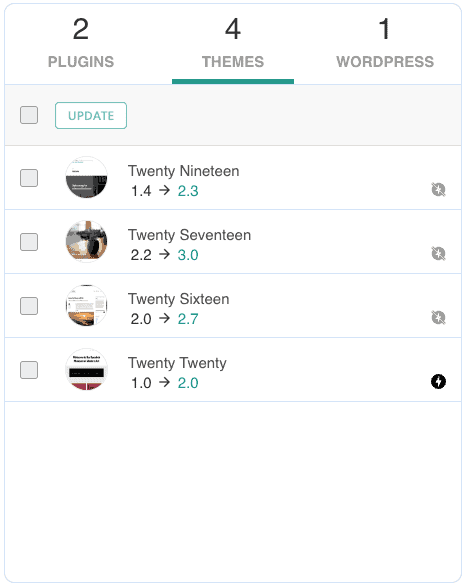
Always update WordPress, your themes, and plugins. Updates come with important fixes and improvements that help your site stay secure and work better.
Reliable hosting
Pick a hosting provider you can trust. Good hosting means your site will have the support and resources it needs to run well.
Regular backups

Back up your site regularly. This way, if something goes wrong, you can quickly restore it without losing any important information.
Database optimization
Clean up your database now and then. This helps your site run faster by getting rid of unnecessary data.
Performance monitoring
Keep an eye on how your site is performing. Use tools to catch any issues early and fix them before they become big problems.
Limit plugins
Only use the plugins you really need. Too many plugins can slow your site down and make errors more likely.
Implement a CDN
Think about using a content delivery network (CDN). A CDN helps get your site’s content to users quickly, no matter where they are, making your site faster and reducing errors.
Security measures
Boost your site’s security. Use strong passwords, keep everything updated, and consider security plugins to guard against threats.
Parting thoughts
Regular maintenance and updates are essential to prevent errors and ensure your WordPress site operates efficiently. Troubleshooting is a natural aspect of website management, and you can always turn to online communities for support.
Keep a log of any changes you make, and view any errors as chances to learn and enhance your site management skills.
FAQs
How to fix the err_empty_response error?
To fix the err_empty_response error, begin by checking your internet connection and clearing your browser’s cache and cookies. You might also try using incognito mode or turning off browser extensions to see if that resolves the issue.
How do I fix corrupted WordPress?
If your WordPress is corrupted, try restoring a backup of your site if available. You can also reinstall core WordPress files by downloading a fresh copy from WordPress.org and replacing the corrupted files via FTP.
Why am I getting a connection refused error?
A connection refused error usually indicates that your server is blocking the connection. This can be due to firewall settings, server overload, or incorrect network settings. Review your server’s firewall and security configurations to ensure everything is set up correctly.
How to fix an ERR connection?
To resolve an ERR connection error, start by restarting your router and device. Clear the DNS cache, verify network settings, and ensure that your antivirus software is not blocking the connection.
How to fix server connection error?
Address a server connection error by checking your internet connection and verifying your server settings. If the issue continues, contact your hosting provider for more help. They can assist in diagnosing and resolving server-related problems.

Shivani enjoys crafting guides that make every aspect of using WordPress simple and easy to follow. When she's not glued to her laptop, you can find her buried in a good book or occasionally, painting.