

As a site admin, you’ve got a lot on your plate. You’re performing maintenance tasks, handling updates, and trying to keep everything running smoothly. The fatal error: call to undefined function WordPress message is the last thing you want to see on your screen.
Dealing with a broken site and frustrated visitors is costing you real traffic and time you don’t have. Every minute your site is down, potential visitors are clicking away. You’re stuck playing tech support instead of focusing on what matters.
Fortunately, you don’t need to spend hours trying to understand code or hire pricey developers. This guide will show you how to fix the error quickly, so you can focus on running your site.
A call to undefined function error in WordPress occurs when the site fails to find a necessary function, often due to plugin or theme issues. Always use a backup plugin to safeguard your site, allowing quick restoration if errors arise while troubleshooting.
Understanding the fatal error: call to undefined function WordPress
When WordPress shows you a call to undefined function error, it means your website is trying to use a specific function that doesn’t exist or can’t be found anywhere in your files.
Functions in WordPress are like instructions that help it perform tasks such as loading your theme or displaying menus. If WordPress can’t find a function it needs, things can stop working.
This often happens when you activate a plugin, update a theme, or change some code, which can lead to missing or incorrectly set up functions.
You’ll know there’s a problem if your homepage turns blank or error messages with file details pop up. Sometimes, the whole site might not load, showing visitors errors instead of your content.
In some cases, you might even get locked out of your WordPress admin dashboard, making it hard to fix the issue using regular tools.
What’s causing this mess
Here are the main reasons this error appears and disrupts your site:

1. Plugin conflicts
New plugins can cause conflicts with your theme or existing plugins. Sometimes updating a plugin removes functions that other parts of your site still need.
2. Theme file problems
Your theme files might contain outdated code that no longer works with current WordPress versions, or important theme files could become corrupted during updates.
3. Missing WordPress core files
Essential WordPress files sometimes get deleted or damaged during updates, removing functions that your site depends on to operate properly.
4. Faulty custom code
Custom code added to your functions.php file or other theme files might contain errors or reference functions that don’t exist, breaking your site’s functionality.
5. Server configuration issues
Your web hosting server might be running an outdated PHP version that doesn’t support certain WordPress functions, or other server settings could prevent functions from loading correctly.
Troubleshooting the error
Fixing the fatal error: call to undefined function WordPress should be easy now that you know what’s going wrong. I’ll walk you through these solutions in order, and don’t worry if the first one doesn’t work – we’ve got several more options.
Reinstall WordPress core files
Your WordPress core files might be missing or corrupted, which means your site can’t find the functions it needs. This happens more than you’d think, especially after updates go wrong.
Download fresh WordPress files: Go to wordpress.org and download the latest WordPress version. Extract the downloaded file on your computer so you can see all the folders inside.

Connect to your website files: Connect to your website via FTP using the login details from your hosting provider. Navigate to your site’s root directory, which is usually called public_html or www.

Upload the new files: Upload all the new WordPress files to your site, but skip the wp-content folder completely. You want to keep your existing themes, plugins, and media files. When your FTP program asks if you want to overwrite other existing files, click Yes to replace any corrupted files.
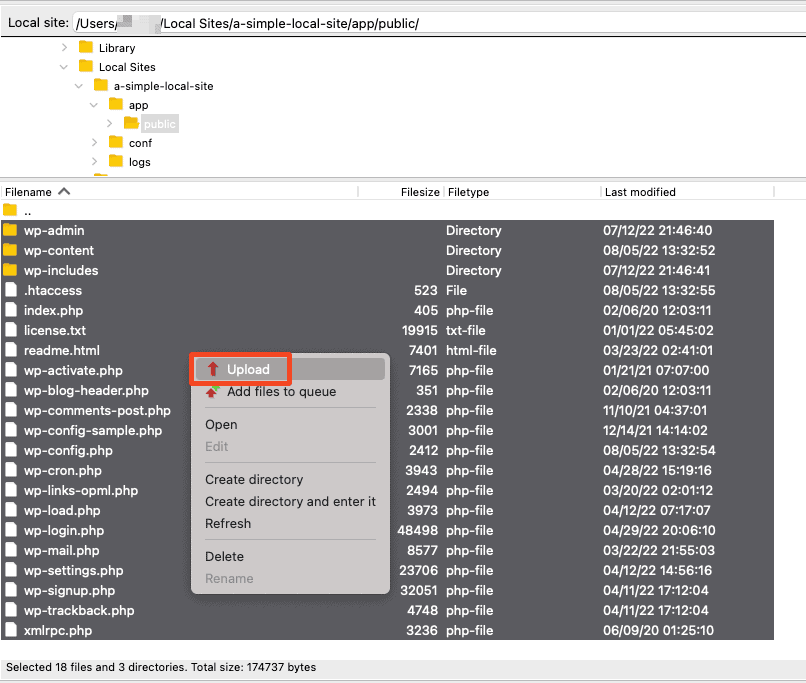
After the upload finishes, visit your website to see if the error is gone.
Check for typos in code
Even tiny mistakes in code can break everything. If you recently added custom code anywhere, that’s probably your problem.
Access your theme files: Connect to your site files via FTP or your hosting control panel’s file manager. Navigate to the wp-content/themes/your-theme-name/ folder.

Review your functions file: Open the functions.php file and look for any code you added recently. Check for missing semicolons, brackets, or misspelled function names.
Correct any errors you find, save the file, and refresh your website to see if the problem is solved.
Disable Plugins
Bad plugins cause most of these errors. The tricky part is that you might not be able to access your dashboard to turn them off normally.
If you can access your dashboard
Go to Plugins and click Deactivate on all plugins. Check if your site works, then reactivate plugins one by one until the error comes back.

If you’re locked out of your dashboard
Rename plugins: Connect to your site via FTP. Navigate to the wp-content/plugins/ folder. Rename each plugin folder by adding .deactivated to the end of each name.

Test and identify the problem: Check your site; if the plugins were the issue, the error should be gone now. Rename folders back to their original names one at a time, testing your site after each change until you find the plugin causing trouble.
Switch to a default theme
Your theme might have broken code that’s causing the issue.
If you can access your dashboard
If you can still log in, go to Appearance and then Themes. Click Activate on a default WordPress theme like Twenty Twenty-Four.
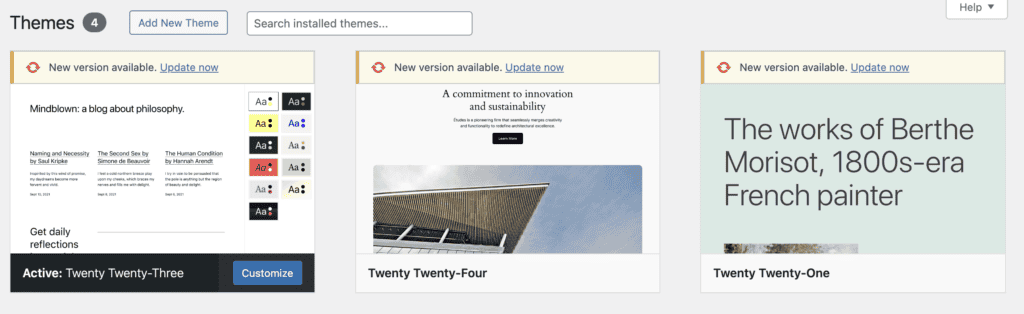
If you’re locked out of your dashboard
Change theme name: Connect via FTP or file manager and navigate to wp-content/themes/. Rename your current theme folder by adding -deactivate to the end, and WordPress will automatically switch to a default theme.
Test the results: Check if your site loads properly with the default theme active.
Update PHP version
Older PHP versions often struggle with newer WordPress functions, leading to errors.
To check your current PHP version, log into your hosting control panel and find options like PHP Version, Software, or Select PHP Version. This will show you the version you’re currently using.

If you need to make updates, changing your PHP version is quite easy. After updating, visit your site and navigate through it to ensure everything functions correctly with the new PHP version.
Best practices to prevent this error from recurring
These simple steps will prevent this error from happening again and keep your site stable.
Keep everything updated: Update WordPress, themes, and plugins monthly. Updates fix bugs and compatibility issues that cause function errors.

Choose quality plugins and themes: Only use plugins and themes from the WordPress repository or trusted developers. Avoid anything that hasn’t been updated in over a year.
Set up automatic backups: Configure regular backups so you can quickly restore your site when problems occur.

Remove unused plugins: Delete plugins you don’t use. Fewer plugins mean fewer potential conflicts.
Test custom code: Always test custom code on a staging site before adding it to your live website.

Update PHP version: Keep your server’s PHP version at 8.0 or higher through your hosting control panel.
Use security monitoring: Install a security plugin to scan for malware and file corruption that can cause function errors.

Wrapping up
You now know how to fix this error and prevent it from happening again. Quick action saves your site from downtime, and understanding the causes helps you jump straight to the right solution.
Regular updates and trusted plugins keep your site stable. These practices become automatic once you start using them, giving you a WordPress site that works reliably instead of constantly breaking down.
FAQs
How do I fix a fatal error in WordPress?
To fix a fatal error, first identify the error source using the error message or logs. Try deactivating plugins or reverting recent theme updates that may be causing the issue. If necessary, restore your site from a backup.
What is “call to undefined function” in WordPress?
A “call to undefined function” error occurs when WordPress can’t find a necessary function, often due to updates or plugin installations. Ensure all plugins and themes are correctly installed and updated to resolve this.
How to access site files?
You can access site files through your hosting control panel’s file manager or via an FTP client. These tools allow you to navigate your site’s directory and make necessary changes.
How do I debug a WordPress error?
To debug a WordPress error, enable debugging by editing the wp-config.php file to display errors. Check error logs and deactivate plugins or themes one by one to find the cause.
What is the memory limit for WordPress?
The default memory limit for WordPress is typically 32 MB, which can be increased to 64 MB or more in the wp-config.php file if needed, helping with performance and error resolution.

Shivani enjoys crafting guides that make every aspect of using WordPress simple and easy to follow. When she's not glued to her laptop, you can find her buried in a good book or occasionally, painting.


