Form plugins for WordPress shouldn’t be a source of chaos. If you’ve ever battled a clunky builder for hours just to create a simple quote form, you know the frustration.
There comes a point when a simple contact form is no longer enough. That’s likely why you’re looking at the Gravity Forms WordPress plugin. So let’s get right to it and see what it is and how it works.
Gravity Forms is a powerful premium plugin worth the investment for complex business needs like payments and integrations. Since it handles such critical business data, it’s essential to use a reliable backup plugin to safeguard your site and the critical data it collects.
Understanding Gravity Forms

Gravity Forms is a premium WordPress plugin. Unlike many others you might see, there’s no free version to test drive, though they do offer a demo. This tells you right away that it’s built for people who have a specific, often complex, problem to solve.
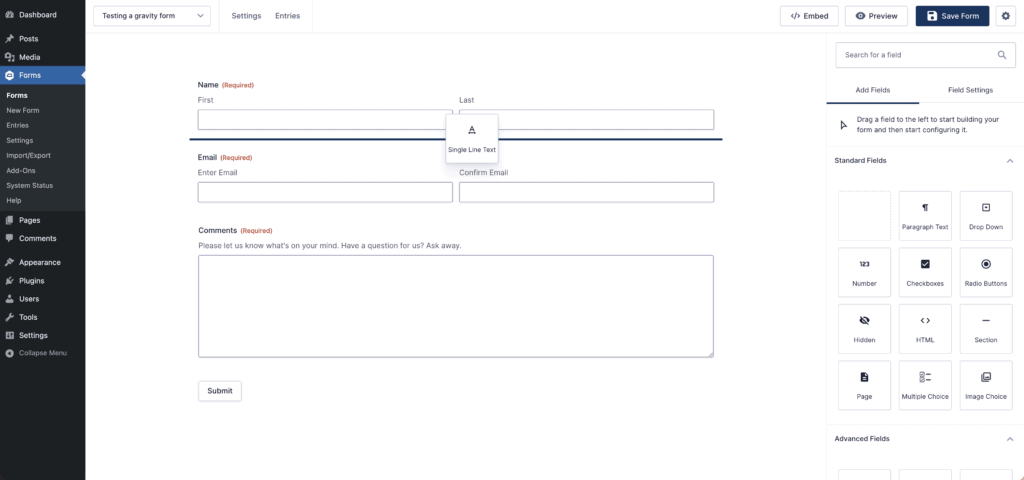
At its core is a drag-and-drop builder. Honestly, this is where it won me over the first time. The visual interface is intuitive; you just pull the fields you need onto your form.
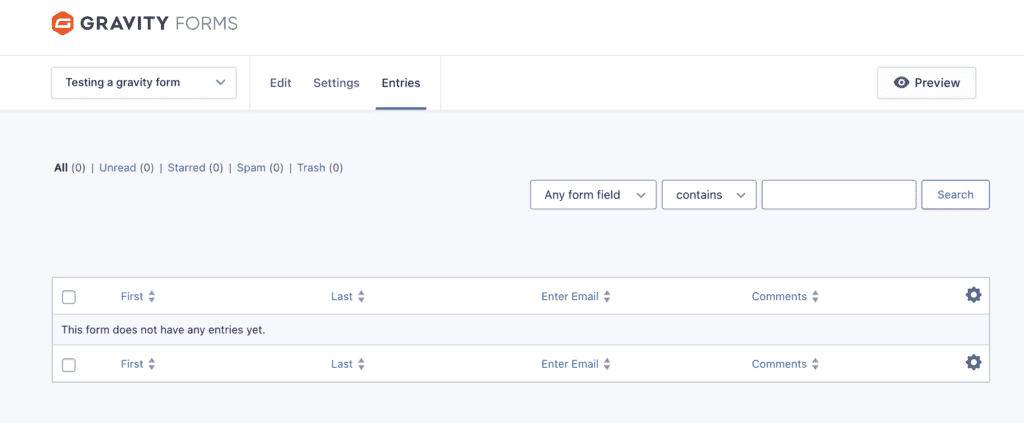
All entries are managed right inside your WordPress dashboard, which means no more digging through your inbox.
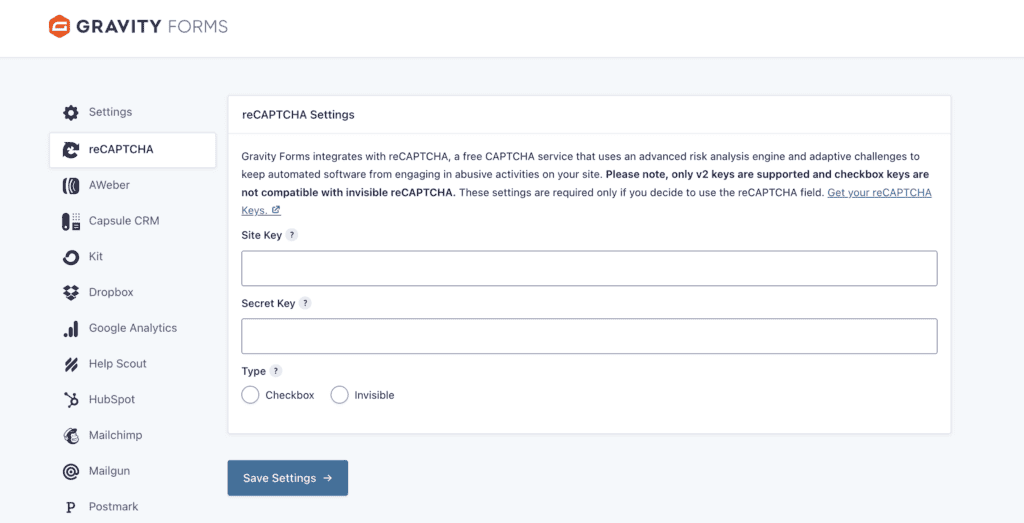
And from my experience, its spam protection (using things like honeypots and reCAPTCHA) actually works, which is a huge relief.
Calling Gravity Forms just a form builder misses the point. Its real power comes from the huge library of add-ons that integrate directly with services you already use.
You can connect a form to Stripe for payments or send entries straight to HubSpot without any hassle. This is what turns a simple form into an automation tool for your business.
Okay, so what’s the catch?
Of course, it’s not perfect. It’s a robust plugin, so it isn’t the most lightweight, and the final cost can climb if you need premium add-ons.
I’ve also found that some themes require a bit of custom CSS to get the look just right. While basic forms are simple, expect a learning curve for mastering its more advanced features.
Core features and capabilities
Let’s break down what you get right out of the box. It all starts with a solid drag-and-drop editor, but the real strength lies in a few key capabilities.
Here are the features that form its reliable foundation:
- Powerful conditional logic: This is the brain of your form. It lets you create a tailored experience by showing or hiding fields based on a user’s answers.
- Centralized entry management: It keeps every submission organized in your WordPress dashboard, so you never lose a lead in a cluttered email inbox again.
- Diverse field types: Go beyond basic text with file uploads, pricing fields, and more to collect the exact data you need for your business.
- Effective spam protection: Built-in tools that actually work, saving you from the headache of sorting through junk submissions.
Add on capabilities
That foundation is solid and reliable. But it’s the add-ons that turn Gravity Forms from a great tool into an essential one.
Here are a few examples of what’s possible:
- Payment gateways (Stripe, PayPal): Turn any form into a checkout page to sell products or services without needing complex e-commerce software.
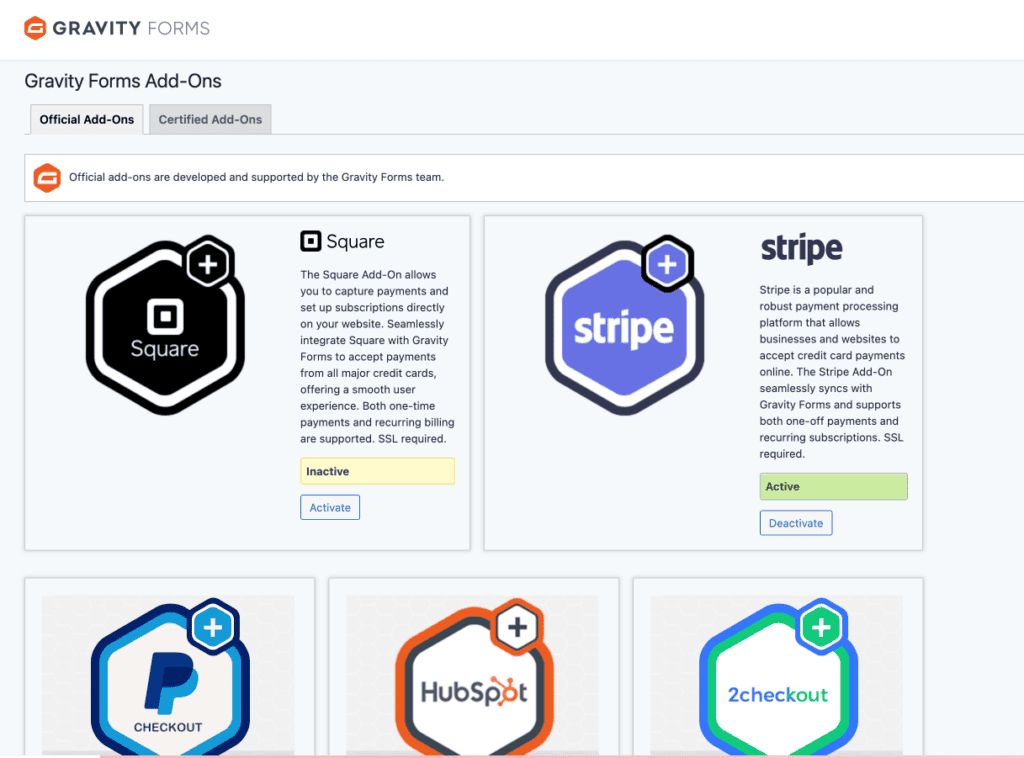
- CRM & email integrations: Automatically send new leads to the tools you already use, like HubSpot, Mailchimp, or ActiveCampaign.
- Partial entries: A smart way to recover lost leads by capturing data from forms that people start but don’t finish.
- Digital signatures: Collect legally binding e-signatures for contracts, applications, or agreements right on your site.
Pricing for Gravity Forms WordPress
So, what’s the investment? Gravity Forms runs on an annual subscription model, and the plan you choose really depends on what you need your forms to do.

The Basic Plan ($59/year): This is for a single site. It’s a great starting point if you just need to connect your forms to email marketing tools like Mailchimp or HubSpot.
The Pro Plan ($159/year): Covering up to three sites, this is the tier I see most small businesses choose. It’s the one that adds the really powerful stuff, like payment gateways for Stripe and automation tools like Zapier.
The Elite Plan ($259/year): This is the everything-included package. Honestly, it’s the best value if you’re an agency or manage multiple sites. It gives you unlimited site usage, every single add-on they make, and priority support.
So, is it worth it?
If you’re still on the fence, you can use their free demo to play around with it. The best part is the 30-day money-back guarantee, which gives you plenty of time to test the plugin in a staging environment before committing.
The price is absolutely justified for business-critical forms like payments or client intake. For a basic contact page, it’s overkill.
The nuances and what to look out for
Gravity Forms is a fantastic tool, but it’s not a magic wand. Having used it quite a lot for testing, I’ve learned a few things you should know before you commit.

Understanding the total cost
The initial license price may not be your final cost. To get many of the most advertised features, you often need the more expensive Elite license. Furthermore, some advanced functions, like displaying entries on your site, require buying separate, third-party add-ons. It’s wise to budget for these potential extra expenses.
Performance, styling, and compatibility
Because it’s so feature-rich, Gravity Forms is not the most lightweight plugin available. While you may not notice a difference on a well-optimized site, it is heavier than simpler alternatives.
I have also found that while it works with most themes, I often need to add a few lines of custom CSS for a perfect design match. Caching plugins are a must-have for site speed, so just be aware that you may need to configure them to exclude your form pages to ensure the dynamic logic works perfectly.
User experience and data security
While building a basic form is fast, mastering the advanced conditional logic and settings involves a learning curve. For very long or complex forms, the builder interface can sometimes feel a bit cramped.
Most importantly, you need to be aware of how it handles data. Gravity Forms does not encrypt entry data within your database. This is standard for most form plugins, but it means you should never use it to collect highly sensitive information like credit card numbers or government IDs.
Is Gravity Forms right for you?
So, after all that, here’s the bottom line. Should you choose Gravity Forms? It really comes down to one simple question: Is your form just a form, or is it a business tool?
You should seriously consider Gravity Forms if:
- Your forms need to connect to other business tools. If you need to take payments through Stripe, send leads directly to your HubSpot CRM, or automate parts of your workflow, it’s one of the best choices out there. A key first step is to harden WordPress security before handling any transactions.
- You’re building something complex. Think multi-page applications, detailed surveys with conditional logic, or forms that perform calculations. This is where Gravity Forms really shines.
- You build websites for clients. For agencies and developers, the reliability and the sheer number of problems it can solve across multiple projects make the Elite license a very solid investment.
- You need users to submit content from the front end. It’s perfect for creating things like user registration forms or allowing people to submit guest posts without ever seeing the WordPress backend.
However, it’s probably not the right fit if:
- You just need a simple “contact us” form. Honestly, it’s overkill. A free plugin will do the job just fine and will be lighter on your site.
- You’re on a very tight budget. The investment is only justified when your forms are directly tied to generating revenue or saving you a significant amount of administrative time.
- Your website isn’t on WordPress. This one’s simple. It’s a WordPress-only tool and won’t work on any other platform.
How to get started with Gravity Forms?
If you choose to go with Gravity Forms, getting started with the process is very straightforward. Here’s a step-by-step breakdown of how to get your first form live.
Step 1: Install and activate the plugin. First, buy your license on the Gravity Forms website and download the plugin zip file. Then, in your WordPress dashboard, go to Plugins > Add New and upload it.

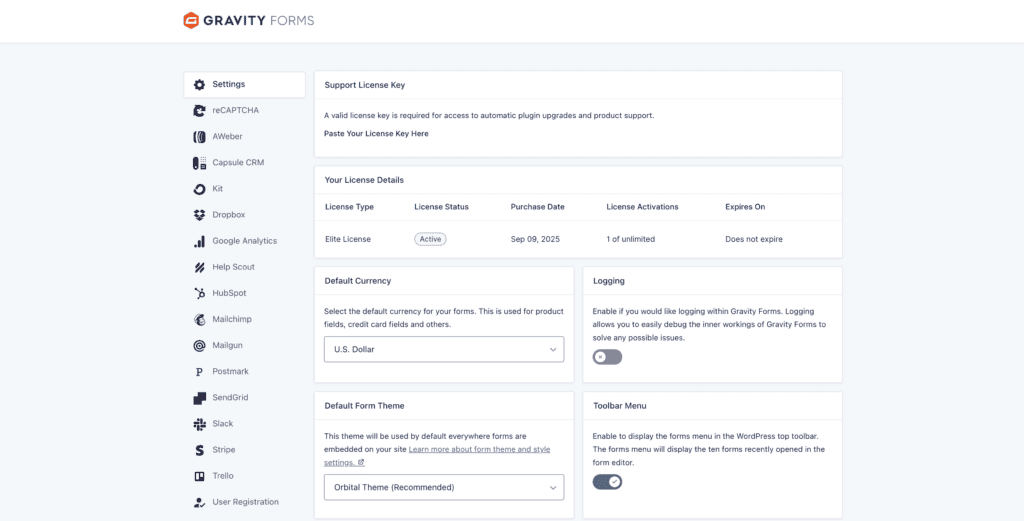
Step 2: Add your license and add-ons. Before you start building, head to Forms > Settings and paste in your license key. This is what enables updates and support, so don’t skip it. Next, go to Forms > Add-ons to install the integrations you’ll need, like Stripe or Mailchimp.
Step 3: Build your first form. Navigate to Forms > New Form to open the builder. You can drag and drop fields from the right-hand panel or use a pre-built template to get a head start.

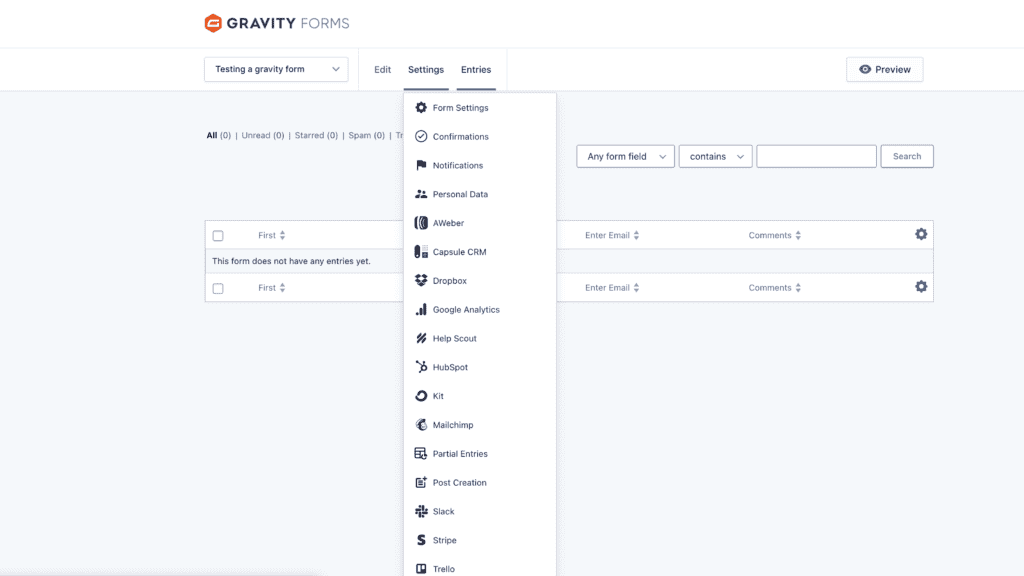
Step 4: Configure the form’s settings. Once your fields are in place, click the Settings tab for that form. This is where you’ll set up crucial things like the email notifications you receive and the confirmation message the user sees after submitting.
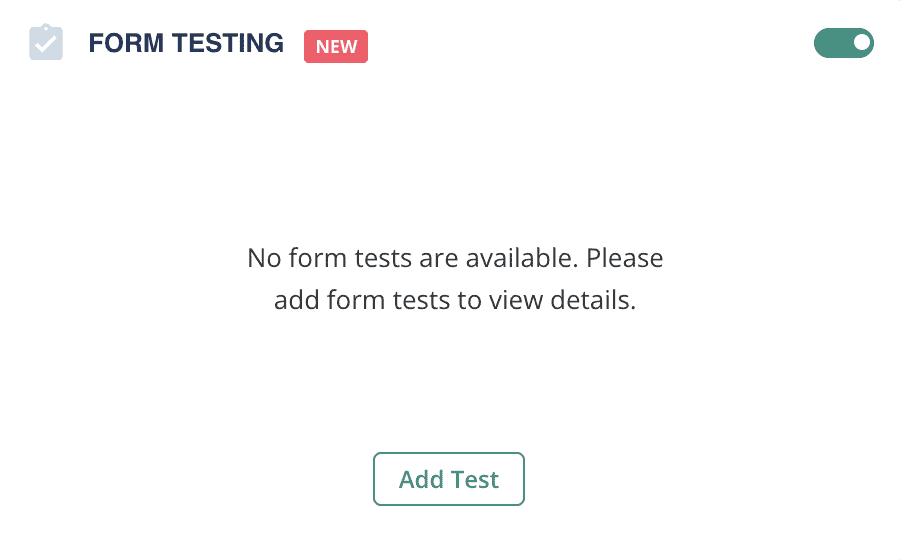
Step 5: Place the form on your site and test it. To make it live, just edit a page or post, add the Gravity Forms block, and select your form.
Gravity Forms WordPress alternatives
While Gravity Forms is a fantastic tool, it’s not the only player in the game. It’s worth knowing what else is out there, as different tools are built for different needs.
Here are a few of the top contenders:
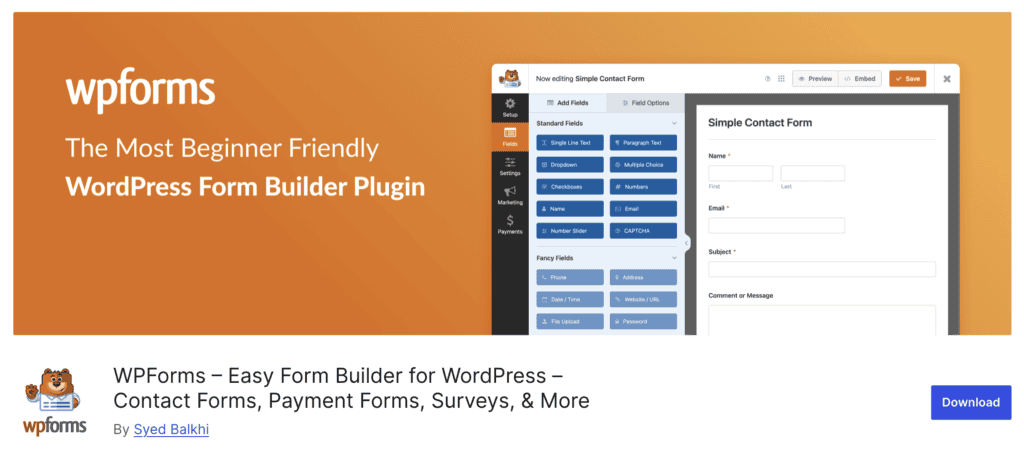
- WPForms: If you’re looking for the most beginner-friendly experience, this is probably it. Its huge library of pre-built templates makes getting started incredibly fast.

- Formidable Forms: This one is a powerhouse for data-heavy projects. I think of it less as a form builder and more as an application builder, perfect for things like directories and listings.

- Fluent Forms: In my experience, this is one of the fastest and easiest-to-use options on the market. Its interface feels very modern and quick.
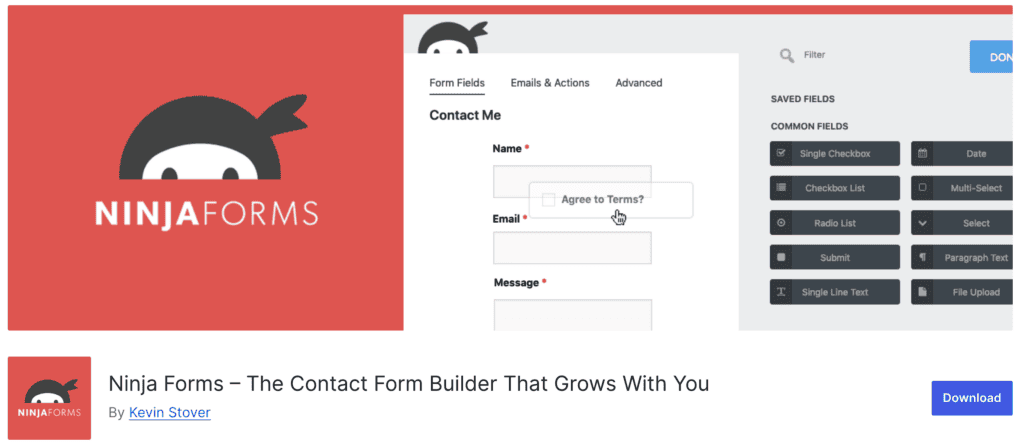
- Ninja Forms: This plugin takes a modular approach. You can start with a solid free version and then buy only the specific add-ons you need, which can sometimes be more cost-effective.

- Contact Form 7: The old classic. It’s free, it’s lightweight, and it’s perfect for a simple contact form. But you’ll need to be comfortable with code for anything more advanced.
Parting thoughts
Gravity Forms is a reliable, developer-friendly powerhouse for when a form needs to be a business-critical tool.
Its true value is the add-on ecosystem. The fact that you can find great free Gravity Forms add-ons to supplement the official ones is what makes the investment pay off for complex projects. For a simple contact page, however, you’re better off with a simpler solution.
FAQs
Is Gravity Forms free on WordPress?
No, Gravity Forms is not free; it is a premium-only plugin. You must purchase an annual license to use it, as there is no free version available.
How do I add a gravity form in WordPress?
You can add a Gravity Form to any page or post using the dedicated Gravity Forms block in the WordPress editor. Simply add the block and then select the form you wish to display from a dropdown menu.
Which form plugin is best for WordPress?
The best form plugin really depends on your needs and budget. Gravity Forms is a top choice for complex, business-critical tasks, while simpler tools are better for basic contact pages.
Does gravity form only work with WordPress?
Yes, Gravity Forms is a native WordPress plugin and only works on self-hosted WordPress websites. It cannot be used on other platforms like Shopify, Squarespace, or a non-WordPress site.
What is the difference between Gravity Forms and Elementor?
Gravity Forms is a specialized form-building plugin, whereas Elementor is a complete website page builder. While Elementor has a basic form widget, Gravity Forms offers far more advanced features for data collection and integration.
How much do Gravity Forms cost?
Gravity Forms operates on an annual subscription model, with its Basic license starting at $59 per year. The more expensive Pro and Elite plans offer additional features, integrations, and support for more sites.

Shivani enjoys crafting guides that make every aspect of using WordPress simple and easy to follow. When she's not glued to her laptop, you can find her buried in a good book or occasionally, painting.