
If you’re planning to set up a WordPress site to open an online store, you’ve definitely heard of WooCommerce. But what does that actually mean in practice?
Maybe you’re looking for a low-cost alternative or just keep seeing the name pop up. Whatever the reason, your decision starts with a simple question: how does woocommerce work?
It isn’t a separate, complicated service. It’s a free plugin that adds a complete storefront to your familiar dashboard. Let’s walk through how it works so you can decide if it’s the right choice.
WooCommerce is a free WordPress plugin that gives you full control to build and own your online store, right from products to payments. This control means you manage everything, so using a reliable backup plugin is essential to avoid any potential mishaps.
How the setup works
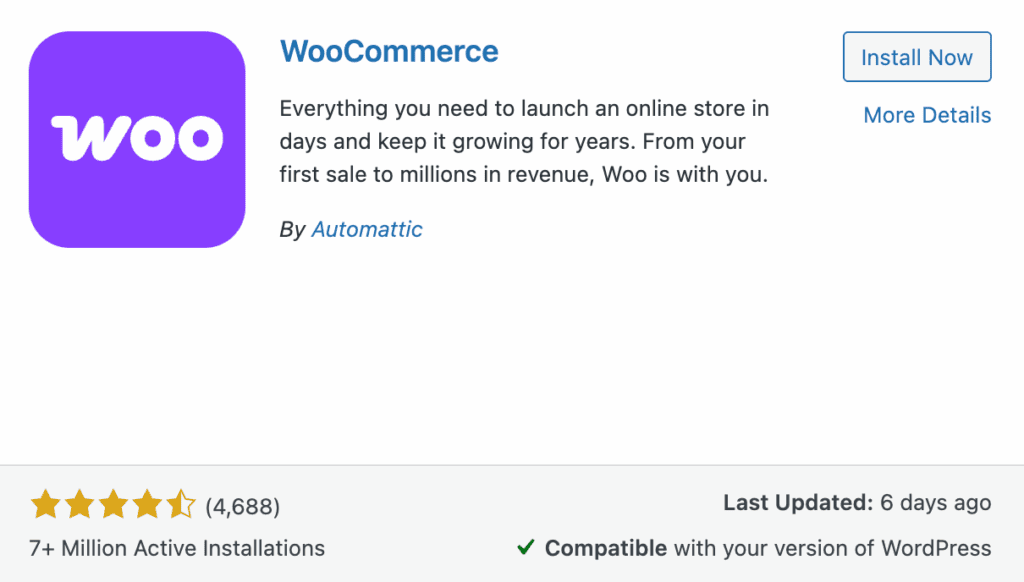
First, you install the plugin. This is a simple process: navigate to your Plugins menu, click Add New, search for the official WooCommerce plugin, and then install and activate it.
Next, you’ll use the guided wizard to setup your woocommerce store. An automatic wizard will launch, and it’s important to follow it. This is the fastest way to configure your country, currency, and basic payments, and it can also install helpful free tools for you.

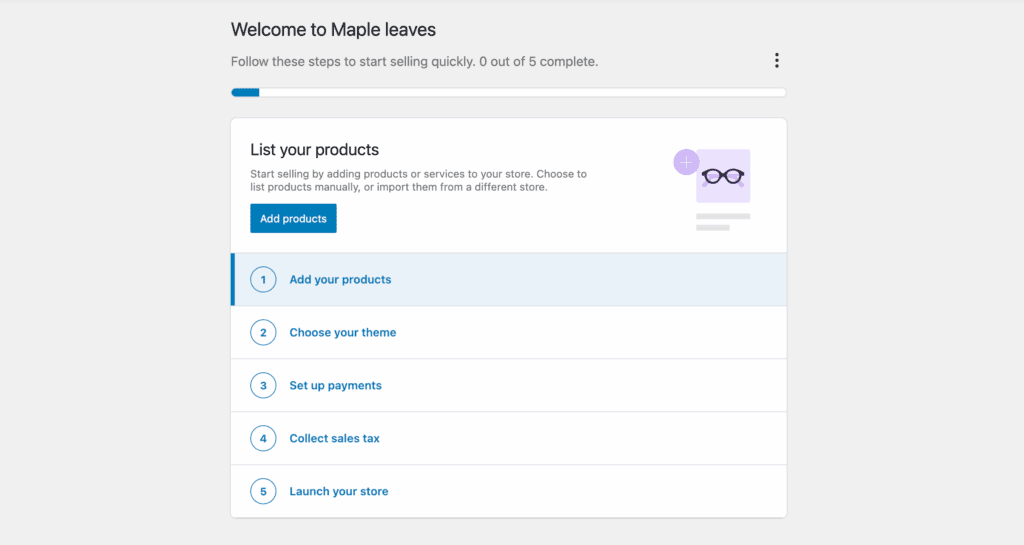
Finally, you follow the launch checklist. After the wizard, your main tasks are to add products, choose a design, set up taxes and shipping, and then launch your store.
Do you need a developer?
No, you do not need a developer to start. The setup wizard and dashboard are designed for beginners, so you can easily add products, manage orders, and handle daily operations yourself.
A developer comes handy for advanced needs, like major custom design changes or unique features a standard plugin can’t provide. For most new features, you can use the huge library of plugins.
How do you add your products?
The setup wizard will likely guide you through adding your first product to show you the ropes. For all your other products, the process is just as simple.
A new Products menu appears in your WordPress dashboard. This is your inventory headquarters, and adding more items feels very similar to writing a blog post. You just click Add New Product and fill out the fields:
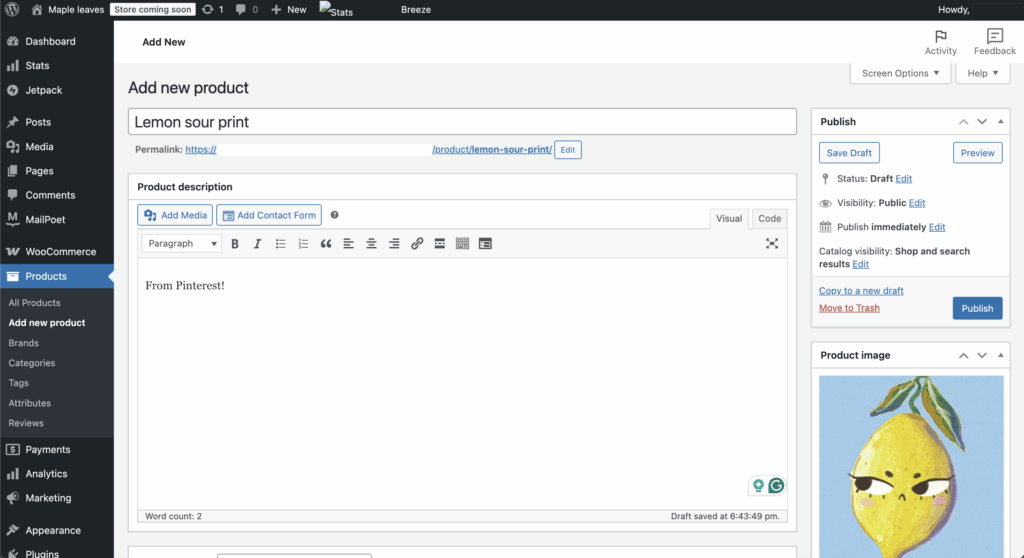
- Give it a title and a detailed description.
- Set the price in the designated box.
- Upload your product photos.
- Set the inventory quantity to track stock.
- Assign it to a category, like Shirts or Courses.
Finally, you click the Publish button to add the new item to your online store.
How do you get paid?
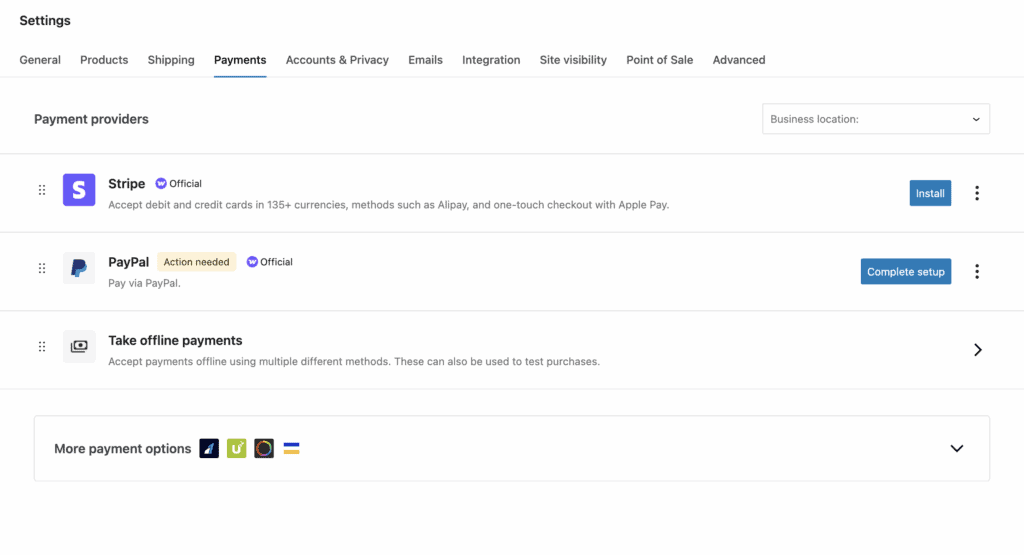
WooCommerce uses secure services called payment gateways to handle all transactions. The most common are Stripe and PayPal, which you connect during setup.
Here’s how the process works in three simple steps:
- Customer pays: Your customer enters their card details at your checkout.
- Gateway processes: That information goes directly to the secure gateway (Stripe, PayPal, etc.) to process the payment.
- You get paid: The gateway deposits the funds into your business bank account.
The most important part of this process is security. Because the payment is handled by the gateway, your store never directly handles or stores credit card numbers. This is a critical feature that greatly reduces your liability.
How does WooCommerce work when you get an order?
The system automates most of the workflow for you. Here’s what happens step-by-step:
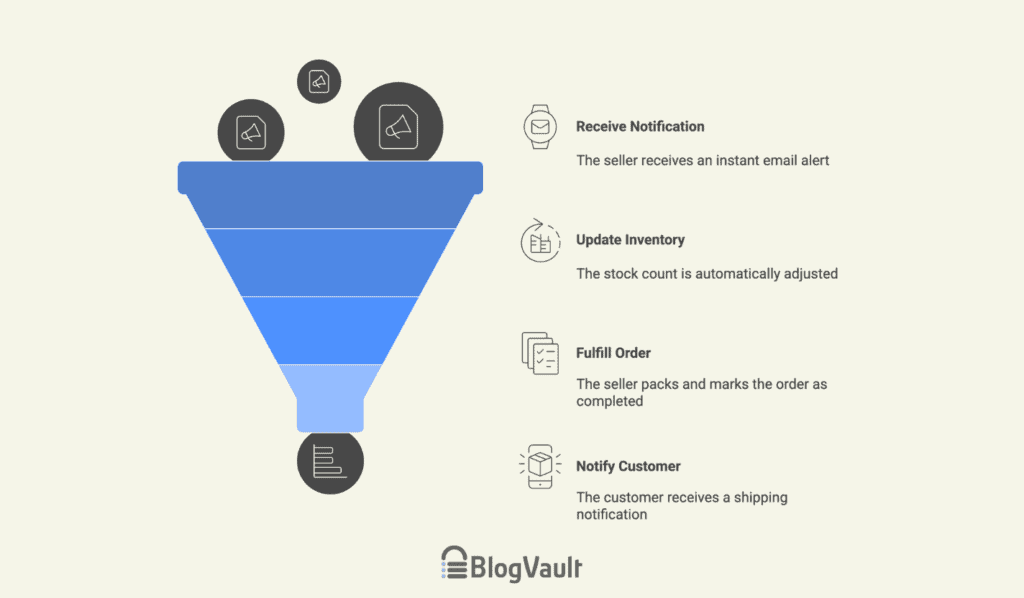
- You get an alert: The moment a sale is made, you receive an instant email notification. The new order also appears on the Orders screen in your dashboard with all the customer details.
- Inventory updates automatically: The stock count for that product drops automatically. This is a crucial feature that prevents you from overselling an item.
- You fulfill the order: You pack the item and then click the Completed button for that order in your dashboard.
- The customer is notified: The system automatically emails the customer that their order has shipped, including a tracking number if you add one. You can then view your Analytics reports to track your sales.
Can it do more than sell physical products?
Yes. Beyond shipping boxes, WooCommerce is a very versatile platform. Its strength is how the powerful, free core can be expanded with paid extensions, making it a long-term solution.
However, performing regular plugin updates is essential to keep this entire ecosystem secure and working correctly.
Built-in features include:
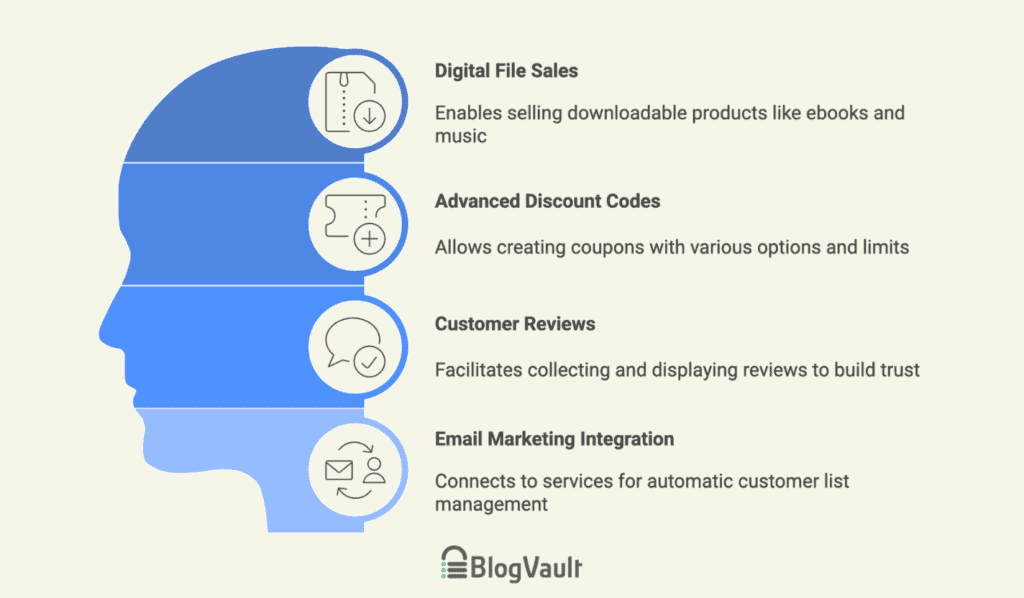
- Selling digital files: You can sell downloadable products like ebooks, music, or software. The system automatically sends customers a secure, time-limited download link after their payment clears, so you don’t have to manage it manually.
- Creating advanced discount codes: You can create coupons for a percentage off, a fixed dollar amount, or even free shipping. You can also set usage limits or expiration dates to run specific promotions.
- Collecting and displaying customer reviews: This is a built-in feature that allows customers to leave reviews on your product pages, which is essential for building trust and social proof.
- Connecting to email marketing tools: You can easily connect to services like Mailchimp or MailPoet to automatically add customers to your mailing lists for future marketing campaigns.
With paid extensions, you can also:
This is where the platform’s flexibility really shines. By purchasing official add-ons, you can transform your store to:
- Sell subscription plans for recurring payments on products or services.
- Create booking forms for appointments, classes, or rentals, complete with a calendar.
- Offer membership plans to give customers access to exclusive content or special pricing.
Key benefits and features
Understanding what makes WooCommerce a popular choice helps you see if it fits your goals.
| Benefit | Why It Matters To You |
| Complete Ownership | You own 100% of your store and customer data. |
| Design Flexibility | Works with most themes; use “WooCommerce-ready” for best results. |
| Scalability | Start with one product and grow to ten thousand. |
| SEO Advantage | Built-in WordPress tools help your products rank on Google. |
| Plugin Ecosystem | Thousands of add-ons exist for every niche feature imaginable. |
| Cost Management | You decide which paid services or features to use. |
| Global Community | Massive active support networks provide free help and advice. |
| Proven Reliability | Trusted and used by millions of stores worldwide in 2025. |
WooCommerce pricing
The WooCommerce plugin itself is 100% free to download and use. However, running a store always involves costs.
- You must already pay for WordPress hosting and a domain name. For a store, it’s wise to invest in a strong hosting plan that can handle customer traffic and secure transactions without slowing down.
- Payment gateways charge a small fee per transaction, which is a standard business cost.
- Premium extensions for special features like subscriptions have one-time or annual costs.
- You may also choose to buy a premium theme for a more polished design.
- Ongoing maintenance should also be factored in. This cost is either your own time spent on updates, backups, and security, or a fee for a professional service to handle it for you.
The total cost is often lower than monthly subscription platforms. You control the budget, but you are also responsible for managing all the separate costs.
Parting thoughts
Now that you understand how WooCommerce works, its core trade-off is clear: it gives you full control. This control means you’re responsible for handling updates and security yourself.
While platforms like Shopify are simpler, you don’t own them and have less flexibility. With WooCommerce, the initial learning curve pays off with long-term freedom, and trying it on a test site is the best way to decide if it’s the right path for you.
FAQs
Is WooCommerce free or paid?
The WooCommerce plugin itself is completely free to download and use. Your costs will come from essential services like web hosting, a domain name, and payment processing fees.
Is it better to use Shopify or WooCommerce?
Neither is universally better, as the best choice depends on your needs. Shopify offers simplicity for a monthly fee, while WooCommerce provides more control and ownership but requires more hands-on management.
Is WooCommerce good for beginners?
Yes, WooCommerce is good for beginners who are comfortable with the WordPress environment. The setup wizard and intuitive product management make it straightforward to launch a basic store without code.
Does WooCommerce charge a fee?
No, WooCommerce itself does not charge any transaction fees on your sales. The fees you pay are from your chosen payment gateway, like Stripe or PayPal, for processing the payments.
Can WooCommerce handle 50,000 products?
Yes, WooCommerce can absolutely handle 50,000 products and more. The real performance limit is not the plugin, but the power of your web hosting server.
How many products can I list on WooCommerce?
There is no built-in limit to the number of products you can list on WooCommerce. Your store’s ability to handle a large inventory is determined by the quality of your web hosting plan.

Shivani enjoys crafting guides that make every aspect of using WordPress simple and easy to follow. When she's not glued to her laptop, you can find her buried in a good book or occasionally, painting.