
Your checkout page is where a good shopping session either becomes an order or quietly disappears. A customer can like the product, trust the price, reach the final step, and still leave because the form asks the wrong question, hides shipping too late, breaks a wallet button, or feels heavier than the purchase deserves.
That is why choosing a WooCommerce checkout plugin needs more care than choosing a badge, slider, or wishlist plugin.
The best option is rarely the plugin with the longest feature list. It is the one that fixes your exact checkout problem without making payments, shipping, taxes, coupons, or order data harder to trust.
If you only need to edit checkout fields, start with ThemeHigh Checkout Field Editor or Flexible Checkout Fields. If you want to redesign the buying flow, look at CheckoutWC for a polished checkout or CartFlows for funnels, order bumps, and upsells. Test either path on a WordPress staging site before production.
Before you change a live checkout, test on staging and keep real-time WooCommerce backups current. Checkout plugins sit next to payments, customer data, shipping rules, taxes, coupons, and revenue, so small changes can have expensive side effects.
Best WooCommerce Checkout Plugins At A Glance
| If you need… | Start with… |
|---|---|
| A full checkout replacement | CheckoutWC |
| Checkout funnels, order bumps, and upsells | CartFlows |
| Free checkout field editing | ThemeHigh Checkout Field Editor |
| Simple field editing with upgrade room | Flexible Checkout Fields |
| Fewer steps between product and payment | Direct Checkout or WooCommerce One Page Checkout |
| Faster repeat purchases | YITH WooCommerce One-Click Checkout |
That is the shortlist. The full list below adds more specialized options, but the decision usually starts here: fields, flow, design, funnels, or repeat purchases.
Choose the smallest tool that solves the real problem.
Pick By Checkout Problem
Start here if you are not sure what kind of plugin you need.
| Your checkout problem | Plugin type to choose | Best starting picks |
|---|---|---|
| You need VAT, company, delivery, booking, file, or fulfillment fields | Checkout field editor | ThemeHigh, Flexible Checkout Fields, Acowebs |
| The checkout feels dated or heavy on mobile | Checkout replacement or layout plugin | CheckoutWC |
| You want order bumps, upsells, campaigns, or testing | Funnel builder | CartFlows |
| The cart page adds an unnecessary stop | Direct checkout or fast cart | Direct Checkout, WooCommerce Fast Cart |
| You want product choice and checkout on one page | One-page checkout | WooCommerce One Page Checkout, CartFlows |
| Repeat customers buy often | One-click repeat purchase | YITH One-Click Checkout |
The common mistake is asking, “Which plugin has the most features?” A better question is, “Which part of checkout is costing us orders or time?”
If taxes, shipping, products, or account settings are still unfinished, complete the basic WooCommerce setup before adding a checkout plugin. More fields can help your team fulfill orders. They can also slow shoppers down. Add a field only when it helps fulfillment, compliance, delivery, support, payment review, or order accuracy.
1. CheckoutWC
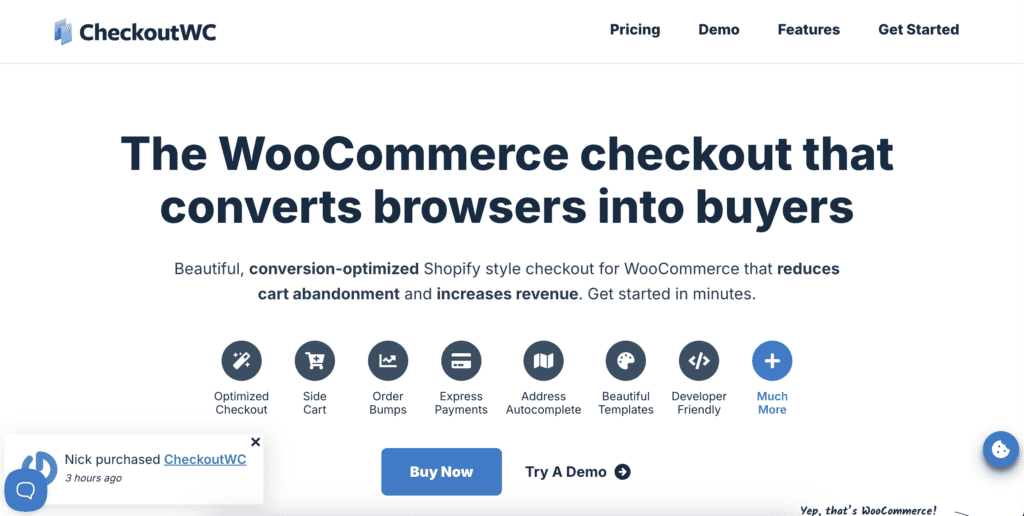
CheckoutWC is for stores that want a cleaner WooCommerce checkout across desktop and mobile. It replaces the default checkout with polished layouts and adds features such as a side cart, express payments, order bumps, trust badges, order review, abandoned-cart tools, subscriptions support, and post-purchase offers.
Check before installing: Test your payment gateway, shipping methods, taxes, coupons, subscriptions, and theme on a staging copy. A full checkout replacement touches many parts of the order path.
Pricing note: CheckoutWC is a premium plugin. Its official pricing page lists annual plans and agency options, so check the current plan before buying.
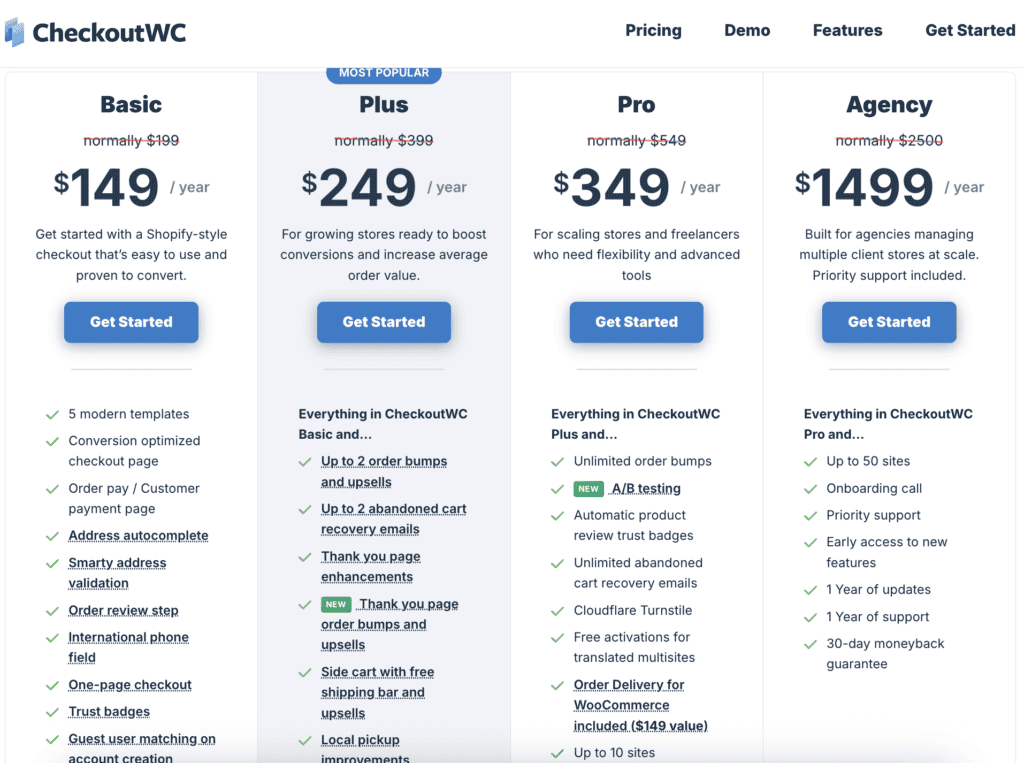
Choose it if your checkout design is costing trust or conversions, and the store has enough order volume to justify a dedicated checkout layer. CheckoutWC is the strongest pick when the checkout experience itself needs replacing. Skip it if you only need a VAT field, delivery note, or company field.
2. CartFlows
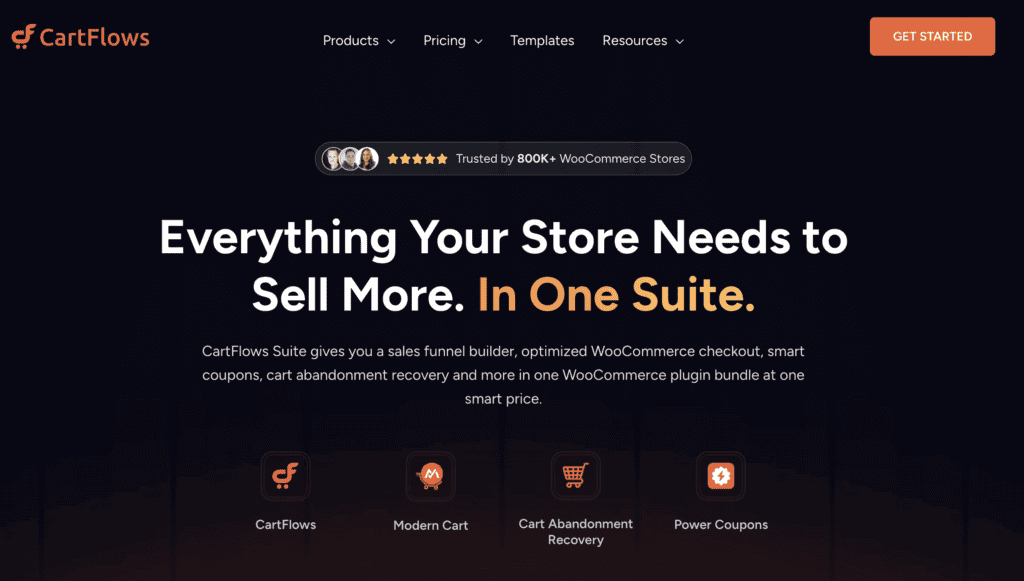
CartFlows is not just a checkout editor. It helps you build sales flows with landing pages, checkout pages, order bumps, one-click upsells and downsells, A/B testing, templates, analytics, and cart recovery tools.
Check before installing: Test the full path from landing page to payment, upsell, downsell, confirmation, email, and analytics. CartFlows documentation says checkout pages support WooCommerce payment gateways, but your actual gateway setup still needs testing.
Pricing note: CartFlows has free and paid options. Its current suite pricing page lists annual and lifetime options, so compare the package against the features you need.
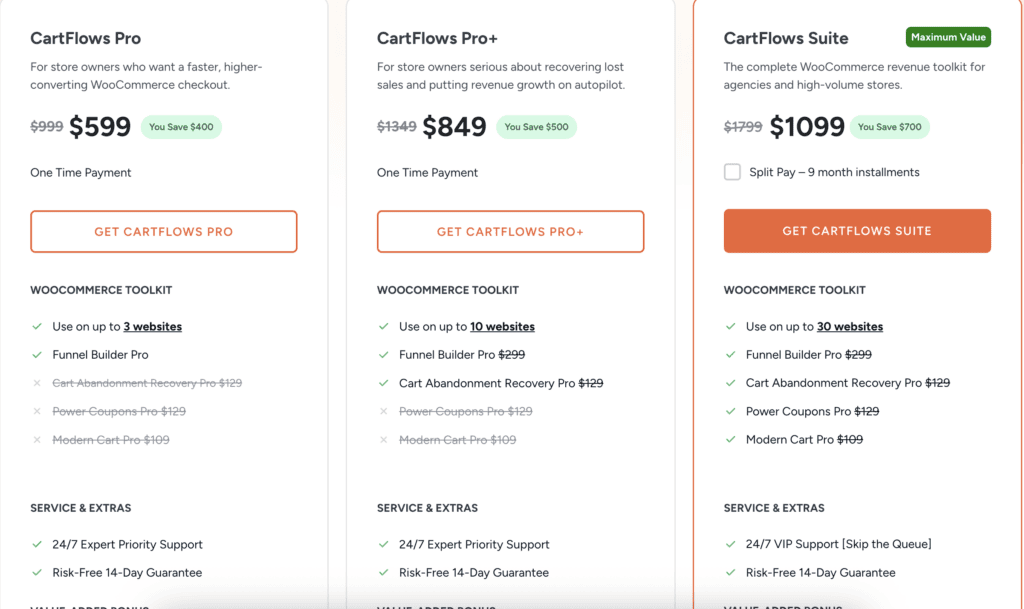
Choose it if your checkout problem is really a funnel problem. CartFlows is a strong WooCommerce checkout plugin for revenue-focused funnels, not basic form cleanup. Skip it if you sell a simple catalog and only need to remove or add a few fields.
3. ThemeHigh Checkout Field Editor
ThemeHigh Checkout Field Editor is the practical starting point when you need to add, remove, reorder, validate, or conditionally show checkout fields.
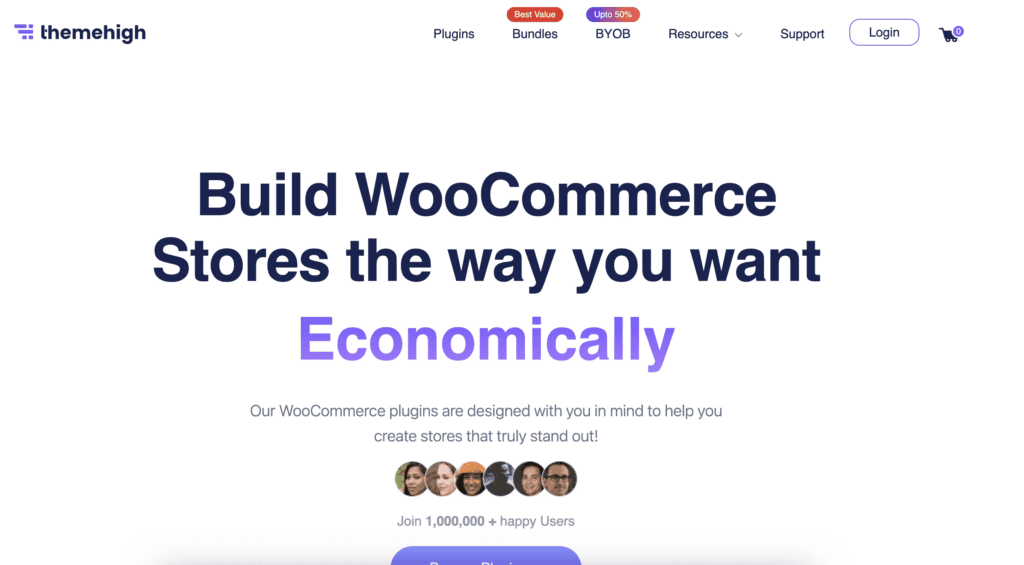
It fits B2B, delivery, booking, compliance, and fulfillment use cases where the default WooCommerce form does not collect enough information.
Check before installing: Test regular checkout and express wallets. Apple Pay, Google Pay, PayPal buttons, and similar flows may not collect custom fields the same way.
Here is what that kind of field change can look like on the customer-facing checkout.
Pricing note: ThemeHigh lists paid checkout field editor plans, while the WordPress.org version gives you a free starting point.
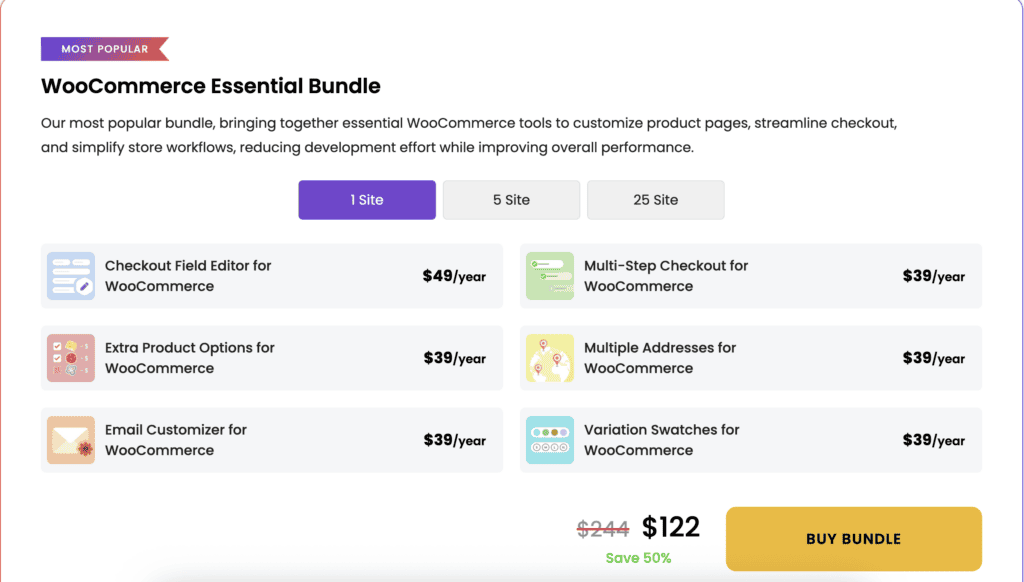
Choose it if you need field control and want to start with a capable free plugin. ThemeHigh is the best first stop for many stores that need better checkout fields. Skip it if you need a new checkout design, funnel builder, side cart, or upsell path.
4. Flexible Checkout Fields
Flexible Checkout Fields by wpdesk lets you edit default checkout fields, add custom fields, change labels, hide fields, delete fields, and reorder the form without code.
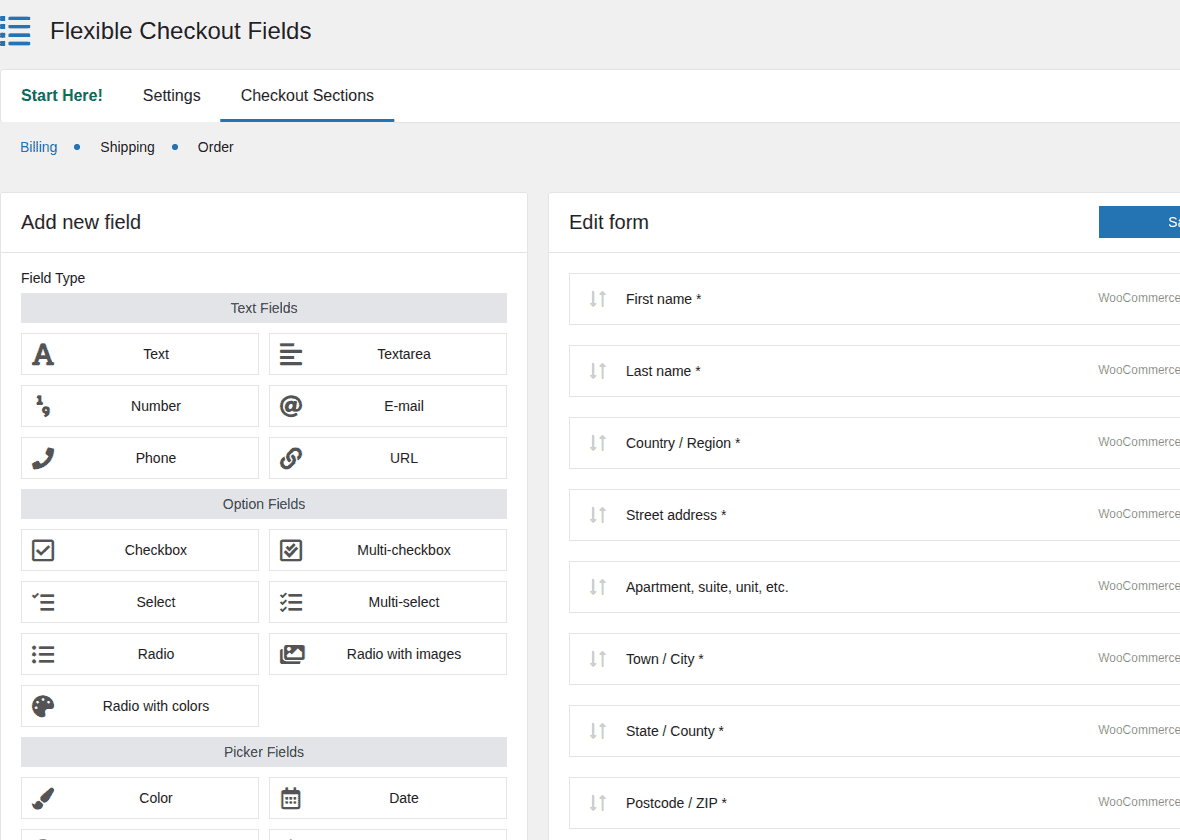
Check before installing: Confirm whether your store uses Classic Checkout or Checkout Blocks, then test the exact field type you need. Field editors can behave differently across checkout setups.
Pricing note: Flexible Checkout Fields has a free WordPress.org plugin and a paid Pro version from WP Desk.
Choose it if you want a clean field editor with room to upgrade later. Flexible Checkout Fields is a good “fix the form” plugin, and staying focused is part of its value. Skip it if you need checkout templates, order bumps, side carts, or one-click upsells.
5. Direct Checkout For WooCommerce
Direct Checkout for WooCommerce solves one narrow problem: the cart page adds a step shoppers do not need. It can send customers closer to checkout after they add a product, and it supports simple cart-skipping behavior.
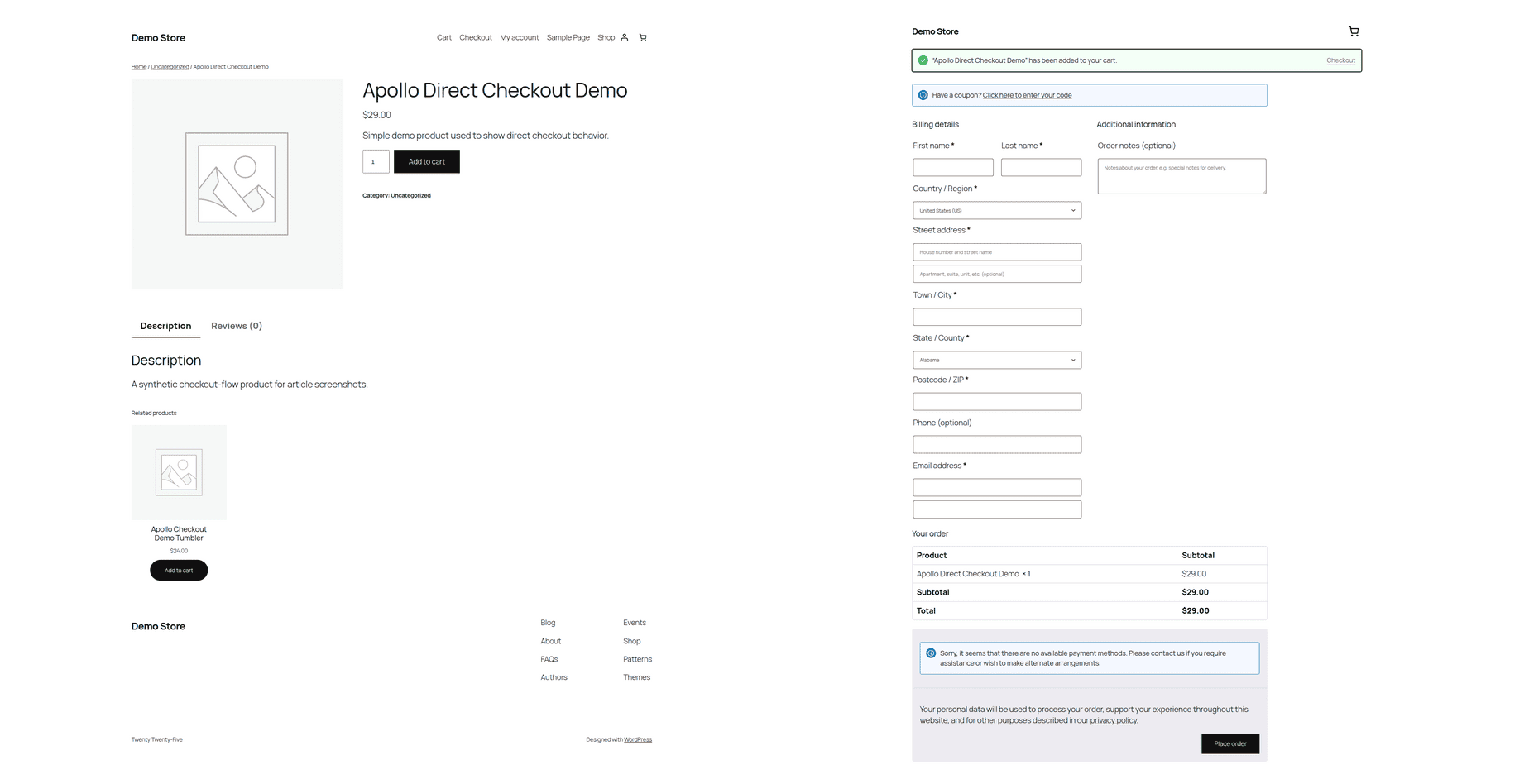
Check before installing: Do not skip the cart if customers need to compare products, change quantities, add accessories, apply bundles, or review shipping thresholds. Sometimes the cart prevents order mistakes.
If add-to-cart redirects fail after setup, troubleshoot the WordPress redirect not working problem before treating the checkout plugin as the only cause. If the redirect sends shoppers in circles, fix the too many redirects issue before judging the plugin.
Pricing note: The free plugin covers the core direct-checkout use case. Premium features may be needed for richer quick-purchase behavior.
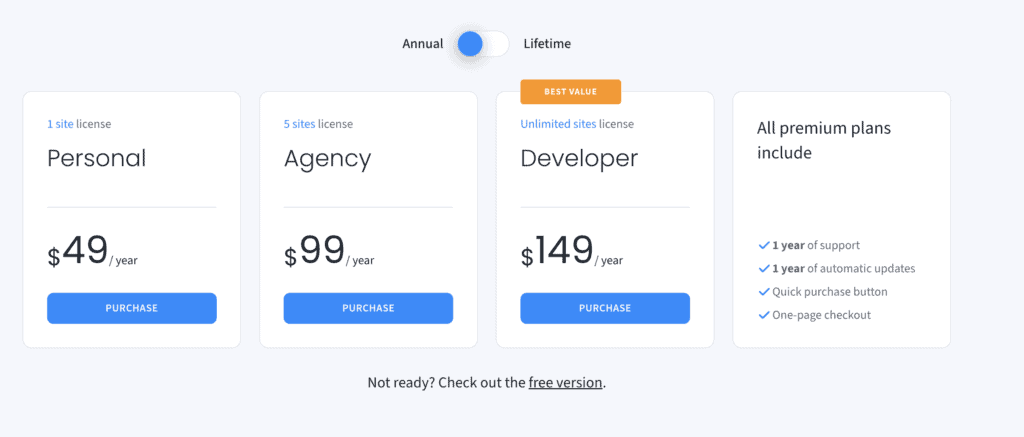
Choose it if your store sells simple products and the cart page mostly slows people down. Direct Checkout is excellent when the cart page is unnecessary. Skip it if customers build complex carts, use coupons heavily, compare variants, or need a clear review step.
It is risky when the cart page helps shoppers make a better order.
6. WooCommerce One Page Checkout
WooCommerce One Page Checkout is the official WooCommerce pattern for letting shoppers choose products and pay on the same page. It makes sense for focused landing pages, bundles, service packages, and narrow product selections.
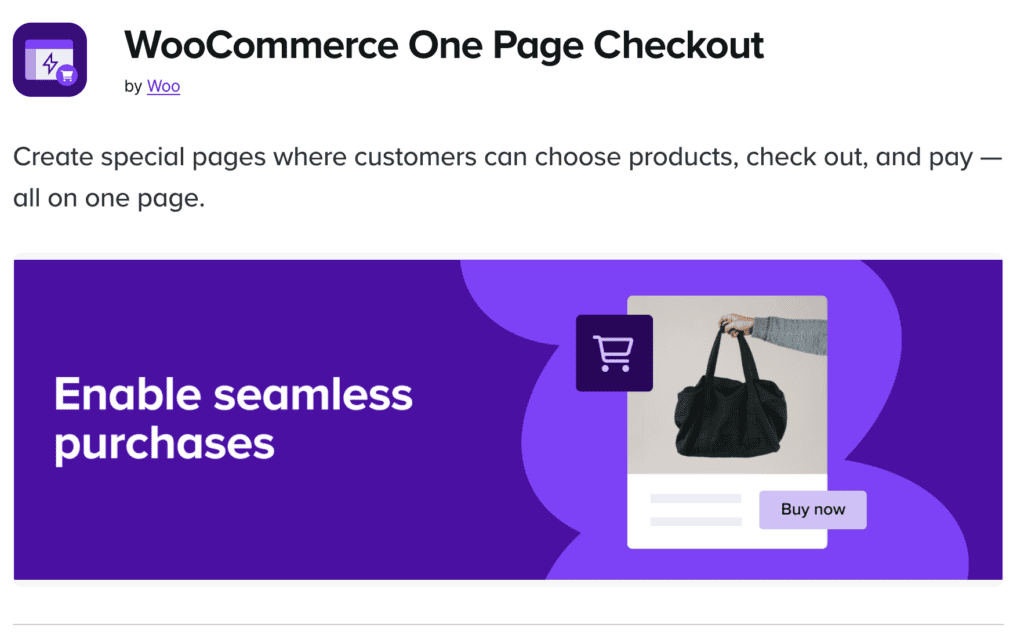
Check before installing: Confirm current marketplace availability before building a campaign or client plan around it. Product availability can change even when documentation remains live.
Pricing note: Check WooCommerce Marketplace directly for current availability and pricing.
Choose it if you want an official one-page checkout flow and can confirm it is available for your store. WooCommerce One Page Checkout is useful for focused buying pages, but verify availability first. Skip it if you need funnel testing, order bumps, upsells, or a broader checkout redesign.
7. YITH WooCommerce One-Click Checkout
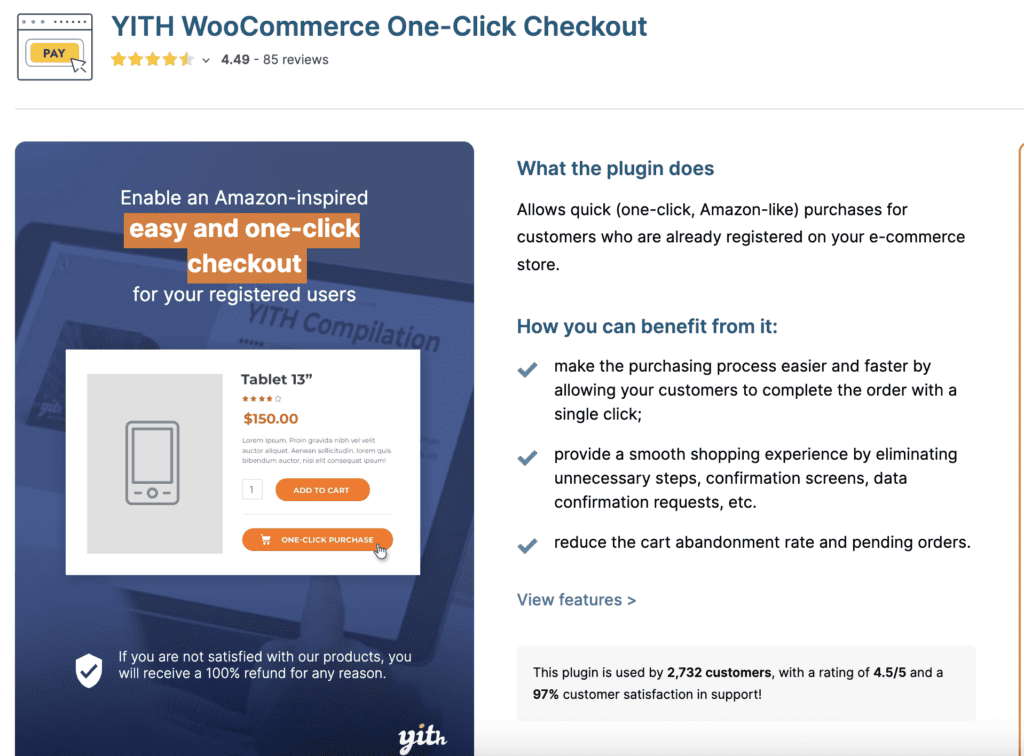
YITH WooCommerce One-Click Checkout is best for returning customers, not first-time shoppers. It can show one-click buying options after a customer has saved the needed billing, shipping, and payment details.
Check before installing: Test guest users, first-time buyers, saved addresses, saved payment methods, product exclusions, failed payments, refunds, and any product that should not be bought too quickly.
Pricing note: YITH One-Click Checkout is a paid plugin. Verify current pricing and gateway requirements.
Choose it if repeat customers are a meaningful part of your revenue and your payment setup supports the workflow. YITH helps repeat buyers move faster; it is not the fix for a weak first-time checkout. Skip it if most shoppers are first-time buyers or need to review shipping, variants, or product details.
8. WooCommerce Fast Cart
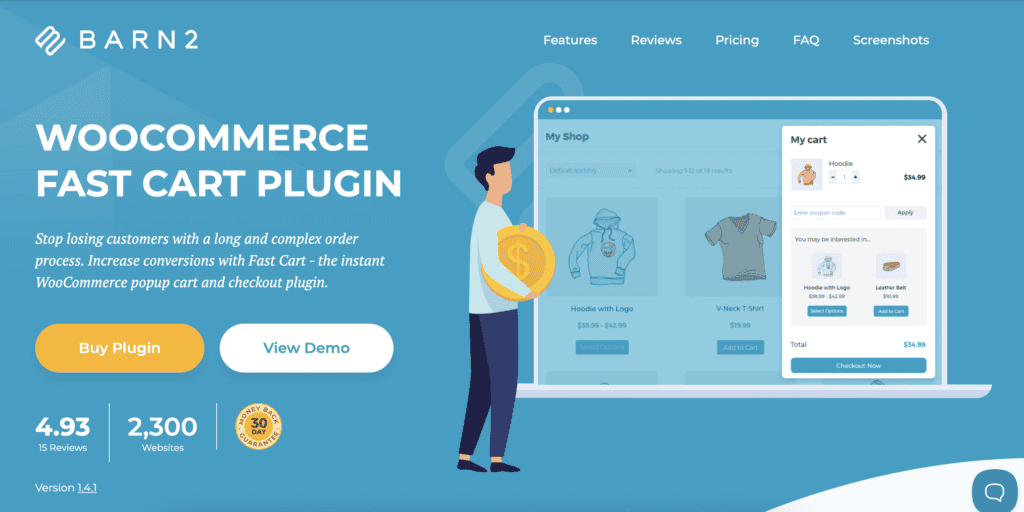
WooCommerce Fast Cart focuses on the moment after a shopper adds something to the cart. Instead of sending them to a separate cart page, it can show cart and checkout options in a popup or floating flow.
Check before installing: Test coupons, taxes, shipping estimates, custom fields, payment methods, and mobile behavior inside the popup. Popup checkout can be helpful on desktop and frustrating on small screens if it is not tested well.
Pricing note: WooCommerce Fast Cart is a paid Barn2 plugin. Check current pricing and license terms before purchase.
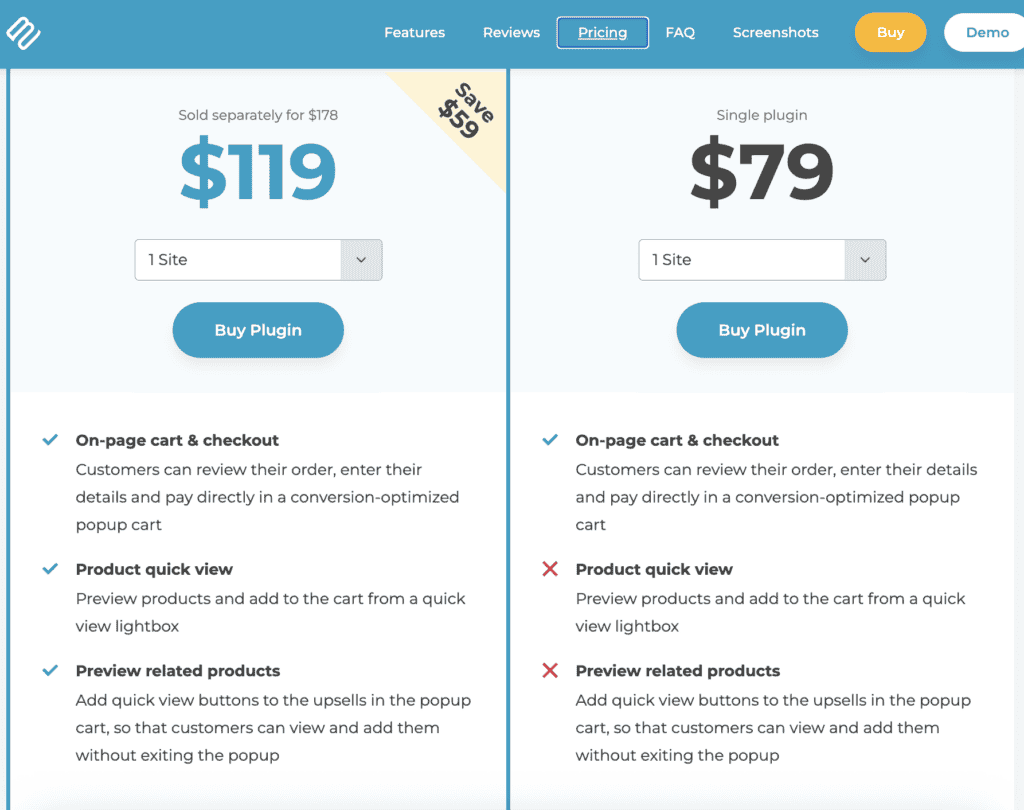
Choose it if your cart page slows shoppers down, but you still want them to review the order. Fast Cart is a cart-flow plugin, so use it when the cart transition is the problem. Skip it if your checkout needs many custom fields, file uploads, complex shipping choices, or payment flows that do not fit well in a popup.
9. Acowebs Checkout Field Editor And Manager
Acowebs Checkout Field Editor and Manager is another field-editing option, with a clear focus on visual setup. It helps you add, modify, hide, or reorder checkout fields without writing code.
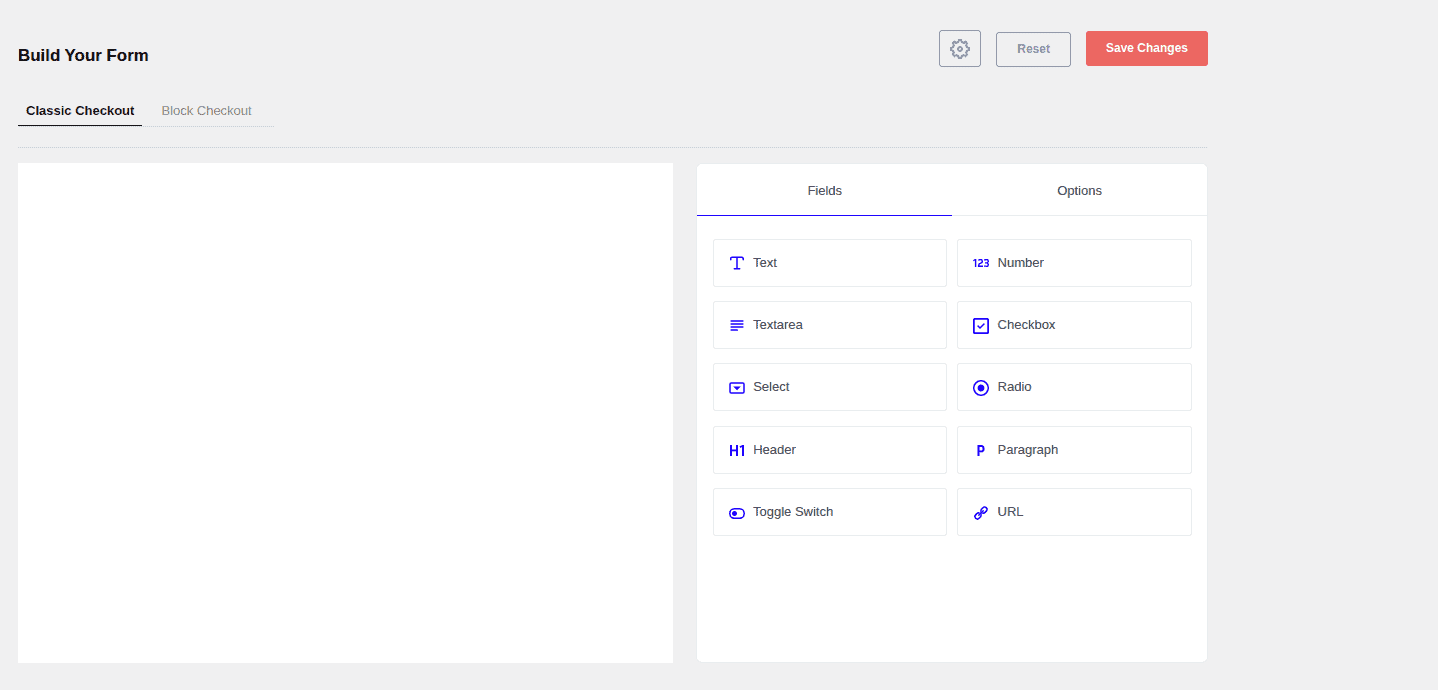
Check before installing: Confirm whether the field types, conditional logic, extra fees, multilingual support, and Checkout Blocks behavior you need are free or paid.
Pricing note: The free plugin covers basic field editing. Advanced field behavior may require the paid version.
Choose it if you want a visual checkout field manager and your field needs are clear. Acowebs is a sensible visual field editor, but it belongs in the field-editing category, not the checkout-replacement category. Skip it if you need a checkout redesign, funnel builder, side cart, or one-click payment flow.
How We Chose These Plugins
We evaluated each plugin by the checkout job it solves, not by feature count. A simple plugin that fixes one problem cleanly is often better than a larger plugin that adds settings you do not need.
We looked at:
- Checkout purpose: field editing, direct checkout, one-page checkout, full replacement, repeat purchases, popup cart flow, or funnel optimization.
- Compatibility signals: current WooCommerce and WordPress support, plus Classic Checkout and Checkout Blocks notes.
- Setup effort: whether a non-developer can use it without turning checkout into a project.
- Operational risk: payments, shipping, taxes, coupons, subscriptions, express wallets, saved addresses, file uploads, and order emails.
- Maintenance signals: official pages, product docs, changelogs, WordPress.org metadata, and support history.
- Rollback safety: how easy it is to test, remove, or replace the plugin if checkout misbehaves.
We also prepared a WooCommerce sandbox with WordPress 6.9.4 and WooCommerce 10.8.1 active. That baseline matters because checkout is not just a form. It depends on products, taxes, shipping zones, payment gateways, order emails, customer accounts, and the checkout template.
The form is the part shoppers see. The risk is everything that has to work after they press the button.
Test Checkout Changes Safely
Checkout plugins deserve extra caution because they affect the part of the store that takes money. A broken layout is annoying. A broken checkout is lost revenue.
Use this checklist before installing, replacing, or removing a checkout plugin:
- Create a full backup first: Back up files and the database before you touch checkout.
- Clone the store to staging: Test away from live shoppers and live orders with a WordPress staging plugin.
- Place a simple test order: Confirm the basic payment path still works.
- Place a variable product order: Catch variation, stock, and price issues.
- Apply a coupon during checkout: Make sure discounts still work.
- Check shipping and tax rules: Prevent wrong totals or blocked checkout.
- Test checkout on mobile: Small screens expose field and popup problems fast.
- Run every express wallet path: Apple Pay, Google Pay, PayPal, and similar buttons may bypass parts of the regular form.
- Confirm order data in admin and email: Custom fields must reach the people who use them.
- Check failure details: Review WordPress log files after failed payments, blank checkout screens, or unexpected redirects. If redirect rules or permalinks were recently changed, check for a corrupted htaccess file too.
- Practice the rollback: Know how you will restore the old checkout if something breaks.
This is where BlogVault fits. It is not a checkout plugin and it will not raise conversion by itself. Its job is safer change management: staging, backups, and restores before you edit the page that collects orders.
For ongoing store care, WordPress maintenance guide makes the same point about monitoring critical checkout paths.
For payment, shipping, or order-creation failures, the WooCommerce debug log can be more specific than a general WordPress error log.
Checkout-Adjacent Tools To Treat Separately
Some tools appear in checkout plugin lists even though they solve nearby problems.
PeachPay focuses more on payment acceleration and express checkout. Social login plugins reduce account-creation friction. Cart abandonment tools recover shoppers after they leave. Discount, currency, booking, and notice plugins can improve the buying path, but they are not core checkout editors. Use them only when they match the real problem:
- Use a payment or express checkout tool when failed payments or wallet adoption are the issue.
- Use social login when account creation is the sticking point.
- Use cart abandonment recovery when shoppers leave after building the cart.
- Use a discount or coupon plugin when offer logic is the problem.
Do not stack several nearby tools under the vague goal of “improving checkout.” Overlapping popups, fields, wallets, coupons, and recovery tools can make checkout harder to trust.
Classic Checkout Vs Checkout Blocks
Checkout Blocks support is now a buying criterion.
Classic Checkout is the older shortcode-based checkout many plugins were built for. Checkout Blocks are the newer block-based checkout experience in WooCommerce. Some plugins support both. Some support one better than the other. Some field editors support only certain field types in Blocks. Before choosing a plugin, check:
- Confirm your checkout type: Know whether your store uses Classic Checkout or Checkout Blocks.
- Confirm the field types: Make sure the plugin supports the exact fields you need in that checkout type.
- Confirm express wallet behavior: Custom fields may not appear in Apple Pay, Google Pay, PayPal, or other fast-payment flows.
- Confirm order data storage: The data must appear in admin orders, order emails, exports, and fulfillment workflows.
- Confirm vendor documentation: Clear Block compatibility notes are better than vague claims.
If your store is moving to Checkout Blocks, do not buy a Classic-only field plugin as a long-term fix.
FAQs
What is the best WooCommerce checkout plugin?
The best WooCommerce checkout plugin depends on the job. Choose CheckoutWC for a full checkout replacement, CartFlows for funnels, ThemeHigh or Flexible Checkout Fields for field editing, Direct Checkout for skipping the cart, and YITH One-Click Checkout for repeat purchases.
What is the best free WooCommerce checkout field editor?
ThemeHigh Checkout Field Editor is the best free starting point for many stores. Flexible Checkout Fields is also strong if you want a simple field editor with a paid upgrade path.
What is the difference between one-page checkout and direct checkout?
One-page checkout puts product selection and payment on the same page. Direct checkout usually skips the cart and sends shoppers closer to checkout after they add a product.
Do WooCommerce checkout plugins work with Checkout Blocks?
Some do, some do partly, and some still work better with Classic Checkout. Check current documentation before buying, especially for custom fields, conditional logic, express wallets, and layout changes.
Are checkout field plugins safe?
They can be safe when they are maintained, compatible with your checkout type, and tested before production. Be extra careful with file uploads, payment-related fields, address fields, tax fields, and shipping fields.
Final verdict
Start with the checkout problem, then choose the narrowest plugin that solves it. Use ThemeHigh or Flexible Checkout Fields for fields, or CheckoutWC for a cleaner checkout layout, CartFlows for funnels, Direct Checkout or WooCommerce Fast Cart for cart friction, and YITH One-Click Checkout for repeat buyers.
Do not treat checkout changes as harmless design edits. Test them on staging, run real order paths, check mobile and express wallets, and keep a backup ready. BlogVault gives you the staging and restore layer you need before changing the part of your WooCommerce store that collects revenue.

Shivani enjoys crafting guides that make every aspect of using WordPress simple and easy to follow. When she's not glued to her laptop, you can find her buried in a good book or occasionally, painting.