You’ve probably already installed WordPress. You have the foundational skills, so this isn’t starting from scratch. Yet, the task to install WordPress on subdomain can feel scary.
Will it break the main site? Do you need to be a developer?
The answer is no. This guide connects what you already know to this specific task. We’ll walk you through the correct setup, turning that initial hesitation into a finished project.
You can install WordPress on a subdomain using one of two easy methods: your host’s integrated dashboard or the standard cPanel auto-installer. Before starting, it’s wise to use a backup plugin to take a full backup of your main site; this protects your core data from any potential errors during the process.
What you need before you start
A successful installation begins with proper preparation. Gathering these items beforehand will ensure the process is efficient and straightforward.
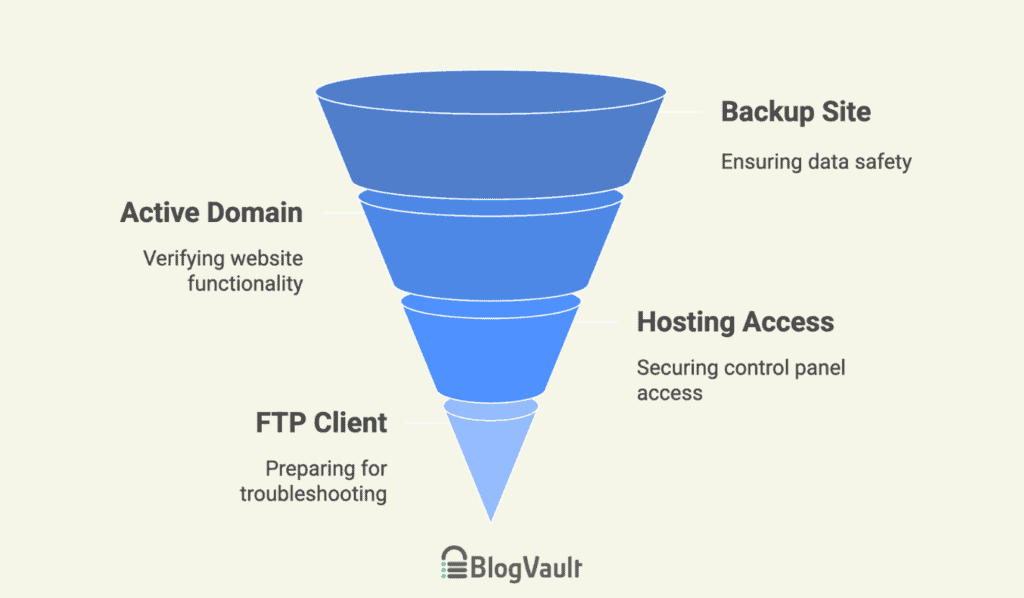
- A recent backup of your site: This is a critical safety measure. While issues are unlikely, a recent backup provides essential security and peace of mind.
- An active primary domain: Your main website must be functional, as it serves as the foundation for the new subdomain.
- Access to your hosting control panel: You must be able to log into your hosting control panel (cPanel, Plesk, etc.). This is essential for creating the subdomain, especially if you plan to follow the cPanel installation method.
- An SFTP/FTP Client (for troubleshooting): While not required for this installation, having an FTP client ready is a crucial security measure. If an unexpected error ever locks you out of your WordPress admin, direct FTP access is your way back in to fix the issue. You never know when you might need it.
How to install WordPress on subdomain
Installing WordPress on a subdomain results in a completely separate and independent WordPress installation. It will not share users, themes, plugins, or content with your primary domain.
There are two primary methods for this task:
- Using your web host’s tools: This is often the easiest route, using a custom dashboard provided by hosts like Bluehost or SiteGround. This method typically combines subdomain creation and WordPress installation into a single, guided process.
- cPanel installation: This is the universal approach for the many hosts that use the standard cPanel interface. It involves two distinct steps: first, creating the subdomain, and then using an app installer like Softaculous to deploy WordPress.
Note that after creation, there can be a delay of up to 48 hours for DNS propagation, which is the time it takes for servers across the internet to recognize your new subdomain’s address.
For security, always use separate administrative logins for your main site and your new subdomain installation.
Part 1: Creating your subdomain
The first action is to create the subdomain itself within your hosting environment.
Method 1: Using your host’s built-in tools (Recommended)
Most quality hosting providers, including Bluehost, offer a streamlined workflow. The following steps use Bluehost as an example, but the process is similar across other hosts with custom dashboards.
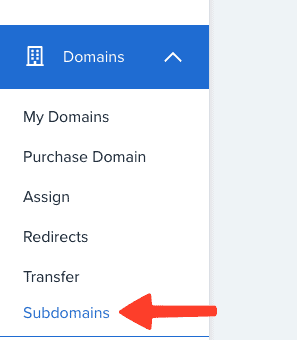
Access dashboard: Log into your Bluehost dashboard, click on the Domains section, and select Subdomains from the drop-down menu.
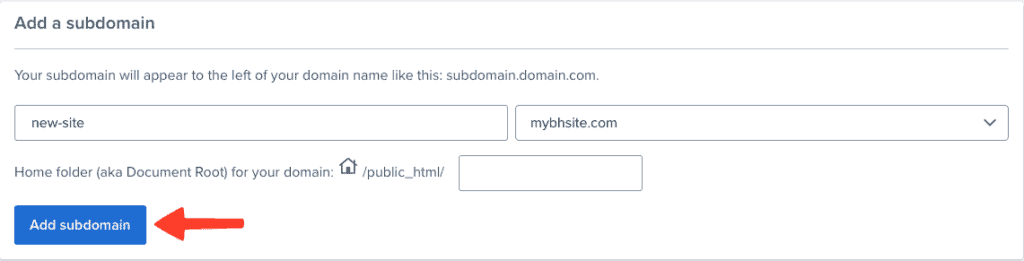
Define the subdomain: Enter your desired name (e.g., “blog“), select your main domain, and then navigate to the My Sites section. This process will create a new, separate WordPress database for your installation.
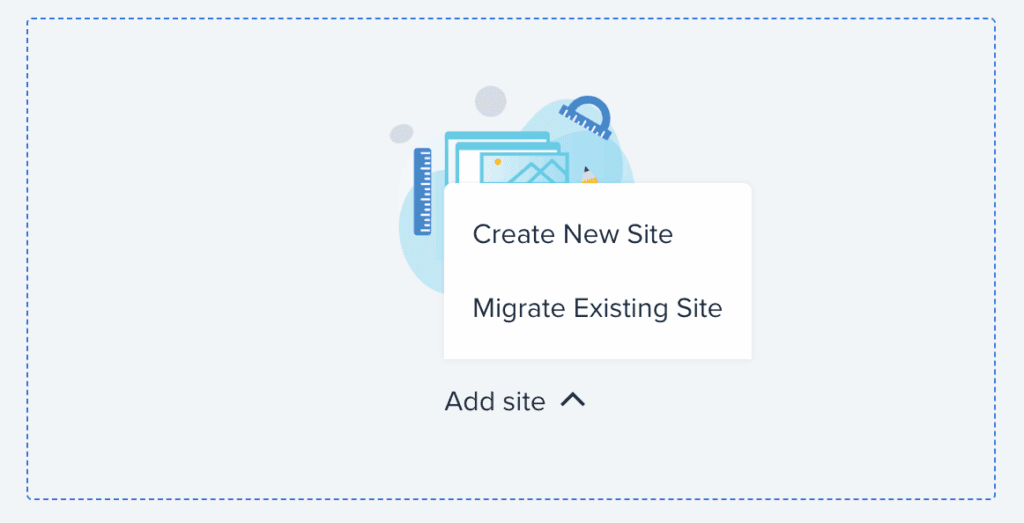
Begin site creation: Click Create Site, provide a name and tagline, and then select the subdomain you just created from the domain dropdown. This is a critical step. The Directory field must be left completely blank. This ensures WordPress installs in the main folder of the subdomain.
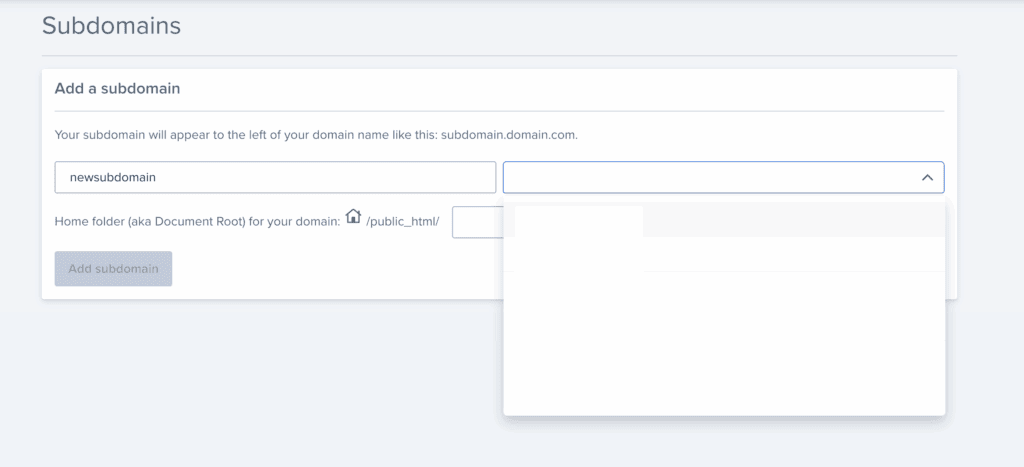
Complete the installation: Click Continue to begin the automated installation. You can then access your new site at subdomain.yourdomain.com/wp-admin.
Method 2: Using cPanel
This method is the standard for hosts that provide the cPanel control panel.
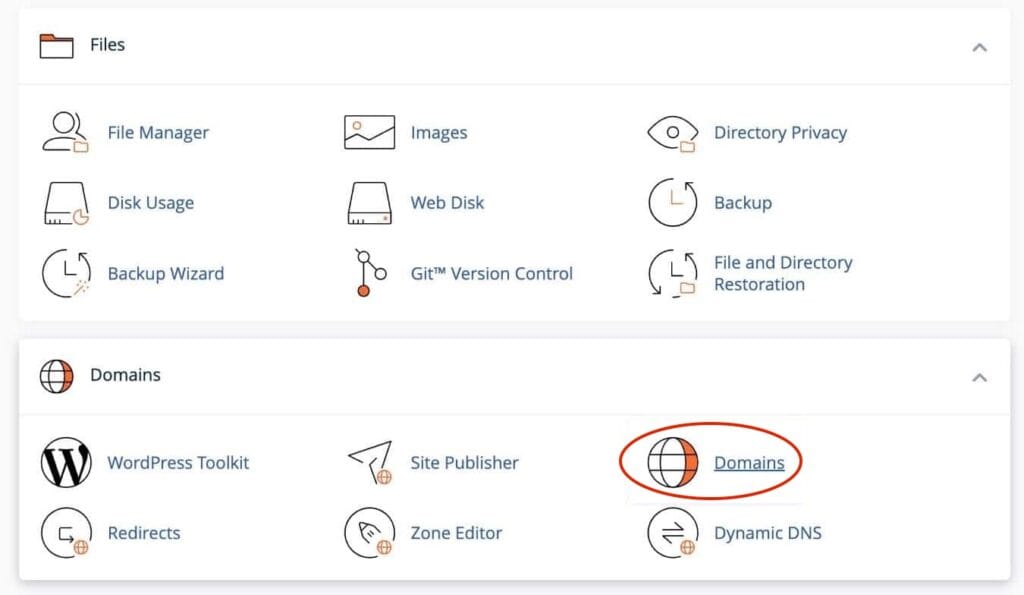
Log into cPanel and find domains: Access your control panel (for this guide, we will be using cPanel) dashboard and navigate to the Domains section.
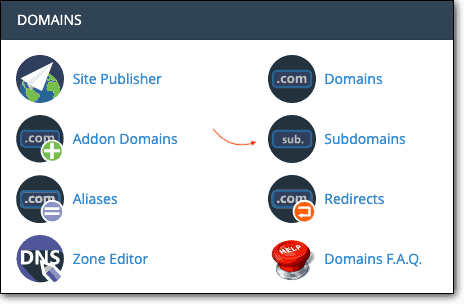
Create the new domain: Click Create A New Domain (or Subdomains on older versions).
Enter the subdomain name: Type your desired name (e.g., “store”) and select your primary domain. The document root path will auto-populate. Do not change this path. Click Submit or Create and wait for the confirmation.
Part 2: Installing WordPress on the subdomain
With the subdomain created, the next step is to install the WordPress software.
Method 1: Web host’s tool
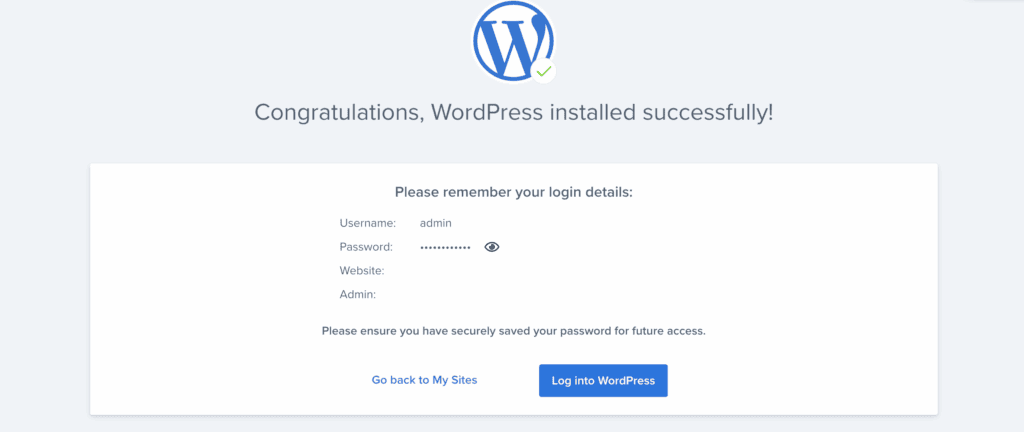
If you followed the Bluehost method, the good news is you’re already done. WordPress was installed automatically during the site creation process. You can skip ahead to the post-installation checks.
Method B: Using cPanel auto-installer (Softaculous)
If you created the subdomain via the general cPanel method, you must now install WordPress.
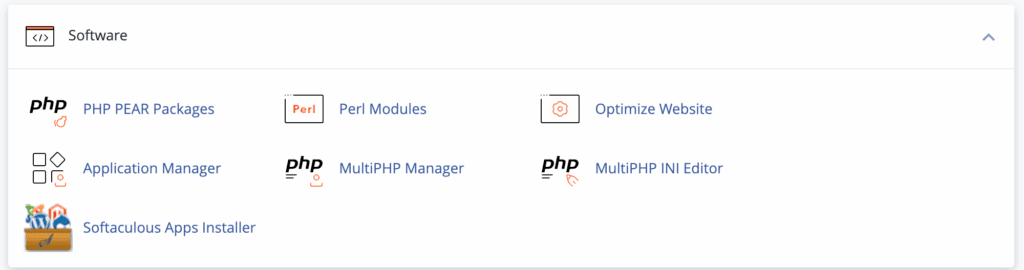
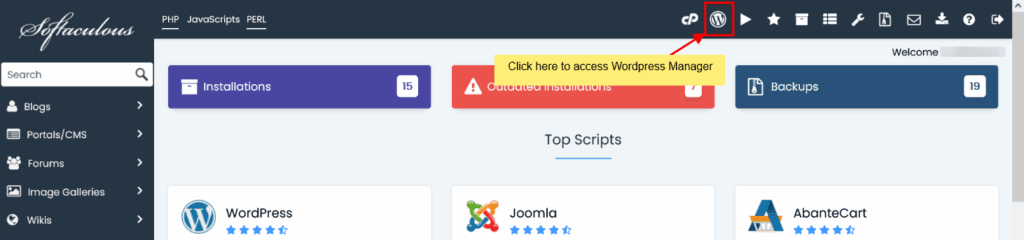

Locate the installer: Return to your cPanel dashboard and find the Softaculous Apps Installer or a similar tool, then click the WordPress icon.
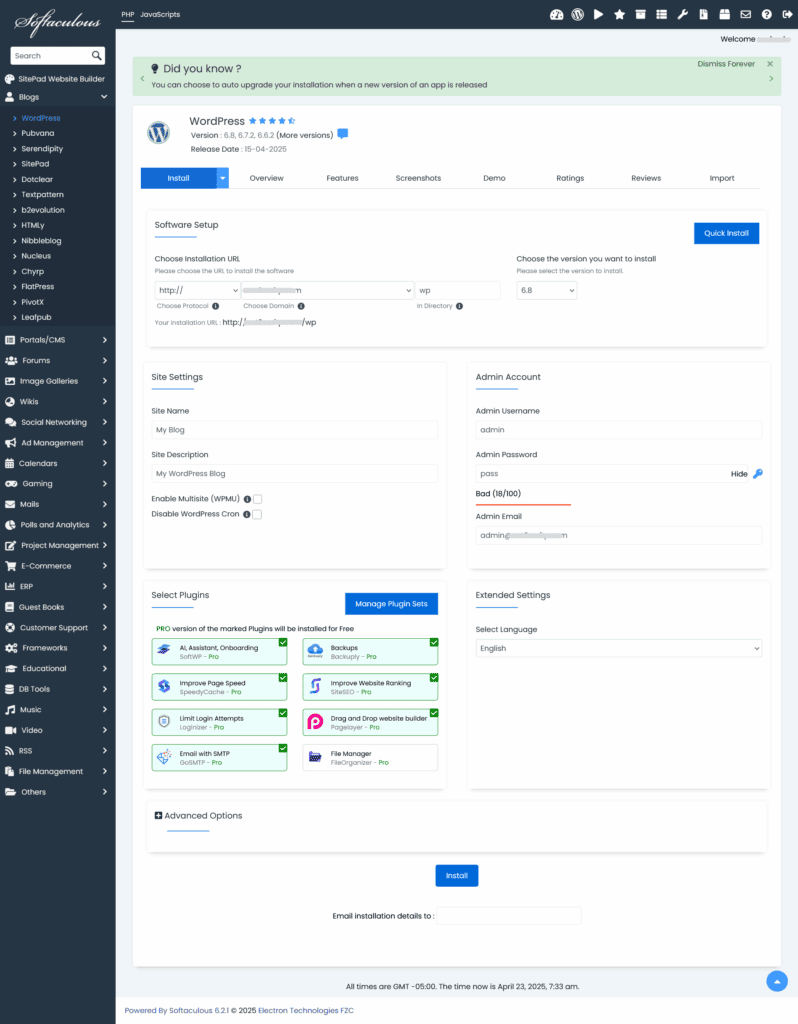
Install WordPress: Fill in your site details and click the Install button. The process will complete in about a minute. If you encounter any issues, you can begin troubleshooting WordPress to find a solution.
Essential post-installation steps & checks
Once WordPress is installed, perform these checks to ensure your site is secure and functional.
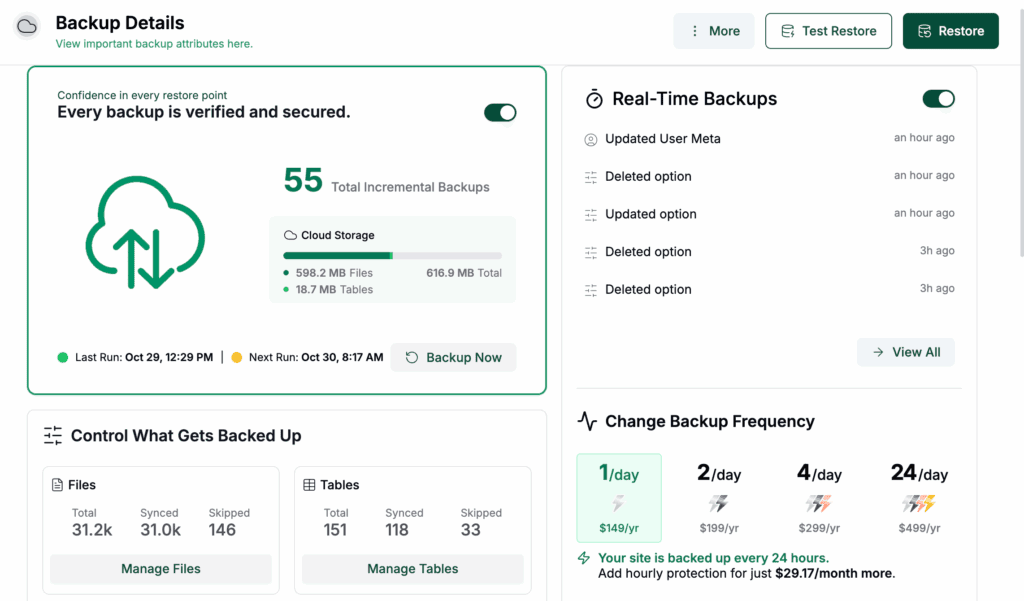
Set up backups: This is non-negotiable. Install a trusted backup plugin and configure it to run on a regular, automated schedule. Perform an initial full backup immediately.

Confirm site access and URLs: Visit your new subdomain to ensure it loads, then log in. Navigate to Settings > General. Both the WordPress Address (URL) and Site Address (URL) must show your new subdomain. If they are incorrect, you must change the URLs to the proper address to prevent site errors.
Secure your site: Install an SSL certificate if your host did not do it automatically. Immediately install essential plugins for security and backups.

Configure basic settings: Go to Settings > Permalinks and select Post name for better SEO. Remove the default Hello World post and sample page.
Test functionality: Check that contact forms, navigation links, and other key features are working as expected.
Troubleshooting common issues
If you encounter a problem, it is likely one of these common issues.
Site not found or 404 error
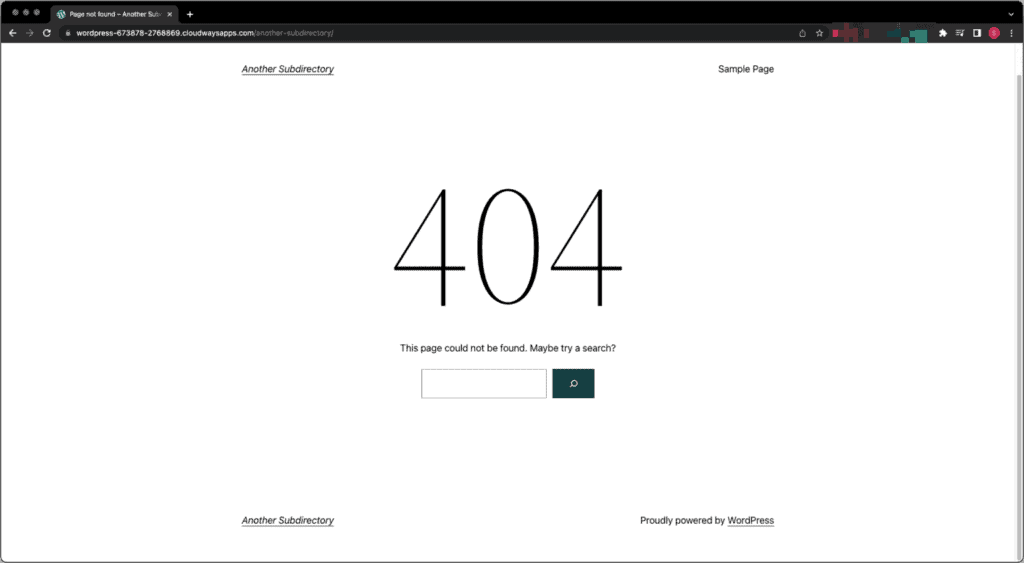
This is the most common issue and almost always points to DNS propagation. It means that servers across the internet have not yet been updated with your new subdomain’s information. The only solution is to wait, which can take anywhere from a few hours to a full day, and clear your browser cache before trying again.
Error establishing a database connection

This error means the WordPress files cannot communicate with the database. It is typically caused by incorrect database credentials in your wp-config.php file. Carefully check that the database name, username, and password in that file exactly match the credentials set up in cPanel.
Cannot access the admin dashboard

If you are unable to log into wp-admin, the first and most effective step is to clear your browser’s cache and cookies. If that fails, you may need to reset your password through the database or check for plugin conflicts by temporarily renaming the plugins folder via FTP.
How to move WordPress from a subdomain to the root
Migrating a site from a subdomain to the root is an advanced procedure that requires careful execution. The process involves backing up both sites, migrating all files and the database, and then performing a search-and-replace on the database to update all URLs from the subdomain to the main domain.
After the migration, you must implement 301 redirects to forward traffic and preserve SEO value. You also need to update your site’s profile in Google Search Console. If you are not experienced with this process, it is wise to hire a professional.
Alternative ways to extend your site without a subdomain
A subdomain is not always the best solution. Consider these alternatives.
- Subdirectory installation: A subdirectory (yoursite.com/blog) is part of the same WordPress installation. This is often better for SEO and is simpler to manage for closely related content.
- Staging environment: Most quality hosts provide staging environments, which are private clones of your site used for testing changes safely. They are not intended for public-facing content.
Parting thoughts
Subdomains are a powerful tool for creating distinct online properties. It’s crucial to understand that search engines treat them as separate websites, meaning SEO authority is not automatically shared.
This separation means you are responsible for a new set of maintenance tasks for this second site, including its own updates, security, and backups. Before choosing this path, consider whether your long-term goals align with managing another asset, and always maintain regular backups.
FAQs
How do I move WordPress to a subdomain?
You can move WordPress to a subdomain by using a migration plugin to create a full copy of your site. You then restore this complete backup onto a new, empty subdomain you have created.
Is a WordPress subdomain free?
Yes, a WordPress subdomain is free as long as you own the main domain. They are included with your hosting plan, so you do not pay any extra fees to create them.
How to install WordPress in a subdomain cPanel?
You install WordPress in a cPanel subdomain by first creating it using the “Domains” tool. After that, you use the Softaculous app installer to deploy WordPress directly onto it.
Should I install WordPress in a subdirectory?
You should use a subdirectory to install WordPress for content that is closely related to your main site, such as a blog. This approach is generally better for your site’s SEO and is much simpler to manage.
Can I install WordPress on a subdomain?
Yes, you can easily install a completely separate WordPress site on a subdomain. It is a very common and fully supported practice for creating staging sites, forums, or stores.
Are subdomains bad for SEO?
No, subdomains are not bad for SEO, but search engines treat them as entirely separate websites. This means they do not automatically inherit the SEO authority of your main domain.
Can I host a website on a subdomain?
Yes, you can host a full website on a subdomain because it functions just like a regular domain. It can have its own unique content, design, and functionality without any limitations.

Shivani enjoys crafting guides that make every aspect of using WordPress simple and easy to follow. When she's not glued to her laptop, you can find her buried in a good book or occasionally, painting.