Your website’s URL is its online address, helping people find your content. Sometimes you need to change it—maybe you’re migrating your site, rebranding, or switching to HTTPS for security.
If not done properly, this could lead to some frustrating problems for your visitors, and that’s not good for your reputation.
But no worries. This guide is here to help you change your WordPress URL without a hitch. Whether you’re a WordPress pro or just starting out, we’ll show you how to handle this easily, so your site stays up and running smoothly.
Changing your WordPress URL is essential for migrations, rebranding, or security upgrades. Before editing core files, use a backup plugin to secure your site data. This provides an easy recovery option if issues arise during the URL change.
Pre WordPress URL change steps
- Backup your entire website:
Before making any changes, ensure your entire website is backed up. This includes all data, files, and the database, protecting against any potential data loss.

- Notify stakeholders:
Inform everyone who might be affected by the URL change—this includes your team, regular visitors, and clients. Clear communication helps manage expectations and maintains trust throughout the process.
- Plan for possible downtime:
Anticipate some downtime while changing the URL. Scheduling the change during off-peak hours can help minimize disruption to your visitors, ensuring a smoother transition.
4. Make sure you have your new domain purchased:
Before proceeding with any URL changes, ensure you have purchased the new domain and have full access to it through a domain registrar. This sets the stage for DNS updates and other necessary configurations.
How to change your WordPress URL
Changing your WordPress URL might seem tricky, but there are a few methods to get it done. Here’s how you can do it:
1) Using the WordPress dashboard
Log into your WordPress dashboard: Use your admin credentials to access the backend of your site.
Find the URL fields: On the left-hand menu, click on Settings, then select General. Locate the WordPress Address (URL) and Site Address (URL) fields.

Enter your new URL: Type your new URL into both fields. Once done, click on the Save Changes button to update the URLs.
2) Editing the wp-config.php file
Access your website’s files: Use FTP or your hosting dashboard to navigate to your site’s root directory.

Locate the wp-config.php file: Within the root folder (often public_html or www) find and open the wp-config.php file for editing.
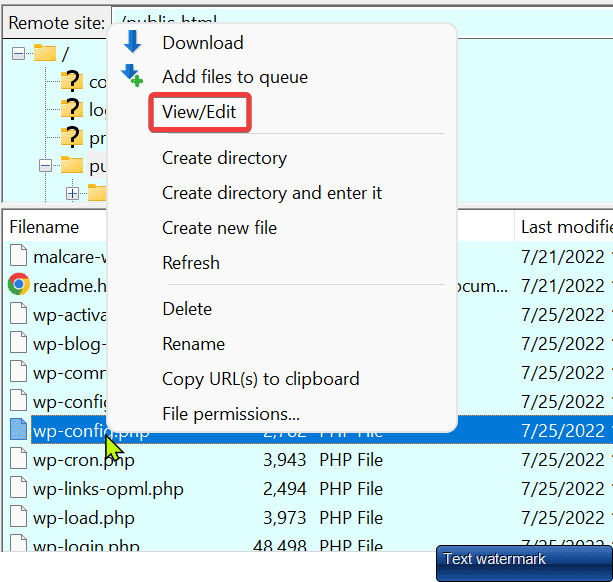
Add new URL lines: Before the line that says That’s all, stop editing!, add the following:
define('WP_HOME', 'https://newsiteurl.com');

define('WP_SITEURL', 'https://newsiteurl.com');
Save the file and refresh site: Save your changes and close the file editor. Next, check that everything is working correctly by refreshing your site.
3) Using phpMyAdmin
Log into your hosting control panel: Access your hosting dashboard and open phpMyAdmin.
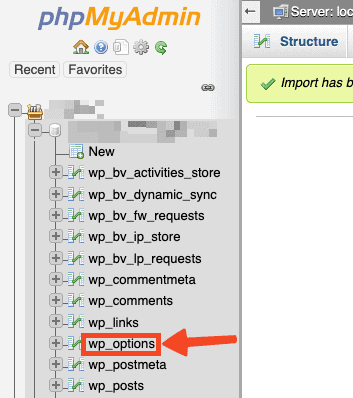
Find the wp_options table: Choose the database associated with your WordPress site. Within this, find and click on the wp_options table to view its contents.
Locate siteurl and home and edit: These fields hold your URL information. Within these fields, enter your new URLs.
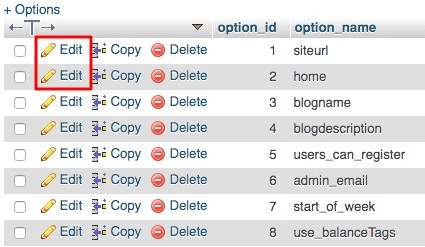
Save changes: Confirm and save your updates, then exit phpMyAdmin. Make sure everything runs smoothly by visiting your site.
4) Using the functions.php file
Access your website’s files: Use FTP or your hosting dashboard to navigate to /wp-content/themes/your-theme-folder/.
Open the functions.php file: Find and open this file in your theme’s folder.

Add update lines: Temporarily add these lines to update the URLs:
update_option('siteurl', 'https://newsiteurl.com');

update_option('home', 'https://newsiteurl.com');
As you do this, the database’s site URLs are immediately updated as a result. Every time your functions.php file is loaded, WordPress promptly updates the database with the updated site URLs.
Save the file: Save your changes and refresh your website.
Remove the lines: Once the URLs are updated, delete the lines you added to prevent unnecessary updates on each page load.
You’ve changed your WordPress URL. What’s next?
Clear your browser and site cache:
Clear all cache to ensure you’re seeing the most up-to-date version of your site.
Check your website for proper functionality:
Navigate through your site, testing links and ensuring images and media load correctly. Fix any issues you find.
Update internal links and media:
Make sure all internal links and media files point to the new URL to prevent any broken links.
Redirect URLs:
Modifying the .htaccess file via FTP
- Open FileZilla and connect using your FTP credentials.
- Locate and edit the .htaccess file.
- Add the following redirection code to point old URLs to the new one:
#Options +FollowSymLinks

RewriteEngine on

RewriteRule ^(.*)$ https://newsiteurl.com/$1 [R=301,L]
Fix mixed content warnings (if switching to HTTPS):
To fix mixed content warnings, make sure all resources (images, scripts) are loaded over HTTPS
Inform Google:
Update your URL in Google Search Console to maintain SEO rankings.
Why would you change your WordPress URL?
There are plenty of practical reasons to change your WordPress URL, and each can really help your site. It’s a bit like moving to a new house—you’d want to make sure everyone knows your new address.
Moving your site to a new domain: This is like changing your street address. Whether you want a fresh start or a more memorable name, a new domain helps give your site a new identity.
Switching from HTTP to HTTPS for security: Think of it as adding a strong lock to your front door. This upgrade keeps your site secure and reassures visitors that their information is safe.
Rebranding your business or website: If your business has a new name, updating your URL ensures that your online presence reflects this change.
Improving your site’s SEO and search rankings: A well-chosen URL can make it easier for search engines to find your site. This increases your visibility and attracting more visitors.
WordPress Address vs. Site Address: What is the difference?
When changing your WordPress URL, you’ll come across two important terms: WordPress Address (SiteURL) and Site Address (HomeURL). Understanding the difference between these two addresses is key when making changes to your site.
If you decide to change your domain name, move your site to a new directory, or restructure your website, knowing which address to update is essential for maintaining access to your site and ensuring everything works correctly.

WordPress Address (SiteURL):
The WordPress Address is the storage location of your WordPress installation. Think of it as the backstage area where all your WordPress files and folders reside. If these files are located directly in your website’s main directory, your WordPress Address will simply be your main URL, like www.example.com.
However, if your files are tucked away in a subdirectory, the URL will reflect that by including the folder name, such as www.example.com/folder. Understanding where your WordPress files are stored is essential if you’re planning any changes to your site’s structure or hosting.
Site Address (HomeURL):
The Site Address is what your visitors see—it’s the URL they type into their browsers to reach your website. In many cases, this URL matches the WordPress Address. But sometimes you might want to keep them separate.
For instance, you could have your WordPress files in a subdirectory, but prefer that visitors use a cleaner main URL like www.example.com. This setup keeps your website accessible and easy to find, without exposing the internal structure.
Parting thoughts
Changing your WordPress URL is crucial for migrations, rebranding, or boosting security. First, understand the difference between the WordPress Address and Site Address, and always backup your site to safeguard against any issues.
Pick a method that matches your technical comfort level. After making changes, thoroughly test your site and update internal links and media to align with the new URLs.
Regularly monitor your site’s functionality and SEO performance to maintain smooth operations and strong visibility. By doing this, you can ensure a successful and seamless URL change.This is also covered in our WordPress migration checklist.
FAQs
How do I change my WordPress login URL?
To change your WordPress login URL, you can manually edit the .htaccess file or the wp-login.php file. Using these techniques helps secure your site by making the login page URL unique and harder for unauthorized access.
How to create a custom URL in WordPress?
You can create a custom URL in WordPress by editing the permalink settings under Settings > Permalinks. Choose a structure or custom pattern for your posts and pages.
What is the admin URL for a WordPress site?
The default admin URL for a WordPress site is yourdomain.com/wp-admin. This URL takes you to the login page where you can access your WordPress dashboard.
What is the WordPress address site URL?
The WordPress address site URL is where your WordPress files are stored, often the same as your site’s main URL. It can be found in the Settings > General section of your dashboard.
How do I change the URL in the WordPress config file?
To change the URL in the WordPress config file, edit the wp-config.php file and add definitions for WP_HOME and WP_SITEURL. Ensure you insert these lines above the comment That’s all, stop editing!

Shivani enjoys crafting guides that make every aspect of using WordPress simple and easy to follow. When she's not glued to her laptop, you can find her buried in a good book or occasionally, painting.