By default, your first WordPress installation lives in your site’s root folder. But what happens when you need to add something major, like a whole new store or blog?
Tinkering with a live site is risky, so you’re right to be cautious.
There’s a straightforward solution that avoids all that risk: install WordPress in a subdirectory. We’ll guide you through each step, ensuring the process is simple and your main site remains completely secure.
Installing WordPress in a subdirectory isolates the new site by using a new folder and database, keeping your main site safe. Even so, we strongly suggest using a backup plugin first. It’s a wise precaution to ensure you have a clean copy to restore if anything unexpected occurs.
Pre-flight checklist
Taking a few minutes to gather all the necessary items will make the actual installation process much smoother.
Here’s what you should have ready:
A full backup. This is your most important safety net. Before you do anything else, make sure you have a complete, recent backup of your website. Do not skip this step.
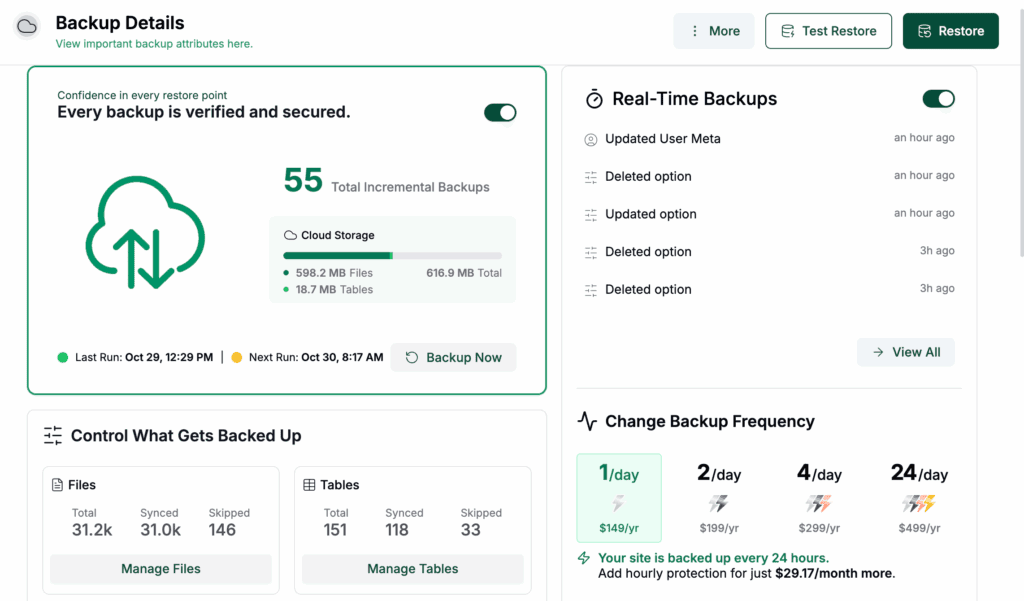
Hosting plan and domain. You need an active hosting account with a good hosting provider and a registered domain name. We recommend using a host with cPanel, as it simplifies many of the steps.
Login details. You’ll need two sets of logins: your hosting control panel (cPanel) and your FTP credentials. If you’re not sure where to find them, check the welcome email from your hosting provider or look in your main account area for them.
An FTP client. An application like FileZilla is great for transferring files. You can use your host’s file manager, but an FTP client is often more reliable.

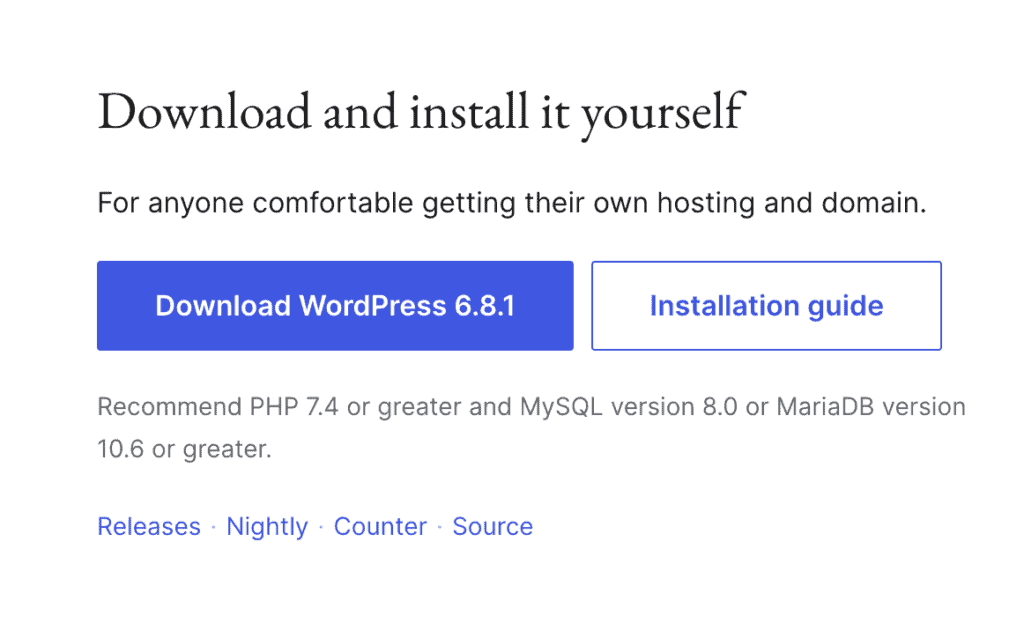
The WordPress package. Download the latest version of WordPress as a .zip file directly from the official wordpress.org website.
A subdirectory name. Choose a simple and clear name for your new folder, such as/blog, /shop, or /dev.
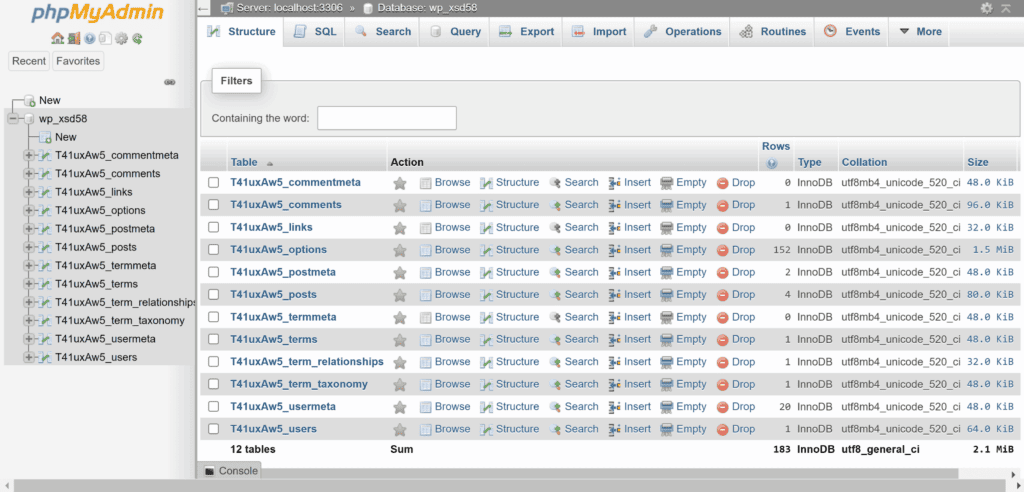
Database access. To create a new WordPress database, you need to find your host’s database manager. In cPanel, this is called MySQL Databases, but other hosts will have their own custom tool for this.
How to install WordPress in a subdirectory
The process is broken down into four clear phases. Follow these instructions carefully, and your new WordPress site will be up and running correctly.
Phase 1: Uploading WordPress files
First, we need to create the new folder on your server and place the WordPress core files inside it.
Extract the files on your computer. Instead of uploading the .zip file directly, unzip it locally first. If you’re on Windows, right-click the wordpress.zip file you downloaded and select Extract All. If you’re on a Mac, simply double-click the .zip file. Both methods will automatically create a new folder named wordpress on your computer.

Log in to your server. Open your FTP client (like FileZilla) and connect to your server using your FTP credentials.

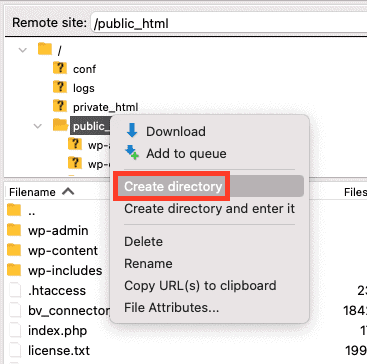
Navigate and create your directory. On the server side (the right-hand panel in FileZilla), navigate to your web root. This is the main folder for your website, almost always named public_html or www. Inside this folder, create a new directory with the name you chose earlier (for example, yoursubdirectory).
Upload the WordPress files. In FileZilla’s left panel (your computer), open the wordpress folder and select everything inside. Drag all the files and drop them into the new subdirectory on your server. This part will take some time since you’re uploading thousands of files, which is completely normal.
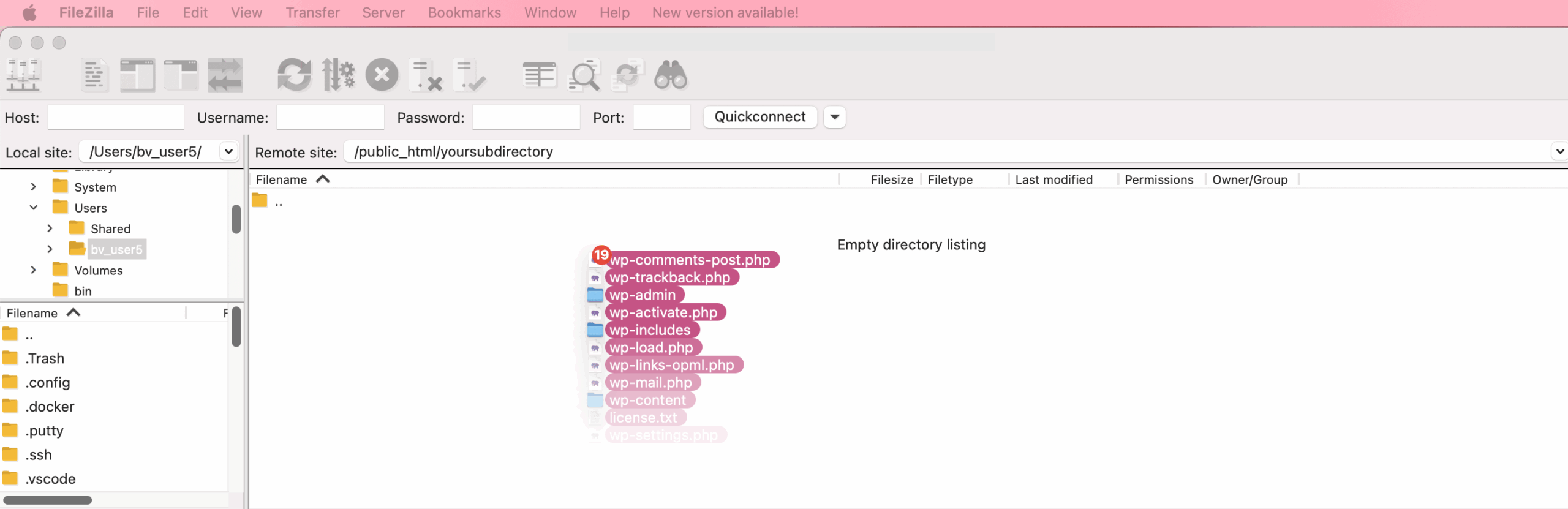
Verify the structure. Once the upload is complete, click on your new subdirectory on the server. You should see the wp-admin, wp-content, and wp-includes folders immediately. This confirms that all the files are in the correct place and you are ready for the next phase.
Phase 2: Database setup
Every WordPress site needs a database to store content and settings. It acts as the brain for your website.
Access your databases. Head to your hosting control panel to access your databases. For this guide, we’ll be using cPanel, where you’ll need to find and open the MySQL Databases section.
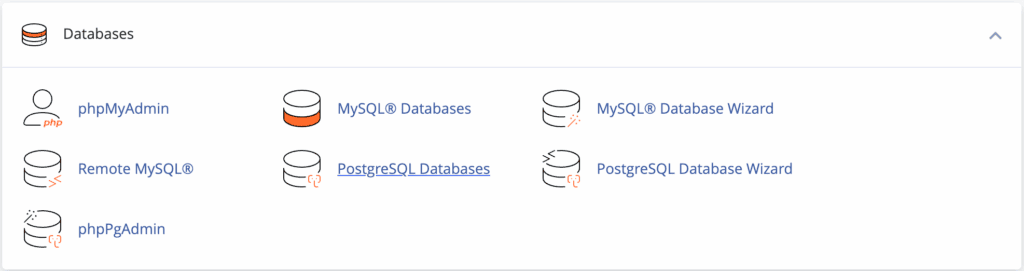
Create a new database. Give it a unique and recognizable name. On the same page, create a new user and be sure to generate a strong password.

Assign the user to the database. Finally, assign the user to the database. When prompted, grant the user All Privileges to give it full control.
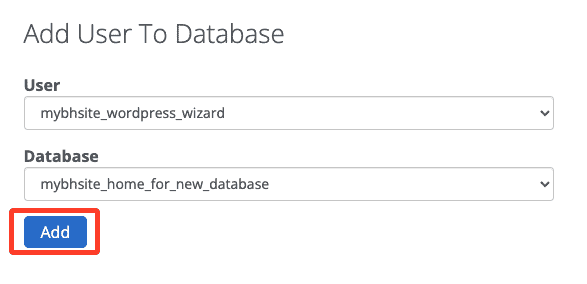
Record your credentials. Carefully write down the database name, the username, and the password. You will need them in the next step.
Phase 3: Run the installation wizard
With the files and database ready, it’s time to let WordPress do its thing.
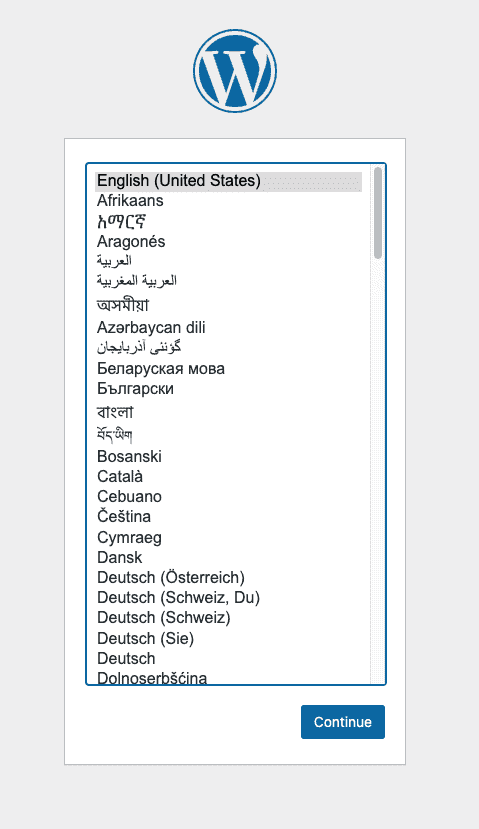
Launch the installer. Visit your new subdirectory URL (e.g., www.yourwebsite.com/yoursubdirectory). The wizard will start automatically. Select your language and click Continue.
Enter database details. On the next pop-up, carefully input the database name, username, and password you recorded. Leave the host as localhost and the table prefix as the default. Finally hit Submit.

Phase 4: Complete the installation
You are almost finished. This is the final step where you create your site and your admin account.
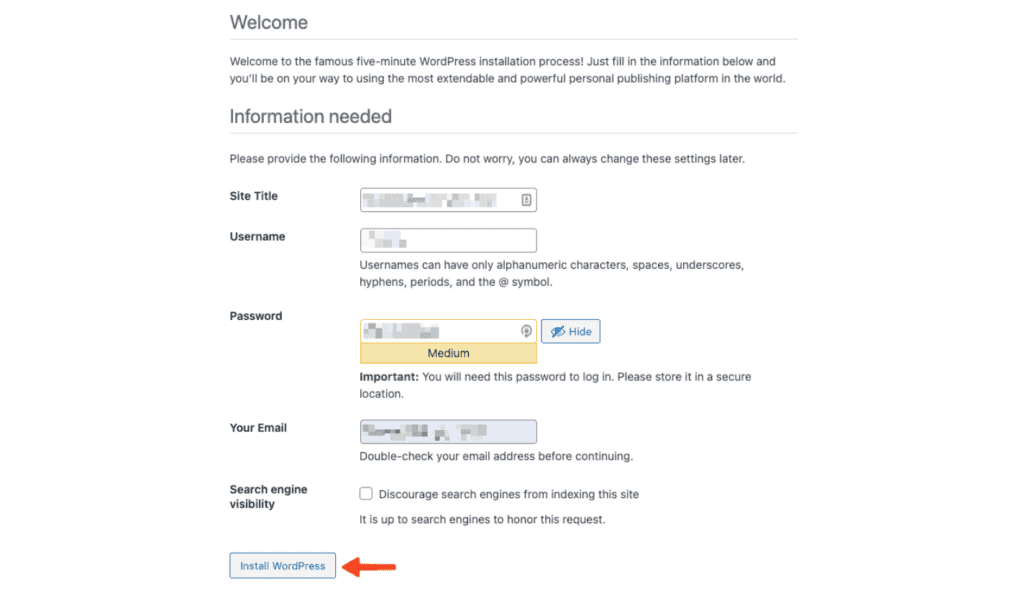
Enter site information. On the next form, provide a site title, choose a unique admin username (for security, do not use admin), create a strong password, and enter a valid admin email address.
Set search engine visibility. If your site isn’t ready to be public, you can check the box to discourage search engines from indexing it for now.
Install WordPress. Click the Install WordPress button to finalize the setup. Your WordPress site is live within your subdirectory now!
Post-installation configuration and advanced settings
Your site is installed, but a few quick adjustments will make it much more effective and secure.
Step 1: Secure your site (do this first)
A fresh WordPress site can be a target for automated bots, so these first two actions are non-negotiable.
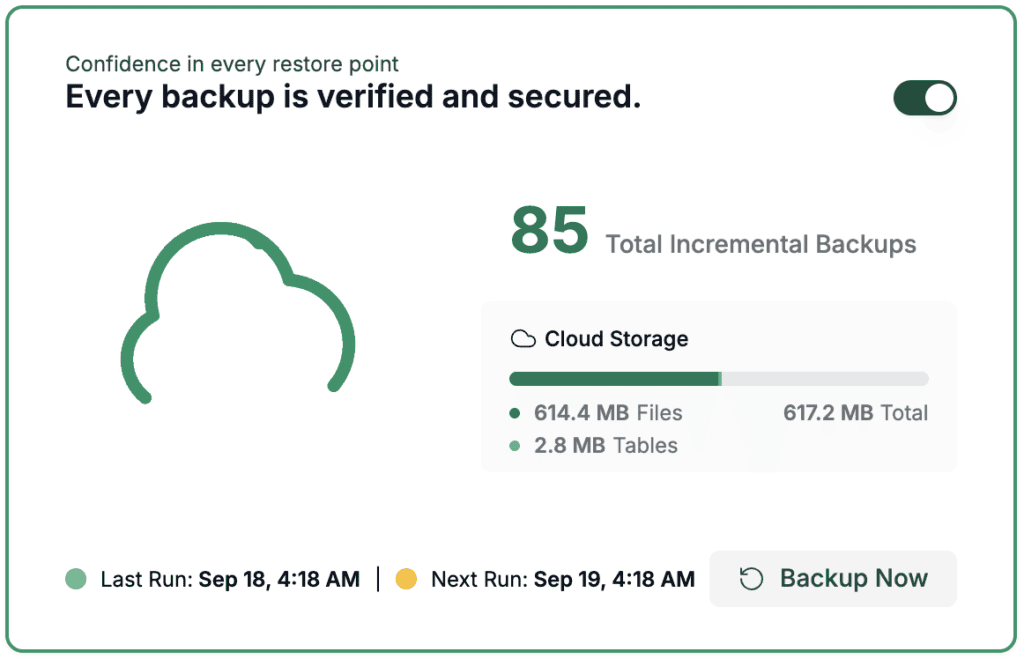
Set up automated backups. This is your safety net. Install a trusted backup plugin like BlogVault. If anything ever goes wrong, you can restore your site in minutes.
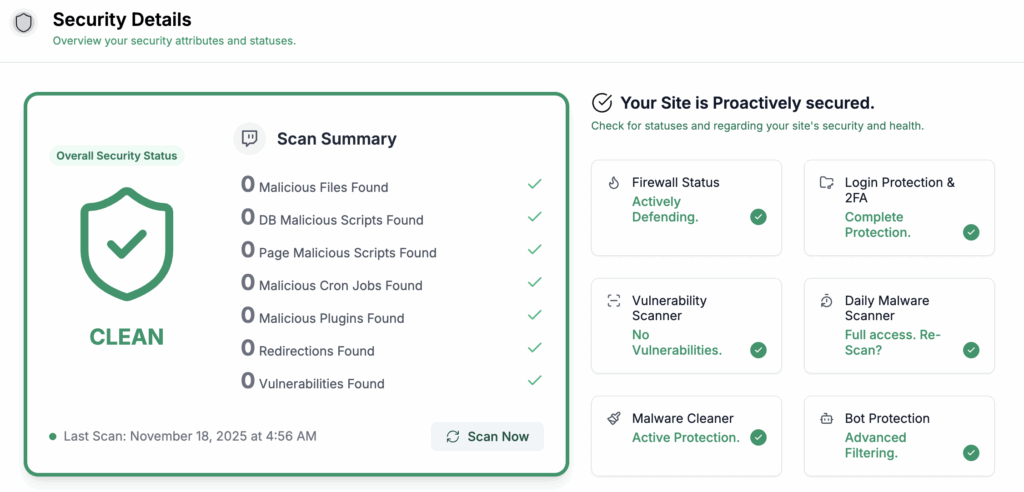
Install a security plugin. Next, install a comprehensive security plugin like MalCare. This tool will protect your site from hackers, malware, and other common threats right out of the box.
Step 2: Configure core settings
With your site secured, we can now configure the essential WordPress settings.
Set your permalinks. This is a crucial step for SEO. Navigate to Settings > Permalinks and select the Post name structure.

This creates clean, readable URLs that both users and search engines prefer. Click Save Changes. This action also generates an important server file called .htaccess.
Step 3: Clean up and customize
Now that the technical setup is done, you can prepare the site for your own content.
Clean up default content. Navigate to Posts and delete the default Hello world! post. Similarly, head to Pages and delete the Sample Page. This is just simple housekeeping.
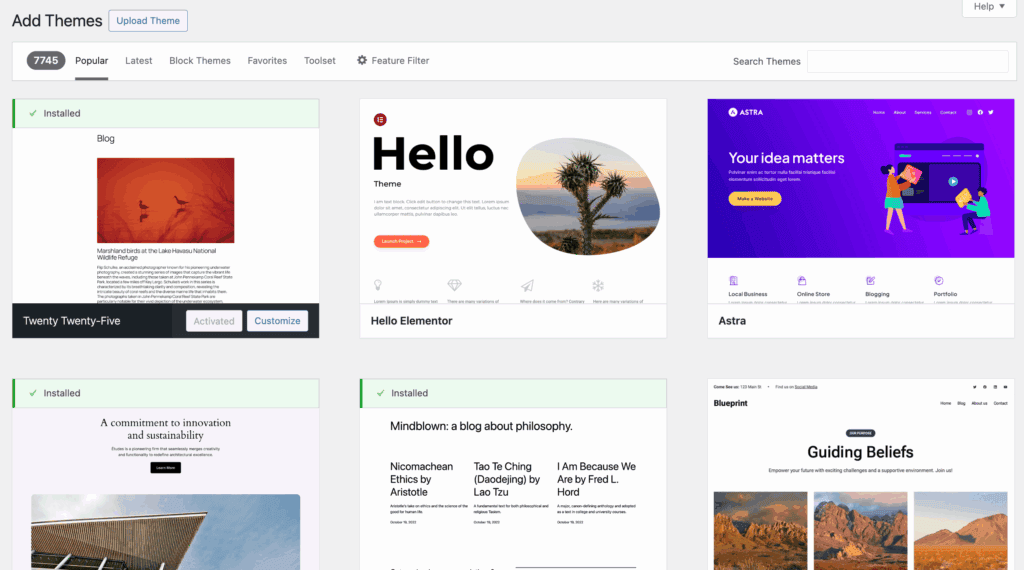
Install your theme and plugins. You are now ready to install your theme and any other plugins you need to add the functionality you want for your site.
Troubleshooting common errors
If you run into an issue, do not worry. Most problems that pop up after an installation are common and have simple solutions. Here are the fixes for the ones you are most likely to see.
Error establishing a database connection
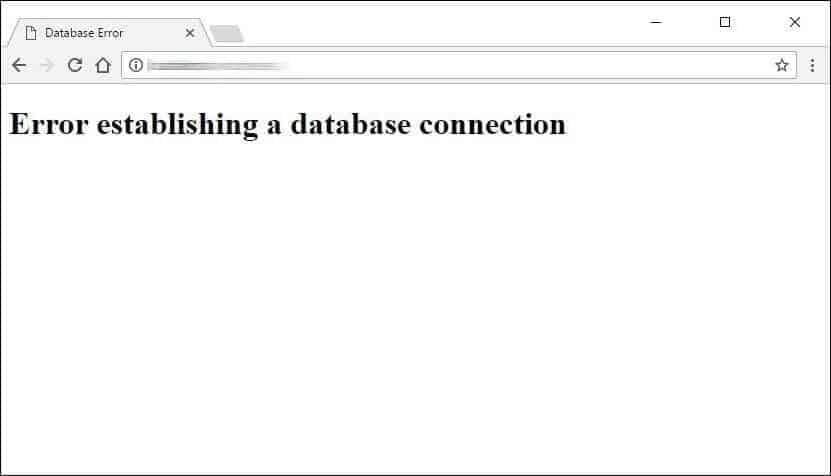
This scary-sounding error almost always means there is a typo in your wp-config.php file. Double-check that the database name, username, and password are exactly correct. Also, ensure the database user has All Privileges assigned.
If everything looks right, contact your hosting provider. They can check if their database server is having issues.
404 Not Found errors on pages
If your homepage works but other pages show a 404 error, the fix is usually simple. Go to Settings > Permalinks in your WordPress dashboard and just click Save Changes again.
This forces WordPress to rebuild its URL rules and solves the problem 99% of the time. In rare cases, you may need to check your .htaccess file permissions.
The White Screen of Death (WSOD)
A blank white screen is almost always caused by a faulty plugin or theme. The quickest way to check is to use your file manager to temporarily rename your plugins folder.
If your site comes back, you know it is a plugin issue; reactivate them one by one to find the offender. If it is not a plugin, try the same thing with your theme’s folder.
Internal server error (500 error)
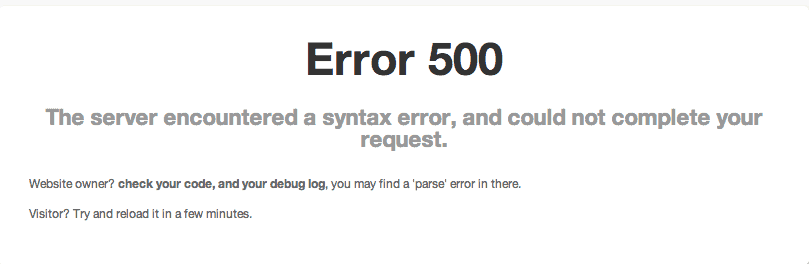
This server error often points to a problem with your .htaccess file. Try renaming the file (e.g., to htaccess_old) via your file manager.
If your site comes back online, you have found the issue. You can then go to Settings > Permalinks and save your changes to generate a fresh, clean .htaccess file.
Best security practices to follow
A secure website is a healthy website. Follow these core habits to keep your new installation safe.
Prioritize your backups: Your backup strategy is your most critical security tool. Use a trusted plugin to implement regular, automated backups. The key is to store them in a secure, off-site location, not on your server. This ensures that even if your entire hosting account is compromised, you still have a clean copy of your site ready to restore.
Software updates: Outdated software is a top security risk. Make it a habit to always keep your WordPress site updated. Enabling automatic updates for minor releases can help automate this crucial task.
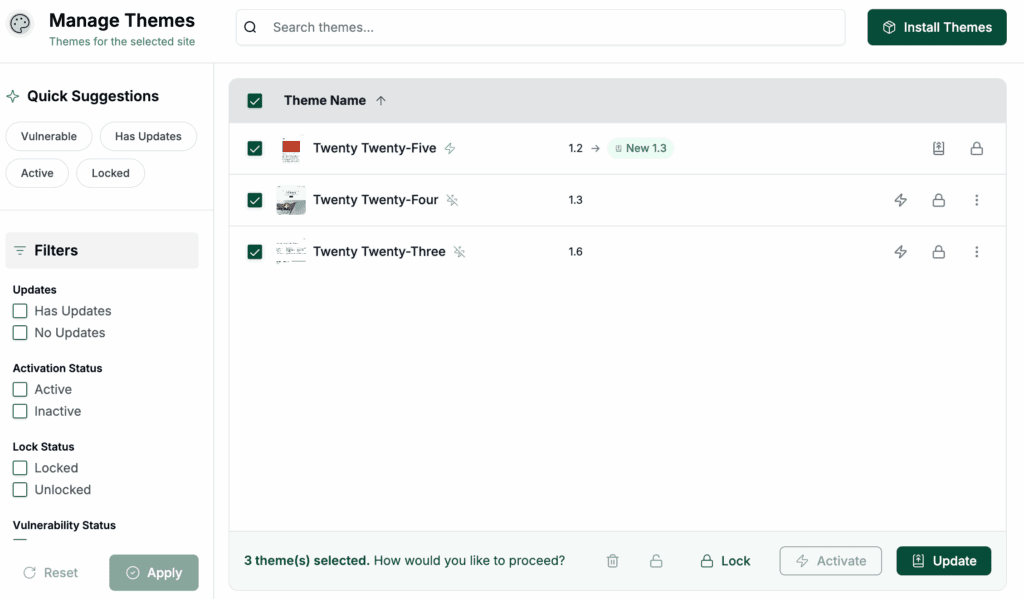
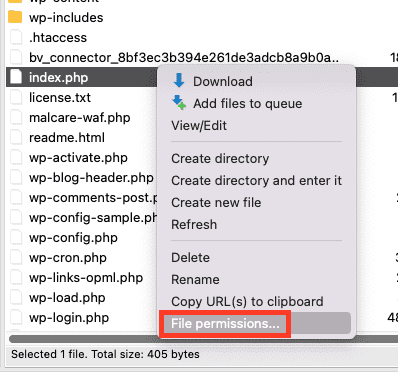
Configuration and file security: You can harden your site through a few key configurations. Disable file editing from the WordPress dashboard in your wp-config.php file. Also, ensure you are using the correct file permissions on your server: 755 for folders and 644 for files.
Server-level security: Your server’s security is also critical. Make sure your hosting provider is secure and always implement HTTPS/SSL to encrypt website traffic. You should also disable XML-RPC if you are not using it, as this can be a target for attackers.
What if you want to move your subdirectory to live?
Moving your site from a subdirectory to the root is simple with the right tools. The manual process of moving files is technical and prone to errors. From our experience, the safest method is a migration plugin like All-in-One WP Migration. These tools package your entire site into one file. You just install a fresh WordPress on your root and use the plugin to deploy it. The plugin handles all complex URL changes automatically. This prevents a broken site.
Parting thoughts
You’ve successfully (and safely) installed WordPress in a subdirectory, protecting your main site while giving it room to expand. From here, your focus shifts to site maintenance.
Remember the fundamentals: keep everything updated, maintain regular backups, and never neglect security. The foundational work is done. Now you can focus on actually building out your new project.
FAQs
Will installing WordPress in a subdirectory hurt my SEO?
No, installing WordPress in a subdirectory will not hurt your SEO. Search engines like Google see it as part of your main site, which can help concentrate your domain authority.
Is a subdirectory the same as a subdomain?
No, they are different in structure and how search engines view them. A subdirectory is a folder on your main site (e.g., yourdomain.com/yoursubdirectory), while a subdomain is treated as a separate entity (e.g., yoursubdomain.yourdomain.com).
Can I have a different theme on my subdirectory WordPress site?
Yes, you can use a completely different theme and set of plugins. Your new WordPress installation is entirely independent, allowing for full customization without affecting your main site.
Will running two WordPress installations slow down my main site?
It should not slow down your site under normal traffic conditions. Both sites do share the same server resources, so a very high-traffic subdirectory could impact overall performance.
Do I need another hosting plan or WordPress license for this?
No, you do not need another hosting plan or license. WordPress is free, and the new installation will use the same hosting account and resources as your primary website.

Shivani enjoys crafting guides that make every aspect of using WordPress simple and easy to follow. When she's not glued to her laptop, you can find her buried in a good book or occasionally, painting.