You’re finally wrapping up a blog post you’ve been working on for hours. You click Update and see “Updating failed. The response is not a valid JSON response.”
What did I do wrong?
Is my site okay?
How do I fix this?
In this article, we’ll walk you through a simple guide to understanding and solving this common problem, so you can get back to blogging smoothly.
Two most popular solutions are to check your permalink settings and deactivate plugins to find conflicts. But, they both require changes to core files. So, always backup your website before changes to prevent data loss.
Understanding the “Updating failed. The response is not a valid JSON response” error
The “Updating failed. The response is not a valid JSON response” error means WordPress can’t get the data it expects. This happens during tasks like saving posts or updating pages on your wp-admin panel.
WordPress uses JSON like a mail system to exchange information between your site and the server. When you update a blog post, WordPress sends the data in a JSON format to the server, which then processes and sends back a response.
If WordPress expects JSON but gets something else, it can’t complete tasks. That’s when you see the “Updating failed. The response is not a valid JSON response” error.
This error can be due to several issues:
- WordPress can’t process the server response as JSON.
- Incorrect settings stop JSON from being read properly.
- Some plugins mess with response handling, causing invalid JSON.
- Theme updates might have scripts that block JSON data exchange.
- Wrong URLs lead to data path errors.
- These can block essential communication.
- Misconfigurations can ruin JSON data.
- Character mismatches can corrupt data.
How to fix the “Updating failed. The response is not a valid JSON response” error?
You’ve probably noticed from the previous section that there is a long list of causes for the “Updating failed. The response is not a valid JSON response” error. This means there are also many fixes. It’s all about finding the root cause and solving it.
1. Check the error logs
Debugging generators WordPress logs in your files. These help identify errors on your WordPress site. It allows you to see hidden errors, giving insights into why problems like the “JSON response “Updating failed. The response is not a valid JSON response” error occur.
If you haven’t enabled debugging already, here is what you do:
- Access it via an FTP client or your hosting provider’s file manager.
- Search for:
define('WP_DEBUG', false);.- Change false to true. Now it should read define(‘WP_DEBUG’, true);.
- Keep the updates in the file.
Once you’ve enabled debugging in WordPress, you need to replicate the error to capture relevant data in the logs. This process creates entries in the debug.log file located in the wp-content directory. Open this file with a text editor to examine the logs. Focus on entries related to REST API or similar errors. These logs provide critical information that can help you identify the source of the JSON response error. By tracing these entries, you’ll be closer to finding an effective solution to the problem.
2. Verify site URL and WordPress URL
Both the WordPress Address (URL) and Site Address (URL) settings are crucial for your site’s proper operation. These URLs ensure that your WordPress installation and your site’s public-facing content are linked correctly. Any discrepancy can cause errors, such as the JSON response issue, by disrupting how your site communicates with the server. This makes it a huge reasn behind errors like the “Updating failed. The response is not a valid JSON response”.
- Head to your WordPress dashboard. On the left-hand menu, navigate to Settings, then click on General.
- In the General Settings section, you’ll find two fields: WordPress Address (URL) and Site Address (URL). Ensure both fields contain the correct and matching URLs for your WordPress installation.
- This should point to the directory where your WordPress core files are installed.
- This should be the URL you want your visitors to type to reach your site.
- Verify that both URLs match precisely and reflect the correct installation and public access paths. They should typically look like https://yoursite.com or http://yoursite.com, depending on your SSL setup.
- If any changes are needed, adjust the URLs accordingly, and then click Save Changes at the bottom of the page.
- After updating the URLs, check your site to see if the JSON response error persists.
3. Resolve plugin conflicts
WordPress plugin conflicts happen when one or more plugins interfere with how WordPress functions, potentially causing errors like the JSON response problem. Plugins extend your site’s features but sometimes have coding issues or incompatibilities with other plugins, themes, or WordPress itself. These conflicts can disrupt how data is transmitted and processed, leading to errors.
- Log in to your WordPress dashboard. From the left-hand menu, navigate to Plugins, and select Installed Plugins.
- Start by deactivating all plugins. You can do this by selecting each checkbox next to the plugin names, choosing Deactivate from the Bulk Actions dropdown menu, and clicking Apply. This will help determine if a plugin conflict is causing the error.
- After deactivating all plugins, see if the JSON response error persists. If the error is gone, it indicates a plugin conflict.
- Return to the Installed Plugins page and begin reactivating plugins one at a time. After each activation, check your site for the error.
- Once the JSON error reappears, note the last plugin you activated. This plugin is likely causing the conflict.
Once you’ve identified the conflicting plugin, you have a few options. You can either update the plugin safely, contact support or find an alternative plugin for the same functionality.
4. Fix theme conflicts
Theme conflicts occur when a WordPress theme interferes with how the site operates, potentially causing errors like the JSON response issue. Themes control the appearance of your site, but they also contain scripts and styles that can affect functionality. Sometimes, these elements clash with WordPress or other plugins, disrupting normal operations and data handling. This is especially common when a theme update failed.
Fixing theme conflicts is the next step to solve the “Updating failed. The response is not a valid JSON response” problem. Here’s how:
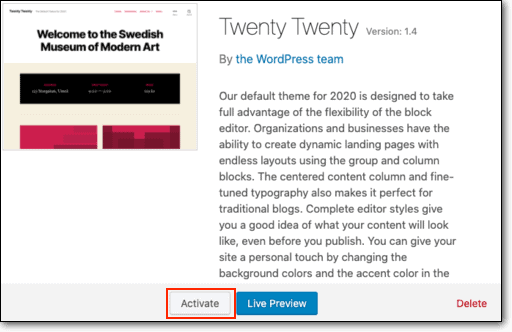
- Go to WordPress Dashboard > Appearance > Themes.
- Activate a default theme like Twenty Twenty-Three.
- Check if the error persists with this theme activated.
- If switching to the default theme resolves the error, the original theme is likely the cause. You may need to update the theme, change settings, or contact the theme developer for assistance. Resolving these conflicts can restore proper functionality and fix the JSON response error.
5. Reset .htaccess
The last way to fix the “Updating failed. The response is not a valid JSON response” error is to reset the .htaccess file. The .htaccess file is a configuration file for web servers running Apache. It tells the server how to handle URLs. This file can affect how your WordPress site communicates with the server, including how data is formatted and understood. If .htaccess is misconfigured, it might lead to errors like the JSON response issue.
The easiest fix is to reset permalinks. Permalinks define your site’s URL structure. They are generated using rules in the .htaccess file. Resetting permalinks can rewrite the .htaccess file, potentially fixing these issues.
- Access permalink settings: Log in to your WordPress dashboard. On the left-hand menu, navigate to Settings, then click on Permalinks.
- Refresh the structure: Once you’re on the Permalink Settings page, you don’t need to change anything. Simply click the Save Changes button at the bottom of the page. This action will refresh your site’s permalink structure without altering any settings.
- Test your site: After saving changes, check if your site’s pages and posts function correctly and see if the JSON error persists.
If you’ve tried all troubleshooting steps and the JSON response error persists, it might be time to reach out to your web host. Hosting companies can provide insights into server-side issues that could be contributing to the problem.
Preventing the error
Understanding how to prevent the “Updating failed. The response is not a valid JSON response” error is crucial for anyone managing a WordPress site. This error can disrupt your ability to update content, affecting user experience and site functionality. By taking preventive steps, you can ensure smooth operations, maintain communication between your site and server, and avoid frustrating errors that could lead to downtime or data loss. Caring about prevention not only protects your site but also enhances its performance and reliability, ultimately providing a better experience for your visitors.
- Regularly update: Update WordPress core, themes, and plugins to minimize compatibility issues.
- Use compatible themes/plugins: Choose well-coded and updated options to ensure they work seamlessly with WordPress.
- Limit plugin usage: Install only essential plugins to reduce the risk of conflicts and errors.
- Ensure proper configuration: Regularly check WordPress settings like permalinks and URLs to avoid misconfigurations.
- Optimize server setup: Use a WordPress-optimized hosting environment for better performance and fewer issues.
- Regular backups: Schedule backups to have a recent version of your site ready if needed.
- Test in staging: Use a staging environment to test changes before applying them to your live site.
Final thoughts
The “Updating failed. The response is not a valid JSON response” error can seriously disrupt your ability to update content on your WordPress site, impacting user experience and operational efficiency.
To minimize this impact, regular backups are essential. They offer a quick restore option, ensuring that errors don’t lead to significant data loss or downtime.
Once you have restored your site, troubleshoot issues on a staging site. This allows you to find the root cause and implement fixes without affecting your live site. By following this approach, you keep your live site stable and uninterrupted.
FAQs
What causes the “Updating failed. The response is not a valid JSON response” error?
This error can be caused by issues like incorrect server configurations, plugin or theme conflicts, incorrect URL settings, or outdated permalinks. Identifying the root cause requires checking error logs, testing plugins and themes, and verifying site settings.
How can I prevent the JSON response error in the future?
Regular maintenance is key. Keep your WordPress core, themes, and plugins updated. Limit the number of plugins to essentials and use well-coded ones. Regularly back up your site, verify URL settings, and ensure your server environment is optimized for WordPress.
Is it safe to disable plugins and themes to troubleshoot JSON errors?
Yes, it is safe to deactivate plugins and switch themes temporarily to diagnose issues. Doing so does not delete your settings or data. Reactivate them one by one to pinpoint the cause of the conflict, then address the issue by updating or replacing the problematic component.
Can incorrect permalink settings cause JSON response errors?
Yes, incorrect permalink settings can lead to path errors and data handling issues, causing JSON response problems. Refresh your permalinks by going to Settings > Permalinks and clicking Save Changes. This action often resolves errors related to URL structure.
Why should I use a staging site to troubleshoot JSON response errors?
A staging site allows you to test changes, updates, or new plugins safely without affecting your live site. It helps you identify and fix errors in a controlled environment, preventing potential downtime or disruptions on your live site. Once resolved, apply the successful changes to your main site.

Shreya has been a writer for as long as she can remember. Now, she writes articles that help WordPress users manage the sites that they're proud of, with little to no coding