Your site’s server generates WordPress access logs constantly. But what are they, what do they do, and how do you find and read these records?
Without understanding how to analyse these logs, you’re missing critical insights. WordPress generates multiple website logs for different purposes. The purpose of access logs is to help protect and optimize your site.
This guide covers everything you need to know: what’s inside your access logs, where they’re located, and how to read them.
WordPress access logs record every server request, revealing visitor activity, bot traffic, and security threats. Reading these logs helps you spot brute force attacks and implement malicious IP blocking to protect your site.
What are WordPress access logs?

WordPress access logs are plain text files that record every single request made to your website’s server.
These server access logs capture everything: someone visiting a page, a bot crawling your site, an image loading, or a hacker probing for weaknesses. Every interaction gets recorded.
Your web server software creates these logs, not WordPress itself. Whether you’re running Apache or Nginx, the server generates these records while WordPress operates on top of it. Each line represents one request or interaction.
Don’t confuse access logs with these log types:
WordPress activity logs: Created by activity log plugins, these record what logged-in users do in your dashboard (“admin edited post” or “user changed password”). WordPress access logs don’t capture this dashboard activity detail.

WordPress error log (debug.log): WordPress debug logs record problems within your WordPress code. This includes broken plugins, themes, or any other kind of errors. This focuses on internal WordPress issues, not visitor activity.WordPress also generates change logs to track updates.

Where to find your WordPress access logs
Finding your log file location is quite easy. You have two main methods to access these files: your hosting dashboard or FTP access.
Method A: Via hosting dashboard
Most hosting providers offer a web-based control panel or dashboard where you can view or download logs directly. Popular panels like cPanel typically have a Logs or Raw Access Logs folder within their File Manager. Custom hosting dashboards vary by provider.
For example, on Cloudways hosting, access logs appear in the Monitoring section under Logs. Your host’s layout may differ, but look for similar navigation paths.

Method B: Via FTP
Using FTP lets you download complete log files, especially useful when control panels show limited data. Here’s how:
Connect to your server using an FTP client. Navigate to find a directory named logs– this contains your server’s WordPress access logs and error logs.


Once you access your logs through either method, you can analyse your WordPress access logs to identify patterns, spot potential attacks, and conduct bot traffic analysis for potential malicious IP blocking.
Why are access logs important?
Access logs provide critical data that most website owners tend to overlook. Here’s why they matter for your WordPress site.
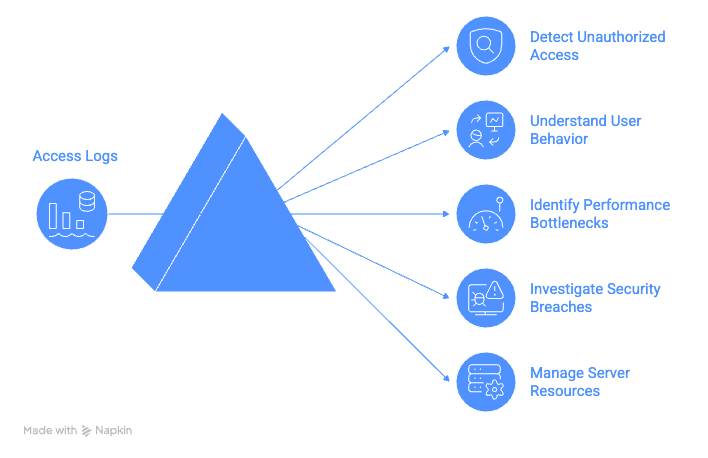
Detect unauthorized access and security threats
Access logs reveal malicious activities targeting your site.This information is vital for a WordPress security audit. You can spot brute force attacks WordPress faces through repeated POST requests to /wp-login.php.
You can detect vulnerability scanning attempts from suspicious 404 errors on the common exploit path.
Understand user behavior and traffic patterns
Server access logs show raw insight into every request made to your site. You’ll see your most requested content, identify traffic sources through referrer data, and conduct bot traffic analysis to understand who’s visiting your pages.
Identify performance bottlenecks
You can pinpoint what’s slowing down your site with the help of these logs. Traffic spikes from aggressive bots become obvious, large files consuming bandwidth get identified, and you can verify whether your caching setup works effectively.
Investigate security breaches
If your site gets compromised, access logs help trace the attack. You can pinpoint the initial unauthorized access point, track hacker movements through your server, and determine which files were compromised during the breach.
Manage server resources effectively
Access logs reveal which IPs or User-Agents (Browser or software identifier string) consume excessive server resources. This data enables malicious IP blocking decisions, helps identify bandwidth-intensive downloads, and prevents hosting overages before they impact your site’s performance.
How to read your access logs
Server access logs look intimidating, but each line follows the same format. Here’s how to decode what you’re seeing.
Here’s a sample log that we will analyse:

Breaking down each component:
Jul 22 05:15:16- The exact date and time the request happened.
122.171.18.XXX- The visitor’s IP address. This unique internet address identifies who made the request. Repeated suspicious activity from the same IP signals potential attacks and helps with malicious IP blocking decisions.
POST /wp-admin/admin-ajax.php HTTP/1.0- What the visitor requested from your server. The path shows which page or file they accessed.
200- This three-digit status code tells you the request outcome. This means the page loaded successfully.
Common status codes you’ll encounter:
- 200 OK: Everything worked perfectly
- 301 Moved Permanently: Page redirected to new location
- 404 Not Found: Page doesn’t exist
- 500 Internal Server Error: Something broke on your server
- 503 Service Unavailable: Server overloaded or in maintenance mode
- 403 Forbidden: Access blocked
2473- Response size in bytes. Large numbers here repeatedly can indicate performance-draining downloads.
“https://wordpress-123.xyz.com/wp-admin/options-general.php?page=example”- The referrer, which page the visitor came from before this request.
“Mozilla/5.0…”- The User-Agent string identifying the visitor’s browser and operating system. When you analyse access logs for bot traffic analysis, suspicious User-Agents often reveal automated attacks or brute force attempts targeting WordPress.
Parting thoughts
You now understand WordPress access logs and know where to find your log file location to read them properly.
This knowledge helps you spot brute force attacks WordPress faces, identify harmful bot traffic, and block malicious IPs to protect your site. You’ve gone from being confused by server data to confidently using these logs to keep your WordPress site secure and running smoothly.
FAQs
Where are the access logs in WordPress?
Access logs in WordPress are stored by your server, not within WordPress itself. They can be found in the server’s log directory or via your hosting provider’s control panel.
How to see access logs?
To see access logs, access your hosting dashboard or use FTP to download them. They are typically located in the “logs” directory of your server.
Where are access logs stored?
Access logs are stored on your web server in a directory often named “logs.” The exact location depends on your hosting setup and server configuration.
Where to find access logs in cPanel?
In cPanel, access logs can be found under the “Metrics” section, specifically labeled as “Raw Access” or “Raw Access Logs.” You can view or download them from there.
What does an activity log do?
An activity log records actions taken by users within the WordPress dashboard. It details interactions like login attempts and content updates, unlike access logs that focus on server requests.

Shivani enjoys crafting guides that make every aspect of using WordPress simple and easy to follow. When she's not glued to her laptop, you can find her buried in a good book or occasionally, painting.