Your WordPress site breaks at the worst possible moments. Right before a major launch, during peak traffic periods, or when you’re trying to meet a tight deadline. You’re staring at error messages or a broken layout with no idea what caused the problem or how to fix it.
Manually enabling WordPress debug mode involves editing sensitive code files, which can be risky when you’re already dealing with a broken site.
A WordPress debug plugin can solve this headache by automatically showing you exactly what’s wrong and where the problem is hiding. You get clear answers fast so you can fix issues and move on.
WordPress debug plugins turn on debug mode for you and show errors right in your dashboard. This makes troubleshooting a breeze without having to mess with code. Just remember to backup your site with a plugin first. Plugins can sometimes cause conflicts, and you’ll want that backup as a safety net.
What is a WordPress debug plugin?
A WordPress debug plugin is a troubleshooting tool that automatically enables WordPress’s built-in debug mode for you. WordPress already has debugging features, but you’d normally have to edit code files to activate them. These plugins skip all that technical work and flip the switch automatically.
Once the plugin enables debug mode, all those hidden error messages start showing up in your WordPress admin area. You’ll see them right in your dashboard instead of having to go find the log files or guess what’s wrong. WordPress is constantly tracking errors in the background; debug plugins just enable the mode and make them visible to you.
The real advantage lies in getting specific details about each problem without any technical setup. You’ll know which file is causing trouble, what type of error occurred, and often get hints about how to fix it.
Why use a debug plugin over manual debug mode?
Manual debug mode means editing your site’s core files. A tiny error could cause your site to go down. Additionally, you must find the right file, add precise code, and remember to remove it.
Debug plugins simplify this process: install, click a button, and debugging is enabled without file edits or risks. They present information clearly on your dashboard, avoiding navigating through confusing server logs.
Some plugins catch issues that manual debugging might miss. This includes loading speed and potential security problems. The time saved alone, turning 30 minutes into seconds, is a significant benefit.
WordPress debug plugin options
When your WordPress site encounters issues, you’ll want a debug plugin that clarifies rather than complicates. If you prefer not to enable debug mode manually, consider these five options, each with its own strengths and weaknesses:
1. WP Debugging

Developed by Andy Fragen and last updated 6 months ago, WP Debugging has over 10,000 active installations. The plugin automatically sets and removes debug constants in wp-config.php, eliminating the need for manual file editing.
It simplifies the debugging process by allowing you to add custom constants to wp-config.php and includes Debug Quick Look for easy reading of the debug.log file. The plugin offers optional integration with Query Monitor and Debug Bar for enhanced debugging capabilities and streamlines troubleshooting by automating setup and teardown processes.


Pros
- No file editing required
- Debug Quick Look makes logs readable
- Simple setup process
- Intuitive interface
- Simplified log access
- Customizable debug options
Cons
- Needs extra plugins for advanced features
- Still requires some technical knowledge
- Last updated 6 months ago
2. Debug Log Manager

Developed by Bowo and last updated 1 month ago, Debug Log Manager has over 8,000 active installations. The plugin offers one-click activation for WP_DEBUG and creates the debug.log file directly in the dashboard.
It allows filtering to find specific errors quickly and makes error details easy to read by showing sources and file paths.
The plugin automatically identifies whether errors are from core, plugins, or themes, enables auto-refresh for new log entries without manual reloading, and lets you easily Clear Log to free up space. Adding to the features, it displays an indicator on the admin bar when logging is active.

Pros
- Simple activation with one-click enable/disable for WP_DEBUG
- Dashboard integration creates and manages the debug.log within the dashboard
- Error filtering quickly finds specific errors with filters
- Auto-refresh automatically updates log entries
- Space management easily clears logs to save space
- The admin bar indicator shows when logging is active
Cons
- Technical understanding needed
3. Query Monitor

Developed by John Blackbourn and last updated 4 months ago, Query Monitor boasts over 200,000 active installations. The plugin debugs database queries, PHP errors, hooks, actions, and more while grouping queries by plugins, themes, or functions for clarity.
It enhances the admin toolbar with a detailed page overview and provides real-time insights and debugging information. Query Monitor supports WordPress versions up to three years old and requires PHP 7.4 or higher for compatibility.

Pros
- Intuitive grouping of queries by source
- Real-time insights with admin toolbar integration
- Supports extensive debugging areas like scripts and styles
- Compatible with a broad range of WordPress setups
Cons
- Overwhelming for beginners
- Requires some technical knowledge to interpret data
- Can be resource-intensive on large sites
4. Debug Log Manager Tool

Debug Log Manager Tool, created by Lukman Nakib and updated 4 weeks ago, has over 3,000 active users. It lets you easily view and sort debug logs, using colors to highlight different parts for better clarity.
It organizes errors for simpler analysis, checks database queries, alerts you to new issues via email, and allows quick disabling of all plugins except chosen ones for troubleshooting.

Pros
- Comprehensive debugging features
- Error categorization for clarity
- Real-time error alerts
- Easy plugin management for troubleshooting
Cons
- May require some technical knowledge
5. Debug Bar

Debug Bar, developed by wordpressdotorg and last updated a year ago, has over 20,000 active installations. It adds a debug menu near the profile area in the admin bar, providing quick access to query, cache, and debugging information.
While its placement might be easily overlooked, it delivers valuable insights into website performance and issues.


Pros
- Displays comprehensive query and cache data
Cons
- Placement in the admin bar may be confusing
- Requires a basic understanding of debugging data
- Limited updates, last updated a year ago
Precautions while using a WordPress debug plugin
Debug plugins are powerful but can create problems if used carelessly. Follow these essential precautions:
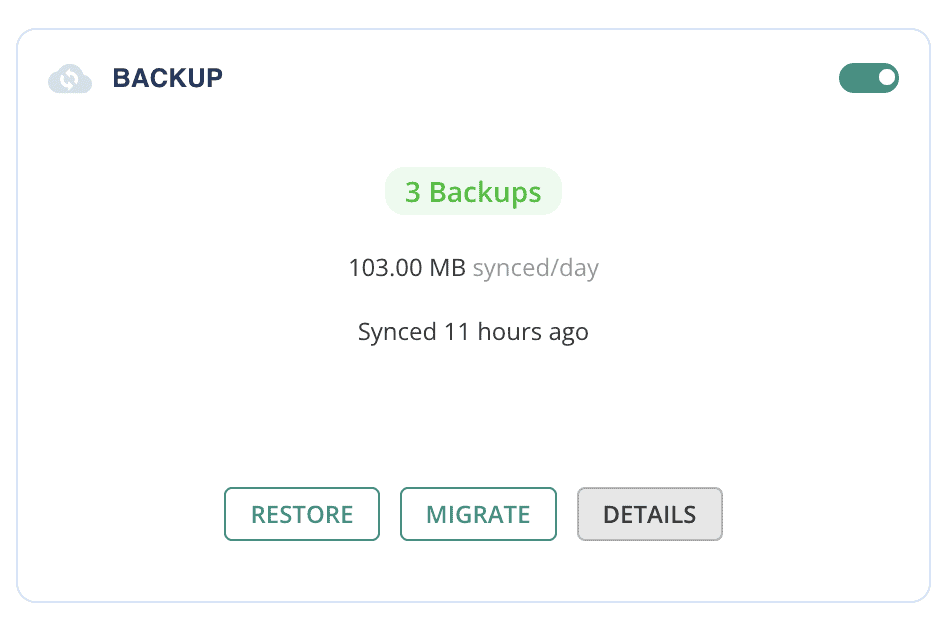
Backup your site first. If debugging goes wrong, you can restore your site. Most hosts offer one-click backups.
Watch for performance slowdowns. Debug plugins collect lots of data and can make your site slower. Turn off debugging if performance suffers.
Use a staging site, not your live website. Debug mode can slow your site and show errors to visitors. Test on a private copy instead.

Disable debug mode when finished. Leaving it on creates security risks and ongoing slowdowns. Always turn it off after troubleshooting.
Keep plugins updated. Outdated debug plugins can cause more problems than they solve. Check for updates regularly.

Document your findings. Note which plugins caused issues and how you fixed them. This saves time for future problems.
Parting thoughts
Debug plugins transform troubleshooting from a frustrating guessing game into a simple problem-solving process, showing you exactly what’s broken instead of leaving you to wonder why things stopped working.
Your choice among these plugins depends on your technical comfort level and specific needs. Make debugging part of your regular site maintenance routine rather than just an emergency response, and always follow basic precautions like backing up your site and testing on staging environments first.
FAQs
How do I add debug to WordPress?
To add debugging in WordPress, enable debug mode by adding define(‘WP_DEBUG’, true); to your wp-config.php file. This will display PHP errors and notices, helping you identify issues.
How to debug a plugin in WordPress?
To debug a plugin, activate WP_DEBUG in wp-config.php and check the error logs for plugin-specific issues. Additionally, consider using tools like Query Monitor for deeper analysis.
What is the difference between WP_DEBUG and WP_DEBUG_LOG?
WP_DEBUG displays errors on-screen, while WP_DEBUG_LOG saves them to a log file. Use WP_DEBUG for immediate viewing and WP_DEBUG_LOG for storing error information.
How to access wp-config.php?
Access wp-config.php through your site’s file manager or an FTP client. Locate it in the root directory (often public_html or www) of your WordPress installation to make necessary changes.
How do I run debug mode?
To run debug mode, edit wp-config.php to include define(‘WP_DEBUG’, true);. This activates the debug mode, showing errors and notices on your WordPress site.
How to enable WP_DEBUG_LOG?
Enable WP_DEBUG_LOG by adding define(‘WP_DEBUG_LOG’, true); to your wp-config.php file. This will save error logs to a file named debug.log in your wp-content directory.

Shivani enjoys crafting guides that make every aspect of using WordPress simple and easy to follow. When she's not glued to her laptop, you can find her buried in a good book or occasionally, painting.