There’s a reason so many WordPress table plugins exist: wrestling with the default WordPress table never turns out right. You’re left with tables that feel unprofessional.
A poorly made table doesn’t just look bad; it kills your credibility. It is an instant turn-off for visitors.
The last thing you need is to pick the wrong plugin and introduce new problems like site crashes. This WP Table Builder plugin review will help you decide if its drag-and-drop solution is the right, and more importantly, the safe choice for your website.
For those who need to create beautiful tables without code, WP Table Builder is a top choice, though key features require the Pro version. Before installing any new tool, make sure you have a reliable backup plugin to keep your site safe from potential mishaps.
WP Table Builder plugin review at a glance
For a quick overview, here are the key highlights from our full review.
| Feature | Description |
| Interface | Drag-and-drop builder; live preview in Gutenberg |
| Pre-built blocks | Includes pricing and comparison tables |
| Data import | Supports CSV, ZIP, XML; direct entry |
| Essential features (Free) | Text, images, lists; duplicate tables, user role permissions |
| Pro features | Includes front-end filtering, pagination, advanced styling |
| Styling and customization | Basic colors; Pro adds advanced options |
| Responsive design | Requires manual enabling; offers responsive breakpoints |
| Performance | Minimal impact; lazy loading optional |
| Updates and support | Regular updates; ticket system for Pro users |
Core tools and feature set
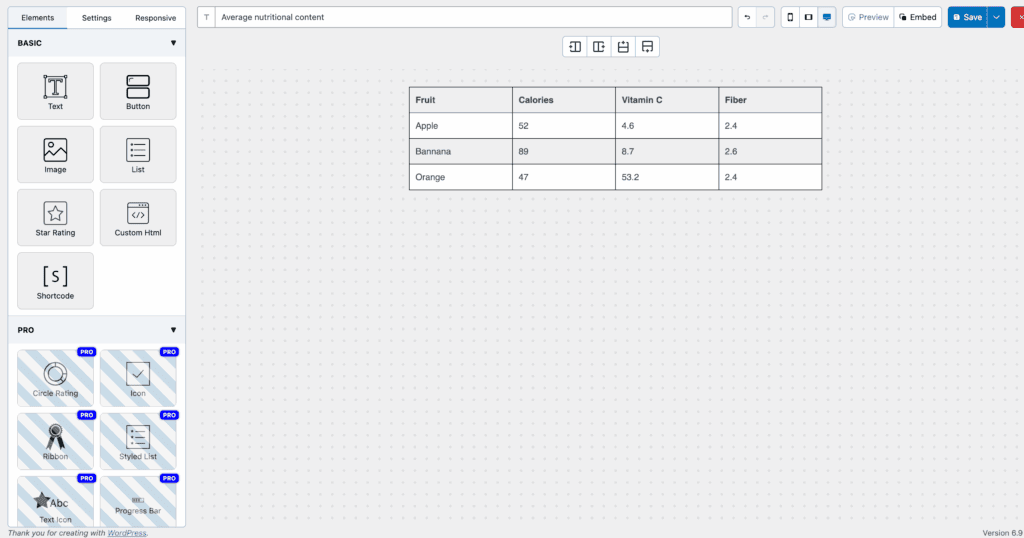
The best thing about WP Table Builder is how simple it makes creating tables. Its drag-and-drop visual interface means you see exactly what your table looks like as you build it, saving a ton of time and removing the need for code. This visual approach removes the need for manual coding, which helps you avoid having to troubleshoot common WordPress errors.

For common needs like pricing and comparison tables, the plugin also provides pre-built blocks so you never have to start from scratch.
To make your tables do more than just show data, you can add elements like buttons, icons, and star ratings. Getting your information into the table is flexible, but before you import anything, it’s wise to perform a full WordPress site backup.
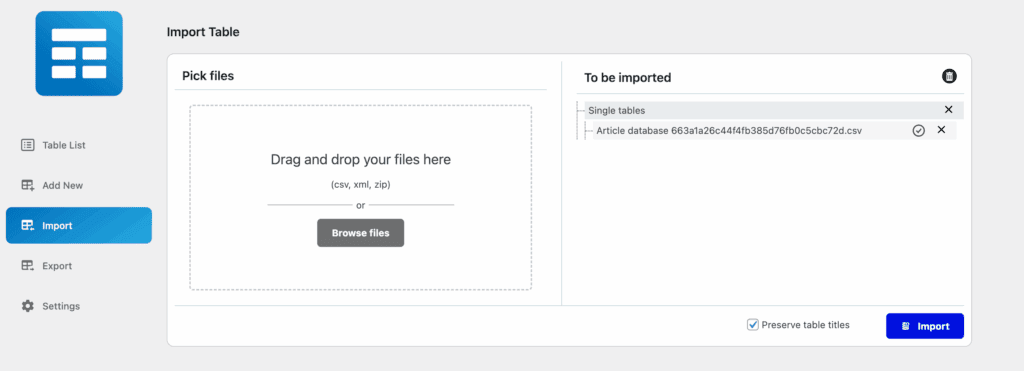
Data can be typed in directly or imported from CSV, ZIP, or XML files, which is a great way to avoid manual entry.
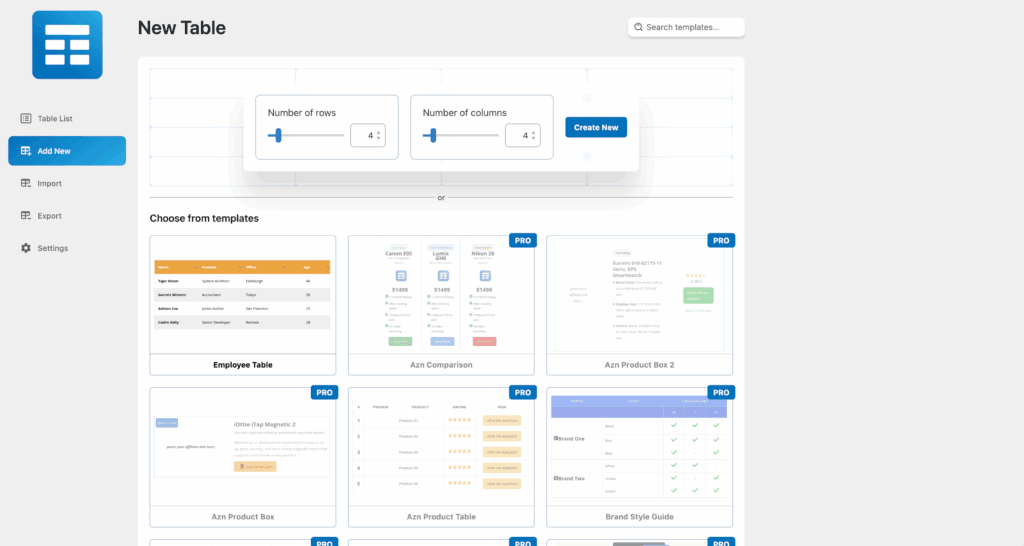
Starting a new table is straightforward. You visually select the number of rows and columns with a slider or simple arrows. The free version gives you seven essential elements like text, images, and lists.
A key feature is the cell management mode, which lets you create custom layouts like a header that spans multiple columns.
Be aware that important interactive features, like front-end filtering and pagination for visitors, are only in the Pro version. Even so, the free version lets you duplicate tables with one click and set user role permissions to control who can make changes, a critical part of WordPress security.
User experience and learning curve
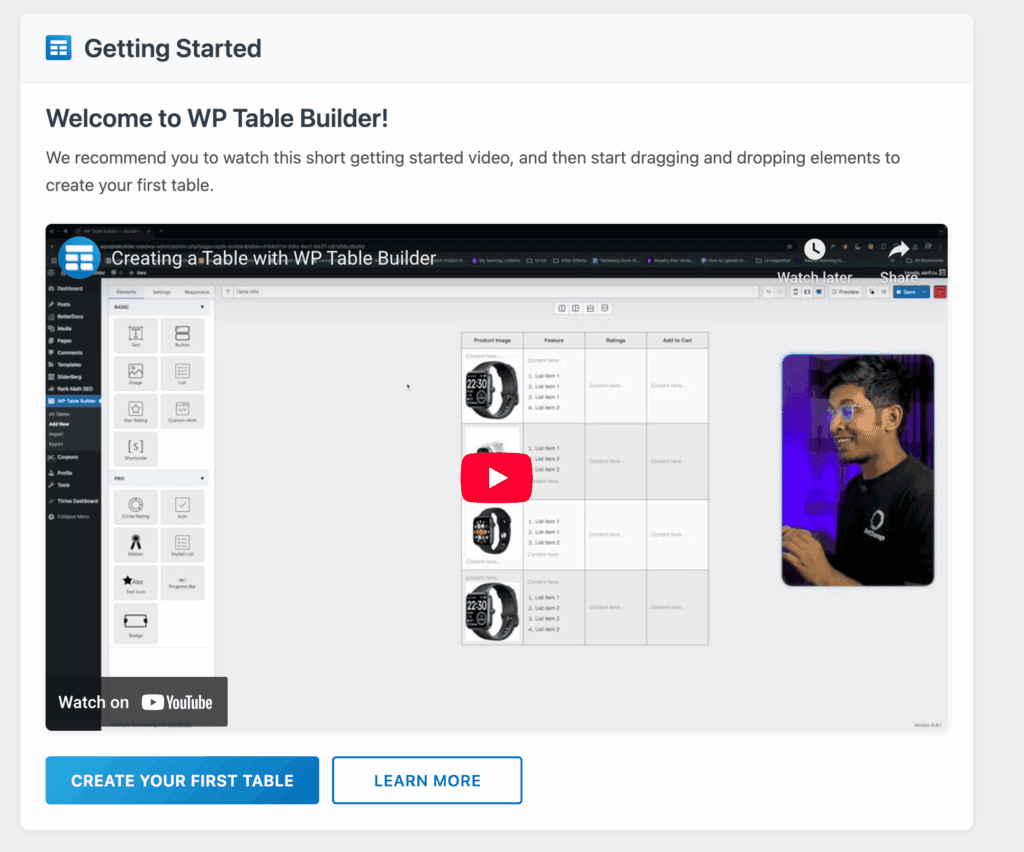
This plugin is very easy to learn. The visual builder is intuitive, even if you skip the recommended onboarding video. It is a true “what you see is what you get” editing experience.
Even though it’s easy, it’s always smart to try it out on a test site first.
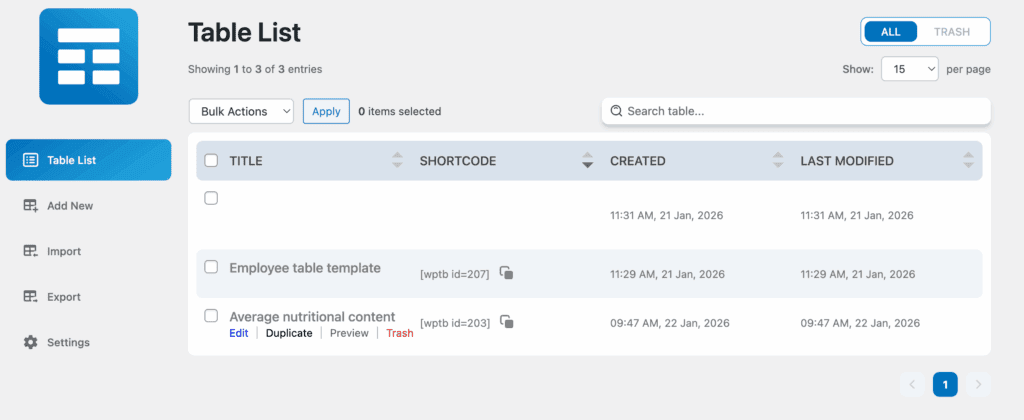
The interface is simple. After the brief onboarding (which you can choose to skip), you just drag elements from the left and adjust settings in a sidebar on the right. You can manage all your tables from a central dashboard, which is convenient.

The only minor hiccup in this otherwise smooth process is the preview button, which opens in a new tab and can be a bit disruptive.
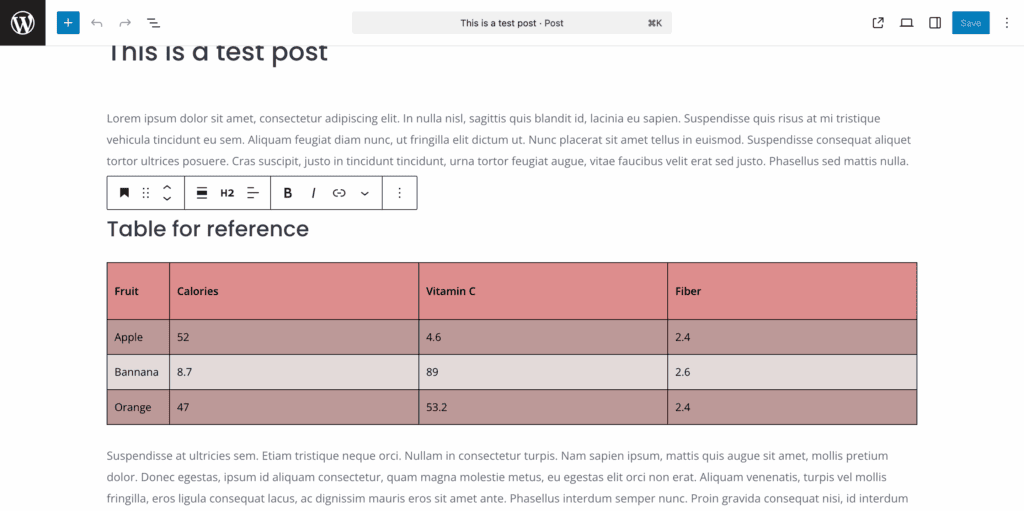
You will see a live preview of your table in the Gutenberg editor, not just a shortcode. This is a huge plus. However, you cannot edit the table data directly inside the post editor. If you need that specific feature, take a look at Tableberg.
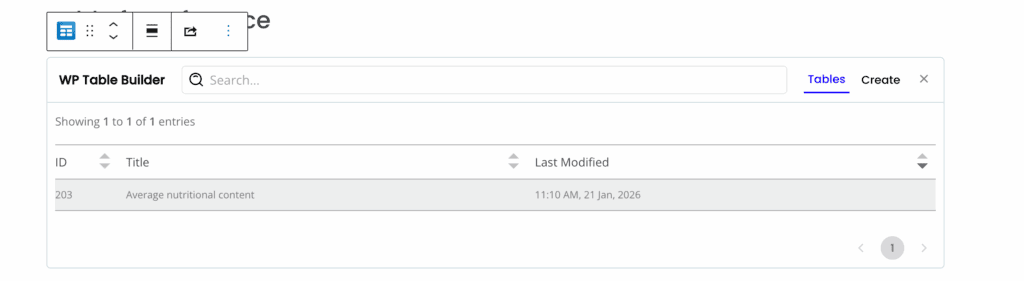
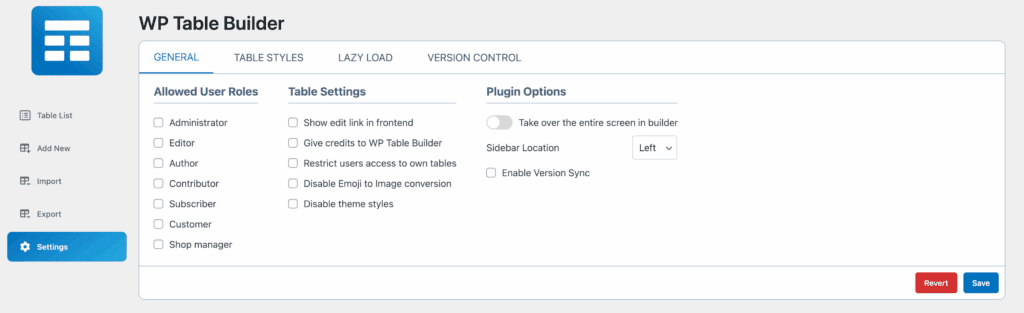
You can quickly switch between different tables right from the editor. Global settings also let you do things like disable emojis or the plugin’s credits. It’s far more approachable than code-based plugins.
Styling and visual customization
Design control is a primary strength here. The free version allows you to set colors for the header and alternating rows. You can also add star and circle ratings to enhance product tables.
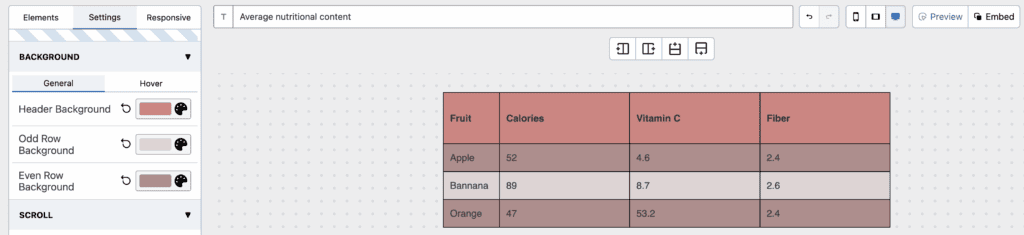
However, most of the advanced styling is a Pro feature. This includes setting individual cell backgrounds and borders, and adding ribbons or badges to highlight specific columns.
For anyone creating serious pricing tables, the Pro version is almost required for the granular control over borders, backgrounds, padding, and typography. Good design control means you’re less in need of restoring a WordPress backup due to a styling mistake.
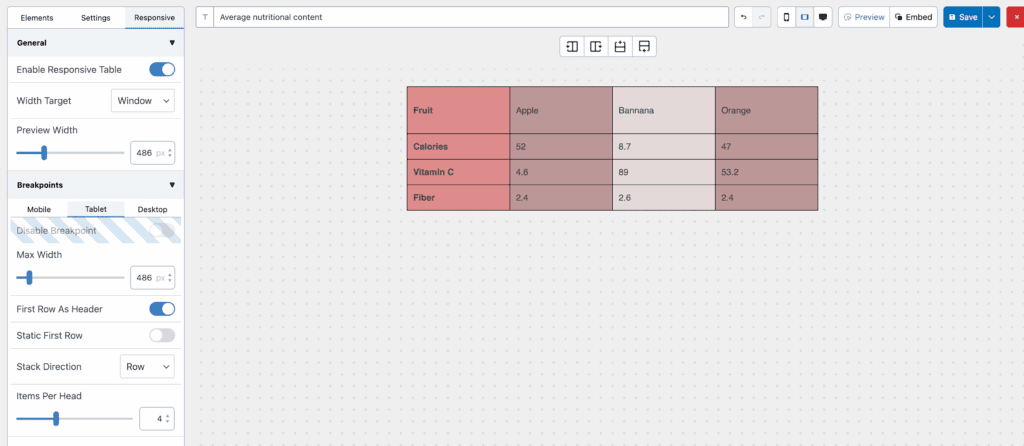
Here’s an important warning: responsive mode is not enabled by default. You must turn it on for each table to ensure it looks good on phones and tablets. Once on, you can set different responsive breakpoints for each device. There is also a horizontal scrolling option for very wide tables.

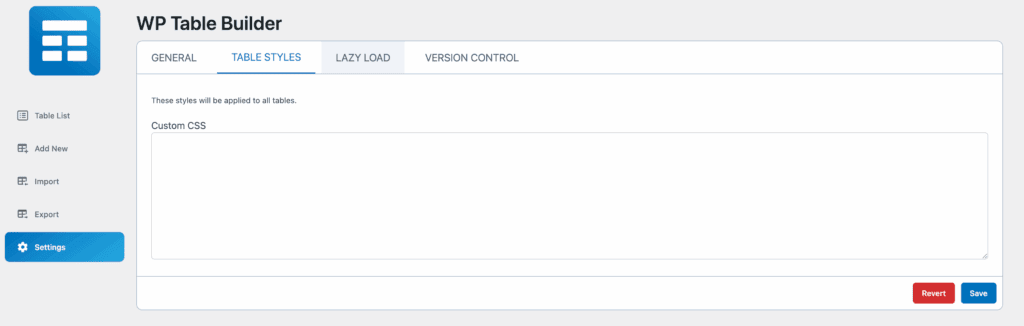
The plugin comes with over 25 pre-designed templates, but only one is available in the free version. For advanced users, there is a custom CSS box for any overrides you need.
Impact on site speed and load
The plugin is well-coded with a minimal impact on site speed because it only loads its CSS and JavaScript on pages where a table is present. You can also disable your theme’s styles on the tables to maintain a consistent look.
While not the absolute lightest option, there is no major bloat. Any performance impact is moderate and easily handled by a good caching plugin.
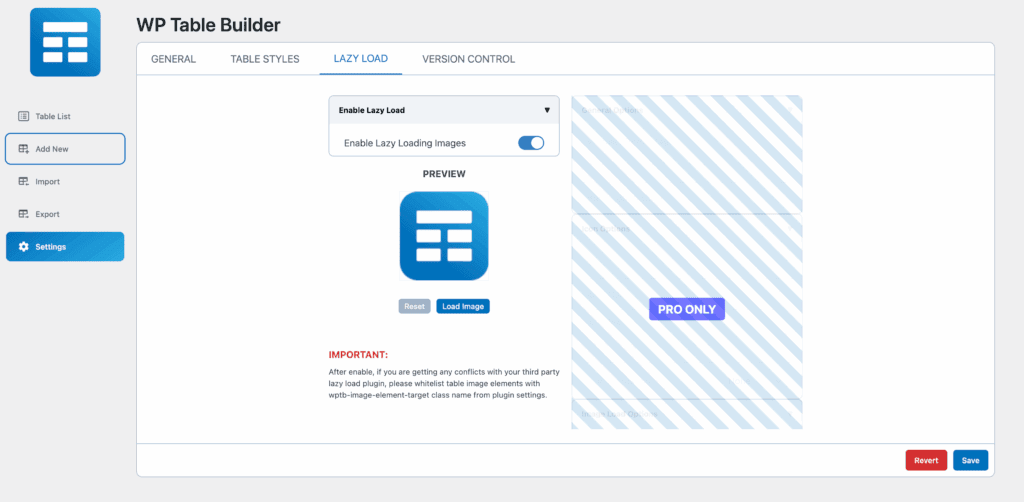
Lazy loading is disabled by default. You should enable it in the settings for pages with large tables to help them load faster for visitors. Overall, tables still load quickly on the frontend.
Third-party connections and add-ons
WP Table Builder is designed to be a self-contained tool. It works with a shortcode and a Gutenberg block, so you can place tables anywhere on your site. The block shows the table as a live element in the editor, which is very helpful. It is generally compatible with most standard WordPress themes.
However, it lacks deep integrations. WP Table Builder does not offer a direct, native connection with form plugins, CRMs, or a sync with Google Sheets.
If you need to pull data from other sources automatically, this is not the right tool.
Update reliability and help resources
The plugin is actively maintained with regular security and compatibility updates.
Support includes a ticket system for Pro users and community forums for the free version, with extensive documentation available for all.
While the community is smaller than some rivals, the overall support is reliable and adequate.
Cost structure and plans
The free version of WP Table Builder on WordPress.org is generous and very capable.
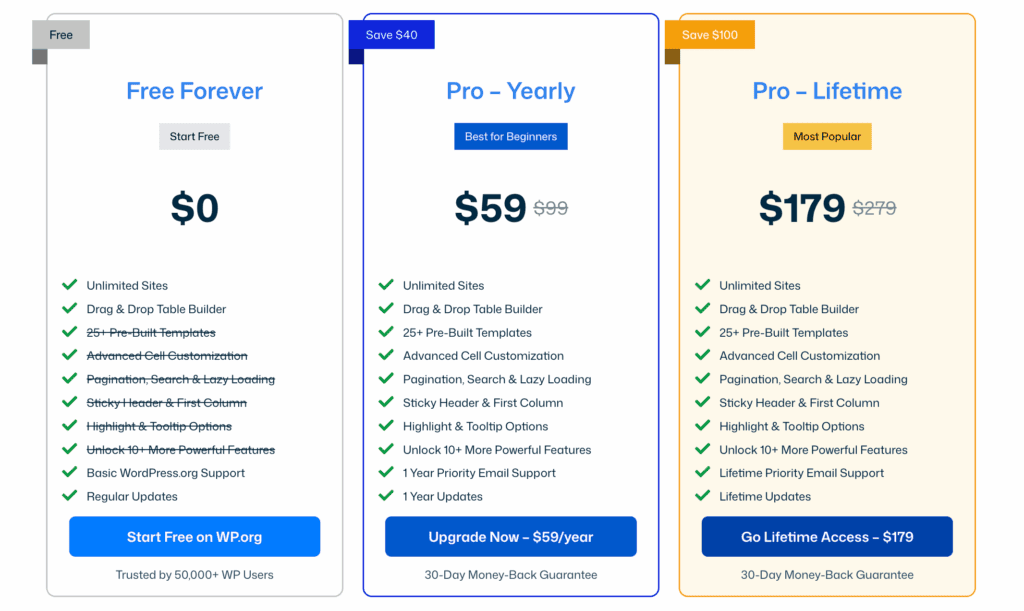
For more features, the Pro plan has a simple pricing structure. It is $59 per year for use on unlimited sites, which includes one year of priority email support and updates.
The company also offers a Pro Lifetime deal from time to time for a one-time fee, which gives lifetime support and updates. This makes it more affordable than many other plugins in the market.
Is the WP Table Builder plugin for you?
This plugin is an excellent choice for some people but not for others.
Choose WP Table Builder if you:
- Prioritize a drag-and-drop visual builder.
- Are a beginner or intermediate WordPress user.
- Want to see a live preview of your table in the post editor.
- Are willing to upgrade to Pro for search, pagination, or advanced styling.
Consider an alternative if you:
- Need advanced data features like spreadsheet formulas.
- Require free front-end search or pagination.
- Must edit table data directly inside the page editor.
- Work with extremely large datasets.
- Rely on deep integrations with form plugins or CRMs.
Other tools in the table plugin marketplace
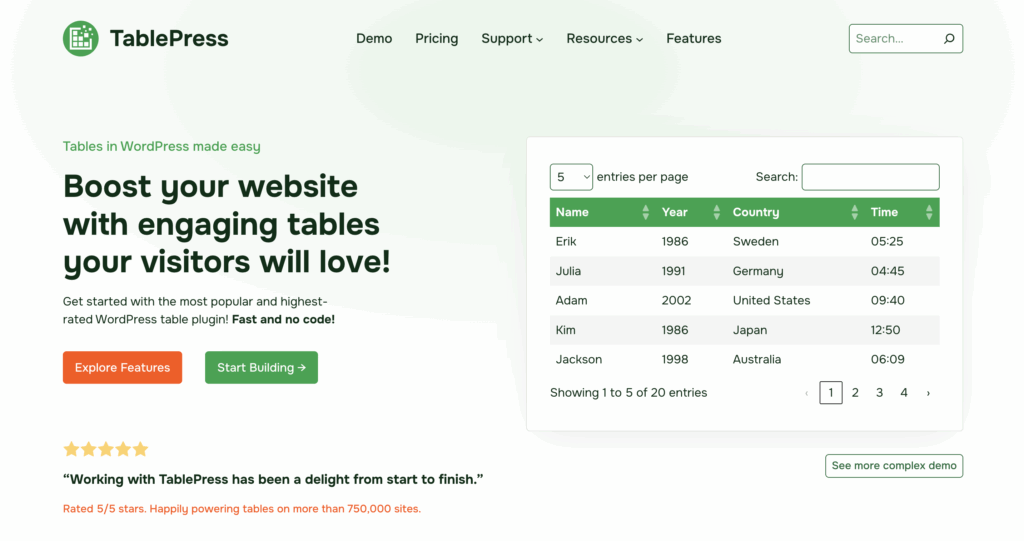
TablePress: The veteran. It is free, lightweight, and reliable, but it lacks a visual builder. It also offers free pagination and search.
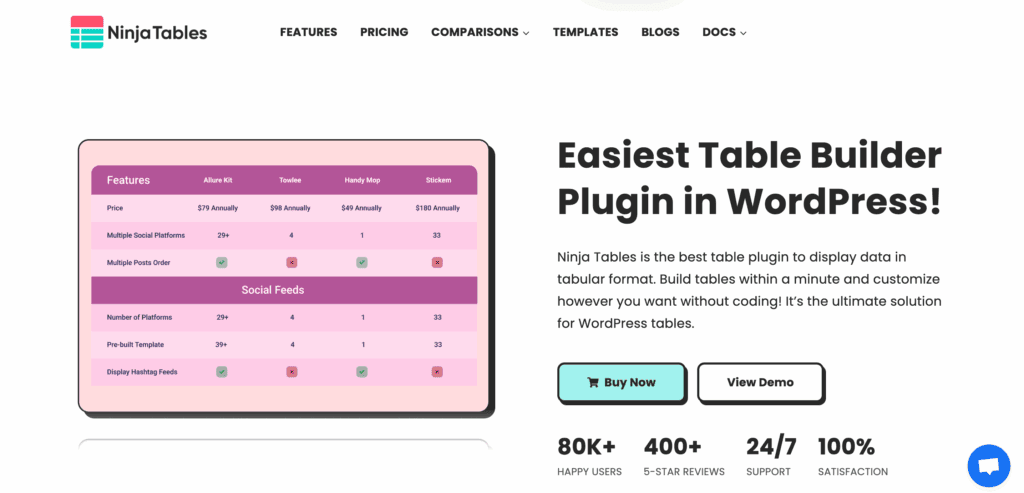
Ninja Tables: A direct competitor with a similar visual approach, but it offers superior data handling and integrations.
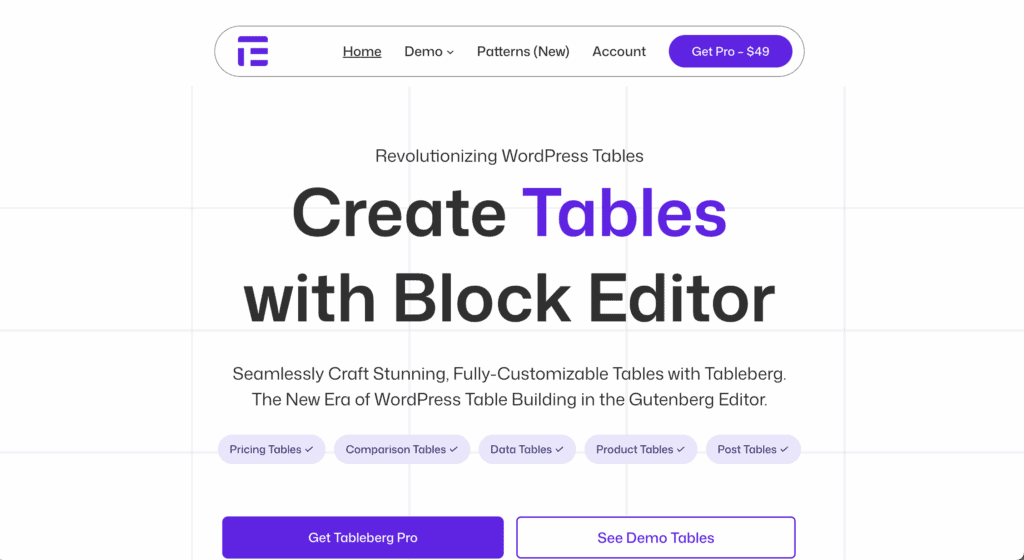
Tableberg: A good option if you want to edit your tables directly in the Gutenberg editor.
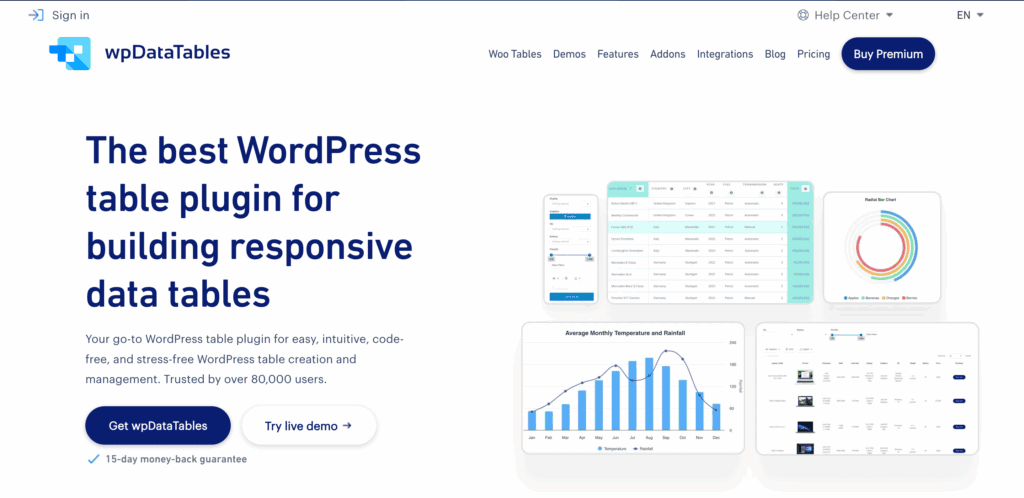
wpDataTables: The powerhouse for large, complex, and data-driven tables that connect to external sources.
Parting thoughts
WP Table Builder is excellent for visual design, offering a true drag-and-drop experience, and its free version is surprisingly capable. However, the Pro upgrade is essential for features like search and detailed styling, as it’s a design tool, not a data powerhouse for complex spreadsheets.
Its affordable pricing makes it a great value for bloggers and marketers, but with any powerful plugin, ensure you have a reliable backup strategy in place to protect your work.
FAQs
Is WP Table Builder free?
Yes, WP Table Builder has a free version available on WordPress.org with core features. A Pro version with advanced features like search, pagination, and detailed styling is also available.
How to build a table in WordPress?
The easiest way to build a table in WordPress is by using the default basic Table Block in the Gutenberg editor. For more advanced styling and features, dedicated plugins like WP Table Builder or TablePress are recommended.
How to create a custom table in WordPress plugin?
To create a custom table, you use a plugin’s interface, like the drag-and-drop builder in WP Table Builder. You define the rows and columns, then add content and styling elements through the plugin’s settings.
How can you edit the data of a table?
You can edit table data by navigating to the specific table within your chosen plugin’s dashboard and clicking into the cells. Some plugins also allow you to edit the data directly within the WordPress page or post editor.
How do I insert an Excel table into WordPress?
You can insert an Excel table by using a plugin that supports CSV or Excel file imports, such as WP Table Builder. Simply export your Excel sheet as a CSV file and then upload it through the plugin’s import function.

Shivani enjoys crafting guides that make every aspect of using WordPress simple and easy to follow. When she's not glued to her laptop, you can find her buried in a good book or occasionally, painting.