Once you’ve set up a WordPress site, the real work begins: building your pages. You’ve likely spent hours perfecting a key page, getting the columns, buttons, and spacing just right.
Then it hits you.
Now you need another page that’s almost identical, but WordPress offers no instant duplicate feature. That sinking feeling of facing a blank editor all over again is just draining.
If you’ve ever thought, “There has to be a better way,” we’ll show you how to create a WordPress duplicate page in seconds.
Use a plugin to clone any WordPress page in seconds, avoiding the risks of manual copying. Before you do anything, install a backup plugin first. It’s your safety net in case something goes wrong.
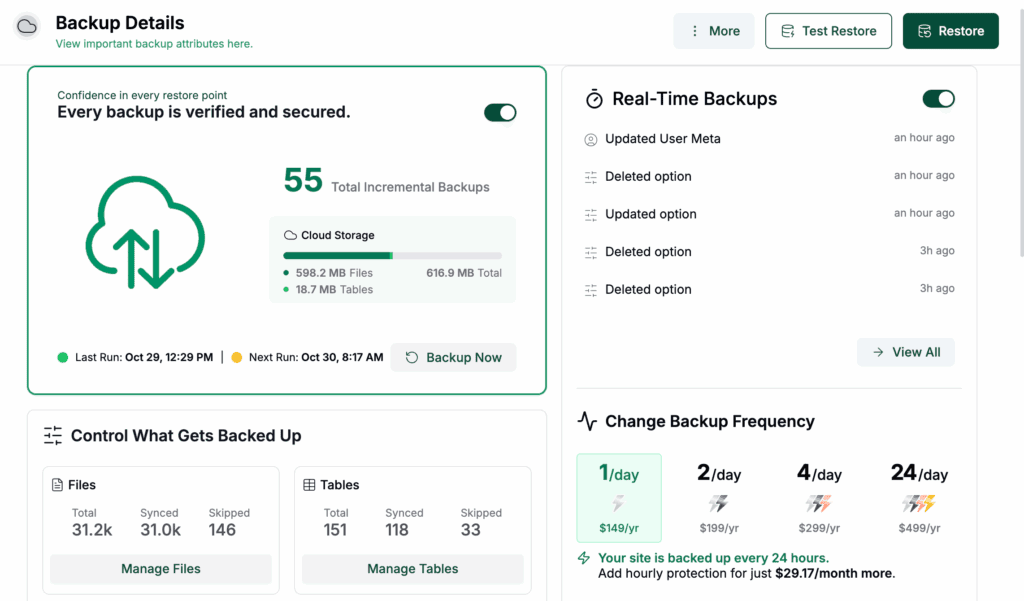
To save yourself a massive headache later, always start by backing up your site, especially before installing a new plugin; it’s your one-click safety net if anything goes wrong.
Method 1: Using a dedicated plugin (Easy)
This is the way to go 99% of the time. Using a plugin is fast, simple, and it removes the risk of human error. A tool like Duplicate Page is a great choice because it does one job and does it well.
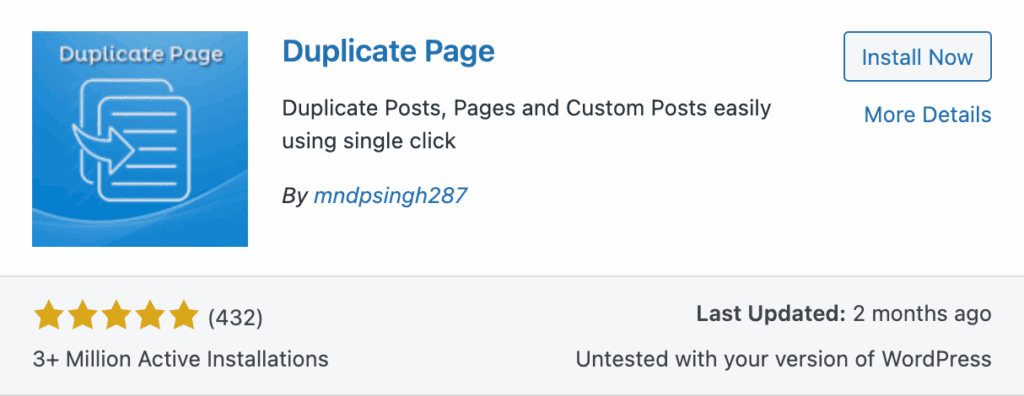
Here’s how simple it is:
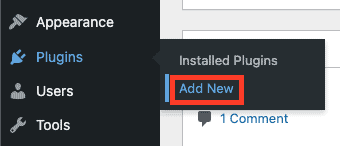
From your WordPress dashboard, head to Plugins > Add New and search for Duplicate Page. Install and activate it.
Now, navigate to your Pages > All Pages list.

Hover your mouse over the page you want to copy. You’ll see a new option appear: Duplicate This. Click it.
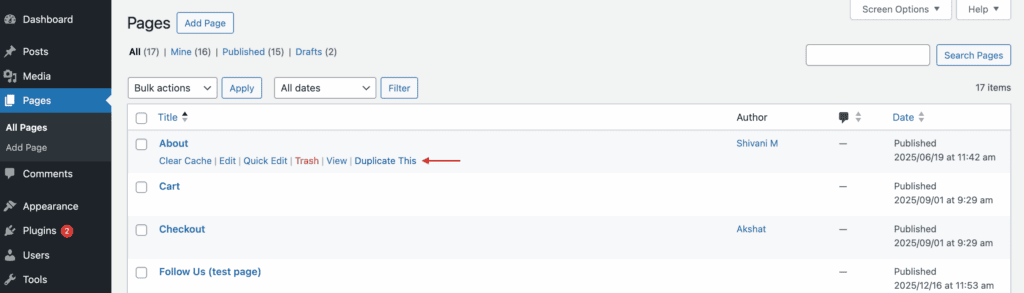
That’s it. A new, identical copy of your page will be created instantly and saved as a draft. The plugin copies everything. The content, the layout, the featured image, the custom fields, and the SEO metadata.
Method 2: The manual copy-paste method (Risky)
With that said, we’re including this method only as a last resort. Maybe you’re on a super-locked-down corporate site and can’t install plugins. While you can copy and paste the content, it’s a risky process because of what it leaves behind.
Here’s the thing: copying the blocks only copies what you can see.
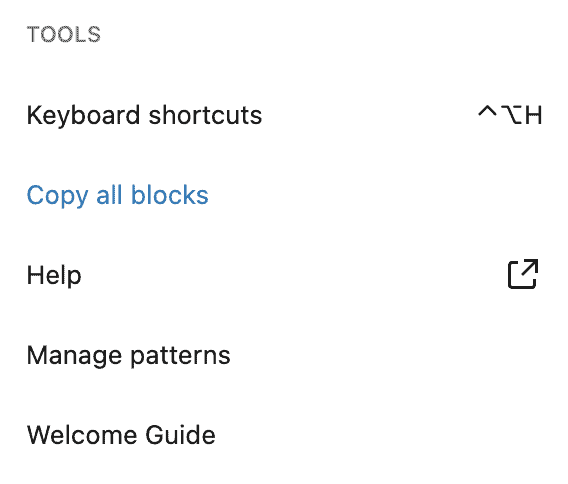
You can open a page, click the three-dot menu in the top-right corner, next to the Publish button and select Copy all blocks. Then you can paste them into a new, blank page on your staging site. The layout will look the same, but you’ve missed critical background data.
Here’s what this method does not copy:
- The SEO title and meta description.
- The featured image.
- The page template settings (e.g., “Full Width” or “No Sidebar”).
- Custom fields or other specific page settings.
The biggest danger is accidentally pushing a half-configured page live from your staging site. If it has the same title and no unique SEO data, it creates internal competition that confuses Google and hurts your rankings.
Post WordPress duplicate page steps
Your copy is ready, but the work isn’t finished. These next steps are crucial for your SEO and the page’s purpose. No matter how you created it, you must complete this checklist.
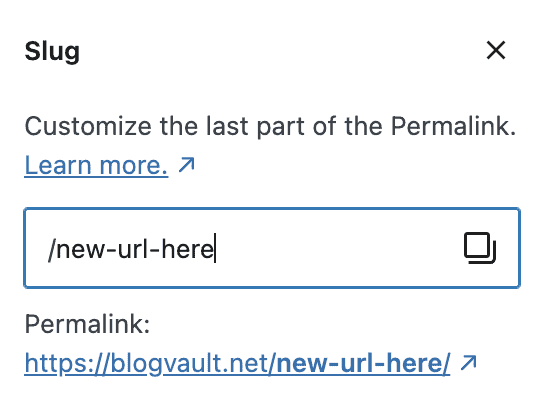
Change the title and permalink immediately. Your new page will likely have a title like About Us (Copy). Change it to something unique. More importantly, edit the permalink (this is your URL) to reflect the new title.
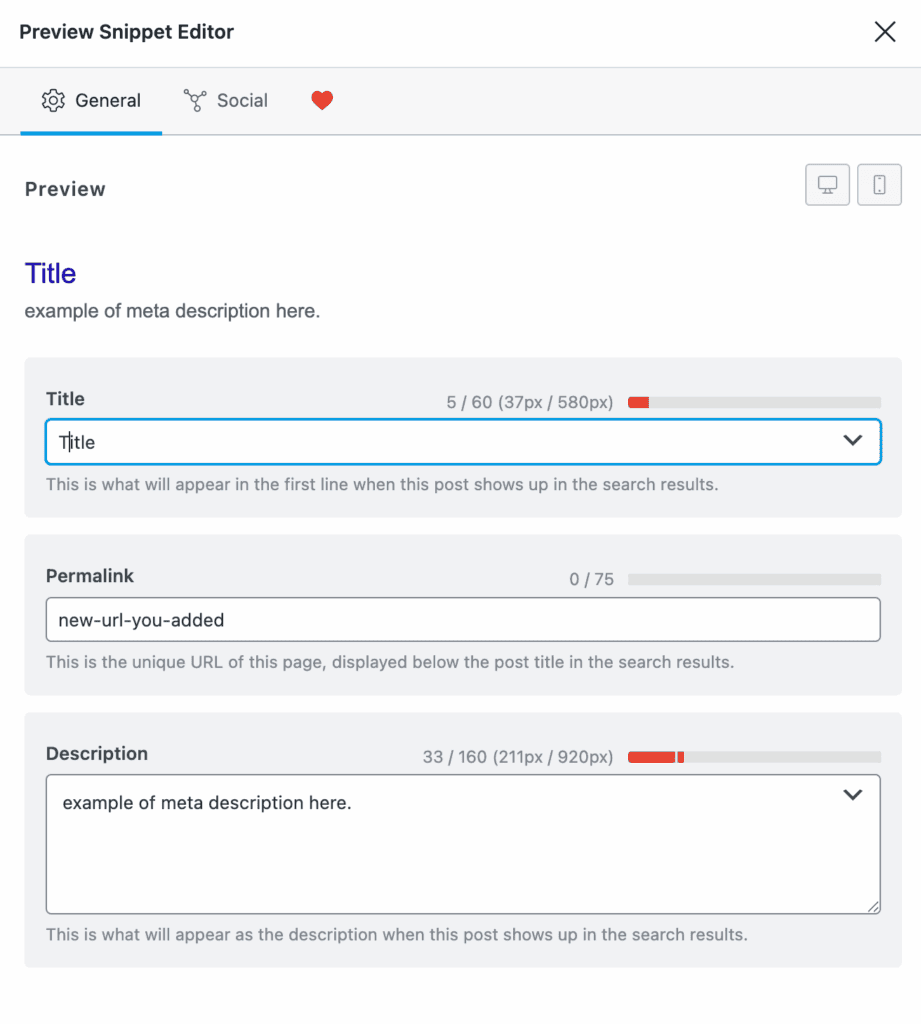
Update the SEO title and meta description. This is non-negotiable. Your SEO plugin will have copied the original data. You need to write a new, unique title and description that targets the new page’s specific keyword or topic. We’ve used RankMath as an example in this article.
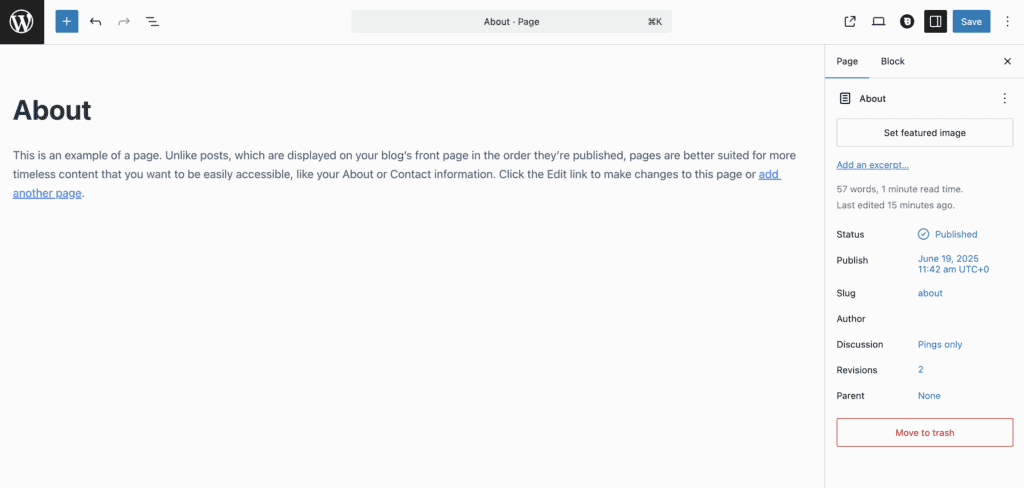
Check all settings. Verify the page template is correct, set a new featured image if needed, and confirm any parent pages are set correctly in the Page Attributes section.
Review all internal links. Does the page content link to other pages on your site? Make sure those links are still relevant in the context of this new page.
Test everything. Before you publish, preview the page. Click the links. Check the forms. Look at it on both desktop and mobile to make sure it looks right. Once you’re confident it’s ready, hit publish.
Parting thoughts
So, here’s our final take. Just use a plugin. While there’s always a tiny chance of a plugin conflict, that’s exactly what your site backup is for. It’s still the safest and most reliable way to get a complete and quick copy.
The manual approach should be a last resort, as it’s easy to forget a critical SEO setting. Your goal is a unique page, not just a clone, so updating the title, URL, and meta description is essential. Mastering this process makes your site management workflow much more efficient.
FAQs
How do I duplicate an entire page?
The easiest way to duplicate an entire page in WordPress is by using a dedicated plugin like Duplicate Page. It copies all content, settings, and metadata with a single click, preventing errors and saving time.
How to duplicate a single page in Pages?
You can duplicate a single page from the All Pages section in your WordPress dashboard after installing a duplication plugin. Simply hover over the page title and click the Duplicate This link that the plugin adds for you.
How do I duplicate a page in WordPress without a plugin?
To duplicate a page in WordPress without a plugin, open the page editor, copy all the blocks, and then paste them into a new blank page. Be aware that this manual method does not copy critical settings like the featured image or SEO metadata.
Is Yoast duplicate post free?
Yes, the core functionality of the Yoast Duplicate Post plugin is completely free and available in the WordPress repository. It allows you to easily clone both posts and pages with a single click.

Shivani enjoys crafting guides that make every aspect of using WordPress simple and easy to follow. When she's not glued to her laptop, you can find her buried in a good book or occasionally, painting.