
Moving your WordPress multisite may look simple until you think about what you actually want to keep. Moving from WordPress multisite to single site is possible, but extracting one subsite is a different job from turning the main site back into a normal WordPress install.
The risky part is rarely the button you click. It is the database tables, shared users, media paths, mapped domains, plugin settings, and live business data sitting underneath that button. If you choose the wrong path, the new site may load while orders, roles, images, redirects, or forms quietly break.
First decide whether you are extracting a subsite or reverting the base site. Backup the full multisite network, test on a copy, and touch the live site only after the standalone site works.
For simple content sites, WordPress export/import may be enough. For stores, memberships, LMS sites, mapped domains, and plugin-heavy sites, use a multisite-aware migration workflow.
Define the Job
Do not start by disabling multisite. Start by naming the job.
| Situation | Safer path | Main risk |
|---|---|---|
| One subsite needs its own site | Extract that subsite | Tables, users, media |
| Several subsites need separate sites | Move one at a time | Shared users, cutovers |
| Only the main site remains | Revert the base site | Config, network tables |
| You only need posts/pages | Export/import | Missing settings |
| Store, membership, LMS, directory | Managed or manual migration | Custom data |
The key question is not which method is easiest. It is what data must survive.
If losing orders, customers, form entries, redirects, SEO settings, roles, or plugin data would hurt the site, treat this as a real migration project.
Why Extra Care Matters
A normal single WordPress site usually has one set of database tables and one uploads folder. A multisite network shares more than most site owners expect.
In a typical network:
- Core files, plugins, and themes are shared.
- Users live in shared wp_users and wp_usermeta tables.
- Each subsite has its own content tables, such as wp_2_posts for site ID 2.
- Modern subsite uploads often live in wp-content/uploads/sites/2/.
- Older networks may use wp-content/blogs.dir/2/files/.
- Network-active plugins and mu-plugins may affect a subsite without appearing active inside that subsite.
- Multisite rules live in wp-config.php and .htaccess.
That is the hidden 90% of this migration. The homepage can look fine while media, logins, checkout, redirects, or plugin settings are still wrong.
Plan a Rollback
Do this before changing the live network.
- Backup your WordPress multisite, including the full database and all of wp-content: uploads, themes, plugins, and mu-plugins.
- Save wp-config.php and .htaccess, confirm the backup can be restored, and create a WordPress staging environment or temporary destination.
- Record the target site ID, domain, upload path, theme, active plugins, network-active plugins, mu-plugins, forms, checkout, redirects, caches, analytics, cron jobs, and email services.
- Plan a short content freeze for stores, memberships, comments, or form-heavy sites so new data does not arrive mid-migration.
BlogVault fits here because multisite migration is really a backup, staging, restore, and rollback problem. If an import, URL replacement, or file move goes wrong, restoring a clean copy is usually faster than trying to repair a half-broken migration.
For agencies managing several sites, WP Remote multisite backups can also support the safety net around the network before and after the split.
Pick the Right Path
Pick the method by risk, not convenience.
| Method | Use for | Weak spot |
|---|---|---|
| WordPress export/import | Simple content sites | Settings, users, custom tables |
| Multisite-aware workflow | Most production subsites | Mu-plugins, unusual custom code |
| Manual migration | Complex technical moves | Requires database care |
| Base-site reversion | Main site only | Not for extracting subsites |
For most non-developers, a multisite-aware workflow is the better starting point. For revenue sites or hard-to-rebuild networks, a WordPress multisite migration service like BlogVault is worth considering because backup, staging, migration, and rollback belong in the same plan.
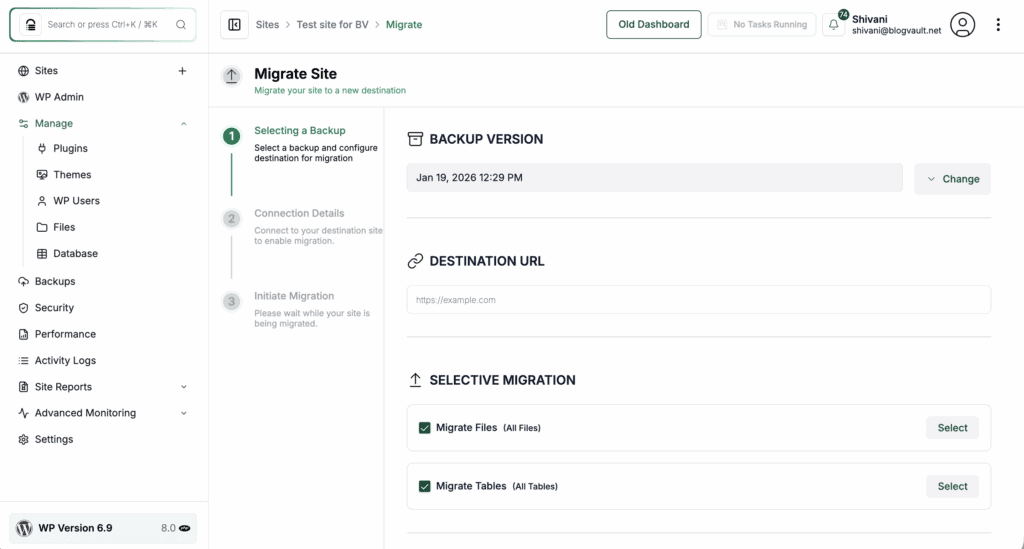
Manual migration is valid, but it is not safer just because it is manual. It is safer only when the person doing it understands tables, users, file paths, serialized data, DNS cutover, and how to restore a WordPress backup to a new server if the first run fails.
If mapped domains are part of the move, plan the WordPress multisite subsite domain change separately from the database and file transfer.
How to Move WordPress Multisite to Single Site
There are 3 ways to go about it:
1) Export/Import
Use this only when the subsite is mostly posts, pages, comments, categories, tags, and media.
Skip it for WooCommerce, memberships, LMS sites, directories, multilingual sites, and page-builder-heavy sites. XML export/import does not reliably carry plugin settings, theme options, custom tables, redirects, non-author users, or complex media references.
- Create a clean single WordPress install on staging, a temporary domain, or the final server.
- Install the same theme and required plugins before importing.
- In the subsite dashboard, go to Tools > Export, choose all content, and download the WordPress export file.

- On the destination site, go to Tools > Import and run the WordPress importer.
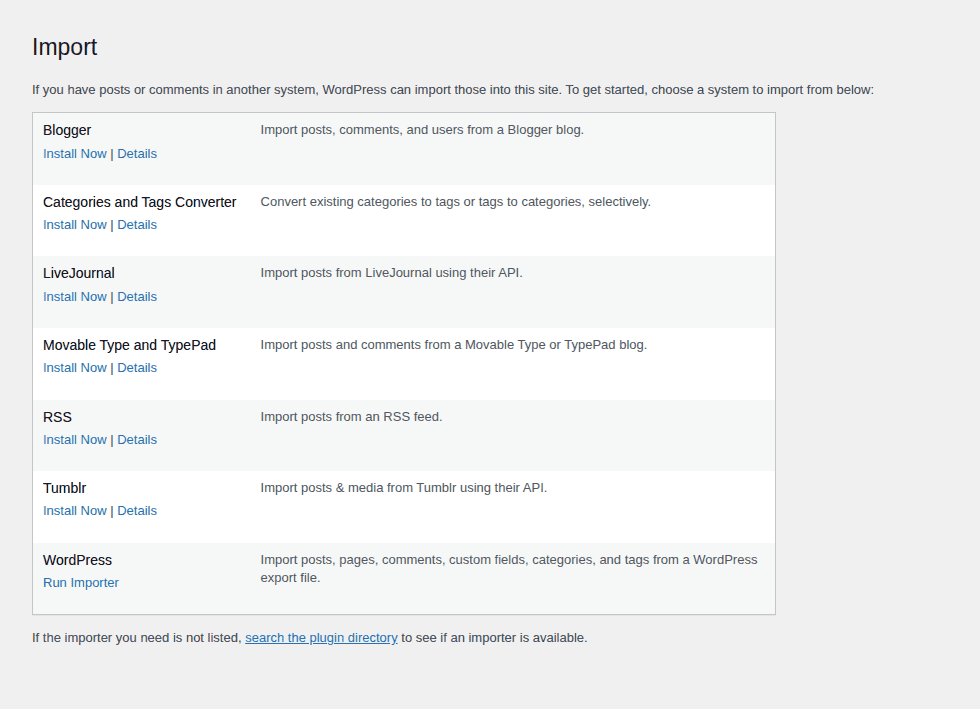
- Assign authors carefully and choose the attachment import option.
- Rebuild menus, widgets, homepage settings, forms, SEO fields, redirects, page builder templates, plugin settings, user roles, and permalinks.
- Check key pages, media, forms, menus, search, and logins before cutover.
If images still point to old multisite paths, stop. Fix the paths, reimport files, or move to a stronger migration method.
2) Use a Migration Tool
This is the practical path for most production subsites. It avoids direct database work while handling more than a basic XML export.
- Back up the full network.
- Create the destination single site.
- Match WordPress, PHP, theme, plugin, upload-limit, memory-limit, HTTPS, and permalink settings where possible.
- In Network Admin > Sites, record the exact subsite ID, domain, path, and admin URL.
- Select that subsite in the WordPress migration tool. Do not export the whole network unless the destination should remain multisite.
- Include the subsite database tables, uploads, active theme, active plugins, users, roles, and URL replacements.
- Review network-active plugins and mu-plugins separately.
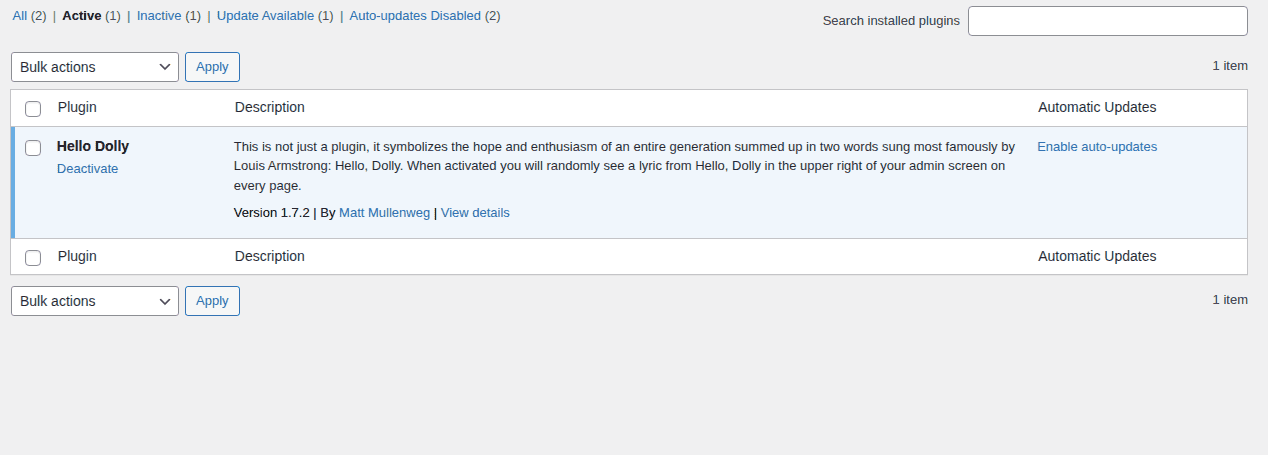
- Import into the destination and test before pointing DNS.
Version mismatches are not always fatal, but they make troubleshooting harder. If the site breaks and you changed PHP, plugins, caching, and the server at the same time, you now have four suspects instead of one.
3) Move It Manually
Manual migration is for developers or technical site owners who can work with databases, files, configuration, and rollback.
Do one full dry run on staging first. The first run often reveals the forgotten plugin, wrong upload path, or user role problem.
Create The Destination: Create a fresh single WordPress install and back up its empty database. Install the source subsite’s theme and required plugins. Review network-active plugins and mu-plugins instead of copying everything blindly.
Find The Source Site ID: Go to Network Admin > Sites and open the subsite. The ID often appears in the URL, such as site-info.php?id=2.
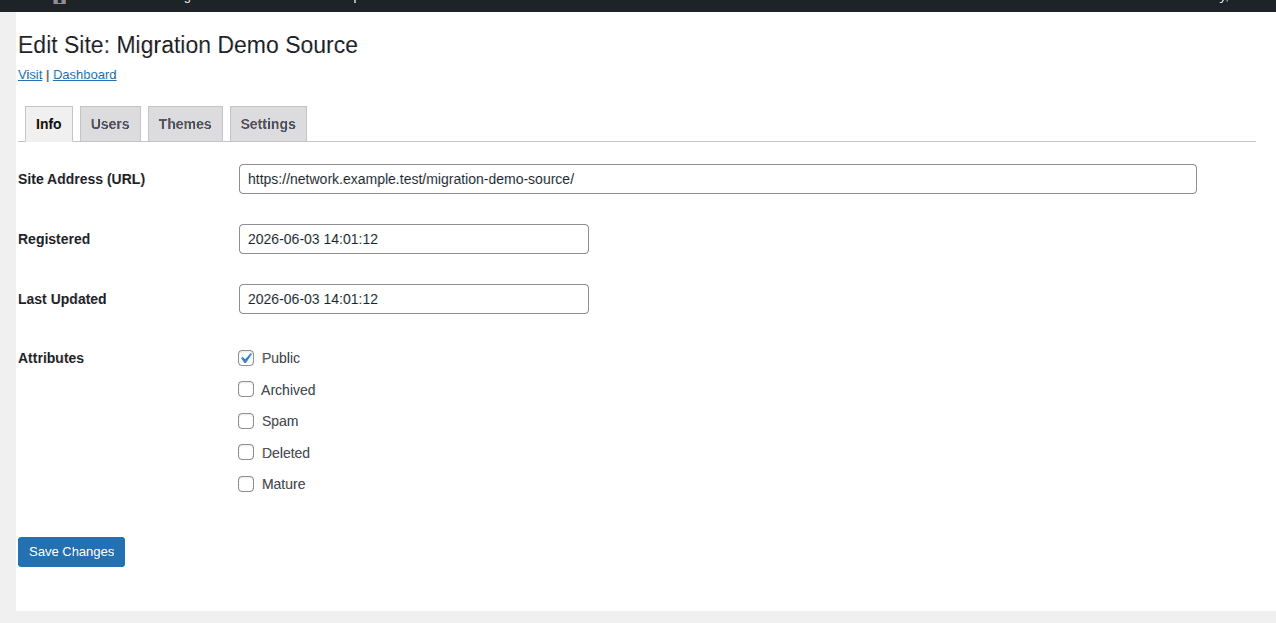
For site ID 2, the important tables usually look like this:
| Table | Holds |
|---|---|
| wp_2_posts | Posts, pages, media records |
| wp_2_postmeta | Post and plugin metadata |
| wp_2_options | Site and plugin settings |
| wp_2_terms tables | Categories and taxonomies |
| wp_2_comments tables | Comments |
Your prefix may not be wp_. Use the prefix from your database. Admins often change database prefixes for security reasons.
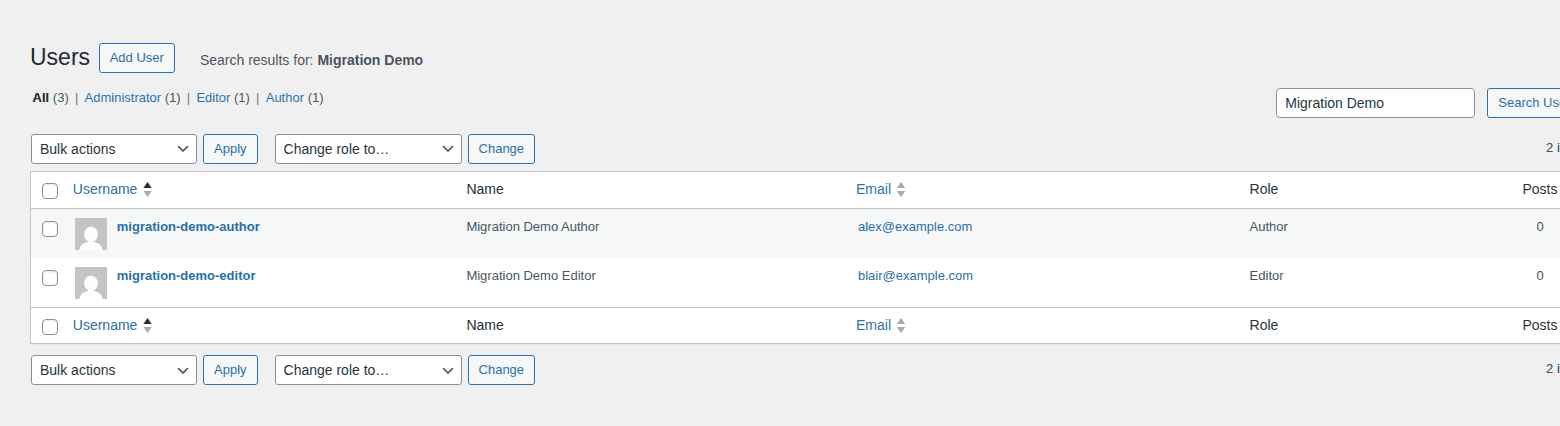
Plan Users: Users are shared across the network, so the subsite tables may reference user IDs from shared user tables.
Choose whether to migrate all users, migrate only users attached to the target site, recreate users and remap authors, or use a user migration tool.
Check usermeta role keys too. A multisite key like wp_2_capabilities may need to become the destination site’s normal capabilities key, especially if the source network used custom WordPress multisite roles.
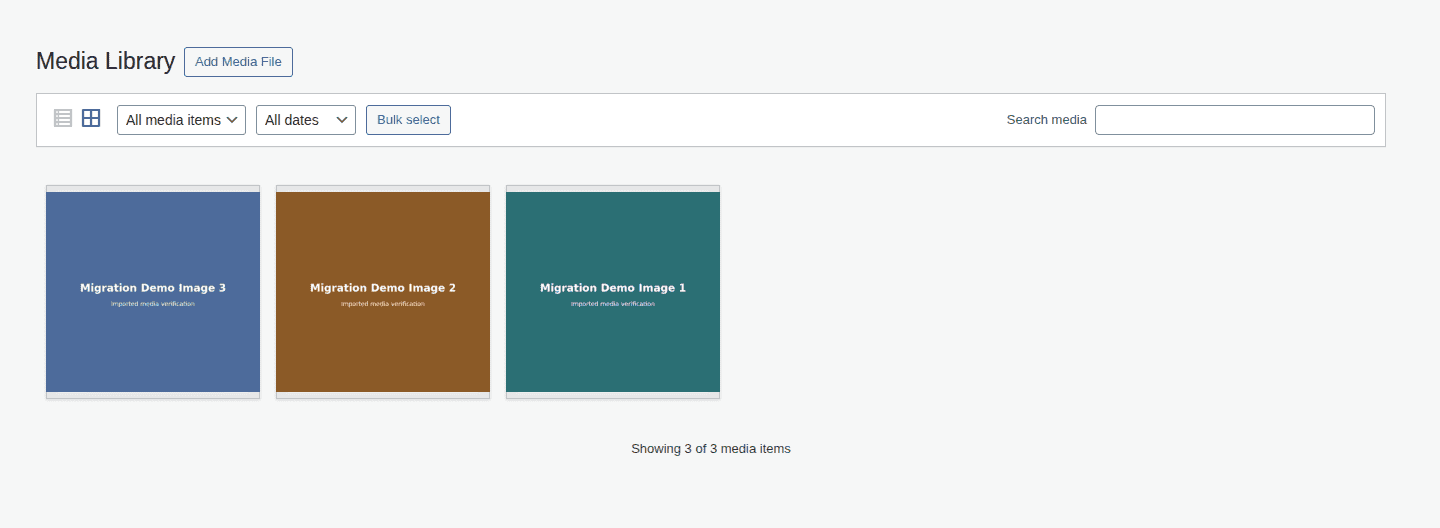
Move Media: For modern multisite, copy files from wp-content/uploads/sites/<ID>/ into the single site’s wp-content/uploads/, preserving year and month folders. For older networks, also check wp-content/blogs.dir/<ID>/files/. If content points to /files/ or blogs.dir, plan a safe search-replace.
Rename And Import Tables: Export only the target subsite tables, then rename them for the destination single site.
| From | To |
|---|---|
| wp_2_posts | wp_posts |
| wp_2_postmeta | wp_postmeta |
| wp_2_options | wp_options |
| wp_2_terms* | wp_terms* |
| wp_2_comments* | wp_comments* |
Backup or remove conflicting destination tables only after confirming you are in the correct database. Dropping the wrong table is not the kind of lesson anyone needs twice.
If you are not sure how to isolate and move the SQL cleanly, use a dedicated guide to transfer the WordPress database before touching production tables.
Replace URLs Safely: Use a WordPress-aware search-replace tool that handles serialized data. You may need to replace old subdomain URLs, mapped domains, temporary URLs, upload paths, /files/ paths, and server paths saved by plugins.
Do not edit a SQL dump with plain find and replace. Serialized data stores string lengths, so a blind replacement can break widgets, page builders, theme options, and plugin settings even when the import appears to work.
Finish And Test
Confirm siteurl and home point to the new standalone site. Save permalink settings once, clear caches, and test the site before DNS cutover.
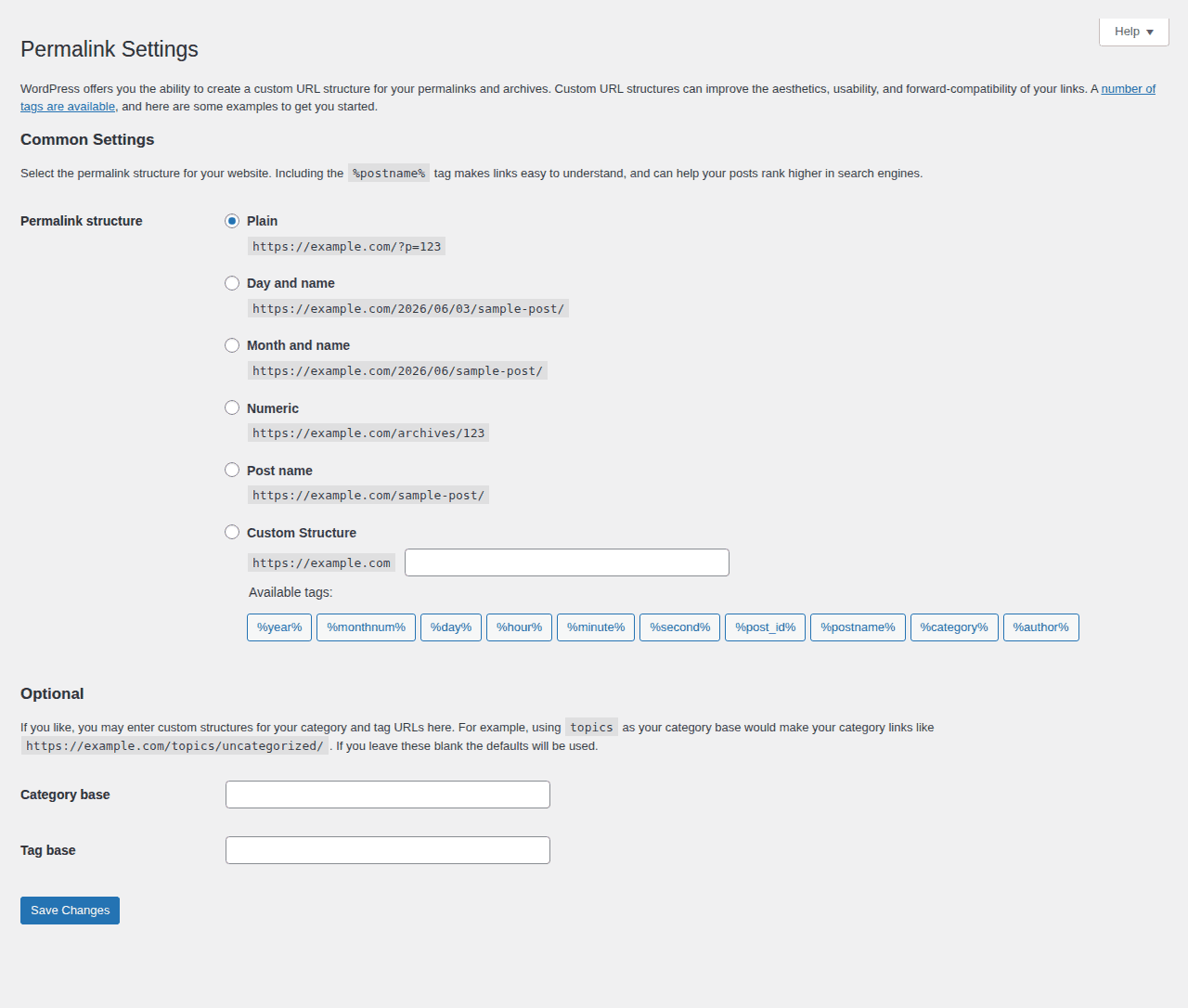
Check the homepage, top posts, media-heavy pages, menus, search, comments, forms, login, password reset, users, roles, plugin settings, redirects, sitemap, canonicals, mobile layout, and caching.
For WooCommerce or memberships, also test checkout, account pages, subscriptions, payment callbacks, emails, and webhooks.
Convert the Main Site
Use this only when the main site is all you want to keep. It does not extract a non-base subsite.
- Migrate, archive, or intentionally delete every other subsite first. Do not delete subsites casually because deletion can remove uploads and tables.
- Take a fresh full backup after the other subsites are handled.
- In wp-config.php, remove or disable multisite constants such as MULTISITE, SUBDOMAIN_INSTALL, DOMAIN_CURRENT_SITE, PATH_CURRENT_SITE, SITE_ID_CURRENT_SITE, and BLOG_ID_CURRENT_SITE.
- Remove
WP_ALLOW_MULTISITEor set it to false if you no longer want multisite setup available. - Replace multisite .htaccess rules with normal single-site WordPress rules.
- Save permalinks and test pages, media, users, forms, redirects, SEO settings, plugins, and backups.
- Drop network tables such as wp_blogs, wp_blog_versions, wp_registration_log, wp_signups, wp_site, and wp_sitemeta only after the main site works and you have a restore point.
This is where people get into trouble: reverting the base site is a cleanup job after the rest of the network is dealt with. It is not a shortcut for pulling out a child site.
Do not confuse moved content with a finished migration. For stores, what matters is orders, payments, emails, and account access.
Verify The New Single Site
Migration is done when the new site behaves correctly on the final domain.
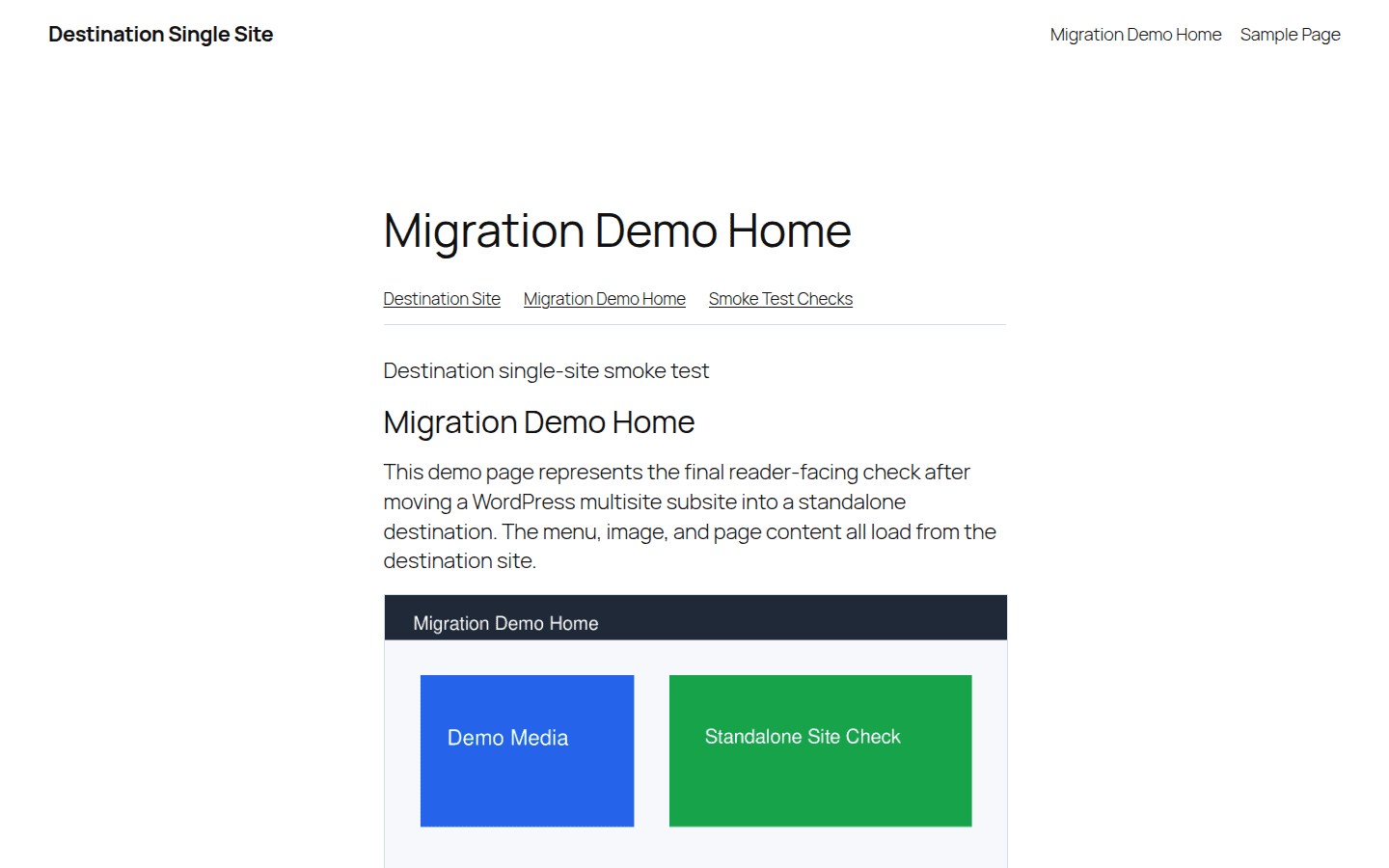
Before deleting anything old, use a WordPress migration checklist and check:
- pages, posts, media, menus, search, comments, forms, and downloads
- admin login, password reset, authors, editors, customers, members, and admins
- plugin settings, custom tables, theme settings, widgets, templates, and page builder layouts
- permalinks, redirects, canonical URLs, sitemap, robots settings, analytics, and Search Console
- old subdomain, subdirectory, mapped-domain, and multisite media URLs
- cache, CDN rules, checkout, carts, account pages, webhooks, and emails
- backups on the new single site and a retained backup of the old network
After launch, start backups on the standalone site too. The old backup protects the migration. The new backup protects every change after launch.
Fix Common Issues
Most post-migration issues come from URLs, file paths, users, plugins, or rewrite rules.
| Problem | First check |
|---|---|
| Broken images | Old upload paths |
| wp-admin redirects | siteurl and home |
| 404s | Permalinks and rewrites |
| Database error | DB details and table prefix |
| Wrong roles | Usermeta capability keys |
| Missing plugin settings | Options and custom tables |
| Checkout fails | Gateway, webhook, HTTPS, cache |
If the data is corrupted, stop and restore from backup. Repeating a clean migration is usually safer than stacking fixes on a broken import.
What to Avoid
- Do not disable multisite before you know whether you are extracting a subsite or reverting the base site.
- Do not delete the old subsite because the new homepage loads.
- Do not use XML export/import for stores, memberships, LMS sites, directories, or plugin-heavy sites.
- Do not run raw SQL search-replace on serialized data.
- Do not forget shared users, usermeta, network-active plugins, or mu-plugins.
- Do not point DNS before testing the destination.
- Do not assume old media paths will fix themselves.
- Do not drop network tables without a backup and a verified main site.
FAQs
Can you convert WordPress multisite to a single site?
Yes. You can extract a subsite into a standalone WordPress install, or revert the base site after all other subsites are migrated or removed.
Can I just turn off multisite in wp-config.php?
Only for a base-site reversion after the rest of the network is handled. Turning off multisite will not turn a non-base subsite into a standalone site.
Which tables do I move for a subsite?
Move that site’s ID-prefixed tables, such as posts, postmeta, options, terms, comments, and metadata. You also need a user and usermeta plan because users are shared across the network.
Where are multisite media files stored?
Modern multisite installs usually store subsite uploads in wp-content/uploads/sites/site-id/. Older networks may use wp-content/blogs.dir/site-id/files/.
When can I delete the old subsite?
Only after the standalone site works on the final domain, users and forms work, redirects and SEO settings are correct, backups are running, and the old network backup is retained.
Final Advice
A WordPress multisite to single site migration is safest when you treat it as a controlled copy with a rollback plan.
Identify the job. Back up the network. Test the move. Verify the standalone site. Cut over. Keep both the old network backup and the new site backup until the migration has held up under real use.
If the site is simple, export/import may be enough. If the site is complex or business-critical, choose the safer path early: a multisite-aware workflow, a tested backup, and a rollback plan before the live site is touched.

Shivani enjoys crafting guides that make every aspect of using WordPress simple and easy to follow. When she's not glued to her laptop, you can find her buried in a good book or occasionally, painting.