
Accidentally deleting the wrong page can make your stomach drop. The page may be a homepage, pricing page, service page, landing page, or checkout page. It may also be gone right when a client, customer, or search visitor needs it.
If you searched for WordPress recover deleted page, start with the safest checks first. Do not restore an old backup or touch the database until you know what actually disappeared.
If the page is in WordPress Trash, restore it from Pages > All Pages > Trash > Restore. If it is not in Trash, use revisions for overwritten content, recover it from a backup plugin, or rebuild it from an archive as a last resort.
Most deleted pages are not equally bad. A page in Trash is easy to recover. A page that still exists but looks blank needs revisions. A permanently deleted page needs a backup. The right fix depends on which problem you have.
Figure out what changed
Before you recover anything, confirm the symptom. This prevents the most common mistake: rolling back the whole site when only one page needs attention.
| What you see | Check first | Best fix |
|---|---|---|
| Page is missing from the Pages list | Pages > All Pages > Trash | Restore from Trash |
| Page exists but content is gone | Revisions or builder history | Restore an older version |
| Trash is empty | Backup from before deletion | Restore in staging or recover one page |
| Homepage is wrong | Settings > Reading and theme template | Reassign the homepage or template |
| WooCommerce page is missing | Trash and WooCommerce settings | Restore, recreate, then remap |
Restore from Trash
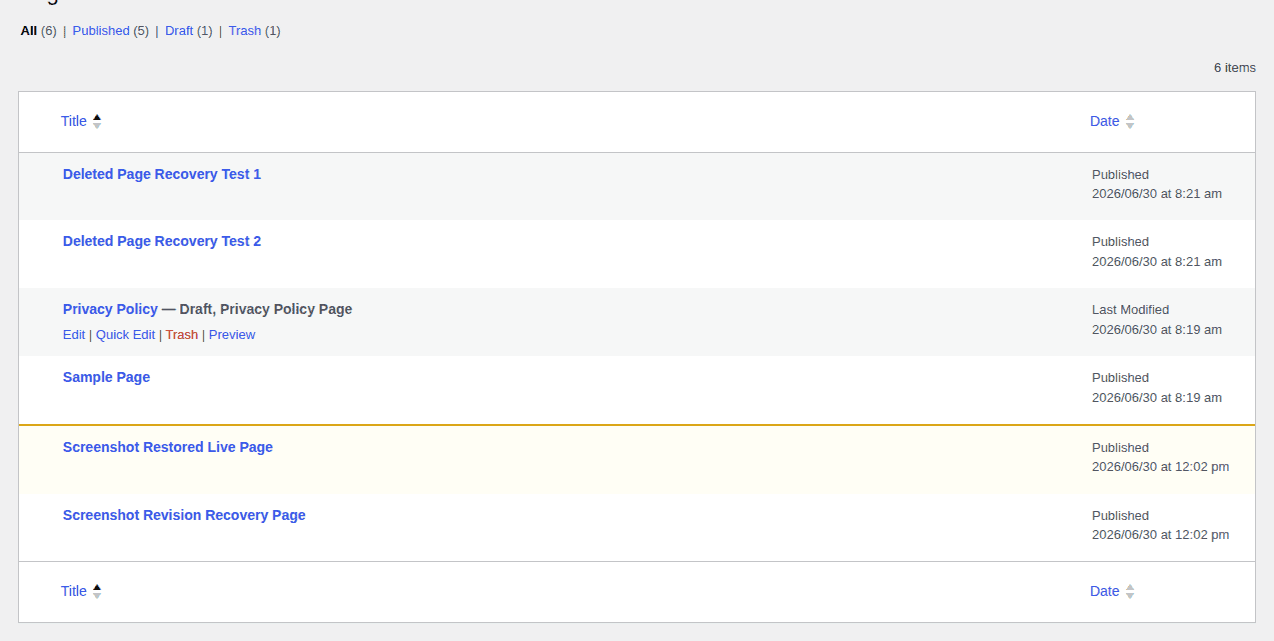
Trash is the first place to check because it does not roll back the rest of your site. In our WordPress 6.9.4 test site, a deleted page moved to Trash first. Restoring it brought back the same page ID and original slug. Use this path if the page was deleted recently:
The Trash tab is the safest first place to look because it lets you restore one page without changing the rest of the site.

- Open the right content area: Go to Pages > All Pages. For blog posts, use Posts > All Posts. For products, use Products > All Products.
- Check the Trash tab: Click Trash above the list. If you do not see it, refresh the screen and make sure you are in the right content type.
- Restore the missing page: Hover over the page title and click Restore.
- Recover several pages together: Select the pages, choose Restore from Bulk actions, then click Apply.

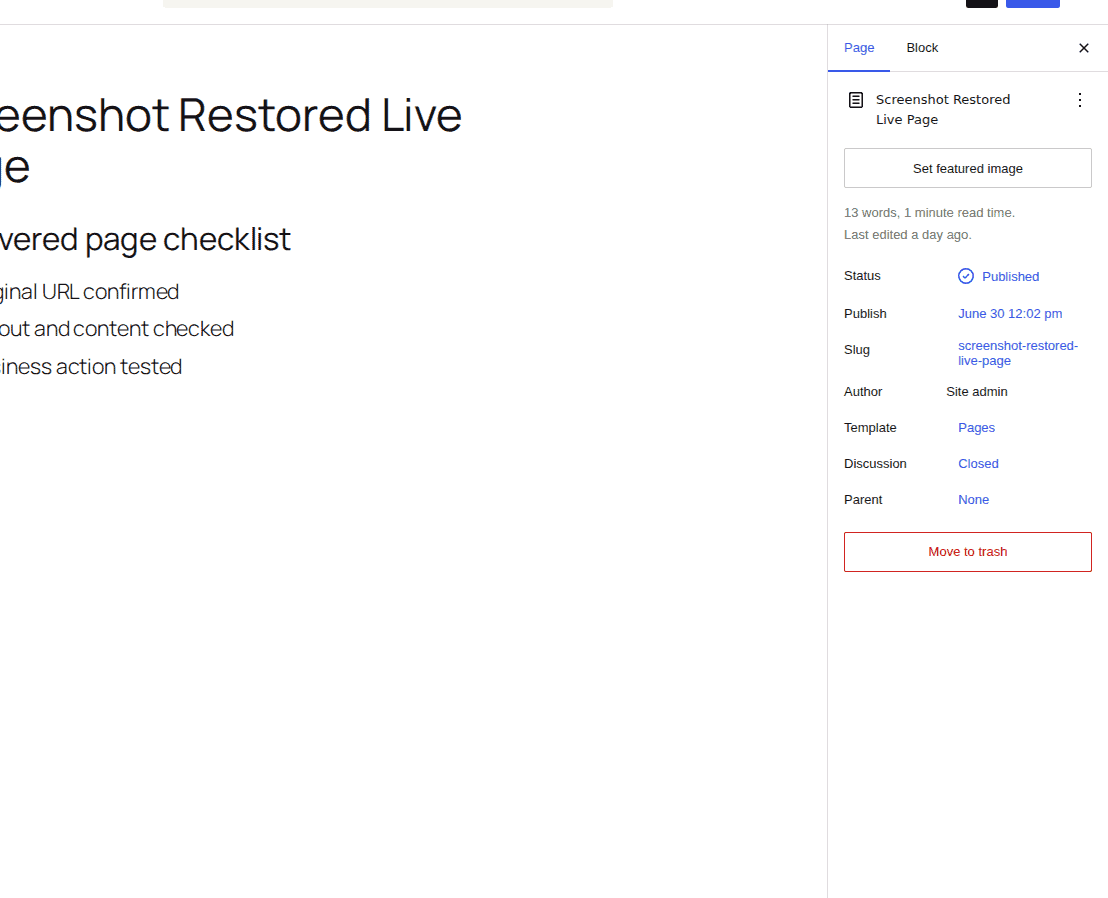
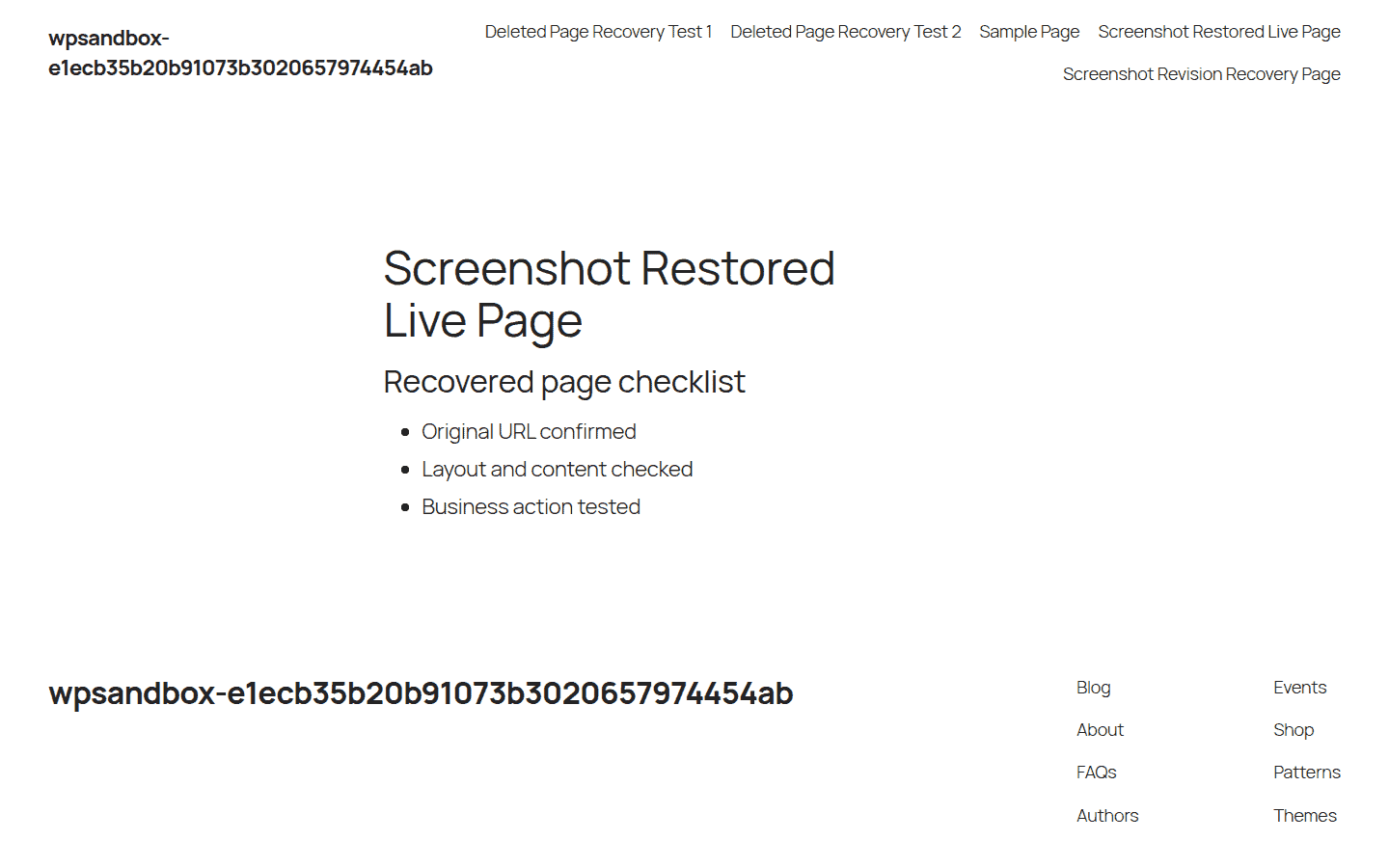
- Confirm the result: Open the page on the live site. Check the URL, status, layout, images, buttons, and menu placement.
WordPress keeps deleted pages and posts in Trash for 30 days by default. Some sites change this setting, so do not wait if the page matters.
Use revisions for overwritten content
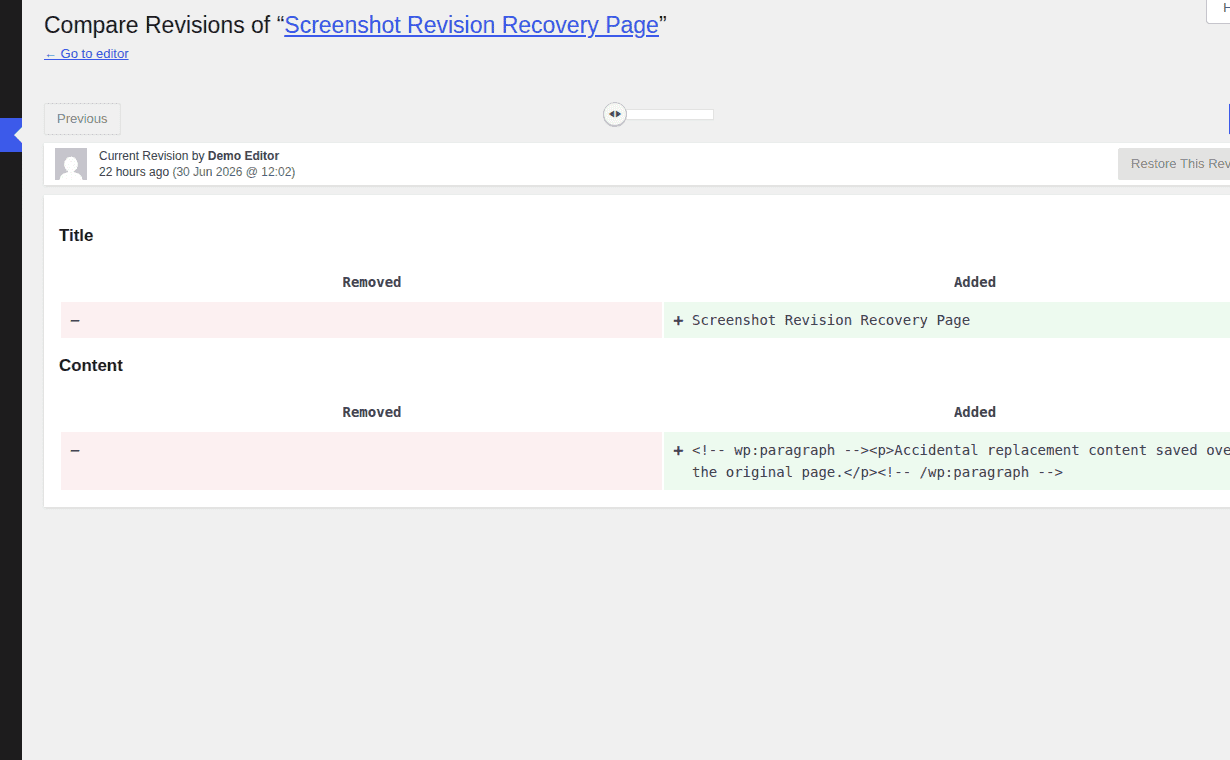
Trash will not help if the page still exists but the content is blank, broken, or replaced. That usually means someone saved over the old version. This can happen in the block editor or a page builder. A layout may be replaced, a reusable block may change, or a blank draft may be saved over a finished page. Try this first:
When the page still exists, use revisions before considering a backup restore.
- Open the affected page: Go to Pages > All Pages and edit the page that looks wrong.
- Find the revision history: Look for Revisions in the editor sidebar. In some builders, this may be called history or version history.
- Compare older versions: Choose a version that has the missing content.
- Restore only when sure: Preview the restored version before you update the page.
- Check builder tools too: Elementor, Divi, Beaver Builder, WPBakery, and similar tools may keep their own history.
Do not restore a full backup for an overwritten page until you have checked revisions. A full restore can erase newer orders, form entries, comments, users, and edits made after the backup.
Recover from a backup
If the page is not in Trash and revisions do not help, it may be permanently deleted. WordPress cannot restore that page directly from the dashboard. Now you need a backup from before the deletion. A backup plugin is the safest way to restore WordPress from a backup because it gives you restore points and, in better tools, a way to test or restore only what you need.
Use this order:
- Back up the current site first: Save the live site as it is now. This gives you a way back if the older restore causes a new problem.
- Choose the right restore point: Pick the newest backup from before the page was deleted.
- Test the backup away from live traffic: Use staging if possible so you can test the backup before restoring it. Staging means a private copy of your site where you can test changes before they affect visitors.
- Confirm the page exists there: Open the old copy and check the page content, slug, template, images, and SEO fields.

- Restore only the missing page if possible: If your backup tool lets you selectively restore the deleted page, use that instead of rolling back the full site.
- Copy the page manually if needed: If selective restore is not available, copy the page from staging back into the live site.
This is where BlogVault fits well. If Trash and revisions fail, BlogVault can help you use backups as a recovery workflow, not a panic button. The useful parts are automatic backups, restore points, staging or test restore, and selective restore where available.
The rule is simple: the busier the site, the more careful you must be with full restores.
Ask your host carefully
If you do not have a backup plugin, your web host may still have backups. These can help, but host restores are often broader than you expect. Ask support these questions before approving anything:
- Confirm what will be restored: Is it the database, files, or both?
- Check the restore time: Is the backup from before the deletion?
- Ask for staging: Can they restore the backup to a test copy instead of the live site?
- Ask about one-page recovery: Can they extract one page or help you copy it out?
- Protect current data: Can they take a fresh backup before making changes?
For a deleted WordPress page, the page title, body, slug, status, and many settings usually live in the WordPress database. Images live in the uploads folder. SEO data, featured images, menus, templates, and custom fields may live in related database entries. That is why a files-only restore may not recover the page, and a full database restore may recover too much.
Copy one page from an old backup
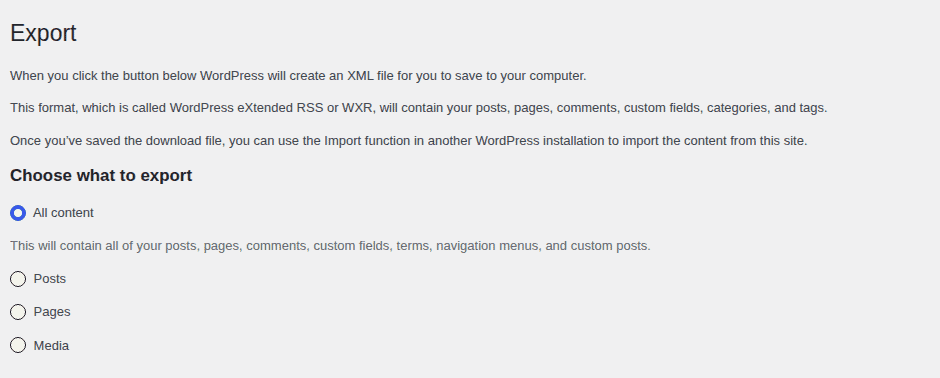
If your site changed after the page was deleted, copying one page from an old backup is often safer than rolling back the live site. Use this when the site received orders, leads, comments, new users, or other edits after the deletion.
- Restore the old backup somewhere safe: Use staging or a local WordPress copy. Local means it runs on your computer, so you can work without changing the live site.
- Find the missing page there: Open it and confirm it is the version you need.
- Copy the visible content: Bring over the title, body, headings, images, buttons, and forms.
- Copy the page settings: Match the slug, status, parent page, template, featured image, author, publish date, and menu placement.
- Copy SEO details: Recreate the title tag, meta description, canonical URL, schema, redirects, and social image if your SEO plugin used them.
- Test the live page: Compare it with the backup copy before you move on.
If you are technical, you may inspect the database in phpMyAdmin. phpMyAdmin is a database tool that lets you view WordPress tables. Pages are usually stored in a posts table, often called wp_posts, but your site may use a different table prefix. Extra settings often live in a postmeta table, often called wp_postmeta.
Treat database work as inspection first. Editing live database rows directly can break relationships between the page, images, menus, forms, and SEO data.
Rebuild from public or saved copies
If there is no Trash item, no revision, and no backup, you are rebuilding the page. That is not ideal, but it can still save the content. Start with the exact old URL in the Wayback Machine. If there is a snapshot, use it to rebuild the text, headings, layout, and image references. Also check:
- old email campaigns or newsletters
- PDFs, proposals, exports, or client review files
- browser history on the computer used to edit the page
- page-builder templates or saved sections
- staging sites, migration copies, or old local copies
- Google Search Console snippets or URL inspection details
- team notes in Google Docs, Notion, or project tools
Do not rely on public Google cache as your main recovery method. It is no longer dependable enough for that job. When you rebuild, do not stop at the words. Recreate the slug, title tag, meta description, featured image, image alt text, forms, buttons, menu placement, redirects, tracking scripts, and page template. Archive recovery can help you recover the visible page. It does not restore WordPress settings for you.
Handle special cases
Some page problems look like deletion but need a different fix.
Deleted homepage: Restore the page first, then check Settings > Reading. Make sure WordPress is using the correct homepage. If your site uses a block theme, also check the assigned template in the site editor.

Deleted WooCommerce pages: Cart, Checkout, Shop, and My Account pages often need to be mapped in WooCommerce settings. If the original page was simple, recreating it and remapping it may be faster than hunting for the old record. Stores also need a safer WooCommerce backup plan because orders and stock can change while you recover the page.
Deleted media files: Page Trash will not restore images deleted from the Media Library. Recover them from a backup or reupload them, then reconnect featured images, galleries, and inline images.
Deleted user content: When a user is deleted, WordPress may ask whether to delete that user’s content or assign it to another user. Search by title and filter by author before assuming the content is gone.

Missing after migration: Check the source site, staging site, and migration backup. The page may exist in one copy but not the other.
Check the restored page
Recovery is not done when the title returns to the dashboard. The page still needs to work for visitors. Use this checklist:
A restored page should be checked from the visitor side, not just in the dashboard.

- Open the live URL privately: Use an incognito window so cache does not fool you.
- Confirm the status: Check whether it should be Published, Draft, Private, or Password Protected.
- Check the URL: Keep the original slug if possible. If the URL changed, add a redirect from the old URL.
- Review the page body: Check headings, copy, images, buttons, embeds, downloads, and layout.
- Test the business action: Submit the form, click the buy button, test checkout, or try the booking widget.
- Review page settings: Check template, parent page, featured image, author, publish date, and menu placement.
- Review SEO fields: Check title tag, meta description, canonical URL, schema, social image, and redirects.
- Clear cache if needed: If the old page or a 404 still appears, clear WordPress, plugin, host, and CDN cache.
For an important page, also inspect the URL in Google Search Console after it is live again. This helps you confirm Google can see the restored page.
Prevent the next deletion panic
Set up automatic WordPress backups with a backup plugin. Off-site means the backup is stored away from your web server, so it is still available if the site or host account has a problem.
Choose backup frequency based on how often the site changes. A small brochure site may be fine with daily backups. A busy WooCommerce store may need real-time or very frequent backups because every hour can include orders, customers, stock changes, and refunds. Also:
- Test restores regularly: A backup is only useful if you know it can be restored.
- Use staging for risky edits: Test redesigns, builder changes, theme work, and WooCommerce changes before publishing.
- Limit delete permissions: Give delete access only to people who need it. MalCare’s guide to restrict admin access on WordPress is useful when access control is also a security concern.
- Unpublish before deleting: Use Draft, Private, or Password Protected if you are unsure.
- Write a deletion rule: For important pages, record the URL, owner, SEO fields, redirects, and backup time before deletion.
BlogVault helps here because it keeps backups, test restores, staging, and safer restore choices in one workflow. The goal is not just to have a backup. The goal is to avoid choosing between losing the page and rolling back the whole site.
Conclusion
Start small when you need to recover a deleted WordPress page. Check Trash first, then revisions, then backups. Only use host restores, database work, or archive rebuilds when the safer options fail.
The biggest risk is not the deletion itself. It is using a recovery method that overwrites newer site data. If the page matters, recover it carefully, verify the live URL, and set up a backup plugin so the next mistake is a short restore task instead of a full rebuild
FAQs
Can I recover a deleted WordPress page?
Yes, if it is still in Trash or you have a backup from before it was deleted. If there is no Trash item and no backup, you may need to rebuild it from saved or archived copies.
Where is Trash for WordPress pages?
Go to Pages > All Pages and click Trash above the page list. The Trash tab appears only when there are trashed pages for that content type.
How do I recover a permanently deleted WordPress page?
Use a backup from before the deletion. The safest path is to restore the backup to staging, confirm the page exists, then recover only that page or copy it back to the live site.
Can I recover a WordPress page without a backup?
Sometimes, but it becomes a rebuild. Check Wayback Machine, old drafts, browser history, newsletters, PDFs, page-builder templates, staging sites, and team documents.
Will restoring a backup overwrite newer content?
It can. A full restore can overwrite orders, users, comments, form entries, plugin settings, and newer edits. Make a current backup first and avoid a full rollback unless you understand what will be lost.

Shivani enjoys crafting guides that make every aspect of using WordPress simple and easy to follow. When she's not glued to her laptop, you can find her buried in a good book or occasionally, painting.