You’ve set up your WordPress site, and now you’re looking at those messy URLs. You already know the default links are hurting your SEO and look unprofessional.
That makes changing them feel like a huge risk. But the good news? It’s much safer than you think.
We’ll show you how to change permalink in WordPress the right way, covering both your site’s main structure and its individual links.
You can either change your global permalink structure in Settings > Permalinks, or customize the permalink for a single page or post by editing its slug. Either way, you must create a 301 redirect to protect your SEO. To be completely safe, always use a backup plugin before you begin.
Critical preparation
Before you change anything, a few minutes of preparation will prevent major problems. We urge you not to skip these points.
- Ensure you have administrator access. You must be logged in as an administrator to access the necessary settings in the WordPress dashboard.
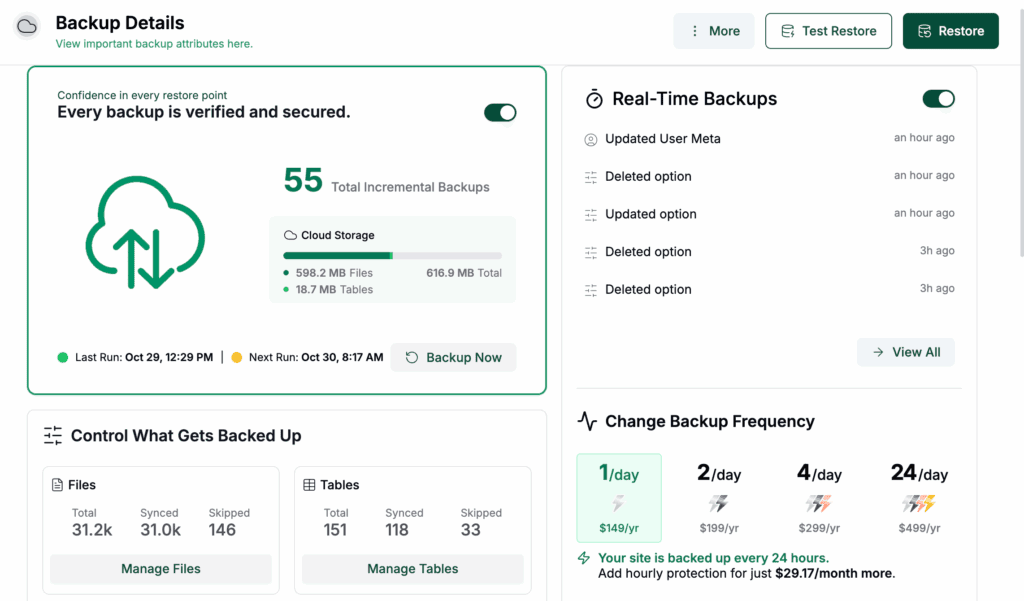
- Complete a full backup. This is your most important safety net. If any step causes an error, a backup allows you to restore your site instantly.
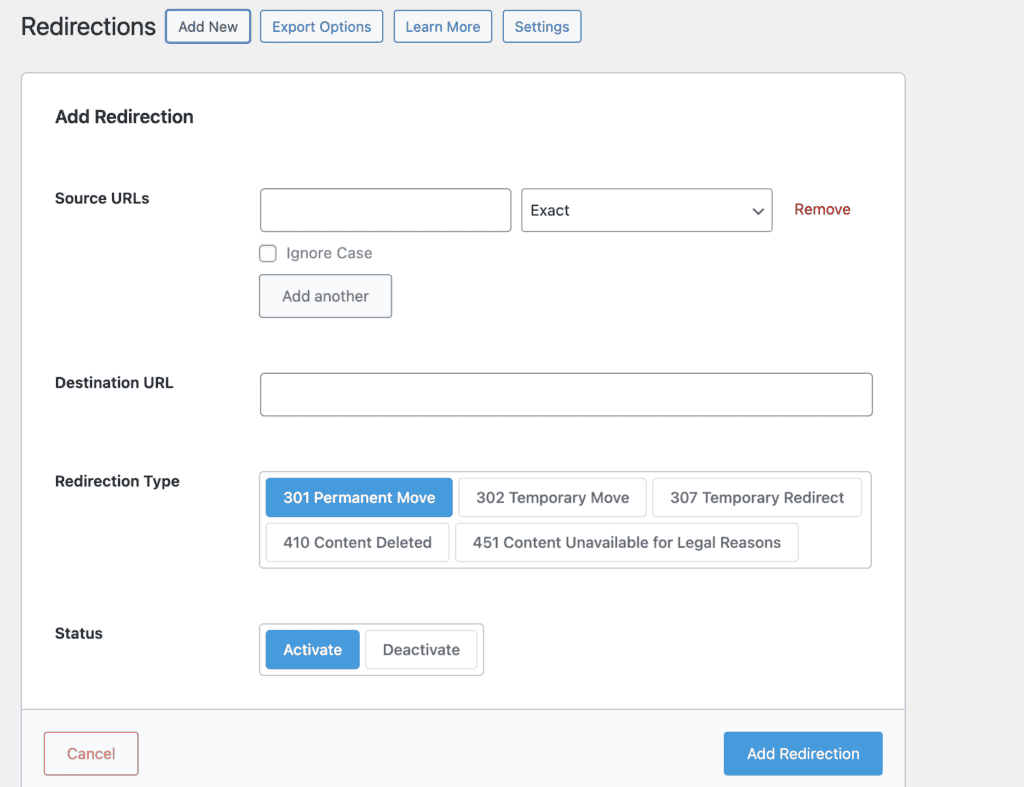
- Install a redirection plugin. A tool like the free Redirection plugin is essential for managing URL changes and preventing broken links. Have it installed and activated beforehand.

- Put your site into maintenance mode. If your site has active visitors, use maintenance mode. This prevents users from encountering errors while you are making changes.
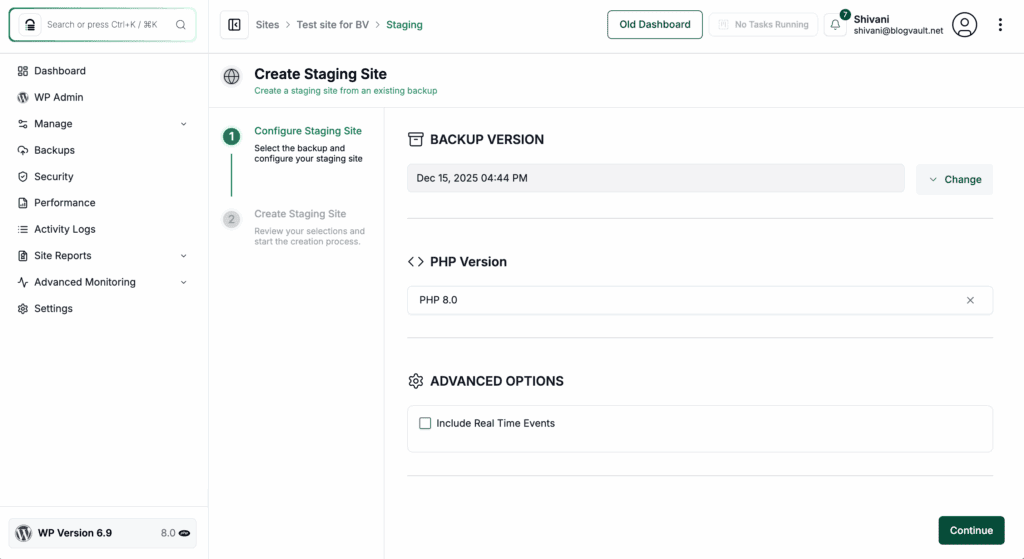
- Use a staging site. We always recommend testing these changes on a staging copy. This lets you find and fix errors without affecting your live site.
- Have your hosting login details accessible. Keep your hosting login information ready in case you need to manually edit server files during troubleshooting.
How to change permalink in WordPress (global structure)
This process changes the default URL format for your entire website.

Access Permalinks: Navigate to Settings > Permalinks in your WordPress dashboard. Review the six common permalink structure options presented there.

Choose your permalink format: Select the Post name option. This format is clean, SEO-friendly, and is the best choice for almost every website. You can also choose a custom structure if you have a specific, advanced organizational need. Once done, click the Save Changes button at the bottom of the page.
WordPress will automatically update your site’s .htaccess file, applying this change to all posts and pages.
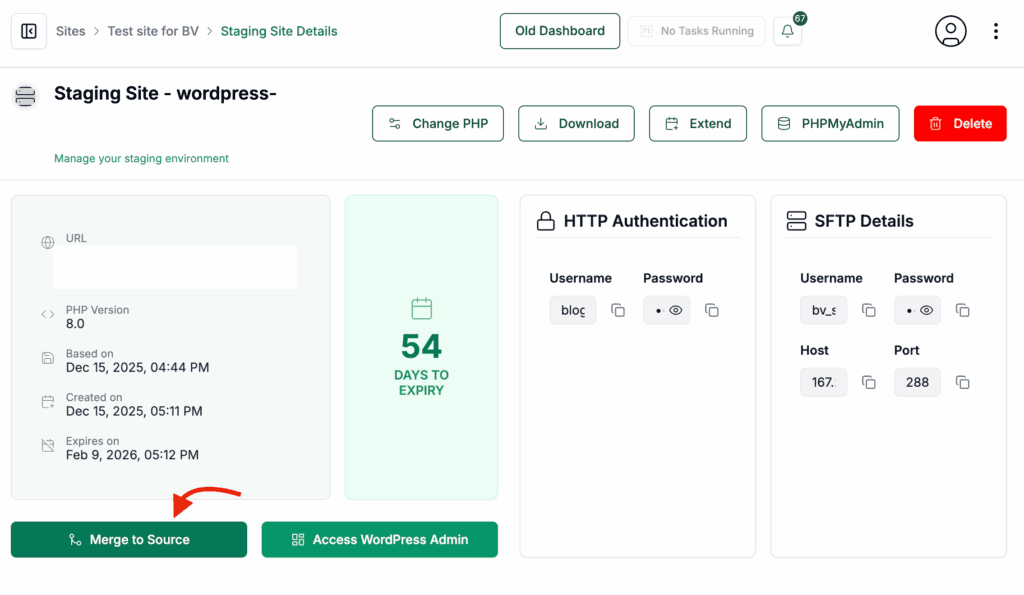
If you worked on a staging site, push the changes to your live website.
Understanding the available permalink structures
WordPress offers several permalink options, but this choice directly impacts your SEO. Here’s a breakdown of each one and why most should be avoided.
| Permalink Type | Permalink Type URL Format Example | Description & SEO Impact |
|---|---|---|
| Plain | ?p=123 | Default unappealing format; lacks context for users and search engines. Avoid for SEO. |
| Day and name | /2025/12/17/sample-post/ | Includes full publication date. Good for high-frequency news sites but makes evergreen content look dated. |
| Month and name | /2025/12/sample-post/ | Includes year and month. Shorter than “Day and name” but still ties content to a specific time. |
| Numeric | /archives/123 | Uses post ID; not human-readable. Provides no keyword benefit. |
| Post name | /sample-post/ | Most optimal choice. Clean, keyword-rich, and easy to share. Best for search rankings and usability. |
| Custom Structure | /%category%/%postname%/ | Allows advanced tagging. Highly effective for large sites requiring hierarchical organization. |
Changing individual post or page permalinks
This process, also called changing the slug, affects only a single piece of content.
Access Slug field: Open the specific post or page editor. Locate the Slug field in the right-hand sidebar.
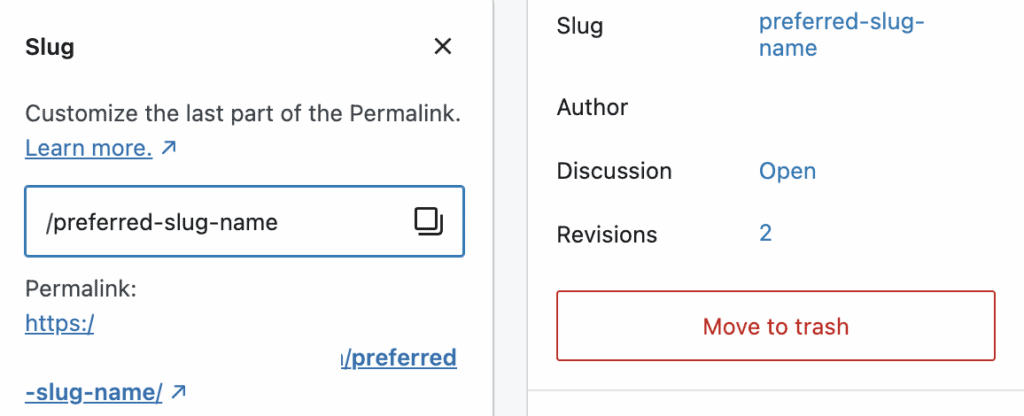
Edit your slug: Click the Slug box to begin making edits. You will be customising the last part of the permalink according to the post or page. Enter a new, keyword-focused slug using lowercase letters. Separate words with hyphens; never use spaces or underscores.
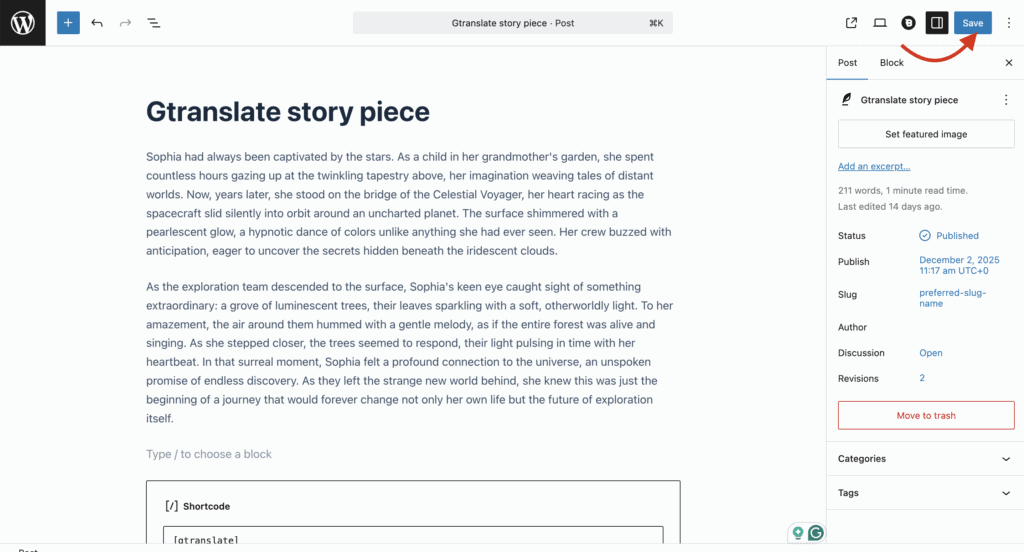
Save your new slug: Click the main Save or Publish button to save the change. The new slug is now live.
If you made this change on a staging site, now is the time to push the update to your live website.
Post-change actions
After making changes, you have a few final tasks to complete to protect your SEO.
If you change the permalink structure of your site:
- Create a site redirect. Use the Redirection plugin to create a simple redirect from your old structure to the new one.
- Resubmit your sitemap. Go to Google Search Console and submit your sitemap again so Google can discover the new URLs.
- Clear your WordPress cache. Use your caching plugin to clear all caches so visitors see the updated links.
- Test your most important pages. Manually check that your key pages still work and redirect correctly.
- Keep the redirect plugin active. Do not deactivate the plugin, as it is actively protecting your links.
If you changed the permalink slug for a post/page
- Add a new redirect. Use the Redirection plugin to add a new redirect specifically for that one page.
- Check for broken links. Use a Broken Link Checker plugin to find any internal links on your site pointing to the old URL and update them.
- Update social media links. If you shared the link in your social media bios or important posts, update it there.
- Ask Google to recrawl. In Google Search Console, submit the new URL and request reindexing.
- Verify the page. Check that the updated page loads correctly and looks as expected.
Troubleshooting issues
If you encounter problems, here are comprehensive solutions to the most common issues.
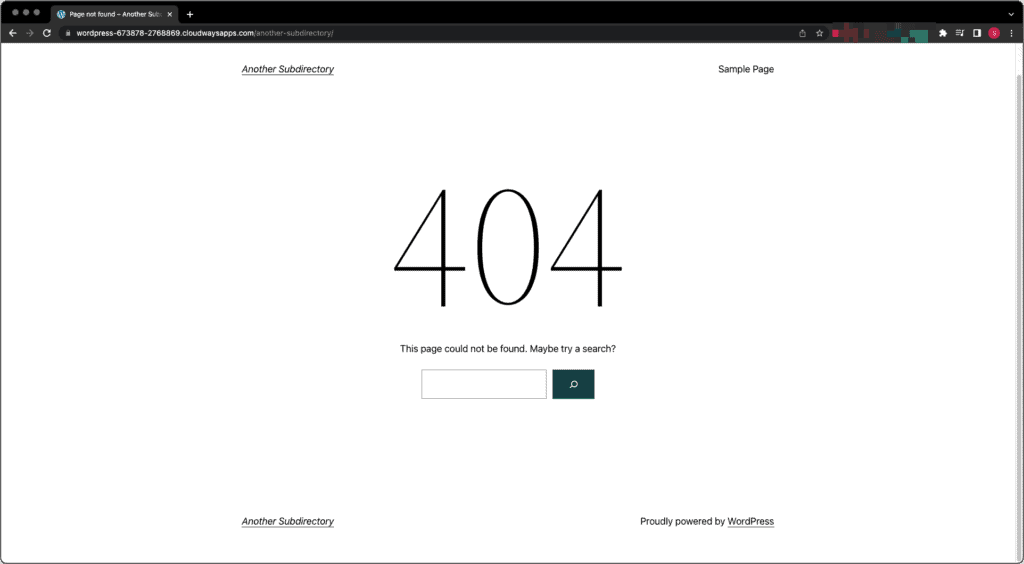
404 errors on posts: This is the most common issue. Go to Settings > Permalinks and simply click the Save Changes button again, without changing anything. This action forces WordPress to flush and rebuild its rewrite rules in the .htaccess file, which fixes broken paths most of the time.

Saving permalinks fails: If you get an error when saving, it usually means WordPress cannot write to your .htaccess file. This is a file permissions issue. The file permissions for .htaccess should be set to 644. You may need to use an FTP client or your hosting control panel to correct your file permissions.
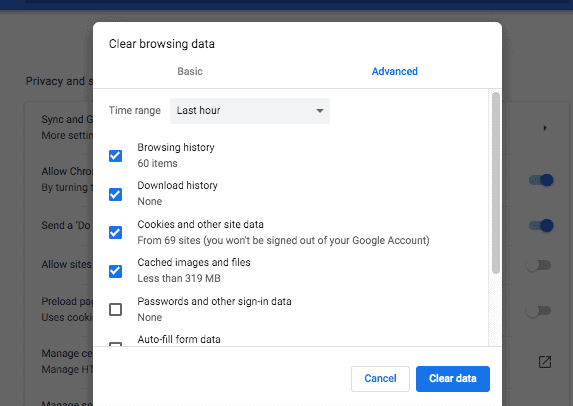
Seeing old URLs or false 404s: This is a caching problem. You need to clear every layer of cache: first, your browser cache; second, your website’s caching plugin; and third, any server-level cache provided by your host.
Redirect loops: This happens when a URL redirects to another URL, which in turn redirects back to the first one, creating an infinite loop. It’s almost always caused by conflicting rules in your redirection plugin or caching plugin. Temporarily disable these plugins to identify the source of the conflict.
Parting thoughts
Clean permalinks are a foundation of good SEO and user experience. While the process is simple, it requires careful steps. Your website backup is your most important safety net, and redirects are a core responsibility, not an option.
Remember that most issues can be fixed by simply resaving the Permalink settings. By implementing these changes methodically, you are taking control of a fundamental part of your site’s identity and setting it up for future success.
FAQs
Can I change a permalink after posting?
Yes, you can change a permalink for a post at any time, even after it has been published. However, you must set up a 301 redirect from the old URL to the new one to avoid breaking links and losing SEO value.
How do I reset permalinks in WordPress?
You can reset permalinks by navigating to Settings > Permalinks in your WordPress dashboard and clicking the Save Changes button. This action flushes the rewrite rules, which can fix many common 404 errors without changing any settings.
Does permalink affect SEO?
Yes, WordPress permalinks significantly affect SEO because clean, keyword-rich URLs help search engines understand your content’s topic. A well-structured permalink also improves user experience and can lead to a higher click-through rate from search results.
Are permalinks permanent?
No, despite the name permalink, they are not truly permanent and can be changed at any time. The term simply refers to a URL that is intended to remain unchanged, but you always have the control to edit it when needed.
How to use custom permalinks?
You can use custom permalinks by selecting the Custom Structure option under Settings > Permalinks and using available structure tags. For example, using /%category%/%postname%/ will include the post’s category in the URL for better organization.

Shivani enjoys crafting guides that make every aspect of using WordPress simple and easy to follow. When she's not glued to her laptop, you can find her buried in a good book or occasionally, painting.