A broken link is an emergency. Instead of adding another redirect plugin to your stack, go straight to the source. Let’s pop the hood and wire in a redirect that’s as fast and reliable as your server itself.
We put this guide together to show you how to perform a WordPress redirect without using a plugin in minutes.
Just so we’re clear, this is a hands-on approach, and you’ll be dealing with core WordPress files. So you should only proceed if you’re comfortable making those kinds of changes yourself.
Use .htaccess for fast redirects and functions.php for conditional ones. Before editing anything, always use a backup plugin to create a full site backup to protect your work.
Pre-redirection steps
Before you add a single line of code, preparation is everything. A few minutes spent here can save you hours of headaches later.
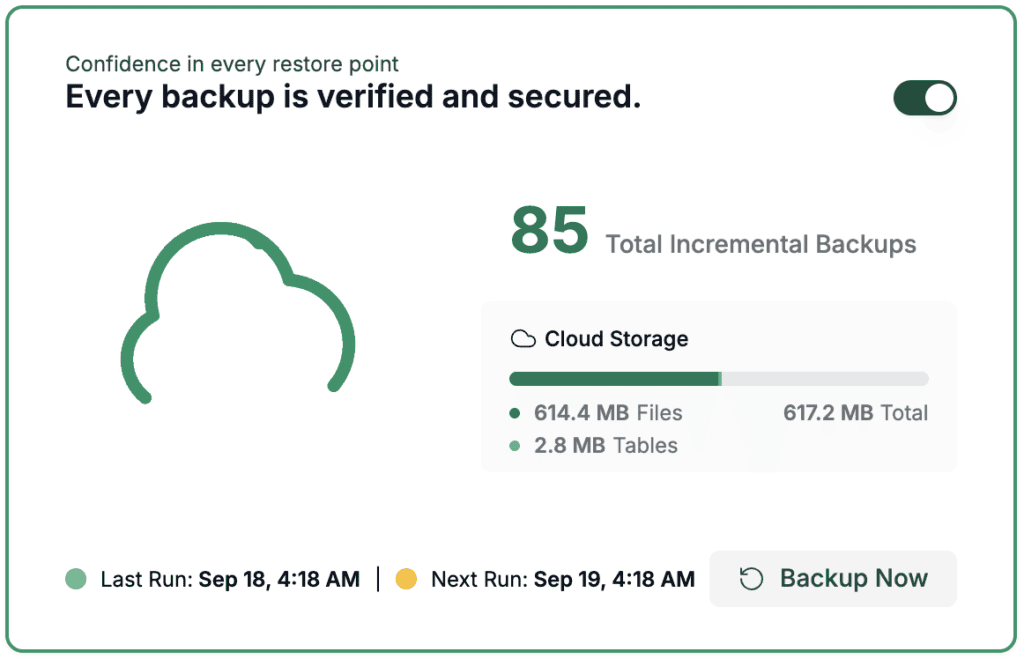
- Always create a full backup of your site. This is non-negotiable. Use a backup plugin or your host’s tool. If something breaks, you need a quick way to restore your site.
- Identify the redirect type. Do you need a permanent 301 redirect for SEO, or a temporary 302? Knowing the difference is critical. A 301 tells search engines the move is forever, passing along link equity. A 302 says it’s just for a little while.
- Know your URLs. Have the exact old URL and the exact new URL ready. A single typo will cause the redirect to fail. Keep them in a simple text file.
- Check your server type. The .htaccess method only works on Apache servers. Most shared hosting uses Apache, but it’s good to confirm with your hosting provider.
- Consider your host’s tools. Your cPanel or hosting dashboard might have a built-in redirect manager. This is often just a user-friendly way to edit your .htaccess file, and it can be the safest option.
- Test on a staging site first. If you have a staging environment, use it. Testing redirects on a live site is risky. One wrong character can create redirect loops that trap users or take your entire site down instantly.

How to perform a WordPress redirect without plugin
You have two primary paths for a manual redirect in WordPress. You can either edit a server configuration file or modify your theme’s files. Both work well, but they are suited for different jobs.
Method 1: Using the .htaccess file
This is our go-to for most simple, permanent redirects. The .htaccess file is a server configuration file. It tells the server what to do before WordPress even loads. This makes it extremely efficient.
Here are the steps to get it done:
- Access your site’s files. You’ll need to use FTP via a client like FileZilla or your hosting provider’s File Manager.
- Find the .htaccess file. It’s located in the root directory of your WordPress installation, usually the public_html folder. It’s a hidden file, so you may need to enable Show Hidden Files in your FTP client or File Manager settings.
- Add your redirect rule. Right-click and open the file to edit it. Add your redirect code at the very top, before the # BEGIN WordPress line.
For a single, permanent redirect:
Redirect 301 /old-page-slug/ https://yourdomain.com/new-page/For a temporary redirect:
Redirect 302 /old-page-slug/ https://yourdomain.com/new-temporary-page/- Save and upload. Save the file. If you edited it on your computer, upload it back to the server and overwrite the original.
- Test immediately. Open a new browser window (preferably in incognito mode) and try to visit the old URL. It should instantly send you to the new one.
Method 2: The functions.php file
This PHP method is perfect for powerful, conditional redirects, like for logged-in users. However, you must use a child theme to protect your code from being erased during theme updates.
Once your child theme is active, follow these steps:
- Access your child theme’s functions.php file. You can find this in your WordPress dashboard under Appearance > Theme File Editor, or via FTP in /wp-content/themes/your-child-theme-name/.
- Add the redirect code. Add the following PHP snippet to the bottom of the file:
function my_custom_redirects() {

    if ( is_page('old-page-slug') ) {

        wp_redirect( 'https://yourdomain.com/new-page/', 301 );

        exit();

    }

}

add_action( 'template_redirect', 'my_custom_redirects' );- Customize the code. Change ‘old-page-slug‘ to the slug of the page you want to redirect. Update https://yourdomain.com/new-page/ to the full destination URL. The exit(); part is important. It stops WordPress from loading the rest of the old page, which saves resources.
- Save and test. Save the file and test the old URL in your browser to make sure it works.
Method comparison: .htaccess vs. functions.php
So, which one should you use? It really depends on the job. There’s no single “best” answer, only the right tool for the task at hand.

Our verdict? For 90% of simple 301 redirects, use .htaccess. It’s the cleanest and highest-performing method. For those unique cases that require specific logic, functions.php is there when you need it.
Advanced nuances and pro tips
Once you get comfortable with the basics, you can handle more complex situations. Here are a few things I’ve learned over the years.
- Check Google Search Console. It will report any 404 errors your visitors are hitting. This is a goldmine for finding URLs that need to be redirected.
- Avoid redirect chains. Never redirect Page A to Page B, which then redirects to Page C. This slows down your site and hurts SEO. Always point directly to the final destination URL.
- Update your sitemap. After setting up a redirect, make sure your XML sitemap contains the new URL, not the old one. This helps search engines find your new content faster.
Troubleshooting common issues
Even with careful preparation, things can go wrong. Here’s a quick checklist for when a redirect isn’t working as expected.
- Clear your cache. This is the most common culprit. Your browser or your server might be caching the old version of the page. Clear all caches, including your browser, any caching plugins, and your CDN.

- Check for a redirect loop. This happens when a URL gets redirected back to itself, creating an endless redirect loop. This is often caused by conflicting rules, especially with HTTP-to-HTTPS redirects.
- Reset your permalinks. Go to Settings > Permalinks in WordPress and just click Save Changes without changing anything. This can sometimes fix .htaccess issues by regenerating the file.

Parting thoughts
Learning to create redirects without a plugin gives you more control over your site. You can fix errors faster and keep your site lean by avoiding another plugin. A correctly implemented 301 redirect is one of the most important skills for preserving your SEO value during site changes.
The best method always depends on your specific needs. But by mastering both the .htaccess and functions.php approaches, you’ll be prepared for any situation.
Just remember to always back up your site first. Good documentation of your manual redirects will also save you a lot of trouble down the road.
FAQs
Can you do a redirect in WordPress?
Yes. WordPress handles some redirects automatically, like when you change a page’s slug. For all other cases, you can use a plugin or the manual methods described in this guide.
How do I redirect an entire WordPress site?
The best way to redirect an entire site is with the .htaccess file. You can add a rule that captures all traffic from the old domain and redirects it to the corresponding URL on the new domain while preserving the URL path.
How to change WordPress admin URL without plugin?
Changing the admin URL is more complex than a standard redirect and usually requires a security plugin. While technically possible with code, it involves filtering login URLs and can cause lockout issues if done incorrectly. It is generally safer to use a dedicated plugin for this task.
How to redirect a page in WordPress without a plugin?
You can use either the .htaccess method for a simple, fast redirect, or the functions.php method if you need to apply specific conditions to the redirect.
How do I redirect a 404 page?
To redirect a specific 404 URL, you can add a Redirect 301 rule in your .htaccess file for that specific broken link. To redirect all 404 errors to one page, you would use a conditional redirect in your functions.php file.

Shivani enjoys crafting guides that make every aspect of using WordPress simple and easy to follow. When she's not glued to her laptop, you can find her buried in a good book or occasionally, painting.