

Adding a new user to WordPress looks simple until you reach the role dropdown.
A writer needs to upload a draft. A freelancer needs access for one article. A developer asks for Administrator access to fix something quickly. You want to help them work, but you also do not want to give away more control than they need.
That is the real job of wordpress user roles: each role decides what a person can see, edit, publish, or manage after logging in.
Give each person the lowest role that lets them do the job as a safety measure. Use a backup plugin before bulk role changes, user cleanup, or custom role edits so you can roll back if something goes wrong. As a rule of thumb, use Subscriber for basic accounts, Contributor for guest writers, Author for trusted writers, Editor for content leads, and Administrator only for people who maintain the whole site.
What WordPress user roles mean
WordPress user roles are permission groups. A role is the label you choose for a user, and it controls what that user can do inside the dashboard. For example, an Author can publish their own posts. An Editor can also edit and publish posts written by other people. That difference matters on a busy site.
You may also hear the word capability. A capability is one specific permission, such as publishing posts, uploading files, managing settings, installing plugins, or editing users. You do not need to manage these one by one for normal site work, but the idea helps when a plugin adds custom roles.
Roles are bundles of permissions. Capabilities are the individual permissions inside the bundle.
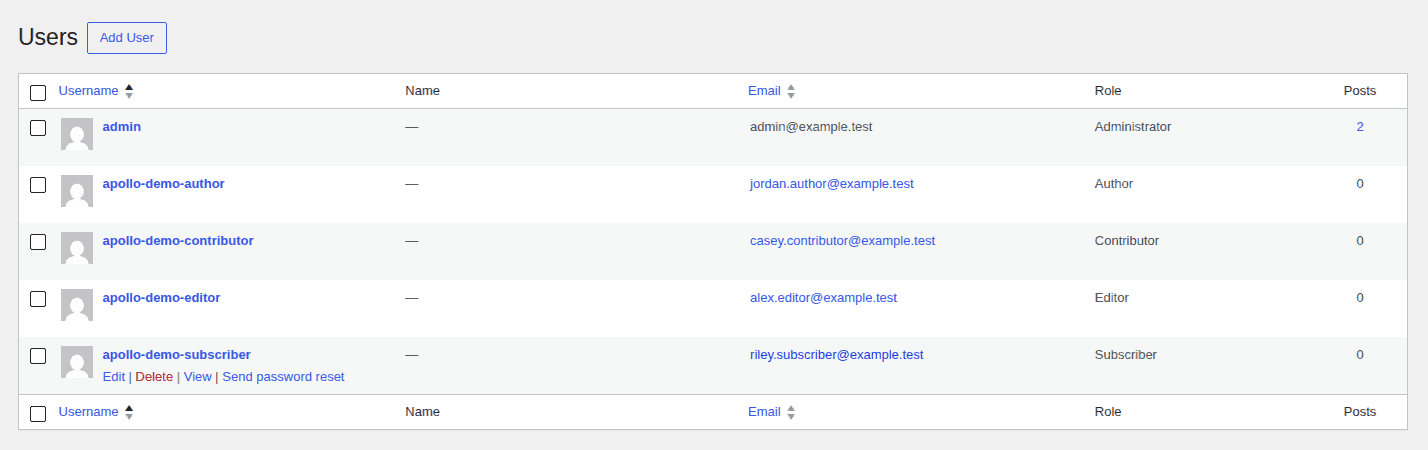
All roles at a glance
Use this table for a fast answer. The role should match the work, not the person’s job title.
| Role | Best for | Can usually do | Watch out for |
|---|---|---|---|
| Administrator | Site owner, technical maintainer, trusted agency lead | Manage users, settings, plugins, themes, and content | Full control. Do not use for routine writing or editing. |
| Editor | Content lead or managing editor | Edit, publish, and manage other people’s content | Powerful content access. Not a junior writer role. |
| Author | Trusted regular writer | Write, edit, publish, and manage their own posts | Can publish without review. |
| Contributor | Guest writer, freelancer, trial contributor | Write and edit their own drafts | Cannot publish and usually cannot upload media. |
| Subscriber | Member, customer, commenter, logged-in visitor | Log in and manage their profile | Safe default for public registration. |
| Super Admin | WordPress multisite network owner | Manage the whole multisite network | Not used on normal single-site WordPress installs. |
The common mistake is treating each role as a small upgrade from the one before it. That is not how access works. An Editor is not just a more senior Author. An Editor can change other people’s work. An Administrator can change how the site works.
What each role can do
The fastest way to choose the right role is to picture the work the person must do today.
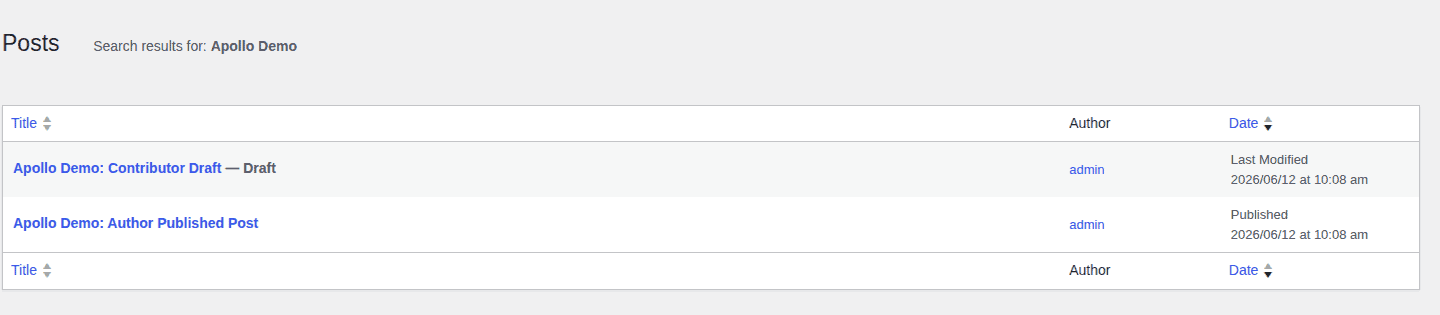
Administrator
A WordPress Administrator has full control on a standard WordPress site. They can manage users, plugins, themes, settings, and content. Use this role for people who maintain the site. Do not use it for someone who only writes posts, uploads images, or reviews copy.
Editor
An Editor manages content across the site. They can edit and publish posts and pages from other users, manage comments, and keep the content workflow moving. Use Editor for a content lead who is trusted to change published work. If the person should only manage their own posts, use Author instead.
Author
An Author can write, edit, publish, and manage their own posts. Use Author for a staff writer or regular contributor who understands your publishing standards. Do not use it for a first-time guest writer unless you are comfortable with them publishing without review.
Contributor
A Contributor can write and edit their own drafts, but cannot publish them. In a default WordPress setup, Contributors usually cannot upload images. That can be annoying, but it is also what keeps the role safer. An Editor can add images during review, or you can create a custom workflow if this becomes a real bottleneck.
Subscriber
A Subscriber can log in and manage their own profile. On a plain WordPress site, they cannot write or edit posts. Use Subscriber for public registration, membership accounts, customers, commenters, or any user who needs an account but not content access.
Super Admin
Super Admin exists for When you have a WordPress multisite setup. A multisite network is one WordPress setup that runs several sites. A Super Admin can manage the network, sites, users, themes, and plugins across that setup. If you run one normal WordPress site, you will not use this role.
Which role should you assign (AND to who?)
Start with the narrowest role that lets the person do the work. This is often called least privilege, which simply means: do not give extra access just because it is faster.
| Situation | Assign this role | Why |
|---|---|---|
| Site owner who maintains the site | Administrator | They need full control. |
| Developer doing maintenance | Administrator, only while needed | Some technical work needs full access. |
| Content manager | Editor | They manage other people’s content. |
| Trusted regular writer | Author | They can publish their own posts. |
| Guest writer or freelancer | Contributor | Their drafts need review. |
| Member, customer, or commenter | Subscriber or a plugin role | They need an account, not publishing access. |
| WooCommerce store staff | Shop Manager, when suitable | Store work should not always require Administrator access, especially around WooCommerce backup and store-maintenance workflows. |
| Multisite network operator | Super Admin | They manage the network. |
If you are unsure between two roles, start lower. You can raise access later when the job clearly needs it. It is harder to clean up after someone had more access than they should have.
How to add, change, and review roles safely
Role changes are simple in the dashboard, but they still affect site access. Make the change you need, then check that the user can do their work and nothing more.
- Add a new user with the right role: Go to Users > Add New, enter the user details, and choose the role before sending the invite.

- Change an existing user’s access: Go to Users > All Users, open the user profile or use the role controls in the users list, and select the new role. If the problem is an outdated login name rather than the role itself, handle that separately by following a safe process to change the WordPress username.

- Check the default role for new accounts: Go to Settings > General and review New User Default Role. For most sites, this should be Subscriber, especially if public registration is enabled.

- Review Administrator accounts first: In Users > All Users, scan for Administrators and ask whether each person still needs full site control.
- Back up before large changes: Before bulk edits, user deletion, agency handoff cleanup, or custom role changes, use a backup plugin such as BlogVault to backup your WordPress site and test your WordPress backups so you have a working restore point.
Why extra roles appear in WordPress
If your role dropdown has more than the default roles, a plugin probably added them.
WooCommerce often adds Customer and Shop Manager. Membership plugins, course plugins, forums, SEO tools, security plugins, and access plugins can also add roles. This is normal. It is not automatically suspicious.
The risk is that a plugin role may be broader than it sounds. Shop Manager, for example, is for store operations. It is not just a friendly label for any store employee. If you create or edit custom roles, keep it tight:
- Write down what changed and why so the next person does not have to guess.
- Test the role with a separate account before giving it to real users.
- Avoid settings, plugin, theme, and user-management access unless the job truly needs it.
- Review custom roles after removing major plugins because old roles can linger.
Custom roles are useful when the default roles are too broad or too narrow. They are not a shortcut for avoiding a clear access policy.
Security rules for user roles
Roles are not your whole security plan, but they remove a lot of avoidable risk. Most role problems start quietly: too many admins, old freelancer accounts, shared logins, or a public registration setting nobody checked after launch.

Use these rules:
- Keep Administrators rare. Most sites need very few people with full control.
- Give each person their own login. Shared admin accounts make it harder to know who changed what, and strong password management for WordPress users matters more as access increases.
- Remove stale accounts. Former staff, old freelancers, and test users should not keep access.
- Use two-factor authentication for privileged users. Two-factor authentication means the user needs a second login check, such as an app code, not just a password.
- Review users after handoffs and plugin changes. These are common moments for access to drift.
- Treat unknown Administrators as urgent. Not panic-worthy, but urgent enough to investigate.
If you find an Administrator account you do not recognize, first check whether a teammate, developer, or agency created it. If nobody can explain it, remove or secure the account, change passwords for privileged users, review recent changes if logs are available, and scan your WordPress site for malware. BlogVault’s malware scanner fits this moment because an unknown admin can be a sign of a compromised site.
An unknown admin is not proof that the site is hacked. It is proof that you need to verify what happened.
Common mistakes to avoid
These are the role mistakes I see cause the most confusion.
- Giving Administrator access for content work: Writers and editors usually need Contributor, Author, or Editor. They do not need settings and plugin access.
- Treating Editor as a light role: Editors can manage other people’s content. Use it for content leads, not every writer.
- Upgrading Contributors just for image uploads: If the only problem is media upload, solve that narrow problem. Do not jump straight to Administrator.
- Leaving the default new user role too high: If public registration is enabled, a high default role can turn signups into an access problem.
- Confusing WordPress access with hosting access: WordPress roles do not control hosting, database, FTP, SSH, DNS, email, or control panel access. Remove those separately when someone leaves.
- Assuming WordPress.com works exactly the same way: Role names can overlap, but hosted WordPress.com and self-hosted WordPress do not always manage access the same way.
- Ignoring “No role for this site”: On multisite or migrated sites, a user may have no role on one site. Review it during cleanup and remove access if they no longer need it.
Quick user-role audit
Use this when your user list looks messy or you just took over a site.
- Open the full user list: Go to Users > All Users and scan every role.
- Check Administrators before anyone else: Keep only the people who truly need full control.
- Downgrade content-only users: Move them to Editor, Author, or Contributor based on what they actually do.
- Remove people who no longer need access: This includes old freelancers, former staff, agency launch accounts, and test users.
- Confirm the new-user default role: Keep it as Subscriber unless you have a deliberate reason.
- Review plugin-created roles: Make sure each one still belongs to an active workflow.
- Turn on two-factor authentication for privileged users: Start with Administrators and Editors.
- Back up before bulk changes: A restore point is cheap compared with cleaning up a bad access change.
- Investigate unknown admins: Verify first, then respond.
Access does not stay clean by itself. It needs a quick review after staff changes, agency handoffs, store launches, membership changes, and security scares.
FAQs
What are the default WordPress user roles?
The default roles are Administrator, Editor, Author, Contributor, and Subscriber. WordPress multisite also has Super Admin for network-level control.
What is the safest role for a writer?
For a guest writer or freelancer, use Contributor because they can draft but not publish. For a trusted writer who should publish their own work, use Author.
What is the difference between Editor and Author?
An Author manages their own posts. An Editor can manage other people’s posts too, including editing and publishing them.
Can a Contributor upload images?
In a default WordPress setup, Contributors usually cannot upload media. Have an Editor add images, or create a narrow custom role if the workflow needs it often.
What should I do if I find an unknown Administrator?
Check whether a teammate, developer, agency, or plugin workflow explains it. If nobody can explain it, secure or remove the account, change privileged passwords, review recent changes, and scan the site for malware.
Conclusion
WordPress user roles are access decisions, not just dashboard labels. The best role is the one that lets a person do their work without handing them control they do not need. Start with Subscriber, Contributor, Author, Editor, or Administrator based on the actual task, and keep Super Admin only for multisite network work.
Before you clean up a messy users list, back up the site, review Administrators first, and make one clear change at a time. If you find an unknown admin or a role change nobody can explain, treat it as a security issue until you verify it. Calm, careful access control is one of the simplest ways to keep a WordPress site safer.

Shivani enjoys crafting guides that make every aspect of using WordPress simple and easy to follow. When she's not glued to her laptop, you can find her buried in a good book or occasionally, painting.


