If you manage more than one WordPress site, Multisite can look like the clean answer.
One dashboard. One WordPress install. One place to control themes, plugins, and users. That sounds better than logging into several sites and repeating the same work.
But the WordPress Multisite vs single site decision is not about how many sites you have. It is about whether those sites should share the same rules, risks, updates, and recovery plan. Multisite can save time when the sites are closely related. It can also make one bad decision affect every site in the network.
Choose WordPress Multisite when the sites share the same owner, users, plugins, themes, and rules. Choose separate single sites when the sites need independence, different tools, separate backups, or an easy way to move later. Either way, use a backup plugin before you change anything.
Quick recommendation
Use WordPress Multisite when your sites are versions of the same platform.
Good fits include university department sites, school district sites, franchise locations, regional sites, intranets, and repeatable campaign sites. These sites may have different content, but they usually share one owner, one brand system, one plugin list, and one team that controls updates.
Use separate single-site installs when the sites need their own path. That includes client sites, different businesses, ecommerce sites, sites with special compliance needs, high-traffic sites, and any site that may be sold, moved, or hosted separately later. Do not choose Multisite only because many dashboards are annoying.
That problem can be solved with better site management. A shared WordPress architecture is much harder to undo. If it fits, install WordPress Multisite carefully.
What each setup means
A single site is one WordPress installation for one website. It has its own admin area, plugins, theme, database, files, backups, staging site, and restore path. A single-site setup keeps identity and URL settings inside that one site’s own WordPress admin.
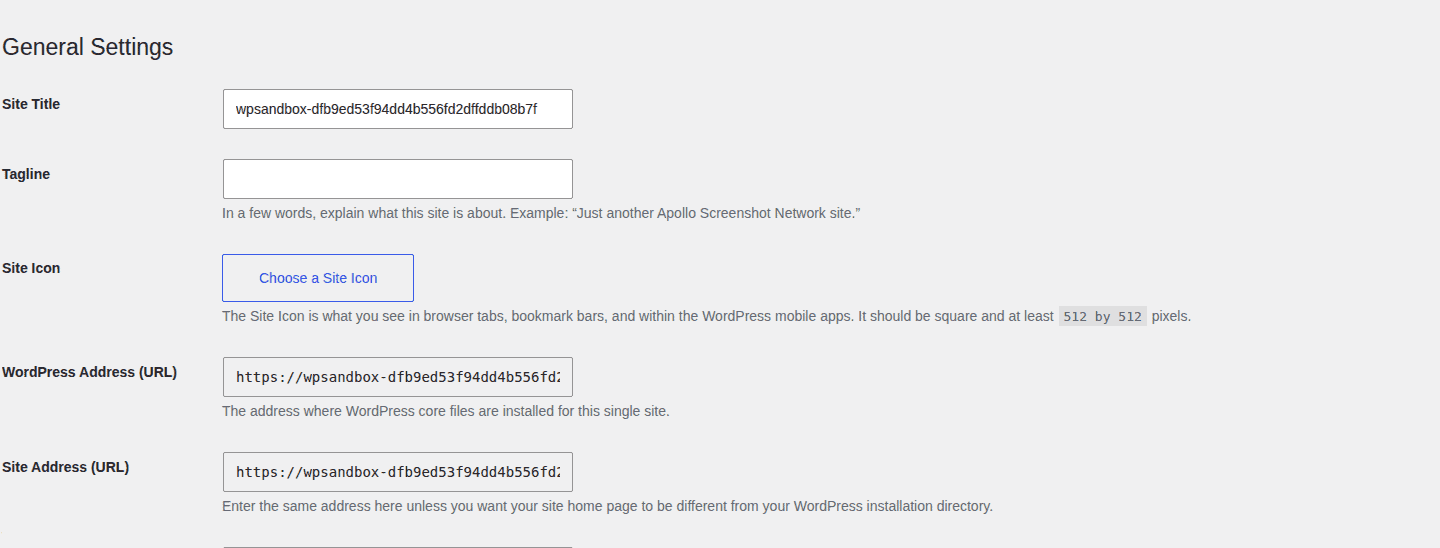
WordPress Multisite is one WordPress installation that runs a network of sites. It adds a Network Admin area and a Super Admin role. A Super Admin controls network settings, installs plugins and themes, and decides what each site can use. The regular single-site dashboard is the baseline experience Multisite changes by adding network-level controls above individual site admin areas.
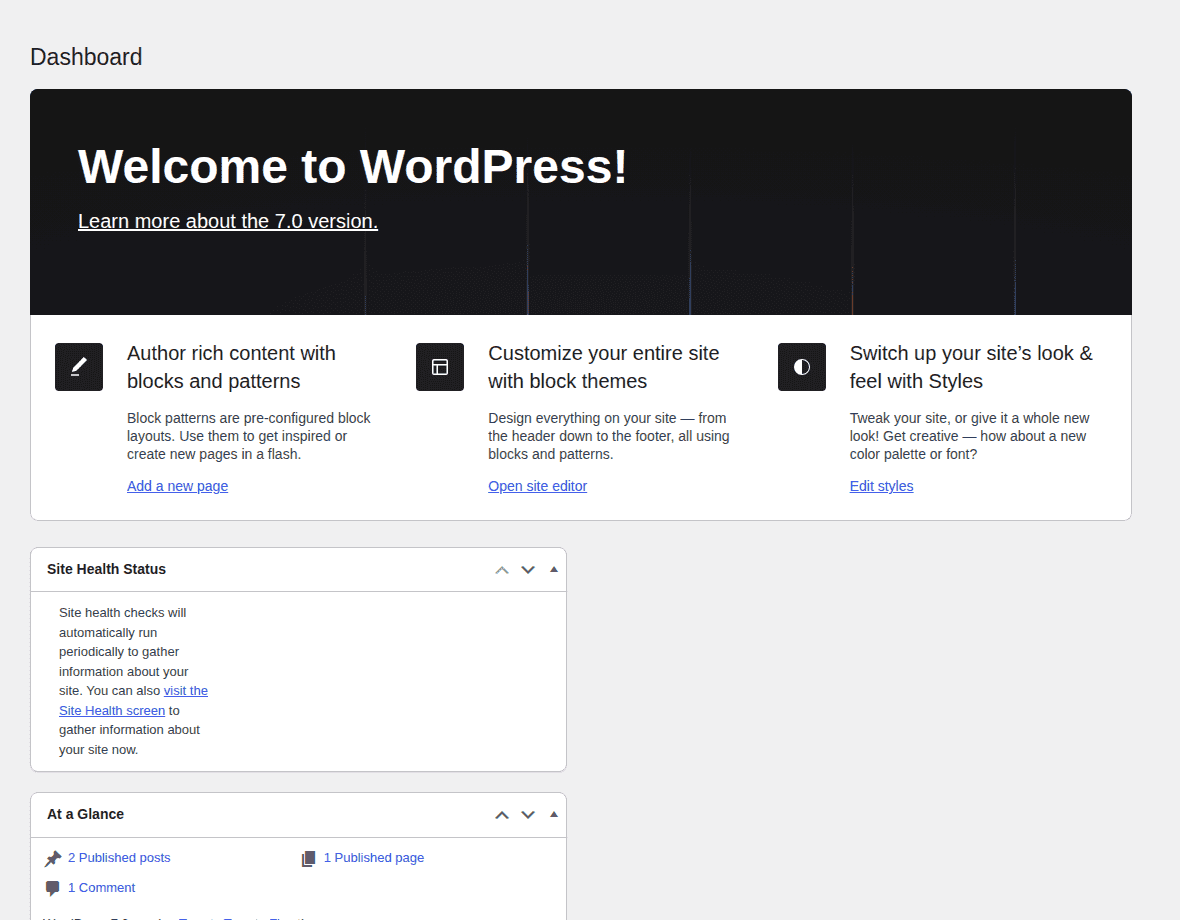
Here are the plain-english details that matter:
- Core WordPress files are shared in Multisite.
- Plugins and themes are installed centrally, then enabled for sites.
- Users are shared across the network, but their roles can differ by site.
- Each subsite has its own content area.
- Media is not one shared library by default. Each subsite usually has its own uploads folder.
- Most Multisite networks use one database with separate tables for each site.
A subsite just means one site inside a Multisite network. A database is where WordPress stores content, settings, users, and other site data.
WordPress Multisite vs single site at a glance
| Decision point | Choose Multisite when… | Choose single sites when… |
|---|---|---|
| Ownership | One team owns the rules | Sites have different owners or clients |
| Plugins and themes | Most sites use the same tools | Each site needs different tools |
| Users | People need access across many related sites | User access should stay separate |
| Updates | One team can test and roll out changes | Sites need different release schedules |
| Backups and restores | You can plan network and subsite recovery | Each site needs a simple restore path |
| Future movement | Sites are unlikely to split apart | One site may move, sell, or change hosts |
The table has one main lesson: Multisite gives you central control. Single sites give you clean separation. If the control problem is mostly operational, better WordPress website management may solve it. Neither is better for every case. The right choice depends on how the sites will be owned, updated, protected, and changed over time.
When Multisite makes sense
Multisite works when the sites are closely related and one team can set the rules. Use it when most of these are true:
- The sites have the same owner or central team.
- The sites share a brand, theme, and design system.
- Most sites use the same plugins.
- Users need access to more than one site.
- New sites are created from the same pattern.
- One team can approve plugins, updates, backups, staging, and rollback plans.
- The sites are unlikely to need separate owners or hosting later.
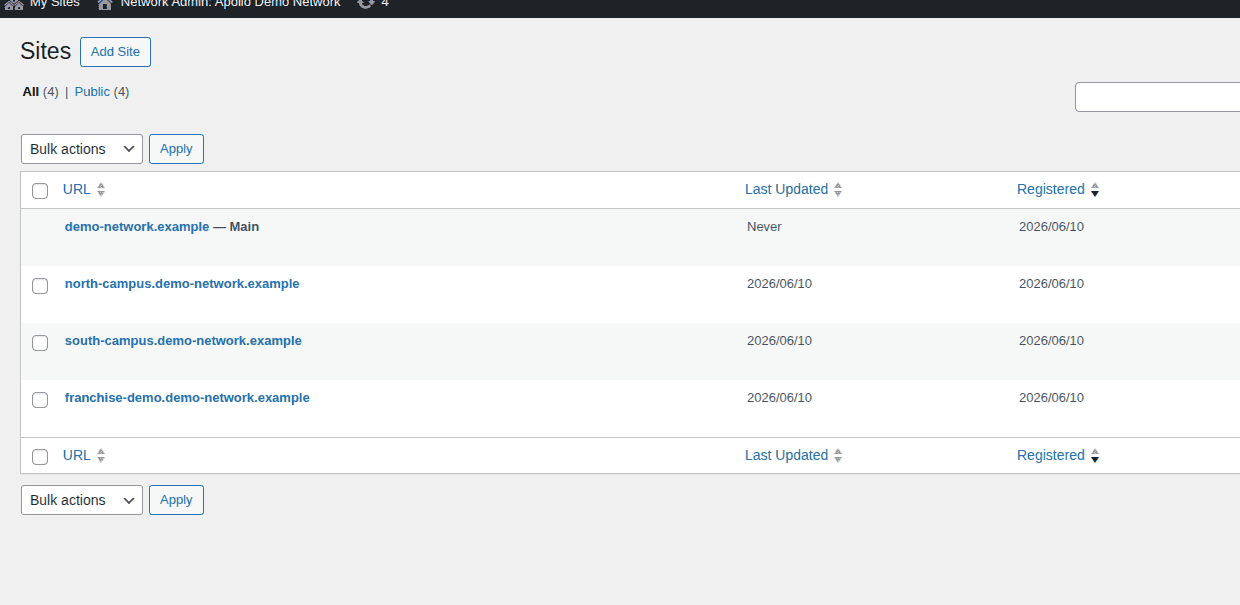
A university is a good example. Departments may need their own sites, but central IT can control themes, plugins, users, and update rules. A franchise can also fit. Each location gets its own content, but the brand, layout, plugin stack, and rules stay the same. In Multisite, related subsites can be managed together from the Network Admin Sites screen.
My practical test is this: if about 70% of the tools, workflow, and rules are shared, Multisite is worth considering. If the overlap is only “they all use WordPress,” that is not enough.
When single sites are better
Single sites are better when independence matters more than saving repeated work. Use separate sites when any of these are true:
- The sites belong to different clients, companies, or legal owners.
- Each site needs its own plugins, theme, or hosting.
- One site is high-traffic or revenue-critical.
- One site uses ecommerce, memberships, payments, tax rules, or private user data.
- Different teams need different update schedules.
- One site may need to be sold, handed off, or moved later.
- One site breaking must not affect the others.
This is why agencies should be careful with Multisite. Putting unrelated client sites into one network may save time in the first year. It can become painful when one client wants to leave, change hosts, or install a plugin that does not fit the rest of the network.
Separate sites do mean more maintenance. But you can reduce that work with managed hosting dashboards, update workflows, staging, backup tools, or a WordPress maintenance service. Losing separation is much harder to fix later.
The tradeoffs that matter
The real choice is not “one dashboard or many dashboards.” It is how much risk and control the sites should share.
Governance
Multisite needs one clear owner. Someone must decide which plugins are allowed, who can create sites, who gets Super Admin access, and how updates are tested. If nobody owns those rules, the network becomes messy fast.
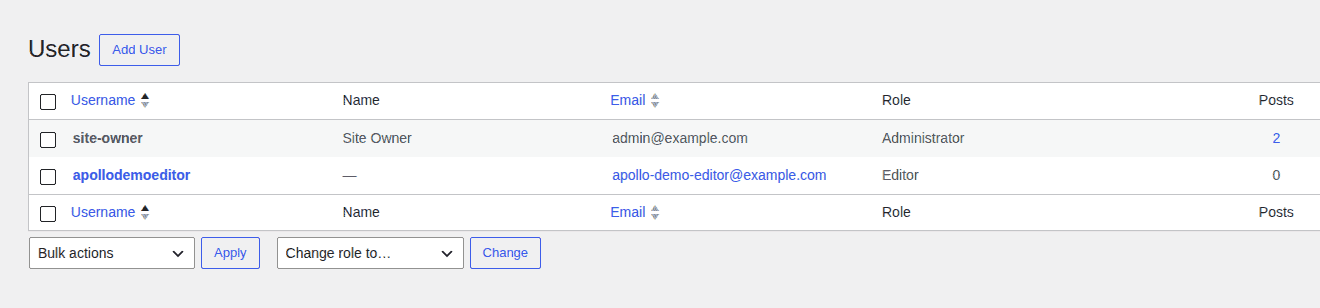
Single sites are easier when each site has its own owner, budget, timeline, and risk level. Single-site user management keeps roles and access decisions contained inside one website.
Plugins and themes
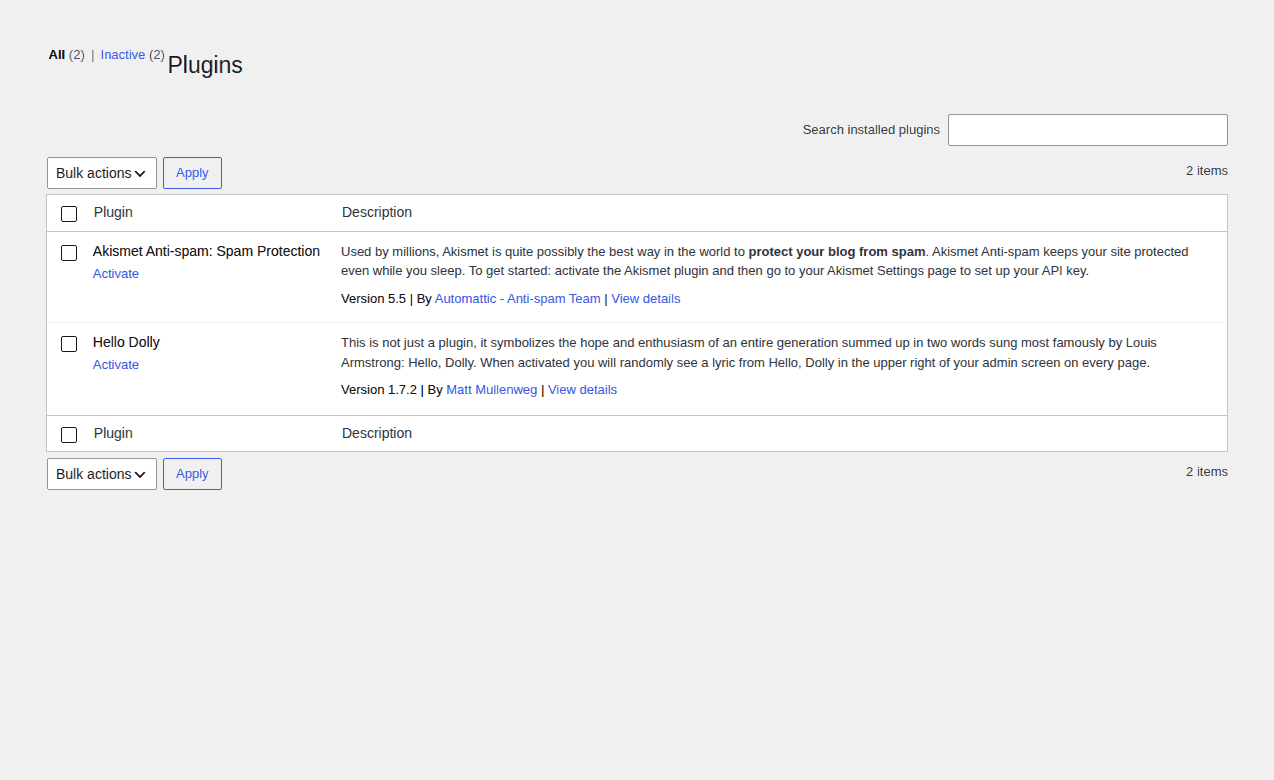
In Multisite, plugins and themes are installed from the network level. A Super Admin can make them available to one site or many sites. A single site manages plugins locally, which is useful when one website needs its own toolset.
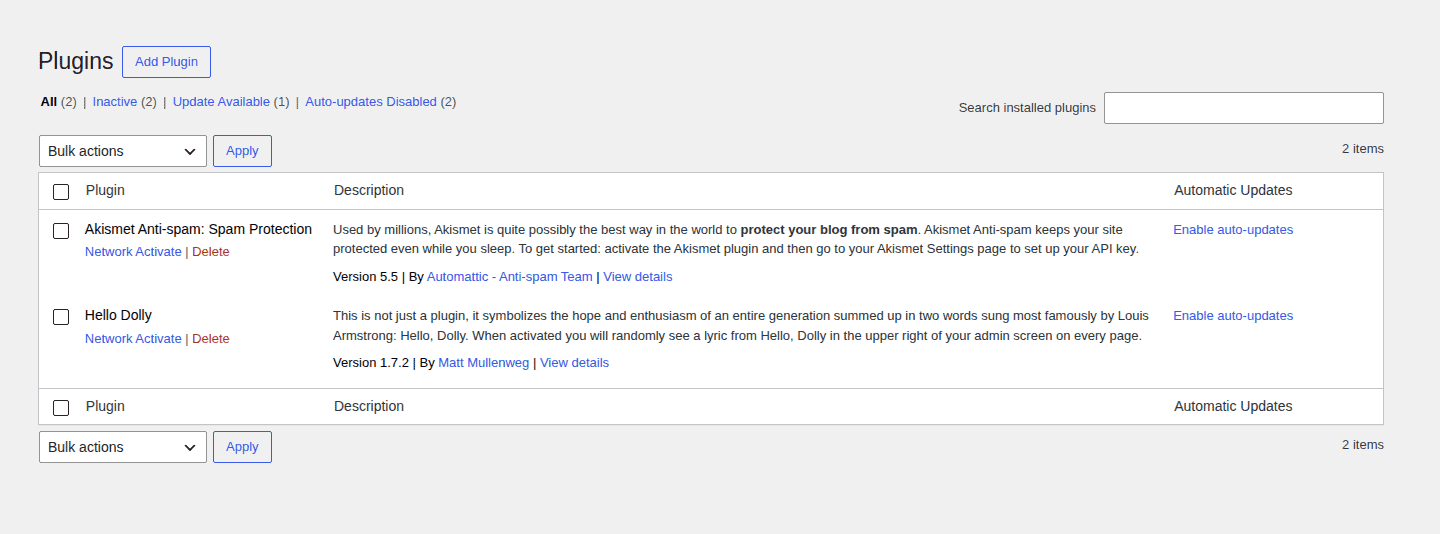
That is helpful when every site uses the same SEO plugin, form plugin, cache plugin, or theme. The catch is that some plugins do not work well across Multisite. Some also charge per subsite. Multisite moves that decision into Network Admin, where plugin activation can affect the wider network.
Tip: Check plugin compatibility and licensing before you build the network around that plugin.
Performance
Multisite is not automatically faster. All sites still depend on hosting resources, database capacity, caching, media size, and plugin quality. If one subsite gets a traffic spike, it can affect the rest of the network unless hosting is planned well.
Single sites are easier to tune one by one. You can give the busy store stronger hosting and keep a small blog on a simpler plan. If performance is already part of the decision, fix the slow site first instead of assuming Multisite will solve it; start with a practical WordPress slow loading fix before you change architecture.
Security
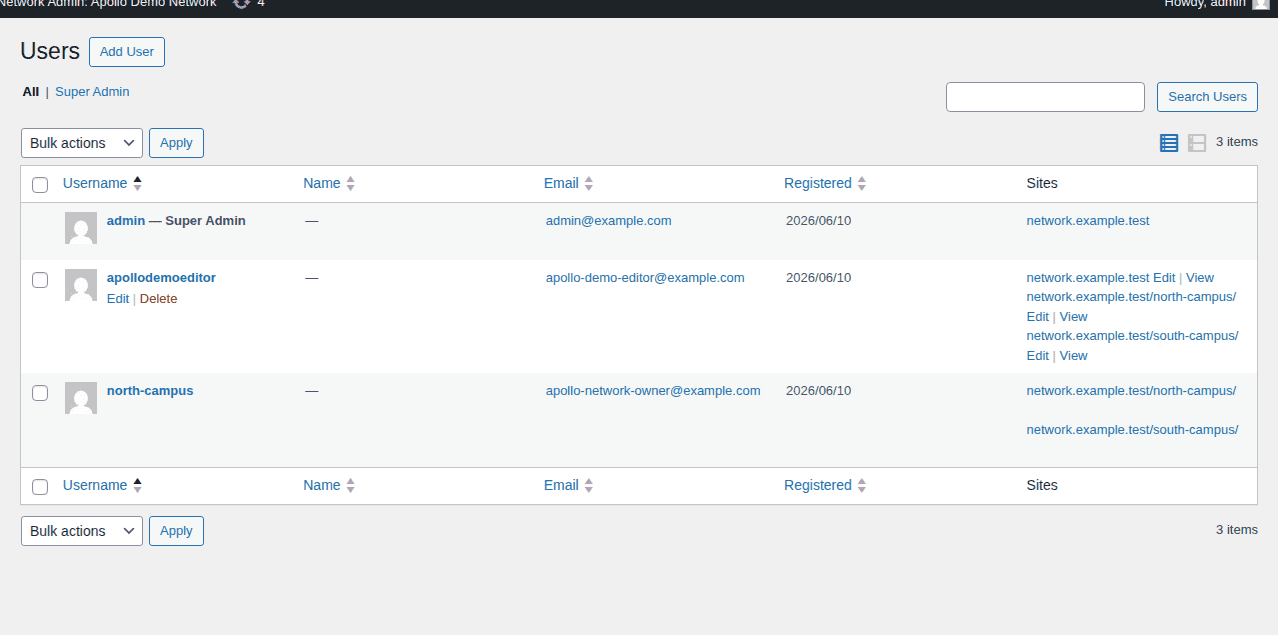
Multisite has a larger blast radius. Blast radius means how much damage one problem can cause. A hacked Super Admin account, a bad network plugin, or a server issue can affect many sites at once. That does not make Multisite unsafe, but it does mean access control, a limit login attempts plugin, and a practical WordPress security checklist matter more.
Single sites keep failures more contained, especially when they use separate hosting accounts, logins, and backups. Network-level users are one reason Multisite needs tighter access control than unrelated single sites.
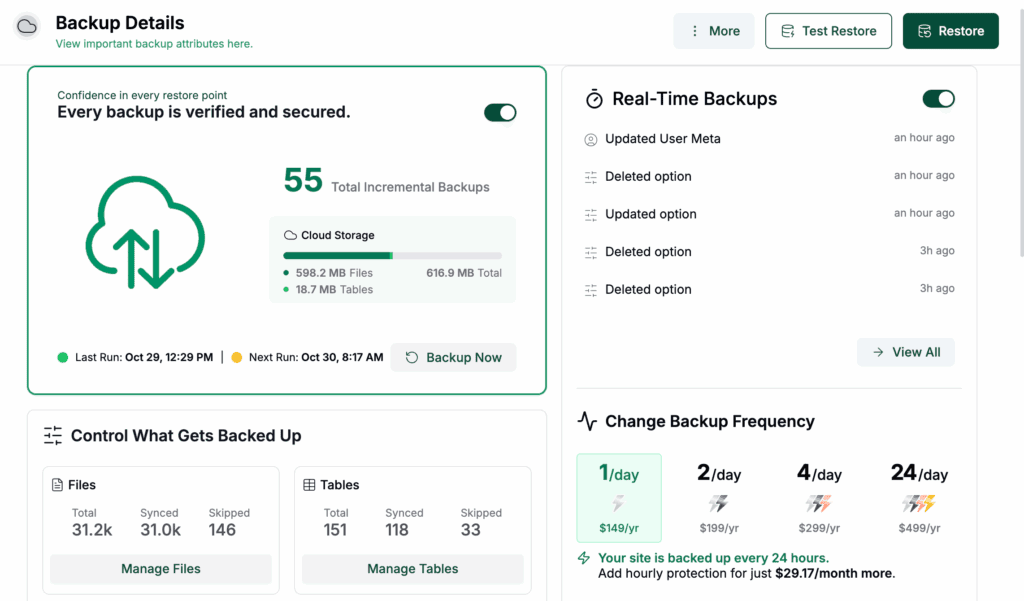
Backups and restores
Backups are where the difference becomes very practical. With single sites, the path is simple: back up one site, restore one site, move one site.
With Multisite, you need a full network backup and a plan for one broken subsite. A full network restore may roll back sites that were not broken. That can be a serious problem if another subsite kept publishing posts, taking orders, or collecting leads.
Before you choose Multisite, ask: Can I restore only the site that broke without touching the others?
This is where a tool like BlogVault helps. It does not make the architecture decision for you, but it helps with backups, staging, cloning, restores, and migration preparation. If you run a network, your process should show exactly how to backup a WordPress Multisite network before major architecture work, and test the restore before you need it.
Migration
Moving a single WordPress site is a normal job. It still needs care, but the site is already its own unit.
Moving one subsite out of Multisite is more involved. You may need to handle content, media, users, plugin settings, redirects, database tables, and the work to change the WordPress site URL cleanly. A redirect sends visitors and search engines from an old URL to the right new URL.
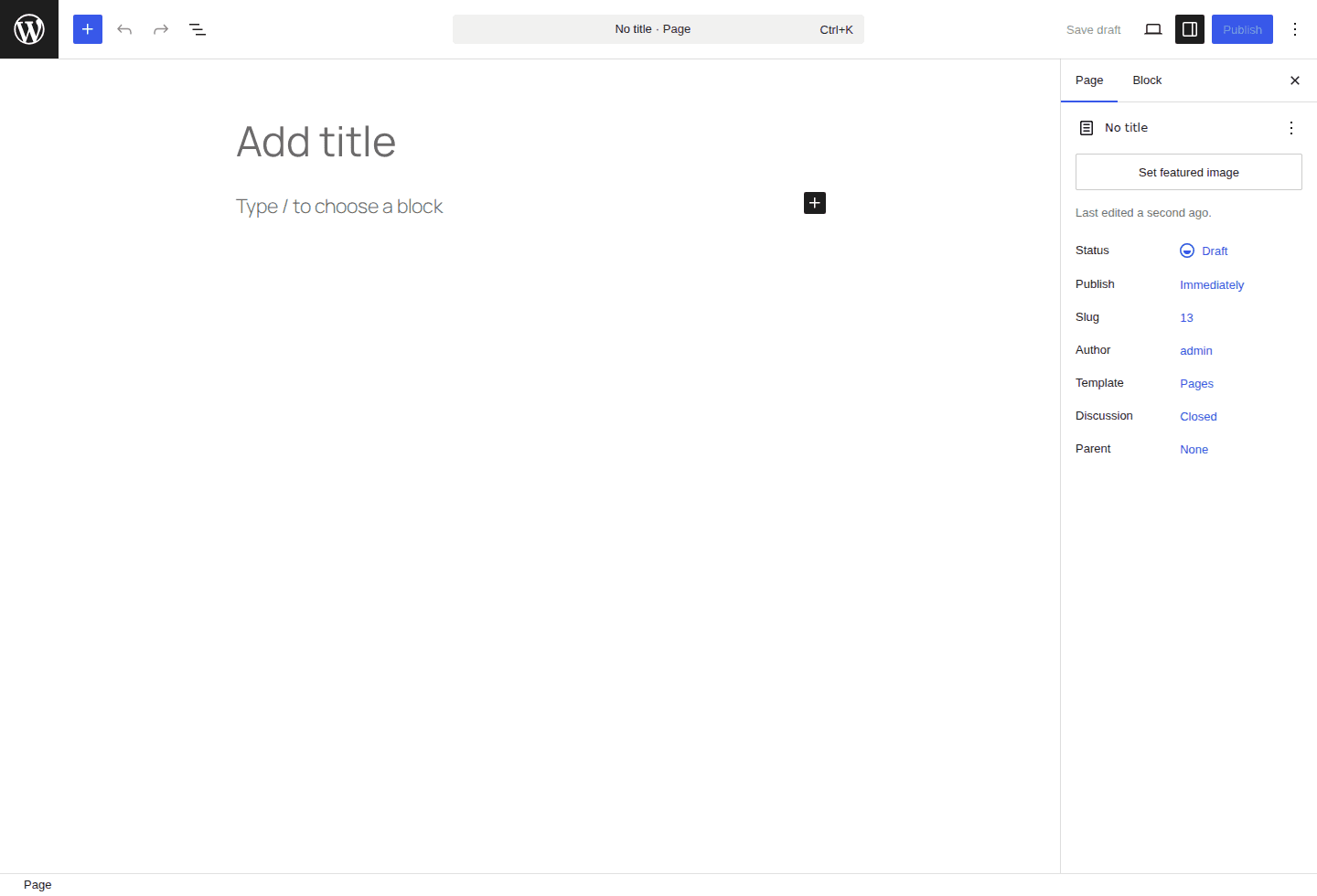
If a site may leave later, keep it separate now. The ordinary page editor is a good reminder that each single site can keep its own content workflow and ownership path.
SEO
Multisite does not give you an SEO boost by itself. Search engines care about useful content, WordPress URL structure, speed, redirects, internal links, and clean indexing rules. Multisite can help if it gives you better control over related sites. It can hurt if redirects, domains, or performance are handled poorly.
Choose the architecture for operations first. Then do SEO properly inside that setup.
Decision checklist
Before you choose, make a simple inventory for each site.
- List the owner and purpose: Write down who owns the site and what it needs to do.
- Compare the plugin and theme needs: Mark which tools are shared and which are unique.
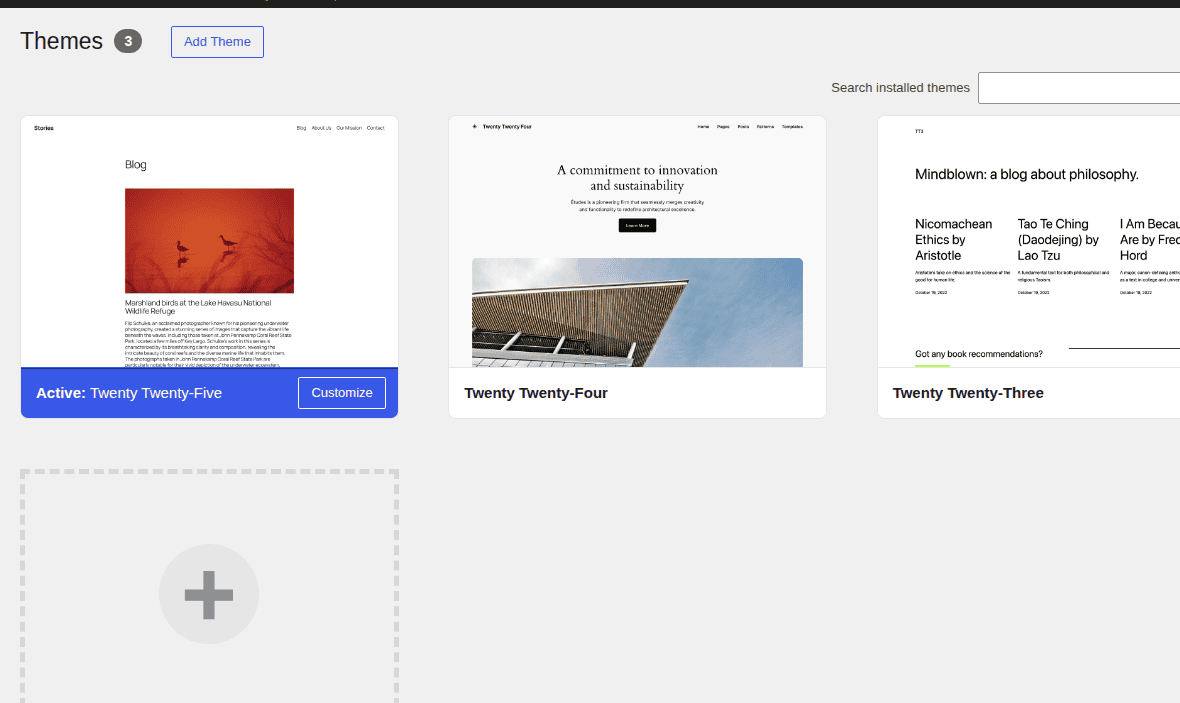
Theme choice is another practical inventory item: decide whether design should be controlled centrally or stay site by site.
- Map the user access: Note who needs access to which sites and what they should be allowed to do.
- Check traffic and revenue risk: Flag stores, lead collection sites, membership sites, and high-traffic sites.
- Confirm backup and restore needs: Decide whether each site needs its own restore path.
- Plan future movement: Ask whether a site may be sold, handed off, moved, or rebuilt later.
- Test before changing production: Use staging or a clone before moving real sites into a new setup.
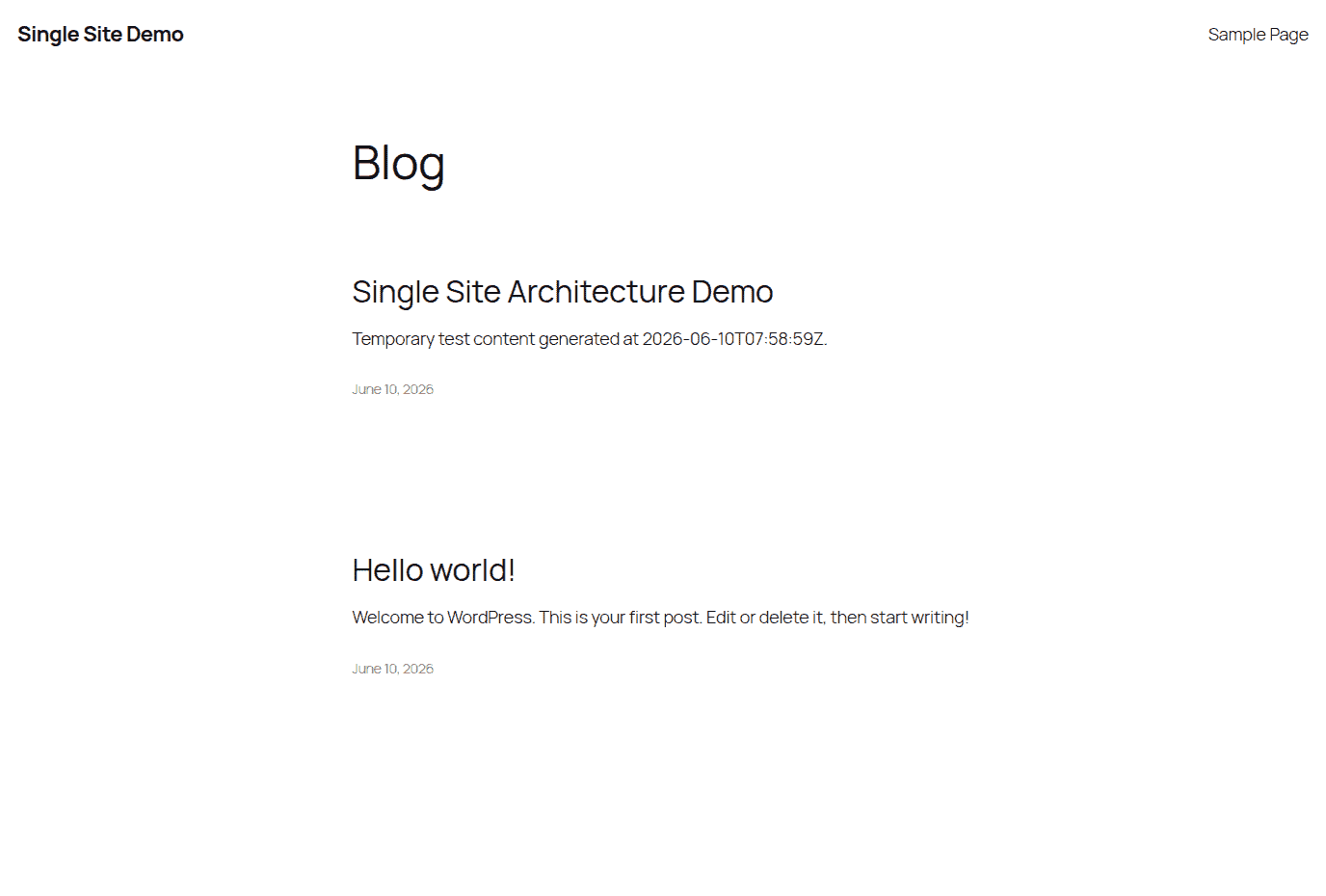
If most answers point to shared ownership, shared plugins, shared users, and shared rules after a WordPress audit, Multisite may be right. If the answers keep pointing to independence, choose single sites. The point of the architecture choice is to protect the visitor-facing site, not just tidy up the admin workflow.
If you already have multiple sites
Do not convert everything at once.
Start with an inventory. Look for shared themes, plugins, users, owners, and workflows. If the sites already work in different ways, Multisite will not make them simpler. It may only hide the mess in one admin area.
Then test one low-risk site first.
- Backup every site first: Do this before any migration, consolidation, or major update.
- Create a staging copy: Staging is a private test version of your site, so you can test changes on a WordPress staging site before they reach production.
- Clone one representative site: A clone lets you test the move without touching the live site; if you need a practical walkthrough, start with how to clone a WordPress site.
- Check the basics: Test pages, forms, media, user roles, redirects, plugin settings, and SEO settings.
- Run a restore test: Make sure you can recover from a bad move.
- Decide from the pilot: If the test reveals many one-off needs, keep the sites separate.
BlogVault fits this stage well because it can help you backup, stage, clone, and prepare migrations before you make a permanent change.
Common scenarios
University, school, or department sites
Multisite often makes sense. These sites usually share central IT, branding, users, templates, and rules. The key is governance. Decide who can create sites, who can install plugins, and how updates are tested.
Franchise or multi-location business
Multisite can work when every location follows the same brand and site structure. Keep sites separate if locations need different systems, legal rules, ownership, or hosting.
Agency client sites
Use separate single sites in most cases. Client sites change hands. Clients choose different plugins. Clients leave. A network that starts as a shortcut can become a hard migration project later.
Ecommerce or high-traffic sites
Lean toward a separate site unless the stores are part of one controlled platform. A WooCommerce Multisite setup needs stricter planning than a content-only network. Payments, checkout, tax, subscriptions, inventory, and uptime all raise the cost of shared risk.
Multilingual or regional sites
This depends on how independent the regions are. Use Multisite if the sites share brand, structure, users, plugins, and rules. Use single sites if each region needs its own legal setup, plugin stack, hosting, marketing process, or separate WPML vs Weglot decision.
Mistakes to avoid
- Do not choose Multisite only to avoid logging into many dashboards. Fix the workflow first.
- Do not choose Multisite for speed alone. Hosting, caching, plugins, and traffic matter more.
- Do not turn on a plugin for the whole network casually. Test shared plugins before they affect every site.
- Do not skip restore testing. A backup is only useful if you know it restores cleanly, so test WordPress backups before you trust the plan.
- Do not trap client sites in one network without an exit plan. The exit is usually where the cost appears.
Conclusion
Choose WordPress Multisite when the sites are truly connected: same owner, same rules, same users, similar plugins, shared theme system, and one team that can manage the risk. It is a strong setup for related site networks, not a shortcut for every person with more than one WordPress login.
Choose separate single sites when the sites need their own tools, owners, hosting, update schedule, backup path, or future freedom. Before you restructure anything, make the boring safety work non-negotiable: backup the sites, test changes on staging, clone a pilot site, and confirm how restores and migrations will work. That is the work that keeps a smart architecture choice from becoming an expensive cleanup job.
FAQs
What is the difference between WordPress Multisite and a single site?
WordPress Multisite runs many sites from one WordPress installation. A single-site setup runs one website from one WordPress installation.
Multisite centralizes users, plugins, themes, and network settings. Single sites keep each website more separate.
Is WordPress Multisite better than separate WordPress sites?
Only when the sites are closely related. Multisite is better for shared ownership, shared users, and shared rules.
Separate sites are better when each site needs its own plugins, hosting, backup path, or future migration option.
When should I avoid WordPress Multisite?
Avoid Multisite for unrelated client sites, sites with different owners, sites with very different plugin needs, and sites that may move later.
Also avoid it when one site’s downtime, hack, or traffic spike must not affect the others.
Are Multisite backups harder?
They can be. Full-network backups are not the hard part. The harder question is whether you can restore one broken subsite without rolling back the whole network.
Test that before you rely on Multisite for important sites.
Does WordPress Multisite improve SEO or performance?
No, not by itself.
SEO depends on content, speed, redirects, internal links, and site structure. Performance depends on hosting, caching, database load, media, plugins, and traffic. Multisite changes management, not the basic rules.

Akshat is the founder and CEO of BlogVault, MalCare, and WP Remote.