

You’re trying to access your WordPress site, but suddenly a 503 error appears, and your site won’t load. This can be frustrating because it means your site is temporarily down, leaving you puzzled about the cause.
However, there’s no need to worry too much. This error is quite common and usually has simple fixes. Once you identify what’s causing the issue, you can resolve it and have your site back online quickly.
A 503 error indicates that your WordPress site is currently down due to server problems. Exercise caution when troubleshooting and modifying core files, as even a small error can lead to a site crash.
Understanding the 503 Error in WordPress?
If you’ve ever tried accessing your WordPress site only to find it’s not loading, you might have encountered the 503 error. This happens when the server hosting your site can’t process the request at that moment. Essentially, the server is saying, “I can’t handle this right now,” making your site temporarily unavailable.
This problem usually stems from the server itself, not from WordPress. Sometimes, the server is overwhelmed with too many visitors at once. Other times, it might be undergoing maintenance or experiencing resource shortages, similar to a computer running out of space or memory.
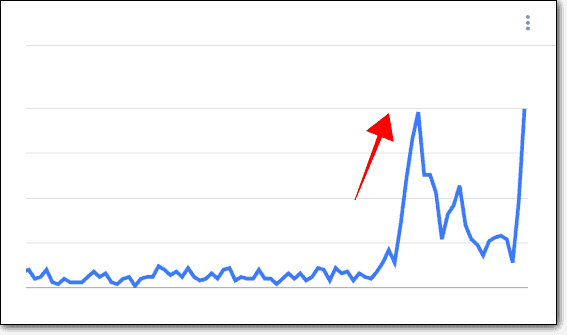
Issues can also arise from plugins or themes you’ve added. If they demand too many resources or clash with other site elements, they might trigger the 503 error. When this occurs, anyone trying to visit your site will see a 503 Service Unavailable message.
People may assume your site is down, impacting their perception of its reliability and potentially harming your site’s reputation.
How to resolve the 503 error in WordPress
Dealing with a 503 error on your WordPress site can be frustrating, but don’t worry—there are solutions to get everything back on track. Here’s how you can fix the issue and have your site up and running again:
1. Revert recent updates
If you’ve recently updated a plugin, theme, or WordPress itself, this might be the source of the problem. Try logging into your dashboard to undo these updates. If that’s not possible, you can manually revert these changes using WordPress FTP.

Simply navigate to the appropriate folders and replace the updated files with their previous versions from the WordPress repository. If you use BlogVault, the selective restore feature can simplify this process.
2. Disable plugins and themes
Sometimes, a particular plugin or theme can cause issues. Deactivate them one by one to determine which one is causing the error. If you can’t access your WordPress dashboard, use an FTP client like Filezilla.
Navigate to public_html > wp-content > plugins or public_html > wp-content > themes and rename the folder you think might be the culprit. Once the issue is identified, you can reactivate the others.

3. Manage traffic surges
A sudden increase in site visitors can put a strain on your server. Use tools like Google Analytics to see if there’s been a spike in traffic. If so, consider upgrading your hosting plan or implementing security measures to handle DDoS attacks. This will help manage legitimate traffic increases and protect against harmful traffic.
4. Contact your hosting provider
If the problem lies with server resources, shared hosting limits, or maintenance, your hosting provider can help. Reach out to them with a detailed explanation of your issue, and they might already have a solution ready for you.
5. Adjust WordPress heartbeat API
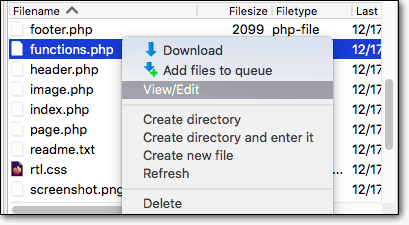
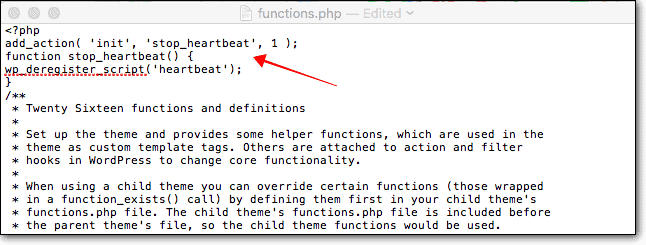
The Heartbeat API is useful for real-time updates like auto-saves and post-locking, but too many requests can strain your server. Modify its frequency in the function.php file located in your theme’s directory by adding this code:
add_action( 'init', 'stop_heartbeat', 1 );

function stop_heartbeat() {

    wp_deregister_script('heartbeat');

}
Alternatively, use the Heartbeat Control plugin to manage API activity without disrupting essential functions.
6. Verify CDN connections
If your site uses a CDN, connectivity issues might be causing the error. Contact your CDN provider for assistance and have your credentials ready. They can ensure that your CDN and server are communicating properly.
7. Clear WordPress cache
After trying each fix, remember to clear both your browser and site caches. This makes sure you’re seeing the latest version of your site rather than an outdated one that might still display the error.

How can this error affect your site?
When a 503 error occurs, your site becomes unreachable and can’t be accessed temporarily. This is a problem for anyone trying to view your content or make a purchase. If visitors can’t access your site, they might leave and not return, which isn’t great for your site’s reputation.
Such downtime can lead to a decrease in visitors, which can negatively impact how your site is perceived. If search engines notice your site is frequently down, they might rank it lower in search results. This results in fewer people discovering your site when they search online.
If your site generates revenue through sales or advertisements, a 503 error can affect your earnings. Without access, visitors can’t make purchases or view ads. Additionally, the effort you’ve put into optimizing your site for search engines might be undermined if the error persists.
Best practices to stop the 503 error from reappearing
To prevent a 503 error from showing up again, here are some steps you can take to keep your WordPress site running smoothly:
Keep your site updated: Regularly update WordPress, along with any themes and plugins you use. These updates often fix bugs and enhance security.

Choose the right hosting plan: Make sure your hosting plan can handle your site’s traffic. If your site is growing, your hosting should be able to grow with it.
Select reliable plugins and themes: Use plugins and themes that have good reviews and are frequently updated. This helps to avoid conflicts and issues that could cause errors.
Enable caching: Caching can help your site load faster by reducing the load on your server, which can prevent it from getting overloaded.
Monitor site activity: Keep an eye on your site for errors or unusual activity by using an activity log. This allows you to catch and resolve issues before they escalate.

Clean up your database: Regularly tidy up and optimize your database to ensure your site runs efficiently.
Maintain regular backups: Always have a backup of your site. If something goes wrong, you can restore it to a previous version that was working properly.

Parting thoughts
Encountering a 503 error can be frustrating, but it’s definitely fixable. By understanding the causes of this error, you can take steps to prevent it from recurring. Regularly updating your site and monitoring it closely are vital actions to minimize the risk of errors.
Moreover, maintaining regular backups means that if an issue does occur, you can quickly restore your site and minimize downtime.
FAQs
How to solve the 503 error in WordPress?
To fix a 503 error, start by checking if recent updates to plugins or themes are the cause. Deactivate any that might be problematic and make sure your server can handle your site’s traffic. Sometimes, a simple adjustment or contacting your hosting provider can resolve the issue.
What does error 503 service temporarily unavailable mean in WordPress?
This message indicates that your site is currently inaccessible. It’s similar to seeing a closed sign at a store. This often occurs when the server is experiencing high traffic or undergoing maintenance. Fortunately, it’s typically a short-term issue.
Will error 503 fix itself?
In some cases, yes. If the error results from a temporary server overload, it may clear up on its own after a while. However, if a plugin or theme is the culprit, you may need to intervene and make some adjustments.
Is 503 a temporary error?
Yes, the 503 error is generally temporary. It usually signifies that the server is overloaded or undergoing maintenance. Once the server stabilizes or maintenance is completed, the error should disappear.
Is 503 a timeout error?
No, it’s not a timeout error. A 503 error means the server is unable to handle the request at that moment. It’s more about the server being too busy or unavailable rather than timing out on a request.

Shivani enjoys crafting guides that make every aspect of using WordPress simple and easy to follow. When she's not glued to her laptop, you can find her buried in a good book or occasionally, painting.


