

You’re ready to migrate your WordPress site or create a backup, but All-in-One WP Migration throws an export failed message your way.
Your migration or backup plans are put on hold—right when you need things to run smoothly. It’s frustrating and stressful, especially when your data and deadlines are at stake.
The good news? There are some simple solutions to get past this roadblock. In this article, I’ll walk you through fixing the error and successfully exporting your site.
All-in-One WP Migration export failures are often caused by server limits or configuration issues. Before you start troubleshooting, protect your site by creating an extra backup with a different backup plugin or tool.
Understanding why All-in-One WP Migration is unable to export

When All-in-One WP Migration fails to export your site, a few common issues are usually to blame.If these persist, you might want to explore All-in-One WP Migration alternatives that handle larger sites or offer more flexible export options.
Site size: If your website is too big for your hosting plan or server, the export can fail, kind of like trying to squeeze a giant suitcase through a tiny door.
Not enough disk space: Your server needs extra space to create the export file. If your hosting account is full, the process stops right away.
Limited memory: Servers have memory limits. If your site needs more than your server allows, the export can’t finish.
Max file size limits: Hosting providers set limits on file upload sizes. If your export file is larger than this, it simply won’t go through.
Timeouts: If the export takes too long, your server might just cut it off to protect itself from overload.
Plugin conflicts: Other plugins on your site might clash with All-in-One WP Migration, causing errors during the export.
File permissions: If the plugin can’t access certain files or folders due to permissions, the export will fail.
Poor internet connection: If your connection drops, especially while exporting to cloud storage, the process will stop.
Database problems: Issues inside your website’s database can completely halt the export.
Fixing All-in-One WP Migration unable to export
Quick fixes before you start troubleshooting
Before diving into technical adjustments, start with these simple steps:
Refresh your browser: Sometimes, the export fails due to a temporary glitch. Reload your site and try the export again.
Check your internet connection: Make sure you’re connected to a stable and strong network, especially if you’re exporting large files.
Clear your cache: Old cached data might cause issues. Clear your cache and cookies or open your site in a different browser.
Update WordPress: Update WordPress to the latest version since migration plugins work best with the most recent software.
These small checks often fix the problem without any further changes.
1. Check for insufficient disk space
Running out of storage space is a common reason exports fail:
- On your web host’s dashboard, look for disk usage or storage, usually found on the main page or under account details. Check to see if your available space is low.
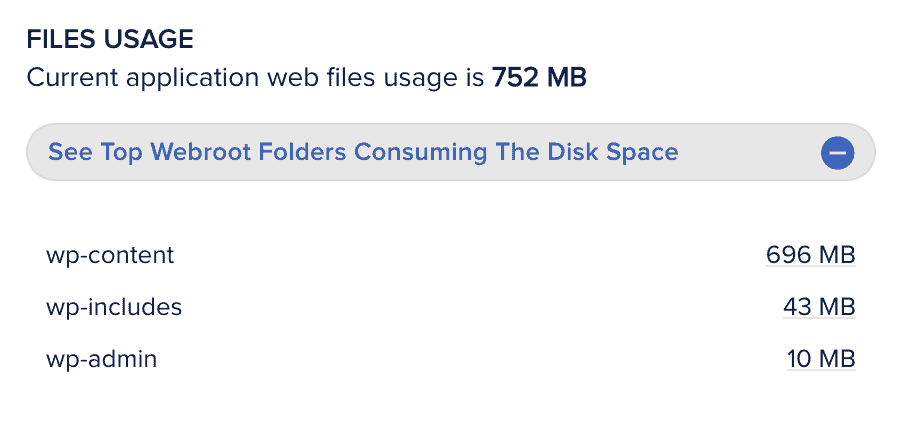
- Open your hosting provider’s control panel (such as cPanel, Plesk, or your host’s custom dashboard). I will be using cPanel.

- Delete old backup files, unused images, or outdated plugins and themes by using cPanel’s File Manager or your host’s file browser. Once you’ve made space, go back to your WordPress dashboard and try the export again.

2. Increase the memory limit
Your server needs enough memory to process the export, especially for large sites:
- Go to your hosting control panel and find the File Manager.
- Navigate to the folder where WordPress is installed (often called public_html or www).

- Find the wp-config.php file and click Edit.
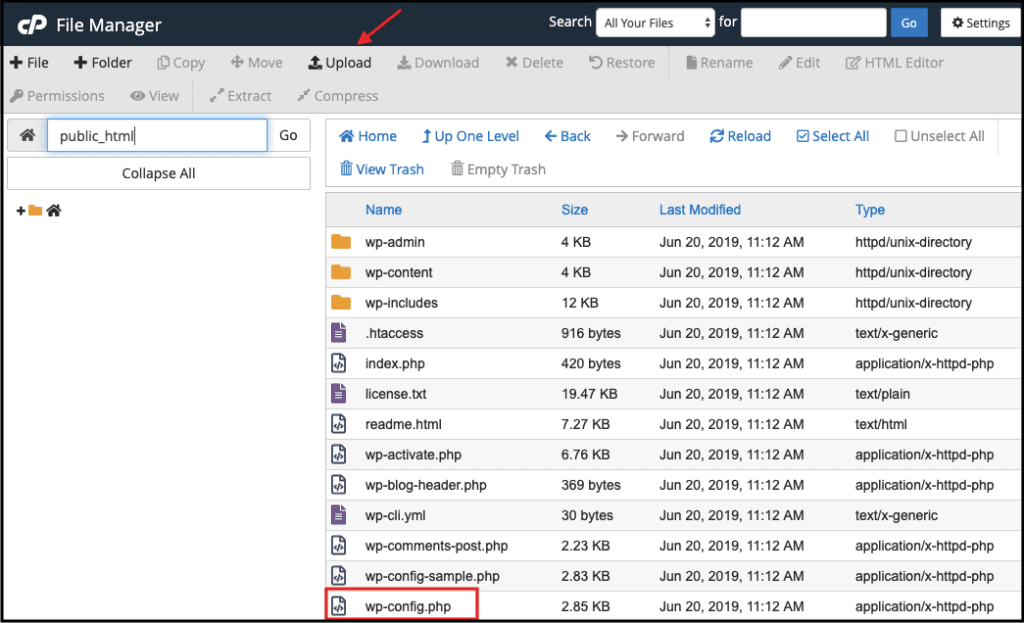
- Add the following line just before the “That’s all, stop editing!” comment:
define('WP_MEMORY_LIMIT', '256M');- Save the file and close the editor. Retry the export process from your WordPress dashboard.
3. Raise the maximum file upload limit
A low upload limit can stop your export if your site is large. I will be using cPanel to fix this, but if your hosting uses a different control panel, look for a section that says PHP settings or options:
- Log in to your cPanel account. Scroll down to the Software section and click on Select PHP Version.

- In the new window, find and click the link or tab labeled Options

- Look for the options upload_max_filesize and post_max_size. Click on the current values for each and change them to a higher value, such as 128M or 256M.


- Once done, save your changes. Navigate to your WordPress dashboard and try the export again in All-in-One WP Migration.
4. Adjust the timeout limit
Short timeouts can stop the export if it takes too long:
- Stay in the PHP Settings area of your hosting control panel.
- Look for the max_execution_time setting. This decides how many seconds a process (like exporting your site) can run before the server stops it.

- Change this value to 300 or even 600 (5 or 10 minutes).
- Save your settings, and restart the server or PHP processes if required. Try exporting your site again—now it has more time to finish.
5. Split the backup into smaller parts
Exporting your site in smaller sections makes the process more manageable:
- Open All-in-One WP Migration and click on Export.

- Go into Advanced options. Choose what you want to exclude for each export.

- Export and download each part separately.

- Make sure to keep your export files organized and labeled with what they contain.
- If you’re trying to import, you can upload each export file one by one to your destination site.Sometimes, issues appear during import rather than export especially when the database restore hangs.
6. Try a different migration plugin
If all else fails, some sites just work better with another tool:
- Go to Plugins > Add New in your WordPress dashboard.
- Search for migration plugins. I will be using MigrateGuru as our example. Once you find your preferred plugin, install and activate it.
- Enter your source and destination site’s details and start the migration process.
- Having an alternative plugin ready can save time and frustration if issues persist.
Preventing future export issues
Keep everything updated: Regularly update WordPress, your theme, and all plugins. Outdated software often leads to export errors and plugin conflicts.
Clean up unused files: Delete old media and remove unused plugins or themes. Monthly cleanups keep your site smaller and make exports smoother.
Monitor your resources: Check your hosting plan’s storage and server resources as your site grows. Upgrade your hosting if you’re running out of space or memory.
Take frequent backups: Don’t wait for one giant export. Schedule regular backups—they’re easier to manage and less likely to fail.
Watch your usage: Use your hosting panel to check disk space and memory. Fix issues as soon as you spot them to avoid problems during export.
Test after big changes: After adding plugins, changing themes, or importing lots of content, do a test export. Catch issues early before they become major setbacks.
Configure security and hosting: Maintain up-to-date security settings and consult your hosting support for the best configuration. They can help fine-tune settings for your site’s needs.
Use trusted plugins only: Install plugins only from reliable, official sources. If a new plugin causes problems, remove it right away to protect your site’s stability.
Wrapping up
In most cases, All-in-One WP Migration export errors are caused by server resource limits or settings, not the plugin itself. Double-check your hosting resources, adjust your server settings, and split large exports when necessary. If you still hit roadblocks, consider trying a different migration plugin or upgrading your hosting to ensure a smooth move.
FAQs
How do I migrate a website using All-in-One WP Migration?
Migrate your site by exporting it from your old WordPress site and importing the backup file to your new site with the plugin. Just install All-in-One WP Migration on both sites, export, download, then import and restore.
How to fully export a WordPress site?
You can fully export your WordPress site by running an export in All-in-One WP Migration without any exclusions. This creates a complete backup of your database, themes, plugins, media files, and all content.
How do I manually migrate a website?
Manually migrate a site by copying your files via FTP and moving your database using phpMyAdmin. Upload both to your new host, then update wp-config.php with your new database details.
Where are All-in-One WP Migration backup files?
All-in-One WP Migration backup files are stored in /wp-content/ai1wm-backups/ on your server or downloaded directly to your computer. Check either the backup folder on your site or your downloads if you exported the file.

Shivani enjoys crafting guides that make every aspect of using WordPress simple and easy to follow. When she's not glued to her laptop, you can find her buried in a good book or occasionally, painting.


