Hit a wall with All-in-One WP Migration? File size limits, poor performance, unexpected costs, or missing features are driving website owners like you to seek better options.
Being stuck with a migration plugin that doesn’t meet your needs is frustrating. Especially when your site depends on it.
This guide gives you six All-in-one WP Migration alternative tools. Better performance, transparent pricing, and the features you need for successful transfers.
Migrating a WordPress site can be hassle-free with alternatives to All-in-One WP Migration. Choose from free options to feature-rich paid tools that handle complex migrations smoothly.
1. Migrate Guru (Recommended)
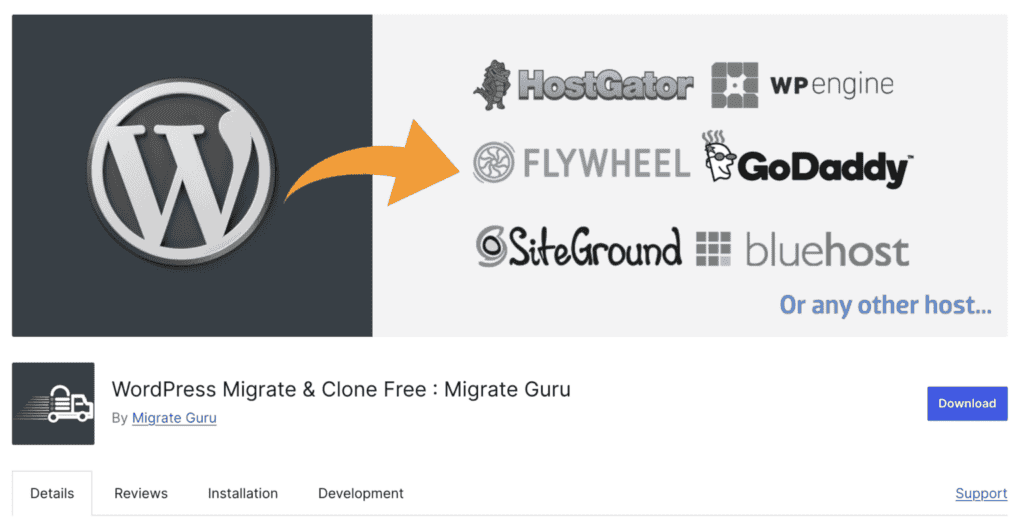
Migrate Guru by BlogVault is your best bet if you want a migration that just works. No technical skills required. You can move sites between hosts and change domains without handling any technical details yourself.
This plugin has handled over a million successful WordPress migrations. It runs the entire migration on BlogVault’s powerful servers, not yours. Your website stays fast and responsive while the move happens in the background.
Feature highlights
Handles large sites: Move websites up to 100GB. Most alternatives cap you at a certain limit or demand costly upgrades.
Lightning fast: In our testing, a 2GB site migrated in about 6 minutes.

Fully automatic: Click start and walk away. The plugin handles database transfers and file copying without intervention.
SEO protection: Your search rankings stay intact through automatic link updates and proper redirects. We’ve verified this across multiple migrations.
Secure setup: Use a migration key or enter your site’s credentials to initiate the migration.

Universal compatibility: Works with multiple hosting providers. If your host isn’t specifically listed, you can always select Other Hosts.

Pricing
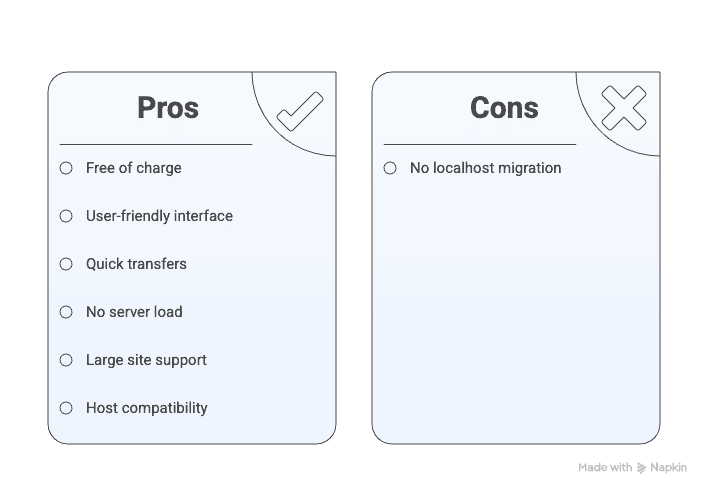
Migrate Guru is completely free. No premium tiers, file size fees, or surprise charges.
Pros and cons
2. UpdraftPlus

UpdraftPlus is famous for its backup features, but it also handles WordPress migrations. The process works differently from other tools since you generate a backup file from your old site and import it to your new site.
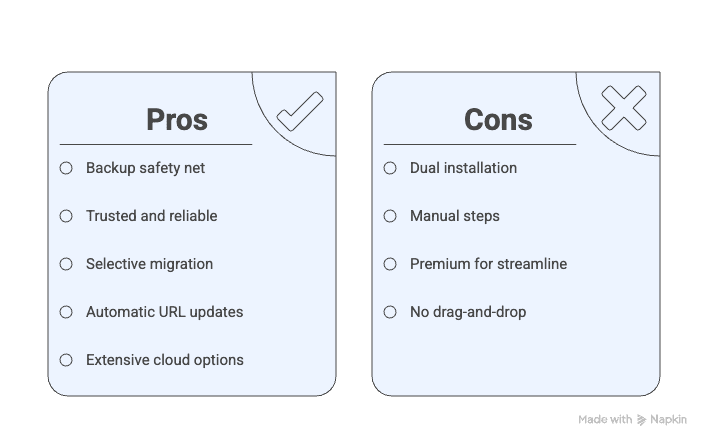
The biggest advantage here is the built-in safety net. Since UpdraftPlus creates a backup file of your source site during the process, you’re protected if anything goes wrong during the migration process.
To migrate using UpdraftPlus Premium, you’ll need to generate a migration key on the destination site and use it to send and restore the backup from the source. Ensure that ‘Search and replace site location in the database’ is selected for a seamless transition.
Your original site remains untouched and backed up. In our testing, the migration process took about 15 minutes from start to finish.
Feature highlights
Complete backups: Creates full backups including database, plugins, themes, and uploaded files.

Selective migration: Choose specific components to migrate, like just your database, or files.

Automatic URL replacement: Handles URL changes during migration to prevent broken links.
Extensive cloud storage: The Pro version lets you connect to Google Drive, Dropbox, Amazon S3, and many other remote storage services.

Advanced Capabilities: Premium supports multisite migration and localhost transfers.
Pricing
Free version: Offers basic migration features with a manual backup and restore process.
Premium version: Annual subscription starting at $70/year unlocks more remote storage locations, UpdraftMigrator tool, multisite support, and enhanced migration features.

Pros and cons
3. Duplicator

Duplicator takes a different approach to site migration. Instead of handling everything automatically, it creates two files you work with directly.
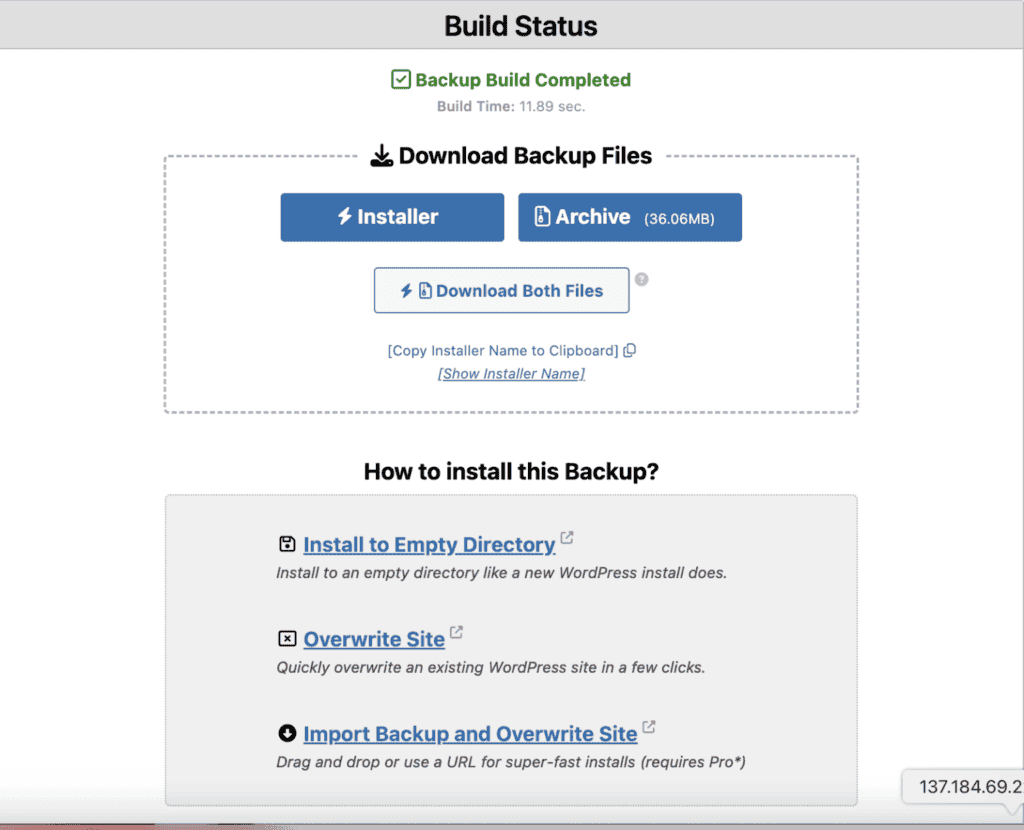
The process works like this: Duplicator packages your entire website into an archive.zip file, then creates an installer.php file that acts as a setup wizard for your new location.
This plugin lets you move sites between hosts, change domains, or transfer localhost sites to live servers with full control over the process.
The Lite version works well for smaller sites under 500MB but requires manual importing. In our testing, a manual migration took over 30 minutes because we had to clean the root folder at the destination site first. With multiple files present, this cleanup process was time-consuming.
If you prefer something more automated, you might want to compare All-in-One WP Migration vs Duplicator. The two plugins take very different approaches All-in-One WP Migration focuses on simplicity and ease of use, while Duplicator gives you more control but requires more manual setup.
The Pro version handles larger sites and includes drag-and-drop imports that eliminate this manual work.
Feature highlights
Two-file system: Creates a complete .zip package of your site plus an installer.php helper file for setup.
Versatile migration options: Handles host-to-host transfers, domain changes, and localhost-to-live migrations that many alternatives can’t manage.
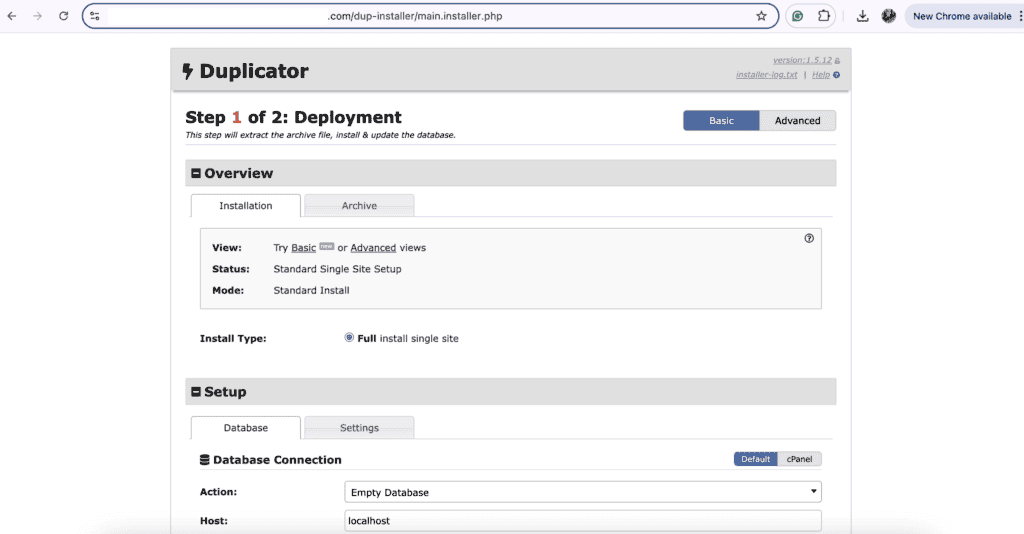
Simple 3-step process: Name your package, scan your site, then build the migration files.
Flexible storage: Save migration files on your server or download them to your computer for backup. The Pro version adds cloud storage integrations.
Basic backups (Free): Create full site backups or database-only backups in the Lite version.
Advanced Pro features: One-click restores, drag-and-drop imports, scheduled backups, selective backup options, direct server transfers, and backup encryption.
Pricing
Free Version (Duplicator Lite): Works well for smaller sites under 500MB. Requires manual importing and has limited features.
Pro Version: Essential for sites over 500MB. Includes easy import options and advanced features. Starts at approximately $99 per year.

Pros and cons
4. WPvivid

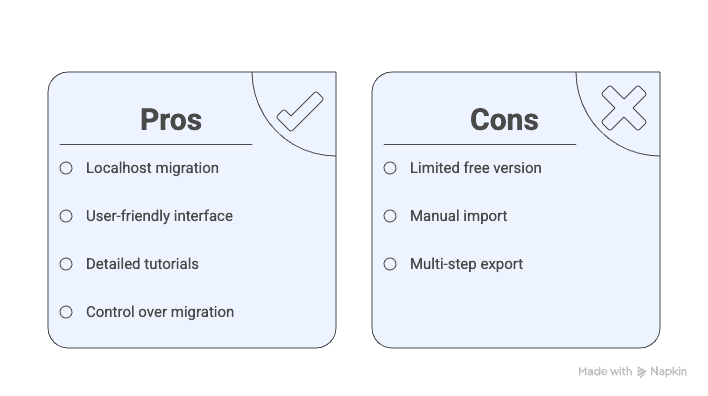
WPvivid brings a unique approach to WordPress migrations through its key-based connection system. While many know it as a backup plugin, its migration features work by linking your sites directly together.
The standout feature is the automatic transfer option. You generate a special key on your destination site and use it to connect with your source site for hands-free migration.
However, our testing showed this automation can freeze mid-process, forcing you into manual recovery mode.
Feature Highlights
Key-based connection: Generate a unique migration key on your new site, then paste it into your old site to establish a direct connection between them.

One-click automation: When working properly, the system handles the entire transfer automatically without file downloads or manual uploads.
Smart URL updating: Automatically replaces old domain references with new ones during migration to maintain working links.
Comprehensive cloud support: Store backups across multiple services, including Dropbox, Google Drive, Amazon S3, OneDrive, plus FTP/SFTP options. With the Pro version, you can get access to additional cloud services like Wasabi and pCloud for backup storage.

Granular control (Pro): Select specific elements to migrate: individual themes, plugins, or database components.
Network capabilities (Pro): Manage WordPress Multisite network migrations for complex multi-site installations.
Pricing
Free version: Basic backup functionality and one-click migration tools with local and remote storage options.
Pro version: Advanced migration controls, Multisite capabilities, and extended cloud storage integration. The plugin also offers one-time purchase options starting from $99/year instead of recurring subscriptions, making it budget-friendly long-term.

Pros and cons
5. Host-specific tools
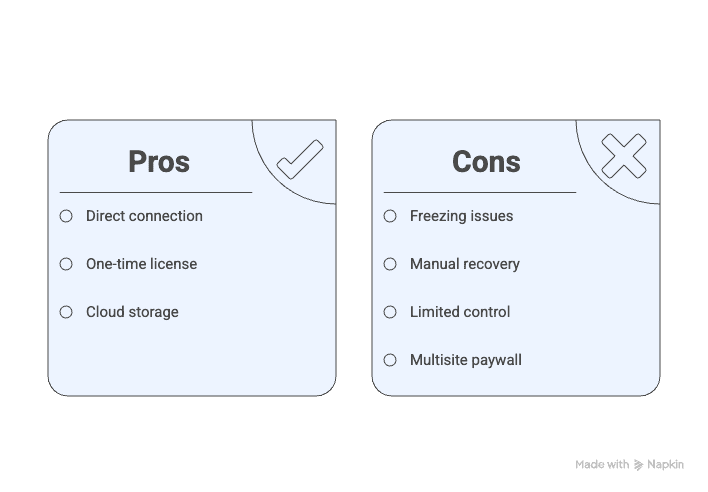
The easiest migration path might be right in front of you. Many web hosting companies offer their migration tools or handle the entire process for you.
However, some website owners hesitate due to fears of data loss, SEO impacts, downtime, and losing control. Yet, host-specific solutions tend to be more reliable than expected.
These solutions work seamlessly with their systems and often eliminate the headaches that come with third-party plugins. No file size limits, no complex setup, and direct server-to-server transfers.
Feature Highlights
Fully automated process: Many hosts need just a form submission or a few clicks in your control panel to start migration.
Direct server transfers: Site moves happen directly between servers, making transfers faster and more reliable.
Complete data migration: Transfers your entire website, including files, database, themes, and plugins.
Built-in support: Their support teams can help troubleshoot or even handle the migration completely for you.
Pricing
Most web hosts provide migration tools or assisted migrations free when you sign up for their hosting plan. Always confirm what your specific host offers and any potential costs.
Pros and cons
6. Manual migration (Risky)
Manual migration means moving your website yourself, step-by-step, without any plugins or host tools. This is hands-on technical work that involves downloading files, exporting databases, and editing core WordPress files.
This method is ONLY recommended for experienced web developers who understand how WordPress works under the hood. For new website owners, this is usually NOT the best option due to the high risk of breaking your site.
What it involves
Before proceeding, be aware that manual migrations for large sites often fail. Connections can time out, files may become corrupted, and database tables can get disrupted. Ensure you take a complete backup of your site using a backup plugin as a safety measure.
Step 1: Export your database. Use phpMyAdmin to download your site’s database file.
Step 2: Download website files. Use FTP to copy all your WordPress files from the old server.
Step 3: Create a new database. Set up a fresh, empty database on your new host through their control panel.
Step 4: Import database. Upload your downloaded database file to the new host using phpMyAdmin.
Step 5: Upload files. Transfer all your WordPress files to the new server via FTP.
All you have to do is edit the wp-config.php to link your WordPress installation to the new database with the correct credentials. Replace old website links throughout the database to match your new domain or host.
Pricing
Free in dollars: No software or service costs involved.
Expensive in time and stress: The real cost comes from hours of technical work and the significant risk of breaking your live website. For most users, investing in a reliable plugin offers much better value.
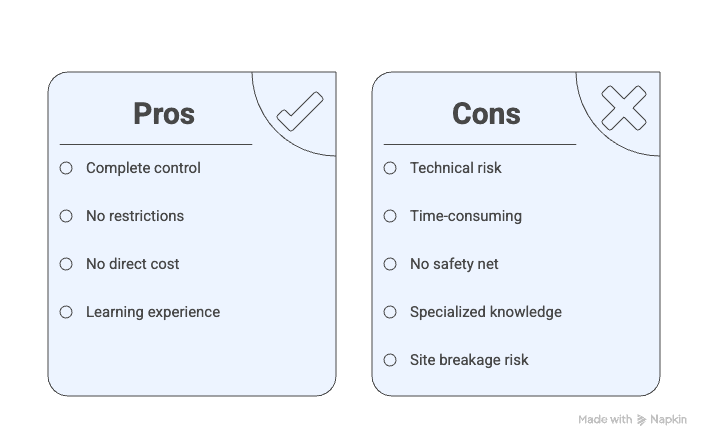
Pros and cons
Choose the right All-in-one WP Migration alternative
Choosing the wrong migration tool can turn a simple site move into a nightmare. Here’s how to pick the right alternative based on your specific situation.
1. Website size
The size of your website directly impacts which migration tools will work reliably for your transfer.
Small sites: Free tools handle most small websites without issues. Sites under 500MB typically migrate smoothly with basic alternatives.
Large sites: Look for tools with high file size limits and server-side processing. No slowdowns or crashes during transfer.
Massive sites: Premium versions handle enormous sites efficiently when free alternatives hit their limits.
2. Budget
Your budget determines whether you can access premium features that make migrations smoother and more reliable.
Free options: Start with free alternatives that offer solid migration capabilities without cost.
Paid options: Premium versions provide smoother experiences with better support and advanced features.
Value consideration: Business sites benefit from paid tools that minimize downtime and reduce migration stress.
Payment plans: Choose between one-time purchases or annual subscriptions based on your migration frequency.
3. Ease of use
Your technical comfort level should guide your choice to avoid getting stuck mid-migration.
No skills needed: Some tools require minimal technical knowledge. Click and wait.However, even seemingly simple tools can hit snags — for instance, it’s common to see users report All-in-One WP Migration stuck at 100, especially on large sites or limited hosting environments.
Some skills required: Other options involve FTP uploads and manual database work. Manageable but requires basic technical comfort.
Technical level: Avoid manual migration unless you’re experienced with databases and server management.
4. Type of site
Different website types have specific migration requirements that not all tools can handle.
Online stores: E-commerce sites need specialized handling for product databases and payment integrations.
Multisite networks: WordPress multisite installations require tools that can manage complex network structures.
Localhost moves: Moving from your computer to live servers requires specific capabilities that basic tools often lack.
Pitfalls to avoid

Migration disasters happen when you skip crucial steps or ignore warning signs. Here are the most common mistakes that can turn your site move into a nightmare.
- Always backup your original site before starting any migration. If something goes wrong during migration, you can restore your site and try again. Without a backup, a failed migration could mean losing your entire website permanently.
- Web hosts impose limits that can kill your migration mid-process. Check file size and processing time limits before choosing your migration method. Pick tools designed to handle big transfers without hitting these walls.
- Your old domain references don’t automatically update. This leaves broken internal links and missing images throughout your site. Use migration tools that automatically update these references, then reset WordPress permalinks in your admin dashboard.
- Activate SSL certificates on your new host immediately after migration. “Not Secure” warnings kill credibility. Many hosts provide free SSL certificates, but you need to enable them manually.
- Don’t just check your homepage and call it successful. Test contact forms, user logins, checkout processes, and interactive features. Use a staging environment if possible before going live.
- Clear all caches before and after migration. Old cached content causes display issues and functionality problems. Temporarily disable caching plugins during migration to avoid conflicts.
Parting thoughts
You no longer need to deal with file size limits or migration failures. Excellent alternatives to All-in-One WP Migration are available.
Choose a tool that fits your site’s size, budget, and your technical comfort level. Always backup your site before migrating and thoroughly test it afterward.
FAQs
What is the best way to migrate a WordPress site?
The best way to migrate a WordPress site depends on your needs. Using a reliable plugin like Migrate Guru ensures a seamless transfer, especially for larger sites. Consider your site’s size, complexity, and budget when choosing a solution.
Is All-in-One WP Migration free or paid?
All-in-One WP Migration offers a free version with limits on file size and features. The premium version removes these restrictions, allowing for larger site migrations and additional functionality.
How to migrate WordPress for free?
Use plugins like Migrate Guru or Duplicator Lite to migrate WordPress without cost. These tools handle site transfers efficiently, but may require some manual steps for larger sites.
How much does it cost to migrate a WordPress website?
Costs vary based on plugin choice: free options exist, while premium ones like Duplicator Pro start around $69 per year. The budget may also include professional services if technical expertise is required.
How to fully export a WordPress site?
To fully export a WordPress site, use a plugin like UpdraftPlus Premium to create a complete backup of your site’s files and database. This ensures all content, themes, and settings are transferred during export.

Shivani enjoys crafting guides that make every aspect of using WordPress simple and easy to follow. When she's not glued to her laptop, you can find her buried in a good book or occasionally, painting.