

Your Weebly site isn’t working for you anymore. Since Square’s acquisition, users have felt that Square has completely neglected Weebly.
Now, your website’s growth is stalled, managing it is a headache, and migrating your site to WordPress feels daunting.
You need a free way to escape Weebly’s limitations without losing everything you’ve built. This guide shows you two DIY methods to migrate Weebly to WordPress without any coding or a developer.
Migrate from Weebly to WordPress effortlessly with an importer tool or manual copy and paste transfer. Post-migration, ensure everything runs smoothly with a backup plugin, robust security enhancements, and timely updates for your themes and plugins.
Most people will tell you it’s impossible to migrate your site from Weebly. That’s not true.
Yes, it will be challenging. You’ll need to rebuild your site’s layout and structure in WordPress. But here’s the thing: it’s absolutely worth it in the end.
The key is preparation and taking it step by step. We’ll walk you through everything you need to know. No shortcuts, no confusing jargon, just clear instructions.
I. Pre-migration essentials
These steps prevent disasters and save you hours of frustration later.
Back up your Weebly site (Non-negotiable!)
This is your safety net. If something goes wrong during the platform migration, you can restore everything in minutes instead of losing years of work. Here’s how to backup:
Access site settings: Go to your Weebly site’s editor and click on the Settings tab.

Export your site: Under General, locate the Archive section. Click on one of the recent exports that looks something like this: 2025-07-13 01:27:25 UTC. This saves a ZIP file to your device. Alternatively, you can also email yourself the ZIP file as backup.

Set up WordPress correctly
Choose your WordPress type: The first decision you must make is choosing between WordPress.org and WordPress.com.
Buy hosting (For WordPress.org): If you chose WordPress.org, you need hosting. Think of hosting as renting land on the internet for your website. Look for a good hosting provider that offers one-click WordPress installation.
Use a temporary domain during setup: Your hosting provider gives you a free test domain like yoursite.examplewebhost.com. Build your WordPress site here first. This keeps your work private until you’re ready to go live.
Document your Weebly structure
Take screenshots of every page on your current Weebly site. This gives you a layout reference when rebuilding pages in WordPress. Create a simple inventory list of all your pages and their content.
Keep your Weebly domain LIVE during migration
Don’t cancel Weebly yet. Your images and links need your Weebly site alive during the website migration. If you cancel it too early it’ll be hard to automate image transfers post content migration.
Plan your this during low-traffic hours like weekends. After migration is complete, you’ll switch your real domain to point to WordPress. We’ll show you exactly how to do this later.
II. Migrate Weebly to WordPress
You have two methods to choose from. Pick based on your site size and how much control you want over the process.
Method A: Importer tool method (for large sites)
This method works best for large sites with lots of content. Migrating from Weebly is hard, but the free tool created by WPBeginner makes it manageable.
Step 1: Export content
Enter your details: Use the Weebly to WordPress importer tool. Enter your Weebly website URL, Name, and Email.

Export site: The default option for the format is WXR. So select that. Also select the Yes option to include your Pages in the export unless you don’t want to. Once done, click Export my Weebly Website button.

The tool fetches images linked to your Weebly blog posts and pages.
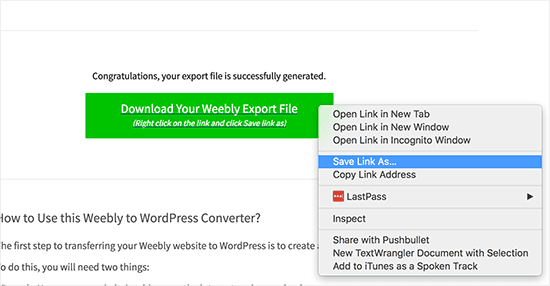
Save export file: You’ll have to save the link by right clicking on the Download Your Weebly Export File button. An .xml file will be saved to your computer.
Step 2: Import content
Access Import section: Log into your WordPress site and access your wp-admin dashboard. On the side panel, click on Tools and then Import.

Find and install importer: Under the Import section, locate the Install the WordPress importer. Once the importer has been installed, click on Run Importer.

Upload your export file: Upload the file you saved to your computer and click on the the Upload file and import button. In the next step, you can assign posts to existing users or create users. Make sure that you select the Download and import file attachments option and click on Submit.

If images failed to import, Install and Activate the Auto Upload Images plugin. This tool scans for image links, locates the images, and adds them to your WordPress Media Library. Keep your Weebly site live to ensure all images are downloaded successfully.

Step 3: Rebuild site’s looks
Select a theme and start rebuilding your site’s appearance from scratch. Your content is there, but you’ll need to recreate the visual design.
Method B: Manual method (for small sites)
This method is time-consuming but gives you complete control. Good for small sites where you can track every post you’re importing.
Step 1: Export content
Access Weebly editor: Open the Weebly editor and navigate to each page and post.

Create word documents: Open two separate Word documents on your computer.
Copy and paste content: Copy and paste all your posts’ content into one document and pages’ content into the other.
Save images: Right-click on each image and save them to a designated folder on your computer for better organization.
Step 2: Import content
Create a new page or post: Go to the WordPress dashboard. Navigate to Posts/Pages and click on Add Post/Page.

Paste content: Paste the content you saved from your Word document. Next, insert the images from your folder.

Publish Posts or Pages: Once you’ve moved your content from the Word document to your Post or Page, click on Publish. Repeat for every post and page you want to move.

III. Post-migration essentials
Wrap up your migration smoothly by handling these key tasks to keep your site running well and maintain your SEO.
URL structure & permalinks setup
Your Weebly and WordPress sites have different URL structures. They look something like this:
For blog posts: http://example.com/blog/your-post-title/
For pages: http://example.com/page-title.html
Find Permalink settings: Access your WordPress dashboard, navigate to Settings and click on Permalinks.

Select permalinks: For blogs, select Post name and change it to /blog/%postname%/. For pages with .html extensions, install the Add Any Extension Plugin to maintain the .html format.


Set up redirects
Install and Activate plugin: Install and Activate the Redirection plugin.

Configure redirects: Enter old URL in source and new URL in target fields. Once done, visit yourdomain.com/yourpage.html to ensure it redirects correctly to the new URL.

Pointing your domain to WordPress
Access domain settings: Open your Weebly dashboard and go to the Domains section to edit.
Update nameservers: Input the nameserver details from your new WordPress host. You can find them in the Domain management section of your hosting dashboard.

Allow DNS propagation: Wait 24-48 hours for the changes to take effect across the internet.
Post-launch verification:
- Run redirect tests. Ensure old URLs point to new ones.
- Verify page functionality. Check that all pages work properly.
- Confirm domain use. Make sure your WordPress site uses your domain instead of the temporary one.
- Manually test key pages. Check important pages to catch any issues.
IV. Troubleshooting common issues post migration
Even perfect migrations can hit snags. Here are the most common problems and their fixes.
Broken links
Broken links can occur if URL structures change during migration. Your old Weebly links don’t match your new WordPress URLs.
To fix it you will have to find and fix broken links across your site. Set up 301 redirects for affected URLs using the Redirection plugin. Test each redirect to make sure it works.
Missing images and media
Images and media might not transfer smoothly because Weebly and WordPress handle them differently. This can result in missing files, so it’s often necessary to manually move the images to ensure they display correctly on your WordPress site.
For manual migrations, re-upload missing images directly to WordPress. For import tool migrations, use plugins like Auto Upload Images to automate the process. The plugin scans your posts and downloads missing images from your live Weebly site.
Redirects not working
Redirects might not work due to misconfigured settings or conflicts with existing rules.
Double-check your redirect rules for accuracy and completeness. Make sure you entered the old URL and new URL correctly. Clear your browser cache and try again. Test redirects again to confirm they work as intended.
Domain shows old Weebly site
You might still see your Weebly site because domain propagation isn’t complete. DNS changes can take time to update globally, often requiring 24-48 hours.
Wait 48 hours for the changes to propagate worldwide. After 48 hours, clear all cache and check again. If it still shows the old site, contact your hosting provider to verify the nameservers were updated correctly.
V. Taking care of your new WordPress site
You’ve successfully migrated to WordPress, and now comes the part that scares most people: keeping it running smoothly. Don’t worry, it’s easier than you think.
Regular backups
Take regular backups of your site with a plugin. Schedule daily backups and store them in multiple locations like Google Drive or Dropbox for quick restoration.

Security enhancements
Install a security plugin for enhanced protection of your site. Enable two-factor authentication for admin accounts, use strong passwords, limit login attempts, and update everything regularly.

Plugin and theme updates
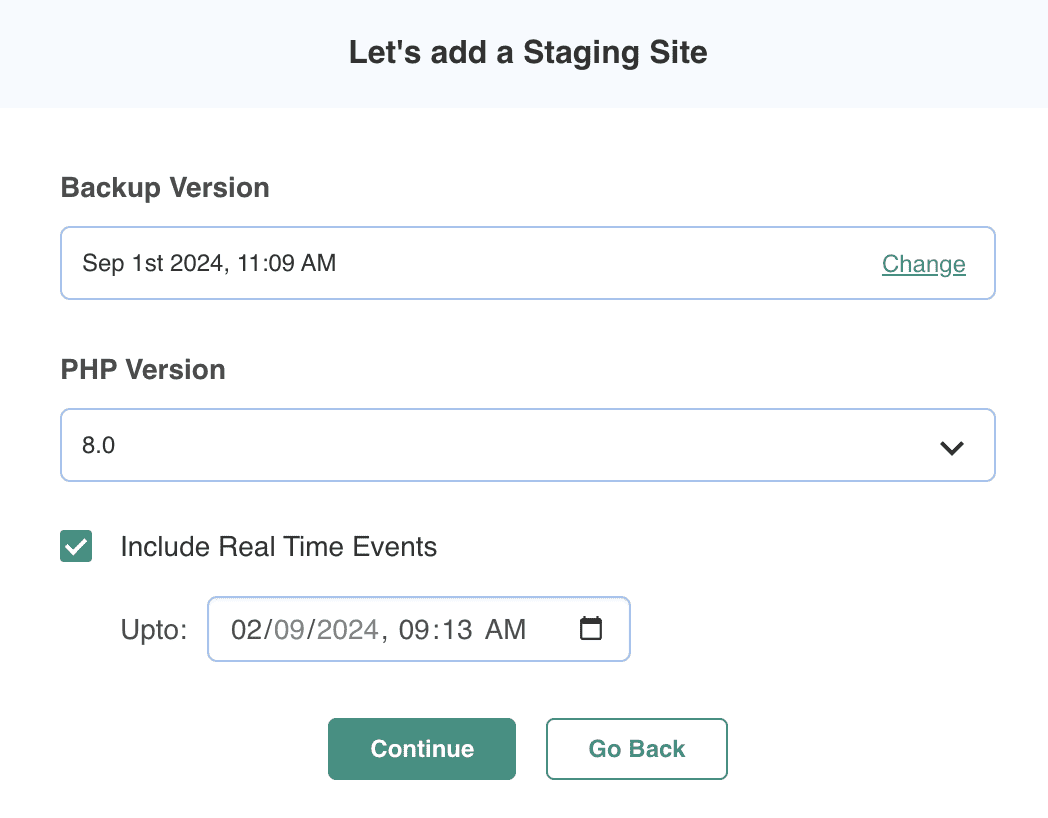
Check for updates weekly in your WordPress dashboard to fix bugs and vulnerabilities. Test updates on a staging site if possible, and remove unused plugins to reduce security risks.
Content updates
Keep the content fresh by updating old posts and adding new ones regularly. Check for broken links monthly and remove outdated information that no longer serves your audience.
Database optimization
Clean up database clutter to remove spam comments, post revisions, and unused data. Run optimization monthly to keep your site fast.
Parting thoughts
You now have the knowledge to migrate your Weebly site to WordPress without a developer or coding skills. While your content transfers easily, you’ll need to recreate your site’s design.
Setting up accurate permalinks and 301 redirects is critical to protect your SEO and prevent broken links. Always keep your Weebly site active until you’ve thoroughly verified your new WordPress site works perfectly.
FAQs
Can I migrate my website to WordPress?
Yes, you can migrate your website to WordPress using tools or manual methods. The process involves exporting your content from your current website and importing it into WordPress. Follow guides to ensure a smooth transition without data loss.
How do I export a website from Weebly?
Exporting from Weebly involves going to the settings and downloading your content as an archive. This typically includes text and images but may require additional steps to transfer fully. Manual copying or specialized tools can help with a more complete export.
Is WordPress easy to migrate?
WordPress migration can be very easy with the right tools and guidance. While it may seem complex, plugins like Migrate Guru and services simplify the process. Careful planning ensures a seamless transition.
What is the best WordPress hosting site?
The best WordPress hosting site depends on your needs, but popular options include Bluehost, SiteGround, and WP Engine. Look for a host that offers good performance, support, and scalability. Compare features and pricing to choose the best fit for your site.
What are the disadvantages of using Weebly?
Weebly may have limitations in customization and advanced features compared to platforms like WordPress. Its SEO capabilities and flexibility can also be restricted. These limitations often lead users to seek more robust solutions.

Shivani enjoys crafting guides that make every aspect of using WordPress simple and easy to follow. When she's not glued to her laptop, you can find her buried in a good book or occasionally, painting.


