

When it comes to site migrator plugins, promises are cheap. You’re looking at the Updraft Migrator and asking one simple question: will it actually work for you?
We’re cutting through the hype to give you an honest look at what it can, and what it can’t, do.
This guide will give you the straight answer.
The Updraft Migrator is a great tool for simple WordPress migrations, but it can struggle with very large or complex sites. No matter what, always have a reliable backup plugin in place to avoid potential conflicts and ensure you have a safety net if anything goes wrong.
The Updraft migrator in a nutshell
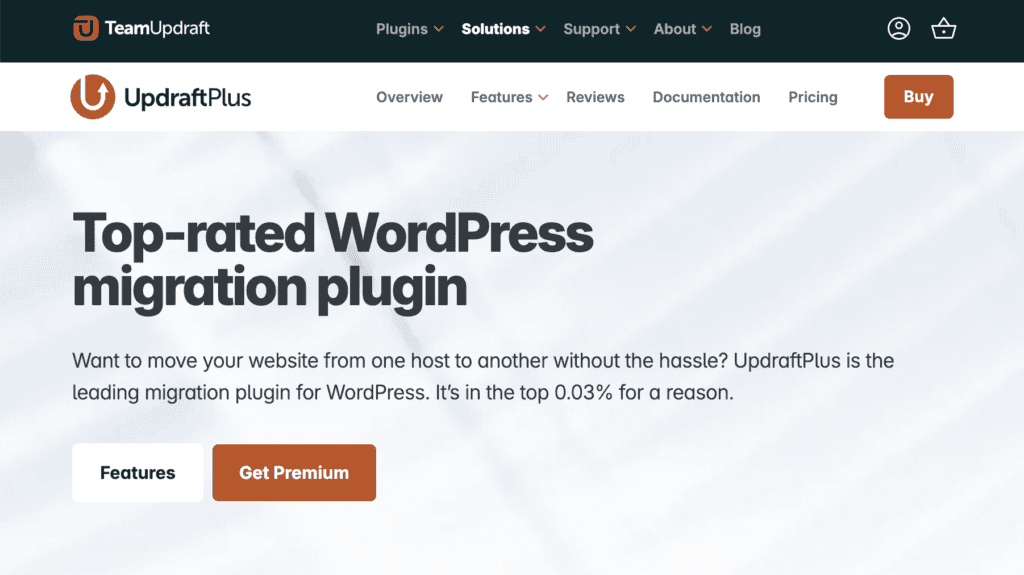
The popular UpdraftPlus backup plugin offers the Updraft Migrator. It is a premium add-on designed to clone or move your entire website. This includes the database, themes, plugins, and more.
The goal is to get you to a new host or domain with minimal fuss. It works by creating a secure, direct connection between your two sites. This cuts out the clumsy manual step of downloading and re-uploading massive zip files.
What we liked
Honestly, its best feature is how simple it makes everything. The guided interface walks you through the process. You don’t need to be a developer to get it right. The direct site-to-site transfer is a huge time-saver. It also feels much more secure than passing files around your local computer.
It handles surprisingly large sites with a steady hand most of the time. The automatic find-and-replace for URLs was a lifesaver. It correctly fixed all the internal links after a move. For agencies, the flexible licensing for multiple sites is a nice touch.
What we didn’t like
But here’s where things get tricky. While it’s good with large sites, it can stumble on very large or complex ones. This can lead to server timeouts. We’ve seen it happen. The support can also be sluggish if you’re on cheaper shared hosting. They often point fingers at the hosting provider first.

And for anyone managing multiple client sites, the backup management is a headache. You cannot name or add notes to backups. You just end up with a list of generic files. It’s a small detail, but it makes finding the right backup a pain. The cost can also be a factor if you only need to move one small site one time.
How to use the Updraft migration feature
The process is surprisingly direct once you have the premium version installed. Here’s the short version.

- Install Premium on both sites. First, get UpdraftPlus Premium running on both the original site and the new site. You will need to connect your UpdraftPlus account to both.
- Create a key on the destination site. On your new site, navigate to Settings > UpdraftPlus Backups and click the Migrate / Clone tab. Choose, Receive a backup from a remote site, and create a key. Copy this long string of text.
- Send the backup from the source site. Now, head back to your original site. Go to the same Migrate / Clone tab and click Send a backup to another site. Paste the key you just copied and click Add Site.
- Choose what to send & restore. Select the components you want to move. This is usually everything. Then hit Send. Once it’s done, a new backup will appear on your destination site. Just click Restore and follow the prompts to finish the job.
Post-migration review & checklist
Run through this quick checklist to make sure everything is working perfectly.

- Clear all cache. This includes website and browser caches, too.
- Click through your main navigation and a few internal links.

- Resave your permalinks (Settings > Permalinks) to rebuild your .htaccess file.
- Check the site on a phone to ensure it’s still responsive.
- Test every form, signup box, and checkout process.
- Submit your new sitemap to Google Search Console.
Troubleshooting: where it can go wrong (and how we fixed it)
Even the best tools hit a snag. We’ve all been there, staring at a frozen progress bar at 2 AM. Here are the most common issues we’ve run into and the fixes that worked for us.
The migration times out, especially on a big site.
Our fix: This is the most common issue, and it’s almost always because your server can’t handle one massive file transfer. The solution is to break the backup into smaller, more manageable chunks.
The URL find-and-replace missed some links.
Our fix: Sometimes a URL is stored in an unusual way that the initial process misses. UpdraftPlus has a powerful tool (Search/replace database) for this.
The connection between the two sites fails.
Our fix: This happens because your new server’s security system sees the migration as a potential threat and blocks it. You cannot fix this yourself. You need to contact your hosting provider and ask them to allow the connection from the UpdraftPlus plugin.
I can’t log into my new site.
Our fix: This one is simple but trips people up all the time. The migration doesn’t just copy your files; it completely overwrites the destination WordPress site database, including all the user accounts.
This means your new site’s login details are gone. You must use the username and password from your source site to log in. If you’ve forgotten it, just use the “Lost your password?” link on the login screen; the password reset email will be sent to the administrator’s email address from the original site.
Alternatives to the Updraft migrator
Updraft Migrator is solid, but it’s not the only game in town. Depending on your needs, one of these might be a better fit.
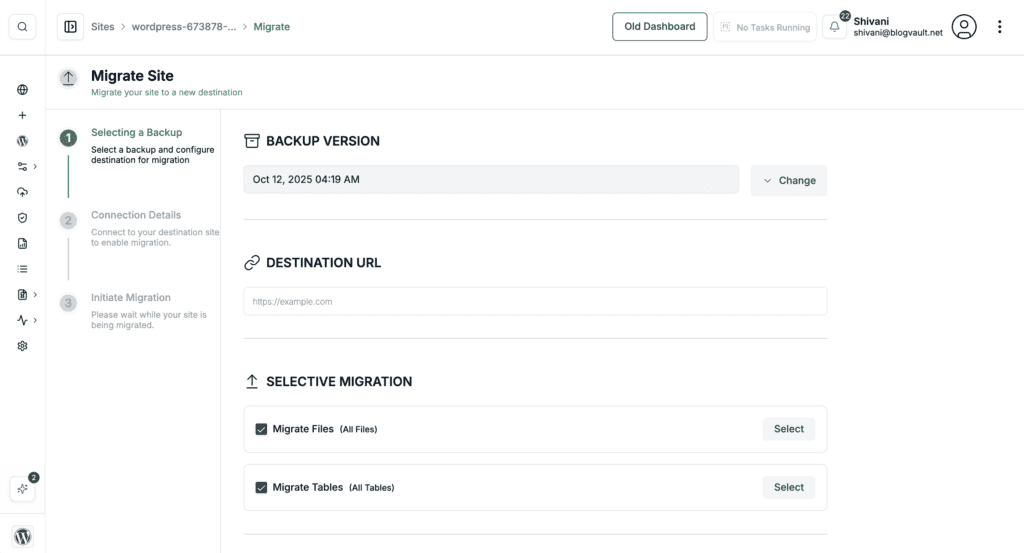
- BlogVault. A premium service that’s fantastic for high-stakes sites. It offers zero-downtime migrations and is incredibly reliable for large e-commerce stores.
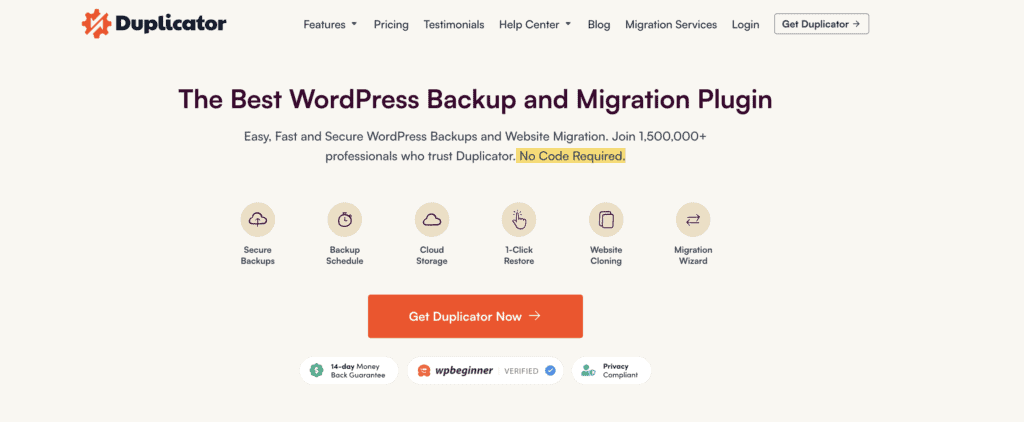
- Duplicator. The go-to for developers who want more manual control. It packages your site into a single archive file for you to move yourself.
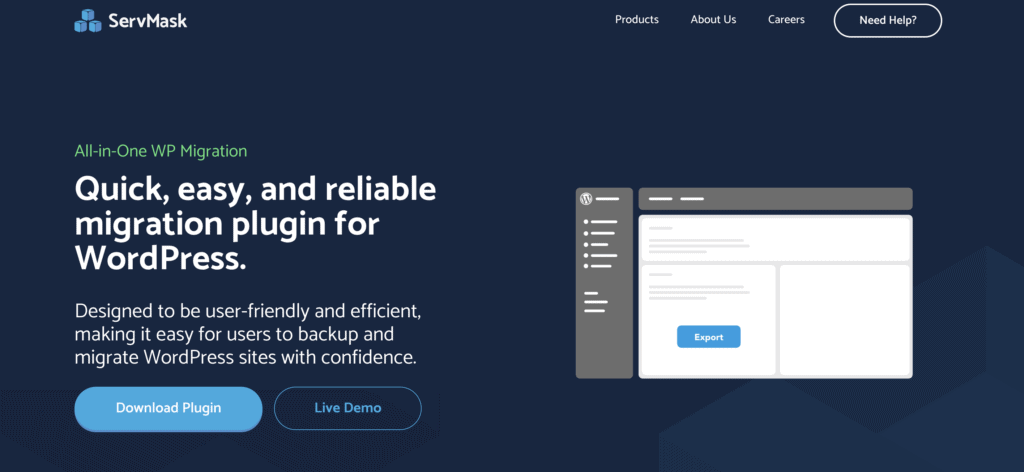
- All-in-One WP Migration. Extremely simple for smaller sites with its drag-and-drop import. The free version has a restrictive file size limit.
Parting thoughts
The Updraft Migrator is a definite upgrade over the slow, unreliable process of using the free version or FTP. That old method of dragging files and separately wrestling with the database is a recipe for a frustrating night, even with a checklist in hand.
For moving smaller sites, it’s fantastic because it simplifies the most difficult steps on any migration checklist.
While the tool makes the transfer straightforward, following a good checklist ensures you don’t forget crucial post-migration steps. That combination of a simpler tool and a clear plan provides the peace of mind that’s worth the price.
FAQs
How do you migrate with UpdraftPlus?
You migrate with UpdraftPlus by using its premium “Migrator” add-on. Install it on both sites, then use a secure key to send a direct backup from your old site to the new one.
What is the UpdraftPlus plugin used for?
The UpdraftPlus plugin is primarily used for creating complete backups of your WordPress site. It also sends these backups to cloud storage and offers a premium add-on for easy site migration.
What is the best WordPress migration plugin?
The best WordPress migration plugin depends entirely on your specific needs and technical skills. Updraft Migrator is great for simplicity, while BlogVault is more robust for large, critical sites.
Is UpdraftPlus legit?
Yes, UpdraftPlus is absolutely legit and widely considered safe and reliable. It is one of the most popular plugins in the WordPress ecosystem, trusted by millions of users.
How to migrate WordPress for free?
You can migrate WordPress for free by manually moving your website files and database. This involves exporting the database via phpMyAdmin and transferring your core files using an FTP client.
How to migrate a WordPress site without a plugin?
To migrate a WordPress site without a plugin, you must manually transfer the site’s files and database. This process requires using an FTP client for the files and a database tool like phpMyAdmin.

Shivani enjoys crafting guides that make every aspect of using WordPress simple and easy to follow. When she's not glued to her laptop, you can find her buried in a good book or occasionally, painting.


