Setting up a WordPress site often means trying out a few designs before you find the perfect one. Now you’re left with 4 themes that you don’t use. Those old, inactive themes take up space and can be a security risk.
This article will show you the safest and easiest ways to delete a theme. There is no code needed. We’ve got you.
Delete a theme from the dashboard by going to Appearance → Themes. Then, click Theme Details and Delete.
Take a complete backup of your site before you start. It takes one click and ensures you can instantly restore your site if anything goes wrong.
We’ll walk you through two primary ways to delete a WordPress theme. The first method uses the WordPress dashboard, which is the easiest and safest for most users. The second method involves accessing your site’s files directly via FTP or a file manager, perfect for when you can’t log in.
Method 1: Delete a theme in WordPress from the dashboard (Recommended)
This is the easiest and safest method for anyone who can access their WordPress admin panel. It’s the standard way to remove themes and requires no technical knowledge, making it perfect for beginners who want to clean up their site.
- Go to Appearance > Themes.

- Activate a different theme if the one you want to delete is currently active. You cannot delete an active theme.
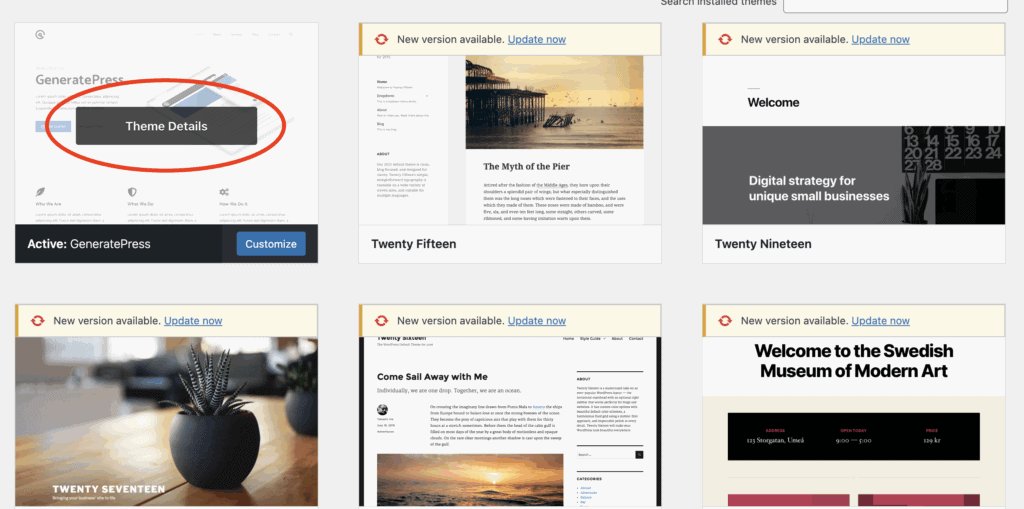
- Click on Theme Details for the inactive theme you wish to remove.
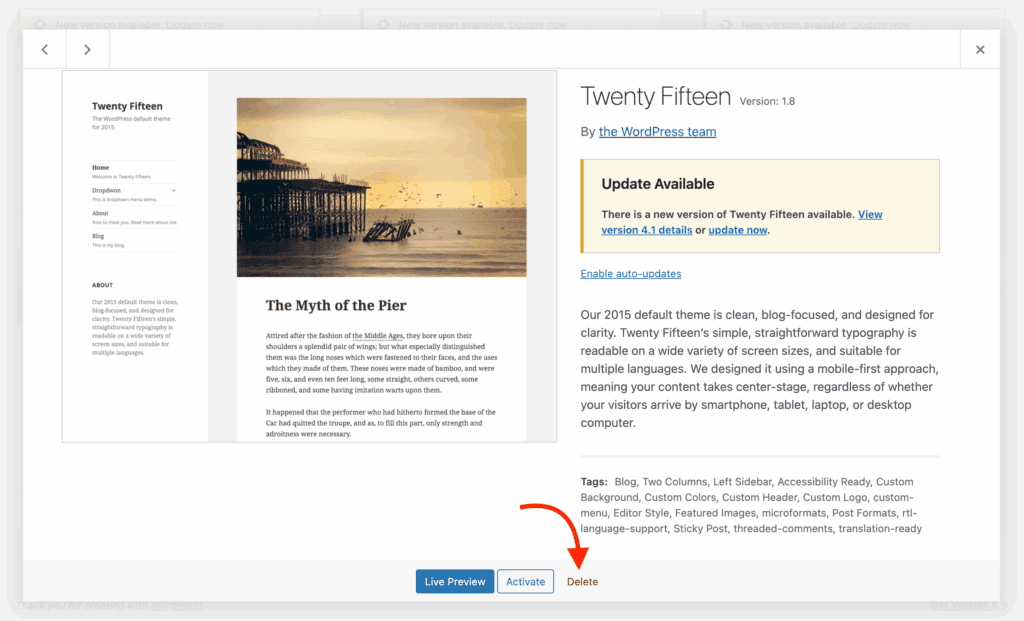
- Click the red Delete link in the bottom-right corner of the pop-up window.
- Click OK to confirm. The theme will now be permanently removed.
Method 2: Delete a theme in WordPress using FTP or a File Manager
Use this method if you are locked out of your WordPress dashboard or if a theme is causing an error that prevents you from logging in. It involves accessing your website’s files directly, so it’s a great fallback option if the dashboard method isn’t possible.
- Connect to your site using an FTP client (like FileZilla) or your host’s File Manager.
- Navigate to the /wp-content/themes/ folder.
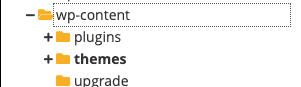
- Find the folder named after the theme you want to remove.
- Right-click on the folder and select Delete.
- Confirm the deletion when prompted.
Important considerations before you delete a theme in WordPress
This section is a crucial safety checklist for everyone. Reading this before you start can prevent common mistakes that might break your website.
- Backup your site: Always create a complete backup of your website files and database before deleting anything. This allows you to restore your site instantly if something goes wrong.
- Child Themes: If your active theme is a child theme, do not delete its parent theme. Doing so will break your site’s appearance and functionality.
- Multisite Networks: On a multisite installation, make sure the theme isn’t being used by any other sites in your network before deleting it from the main network admin panel.
- Leftover Data: Deleting a theme removes its files, but it doesn’t always remove settings, widgets, or demo content stored in your database. These can be removed manually but will not harm your site if left alone.
Best Practices for WordPress Website Maintenance
Managing inactive themes is just one piece of the puzzle. To keep your site secure, fast, and running smoothly long-term, you should adopt a few other essential practices. Think of it like routine car maintenance—a little effort now prevents major problems later.
Here are some other good practices to help you maintain a healthy website:
- Install a Security Plugin: We’ve tested the top security plugins and love MalCare. This acts as a guard for your site, actively blocking hacker attempts, scanning for malware, and hardening your site’s defenses.
- Schedule Automatic Backups: As we discussed, WordPress backups are your ultimate safety net. Use a reliable plugin to automatically save copies of your site to a secure, off-site location so you can always restore it if something goes wrong.
- Use Strong Passwords and 2FA: Secure your login page with complex passwords and two-factor authentication (2FA), which requires a second code (usually from your phone) to log in.
- Keep Everything Updated: WordPress updates, along with your plugins and themes, regularly releases updates that include security patches and new features. Always run these updates promptly to protect your site from known vulnerabilities.
- Install a Speed Plugin: A slow website frustrates visitors. Use a caching plugin to make your site load faster, improving user experience and search engine rankings.
- Install an SEO Plugin: An SEO plugin like RankMath helps you optimize your content to rank higher on search engines like Google, bringing more organic traffic to your site.
- Track Your Traffic: Set up Google Analytics to understand who your visitors are, where they come from, and what content they love. This data is crucial for growing your audience.
- Regularly Audit Plugins and Themes: Just like you deleted old themes, periodically review your plugins. If you’re not using a plugin, deactivate and delete it. Fewer active plugins mean fewer potential security risks and a faster site.
Final thoughts
Deleting unused WordPress themes is a simple yet powerful step in maintaining a healthy website. It does more than just tidy up your dashboard; it strengthens your site’s security by removing outdated code, improves performance by reducing bloat, and makes future site management much simpler. It’s a proactive maintenance win.
Above all, remember that a reliable backup plugin like BlogVault is your most valuable tool. Whether you’re deleting themes or updating plugins, having a recent copy of your site is non-negotiable. It’s your ultimate safety net, turning a potential disaster into a minor, easily fixable inconvenience and giving you confidence to manage your site.
FAQs
How can I delete a theme in WordPress?
The easiest way is through your WordPress dashboard. Navigate to Appearance > Themes, click on Theme Details for the inactive theme you want to remove, and then click the red Delete link in the bottom-right corner. You must activate a different theme first, as you cannot delete your active theme.
How do I delete the theme?
To delete a theme, log in to your WordPress admin area, go to the Appearance > Themes section, find the theme you want to remove, and click Theme Details. A pop-up will appear; click the Delete button at the bottom right and confirm your choice.
How do I delete a theme template?
In WordPress, a “template” is usually part of a larger “theme.” You cannot delete a single template file without editing the theme’s code, which is not recommended. To remove the template, you must delete the entire theme that contains it by going to Appearance > Themes, clicking Theme Details on the theme, and then clicking Delete.
How to remove inactive themes in WordPress?
The process for removing inactive themes is the standard deletion method. WordPress only allows you to delete themes that are not currently active. Go to Appearance > Themes, find any theme that does not have the “Active” label, click on it for Theme Details, and use the Delete link to remove it.

Shreya has been a writer for as long as she can remember. Now, she writes articles that help WordPress users manage the sites that they're proud of, with little to no coding