You’ve thoroughly evaluated and narrowed down your backup plugin options to Duplicator.
Now, you’re torn between risking failure with the free version or overspending on Duplicator Pro’s unnecessary features. Your site’s security depends on making the right choice.
This Duplicator vs Duplicator Pro guide cuts through the marketing fluff to show you exactly which version matches your specific needs.
Duplicator Lite handles basic tasks for smaller sites, but Duplicator Pro offers more features like automated backups, cloud storage, and enhanced security for complex sites. Take a moment to review your backup needs and choose the option that best protects your site.
Duplicator vs Duplicator Pro (An overview)

Both Duplicator Lite and Duplicator Pro handle the same core tasks: backing up, restoring, and migrating your WordPress site. The difference lies in how much more smoothly Pro executes these tasks.
Duplicator Lite covers the basics well enough for simple sites. You can create backups, move your site to a new host, and restore when needed. It’s straightforward but limited to local storage only.
Duplicator Pro transforms these same tasks into streamlined processes. Backups run faster, migrations happen with fewer steps, and recovery becomes almost foolproof. Pro adds cloud storage options like Google Drive, Dropbox, and Amazon S3, plus enhanced security features like encryption.
Here’s where the rubber meets the road: Duplicator Lite starts choking around 500MB. Users report backups failing, timing out, or getting corrupted at this threshold. Duplicator Pro powers through massive sites, claiming to successfully move websites as large as 400GB.
Both versions can restore your site if disaster strikes. But Pro offers automated backup scheduling, cloud storage integration, and one-click recovery options. These features turn a potentially stressful situation into a minor inconvenience.
Ultimately, the choice boils down to your site’s complexity, budget, and your tolerance for backup headaches.
How reliable are the backup capabilities?
Duplicator Lite forces you into manual backup mode. Every single backup requires you to remember to create it. Backup scheduling does not exist.

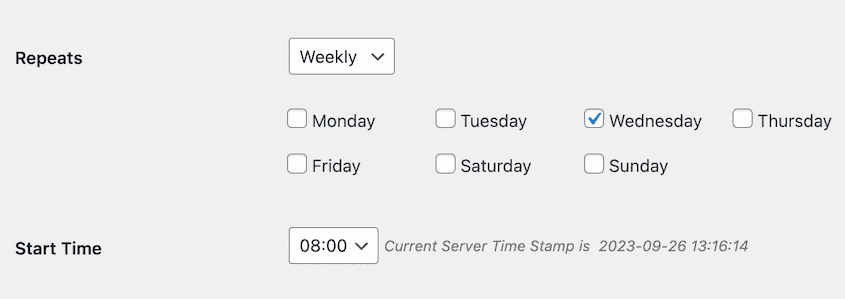
Duplicator Pro on the other hand can be configured to run backups automatically at set intervals: hourly, daily, weekly, or monthly. You can also create different schedules for different parts of your site.
Size becomes your biggest limitation with Lite. The free version caps out at 500MB, causing backups to fail or timeout beyond that threshold.
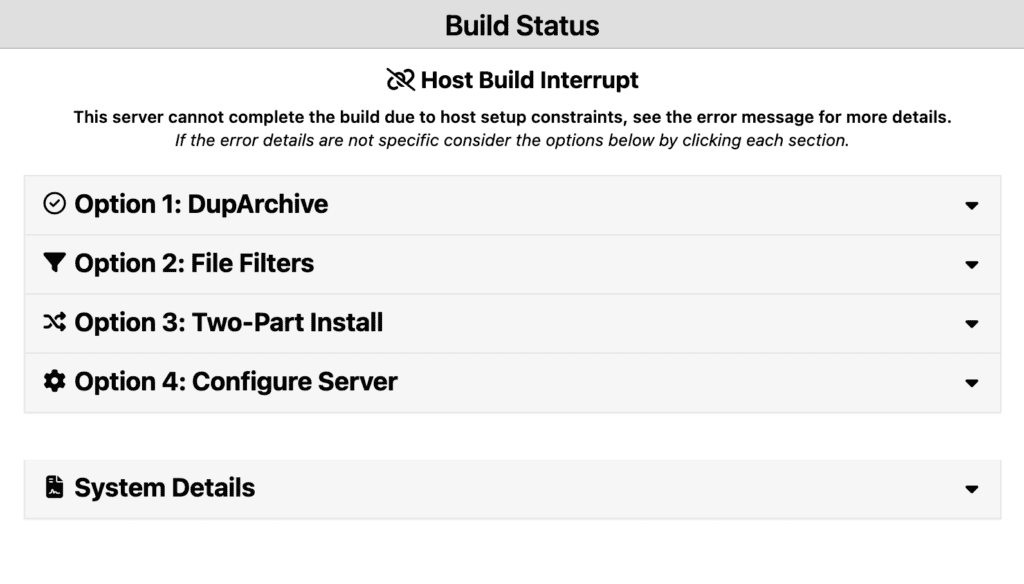
Pro eliminates this limitation with a promise of handling sites as large as 400GB.
Both versions allow the inclusion and exclusion of specific files and database tables. Pro, however, offers more granular control: backup specific components like your media library, files, or database separately. You can also filter specific database tables or exclude unwanted ones entirely.

How fast can you restore your site?
Duplicator Lite puts you through a manual recovery nightmare. You need your backup file and the installer file already saved on your computer. Then, you manually upload both files to your web server using FTP or a similar tool.

This process can be very slow and technical. If your restore attempt fails, there’s no easy rollback. You’ll likely restart the entire manual process from scratch.
Worse yet, if you’re locked out of your site and don’t have a local backup, Duplicator Lite offers no way to remotely initiate recovery. You’re stuck without external help.
Duplicator Pro turns recovery into a simple process. If you have access to your wp-admin, you can restore from any backup with a single click directly within your WordPress dashboard. Alternatively, you can drag and drop your backup file for instant restoration.
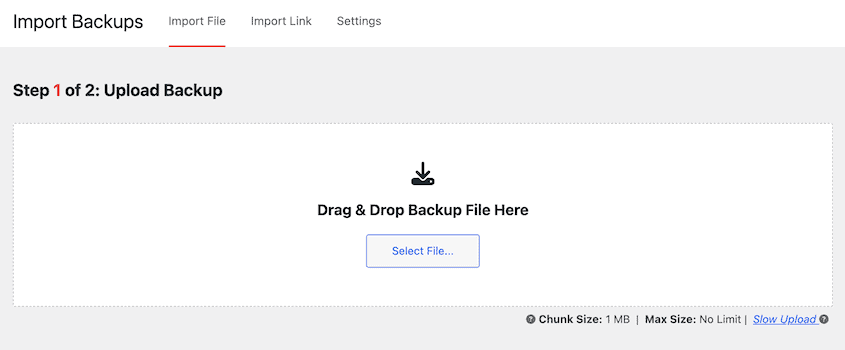
Pro’s game-changing feature is the disaster recovery point. This creates a unique URL linked to a specific backup before disaster strikes. If your site is completely broken or you’re locked out, paste this link into your browser to launch a recovery wizard outside your WordPress site.
This feature allows full site recovery even when your WordPress dashboard is inaccessible. Duplicator Lite offers nothing comparable.
Where are your backups stored?
Duplicator Lite stores your backup files on the same server as your live website. This creates a dangerous single point of failure.
Lite also consumes your limited server disk space, which can slow down larger sites. Getting an off-site copy requires manually downloading the backup package to your computer.
Duplicator Pro transforms backup storage with automated, secure, and diverse options. Pro connects directly to over 13 popular third-party cloud storage services. Your backups are sent automatically to locations completely separate from your web server.

This separation is critical for disaster recovery. If your web server fails, gets destroyed, or is hacked, your backups remain safe and accessible in a remote, secure space. This protects you from data loss.
Pro also lets you define a maximum number of backups to keep for each configured storage location, preventing unlimited storage consumption and costs.
How easy is the migration process?
WordPress migrations are already complicated. Duplicator Lite makes them even harder by demanding significant manual intervention. You must start with an empty root folder on your new site, manually deleting existing files before beginning migration using the wizard.
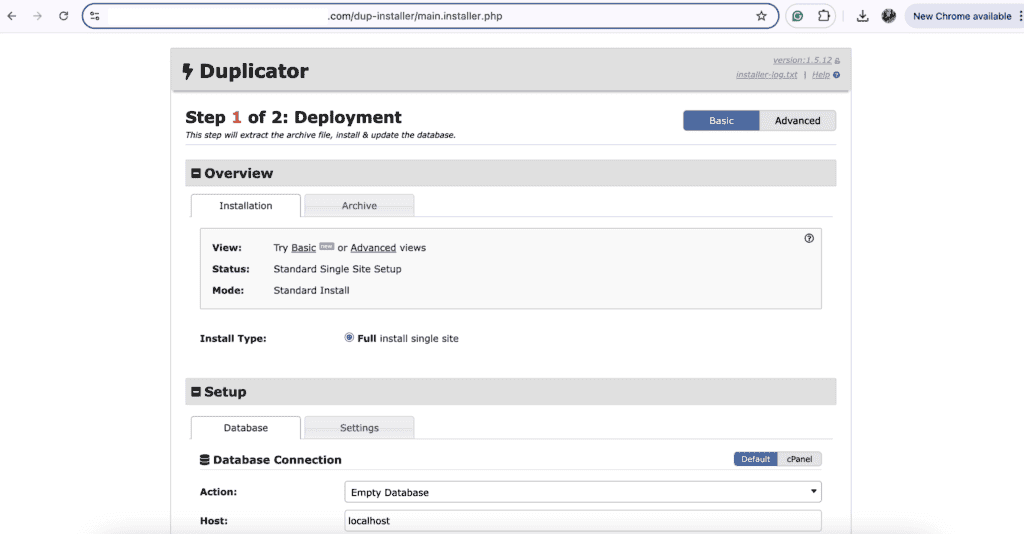
Duplicator Pro offers drag-and-drop migrations that make the move seamless and automatic. Simply drag your backup file into the Import Backups page within your new WordPress dashboard.
This drastically reduces manual steps, making it easy for non-technical users and lightning-fast for professionals.
Pro maintains zero downtime, preserving SEO rankings during migration. Unlike Lite, Pro also backs up entire WordPress Multisite networks, making it essential for agencies managing multiple related websites.
What is the security like?
Duplicator Lite offers minimal security protection. Backup files sit unencrypted on your server, readable by anyone who gains access. All backups remain on the same server as your live site, creating a single vulnerability point.
Duplicator Pro integrates multiple security layers. File backup encryption using AES-256 protects your data even if someone accesses backup files. Password protection for archives and installers adds an extra security barrier.

What is the pricing like?
Duplicator Lite costs nothing. Duplicator Pro offers four annual plans: Basic for essential backup tools, Plus for growing businesses, Pro for professional-grade features, and Elite for agencies and large businesses.

Which version should you pick?
You’ve read the comparisons, but you still need a straight answer. Here’s your quick decision guide:
What’s your site size? Choose Lite for sites under 500MB. Choose Pro for sites over 500MB or complex setups.
Do you want automated backups? Choose Lite if you’re okay with manual backups only. Choose Pro if you want automatic and scheduled backups.
Where should backups be stored? Choose Lite if local server storage is sufficient. Choose Pro if you need cloud storage options.
How often do you migrate sites? Choose Lite if you rarely migrate and manual processes are acceptable. Choose Pro if you migrate often and want easy drag-and-drop functionality.
Do you use WordPress Multisite? Choose Lite if you don’t use Multisite. Choose Pro if you use Multisite (Lite doesn’t support it).
What’s your budget? Choose Lite if you have a $0 budget. Choose Pro if you can invest $39.60+ per year.
Do you need emergency recovery options? Choose Lite if you’re okay with the manual restore functionality. Choose Pro if you need one-click restores disaster recovery points for complete lockouts.
Parting thoughts
Duplicator Lite works for simple, low-risk personal sites where manual effort isn’t a concern. Duplicator Pro is essential for business, complex, or critical sites that need automation, security, and reliable peace of mind.
FAQs
Is Duplicator Pro worth it?
Duplicator Pro is worth it for users needing advanced features like scheduled backups, larger site support, and better customer support. It enhances security and efficiency for serious website managers. It’s especially valuable for those with more complex needs.
How much does Duplicator Pro cost?
Duplicator Pro offers various pricing plans depending on your needs, starting at a competitive rate. The cost varies based on the number of sites and features required. Regular updates and support are included.
What is the limit of Duplicator free?
Duplicator free is limited in terms of handling large sites and lacks features like automated backups and cloud storage integration. It’s suitable for basic site migration and backups. For more advanced needs, the Pro version is recommended.
How to activate Duplicator Pro?
To activate Duplicator Pro, you must first purchase a license from the official site. After downloading, install it on your WordPress dashboard and enter your license key. This unlocks the full feature set.
Where are Duplicator Pro backups stored?
Duplicator Pro backups can be stored locally on your server or remotely with cloud providers like Dropbox, Google Drive, and Amazon S3. This flexibility helps keep your data secure and accessible. Configuration is done through the plugin settings.

Shivani enjoys crafting guides that make every aspect of using WordPress simple and easy to follow. When she's not glued to her laptop, you can find her buried in a good book or occasionally, painting.