You are not choosing a backup type because the names sound technical. You are choosing what happens after a plugin update breaks checkout, a migration goes sideways, a page is deleted, or a WooCommerce order disappears before anyone notices.
That is the real question behind Full vs Incremental backups: which setup brings your WordPress site back with the least downtime and the least lost data?
Full backups copy your entire WordPress site and are easiest to restore, but they take more time, storage, and server resources.
Incremental backups start with a full backup and then save only changes, making them better for frequent backups when the restore chain is managed and tested. A restore chain is the full backup plus the later change-only backups needed to rebuild a specific point in time.
For most active WordPress sites, the practical answer is both. Use a full backup as the baseline, which means the starting complete copy, then use frequent incremental backups to capture changes without forcing the live site to copy everything again and again.
Full-only backups can work for small, rarely updated sites. They are a poor fit for stores, membership sites, learning sites, booking sites, active blogs, and any site where losing today’s activity would hurt.
The Choice Is Really About Recovery
A full backup copies the whole selected site. For WordPress, that should mean both the database and the files. The database is where WordPress stores content and activity like posts, users, comments, orders, settings, and form entries.
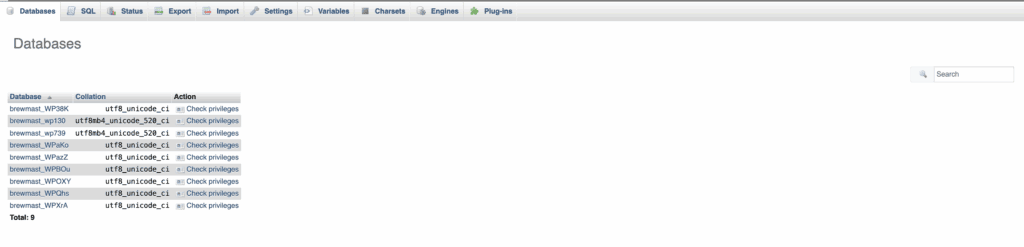
The files are the media uploads, plugins, themes, and configuration that make the site look and work the way it does.

An incremental backup starts with a full backup, then saves only what changed since the last backup. If you publish a post, receive three orders, upload images, and update a plugin, the next incremental backup saves those changes instead of copying the whole site again.
The useful rule is simple: Full backups optimize restore simplicity. Incremental backups optimize frequent protection.
That is why “which one is better?” is the wrong question. A five-page brochure site does not have the same backup problem as a WooCommerce store taking orders every hour.
Ask these questions instead:
- How often does the site change?
- What would hurt to lose: orders, leads, uploads, comments, memberships, bookings, course progress, or content edits?
- How quickly does the site need to come back online?
- Will repeated full backups slow the live site?
- Can you test a restore before a real outage?
If your answer to “what can I afford to lose?” is “nothing from today,” occasional full backups are not enough.
Full vs Incremental Backups: Quick Comparison
| What matters | Full backup | Incremental backup |
|---|---|---|
| What it saves | The whole selected site | Only changes after the last backup |
| First backup needed | Yes | Yes, incrementals need a full baseline, meaning a complete starting copy |
| Backup speed | Usually slower | Usually faster after the first full backup |
| Storage use | Higher | Lower after the baseline |
| Server load | Heavier, especially on large sites | Lighter for frequent backups |
| Restore path | Simpler: one complete restore point | More dependent on the full backup plus later increments |
| Best fit | Baselines, archives, pre-update snapshots, low-change sites | Active sites, stores, memberships, publishing, form-heavy sites |
| Watch out for | Runs too rarely to protect recent data | Must be verified, monitored, and test-restored |
The table hides the part that matters most in a crisis: the backup that is quickest to create is not always the simplest to restore.
A full backup is easy to understand. If you have a full backup from Sunday night, you can restore the site to Sunday night. The problem is age. If the site breaks on Friday, that Sunday backup may bring the site back while removing a week of orders, comments, uploads, and form submissions.
An incremental backup helps close that data gap. It lets your backup system capture smaller changes more often. The catch is that a traditional restore may depend on the full backup plus every required increment after it.
Do not judge a backup system by whether it says “backup completed.” Judge it by whether it can restore the right version cleanly.
Use Full Backups for Clean Restore Points
Full backups still matter. The mistake is treating them as the only plan for every WordPress site.
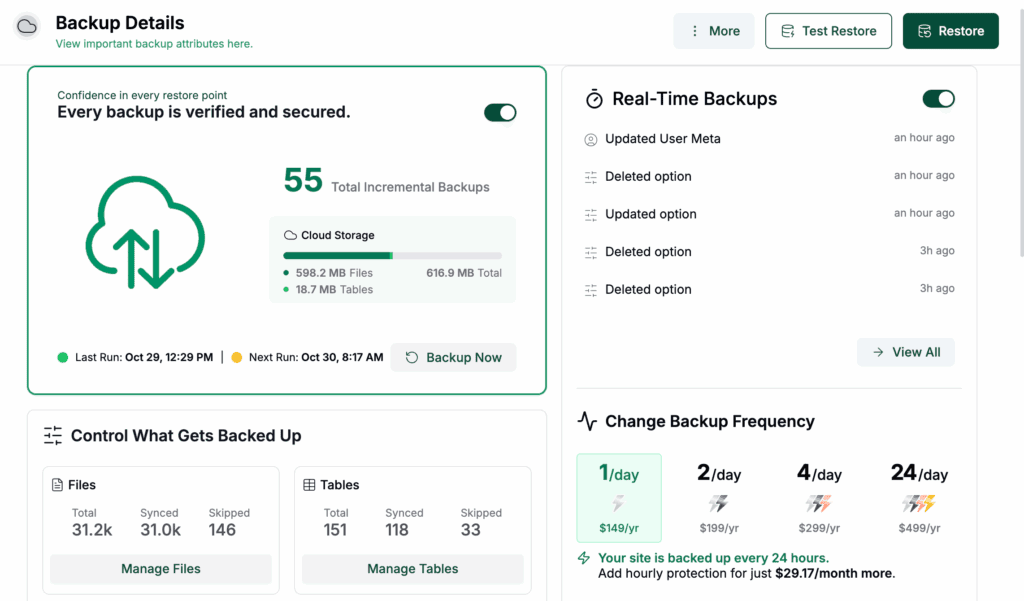
A proper full WordPress backup should include the database and files together. Files without the database can miss orders, posts, users, settings, and plugin records. A database-only backup can miss uploads, theme changes, plugin files, and configuration.
Use full backups when you need a clear rollback point:
- Before major changes: Take a full backup before WordPress core updates, WooCommerce updates, theme changes, plugin changes, migrations, redesigns, imports, database edits, or malware cleanup. Malware is malicious code or files that can damage the site, steal data, or give an attacker access.
- For clean archive points: Full backups are useful for periodic records, compliance needs, and long-term restore points. Compliance means keeping records because a contract, law, policy, or client requirement says you must.
- For low-change sites: A small brochure site that changes once a quarter may be fine with automated full backups, as long as those backups are complete, offsite, and tested.
- For baseline confidence: A full backup is easier to inspect because it should contain everything needed for that restore point.
Where this goes wrong is the word “complete.” Complete does not always mean safe.
A full backup stored on the same server can disappear with the server. A full backup that has never been restored is still a guess. And a weekly full backup may be complete, yet still too old to protect yesterday’s sales.
That’s why a real backup strategy needs more than just “a backup exists.” It should include offsite storage, reliable restore testing, and backups frequent enough to match how often your site changes. For example, BlogVault stores your backups offsite, so they remain safe even if the server itself fails or is compromised.
Take a fresh full backup before risky work even if your normal daily setup uses incrementals. A clean rollback point is worth the extra time.
Use Incremental Backups for Active Sites
Incremental backups make sense when the site changes often enough that old backups become dangerous.
That describes most serious WordPress sites. A WooCommerce order, paid membership signup, course completion, booking, lead form submission, comment, or content edit may exist only in the database. If your last backup was 24 hours ago, restoring it may bring the site online while quietly deleting the business activity that happened since then.
That is how a backup can work technically and still fail the site owner. Use incremental backups when recent activity matters:
- To capture frequent changes without heavy full-copy work: Incrementals reduce backup size, storage use, bandwidth, and server load after the first full backup. Bandwidth is the amount of data transferred; server load is how much work your hosting server has to do while visitors are also using the site.
- To protect revenue and user activity: WooCommerce, membership, LMS, booking, community, and directory sites need shorter data-loss windows. LMS means a learning management system, usually a course or training site.
- To keep busy sites responsive: Heavy full backups can compete with visitors, checkout sessions, imports, cron jobs, and admin work. Cron jobs are scheduled background tasks, like sending emails or processing recurring maintenance.
- To manage many sites: Agencies and teams need automation, alerts, and reports. Manual backup habits do not scale.
The risk is not incremental backup itself. The risk is an unmanaged backup chain.
In a traditional incremental setup, restoring Thursday may require the full backup plus Monday, Tuesday, Wednesday, and Thursday increments. A good managed system handles that assembly for you, but it still needs to verify the chain, monitor failures, store backups offsite, and let you test your WordPress backups. Offsite storage means backups are kept away from the same server, so a hosting failure does not take the site and the backup together.
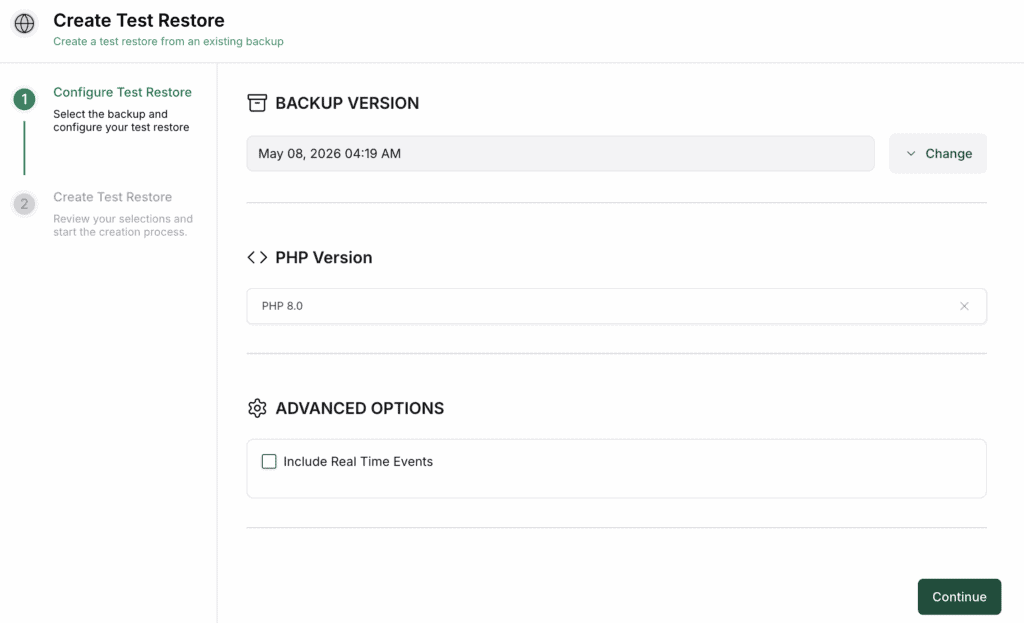
BlogVault’s WordPress backup plugin is a practical example of this WordPress approach. It backs up the whole site, stores backups offsite, uses daily full backups with incremental backups through the day, and includes test restores so you can check recovery before the live site is in trouble.
If a backup tool cannot show you whether restores work, it is asking for trust at the worst possible part of the process.
Choose by RTO and RPO
Backup labels are useful, but recovery goals make the decision clearer.
RTO means recovery time objective: how quickly the site needs to be back online.
RPO means recovery point objective: how much recent data you can afford to lose.
For a small static site, losing a day of changes may not matter. For a WooCommerce store, one day can mean lost orders, inventory changes, customer accounts, subscriptions, support requests, and accounting cleanup.
Use this decision path:
- Small brochure site: Regular full backups may be enough if the site rarely changes. Keep them automated, offsite, and tested.
- Active blog or business site: Use a full baseline plus daily or frequent incrementals to protect new content, comments, uploads, and form entries.
- WooCommerce, membership, LMS, booking, or community site: Use frequent or real-time incremental backups because the site creates business data throughout the day.
- Agency-managed sites: Use automated backups with monitoring, offsite storage, restore reports, and simple recovery paths. The hard part is not one backup; it is doing the right thing across dozens of sites.
- Before risky changes: Take a fresh full backup before updates, migrations, imports, redesigns, bulk edits, and cleanup work.
This is also where storage math can mislead you. Incremental backups usually use less storage, but storage efficiency is not the goal. Recovery is the goal.
A cheap backup that saves space but cannot restore the right version is not a backup strategy. It is a file collection with optimism attached.
What About Differential and Synthetic Full Backups?
You may see differential backups in the same conversation. A differential backup saves all changes since the last full backup, while an incremental backup saves changes since the last backup of any type.
That makes differential backups a middle ground. They can be simpler to restore than traditional incrementals because there are fewer pieces, but they grow larger until the next full backup.
You may also see terms like synthetic full, incremental-forever, block-level incremental, deduplication, and compression.
- Synthetic full: The backup system builds a new full backup from an older full backup plus later changes, without copying the whole live site again.
- Incremental-forever: The system takes one full backup, then keeps taking incrementals while periodically assembling usable full restore points behind the scenes.
- Block-level incremental: The system saves only changed blocks inside files, not necessarily whole changed files.
- Deduplication: The system avoids storing the same data twice.
- Compression: The system makes backup data smaller before storing it.
Most WordPress site owners do not need to choose a backup strategy from those terms. They need a backup system that reduces load, stores backups safely, monitors failures, and proves restores work.
Backup Rules That Matter More Than the Label
The best backup type still fails if the backup workflow is weak.
Use these rules regardless of whether you rely on full backups, incremental backups, or both:
- Back up the full WordPress site: Files and database need to belong to the same restore point.
- Store backups offsite: A backup on the same server can vanish with the server.
- Automate the schedule: Manual backups work until the week you are busy.
- Keep multiple restore points: One backup gives you one guess. Several restore points give you options.
- Monitor failures: A silent backup failure is worse than a loud one.
- Test restores: The worst time to learn that a backup is broken is during a real outage.
- Take fresh backups before risky work: Updates, migrations, imports, and cleanup jobs deserve a clean rollback point.
The boring parts are the safety system. Offsite storage, monitoring, complete coverage, and restore testing are not extras. They are what turn “we have backups” into “we can recover.”
FAQs
Are incremental backups safe?
Yes, when the backup system verifies the chain, stores backups offsite, monitors failures, and supports test restores. Incremental backups are risky only when nobody knows whether the required restore pieces are healthy.
Do incremental backups need a full backup?
Yes. An incremental backup starts with a full backup, then saves later changes. Without the full baseline, the increments do not have a complete site to rebuild from.
Which backup type restores faster?
Full backups usually restore faster because one complete backup set is enough. Traditional incremental restores can take longer because they may need the full backup plus each later increment, although managed systems can simplify this process.
Which backup type uses less storage?
Incremental backups usually use less storage after the first full backup because they save only changes. The exact storage use depends on the backup tool, compression, deduplication, retention period, and how often the site changes. Retention period means how long old backups are kept before they are deleted.
Should WordPress sites use full or incremental backups?
Most active WordPress sites should use both: full backups for baselines and frequent incremental backups for day-to-day changes. Small, rarely updated sites may be fine with full backups only, but those backups still need to be automated, offsite, and tested.
How often should I run full backups?
Run a fresh full backup before risky work like updates, migrations, imports, or cleanup. For normal backup schedules, low-change sites may only need regular full backups, while active sites should use full backups as baselines with frequent incrementals in between.
What is the difference between incremental and differential backups?
An incremental backup saves changes since the last backup of any type. A differential backup saves all changes since the last full backup, so it usually has fewer restore pieces than incrementals but grows larger until the next full backup.
Are synthetic full backups the same as normal full backups?
No. A normal full backup copies the whole selected site from the live source. A synthetic full backup is assembled by the backup system from an earlier full backup and later changes, which can reduce the work done on the live site.
Conclusion
If your WordPress site is small and rarely changes, regular full backups can be enough if they are complete, automated, stored offsite, and tested. If your site changes often, use a full baseline plus frequent incremental backups so you are not forced to choose between site performance and recent recovery points.
For most active WordPress sites, that second setup is the safer choice. The goal is not to collect backup files; it is to recover the right version of the site quickly, with as little lost data as possible.

Shivani enjoys crafting guides that make every aspect of using WordPress simple and easy to follow. When she's not glued to her laptop, you can find her buried in a good book or occasionally, painting.