You’ve tackled the first big step: installing WordPress.
You’re likely looking for a theme or have found a theme you love, but that “what if I end up with a broken website?” feeling is starting to creep in.
Take a breath. Installing a theme is much easier than you think. We’ll show you exactly how to install WordPress themes without any drama, turning that potential stress into a simple, successful task.
Install a WordPress theme from the dashboard by searching the directory or uploading a ZIP file, or manually via FTP for emergencies. To avoid potential conflicts and ensure a safe process, use a reliable backup plugin to save your site before you begin.
How to install WordPress themes in a snapshot

First things first: A quick prep
Before you start clicking, let’s get two small things out of the way. This will make the whole process much smoother.
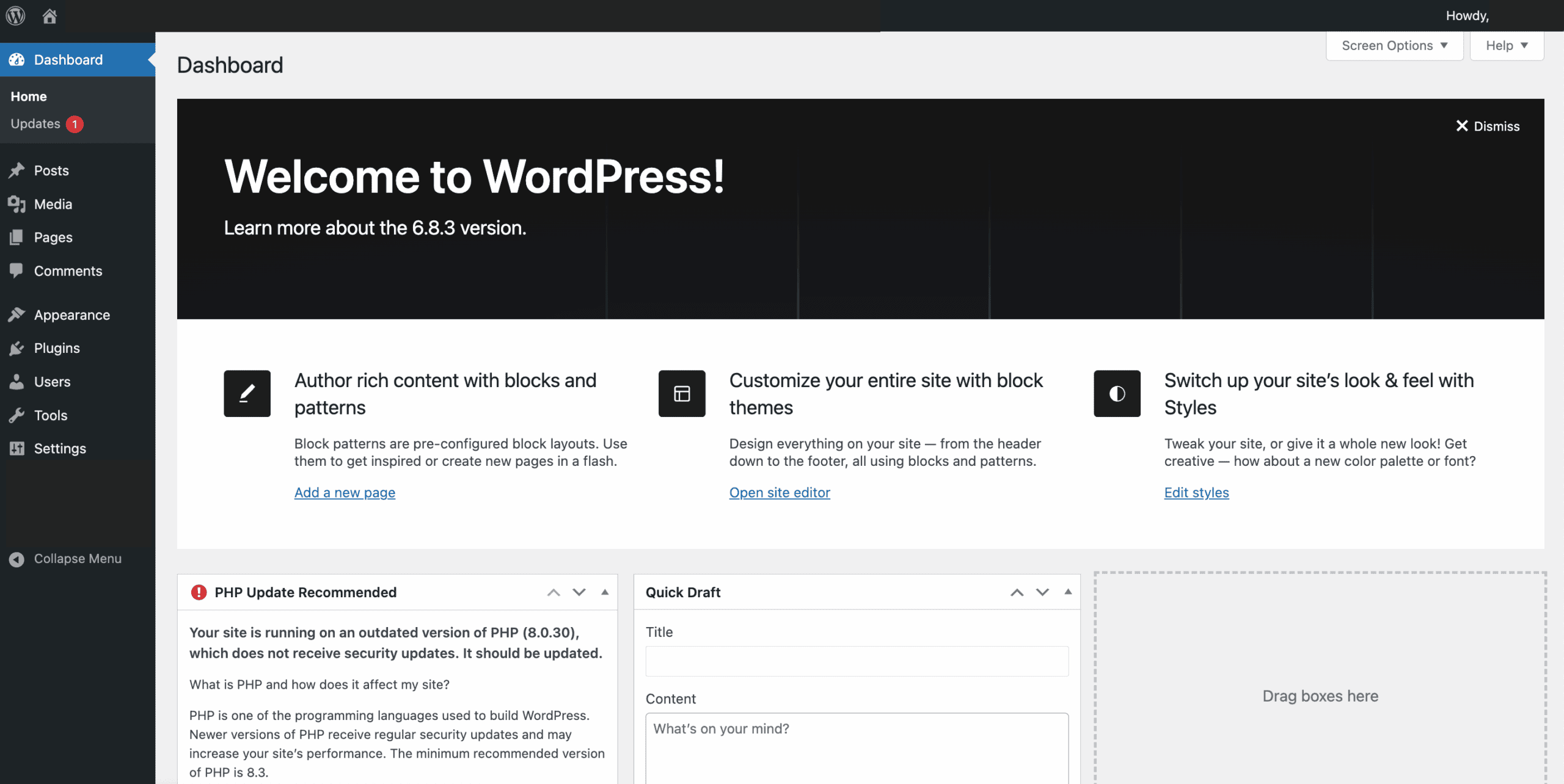
Confirm admin access: You need to be logged into your site as an Administrator. This is the highest user role, and it’s the only one with permission to add, change, or remove themes.
Prepare your theme file: If you’ve already purchased a premium theme, find the .zip file you downloaded and have it ready on your computer.
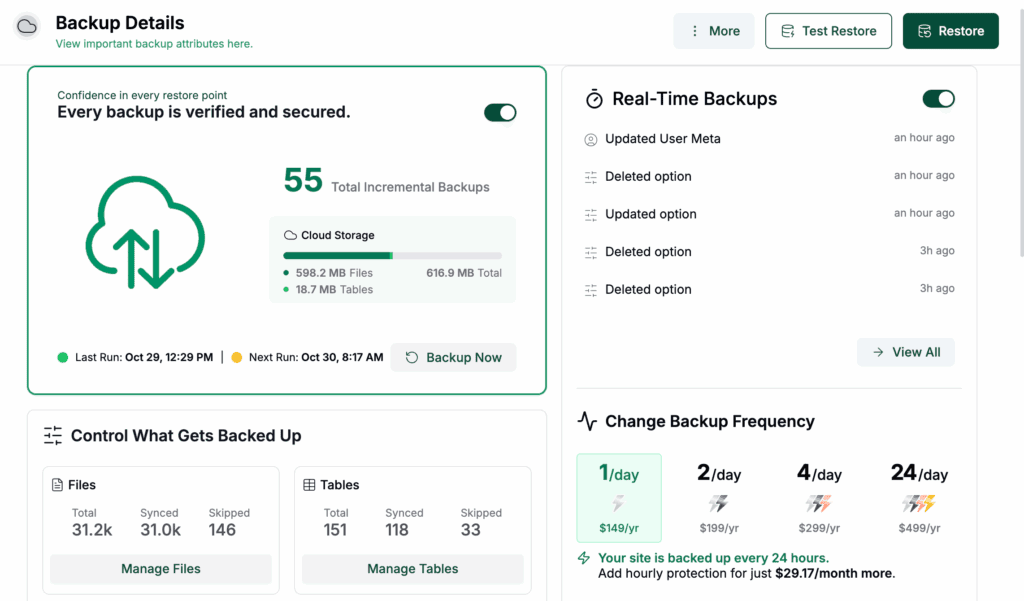
Create a safety backup: It’s always smart to take a backup of your site before a big change like this. A backup saves a complete copy of your site, ensuring you can always restore it to its previous state in one click if anything goes wrong.
Option A: Using the theme directory (RECOMMENDED)
This is the safest and simplest method for beginners when choosing a theme, as everything in the directory has been vetted for basic quality. It’s a great first step in your overall WordPress security strategy.
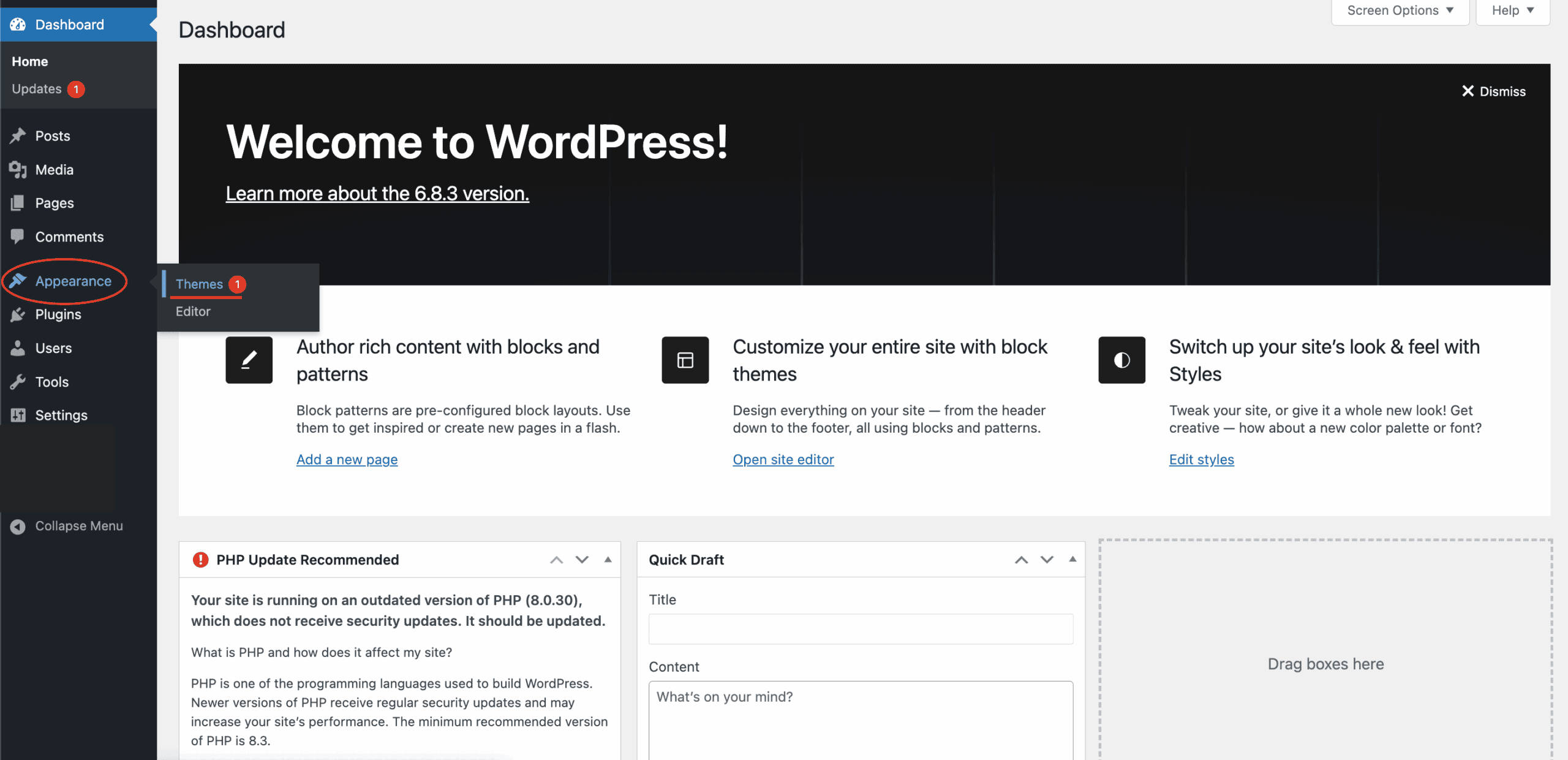
First, head to the Themes section. In your dashboard, look for Appearance in the left-hand menu. Click on it, and then select Themes.
Next, find the “Add Theme” button. At the top of the page, you’ll see a button that says Add New. Go ahead and click that.
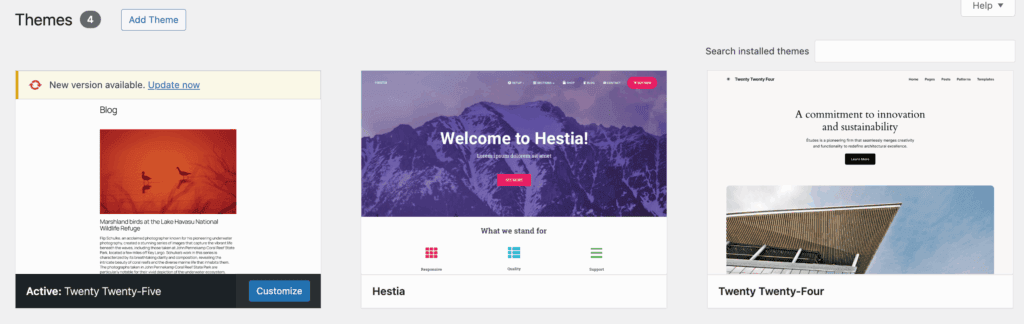
Now, browse for a theme for your site. This opens up the theme gallery. You can see what’s popular or use the search bar to find something specific. When a theme catches your eye, hover your mouse over it, and you’ll see a Details & Preview button.
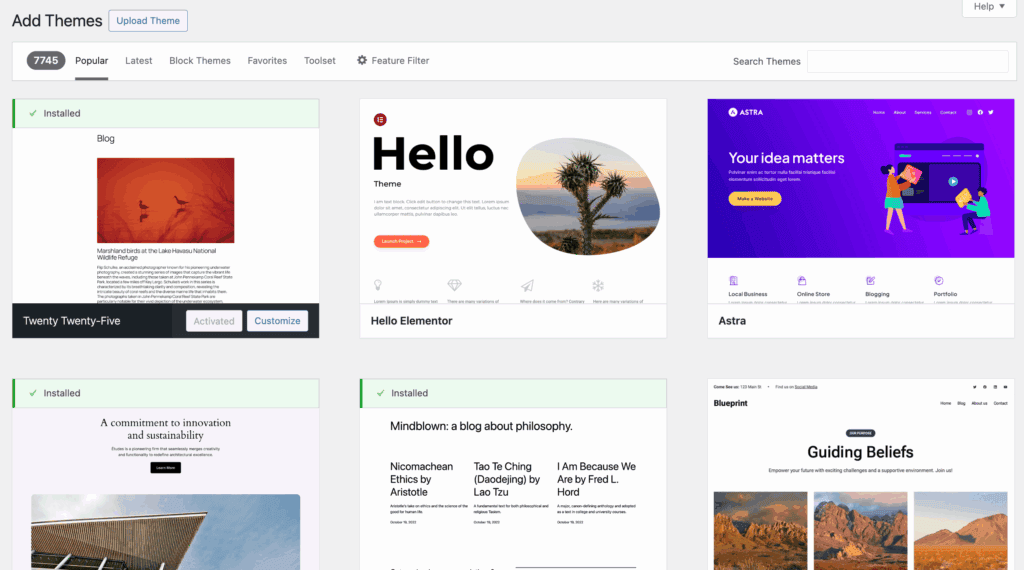
Always preview it first. This is a fantastic feature. It shows you how the theme will look with your own content, all without changing your actual live website.
Finally, install and activate. If you like what you see in the preview, close it and click the blue Install button. After a few seconds, that same button will change to say Activate. This is the final and most important step. Click Activate, and your new theme will instantly be live on your site.

Option B: Uploading a ZIP file
What if you bought a beautiful premium theme from a place like ThemeForest or directly from a developer? Those aren’t in the free directory. For those, you’ll need to upload the theme file you downloaded.
First, navigate to the upload area. Go to the same place as before: Appearance > Themes, and click Add Themes.
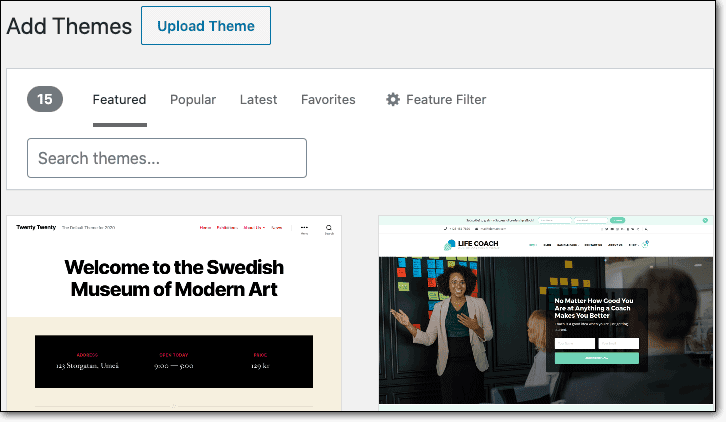
Next, choose the upload option. This time, look at the top of the page and click the Upload Theme button at the top of the page. This will open a simple file uploader — just like when you upload a plugin ZIP file while installing a plugin on your WordPress site.
Then, select your theme file. Click Choose File and select the .zip file you saved on your computer.
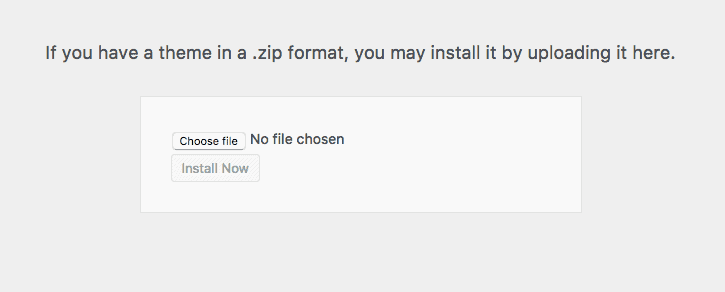
Finally, install and activate. Once you’ve selected the file, click Install Now. After it finishes, click the activate link. That’s it!
Option C: The manual FTP method (RISKY)
Honestly, you will probably never need to do this. This method is an advanced, “break-glass-in-case-of-emergency” option.
Only try this if your WordPress dashboard is broken or your host’s upload limit blocks other methods. You’ll need an FTP client like FileZilla to access your site’s files directly.
First, unzip the theme file on your computer (this is the only time you should ever unzip it). On a Mac, simply double-click the ZIP file to extract it. On Windows, right-click the file and select Extract.

Next, connect to your server using FTP. Check with your host for the credentials.

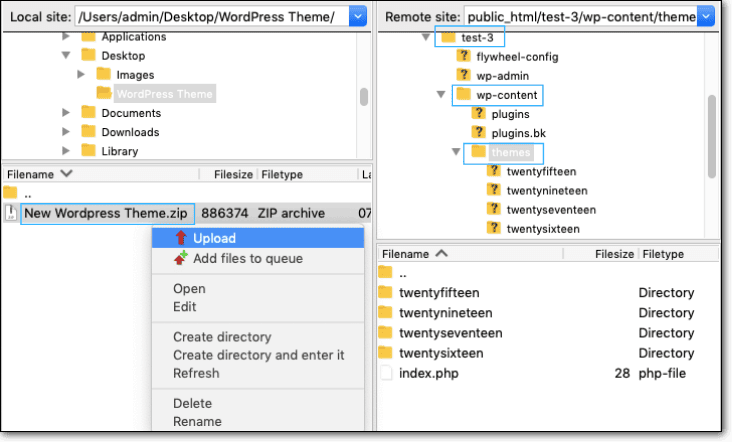
Then, navigate to the themes folder. A basic knowledge of the WordPress file structure is essential here, as the folder is located at /wp-content/themes/.

Finally, upload the entire unzipped folder from your computer into that directory. Once it’s done, you should be able to go to your WordPress dashboard under Appearance > Themes to find and activate it.
What should you do after activating your theme?
Getting the theme activated is just the beginning. A new theme often needs to be configured and customized to look its best and align with your brand.
First, look for a Setup Wizard. Check for a banner at the top of your dashboard with a message like “Get Started” or “Install Starter Sites.” Click it to follow a guided setup that helps you import a design and basic settings. If your theme doesn’t have this option, leave it be. But if it does, you can always access it later from the theme’s settings.
Next, explore the Customizer. Head to Appearance > Themes. Find your theme, hover over it, and select Customize. This is your main control panel for changing your logo, site colors, fonts, and menus. Take some time to explore all the options in here.
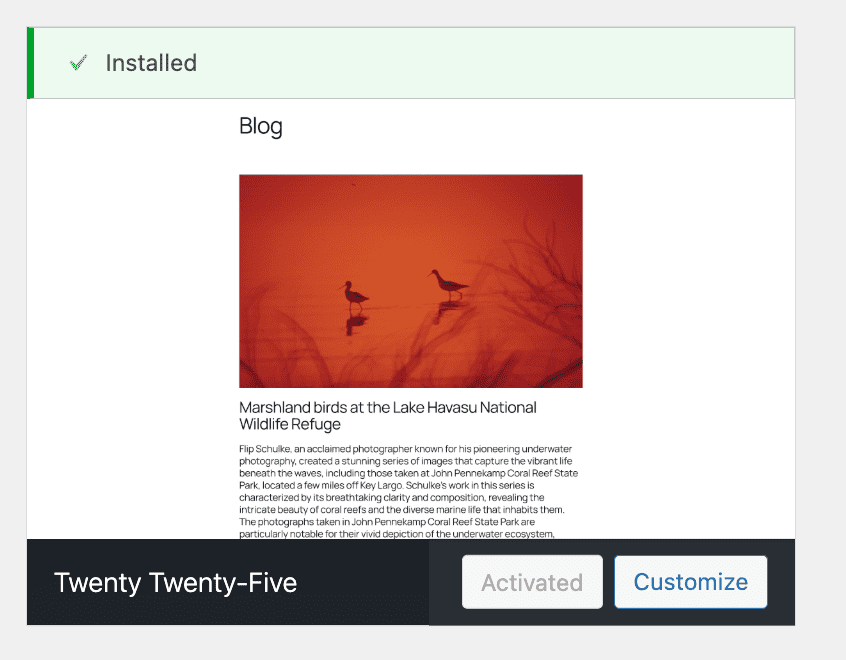
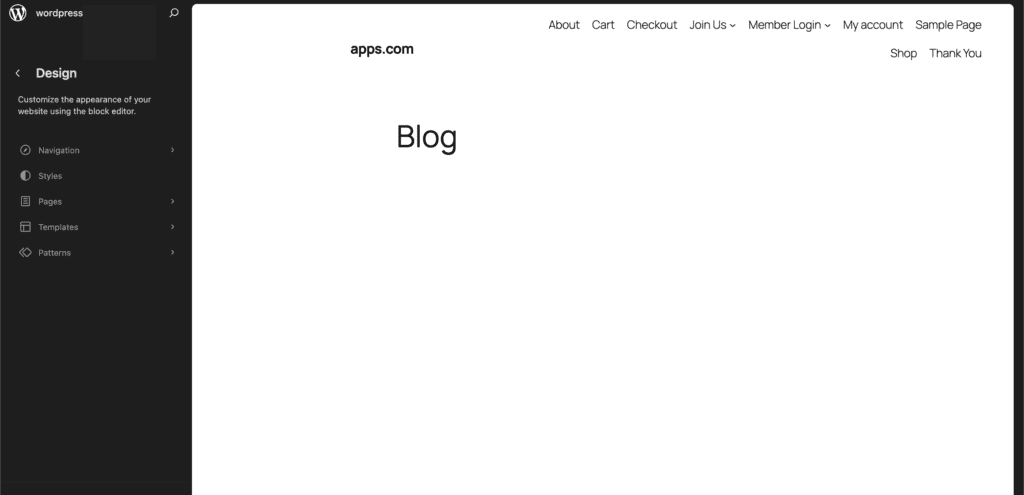
Finally, check your Menus and Homepage. You may need to reassign your navigation menu by going to Appearance > Editor > Navigation.
A few good habits for a healthy website
As you get more comfortable with WordPress, keeping these good habits in mind will keep your site safe, fast, and easy to manage.
Backup your site regularly. This is the most important habit you can develop. A backup is a complete copy of your website. If an update fails, a security issue arises, or you simply make a mistake, a recent backup is the fastest and most reliable way to restore your site to a working state.
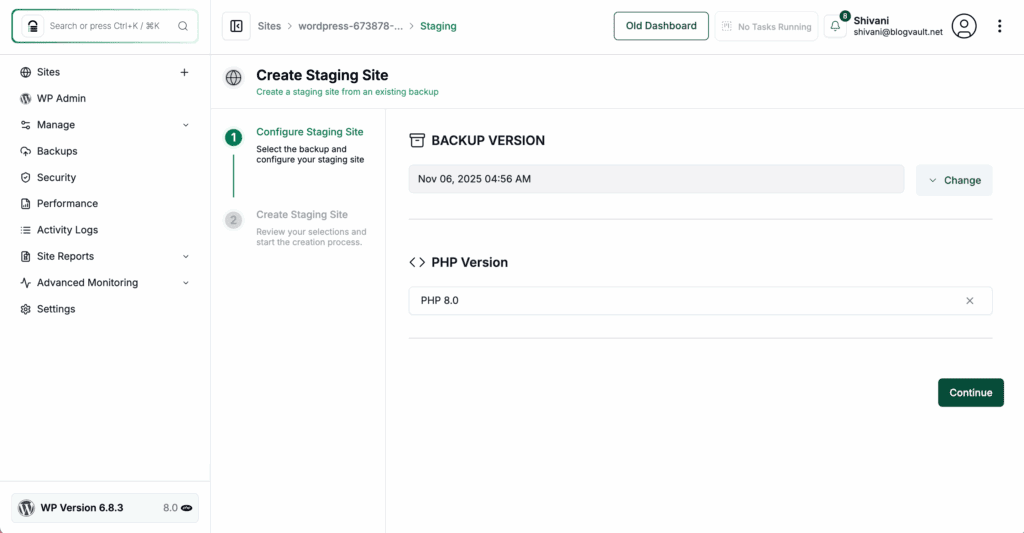
Always test new themes on a staging site first. A staging site is a private copy of your live website where you can test anything: new themes, plugins, updates. All without your visitors seeing a broken page. It’s the ultimate professional safety net.
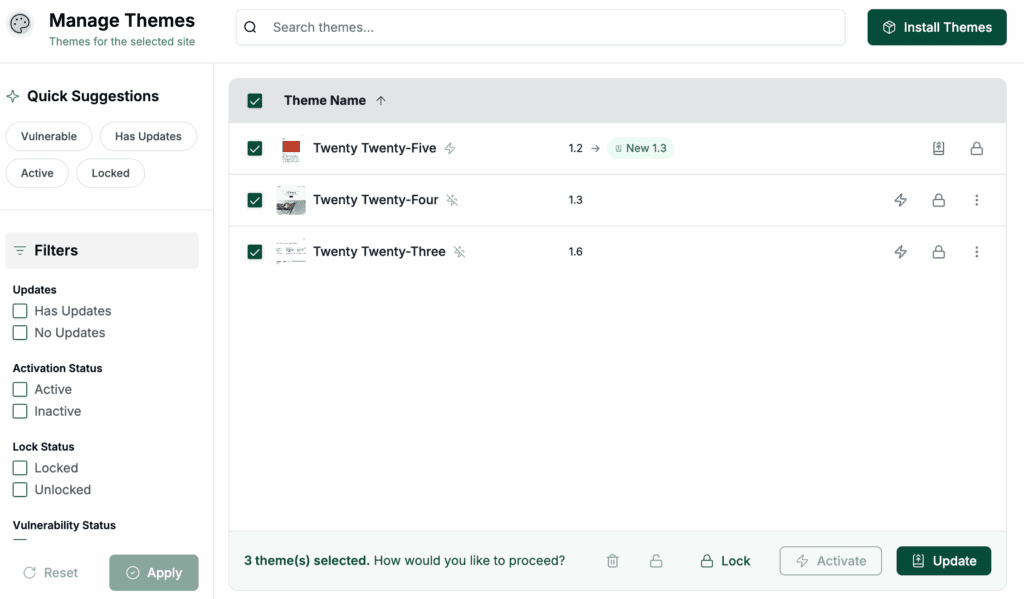
Keep your theme updated. You’ll see notifications in your dashboard when your theme has an update available. Don’t ignore them. These updates often contain critical security patches that protect your site from hackers.
Don’t be a theme hoarder. It’s tempting to keep old themes around “just in case,” but this is a bad practice. An old, un-updated theme is a security risk. Delete any themes you are not actively using. Just keep your current theme and one default WordPress theme (like “Twenty Twenty-Five”) for troubleshooting.
Parting thoughts
You now have the power to change your website’s entire look with just a few clicks. It’s a foundational skill for managing your own site.
Just remember the simple workflow: find your theme, install it, and most importantly, activate it. If that process ever fails, knowing how to restore your site or troubleshoot errors is critical. The real magic happens in the setup and customization that follows.
FAQs
How do I install a theme in WordPress?
You can install a theme by going to Appearance > Themes > Add Theme in your dashboard. Search for a theme, click Install, and then Activate it.
How do I apply a downloaded theme?
To apply a downloaded theme, go to Appearance > Themes > Add Theme > Upload Theme. Upload the ZIP file, click Install Now, and then Activate.
How to install WP manually?
To install WordPress manually, download it from wordpress.org, upload the files to your server, and run the installation script via your domain. You’ll then configure your database and admin details.
How to install a theme manually?
Manually install a theme by uploading its folder to /wp-content/themes/ using FTP. Then, activate it from the Appearance > Themes section in your dashboard.
How do I use a WordPress theme?
Once activated, to use your theme, head to Appearance > Editor or Customize. You can adjust layouts, colors, menus, and other settings to match your site’s look.
How do I activate a WordPress theme?
To activate a WordPress theme, head to Appearance > Themes, hover over the theme you want, and click Activate. Your site will immediately switch to the new theme.
How can you apply a theme?
You can apply a theme from Appearance > Themes by installing or activating it. If it’s a ZIP file, upload it first and then click Activate.

Shivani enjoys crafting guides that make every aspect of using WordPress simple and easy to follow. When she's not glued to her laptop, you can find her buried in a good book or occasionally, painting.