

You want to install WordPress, but want to do it manually. Perhaps because you’re after more control, a cleaner setup, or because the automated tools aren’t meeting your needs.
The entire process boils down to three main steps: You’ll create a database, upload the files, and then connect the two.
This guide gives you the exact, clear steps to install WordPress manually the right way.
The manual WordPress install is three steps: create a database, upload the files, and connect them in the wp-config.php file. To safeguard the new site you’ve just built, it is wise to immediately use a backup plugin as your primary safety net.
What you need before you begin
Having everything you need in place makes the whole process smooth and quick.
You will need a reliable hosting provider that supports PHP and MySQL. These are the core technologies that power WordPress.

Your domain name. This address for your website should be purchased and already linked to your hosting account. This ensures that when someone types in your domain, their browser knows where to find your website.

An FTP client. This software is used to transfer files from your computer to your server. FileZilla is a popular and free option that is perfect for this task.
How to install WordPress manually
As mentioned earlier, we will handle it in three parts: creating the database, uploading the files, and connecting them.

Part 1: Prepare files and database
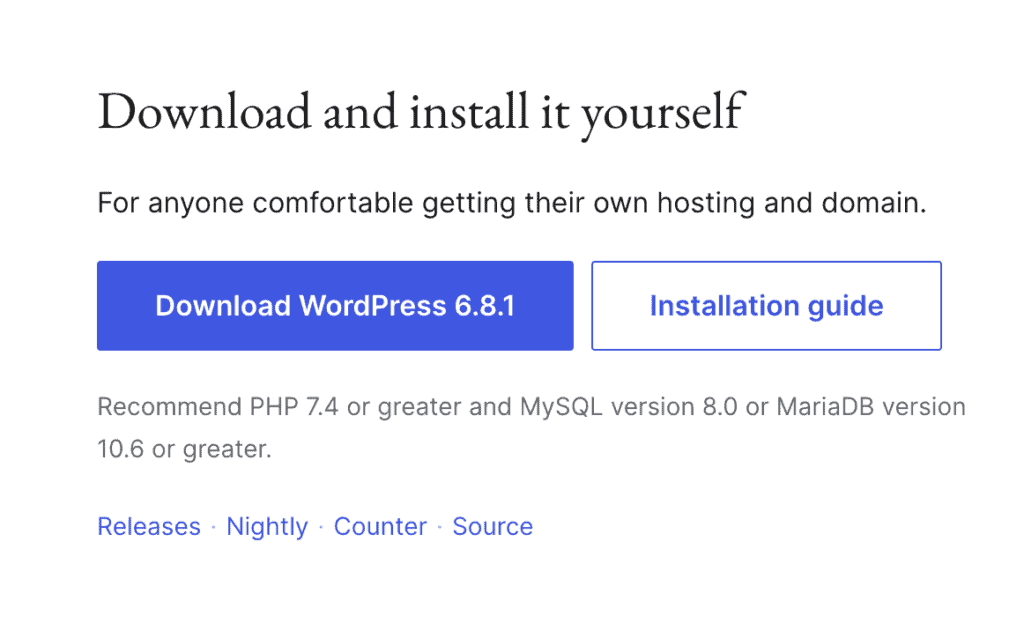
- Download WordPress: Navigate to the official wordpress.org website and get the latest .zip file.

- Extract the folder: Unzip the file on your computer. Simply right-click and choose Extract All on Windows, or just double-click the file on a Mac. This will create a folder named ‘wordpress’ containing all the necessary files.
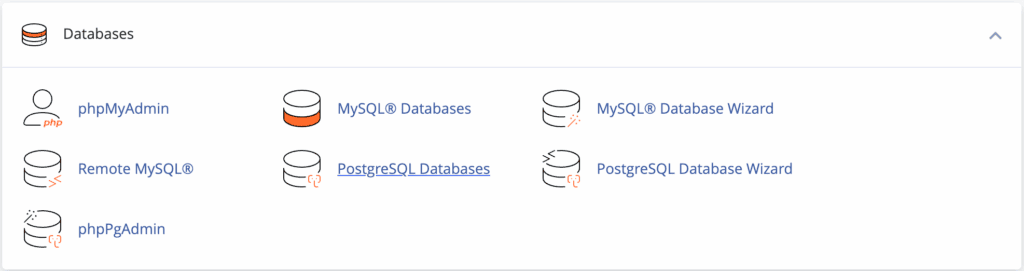
- Find your database manager: In your hosting control panel (usually cPanel), find the MySQL Databases tool; if not, locate your web host’s custom database manager.

- Create the database and user: Inside the manager, you must create a new database and a new user with a strong password. Then, add that user to the database and grant it All Privileges. This last step is essential.
Part 2: Upload files to the server

- Connect to your site’s server: Open your FTP client (like FileZilla) and connect to your server using the credentials from your host.
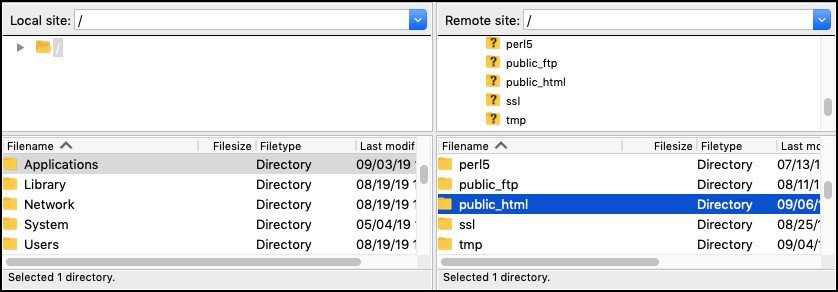
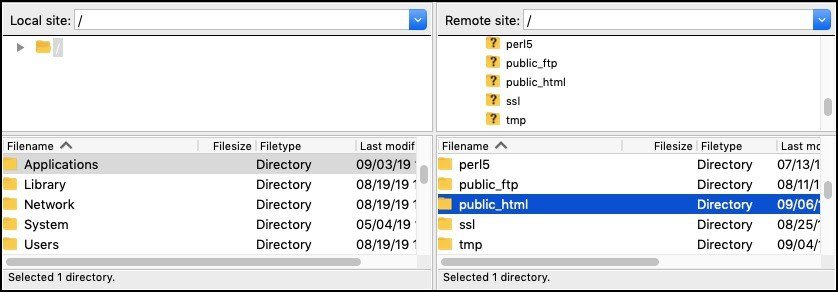
- Navigate to your root directory: Go to the main folder for your website, which is almost always named public_html or www.
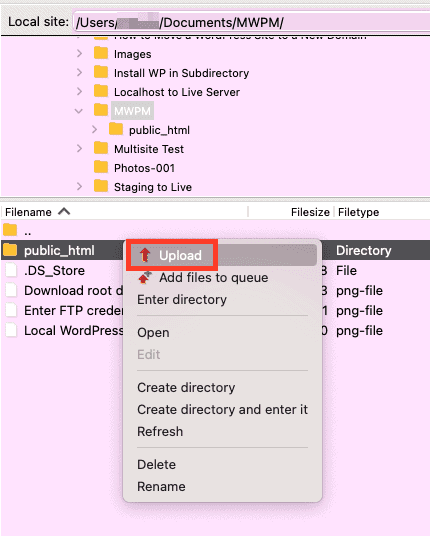
- Upload the contents: Open the wordpress folder on your computer and upload everything inside it to the root directory on your server.
Part 3: Connect and configure WordPress
- Rename the config file: On the server, look inside your site’s root directory. You will find a file named wp-config-sample.php; rename it to wp-config.php.
- Edit the file: Open the new wp-config.php file. You will see lines for the database name, user, and password.
- Add your database details: Carefully replace the placeholder text with the exact database details you created in Part 1.
They look like this:
define( 'DB_NAME', 'database_name_here' );

define( 'DB_USER', 'username_here' );

define( 'DB_PASSWORD', 'password_here' );
Your job is to replace the placeholder text with your real database information.
- Save and re-upload: Save your changes. If you edited the file on your computer, re-upload the wp-config.php file to the server.
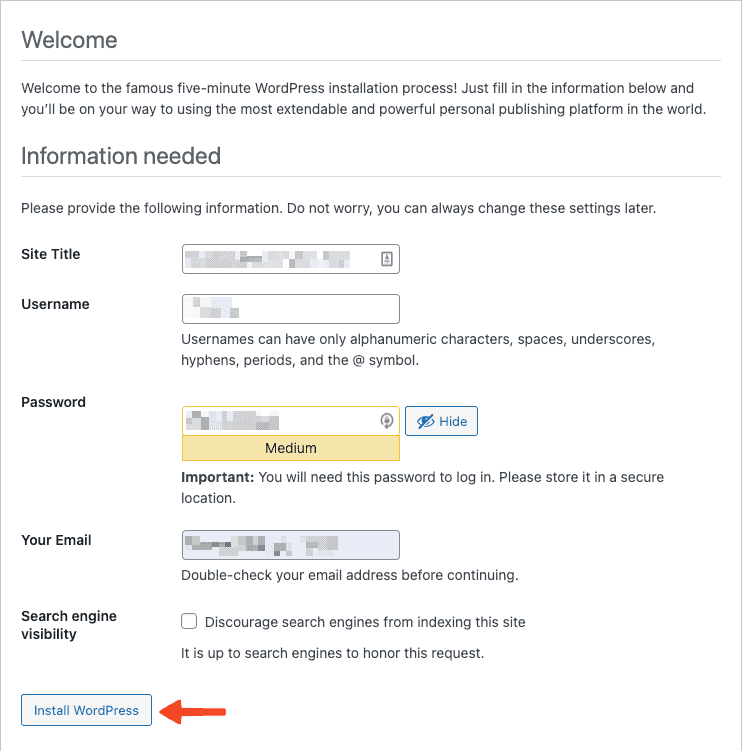
- Run the installation script: Open your web browser and navigate to your domain name (e.g., yourwebsite.com). You will see the WordPress welcome screen. Fill in your site title, create an admin username (never use ‘admin’), a strong password, and your email address.
Troubleshooting common installation issues
Sometimes things don’t go perfectly. If you hit a snag, it’s usually one of these common issues.
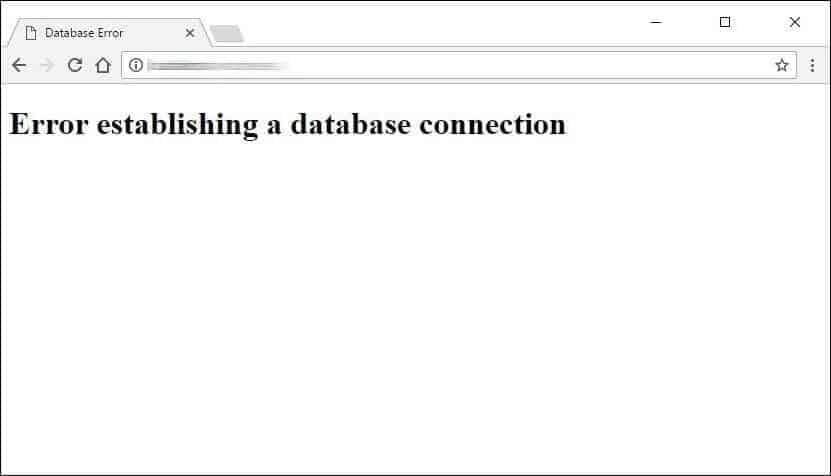
Error establishing a database connection. This message is your first clue that the wp-config.php file has a mistake. Double-check your database name, username, and password for typos. Also, make sure the user has full privileges.
You see a blank white screen. This often means there’s a typo in the wp-config.php file. Even a missing apostrophe can cause it. Re-check the file carefully.
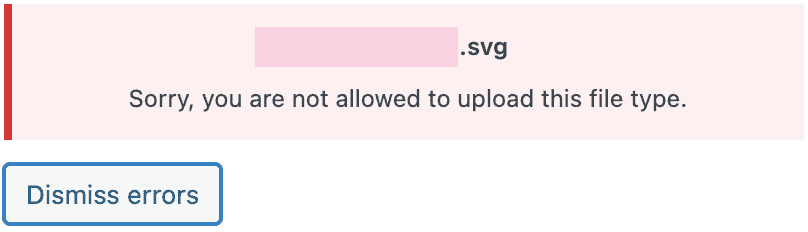
File upload errors. If your FTP client gives you an error, check that you’re logged in with the correct credentials. Also, confirm you’re uploading the files to the public_html directory, not somewhere else.
What to do next
WordPress is installed. Now what? Here are a few quick things we always do right away to get a new site ready.
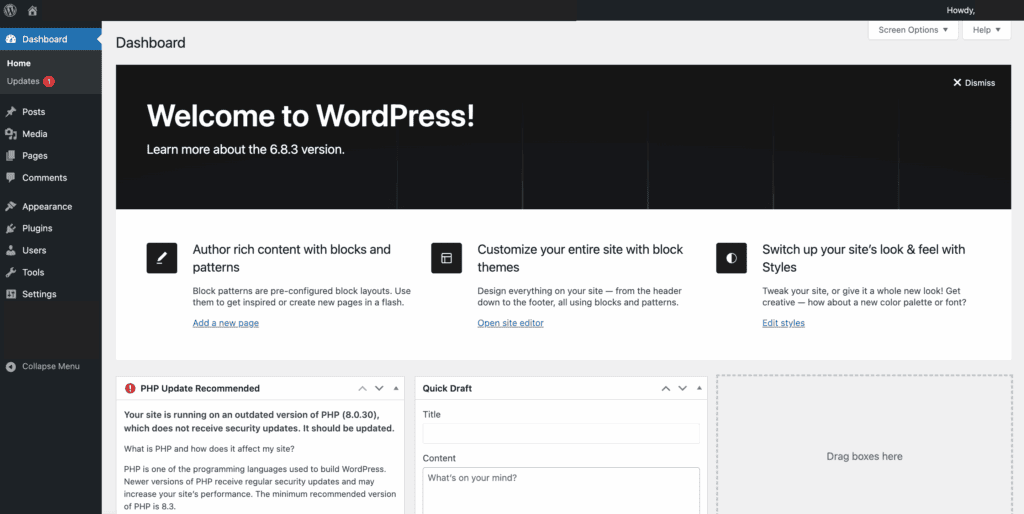
- Log in to your admin area. Your login page is at yourwebsite.com/wp-admin.
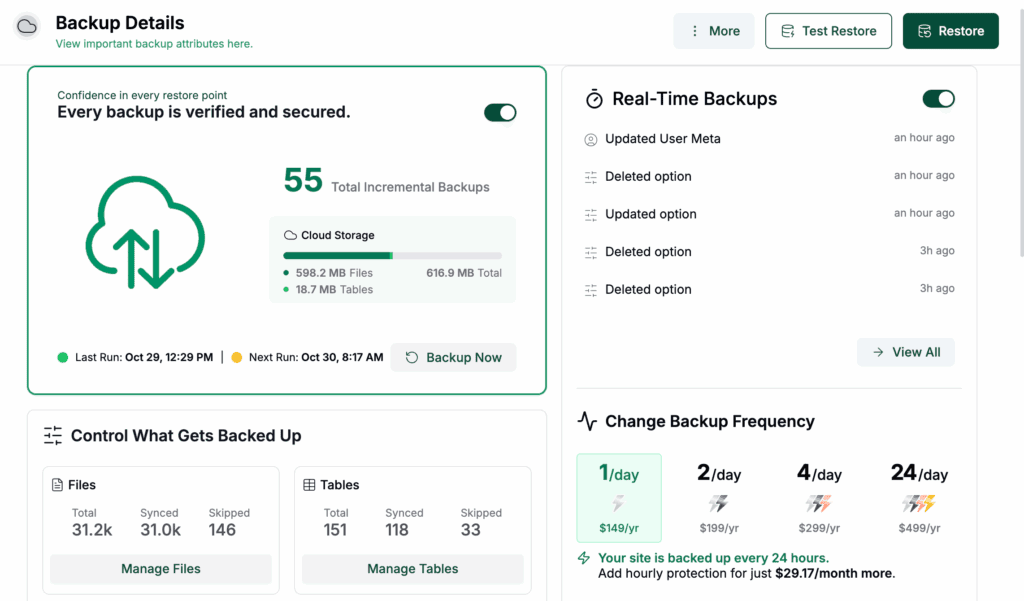
- Set up automatic backups. A daily backup is your safety net if anything goes wrong.
- Delete the default content. WordPress comes with a Hello world! post and a sample page. It’s best to delete them for a clean start.

- Set your WordPress permalinks. Go to Settings > Permalinks and choose Post name. This makes your links clean and better for Google right from the start.
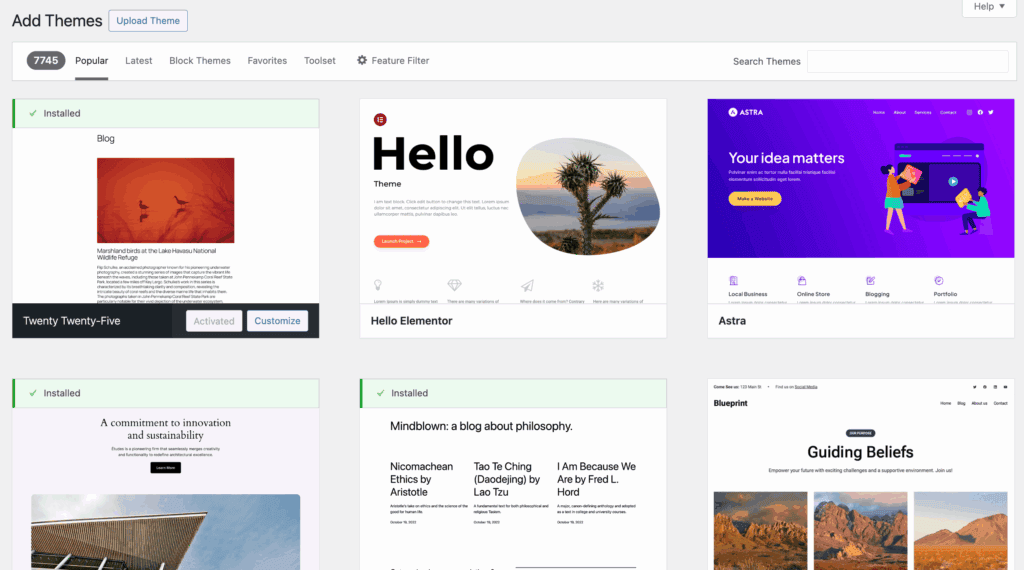
- Choose and install a theme. This controls how your site looks. Pick one that’s fast and looks good on mobile phones.
Good habits for your new WordPress site
Getting into a few good habits now will save you a lot of headaches later.
- Never use “admin” as a username. It’s the first thing hackers try.
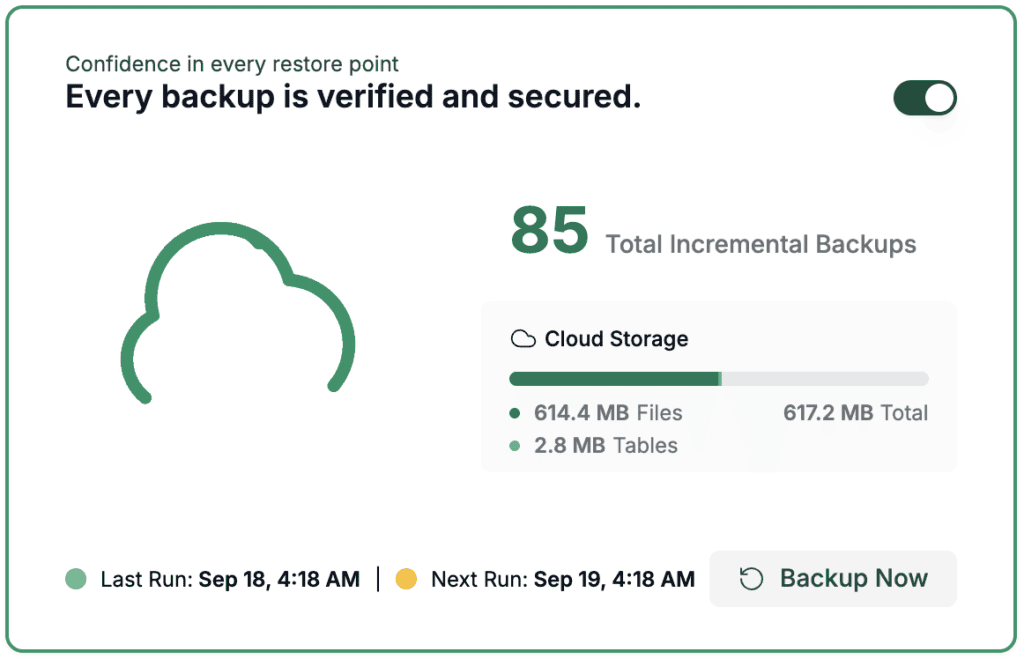
- Always have a backup in place. Do not rely only on your host’s backups. For true peace of mind, using a dedicated backup plugin is non-negotiable. This ensures you have your own copies stored securely. A daily backup is your ultimate safety net.

- Use strong passwords. This applies to your WordPress login, your hosting account, and your database.
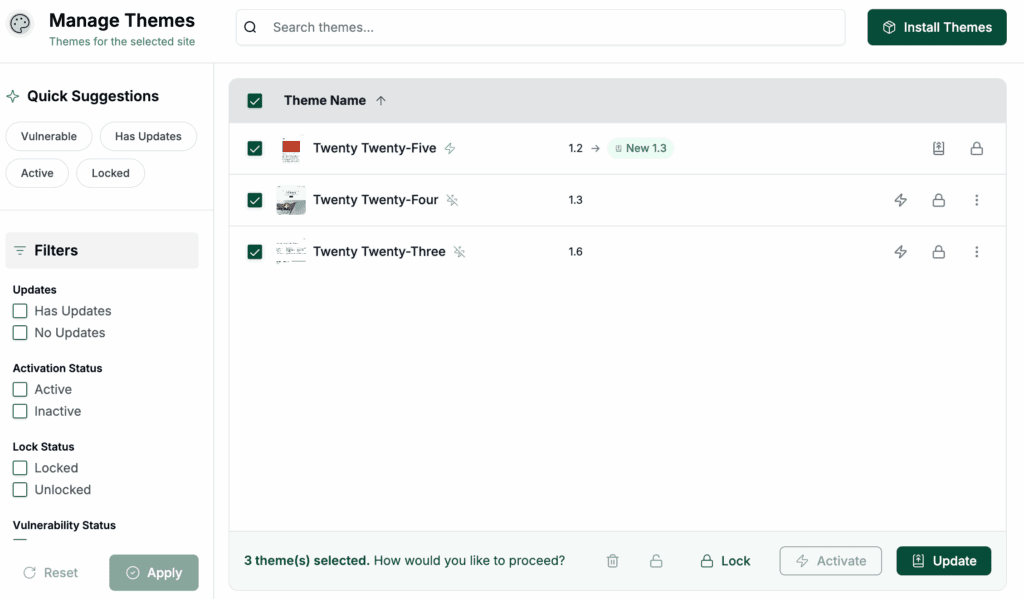
- Update everything regularly. When you see an update notification for WordPress, your plugins, or your theme, run it. These updates often contain critical security fixes.
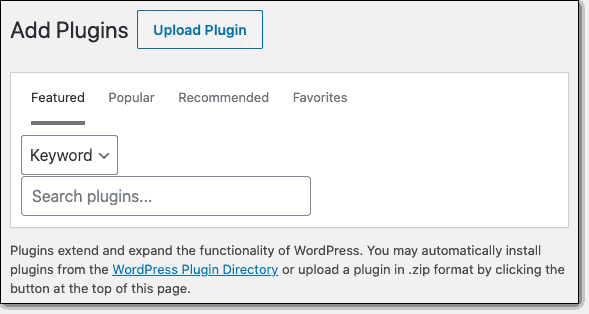
- Only install plugins from trusted sources. Stick to the official WordPress repository or reputable developers.
Parting thoughts
So, there you have it. Your new WordPress site is up and running.
Going through the manual install means you actually understand what’s happening behind the scenes. That’s a big deal. It makes troubleshooting and fixing errors in the future a lot less intimidating.
FAQs
How do I install WordPress?
You can install WordPress using your host’s one-click installer or by following the manual method outlined above. The manual method offers more control and a cleaner setup by having you upload the files and create the database yourself.
Can I install WordPress on my PC?
Yes, you can install WordPress on your personal computer for testing and development purposes. This is done using free local server software like XAMPP or MAMP and is called a “localhost” installation.
Can I download WordPress for free?
Yes, you can always download the WordPress software from WordPress.org completely free of charge. The software is open-source, giving you the freedom to use and modify it however you like.
Is WordPress 100% free?
The WordPress software itself is 100% free, but running a live website has costs. You will need to pay for a domain name (your address) and web hosting (your site’s home on the internet).
Do I need coding for WordPress?
No, you do not need any coding knowledge to build a beautiful, fully functional website with WordPress. All aspects, from design to features, can be managed through the user-friendly dashboard with themes and plugins.
Can a beginner use WordPress?
Yes, WordPress is an excellent choice for beginners because of its intuitive and user-friendly interface. Its massive online community and abundance of tutorials also make it very easy to learn and find help.

Shivani enjoys crafting guides that make every aspect of using WordPress simple and easy to follow. When she's not glued to her laptop, you can find her buried in a good book or occasionally, painting.


