Are Divi theme updates driving you crazy? Upgrading WordPress can also contribute to some of these issues, especially if your theme isn’t fully compatible with the latest version.
We know that updating the Divi theme on your WordPress site isn’t always as straightforward as you’d hope. Sometimes, your changes might not take effect, the design could look different, various elements could stop working, or worse, your site might crash. These problems can make the updating process feel like a nightmare.If you’re wondering how to update Divi properly, you’re not alone.
Always backup your site before major updates.
But don’t worry, there’s good news. All these frustrating issues are fixable. Whether it’s a crashed site,Failed theme updates or a layout that just doesn’t look right, there are solutions to get everything back on track and running smoothly. You don’t even have to be a WordPress expert to tackle these problems.
And even better, we’re here to help you prevent these issues in the first place. In this guide, we’ll show you step-by-step how to update your Divi theme safely. With our tips and tricks, you’ll be able to keep your site running beautifully without the usual headaches, so you can focus on what you love.
Divi updates are critical to your site design but can cause issues like crashes and design changes. Be cautious, and first test the update on a staging site, and complete backup with BlogVault before updating.
Step 1: Prepare for the update
Well begun is half done. Preparing thoroughly for a big update, like Divi’s, is the best way to ensure the process runs as smoothly as possible.
- Authenticate your Divi membership: To ensure a smooth update process, you first need to authenticate your Divi membership. This involves a few simple steps:
- Download the Elegant Theme Updater plugin. It’s used to authenticate your membership. Updates only show up for valid users.
- Go to your WordPress dashboard, navigate to Plugins > Add New, and upload the Elegant Theme Updater plugin. Install and activate it.

- Once activated, go to Settings in the side bar and click General.
- Scroll down till the Elegant Themes section and add the username and API key. You can find these details by logging into your Elegant Themes account and navigating to the API link section.
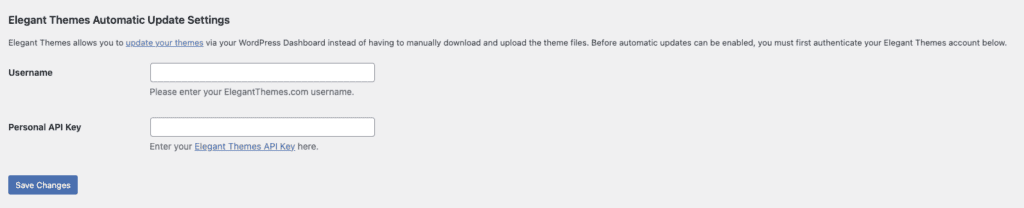
- Once authenticated, you’ll be able to update the Divi theme and related plugins directly from your WordPress interface.
- Check for an update: Your WordPress admin panel will notify you if an update is available for the Divi theme. Keep an eye out for these alerts to stay current.
- Take a backup: Before making any updates, it’s critical to take a full backup of your site. Use a reliable plugin like BlogVault to create this backup. If the Divi update fails and crashes your site, you have an easy one-click restore option. In minutes, your site is back to normal.

- Create a staging site: A staging site is a clone of your live website where you can test updates without affecting the live site. You can do this very easily with BlogVault. Just head to the staging section and click Add Staging. A staging site will be created in minutes.

- Research release documentation: Read the release notes and documentation provided by Elegant Themes. These usually include important information about what changes and fixes are included in the update.
- Check Divi communities for complaints: Browse through Divi user communities and forums to see if other users are reporting issues with the latest update.
- Check the changelog: Elegant Themes always releases changelogs for its updates. Be sure to review these to understand what has changed.
Step 2: Update the plugin on a staging site
The backups have been taken. The changelog has been reviewed. Now, let’s test the update on the staging site you previously created.
- Access the staging site section of BlogVault.
- Click WP-ADMIN to log in to the admin panel. Login the same credentials as on your live site.

- Navigate to the Updates dashboard, and look for the notification indicating that a Divi theme update is available.Click on the Update button to begin the update process.
- Once the update is complete, check all your site’s pages to ensure that the design and layout remain consistent and as expected. Verify that all the features and functionalities of your site are working correctly. Check forms, sliders, galleries, and other interactive elements.
- In short, test anything that may be using Divi.
Step 3: Push changes to live site
If your staging site is all good and dandy, it’s time to replicate it on your live site. With BlogVault, this is incredibly easy to do.
- Head to the BlogVault dashboard.
- Navigate to the Staging section.
- Click Merge and wait a few minutes.

- Test everything once more—pages, design, functionality. This time on the live site to ensure the update works smoothly.
Congratulations! You’ve updated the Divi theme successfully.
Troubleshooting Divi’s update
You’ve updated the Divi theme on your staging site, but you’ve encountered issues. Don’t worry—here’s how to troubleshoot common problems:
Divi not updating changes being made to the site
If your changes aren’t reflecting on the site after an update, the problem usually lies with caching. Your browser or caching plugin might be displaying an outdated version of your site. Clear your browser cache and any caching plugins you’re using.
Sometimes, Divi’s internal caching can prevent changes from showing. Go to Divi in the dashboard and then click Theme Options. Navigate to Builder and Static CSS File Generation. Click on the Clear button. This action helps to refresh and apply the new changes.
Divi update changed my site
An update might alter your site’s design, making it look different from what you intended. Some widgets may not be working. Some elements may have shifted. All these are likely to be caused by the Static CSS File Generation.
Head to Divi and navigate to Theme Options and Builder. In the Static CSS File Generation, click on Clear. This helps reset CSS files and potentially resolves design issues.
Divi update shows a fatal error
Encountering a fatal error after an update usually points to plugin incompatibilities. Here is what you can do to fix it:
- Deactivate all your plugins from the dashboard.
- Check if the site has been recovered.
- If it has recovered, reactivate plugins one by one.
- Reload the site after each plugin activation. Keep checking to see which activated plugin crashes your site.
- Once you find the problematic plugin, deactivate it if it is not critical.
- If it’s a critical plugin, rollback the Divi theme, or restore your site from a backup.
- Reach out to the plugin developers and let them know about the compatibility issues.
- Hold off on updating Divi until you get a fix from the developers.
Divi authenticator error
If you’re having trouble authenticating your Divi membership, it could be due to incorrect credentials or temporary server issues.
Ensure that you’ve entered the correct username and API key. Double-check for any typos. Wait for a while and try re-entering your credentials later.
Why should you update Divi?
While the updating process might seem tedious, the importance of keeping Divi up to date cannot be overstated. Here are some compelling reasons why updating your Divi plugin is essential:
- Developers frequently release updates that patch security vulnerabilities. By updating Divi, you help protect your website from potential threats and attacks, ensuring your data and your users’ information remain secure.
- Updates often include fixes for bugs that may have been identified in previous versions. These bug fixes improve the overall stability and reliability of your site, preventing issues that could disrupt your visitors’ experience.
- Each update typically brings new features and functionalities that enhance what Divi can do. By keeping your plugin up to date, you gain access to these improvements, which can help you build more dynamic and engaging websites.
- New updates ensure Divi’s compatibility with the latest versions of WordPress and other essential plugins. This reduces the risk of conflicts and ensures that your website continues to run smoothly.
- Updates often include performance optimizations that make your site load faster and run more efficiently. These improvements can enhance your website’s speed, providing a better experience for your visitors and improving your search engine rankings.
- Enhancements in user experience, such as easier navigation, improved design options, and more intuitive interfaces, come with updates. These changes can make managing your site simpler for you and more enjoyable for your visitors.
Final Thoughts
There’s no way to avoid updating a critical theme like Divi if you want to maintain a secure, functional, and feature-rich website. The only way to reduce the risk is to take full backups and test the updates on a staging site. BlogVault not only simplifies the process of taking reliable backups, but it also helps you build a staging site with no coding knowledge. All you need to do is click a button and wait a few minutes.
FAQs
How to update Divi manually?
To update Divi manually, first log in to your Elegant Themes account and download the latest version of Divi.
Then use a backup plugin like BlogVault to back up your entire site. From your WordPress dashboard, navigate to Appearance and click on Themes. Switch to a default theme like Twenty Twenty-One. Continue in the Themes section and delete the old version of the Divi theme.
Click on Add New and upload the new Divi .zip file you downloaded. After the upload is complete, activate the Divi theme. Make sure everything is working correctly.
Is it safe to update Divi?
Yes, it is safe to update Divi, provided you take the necessary precautions:
- Always create a full backup before updating.
- Test the update on a staging site created with BlogVault or a similar plugin.
- Ensure your plugins and customizations are compatible with the new Divi version.
How to update the Divi child theme?
Updating a Divi child theme involves updating custom code and styles without affecting the parent theme:
- Make a full backup before making any changes.
- Create a staging site first to catch any issues.
- Update the Divi parent theme on the staging site.
- Check the custom code and styles in your child theme in the staging site. Ensure they’re compatible with the new Divi version.
- If your customizations need updating, make the changes in the child theme’s style.css and functions.php files.
- After applying the changes, test your site thoroughly to ensure everything works as intended.
- Merge the changes to the live site.

Shreya has been a writer for as long as she can remember. Now, she writes articles that help WordPress users manage the sites that they're proud of, with little to no coding