

If you need to manually update WordPress plugin files, something has probably already made you pause. Maybe the automatic update failed. Maybe a premium plugin gave you a ZIP file instead of an update button. Or maybe the plugin controls checkout, forms, memberships, security, or page layouts, and you know one bad update could turn a routine task into a live-site problem.
That hesitation is good. A manual plugin update is not difficult because the upload button is complicated. It is risky because the plugin may be connected to your database, cached files, templates, payment flow, emails, scheduled tasks, and other plugins.
For most sites, the safest path is simple: make a full backup, test the update on staging, upload the trusted plugin ZIP through wp-admin, verify the version, test the feature, and clear caches. Use SFTP, cPanel, or WP-CLI only when the dashboard method is unavailable or not the right fit.
Think of the plugin ZIP as the visible part of the update. The hidden part is what the plugin touches after the files change. A contact form plugin may affect email delivery. A WooCommerce extension may affect checkout. A page builder may affect your most important layouts. That hidden part is why the safest update is the one you can undo.
Before You Touch the Plugin Files
This is the part that decides whether the update is routine maintenance or a stressful recovery job. Before replacing anything, make sure you have:
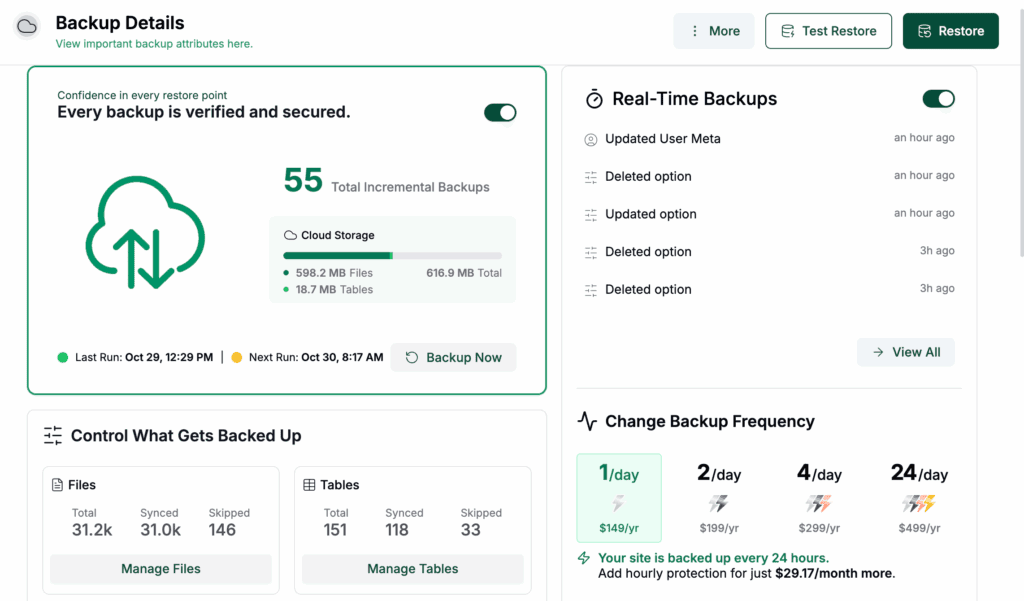
- A full backup of files and database. Plugin settings usually live in the database, so a files-only backup is not enough.
- A trusted plugin ZIP. Download it from WordPress.org, the plugin vendor, a GitHub/source repository, or the developer’s official site.
- Administrator access to WordPress. You need this for the dashboard upload method and post-update verification.
- File access as a fallback. Keep SFTP, cPanel File Manager, or SSH access ready in case wp-admin stops loading.
- A restore plan. Know how you will roll back before you start.
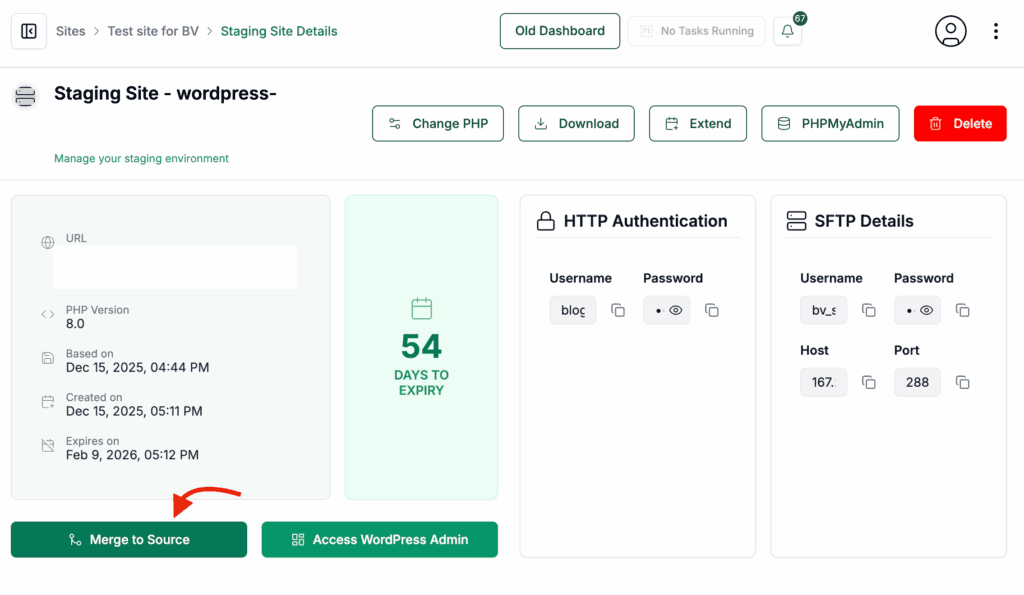
- A staging copy. Test the update away from visitors, especially if the site takes orders, collects leads, handles logins, or uses a page builder.
- A quiet update window. Avoid live checkout peaks, campaign launches, or heavy traffic periods.
- A changelog check. Look for new WordPress, PHP, theme, add-on, or dependency requirements.
Do not start if you cannot restore the site quickly. A manual update without a restore path is not maintenance. It is guessing with production.
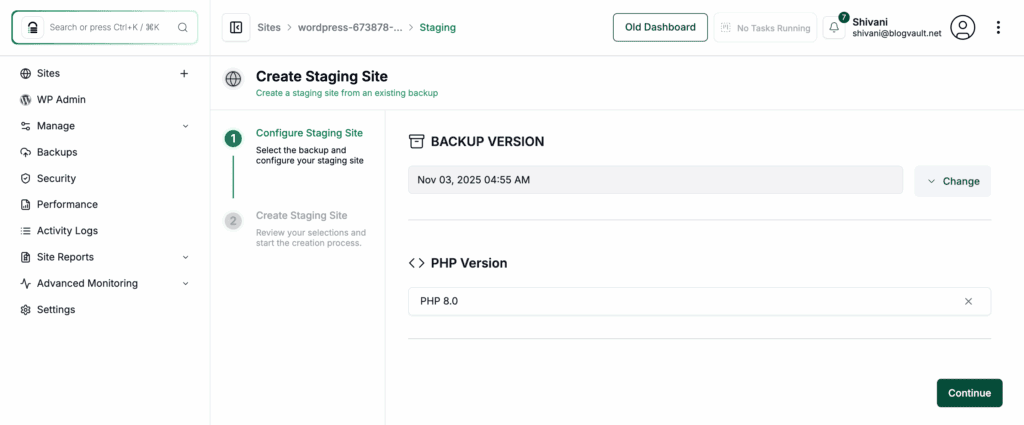
Use a staging site before you update the live site. On a small brochure site, that staging check may be quick: install the update, open the key pages, submit the contact form, and move on. On a WooCommerce store, membership site, LMS, or page-builder-heavy site, the same idea takes longer because there is more to break. The principle does not change.
BlogVault fits naturally here because it can create an on-demand backup and staging copy before the update. That matters most when the plugin controls revenue, user access, or the parts of the site visitors notice immediately.
Choose the Right Update Method
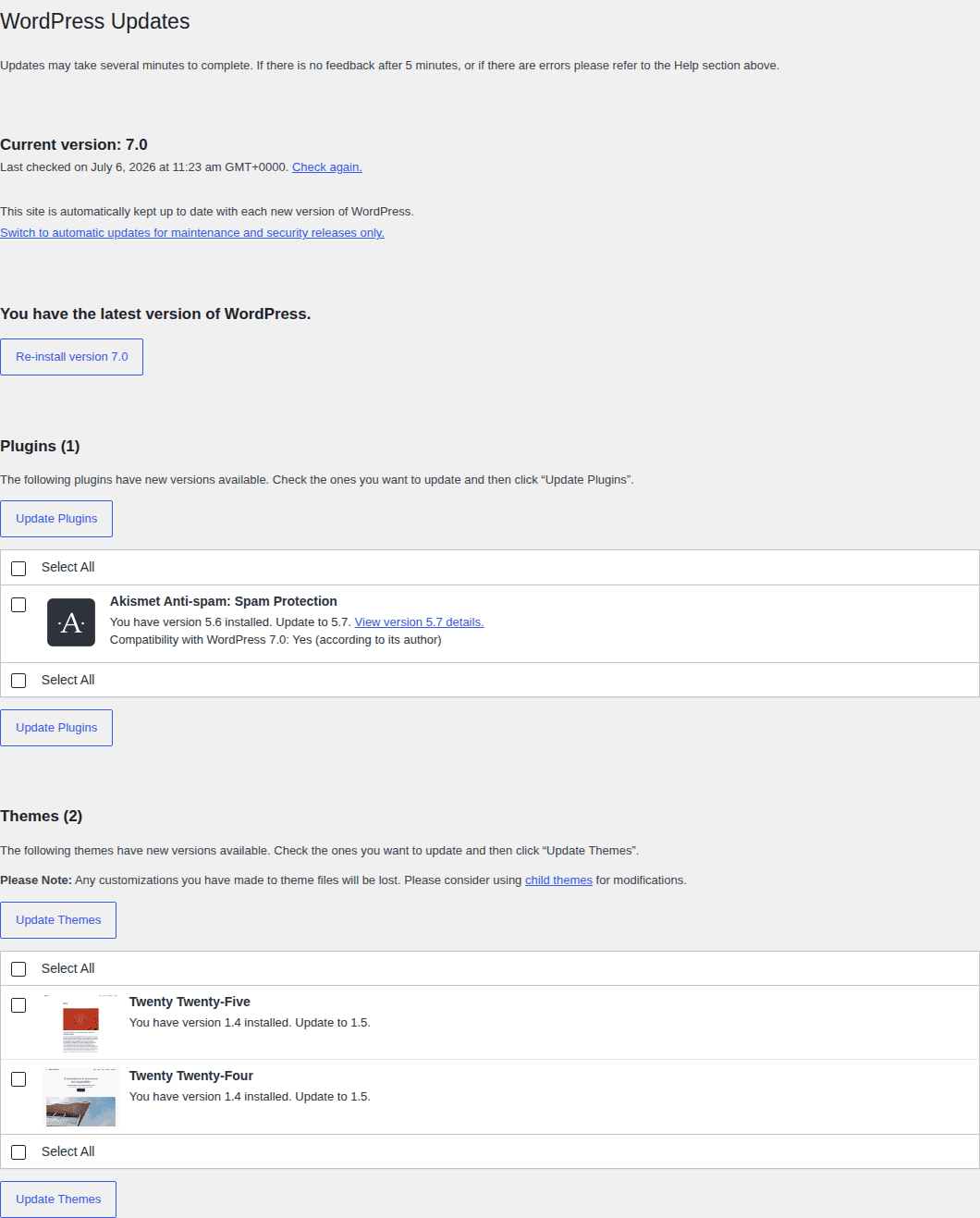
Use the easiest safe method first. For most site owners, that means the WordPress dashboard upload method.
| Method | Use it when | Access needed | Watch out for |
|---|---|---|---|
| wp-admin upload | You have a plugin ZIP and the dashboard works | WordPress admin | Older installs or unusual packages may not offer replace |
| SFTP or FTP | Upload fails, wp-admin is broken, or you need file control | Server file access | Wrong folder names and nested plugin folders |
| cPanel File Manager | You prefer the host file manager to an FTP app | Hosting login | Updating the wrong WordPress install |
| WP-CLI | You already use SSH and know the plugin slug | SSH access | Updating too many plugins at once |
The safest method is not always the most technical one. If WordPress can replace the plugin cleanly from the dashboard, start there. Reach for file access or commands when the dashboard path is unavailable, blocked, or too limited.
1) Update Through wp-admin
Start here if you can log in to WordPress and you have the latest plugin ZIP. This is the cleanest manual route because WordPress handles the replacement flow.

- Download the latest plugin ZIP from WordPress.org or the plugin vendor.
- In WordPress, go to Plugins > Add New Plugin > Upload Plugin.
- Choose the ZIP file and click Install Now. Wait for WordPress to inspect the package.
- If WordPress detects the installed plugin, choose the option to replace the current version with the uploaded version. Reactivate the plugin if WordPress asks.
- Go to Plugins > Installed Plugins and confirm the new version number. Test the feature the plugin controls.
This method is especially useful for premium plugins because paid updates often come from a vendor dashboard instead of WordPress.org. When WordPress finds the plugin is already installed, the replacement confirmation is the step that matters.
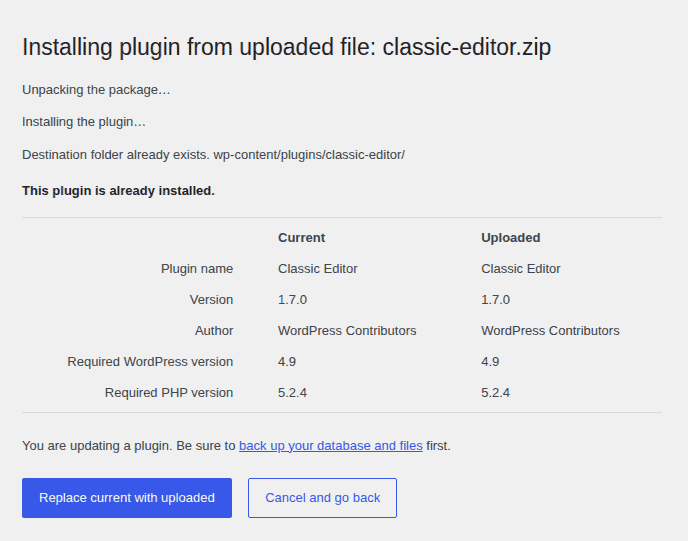
Stop if WordPress only says the destination folder already exists and does not offer a replacement option. Do not keep uploading different ZIP files and hoping one works. Use SFTP or cPanel so you can replace the folder deliberately.
2) Update With SFTP or FTP
Use SFTP when wp-admin is unavailable, the upload fails, or you need direct control over the plugin files. SFTP is better than plain FTP because it protects the connection. The job is simple: keep the old folder briefly, upload the new folder in the right place, then verify that WordPress sees the plugin.
- Take a fresh full backup, even if you already made one earlier.
- Download the plugin ZIP from the official source. Extract the ZIP on your computer.
- Connect to your site with an SFTP client. Open the WordPress install and go to wp-content/plugins.
- Rename the current plugin folder to something like plugin-name-old. Upload the extracted new plugin folder into wp-content/plugins.
- Confirm the final path is wp-content/plugins/plugin-name, not wp-content/plugins/plugin-name/plugin-name.
- Log in to wp-admin and check that the plugin is active. Confirm the version number and test the plugin’s main workflow. Delete the old renamed folder only after testing passes.
The folder path is where many manual updates go wrong. WordPress expects the plugin’s main files directly inside its plugin folder. If you upload one folder too deep, the plugin may disappear from the dashboard even though the files are on the server. Renaming the old folder is a quick file-level fallback. It is not a replacement for a real backup, but it can help if the new files fail immediately.
3) Update With cPanel File Manager
cPanel is useful when you have hosting access but do not want to set up an SFTP app. The workflow is the same as SFTP; you are just doing it through the host’s file manager.
- Download the latest plugin ZIP from the official source.
- Log in to your hosting account and open File Manager.
- Find the correct WordPress install. It may be public_html, but staging sites, add-on domains, and subdirectory installs often live elsewhere. Open wp-content/plugins.
- Rename the old plugin folder and keep it temporarily.
- Upload the plugin ZIP into the plugins folder. Extract the ZIP.
- Confirm the extracted plugin folder sits directly inside wp-content/plugins.
- Delete the uploaded ZIP file. Return to WordPress, confirm the plugin version, and test the feature it controls.
Do not assume public_html is your live site. If your hosting account has multiple WordPress installs, updating the wrong folder changes nothing on the site you meant to fix.
4) Update With WP-CLI
WP-CLI is the fast path for developers, agencies, and maintainers who already use SSH. If that sounds unfamiliar, skip this method. The dashboard, SFTP, and cPanel methods are safer for non-technical users.
List plugins with available updates:
wp plugin list --update=availableUpdate one plugin:
wp plugin update plugin-slugIf WordPress is not in your current directory, add the site path:
wp plugin update plugin-slug --path=/path/to/wordpressAvoid updating every plugin at once on a critical site. It is faster, but it makes troubleshooting worse. If checkout breaks after ten updates, you have ten suspects.
WP-CLI is excellent when you already have a tested rollback plan. It is a bad place to learn command-line WordPress maintenance during a live-site problem.
Will You Lose Plugin Settings?
Usually, no. Most well-built WordPress plugins store settings in the database, while a manual update replaces plugin files.
But “usually” is doing a lot of work there.
Some plugins keep generated files, templates, license files, cache files, or add-ons near the plugin folder. Major updates can also trigger database changes after the new version is installed. That is why a full backup must include both the database and the files.
Deactivating a plugin is not the same as uninstalling it. Deactivation usually turns the plugin off. Uninstalling is what usually removes plugin data. Poorly built plugins and unusual upgrade paths can still surprise you, so keep the backup.
This matters most for WooCommerce, Elementor, LMS plugins, membership plugins, form plugins, caching tools, and security plugins. If the plugin controls revenue, access, design, or protection, give it the slower and safer path. If a vendor gives special upgrade instructions for a major version, follow those over a generic tutorial. Vendor-specific migration steps usually exist because something changed beyond the plugin files.
Test Before and After the Update
The update is not finished when WordPress says the files installed. It is finished when the site still does the job visitors came for. On staging, test the exact work the plugin handles:
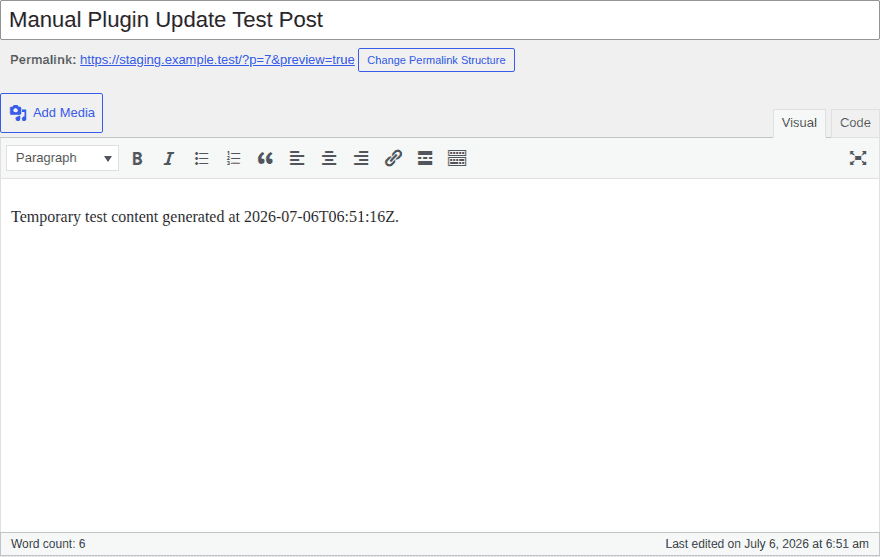
- For WooCommerce, check product pages, cart, checkout, payment, coupons, taxes, shipping, and order emails.
- For page builders, review home pages, landing pages, templates, headers, footers, and mobile layouts.
- For forms and account plugins, submit forms, confirm notifications, test logins, and check protected content.
- For cache, performance, and security plugins, clear cache, review logged-in behavior, confirm scans, and check alerts.
After the live update, run a shorter smoke test. Open the home page, a few important pages, wp-admin, the plugin settings screen, and the main workflow the plugin supports. Monitor important sites for 24 to 48 hours. Some issues appear only when a scheduled task runs, a cache expires, or a real customer uses a path you did not test.
Finish the Update Cleanly
These final tasks catch many “the update worked, but the site still looks wrong” problems.
- Confirm the plugin is active. Check the version number and make sure settings did not reset.
- Handle database prompts carefully. Plugins like WooCommerce may ask for a database update after the file update.
- Clear every relevant cache. Clear plugin cache, host cache, CDN cache, and browser cache.
- Check logs if available. Error logs can reveal warnings before users report them.
- Keep the old version briefly. Do not delete your fallback until the site has passed testing.
If WooCommerce shows a database update notice, slow down. The plugin file update and the database update are different operations. For critical stores, test that prompt on staging before running it live.
Plain version: files first, database second, cache last, then test like a customer.

If the Manual Update Fails
Do not keep trying random fixes on the live site. Your goal is not to prove you can solve the problem from inside WordPress. Your goal is to get the site stable with the least extra damage.
| Problem | First move |
|---|---|
| Site breaks after update | Restore the backup |
| wp-admin will not load | Rename the plugin folder through SFTP or cPanel |
| Site is stuck in maintenance mode | Remove the .maintenance file from the WordPress root |
| Plugin disappears | Check folder name and folder nesting |
| Upload fails | Check ZIP file, upload limits, permissions, and disk space |
| Checkout, forms, or layouts break | Restore or roll back to the previous plugin version |
WP Rollback can help with some plugins from WordPress.org, but it is not a universal undo button. It may not work for premium plugins, private plugins, custom plugins, or updates that changed the database.

Escalate to your host, plugin vendor, or developer when the failure affects payments, user accounts, database changes, missing vendor files, or repeated fatal errors. If wp-admin is down, an external restore dashboard is valuable. BlogVault can restore from outside WordPress, so you are not trapped inside a broken admin area.
Best Practices for Manual Plugin Updates
Manual updates are safer when they are part of a routine, not a panic move after something breaks.
- Update one critical plugin at a time. It makes troubleshooting much easier.
- Use only trusted ZIP files. A plugin file from a random download site is a security risk.
- Keep old files until testing passes. Deleting your fallback too early makes recovery harder.
- Check WordPress and PHP requirements before major updates. Compatibility problems are easier to prevent than untangle.
- Use staging before live updates. Spend more time on plugins tied to money, logins, forms, layouts, caching, redirects, or security.
- Disable auto-updates only when you have a manual update routine. Otherwise, you are just postponing maintenance.
- Delete unused or abandoned plugins. An old plugin nobody remembers can still become the one that causes trouble.
The plugins that deserve the most caution are closest to money, identity, and site structure: WooCommerce, payment gateways, memberships, LMS tools, page builders, forms, caching, redirects, and security plugins.
Final Thoughts
The safest way to manually update a WordPress plugin is to control the order: back up, test on staging, choose the right replacement method, verify the plugin’s real job, clear caches, and monitor the site after the update. Use wp-admin upload when you can. Use SFTP, cPanel, or WP-CLI when the dashboard route is unavailable or not enough.
Do not treat production as your test site. BlogVault is useful because it keeps the safety steps close together: backup, staging, and restore. That turns a risky plugin update into a controlled maintenance task.
FAQs
How do I manually update a WordPress plugin?
Back up the site, download the latest trusted plugin ZIP, and upload it through Plugins > Add New Plugin > Upload Plugin. If WordPress offers to replace the installed version, confirm it, then check the version and test the plugin.
What is the safest way to manually update a WordPress plugin?
Use a full backup, test the update on staging, and update one plugin at a time. Use the WordPress dashboard upload method first unless the dashboard is broken or the upload fails.
Can I manually update a plugin with FTP or cPanel?
Yes. Download and unzip the plugin, rename the old plugin folder in wp-content/plugins, then upload or extract the new folder there. Confirm the final path is correct before testing the site.
Will manually updating a plugin delete my settings?
Usually not. Most plugin settings are stored in the database, not in the plugin folder. Still, take a full backup because major updates, generated files, and database changes can create exceptions.
What should I do if a manual plugin update breaks my site?
Restore your backup first if the site is broken. If wp-admin will not load, rename the plugin folder through SFTP or cPanel to disable it. If the site is stuck in maintenance mode, remove the .maintenance file from the WordPress root.

Shivani enjoys crafting guides that make every aspect of using WordPress simple and easy to follow. When she's not glued to her laptop, you can find her buried in a good book or occasionally, painting.


