
You usually need a redirect after something has already changed. A page moved. A domain changed. A permalink was edited. An old campaign URL is still getting traffic. Now visitors and search engines need to land on the right page instead of a 404.
If you searched for how to redirect wordpress site to another url, the first thing to know is this: the right method depends on what you are redirecting and where the old traffic arrives.
Use a 301 redirect when a WordPress page, post, or site has permanently moved to another URL. Use a plugin for simple WordPress page redirects, and use hosting, DNS, Cloudflare, or server rules for whole-site or domain redirects.
A redirect is not the same as changing your WordPress site address. A redirect sends visitors from an old URL to a new one. The WordPress Address and Site Address settings tell WordPress where the site itself lives. Changing those settings for the wrong reason can lock you out of WordPress.
Choose the Redirect Method
The safest redirect is the one added where the old request is actually handled.
| Goal | Use this | Avoid this mistake |
|---|---|---|
| One page or post moved | Redirect plugin | Do not reverse the old and new URLs |
| A few old URLs changed | Plugin or server rule | Do not point every old URL to the homepage |
| Old domain moved to new domain | Old host, DNS, registrar, CDN, or server rule | Do not expect the new site to catch traffic it never receives |
| HTTP to HTTPS or www changes | Host, CDN, or server setting | Do not create duplicate rules in several places |
| WordPress.com address change | WordPress.com redirect or domain settings | Do not use self-hosted WordPress steps |
| Menu item should open another site | Custom menu link | Do not create a redirect when a normal link is enough |
| Redirect depends on user or page logic | PHP handled by a developer | Do not add code unless the condition truly needs it |
If someone visits an old domain, that old domain’s DNS, host, CDN, registrar, or server has to send them onward. A plugin on the new WordPress site cannot redirect an old domain if the old domain never points to that WordPress site.
Protect the Site
Redirect work is usually fixable, but only if you can undo the last change. Do this before you install a redirect plugin, edit server files, change DNS, or forward a domain.
- Create a backup: Backup your WordPress site by saving the WordPress files and database.
- Save the current server rules: Keep a copy of the .htaccess file if your host uses Apache or LiteSpeed.
- Map old URLs to final URLs: List each old address and where it should land.
- Choose permanent or temporary: Use 301 for a final move. Use 302 or 307 only if the old URL will come back.
- Confirm your access: Check whether you have WordPress admin, hosting, SFTP, DNS, registrar, CDN, or old-host access.
- Test one redirect first: Do not import a large list until one rule works.
Redirect One Page or Post With a Plugin
Use a plugin when the old URL is part of the WordPress site you control. This is the best beginner path for old posts, changed slugs, deleted pages with replacements, and small cleanup jobs.
The Redirection plugin is a common option. In our WordPress 6.9.4 test site, Redirection installed cleanly, appeared under Tools > Redirection, and showed version 5.8.0.
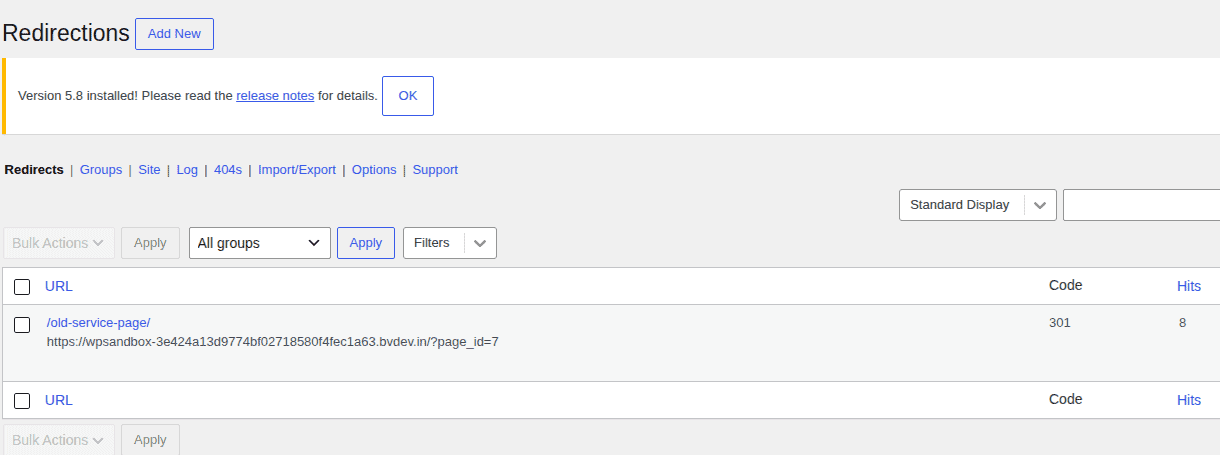
Use this for examples like:
- Old service page to new service page
- Old blog post to updated blog post
- Retired campaign page to the closest current landing page
Do not use a plugin as your first choice for an old-domain move unless that old domain already points to this WordPress install.
Plugin Steps
- Open the redirect screen: Search for Redirection, then install and activate it. Go to Tools > Redirection and complete the setup flow if prompted.
- Enter the old URL path: Add the old page path in the source field, such as /old-page/.
- Enter the final destination: Add the full target URL, such as https://example.com/new-page/.
- Choose the permanent status: Select 301 if the move is final.
- Save and test the old address: Open the old URL in a private browser window and confirm it lands on the right page.
The source is where the visitor starts. The target is where the visitor should land.

If the old URL might include tracking or query parameters, check how the redirect plugin handles those variants before you save the rule.


Redirect an Entire WordPress Site or Old Domain
A full-site redirect is usually part of a domain move. The redirect should happen after the new site is live and the important target pages are ready. If you still need to migrate your WordPress site, finish that first so the redirect points to a tested destination. Use this when:
- olddomain.com should go to newdomain.com
- old URLs should keep their paths on the new domain
- a migrated site needs old visitors to reach the new site
- an old site is being folded into another site
For most domain moves, preserve the path. That means olddomain.com/about/ should go to newdomain.com/about/, not just newdomain.com. Preserving paths is better for visitors because they reach the page they expected. It is also better for search because the old page points to the closest new match.
If the new site has a different structure, create a redirect map instead. Match each important old URL to the best new URL. Do this for high-traffic pages, pages with backlinks, product pages, service pages, and any page that brings leads or sales.
The warning here is important: the new WordPress site cannot redirect an old domain unless old-domain traffic reaches it. If the old domain still points to another host, add the redirect at the old host, registrar, DNS provider, Cloudflare, or server. If this redirect is part of a migration, keep a backup and restore point until you have tested the homepage, top pages, forms, checkout, login, and key posts.
Add a 301 Redirect in .htaccess
Use .htaccess only if your host uses Apache or LiteSpeed and you are comfortable editing server files. If your host uses Nginx only, .htaccess will not work. Use your host’s redirect tool, CDN rules, or server configuration instead.
Before editing, download a copy of the current .htaccess file. If the site breaks, restoring that file is often the fastest fix.
Single Page Redirect
Add this outside the WordPress-generated block:
Redirect 301 /old-page/ https://example.com/new-page/This sends only /old-page/ to the new URL.
Whole Domain Redirect With Paths Preserved
For a domain move, use a rule like this on the old domain’s hosting:
RewriteEngine On
RewriteRule ^(.*)$ https://newdomain.com/$1 [R=301,L]
This keeps the rest of the path. So an old services page lands on the matching services page on the new domain. Place custom rules carefully. In many WordPress setups, they should sit above or outside the WordPress-generated block so WordPress does not overwrite them.
Do not add a broad rule until you know the narrow rule works. One bad server rule can affect every URL on the site.
Use cPanel, Cloudflare, or Your Host’s Redirect Tool
Host and CDN redirects are often cleaner than making WordPress load only to send the visitor somewhere else. Use this for:
- Domain-level redirects
- HTTP to HTTPS
- www to non-www
- Old domain forwarding
- Redirects that should work even if WordPress is down
In cPanel, the path is usually Domains > Redirects. Choose 301 or 302, select the domain or path, enter the destination URL, save, and test. In Cloudflare, use Redirect Rules or Page Rules only if the old domain’s traffic already goes through Cloudflare. If Cloudflare is not in the traffic path, the rule will not fire.
This is the part that trips people up. The redirect screen can look correct while the traffic is going somewhere else.
Use PHP
PHP redirects are for developer-controlled logic. Use them when the redirect depends on WordPress conditions, not for normal page moves. Use PHP for cases like:
- Redirect logged-out users from a protected page
- Send one page template to another URL
- Redirect after checking a custom field
- Run a temporary campaign rule inside WordPress
Add the code in a small custom plugin or child theme. Do not edit a parent theme file because theme updates can replace your work.
add_action( 'template_redirect', function () {
    if ( is_page( 'old-page' ) ) {
        wp_redirect( 'https://example.com/new-page/', 301 );
        exit;
    }
} );
Two details matter. wp_redirect uses a temporary redirect unless you pass a status code, and it does not stop the page by itself. That is why the example includes 301 and exit. If the destination is based on user input or should stay inside your site, use wp_safe_redirect. That helps avoid open redirects, where a URL can send visitors somewhere you did not intend.
Avoid JavaScript redirects and meta refresh redirects unless you have no server-side option. They are weaker for users, search engines, and troubleshooting.
Handle These Special Cases Correctly
Some redirect problems look like WordPress redirects but need a different fix.
WordPress.com Sites
WordPress.com has its own redirect and domain-forwarding tools. If the old address is something like example.wordpress.com, use WordPress.com account or domain settings. Self-hosted WordPress plugin and .htaccess steps do not apply there.
Menu Links
If you only want a menu item to open another website, add a custom menu link. That changes the link visitors click. It does not need a redirect because there is no old URL to preserve.
Canonical Tags
A canonical tag tells search engines which version of similar content you prefer. It does not send visitors anywhere. Use a redirect when the old URL should no longer be used. Use a canonical tag when both pages stay live, but one should be treated as the main version for search.
Use the Right Status Code
The status code tells browsers and search engines how to treat the move.
- 301: Use this for permanent moves. This is the right choice for most moved pages, changed slugs, and domain migrations.
- 302: Use this for temporary moves when the original URL will return.
- 307: Use this for temporary moves when the request method must stay the same. Most simple WordPress redirects do not need it.
If you are unsure, test with a temporary redirect first. Switch to 301 only when the target is final. Browsers and CDNs can cache 301 redirects, so a wrong permanent redirect can be annoying to unwind.
Test the Redirect
A redirect is not done when the rule is saved. It is done when the old URL lands on the correct final URL with the correct status code.
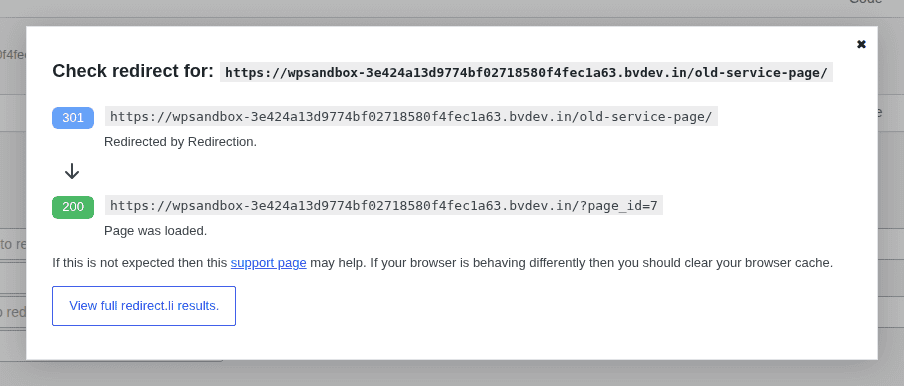
- Open the old URL privately: Use an incognito or private window.
- Check the status code: Use an HTTP status checker and confirm 301 for permanent moves.
- Confirm the final destination: Make sure the last URL is the exact page you intended.
- Test more than the homepage: Check top posts, service pages, forms, checkout, and login pages where relevant.
- Test URL versions: Check http, https, www, and non-www versions if they matter.
- Clear caches when results look stale: Clear browser, page, server, and CDN cache as needed.
- Watch Search Console after migrations: Check for crawl errors and unexpected 404s.
One successful homepage redirect does not prove a domain move is clean. It only proves the homepage redirected.
Fix Common Redirect Problems
Most redirect failures come from the same few causes: wrong location, stale cache, broad rules, duplicate rules, or old traffic not reaching the tool where the redirect was added.
| Problem | Fix |
|---|---|
| Redirect does not work | Confirm the old URL reaches the host, CDN, plugin, or server where the rule exists. Then check typos and clear cache. |
| Redirect loop | Remove duplicate rules and choose one version of the URL, such as HTTPS and either www or non-www. Learning how to fix too many redirects in WordPress is a useful skill if the loop blocks the site. |
| Redirect chain | Update the first rule so it points straight to the final URL. |
| Wrong status code | Change temporary redirects to 301 when the move is final. |
| Old domain never redirects | Fix DNS, registrar forwarding, CDN routing, or old-host rules so old traffic reaches the redirect handler. |
The troubleshooting question is always: where does the old request go first?
If a redirect breaks the site, do not keep stacking more rules on top. Revert the last change, confirm the site works again, then add the smaller version of the rule. This is where a restorable backup from BlogVault’s WordPress backup plugin can save a long support thread.
Keep Redirects Clean After Setup
Redirects become part of your site’s history. Keep them tidy so they do not create slow paths, confusing reports, or bad user journeys later.
- Keep important migration redirects long term: Especially URLs with traffic, backlinks, or business value.
- Update internal links: Menus, buttons, and posts should point straight to the final URL.
- Avoid homepage dumping: Send old pages to the closest useful replacement.
- Document the redirect map: Keep a simple sheet with old URL, target URL, status code, and reason.
- Audit after large changes: Look for 404s, loops, chains, and temporary redirects that should now be permanent.
- Remove test rules carefully: Check traffic before deleting anything old.
The best redirect is boring. Visitors land where they expected, search engines get a clear signal, and nobody has to think about the old URL again.
FAQs
How do I redirect a WordPress site to another URL?
Use a 301 redirect for a permanent move. For one page or post, use a redirect plugin or .htaccess. For a whole domain, add the redirect where the old domain is controlled: hosting, DNS, registrar, Cloudflare, CDN, or server rules.
Can I redirect a WordPress site without a plugin?
Yes. Use .htaccess, cPanel, Cloudflare, host redirect tools, DNS or registrar forwarding, server configuration, or PHP. Choose based on where the old traffic arrives and how much access you have.
Do I need access to the old website or domain?
You need control of the old traffic path. That may be old hosting, DNS, registrar, CDN, or WordPress admin. A new WordPress site cannot redirect an old domain if that old traffic never reaches it.
Should I use 301 or 302 for a WordPress redirect?
Use 301 when the move is permanent. Use 302 or 307 only when the original URL will come back.
Can I redirect every old page to my homepage?
You can, but you usually should not. Redirect each old URL to the closest matching page. Homepage redirects are poor for visitors and often weak for search.
Conclusion
Start by identifying the redirect type, then add the rule where the old traffic is handled. A plugin is best for simple WordPress page redirects. Hosting, DNS, Cloudflare, registrar forwarding, or server rules are better for domain-wide redirects. Use .htaccess only on hosts that support it, and use PHP only when the redirect depends on WordPress logic.
Before changing anything broad, back up the site, map the old URLs, test one redirect, and confirm the final result with a status checker. Redirects are small rules, but they control real traffic. The safest work is slow enough to test and easy enough to undo.

Shivani enjoys crafting guides that make every aspect of using WordPress simple and easy to follow. When she's not glued to her laptop, you can find her buried in a good book or occasionally, painting.