

You picked a redirection plugin to help manage your links, but now it’s creating the exact problem you hoped to prevent.
The ‘Simple 301 redirects not working’ message is a common issue that many WordPress users face.
While the impact on your traffic and SEO is serious, the solution is usually straightforward. This guide provides a direct checklist to diagnose the issue and get your redirects working correctly.
Fix Simple 301 redirects not working by clearing caches, checking for plugin conflicts, and inspecting your .htaccess file for errors. If the problem persists or to prevent issues, always use a backup plugin to safeguard your site.
Quick fixes to try
Before you begin editing server files, run through these simple checks. In our experience, one of these steps solves the issue more than half the time.

- Clear all caches. A browser or content delivery network (CDN) can hold onto an old, broken redirect and show you a cached error even after you have fixed it.
- Browser cache: Clear your browser’s history, cookies, and cached files completely.
- CDN cache: If you use a service like Cloudflare, log in to its dashboard and purge the cache.
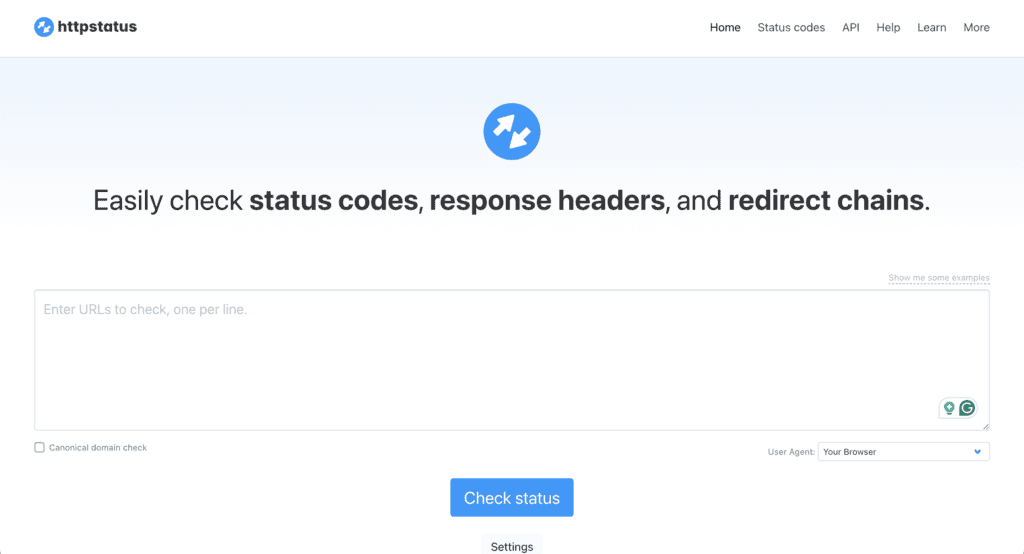
- Use an independent redirect checker. Your browser can be misleading. Use an external tool like httpstatus.io to see the real server response code. This shows what the server is actually doing, not what your browser thinks is happening.
- Perform final sanity checks.
- Check for typos. A single misplaced character in the source or destination URL will break the entire redirect.
- Confirm your SSL certificate. An invalid SSL setup can stop redirects from working correctly on HTTPS sites.
- Try a different browser. Use a different browser or an incognito window to confirm the issue is not specific to your primary browser’s cache.
- Check WordPress URL settings. In your WordPress dashboard, go to Settings> General. Ensure the WordPress Address (URL) and Site Address (URL) match exactly.
- Look for trailing slashes. Be consistent. A URL ending with / is different from one without it. Make sure both your source and destination URLs are correct.
In-depth troubleshooting for failing 301 redirects
If the quick fixes didn’t do the trick, the problem is a little deeper. We’ll walk through it step-by-step:
1. Make sure you are telling Google the right thing
A redirect is like a change of address form for a webpage, and there are two main types. It is important to use the correct one for search engines.
Your redirect should be set to 301 (Permanent). This signals to search engines that the page has moved forever and that all of its ranking power should be transferred to the new address.
If you use a 302 (Temporary) redirect, it indicates the move is not permanent, which prevents that SEO value from being passed along.
2. Consolidate to one “official” address
A single webpage can often be reached through multiple URL variations:
- http://yoursite.com
- http://www.yoursite.com
- https://yoursite.com
- https://www.yoursite.com
While they appear the same, search engines see them as four separate addresses. All versions of your URL must automatically point to one official version (usually the https://www. one).
If they do not, your website’s ranking power becomes split across multiple duplicate addresses. Forcing everything to point to one official URL ensures all that power is concentrated in one place.
3. Check the website’s configuration file
Your website has a master rulebook that tells it how to handle requests. This is a text file called .htaccess on most servers, and it contains all your redirect instructions.

You should look for old or conflicting instructions in this file. The server reads this rulebook from the first line to the last. If an old, forgotten rule is at the top, the server will follow that instruction and may never reach the new rule you added at the bottom. This is a very common reason why a new redirect fails to work.
4. Identify and fix redirect loops
A redirect loop happens when your website gets confused. It sends a visitor from Page A to Page B, but Page B immediately sends them right back to Page A.
Your web browser gets trapped in this endless circle, going back and forth until it gives up and shows an error like “Too Many Redirects.” When this happens, nobody can access your page.
To fix this, you need to find and remove the conflicting instruction that is causing the loop. Follow these steps to find the source of the problem.
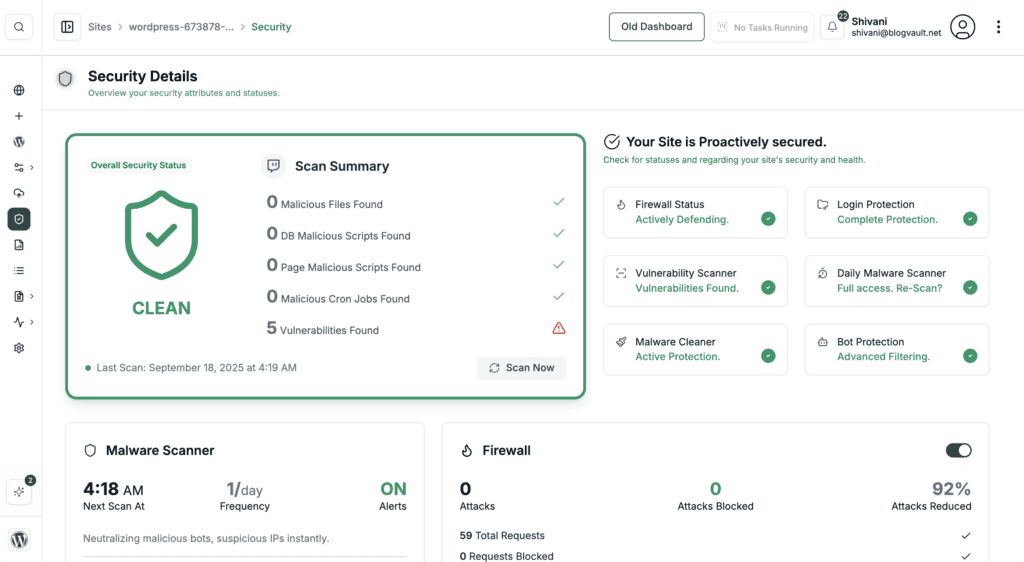
- Scan your site: Before checking for configuration errors, rule out a security breach. Malicious code from an attack can cause unexpected redirects. Use a reputable security plugin to run a complete scan.
- Clear browser cache: Clear your browser’s cache and cookies to ensure you are not seeing an old error.

- Test your theme: Temporarily switch to a default WordPress theme (like “Twenty Twenty-Four”) to rule out a theme conflict.
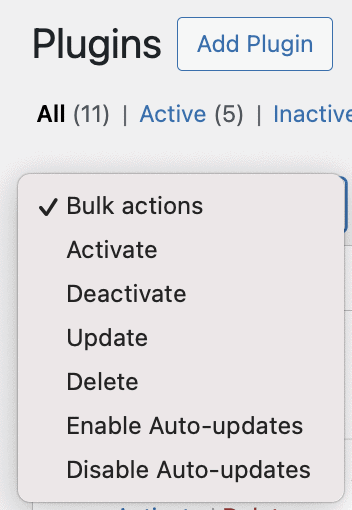
- Disable plugins: This is the most common cause. Deactivate plugins one by one until the error stops to find the culprit.
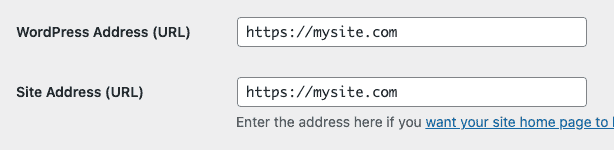
- Check URL settings: In Settings > General, make sure your WordPress Address and Site Address URLs are identical.
- Ask about a dedicated IP: Contact your host to see if a dedicated IP is needed to resolve rare SSL conflicts.

- Restore the .htaccess file: Rename your .htaccess file to .htaccess_old. Then, go to Settings > Permalinks and click Save Changes to generate a fresh, clean one.
Alternative approaches for redirection
If you cannot find the source of the problem, you still have options.
- Switch to a different redirect plugin. Sometimes a plugin is simply not compatible with your server setup or another plugin. The easiest next step is to try a different, well-regarded redirect plugin.
- Implement manual redirects. Adding 301 redirects directly to your server’s .htaccess file or functions.php file is a reliable method. It bypasses any potential plugin conflicts entirely.
- Contact your web host. If you are not comfortable editing server files, contact your hosting provider. Give them the specific source URL, the intended destination URL, and the troubleshooting steps you have already taken.
Best practices to prevent Simple 301 redirects not working
Properly managing redirects is about being systematic. Follow these rules to prevent most future problems.
- Document every URL change you make in a spreadsheet.
- Plan your site’s URL structure for long-term growth.
- Use a consistent policy for www prefixes and trailing slashes.
- Always redirect a URL directly to its final destination; avoid redirect chains.
- Update all internal links on your site to point to the new, final URLs.
- Use Google Search Console to monitor your site for redirect errors.
Parting thoughts
Remember, a 301 redirect is an instruction for your server. Because caching is the most common reason a redirect seems to fail, always trust an external checker tool over what your browser shows you.
Once you’ve confirmed the server-side redirect is working, two final steps are crucial for good site management. First, update all internal links to point directly to the new URL instead of relying on the redirect for navigation. Second, document your changes. This simple step will prevent a lot of headaches down the road.
FAQs
Why is my 301 redirect not working?
Your 301 redirect is likely not working due to common issues like browser caching, typos in the URLs, plugin conflicts, or incorrect rules in your server’s .htaccess file.
How to solve 301 redirects?
You can solve 301 redirects by first clearing all caches and verifying the URLs for typos. If the problem persists, you should then disable plugins to check for conflicts and inspect your .htaccess file for errors.
Why aren’t my redirects working?
Your redirects aren’t working because of a problem that is typically caused by browser cache, server cache, plugin conflicts, or an incorrect server configuration. A systematic check of these areas will usually reveal the problem.
How to fix a 301 error?
You fix a failing 301 redirect by troubleshooting its cause, which involves checking your redirect setup, clearing caches, and looking for plugin or server rule conflicts. A 301 itself is not an error but a status code for a permanent move.
How to fix a failed redirect error?
To fix a failed redirect error, you must check your redirect rules for loops or syntax errors and also ensure the destination page actually exists. This error usually means the server could not complete the redirect request.
How to fix the page that isn’t redirecting properly?
You can fix a page that isn’t redirecting properly by using a redirect checker tool to find and resolve a redirect loop. This error message often indicates that pages are redirecting back and forth, frequently because of conflicting HTTPS and www rules.

Shivani enjoys crafting guides that make every aspect of using WordPress simple and easy to follow. When she's not glued to her laptop, you can find her buried in a good book or occasionally, painting.


