

Fixing WordPress Errors like this one doesn’t have to be difficult. We’ll break it down for you.
I was working on a client’s e-commerce site, adding a simple “remember me” checkbox to the login form. I uploaded the files, tested the login, and—boom—there it was: “Warning: Cannot modify header information – headers already sent by…” sprawled across the top. I frantically refreshed the page, hoping it was just a fluke, but the WordPress error persisted.
If you’re reading this, you’re probably going through the exact same thing right now. Maybe you just added a redirect to your WordPress theme or made a change to your header file. Whatever triggered it, you’re likely staring at that same error message.
The good news? After countless hours of research and troubleshooting, I found a set of fixes to solve this error quickly. I’ll show you everything I’ve learned in this article.
Take a backup before you start. Resolving this error often requires making changes to your WordPress core files, theme files, or plugin code. The safety net of a backup will save you from turning a simple header error into a completely broken website.
Understanding“cannot modify header information – headers already sent by” error
The “cannot modify header information – headers already sent by” when something is sent to the browser before WordPress has a chance to set the HTTP headers. But, what does that really mean?
When you visit a webpage, your browser receives information in a specific order. First come the security headers (invisible instructions about the page’s content type, character encoding, and other technical details), then comes the actual content you see. WordPress follows this same pattern, but if any output slips through before those headers are sent, everything breaks.
Expert Advice: install a staging plugin before you start. Choose a reliable one that helps you easily create a test site so you can troubleshoot the error without causing any issues to your live site.
Understanding “cannot modify header information – headers already sent by”?
The “headers already sent” error is almost always caused by one of a handful of culprits. These triggers range from nearly invisible issues like extra whitespace in your code files to more obvious problems like forgotten debugging statements. Identifying the correct trigger is the first step to troubleshooting it. But, here are the potential triggers:
Once you understand what’s causing the “headers already sent” error, fixing it becomes a systematic process. Sometimes just removing a single space or line break will save your site. What you need to do is find the problem and solve it, specifically.
Step 1: Identify the problem file
The error message itself is your roadmap to the solution. When you see “Warning: Cannot modify header information – headers already sent by (output started at /path/to/file.php:123)”, WordPress is telling you exactly where the problem lives—the file path and the specific line number where unwanted output began.
Once you’ve identified it, you can edit the file through several methods. I used Cyberduck, an FTP client. But, you can use your cPanel’s File Manager or SSH. Then, open the file in a code editor or as a text file.
Most code editors display line numbers along the left side. Find the line mentioned in the error message—this is where WordPress detected the unwanted output. However, the actual problem might be on the lines immediately before or after, so examine the surrounding code carefully.
Step 2: Check for Whitespace Before PHP Opening Tag or After PHP Closing Tag
Invisible whitespace is the silent killer behind most “headers already sent” errors.
When your PHP files contain even a single space, tab, or line break before the opening <?php tag or after a closing ?> tag, that whitespace gets sent to the browser immediately—before WordPress has a chance to send its headers.

Since you can’t see these characters, they’re incredibly frustrating to track down, but they’re also the easiest to fix once you know where to look.
- Remove all whitespace before <?php tags – Your PHP files should start immediately with <?php with absolutely nothing before it, including spaces, tabs, or blank lines
- Delete unnecessary closing ?> tags – Files containing only PHP code (like functions.php or wp-config.php) don’t need closing tags at all, and WordPress actually recommends omitting them to prevent trailing whitespace issues
- Enable whitespace visualization in your code editor – Use View > Render Whitespace in VS Code or View > Show Symbol > Show All Characters in Notepad++ to reveal invisible characters that might be causing problems
- Save files with proper encoding – Ensure your files are saved as UTF-8 without BOM (Byte Order Mark), as the BOM can act like invisible characters that trigger the error
Step 3: Check for HTML Output Before header() Function Call
When WordPress or your custom code tries to send headers using the header() function (for redirects, cookies, or content types), any HTML output that has already been sent to the browser will trigger the “headers already sent” error.
This commonly happens when HTML, for elements, echo statements, or even error messages appear before WordPress attempts to modify headers. The browser has already started receiving content, so it’s too late to send additional header information.
- Remove any HTML tags before PHP code: Delete tags like:
<html>
<head>
<body>>
or any other HTML elements that appear before your PHP opening tag or header function calls
- Delete echo, print, or var_dump statements: Remove any PHP output functions that execute before WordPress sends headers, especially debugging code you may have forgotten to remove
- Move header() calls before any output: Ensure all header(), setcookie(), or session_start() functions happen before any HTML, whitespace, or echo statements in your code
- Check for error messages or warnings: PHP errors, notices, or warnings that display before header functions count as output, so fix any underlying PHP issues that might be generating error messages
- Use output buffering as a temporary fix: Add ob_start() at the beginning of your PHP file to capture output in a buffer, though this is a workaround rather than a permanent solution
- Verify plugin or theme conflicts: Deactivate recently installed plugins or switch to a default theme to see if third-party code is sending unexpected output before headers
Step 4: Check for UTF-8 Byte Order Mark (BOM)
The UTF-8 Byte Order Mark (BOM) is an invisible character sequence that some text editors automatically add to the beginning of files to identify them as UTF-8 encoded. While this seems harmless, the BOM acts like hidden content that gets sent to the browser before WordPress can send its headers. This is particularly problematic because the BOM is completely invisible in most editors, making it one of the trickiest causes of the “headers already sent” error to diagnose and fix.
Expert Advice: Even login issues can be caused by BOM errors. So, fix this problem quickly and correctly.
- Save files as “UTF-8 without BOM: In your code editor’s save dialog, specifically choose “UTF-8 without BOM” instead of regular UTF-8 to prevent the BOM from being added to your files
- Use a BOM detection tool: Online tools like “BOM Checker” can scan your files and identify which ones contain the problematic byte order mark
- Switch to a developer-friendly editor: Code editors like VS Code, Sublime Text, or Notepad++ give you explicit control over BOM settings, while basic text editors often add it automatically without warning
- Re-save problematic files: If you suspect BOM is the issue, open the file in a proper code editor, copy all the content, create a new file, paste the content, and save as UTF-8 without BOM
- Check your FTP transfer settings: Some FTP clients can add BOM during file transfers, so ensure your FTP software is set to transfer files in binary mode rather than ASCII mode
- Examine recently edited files first: If the error appeared after editing wp-config.php, functions.php, or theme files, these are the most likely candidates to have acquired a BOM during the editing process
Step 5: Check and Correct PHP Output Buffering Settings
PHP output buffering controls when content gets sent to the browser, and improper buffering settings can either cause or mask “headers already sent” errors. When output buffering is disabled or configured incorrectly, even tiny amounts of output (like whitespace or error messages) get sent immediately to the browser, preventing WordPress from sending headers later. Conversely, if buffering is enabled but not properly managed, it can create unpredictable behavior where the error appears intermittently or only under certain conditions.
- Check your php.ini output buffering settings: Look for output_buffering = Off or output_buffering = 0 in your php.ini file, which means content gets sent immediately instead of being buffered until headers are ready
- Enable output buffering temporarily: Add ini_set(‘output_buffering’, ‘On’); or ob_start(); at the very beginning of your problematic PHP file to capture output until you can send headers properly
- Verify buffer size limits: If output_buffering is set to a small number (like 1024), increase it to handle larger content blocks that might exceed the buffer and trigger premature output
- Check for conflicting ob_start() calls: Multiple ob_start() calls in different files or plugins can create nested buffers that interfere with each other, so review your code for duplicate buffering attempts
- Clear output buffers properly: Use ob_end_clean() or ob_get_clean() to properly manage buffers instead of letting them overflow and send content prematurely to the browser
- Contact your hosting provider: If you can’t modify php.ini settings directly, ask your host to enable output buffering at the server level, as this is often a hosting configuration issue rather than a code problem
After implementing these fixes, clear your cache and test your site thoroughly. Make sure the “headers already sent” error is completely resolved. Check all the pages and functionality that were previously broken, including login forms, contact forms, and any redirects.
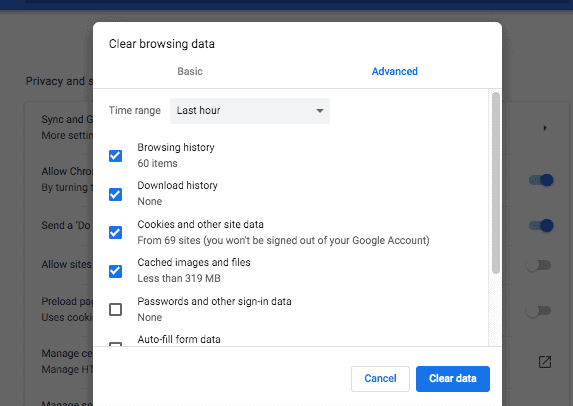
If you’re still seeing the error despite following these steps, the problem might be at the server level. Contact your hosting provider and ask them for help.
Preventing the “cannot modify header information – headers already sent by ” error
The “headers already sent” error doesn’t just break functionality—it can crash your site at the worst possible moments, damage user experience, and create emergency situations that could have been easily avoided. Rather than constantly fighting this error after it appears, implementing preventive coding practices will save you countless hours of troubleshooting and protect your site’s reliability. A few simple habits can virtually eliminate this error from ever occurring in your WordPress development workflow.
- Avoid closing PHP tags at the end of files: Never use ?> in files that contain only PHP code (like functions.php or wp-config.php), as WordPress recommends omitting closing tags to prevent trailing whitespace issues
- Be meticulous with blank spaces: Always check for invisible whitespace before <?php tags and after any closing tags, especially when copying code from external sources or making quick edits
- Review plugin and theme code carefully: Before installing new plugins or themes, check reviews for header-related issues, and inspect any custom code for proper output handling and header management
- Enable debugging during development: Add these lines to your wp-config.php file to enable debugging and catch issues early: define(‘WP_DEBUG’, true);, define(‘WP_DEBUG_LOG’, true);, and define(‘WP_DEBUG_DISPLAY’, false);
- Test all changes on staging sites: Never make code changes directly on your live site; use a staging environment to test modifications and catch header errors before they affect real visitors
- Keep everything updated: Regularly update WordPress core, themes, and plugins, as newer versions often fix header-related bugs and improve code quality that prevents these errors
- Follow WordPress coding standards: Use proper PHP opening tags, avoid unnecessary output, and structure your code according to WordPress best practices to maintain clean header management throughout your site
Final thoughts
The “headers already sent” error might seem intimidating at first, but with the systematic approach we’ve covered, you can quickly identify and eliminate the source of the problem. Remember that this error is almost always caused by something small and fixable—a stray space, an unnecessary closing tag, or a forgotten debug statement.
Since fixing this error often requires making changes to critical WordPress files, having a reliable backup system is essential. Consider using a robust backup solution like BlogVault. It creates automatic, comprehensive backups of your entire site. It’s also easy to restore and can recover your site 100% of the time.
FAQs
What are headers?
WordPress headers are HTTP headers—invisible instructions that WordPress sends to your browser before any visible content appears. These include redirect commands (like sending you to the dashboard after login), cookie settings (for maintaining login sessions), content-type information (telling your browser it’s receiving HTML), and security instructions. They’re completely separate from the HTML <head> section you see in page source—WordPress headers happen at the server level before any HTML is generated. Once any content reaches the browser, WordPress can no longer send these crucial behind-the-scenes instructions, which is why the “headers already sent” error breaks essential functions like logins and redirects.
How to solve warning cannot modify header information headers already sent by?
The solution involves identifying the source of unwanted output that’s being sent before WordPress can send headers. First, look at the error message to find the specific file and line number causing the problem. Then check for invisible whitespace before <?php tags or after ?> tags, remove any HTML output or echo statements that occur before header functions, and ensure your files are saved as UTF-8 without BOM. Most cases are resolved by simply removing extra spaces or deleting unnecessary PHP closing tags from files like functions.php or wp-config.php.
Why can’t I modify header information in WordPress?
WordPress follows the fundamental web rule that HTTP headers must be sent before any content reaches the browser. When something—even invisible whitespace, error messages, or output from plugins—gets sent to the browser first, it’s too late for WordPress to send or modify headers. This prevents essential functions like redirects, setting cookies, or sending content-type information. WordPress needs a completely clean slate with zero output to properly manage headers for login systems, form submissions, and other critical functionality.
What is header already sent by error in WordPress?
This error occurs when WordPress tries to send HTTP headers (like redirects or cookies) but discovers that content has already been output to the browser. The error message specifically tells you which file and line number first sent output, breaking the required sequence of headers-first, content-second. It’s one of the most common WordPress errors, typically caused by invisible whitespace, forgotten debug statements, or poorly coded plugins that output content at the wrong time during the page loading process.
How to check if headers are already sent in PHP?
Use PHP’s built-in headers_sent() function to programmatically check if headers have been sent. This function returns true if headers have already been sent, or false if they haven’t. For more detailed information, use headers_sent($file, $line) which will populate the $file and $line variables with the location where output first occurred. You can add conditional logic like if (!headers_sent()) { header(‘Location: /redirect-page’); } to prevent header modification attempts when it’s already too late.

Shreya has been a writer for as long as she can remember. Now, she writes articles that help WordPress users manage the sites that they're proud of, with little to no coding


