WordPress staging has saved me from crashing my site or losing important data, time and time again. This WP Staging review is to help you decide if it’s the right plugin for your staging needs.
We’ve all heard this story. A plugin auto-updated overnight and you’ve woken up to a blank screen. You now have to figure out which plugin caused the issue and roll it back. Then, figure out how to update it safely. More time spent troubleshooting means more downtime. More loss of traffic and sales. A staging plugin could save you a lot of trouble.
WP Staging turned out to be a popular option on forums and articles. I tested the plugin out with a small test site and put it through the wringer. This article will give you everything you need to know before you install the plugin.
Verdict: I typically use a staging plugin like BlogVault on all my sites. In comparison, I found WP Staging to be slow, inadequate, and potentially risky due to security and SEO concerns. I would not recommend the plugin. For a truly reliable and fast staging solution, I recommend using BlogVault’s staging instead.
What is WP Staging?
Let’s start at the beginning. WP Staging offers a one-click solution to create a test site. It is primarily aimed at individual bloggers and small website owners working with basic WordPress sites. Its claim to fame is offering a free entry point into the world of WordPress staging environments. You can create a staging site to experiment with updates, design changes, and new functionality without risking your live website.

I would only recommend this plugin for simple websites with minimal traffic and non-critical applications. Major testing like UI/UX changes may be difficult to do with the free version. It’s fairly easy to use and requires no coding. This makes it a great option for beginners as well. However, for agencies managing multiple sites,WooCommerce Stores or those website admins with large sites, I’d recommend you look elsewhere. In my experience, BlogVault does a top notch job at staging.
Setup and Usability
A WP Staging plugin review has to start with the initial setup process. In my experience, it is one of its few redeeming qualities. Installing and activating the plugin follows the standard WordPress procedure – search for the plugin, install, and activate. You’re all set in just a few minutes.
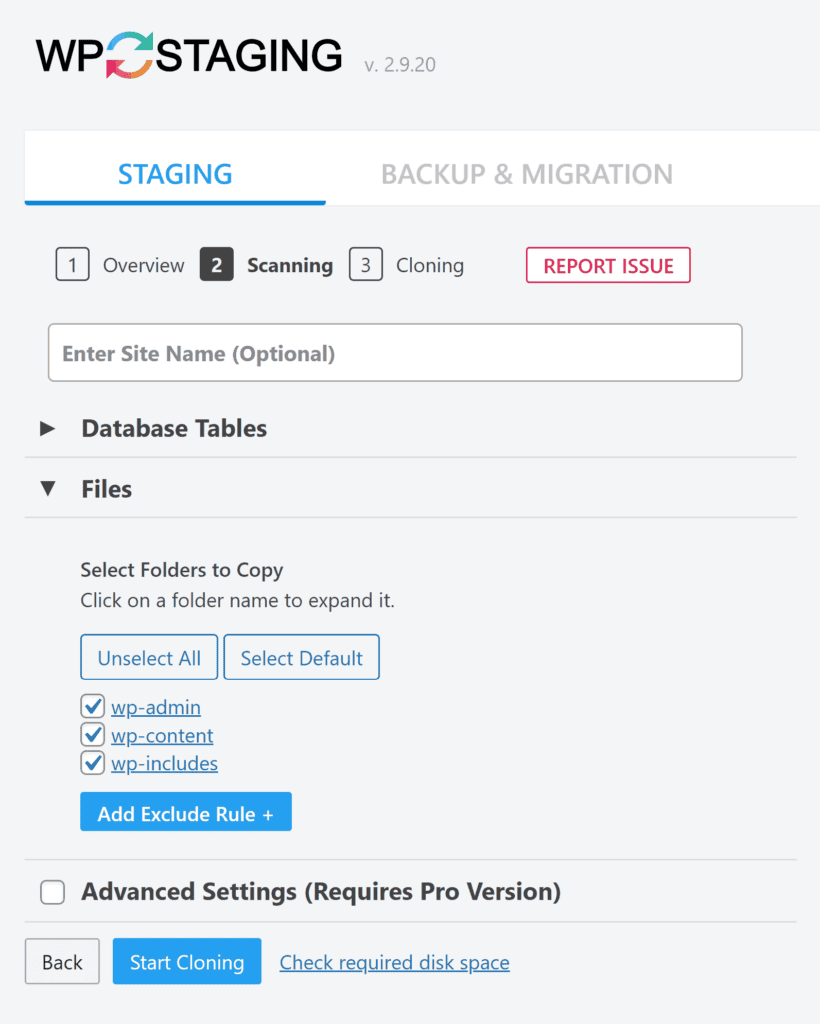
For users looking to create a staging website for the first time, this straightforward installation provides an accessible entry point that doesn’t demand technical expertise. The plugin appears to be ready to use almost immediately after activation, which at first glance seems promising.
The plugin conveniently integrates into your admin panel and the user interface is pretty easy to navigate. However, the dashboard is cluttered with an excessive number of options, buttons, and information fields that compete for your attention.
One-Click Staging Solution
Creating a test site with WP Staging for WordPress is designed to be a straightforward process. Here’s what you have to do:
- Navigate to the WP Staging section in your WordPress admin dashboard
- Click the prominent Create Staging button
- Review the options to customize your staging environment
- Select which database tables you want to include in the clone
- Choose which files you want to duplicate
- For more selective cloning, deselect all items initially
- Then choose only the specific elements you want to include
- Once selections are complete, click the Start Cloning button
Wait for the duplication process to complete
Then, go to the WP Staging dashboard, select Staging Sites, and then find the Actions dropdown menu for your newly created site. From there, selecting Open will direct you to the staging site. You’ll have to login using your admin credentials.

The plugin took a really long time to clone my test site. I’ll dive into that in a later section. But, for now, let’s talk about how WP Staging works. It creates a staging site by creating a new subdirectory within your existing WordPress installation, typically named with a prefix. In our case, it was called “/reliant/”. This folder becomes the root directory for your staging site, containing all the duplicated files and connecting to the cloned database tables you selected during setup.
Pushing changes to the live site
You can’t automatically push changes to the live site. You’d have to replicate the changes you made, on your live site or upgrade to a subscription plan.
For Pro users who have upgraded, the actual push process is relatively straightforward. You simply navigate to your staging site list, click the Actions dropdown menu next to your staging site, and select Push Changes. This initiates the process of transferring your modifications from the staging environment back to your production site. It’s easy and I’d recommend you upgrade your subscription if you are making major design changes or revamping your website.
Syncing Users Between Live and Staging
WP Staging user management features, in my experience, offer only the bare minimum functionality needed for handling staging site access. I appreciate that the plugin attempts to synchronize user accounts between live and staging environments, I’ve found this implementation to be rather basic. However, I do love that I was able to test user-specific features or permissions.
An important feature of a staging site is that it is only accessible to relevant members of your team or your clients. WP Staging offers a temporary login link that you can send out but it’s a very limited feature.
Pro vs Free: Should you upgrade?
WP Staging pricing starts with a free version that offers limited functionality, essentially providing just the basic staging site creation capabilities. For those needing more comprehensive features, particularly the crucial ability to push changes to the live site, paid plans begin at $8.33 per month.
Here’s a comparison of the free and pro versions:

Performance Issues with WP Staging
If you’re cloning a site, you need an immediate solution.You’re likely about to update some plugins, test some UI or make major changes. You want a staging site quickly. Otherwise, it’s eating into the time it’s taking to perform basic maintenance tasks.
WP Staging performance falls dramatically short of expectations in my testing. My test site is 206 MB and the plugin took 15 minutes and 38 seconds to clone a site. To put this in perspective, performing the same operation with BlogVault’s staging solution took just 26 seconds for the identical site.
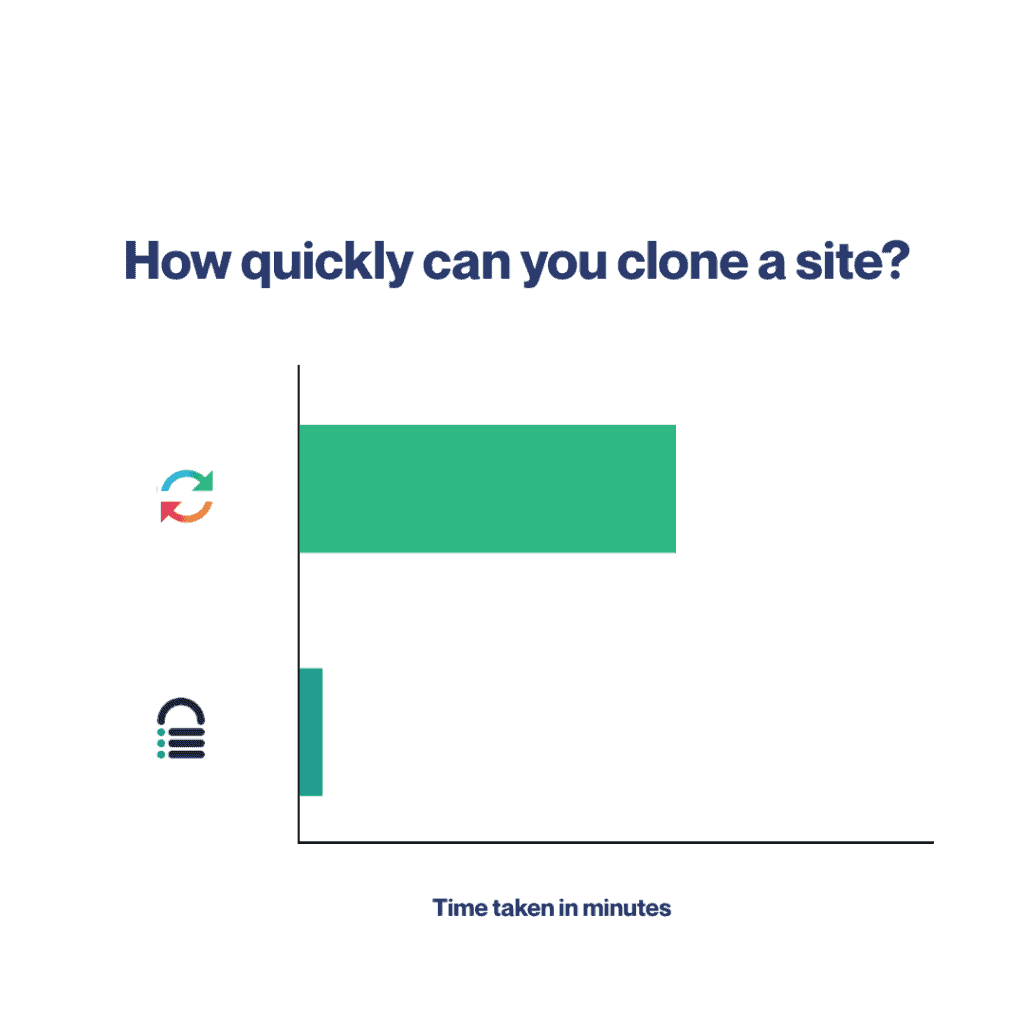
This massive difference in performance isn’t just a minor inconvenience; it represents time wasted waiting for processes to complete.
Some things to consider
I’ve talked about how to use the plugin, how much it costs and how it works. But, before making your final decision about WP Staging, there are a few things to consider.
Disk usage considerations:
The process of creating a subdirectory within your WordPress installation adds some load to your server resources. After we built the staging site, we checked our server load and found a spike.

This may not be a viable option for you if you have limited disk space or a large site. It can significantly slow down your website performance.
Security concerns:
You will likely have to worry about fixing website hacks on your site with the WP Staging handles security. Your staging site lives on the same server as your live site. This proximity creates a concerning vulnerability chain where any security issue of your staging environment could potentially provide attackers with a direct pathway to your live site.
Professional web development best practices recommend complete isolation between testing and production environments, but WP Staging’s approach makes this impossible. This shared server space creates an expanded attack surface that potentially puts your business-critical live site at risk.
SEO concerns:
A WordPress sandbox plugin should be intelligent enough to make sure search engine bots don’t have access. WP Staging does implement some basic safeguards by automatically adding nofollow and noindex tags to staging site pages. This prevents major search engines from indexing duplicate content, protecting your search rankings. However, this implementation has notable limitations.
While Google and other major search engines will respect these directives, the protection doesn’t extend to all bots. Alternative crawlers, data scrapers, and other automated tools might still discover and index your staging content. This partial protection creates a potential risk of content leakage and possible duplicate content issues that could indirectly cause a drop in traffic.
Should you use it?
Short answer? Look for some WP Staging alternatives.
While having access to a free staging solution might seem appealing on the surface, particularly for small, basic websites, my experience suggests that you look elsewhere. For starters, WP Staging took far longer to clone the same site. Second, the staging site takes up a lot of server resources, slowing down your live site. You also need to upgrade to a paid subscription to push your changes to your live site, automatically.
After all my testing, I think it could be a good plugin for a small website with very little traffic or maintenance. It’s the only way I could live with the flaws of the plugin. For a bigger website or an ecommerce site, I’d recommend BlogVault.
FAQs
What is the best staging site?
Based on my extensive testing of WordPress staging solutions, BlogVault provides the best combination of speed, reliability, security, and usability. Unlike WP Staging, it offers complete isolation between staging and production environments while delivering significantly faster performance.
Is WP Staging good?
WP Staging falls short in several critical areas including performance, security, and user experience. While it does provide basic staging functionality, its extremely slow operation and potential security vulnerabilities make it difficult to recommend for professional use.
How does WP Staging work?
WP Staging creates a copy of your live WordPress site in a subdirectory on the same server by duplicating selected files and database tables. Users can then make changes to this copy without affecting the live site, though pushing changes back requires the Pro version.
What is the difference between WP Staging and Duplicator?
WP Staging creates a staging site within your existing WordPress installation, while Duplicator focuses on creating complete WordPress site packages for migration or backup purposes. Duplicator excels at moving sites between hosts or creating backups, while WP Staging aims specifically at creating testing environments, though with significant performance and security limitations.

Shreya has been a writer for as long as she can remember. Now, she writes articles that help WordPress users manage the sites that they're proud of, with little to no coding