Moving a WordPress database is not a cakewalk. WordPress migration in general isn’t a cakewalk.
- You wonder if your content and pages will survive.
- You’ve worked hard on your WordPress site.
- You wonder if you have to hire an expert.
These concerns are valid, but not necessary.
You can transfer your WordPress database with ease. Protect data integrity with clear steps. We will show you how to safeguard your site’s data, and accomplish your goal.
The safest way to transfer a database is to use BlogVault. However, we always recommend moving the entire site. Migrating only a WordPress database can cause issues like broken functionality and SEO problems.
Why do you need to move (just) a WordPress database?
Whenever we talk about migrating a WordPress site, typically you want to move the entire site. A site has files and a database. One cannot work without the other.
For instance, if your existing web host is low-powered, most migration plugins will fail. Because they use your site server for the heavy lifting. Even so, database migration is not the answer. Use Migrate Guru instead.
Migrate Guru uses proprietary servers to transfer sites from one host to another.
Another reason to move just the database may be for backups. Again, this is because of flawed advice. While partial backups may save space, they are very difficult to restore. What’s the point of a backup if you can’t restore it in a crisis?
Are there legitimate reasons to transfer the database?
Yes, when going from a local server to a live one.
When moving from localhost to live, separate parts can help. By splitting the process, you keep better control. This helps all content and data transfer as safely as possible.
That being said, we’re not one to judge. If you need to move your WordPress database, we will show you all the ways you can do that.
Step 1: Preparing to move a WordPress database
Before migrating anything, you need to prepare.
- You must backup your entire WordPress site. This means saving both the site files and the database. Backups are essential as they allow you to restore your site if any issues occur during migration.
- Stop anyone from making changes on your site. Enable maintenance mode.
- Get your phpMyAdmin credentials; or whichever database manager your host uses.
Now you’re set to transfer the database.
Step 2: Transfer WordPress database
There are a few ways of exporting a copy of your database:
- Using a backup plugin
- Using phpMyAdmin (or another database management system)
- Using WP-CLI
We strongly recommend migrating the database from a BlogVault backup. It is easy, and error-free. BlogVault does all the work, and you have your database migrated in no time.
Option 1: Using a backup plugin
This method is the easiest, most efficient way for WordPress database migration. It is the one that requires the least technical know-how; and least prone to error too.
1. Install and set up BlogVault on your site. Wait for the site to sync.
2. Go to the BlogVault dashboard. From the Backups section, click on Migrate.

3. Enter the destination URL in the appropriate section, and continue.
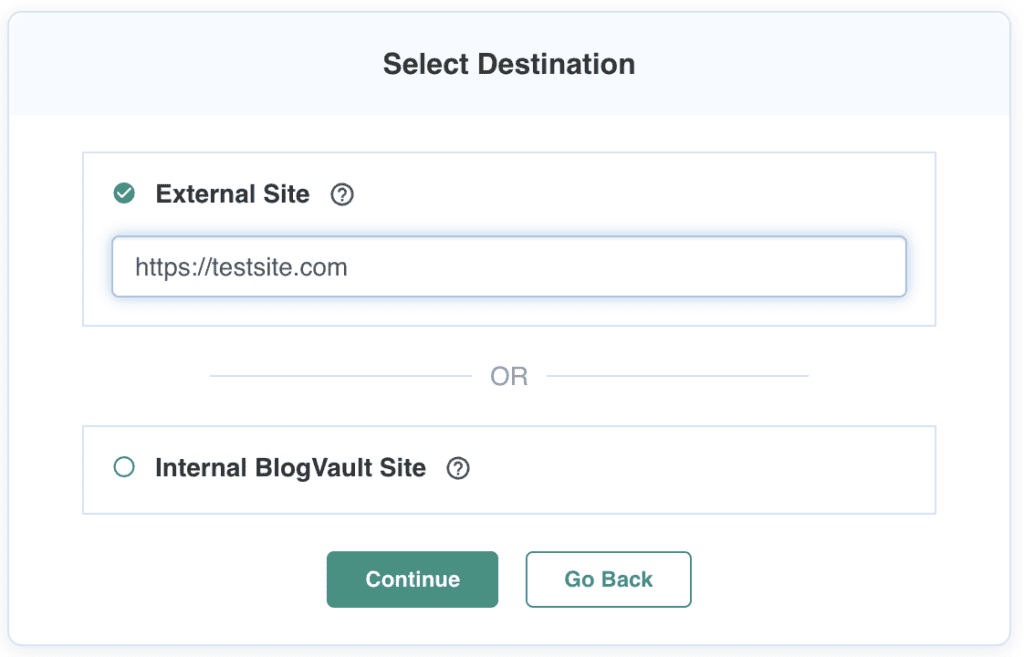
4. In the Migrate Backup section, fill in all the connection details.

5. Expand the Selective Migrate box, and uncheck Migrate Files. Leave Migrate Tables checked. This is your database. Click on Continue to finish the migration.

Option 2: Using phpMyAdmin
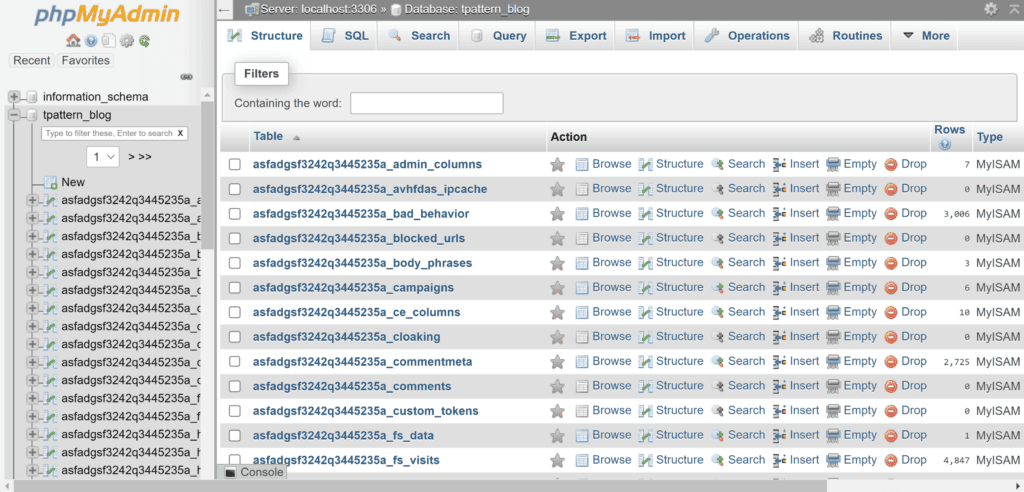
- Log in to your web host control panel. Look for the phpMyAdmin icon and click it to open. If your host doesn’t use cPanel, add `/phpmyadmin` to your site URL to find it. Use the correct credentials, different from your wp-admin, to log in.
- Once in phpMyAdmin, find the list of databases on the left. Click your WordPress database name to select it.
- Then, click the Export tab at the top. Choose the Custom option under Export Method to adjust settings. Select SQL as the format for your export. Ensure all tables are checked so the full database exports.
- Scroll down and click the Go button to start the export and download the SQL file to your computer.
- Next, log into the destination database server. You may need to create a new MySQL user to set up a database if you’re installing WordPress from scratch. If WordPress is pre-installed, a database user likely already exists. Make sure to note the database user credentials.
- Delete any existing database tables.
- Finally, import the SQL file into the database.
If your host doesn’t offer phpMyAdmin, like Cloudways, use Adminer to manage the database migration.
Option 3: Using WP-CLI
- To download your WordPress database using SSH, install WP-CLI.
- Access your server via SSH. Go to the folder with wp-config.php, usually public_html.
- Run:
wp db export filename.sqlReplace ‘filename’ with a name for your database file. It saves in the same folder. - Exit the server, then download the file to your computer with:
scp username@serveraddress:rootfolder/filename.sql localfolder - Next, transfer your database to the new server. Use a command like the one for uploading the zip file:
scp filename.sql username@serveraddress:rootfolder. This uploads your database backup to the destination server. - Now, install it. Run:
mysql -u username -p databasename < filename.sql. Here, ‘username’ and ‘databasename’ are for the new server’s database. This command updates the database with the SQL file’s contents.
Step 3: Configure database settings
After importing the database to the new server, you might need to adjust the settings. This depends on your site setup.
Check the wp-config.php file to ensure it has the correct database credentials. The database name, user, and password must match your new server details.
This step is critical because it links your site’s files to the database.
Step 4: Testing the database migration
After migrating your database, testing is key.
- Visit your site to spot any errors. Is the design right? Are there any breaks? Does the content load correctly?
- Check the database connections. Make sure logins and forms work as they should.
- Update any plugins or themes, as they might affect how your site runs after moving.
- Test the site’s speed and how it responds. Does it perform well on the new server?
Troubleshooting common database migration issues
When moving your database, you might run into some problems. Here’s how to solve them:
Database connection errors
If your site can’t connect to the database, check the wp-config.php file. Make sure the database name, user, and password are correct.
Link issues
Some links might break after moving. Did you move the database onto a site with a different domain name? You’ll have to change the domain name in all instances of the database.
When doing this, be careful with data serialisation. A simple find-and-replace can mess up serialised data if domain names change. Use a plugin that handles this correctly to update domain names safely.
Risks of migrating only the database
As we said before, moving just the database can lead to several issues.
- Broken functionality: Your site might need specific files for themes, plugins, or custom code. Without these files, your site may look wrong or not work properly.
- Loss of design: Themes and related files control how your site looks. Without them, your site’s design and branding can disappear.
- Missing media: Images and videos are stored in files. If you don’t move them, your site will have broken images and missing media.
- SEO Issues: Missing files can break links and content, hurting SEO. Search engines might lower your rankings for missing resources.
- Incomplete content: Not all content is in the database. Files like PDFs and documents are stored separately. Failing to move them means losing access.
- Incompatibilities: The database could reference files that aren’t on the new server, causing errors.
- Duplicate content: Moving only the database can create duplicate content. Search engines might see two identical sites, hurting rankings.
- Data loss: Data might be lost due to wrong mapping, conversion errors, or incomplete transfers.
Conclusion
Migrating only the database can seem like a straightforward task, but it carries risks.Reviewing a migration checklist beforehand can help avoid most of these.
From broken functionality to SEO issues, each step requires careful attention. Understanding the complete process helps prevent problems like missing files, data loss, and security vulnerabilities. To ensure a smooth transition, always consider moving your entire site, including files and database. This approach preserves functionality, design, and security, providing a seamless experience for users.
FAQs
How to migrate a database in WordPress?
Use a WordPress backup plugin like BlogVault to backup your site, and selectively migrate the database to a new server.
How do I transfer a WordPress database to another domain?
Take a backup with BlogVault, and migrate just the database to the new domain.
What is the best plugin for WordPress database migration?
BlogVault is the most reliable plugin for database migration.
Can I migrate my WordPress database without using a plugin?
Yes, you can use phpMyAdmin or WP-CLI to manually migrate your database.
What are common issues during WordPress database migration and how can they be solved?
Common issues include broken links and data loss; use correct settings and tools to fix them.
How do I ensure data integrity during a WordPress database migration?
Backup your data and test your database thoroughly after the migration process to ensure data integrity.
Can I change my WordPress database?
Yes, but ensure all settings and references are updated to avoid issues.

Karishma was an engineer in a former life, and so she specialises in making tech more accessible through communication. When she isn't writing, Karishma spends her time tinkering in the innards of WordPress websites