

WordPress staging and demo sites prevent costly disasters. Trying WordPress out, testing themes or plugins directly on your live site carries significant risks: broken functionality, frustrated visitors, and lost revenue.
One wrong click can and will damage your site. You will be forced to perform pricey emergency repairs, AND ruin user experience. All because you skipped the safety net.
This guide equips you with the steps to effortlessly create WordPress demo sites, ensuring your live site stays safe and secure.
WordPress demo sites provide a secure way to test themes, plugins, and updates without impacting your live site’s functionality or visitor experience. The best approach is using a staging plugin, but hosting tools and temporary playground sites are also great options for safe experimentation.
What is a WordPress demo site?
A WordPress demo site is a safe, temporary workspace where you experiment without consequences. Test new themes. Try sketchy plugins. Practice updates. Learn WordPress features. Show clients unfinished work. All without touching your live site.
It’s basically a copy of WordPress that exists separately from your main website. Some demos mirror your exact site with all your content and settings. Others start completely fresh. Both serve the same purpose: risk-free experimentation.
Here’s what makes demo sites different from live sites: they’re disposable. Break something? No problem. Delete it and start over. Your visitors never see the mess.
Whether you’re a beginner learning WordPress basics, a developer testing custom code, or a business owner evaluating themes, demo sites give you space to make mistakes.
How to create a WordPress demo site
You’ve got five solid methods here. Pick the one that fits your needs.
A) Staging
This creates a replica of your live site. Same content, same settings, everything. Create a staging site either by using a plugin or your host’s staging feature:
BlogVault’s staging plugin (Recommended)
BlogVault makes staging ridiculously simple. Here’s how it works:
- Install the BlogVault plugin on your live site and create a backup (takes a few minutes depending on site size)
- Create a staging site and choose your backup version and PHP settings

- Access your staging site with the provided username and password.
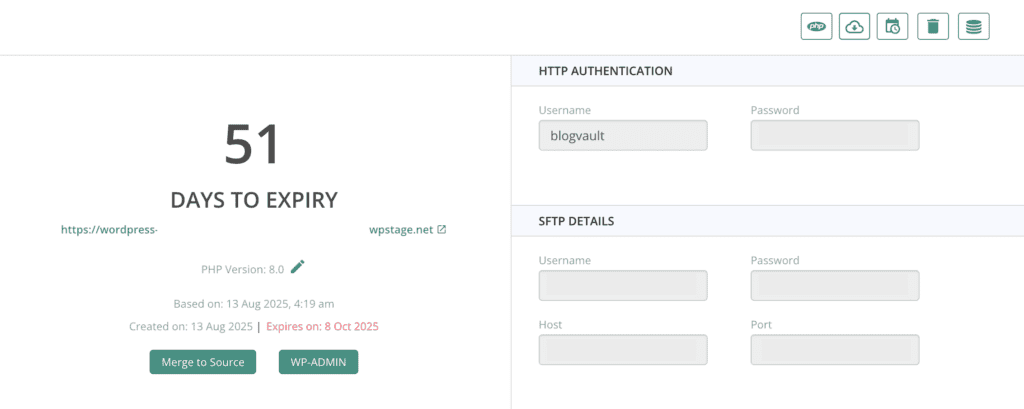
Test freely without worry, and don’t worry about it taking up space on your server. Your staging site is hosted on BlogVault’s powerful servers. Install all the plugins you want, break things, fix them.
If you want to push your changes to live, all you have to do is click the Merge button.
Hosting provider’s staging feature
Most quality hosts offer one-click staging these days, though the approach varies.
If you’re looking for a fresh installation and not a solid copy of your site, GoDaddy’s staging should do it for you. Meaning you get a clean slate with no content from your live site unless you manually sync them.
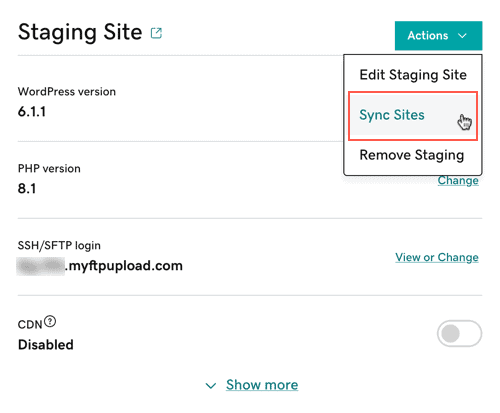
SiteGround and WP Engine work similarly but typically offer full site cloning options. Look for Staging in your hosting control panel and follow the prompts.
B) WordPress Play Areas
These are perfect when you need a WordPress site right now without any setup hassle.
InstaWP’s playground
InstaWP offers one of the most flexible free playground options. Here’s how to set it up:
- Visit instawp.com, sign up for a free account and access your dashboard
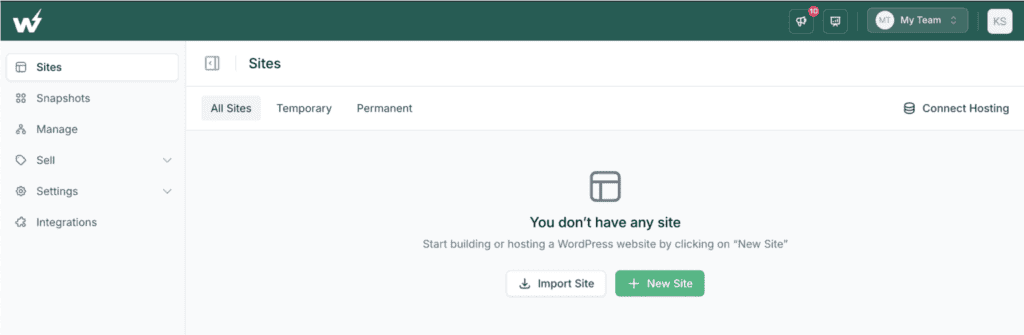
- Click New Site from your dashboard. Pick your WordPress and PHP versions from the dropdown
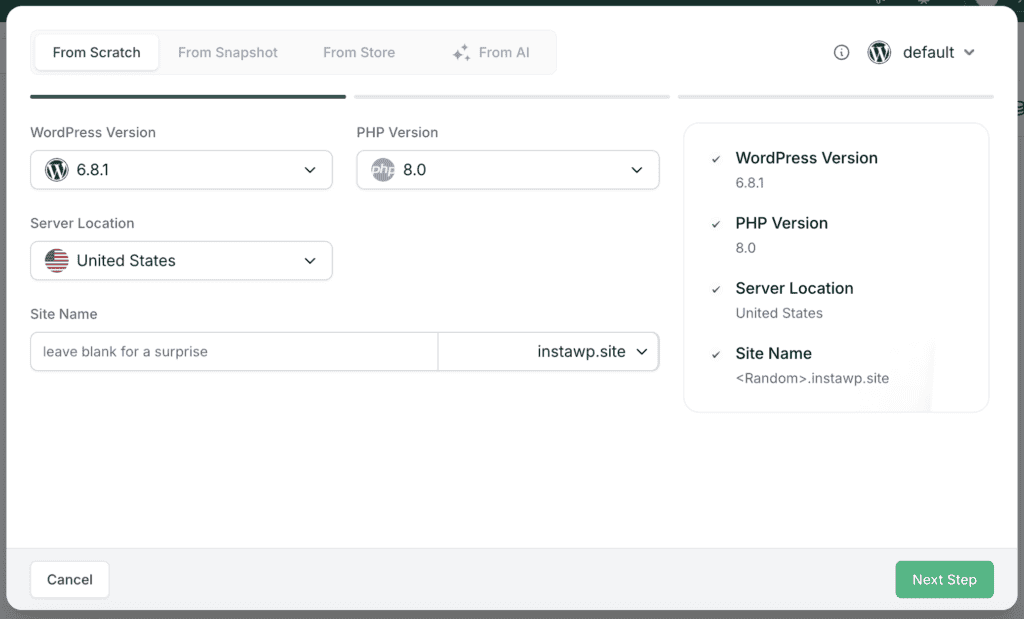
Your site will be created in a few minutes. The whole process is painless, and saving templates means you can spin up identical environments whenever you need them.
WP Playground
For immediate testing, WP Playground offers a quick and easy solution:
- Visit playground.wordpress.net to get started. You can begin testing right away without needing an account
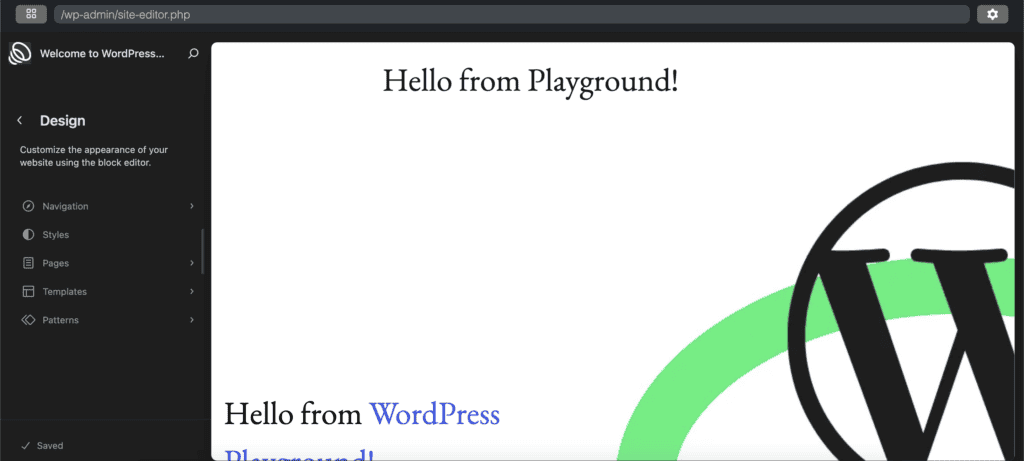
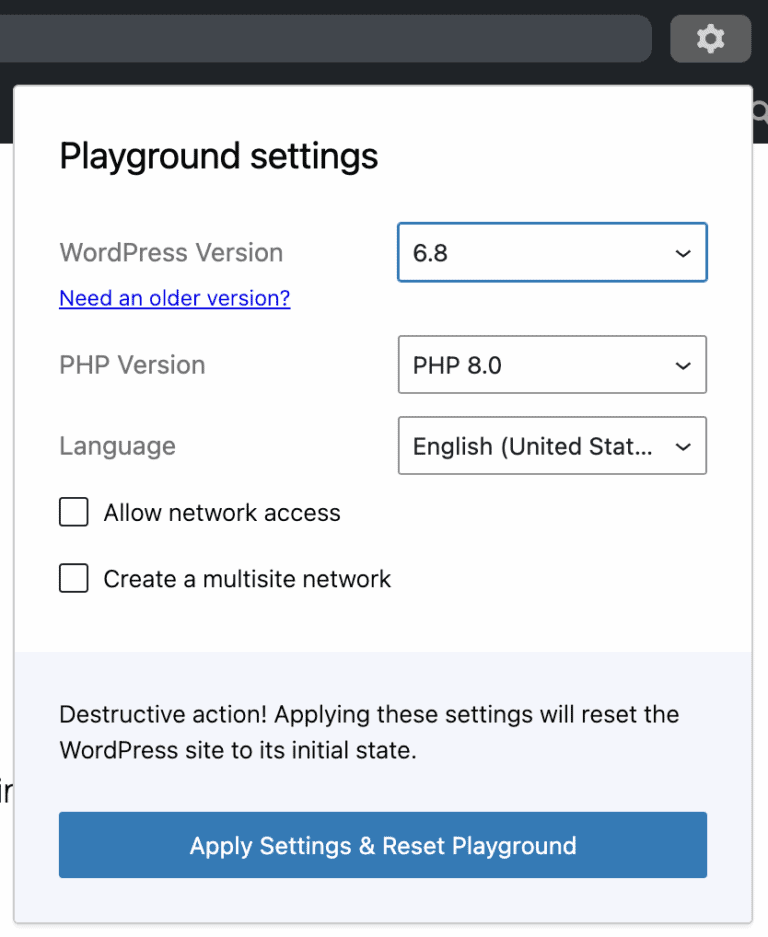
- Click the settings icon to change WordPress and PHP versions as needed
C) Local development
When you need a permanent WordPress setup that won’t disappear, local development is your answer. We will be using Local by Flywheel for this article:
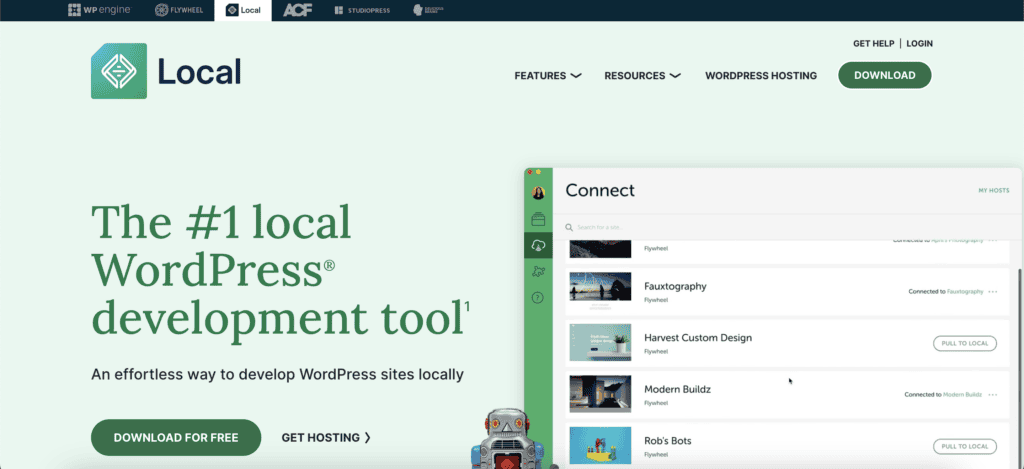
- Download the installer from localwp.com
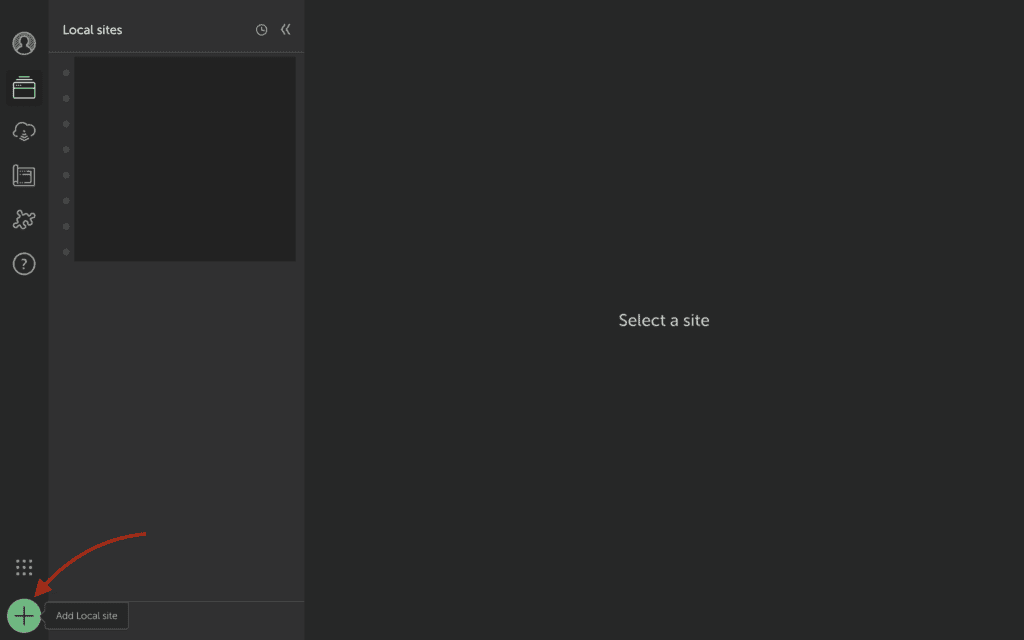
- Open the Local application and click the + New Site button
- After configuring your site, click “Add Site” and wait about 2 minutes. Your WordPress demo site should be created.
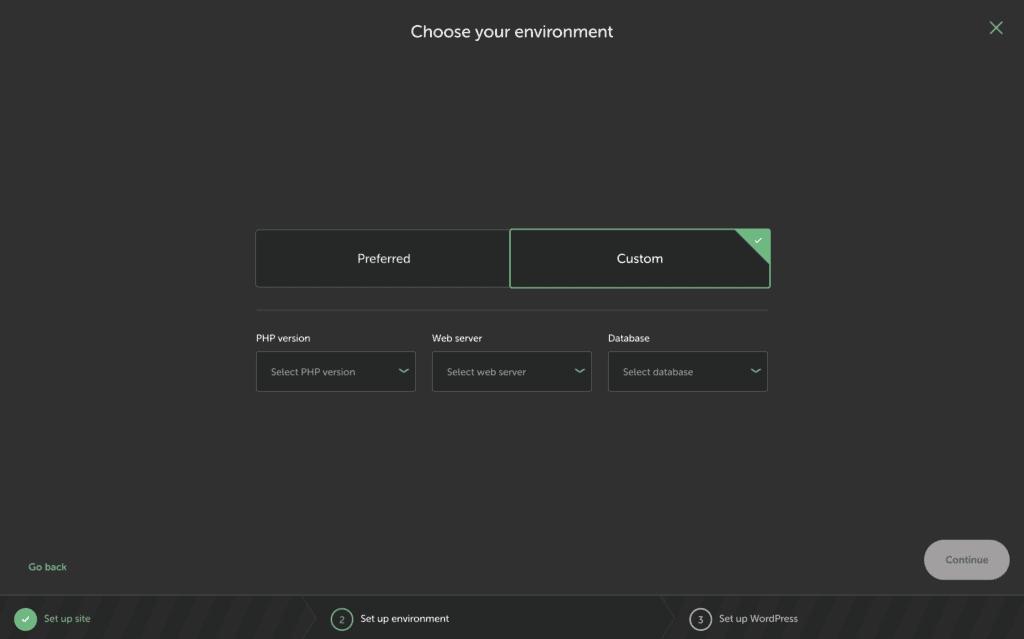
- Click WP Admin to access your dashboard and start building.
Once you’re done and want to push your site live when you’re ready, you can do so manually or using a plugin.
D) Subdomain
This creates a separate WordPress installation at demo.yoursite.com, perfect for client presentations. We will be using Bluehost. The process is straightforward with most hosting providers:
- Log in to your Bluehost account and navigate to Domains > Subdomains
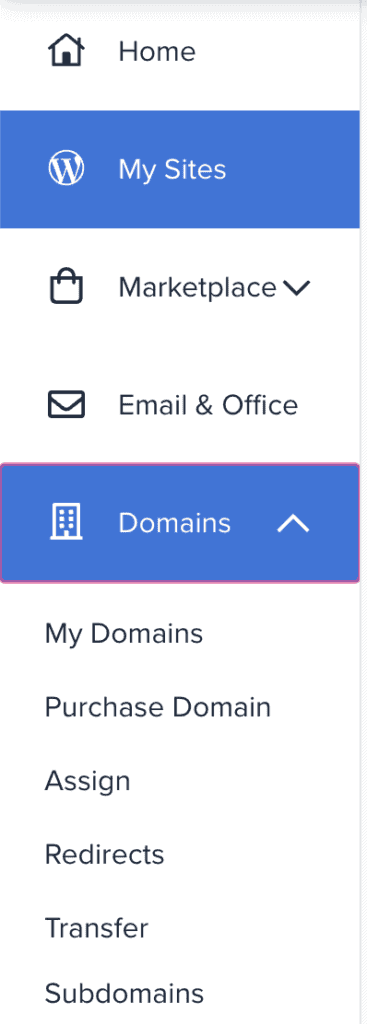
- Enter a subdomain name and select your main domain from the dropdown
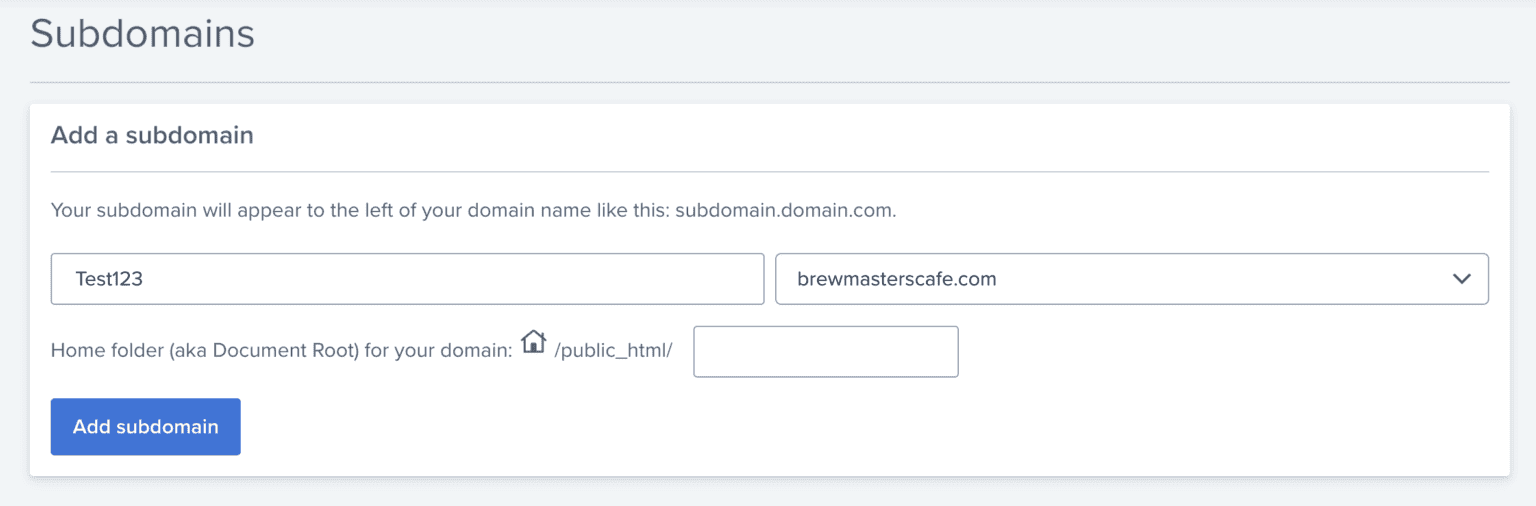
- Click Create to establish the subdomain. Then, navigate to My Sites > Create Site and enter the site name and tagline
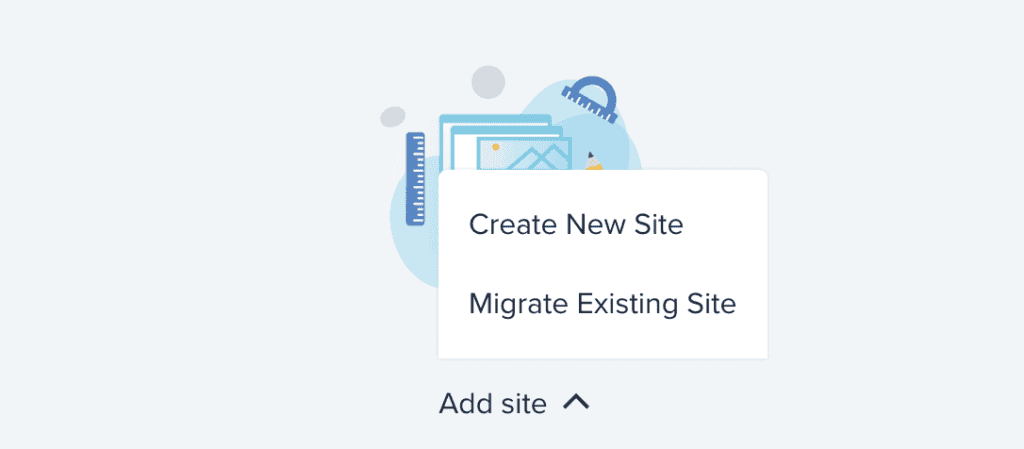
- Select your new subdomain during the setup process
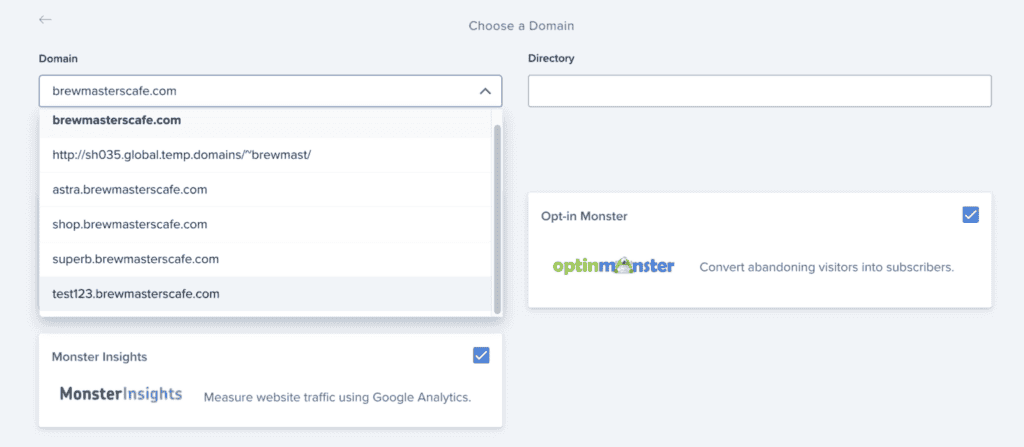
- Leave the directory field blank and complete the WordPress installation. You can access your WordPress demo site at demositename.yoursite.com/wp-admin
E) Subdirectory
This method creates yoursite.com/demo, tucking your demo site inside your main domain structure.
- Access your hosting control panel (cPanel) or use FTP.
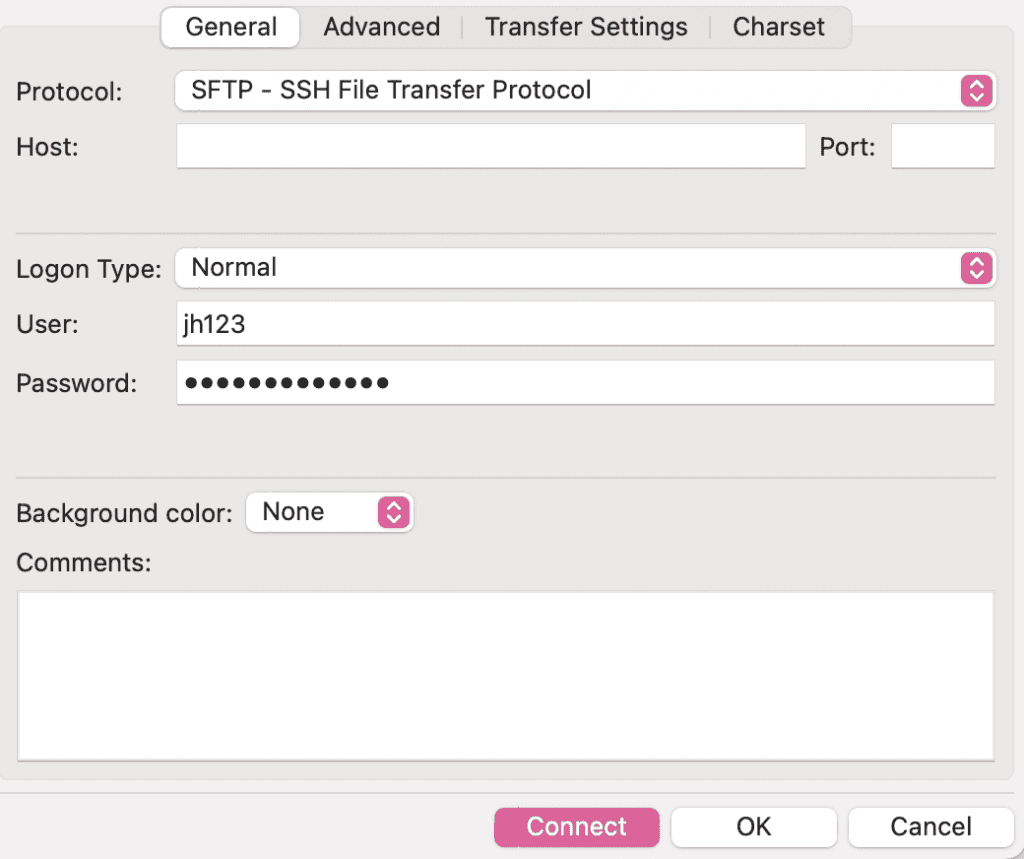
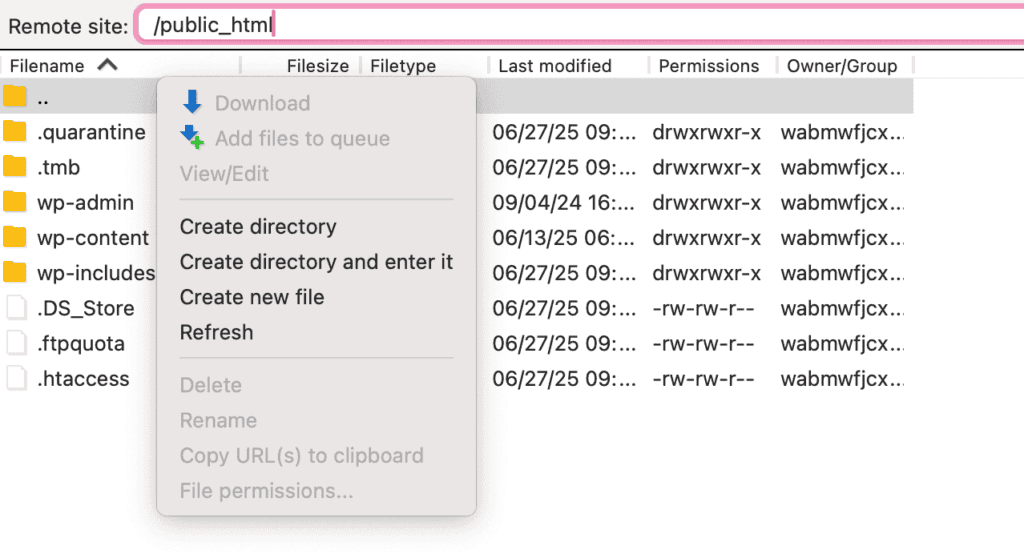
- Navigate to your root folder (usually public_html or www) and create a “demo” folder.
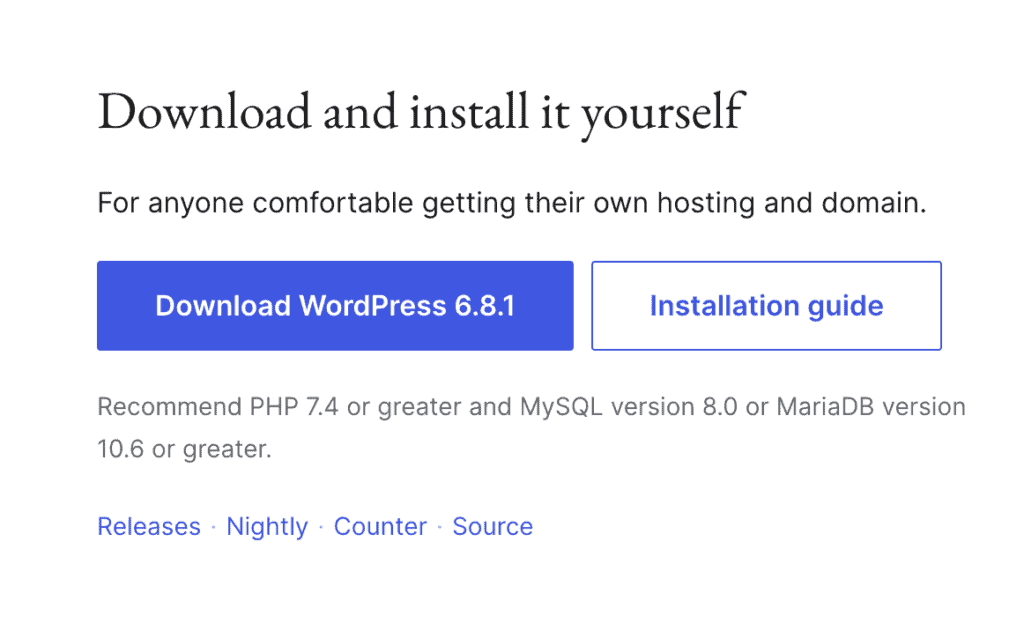
- Download the latest WordPress from wordpress.org, unzip the files, and upload them to the demo folder.
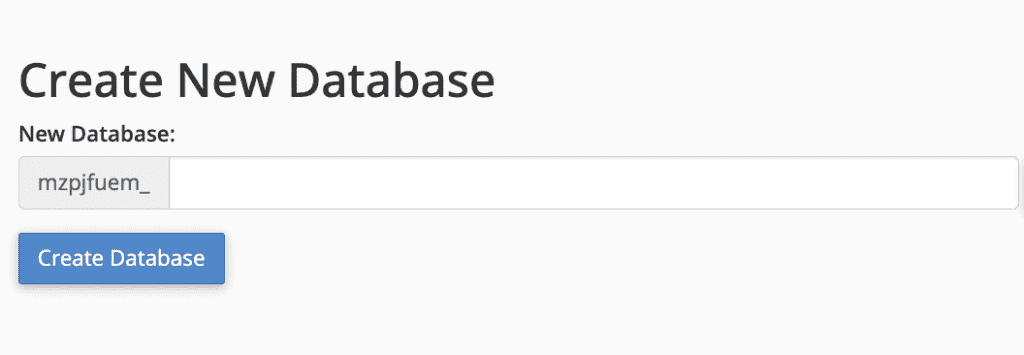
- In cPanel, use MySQL Databases to create a new database and user with a secure password. Grant all privileges to the user.
- Edit the wp-config.php file in your demo folder to update database details.

- Visit yoursite.com/demo in your browser and complete the WordPress setup.
This method requires more technical knowledge than the others, but it gives you complete control over your testing environment and keeps everything under your domain.
Why should you use a WordPress demo site?
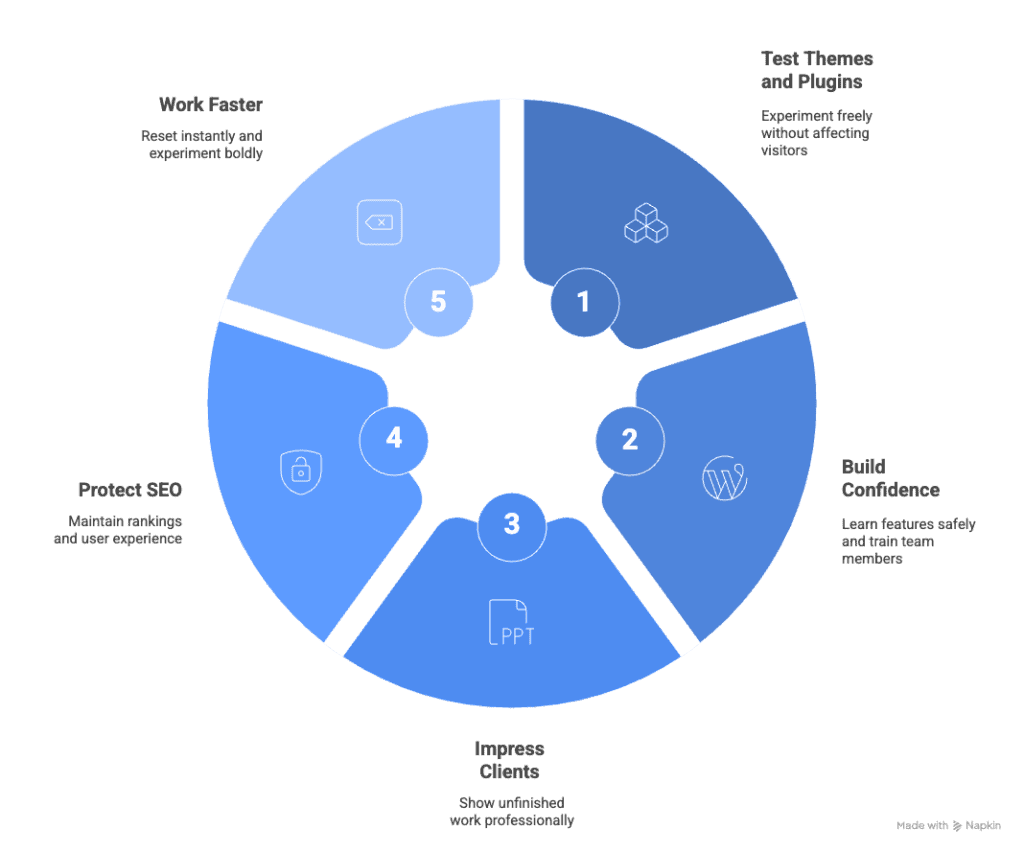
WordPress demo sites are an essential if you care about your website’s stability.
Save your live site and your sanity: Testing themes and plugins on your live website is risky. Demo sites let you experiment freely, practice updates, and troubleshoot errors without affecting your visitors.
Build real confidence: Demo sites are like training wheels for WordPress. Learn features safely, build confidence before touching real websites, and train team members without giving them live access. It’s a practice space where mistakes don’t matter.
Impress clients professionally: Show unfinished work to clients using password-protected demo sites. Create presentations without affecting their live website. Let them explore and provide feedback before anything goes public. This sets professionals apart.
Protect your SEO: Search engines dislike instability. Demo sites preserve your rankings during development, prevent duplicate content penalties, and maintain user experience while you experiment. Your SEO’s security stays intact.
Work faster and smarter: Made a mistake? Reset your demo instantly without spending hours on fixes. Test PHP compatibility before updates, and experiment with bold designs without consequences.
Common challenges and solutions for WordPress demo sites
Disappearing demo site
Demo sites can expire or reset. To be able to use your demo site for a longer period of time, try BlogVault’s staging or Local by Flywheel.For eCommerce sites, consider creating a WooCommerce staging site so you can test updates or new payment gateways without affecting real orders.
Plugin and theme access unavailable
If restricted, verify your environment settings or switch to a more flexible demo option.
Search engine visibility
Prevent indexing by selecting Discourage search engines in Settings > Reading. Add password protection using the Password Protected plugin or rather use BlogVault’s password protected staging site.
Moving changes to live site
For staging, click Merge or Push. With other demos, use the Duplicator plugin to migrate your site.
Parting thoughts
WordPress demo sites are essential tools for safe experimentation and learning. They protect your live site, boost your confidence, and impress clients without compromising your site’s stability or SEO.
By choosing the right setup, you can tackle challenges efficiently and enjoy risk-free testing.
FAQs
How to create a demo WordPress website?
You can create a WordPress demo site using a staging tool like BlogVault or a local setup with Local by Flywheel. These methods allow you to test themes and plugins safely without affecting your live site.
Can you demo WordPress?
Yes, you can demo WordPress using platforms like WP Playground or InstaWP. These options provide a temporary environment to experiment with WordPress features without full installation.
How to create a dummy WordPress website?
Create a dummy WordPress site by setting up a subdomain or subdirectory on your hosting account. This provides a separate space for testing without impacting your main site.
Where to practice WordPress for free?
You can practice WordPress for free using WP Playground or by setting up a demo site with InstaWP. Both provide easy access to WordPress environments without cost.
Can I use WordPress for free?
Yes, you can use WordPress for free by starting with WordPress.com’s free plan or installing WordPress on your hosting account. These options offer basic features to get you started.
How to make a demo page?
To create a demo page, install WordPress on a subdirectory or use a plugin like Elementor within your demo site. This lets you build and preview pages without affecting a live website.

Shivani enjoys crafting guides that make every aspect of using WordPress simple and easy to follow. When she's not glued to her laptop, you can find her buried in a good book or occasionally, painting.


