WordPress multisite feels like the logical next step when you’re juggling multiple sites. In this context, we are discussing online stores.
You’re right to be cautious, since the last thing anyone wants is a system that creates more work.
That’s what this guide is for. Let’s determine if it’s the right move for your project, and then show you how to do it properly.
Consider if a multisite network aligns with your WooCommerce needs, offering efficient management from a central dashboard. Ensure regular updates, leverage a backup plugin for security, and monitor performance to maintain a stable and successful setup.
Should you use it?
Before we get into how to set up a WooCommerce multisite network, let’s first figure out if it’s the right choice for you. Managing separate stores is a headache, and the idea of one dashboard for everything is very appealing. But it’s a specific tool for a specific job.
This setup works beautifully if you:
- Want to manage all stores from one central dashboard.
- Have stores that are related in some way. Think regional sites (US, UK), different languages, or distinct customer groups (retail vs. wholesale).
- Plan to share branding, users, or even products across the different stores.
- Have one team responsible for the technical maintenance of all sites.
However, it’s probably the wrong tool if you:
- Want to build a true marketplace where vendors log in to manage their own products. A multisite is not designed for that.
- Are running completely separate businesses that have no overlap in products or customers.
- Cannot afford a technical problem on one site to potentially affect all the others.
The bottom line is that you get easier management, but all your stores share the same risk. If that sounds like a good trade-off, then it’s time to get started with the prep work.
Prerequisites
Skipping this part is the number one reason these projects turn into a mess. Honestly, this isn’t just a suggestion; it’s a mandatory first step.
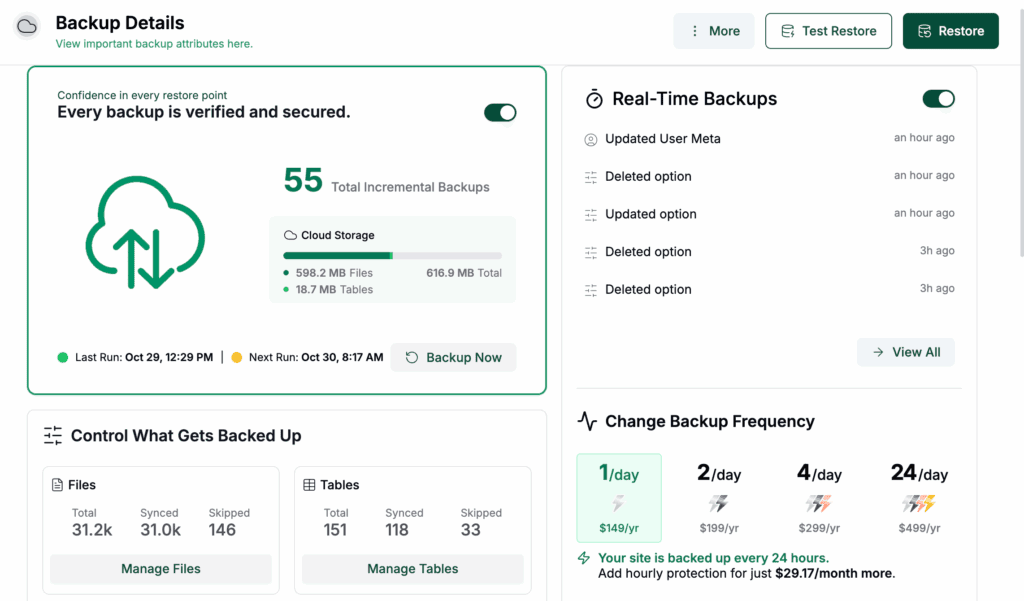
- Take a complete backup: Use a plugin and save an off-site copy somewhere safe—this is your undo button.
- Log your current configuration for testing: Make a list of all your active plugins, your theme, and any custom code.
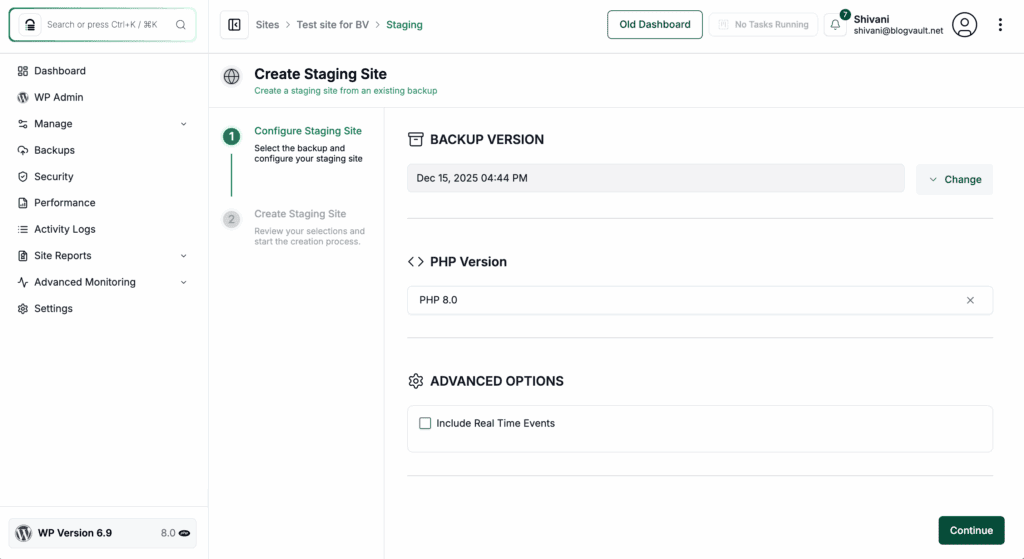
- Use a staging site: This keeps your real site safe while you make these major changes.
- Confirm your server is ready for multisite: Ask your host directly if they support wildcard subdomains and wildcard SSL.
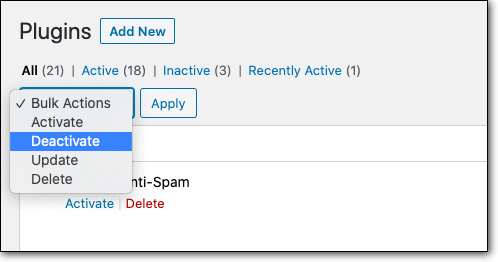
- Prevent conflicts by deactivating all plugins: This ensures a cleaner, safer activation process for the network.
Enabling WordPress multisite
Your current live WooCommerce store will become the first and main site of your new network. All the initial steps are performed on this installation.
Setting up a multisite transforms your single WordPress installation into a central hub. This is a core feature, not a plugin, so it requires a deliberate activation process on your existing site.
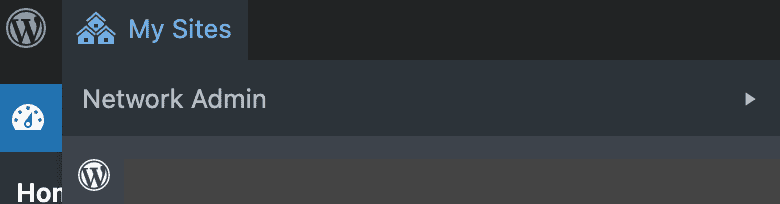
This process involves making foundational decisions about how your network will be structured. These choices directly impact how new sites are organized and accessed later on. The result is a new dashboard for managing your entire network.
Make WooCommerce “network-ready”
Since your main site is already a WooCommerce store, the plugin is already installed. Your next critical step is to make that plugin available to any new stores you add to the network later.
Go to your new Network Admin dashboard. Find WooCommerce in the plugins list and click Network Activate.

This action doesn’t change your existing store. It simply makes the WooCommerce plugin available for activation on any other site you add to the network in the future.
Add stores to your network
Now that your original store is the heart of the network and WooCommerce is ready for expansion, you can add your other stores.
A) Migrating an existing WooCommerce store
This is for when you have a second (or third) standalone WooCommerce store that you want to consolidate into your new network.
- You must use a migration plugin specifically designed for multisite. Standard tools are not compatible and will likely cause errors during the import.
- The process involves a full export and import. You’ll create a new, blank site within your network. Then, you’ll export the entire standalone store (database, themes, plugins, files) and import it into that new, blank subsite.
- Post-migration checks are mandatory. Your products and orders will transfer, but things like permalinks and payment gateway keys will likely break. You must go into the new subsite’s dashboard, re-configure these settings, and thoroughly test the entire checkout process.
B) Setting up a new store
This is the simplest way to expand your network once it’s established. You have an idea for a new store and want to build it directly inside your network.
- First, add a new site in the Network Admin. Go to Network Admin > Sites > Add New and create a new, blank site (e.g., newstore.yourdomain.com).
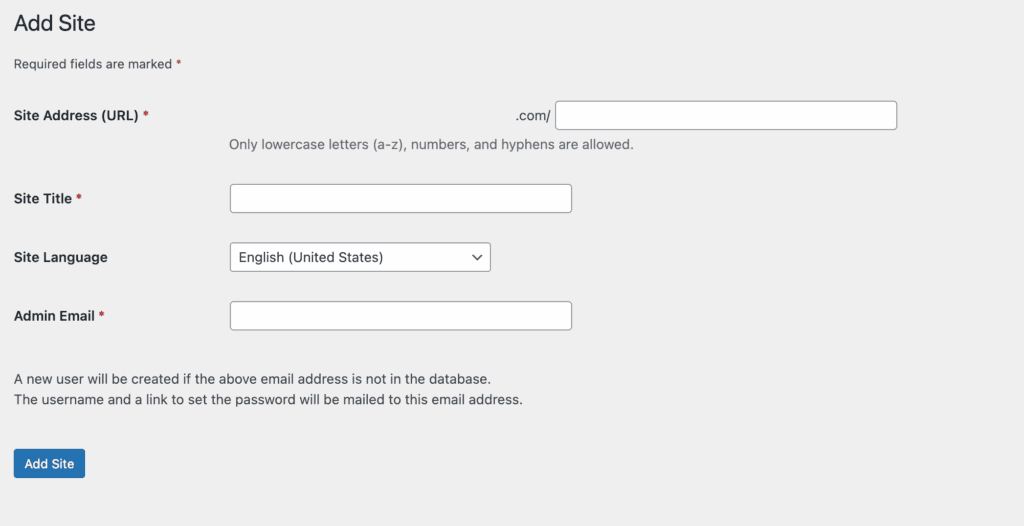
- Then, go to the new site’s dashboard. Navigate to the dashboard of the individual site you just created.
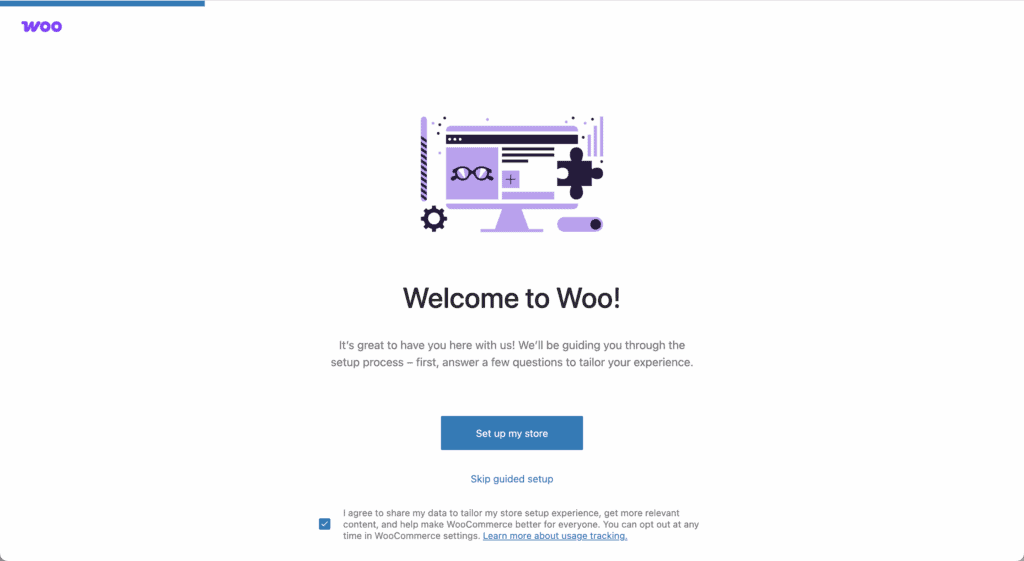
- Finally, activate and configure WooCommerce. In the plugins list for that site, you’ll see WooCommerce is available (because you network-activated it). Click Activate here. This will launch the standard WooCommerce setup wizard for that store only, allowing you to configure it from the ground up.
Configuring essential features
Here’s what you need to do to configure your stores:
- On your main store: Run a quick test purchase to make sure everything works.
- For each new store: Set up its payments, shipping, and taxes. These settings are not shared.
- For custom domains: Use a “domain mapping” plugin to give a store its own address like abcstore.com.
Optimization, security, and launch
A multisite network means all your stores share the same server resources. This makes performance and security top priorities.
- Keep all your stores fast with page caching and a CDN to help pages load quickly for visitors.
- Remember if one site is hacked, the entire network is at risk, so enforce strong passwords and use a security scanner.
- Prevent database slowdowns with object caching since all your stores share one database.
- Since one bad update can break all your stores, always test updates on your staging site first.
- Run a final pre-launch check to verify checkouts, inventory sync, and user accounts all work perfectly.
Parting thoughts
You’ve built a powerful, centralized system. The setup might be done, but the work of running a network is ongoing. Remember the core trade-off you made: you gained efficiency, but you share risk.
Success from here on out depends on vigilant updates, regular backups, and performance monitoring. You have a great foundation; now the key is to maintain it well.
FAQs
Does WooCommerce support multisite?
Yes, WooCommerce does support WordPress multisite natively for basic store functions on each subsite. However, sharing products, inventory, or customers across the network requires specialized third-party plugins.
What are the disadvantages of WordPress multisite?
The main disadvantages are shared resources and shared risk, where a performance issue or security breach on one site can affect the entire network. Additionally, not all standard plugins are compatible with a multisite environment.
What is the purpose of WordPress multisite?
The purpose of WordPress multisite is to allow you to create and manage a network of multiple websites from a single WordPress installation. This centralizes user management, plugin updates, and theme installations for related sites.
Is WordPress multisite worth it?
WordPress multisite is worth it if you need to efficiently manage a group of similar websites, like a corporate site with regional subsites. It is generally not worth the complexity for managing completely unrelated businesses.
Is WordPress multisite free?
Yes, WordPress multisite is a free, built-in feature that comes with the core WordPress software. While the feature itself costs nothing, you may need to invest in more powerful hosting or premium plugins to support it.
Is there a limit on WordPress multisite?
No, there is no built-in limit to the number of sites you can have in a WordPress multisite network. The practical limit is determined entirely by your server’s resources, especially its database performance and available storage.

Shivani enjoys crafting guides that make every aspect of using WordPress simple and easy to follow. When she's not glued to her laptop, you can find her buried in a good book or occasionally, painting.