Keeping your WordPress site up to date is not always easy. You might see updates often pop up for WordPress, plugins, or themes. Sometimes, you click “Update” in the dashboard, and everything works fine. Other times, things break, and panic sets in. Multiply that by the number of sites you manage, and it quickly becomes frustrating and scary.
If you manage several sites, clicking the update button for every single plugin or theme can get old fast. You may want a faster, safer, and more reliable way to handle updates. You might also need more control over the update process.
Many website owners feel the same. That’s where WP-CLI comes in. Instead of clicking around, you type a few commands, and updates happen right there in your terminal. It can be quicker, safer, and less stressful to use WP-CLI for updates—once you know the basics.
This guide will show you, step by step, how to update your WordPress site with WP-CLI. You’ll learn to update WordPress core, plugins, and themes, and how to fix common problems if something goes wrong. Let’s make updates less scary and more under your control.
WP-CLI lets you update WordPress, plugins, and themes quickly with simple commands. It makes managing updates easier and helps solve common problems fast. Always remember to take a full site backup before making any changes.
Connect to your site
Before you can use WP-CLI, you need to connect to your WordPress site’s server. This lets you enter commands and make changes directly. Don’t worry if this sounds new to you—it’s just a few simple steps.
First, you need to access your server using SSH. SSH, or Secure Shell, helps you talk to your server from your computer, safely and securely. On a Mac or Linux computer, you can use the Terminal app. If you use Windows, open the Command Prompt or an app like PuTTY.
Next, you need your SSH credentials. Your hosting provider gives you this information. It usually includes your username, password, and the server’s IP address. If you don’t know where to find them, check your hosting account or ask customer support.
Once you have your login details, enter the SSH command in your terminal. It looks something like this:
ssh username@your-server-ip
When you run this, it will ask for your password. After you log in, you now have secure access to your site’s server.
Now, you need to go to your WordPress root directory. This is the main folder where WordPress is installed. For many users, the directory is /var/www/html, but your web host might use a different folder. Use the cd command (“cd” stands for “change directory”) to do so. For example,
cd /var/www/html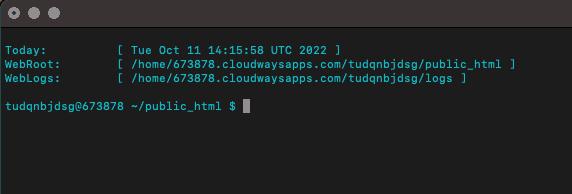
You are now in the right spot to use WP-CLI commands and update your site. If you’re unsure about your WordPress directory, ask your host or look for the folder with files like wp-config.php.
Update WordPress core
Keeping your WordPress core updated is important for security and new features. With WP-CLI, you can do this quickly from the terminal.
First, check if there’s a new WordPress version. Use this command:
wp core check-updateThis command tells you if an update is available. If there is, it will show the latest version number.

To update WordPress to the newest version, use this command:
wp core updateWP-CLI will now download and install the latest stable release of WordPress for you. The process is fast and does not need you to log in to your WordPress dashboard.
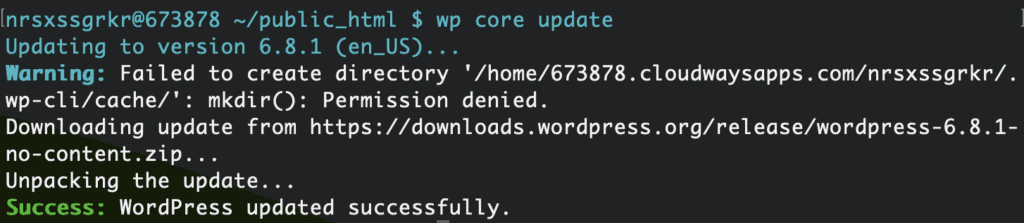
After the update finishes, your site will be running the newest version of WordPress.
Update plugins
WordPress plugins give your site more features, but they need regular updates for security and performance. Updating plugins with WP-CLI is easy and quick.
First, see which plugins are installed and which ones need updates by running this command:
wp plugin listThis gives you a list of all your plugins. It also shows you which plugins have updates available.

If you want to see only the plugins that need updating, use this command:
wp plugin list --update=availableThis makes it easy to focus just on the plugins that need an update.
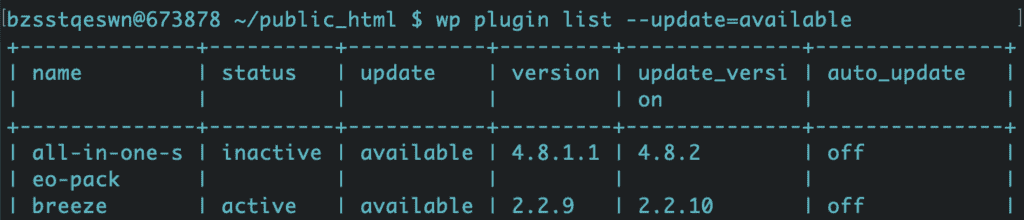
To update all your plugins at once, use:
wp plugin update --allWP-CLI will download and update every plugin on your site in one go. This saves you time and keeps everything current.
If you want to update just one plugin, use:
wp plugin update plugin-nameReplace plugin-name with the folder name of the plugin you want to update. This is handy if you only want to update one specific plugin without touching the others.

Update themes
Just like with plugins, keeping themes updated helps your site stay safe and work well with new WordPress features. And WP-CLI makes it simple to manage theme updates.
To see all your installed themes and check for updates, use this command:
wp theme listThis command lists every theme on your site. It also shows if an update is available for any of your themes.
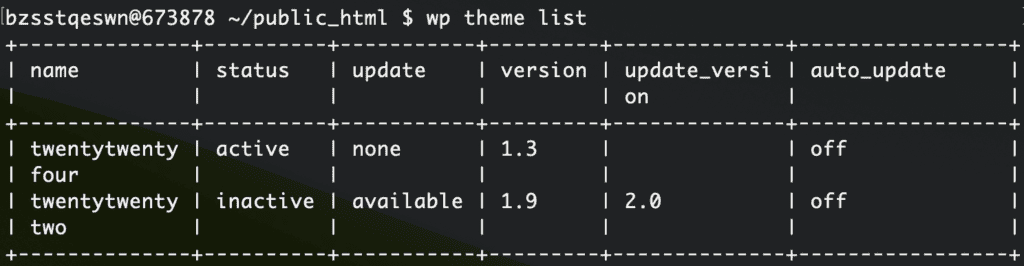
If you only want to see which themes have updates, enter:
wp theme list --update=availableThis allows you to focus on just the themes that need attention.
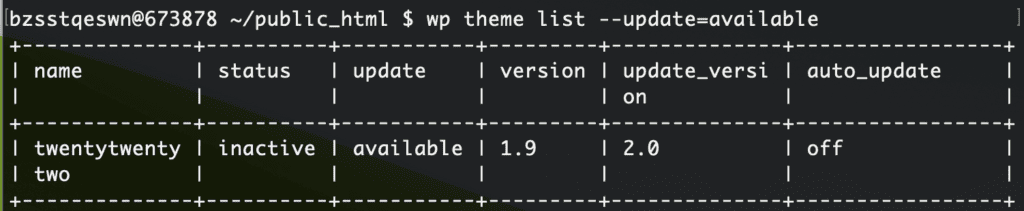
To update all of your themes at once, use:
wp theme update --allWP-CLI will then update every theme you have installed. This ensures your site’s design tools are all up to date.
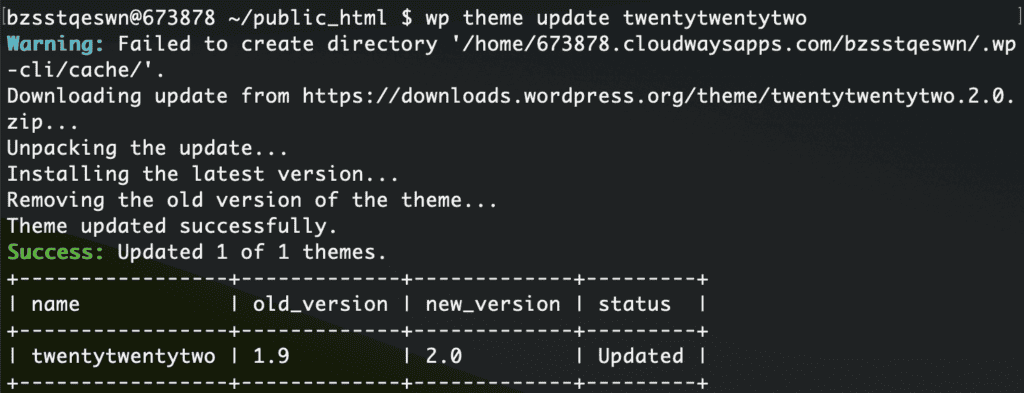
To update only a single theme, use:
wp theme update theme-nameReplace theme-name with your theme’s folder name. This is useful if you want to update only your active theme or a certain one without changing the others.
Update the database
Sometimes, updating WordPress core brings changes that affect your site’s database. The database stores all your posts, pages, and settings, so it needs to match the new WordPress version.
To update your database, use this command:
wp core update-dbThis script checks if your database needs any changes and then updates it. Not all WordPress updates need database changes, but it’s a good idea to run this command after a core update.

Running this command is safe. If your database is already up to date, nothing will change. If changes are needed, WP-CLI handles them for you. This helps keep your site running smoothly with the newest version of WordPress.
WP-CLI update: Troubleshooting common issues
Sometimes things go wrong during updates, even if you follow all the steps. Here are some common problems you may see when using WP-CLI, along with simple ways to fix them:
- Permission denied errors: You may get errors saying you don’t have permission to run commands. This happens if your user does not have the right permissions to read or write WordPress files. Try running commands as the right user (often “www-data”) with
sudo. You can set/reset permissions usingchmodandchownif needed. - Memory limits or PHP timeouts: If updates stop with a “memory exhausted” or timeout message, your server may run out of resources. Raise your memory_limit and max_execution_time in php.ini or .htaccess. You can also set a higher memory limit by editing the wp-config.php file and adding this line:
define('WP_MEMORY_LIMIT', '256M');. - Site stuck in maintenance mode: After updating, you may see “Briefly unavailable for scheduled maintenance.” This means a .maintenance file was left behind. Remove the .maintenance file from your WordPress folder using SSH or FTP.
- Database update required message won’t go away: If WordPress keeps asking you to update the database, run
wp core update-db. If that doesn’t work, clear all your caches, including that of your browser and any site caching plugins. - Broken plugins or themes after update: Sometimes, plugins or themes stop working after an update. You will need to repair your site if it is critical and broken. Start by restoring a backup of your site. To turn off a problem plugin, use
wp plugin deactivate plugin-name. To switch to a safe theme like twentytwentyfour, usewp theme activate twentytwentyfour. Reinstall or find updates and check for compatibility on plugin or theme documentation. - WP-CLI is out of date: An old WP-CLI may not work well with newer WordPress versions. Update WP-CLI to the latest version by reinstalling it using the instructions from the WP-CLI site.
- Caching problems (server or plugins): Sometimes, updates don’t show up immediately due to an outdated cache. Clear your browser cache, any caching plugins, and server-side caches if you have them (like Varnish or Redis).
- Incomplete updates or corrupted files: If updates are interrupted, WordPress files may be missing or broken. Try running the update command again. You can also use
wp core download --forceto redownload the core files. Restore from backup if needed. - WP-CLI command not recognized: If the terminal says “wp: command not found,” WP-CLI might not be installed, or it’s not in your PATH. Install WP-CLI, or move the wp file to /usr/local/bin/ so the system can find it.
- White screen of death: If your site turns blank after an update, enable debugging by editing your wp-config.php file and adding the line
define('WP_DEBUG', true);to it. Then, check your error logs for clues. If you can’t fix the errors, restore a site backup and see if that helps.
Final thoughts
Updating your WordPress site with WP-CLI can save you time and effort. With just a few commands, you can update WordPress core, plugins, and themes more easily. WP-CLI also helps you fix common update problems without clicking through menus. Once you get used to it, managing site updates feels much less stressful.
Before you update anything, always make a backup of your site. Backups keep your site safe from mistakes or errors during updates. A tool like BlogVault makes backups easy. It gives you automated backups, keeps them off-site, and offers one-click recovery. This way, you can restore your site quickly if something goes wrong.
FAQs
How can I update WordPress core using WP-CLI?
To update WordPress core using WP-CLI, open your terminal and connect to your server, then go to your WordPress folder. Type the command wp core update and hit enter. WP-CLI will download and install the latest WordPress version for you.
Can WP-CLI update both plugins and themes?
Yes, WP-CLI can update both plugins and themes. You can use simple commands in your terminal to update all or just one plugin or theme at a time. This makes managing updates fast and easy.
Is it safe to update WordPress with WP-CLI?
Yes, it is safe to update WordPress with WP-CLI. The tool uses official WordPress update methods, just like updating from the dashboard. Always make a backup before you start, just in case something goes wrong.
Are there any alternatives to WP-CLI for managing updates?
Yes, there are alternatives to WP-CLI for managing updates. You can use the WordPress dashboard to update core, plugins, and themes through the web interface. Some backup and management tools like BlogVault or ManageWP also help you manage updates easily.

Anurag traded algorithms for adverbs when he switched from being a software engineer to being a writer. Editor by day, he chases F1 by night!