When your WordPress site goes down, it can throw a wrench into your plans. Encountering error messages like Connection Timed Out or Error establishing a database connection is both frustrating and stressful.
On top of that, every moment that your site is offline, you are losing valuable visitors and even potential income.
But don’t worry, there is a way to fix this. You can conduct WordPress website repair to identify and address the root cause of the issue. In this article, we will discuss targeted solutions that can help you get your site back online.
When your WordPress site encounters issues, the first step is to identify the problem. You can then apply fixes like clearing cache or deactivating plugins. Ensure you use backup plugins to take a backup of your entire site before working with core files to ensure easy recovery.
Symptoms of a broken WordPress site
A broken WordPress site can be frustrating, impacting both functionality and user experience. Identifying signs of trouble is crucial for timely repair. Here are some common symptoms to watch for:
Slow loading times
If your site takes forever to load, it’s annoying for visitors and can hurt your search engine rankings. Search engines like Google prefer websites that load quickly, so a slow site can be a real setback.
Common error messages
You might come across error messages like Error establishing a database connection or the dreaded white screen of death. These mean there’s something wrong with your site’s ability to connect and display content properly.
Broken links and 404 errors
When links on your site send visitors to pages that don’t exist, they get a 404 error. This not only confuses your visitors but can also negatively impact their experience and make your site look incomplete.
Plugin and theme conflicts
Sometimes plugins or themes don’t work well together, causing your site to look strange or function incorrectly. These conflicts can lead to both visual and functional issues that need resolving.
Causes of these issues
Outdated plugins and themes: Plugins and themes that are not updated regularly can become vulnerable to security threats and may not function as intended. Staying updated helps maintain the security and functionality of your site.
Server or hosting issues: Sometimes, the server where your site is hosted can have problems. These problems can include frequent downtimes, slow loading times, 500 Internal Server Errors, or database connection failures. This leads to downtime or slow performance. You should choose a reliable hosting provider to minimize such risks.
Corrupted files: File corruption can occur due to a variety of reasons such as hackers, corrupted software, incomplete updates, or server malfunctions. When files get corrupted, it can lead to data loss or malfunctioning features, making it necessary to restore backups or fix the corrupted files.
Security breaches: Hacking or malware can seriously affect your site. Security breaches can cause downtime, loss of data, or even unauthorized access to sensitive information. Performing security audits and updates regularly can help prevent these breaches.
Poor code quality: Using custom themes or plugins with poor code quality can create compatibility issues. These can lead to problems such as site crashes or unexpected behavior. Ensuring that your site’s code is clean and compatible is important for smooth operation.
How to repair your WordPress website
Repairing a WordPress website is simpler than it might appear. By applying targeted fixes to specific issues, you can quickly restore your site’s functionality. Here’s how you can address and resolve common problems:
Restore a backup
Restoring a backup can be a lifesaver. Use backup plugins to easily return your site to a previous state. Your web host might also have backups available. If you have a backup saved, download the necessary files and database exports, then upload them via FTP and import the database using the database manager provided by your web host.

After restoring, check your site to ensure everything is working and that all recent changes are present.
Clearing cache
Sometimes, your website might not show the latest version of your content due to caching. Cache is like a snapshot of your site saved for faster access. Instead of loading every detail from scratch, browsers and servers use this saved version to speed up loading times.
However, this can sometimes mean showing older content instead of the most recent updates. To fix this, you’ll need to clear all the caches. This includes browser cache, server cache, and content delivery network (CDN) cache too, if you are using one.

Enable debugging
To figure out what’s wrong with your WordPress site, you’ll need to check what’s happening behind the scenes. That’s where enabling debugging comes in handy. First, activate debug mode by editing your wp-config.php file adding the line `define(‘WP_DEBUG’, true);`
To record these errors, add the line `define(‘WP_DEBUG_LOG’, true);` to the wp-config.php file. This ensures that all errors are captured in a file called debug.log, which you’ll find in the wp-content folder.
While you want to find these errors, you don’t want them to appear on the live site for every visitor to see. To ensure that, add the line `define(‘WP_DEBUG_DISPLAY’, false);` as well.

Once you’ve got your logs, take some time to review them in the debug.log file. Look for PHP errors, warnings, or notices. These messages give you clues about what’s causing the problems so you can start fixing them.
Deactivating plugins
When your WordPress site acts up, the troublemaker is often a misbehaving plugin. If you can access your dashboard, head to Plugins > Installed Plugins.
Deactivate all the plugins, by selecting them and choosing the Deactivate option from the menu on the top left corner. Next, reactivate them one by one. This will help you identify which one is causing the problem.

If you’re locked out of your dashboard, don’t worry. You can use FTP to fix things. Connect to your site’s server with your credentials—your hosting provider can help you find those. Once connected, rename the individual plugin’s folder to something like pluginname-deact.
This deactivates all plugins. If your site reloads now, you can be sure that one or more of the plugins are the culprit. Reactivate each plugin one after the other by renaming each plugin folder back to its original name. Check your site after each activation to identify any errant plugins.
When you find the conflicting plugin, check for recent updates or reviews to see if others have similar problems to go forward with the fixing.
Reverting to a default theme
Sometimes, the issue might be your theme. If you can get into your dashboard, go to Appearance > Themes and switch to a default theme like Twenty Twenty-One.

If you don’t have access, use your FTP client to connect to your server. Rename your current theme’s folder; this makes WordPress use a default theme. If switching fixes the issue, update your original theme and look into known problems.
Repair database
Your database is like your site’s brain. So it is important to keep it in good shape. Before doing anything, always backup your entire site. To repair your database, add ‘define(‘WP_ALLOW_REPAIR’, true);’ to the wp-config.php file.
Once the process finishes, make sure to remove the line from the wp-config.php file to prevent unauthorized access and ensure your site remains secure.
Alternatively, You can use phpMyAdmin to manage site databases, including directly repairing tables. To repair tables, you can navigate to the affected database, select the tables you wish to repair, and choose the Repair table option from the dropdown menu.

This is especially beneficial if your site encounters issues like slow queries or corrupted data. Note that not every web host provides phpMyAdmin; some might offer different tools for database management.
Make sure to regularly optimize your database. This can help keep your site running smoothly.
Repair permissions
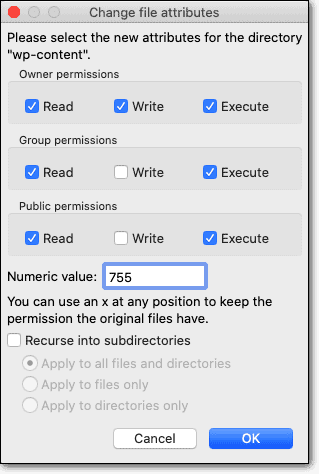
File permissions can mess up how your site runs. Most folders and files should have their permissions set to 755 and 644 respectively.
Use your hosting’s file manager or FTP client to repair these permissions if needed. Check your server logs for any errors related to permissions.
Repair WordPress installation
Download a fresh set of WordPress files, but ensure you have a backup of your wp-content folder and wp-config.php file before proceeding. This backup protects your site’s themes, plugins, and configuration settings.
If the issue lies within the wp-config.php file, such as an extra or missing line of code, compare the current wp-config.php with a fresh WordPress configuration file to locate discrepancies. To make things easier, you can use Diffchecker to identify the same.
Fix any errors and upload the new files via FTP to clear up issues without affecting your site’s essential content.
Increase PHP time limit
Sometimes, your website encounters issues because the PHP time limit is too low, meaning the server cuts off tasks before they are completed. This can cause problems like incomplete updates or processes, preventing your site from functioning smoothly.
Once you’re ready, open your wp-config.php file. If your FTP client doesn’t have a text editor, use a program like Visual Studio Code.
Add this line towards the end of the file, just before the part that says, That’s all, stop editing! Happy blogging!:
set_time_limit(X);Replace the X with the number of seconds like 300. Once you save the file, your site should have more time to complete these processes.

Check .htaccess file
Your .htaccess file is like a traffic director for your site. If custom rules inside it are causing issues, it might be time to reset .htaccess file to default values recommended by WordPress, which you can find on the WordPress Codex.
Note that the file structure will look different for multisites. But, here’s what the basic default .htaccess structure looks like:
# BEGIN WordPress

<IfModule mod_rewrite.c>

RewriteEngine On

RewriteBase /

RewriteRule ^index\.php$ - [L]

RewriteCond %{REQUEST_FILENAME} !-f

RewriteCond %{REQUEST_FILENAME} !-d

RewriteRule . /index.php [L]

</IfModule>

# END WordPress
Once you’ve made changes, you can add back any custom rules. Keep in mind to edit any of your core files with complete care.
Measures to prevent the need for future repairs
Automated backups
Make sure to schedule automatic backups for your website. These backups act like a safety net, allowing you to quickly recover if something goes wrong. Having multiple backups in different locations—known as redundancy—ensures even more security for your data.
Regular updates
Keep WordPress and all your plugins and themes updated to the latest versions. Regular updates include security patches and new features that protect your site from potential vulnerabilities.
Choosing reliable plugins and themes
Select plugins and themes from trustworthy sources like the WordPress repository. Check for good reviews and regular updates. They are indicators that their developers are committed to minimizing security risks and ensuring smooth functionality.
Enhance security
To protect your site from attacks, use security plugins and create strong passwords. Enable two-factor authentication for an additional layer of security, making it much harder for unauthorized users to gain access.
Improve site speed
Check your site’s speed regularly to make sure it’s fast and efficient. Use caching, optimize your content, and compress images to help your pages load quickly. This improves both user experience and search engine rankings.
Monitoring and tracking
Deploy monitoring tools and logs to keep an eye on your website’s performance. Track uptime, load speed, and any unauthorized access attempts to catch potential issues early.
Reduce plugin usage
Only install the plugins your site truly needs. This will help reduce the risk of conflicts between plugins and maintain your site’s speed and performance.
Audit site regularly
Conduct regular site audits to identify and fix broken links, outdated content, and other potential issues. Staying proactive helps keep your site fresh and functional.
Choose a reliable hosting provider
Select a hosting provider that offers robust security protocols and excellent customer support. A reliable host ensures your site runs smoothly and securely, providing you with peace of mind and support when needed.
Parting thoughts
Keeping your WordPress site healthy is crucial. Understanding common problems and applying the right repairs ensures it stays user-friendly and efficient. This includes updates, backups, and security enhancements, which act as shields against future issues.
By committing to these tasks, you ensure a smooth-running website and a great experience for your visitors.
FAQs
How to repair a WordPress site?
To repair a WordPress site, start by identifying the issue. You might need to deactivate plugins, revert to a default theme, or enable debugging. Check your site’s error logs to spot specific problems and apply the necessary fixes.
Who can fix my WordPress website?
You can fix your WordPress website if you’re comfortable with the process. Otherwise, opting for a maintenance service can help resolve complex issues effectively.
How do I fix a broken page in WordPress?
To fix a broken page, ensure that permalinks are set correctly, deactivate plugins to rule out conflicts, and check for any theme-related issues. Restoring from a recent backup can also help if changes have caused the page to break.
Can you recover a WordPress website?
Yes, you can recover a WordPress website, especially if you have backups. Use backup plugins to restore your site, or manually upload backed-up files and databases via FTP and phpMyAdmin.
How do I recover a crashed WordPress site?
To recover a crashed WordPress site, first check for any corrupted files or plugins and replace them with fresh copies. If you can’t identify a corrupt file, access backups if available from when your site was functioning perfectly and restore them.

Shivani enjoys crafting guides that make every aspect of using WordPress simple and easy to follow. When she's not glued to her laptop, you can find her buried in a good book or occasionally, painting.