You’ve heard of the All in One SEO plugin. It’s widely regarded as one of the best SEO plugins for WordPress. But does the same status still hold up in 2025?
Does it truly deliver on its promise as a comprehensive SEO tool for your website?
This isn’t just another review. It’s your complete guide to understanding whether AIOSEO is the right fit for you, and if so, exactly how to configure it properly from the moment you install it.
All in One SEO simplifies WordPress SEO for beginners with guided setup and solid free features, though premium unlocks the best tools. Backup your site using a backup plugin before installing, as new plugins can break websites.
All in One SEO plugin in a nutshell
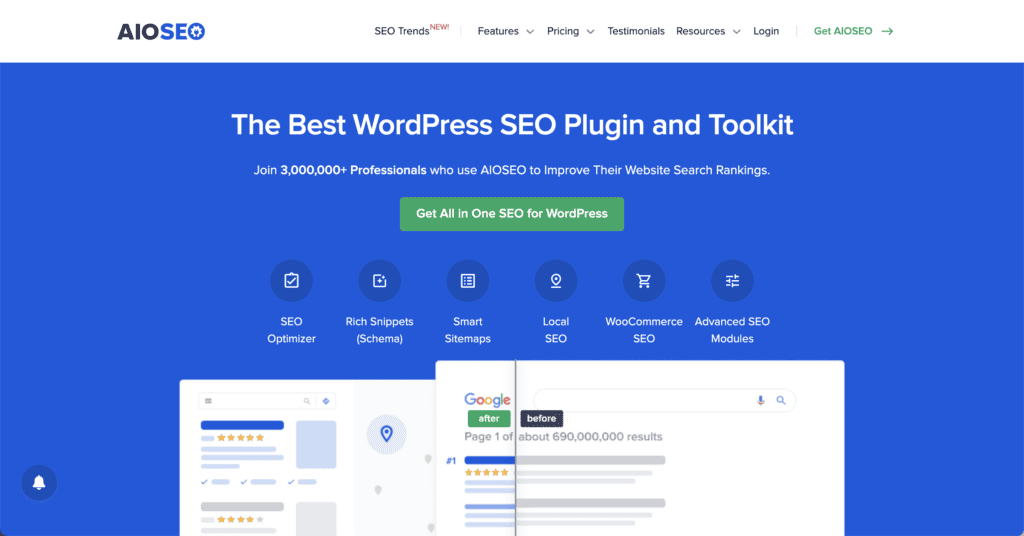
You install WordPress, publish your first post, and realize Google can’t find your content. All in One SEO solves this problem.
At its core, this plugin handles the technical grunt work that makes your website search engine friendly.
Here’s what makes it appealing for beginners: the setup wizard walks you through everything. No cryptic settings. You answer a few questions, and it configures the basics automatically. The free version covers standard SEO essentials. Meta tag optimization, XML sitemaps, basic schema markup, and social media integration. Plus, a content analysis tool gives you real-time suggestions while you write.
Premium unlocks local SEO optimization, redirect management, video sitemaps, and advanced schema types. If you’re running a business website, these features become crucial.
The tradeoff? Larger websites might notice slower performance during site audits. If you want to tinker with every SEO setting, you might feel restricted.
Keep in mind that All in One SEO suggests additional plugins like OptinMonster during setup to enhance SEO efforts. These can be deactivated and deleted if unwanted, and won’t reinstall unless selected in the Setup Wizard again. So, if you’ve selected one unintentionally, don’t be alarmed if a new plugin appears.
Deep dive into the key features
Let’s talk about what All in One SEO has to offer:
On-page SEO & content analysis
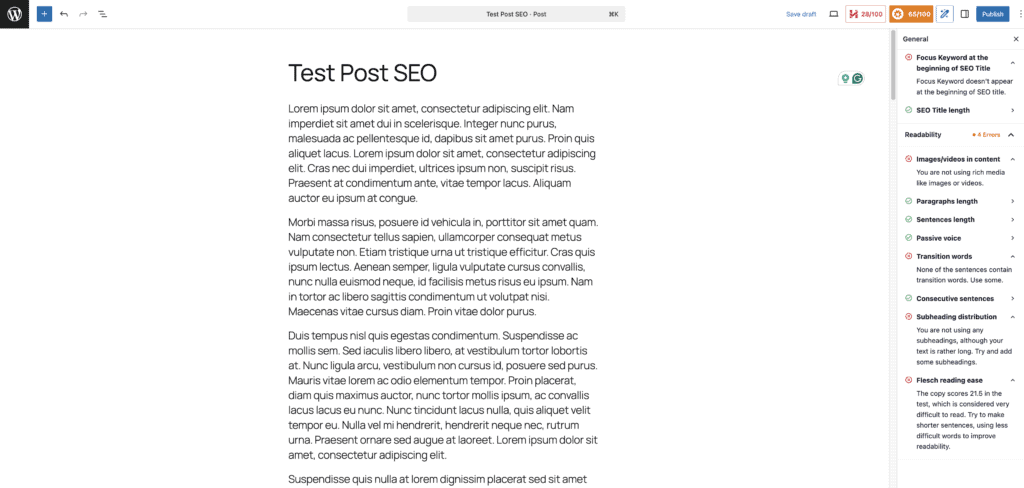
Similar to Yoast SEO, every page gets a TruSEO score out of 100. It suggests actionable fixes like add a number to your title or make your title longer. The advice stays simple and non-technical.
The title and meta description editor shows you exactly how your listing will appear in Google before you publish. The live preview removes guesswork.
Schema markup gets added automatically to make your search listings more attractive with star ratings and rich snippets.
Technical SEO features
XML sitemaps are generated automatically in the background. Google gets a complete map of your website without any input from you.
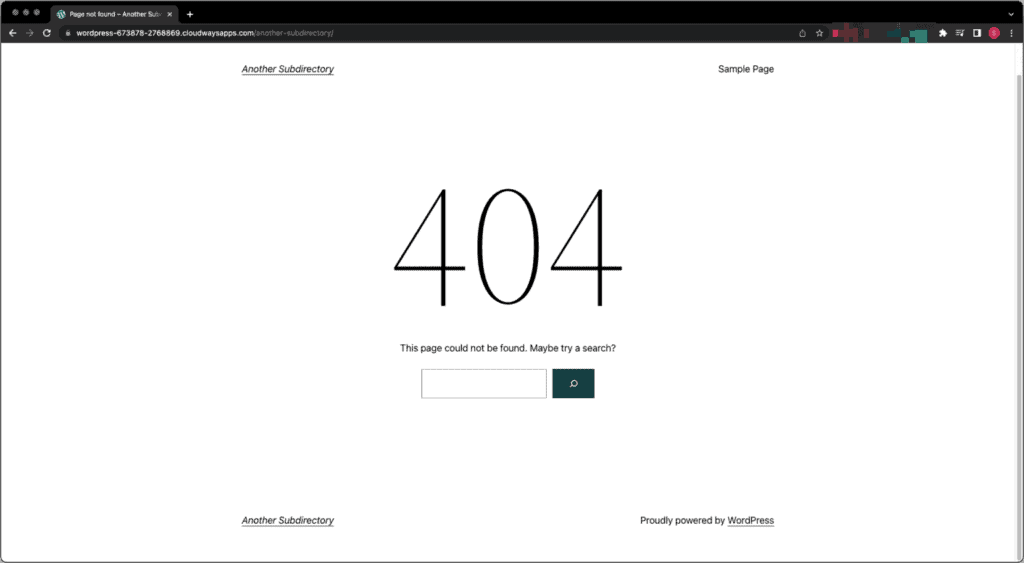
The redirection manager automatically sends visitors to relevant pages when you delete old content. No more 404 page not found errors killing your SEO.
Advanced users get robots.txt editing, but beginners can ignore it completely.
Premium features that matter
- Link Assistant scans your content and suggests internal linking opportunities. It transforms a tedious manual task into automated recommendations.
- Local SEO adds business addresses, hours, and maps for local search visibility. Essential for physical businesses.
- WooCommerce integration optimizes product pages with proper schema markup for Google Shopping.
- Search Statistics pulls Google Search Console data directly into your WordPress dashboard. No separate logins required.
Overall testing verdict
AIOSEO excels at user experience. The setup wizard and clean interface are unmatched. Features like Link Assistant and Local SEO lead their categories.
The downside? Users say that site audits can run slowly on large websites and the premium plan locks away the best features.
Honestly, some beginners might still feel overwhelmed by the sheer number of options, even if they are well-organized. But for most users, it makes complex SEO manageable.
How to set up All in One SEO and our impressions
Here’s exactly how to get AIOSEO running on your WordPress site.
Step 1: Get started with the setup wizard
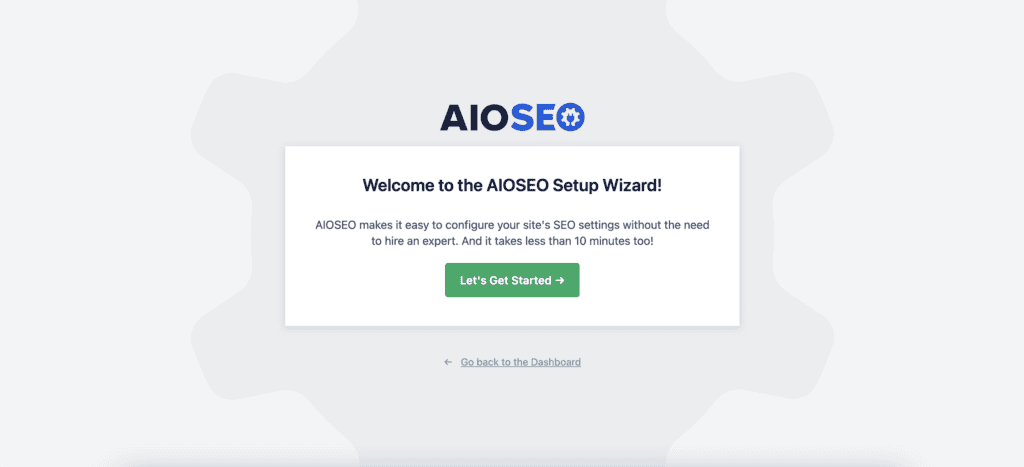
Go to your WordPress admin dashboard, click Plugins, then Add New. Search for All in One SEO and install it. Next, click Activate.
The setup wizard launches automatically, which immediately impressed us. No hunting through menus or wondering what comes next.
Step 2: Import from other plugins (if needed)

Switching from SEO plugins like Rank Math? Use the import tool to transfer all your existing settings with one click.
Step 3: Choose your site type
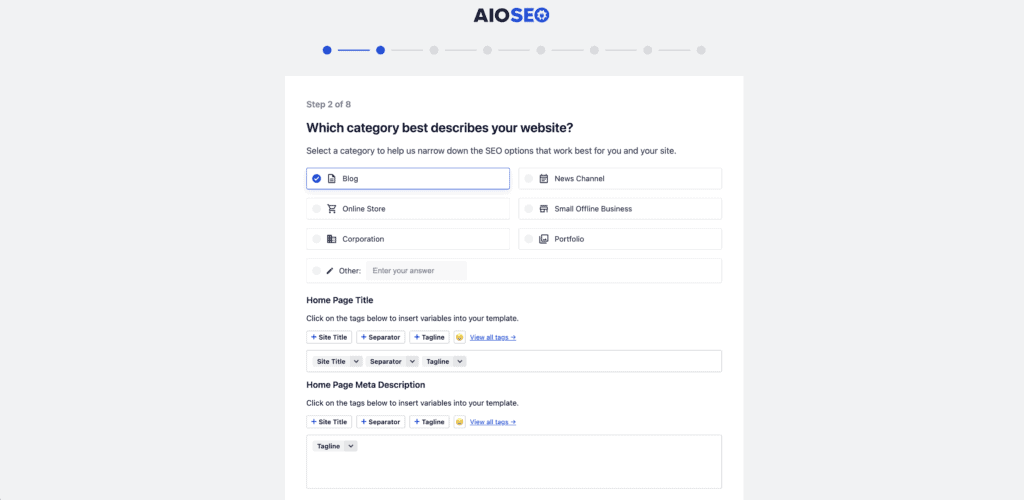
The wizard asks what type of site you’re running. Business, blog, news site, or online store. Pick the one that fits best. This single choice configures your schema markup automatically. Smart move by the developers, since most people have no idea what schema even is.
Step 4: Add your business information
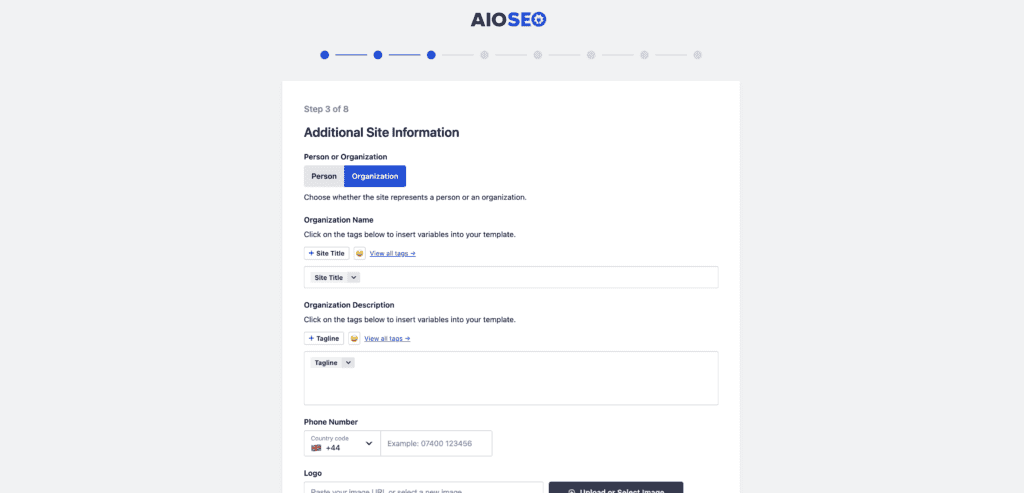
Enter your business name, logo, and contact details. If you have a physical location, add your address too. These details get used for local SEO features and social media sharing. Fill them out completely since they’ll save you time later.
Step 4: Connect Google Search Console
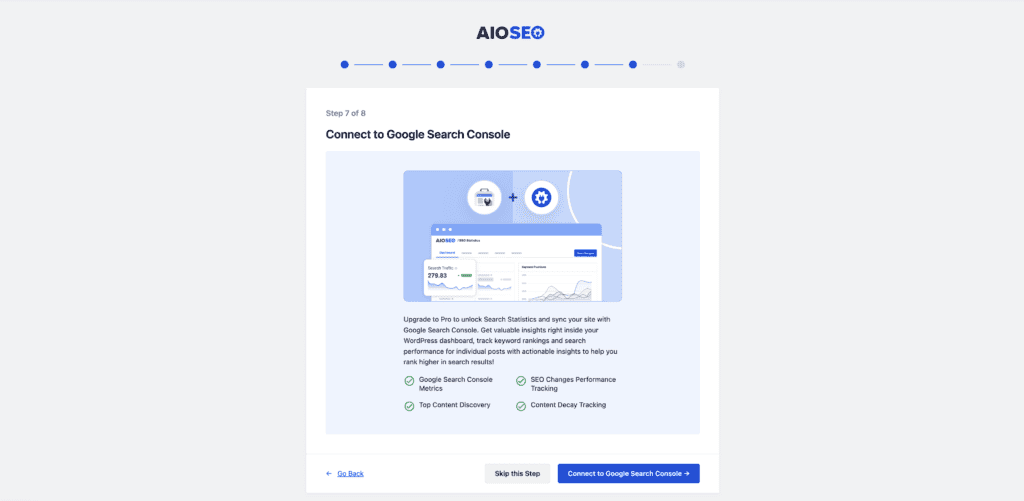
Click Connect Google Search Console and authorize the connection. This lets AIOSEO pull search performance data directly into your dashboard. The integration takes about 30 seconds and gives you immediate value.
Step 5: Select features to enable
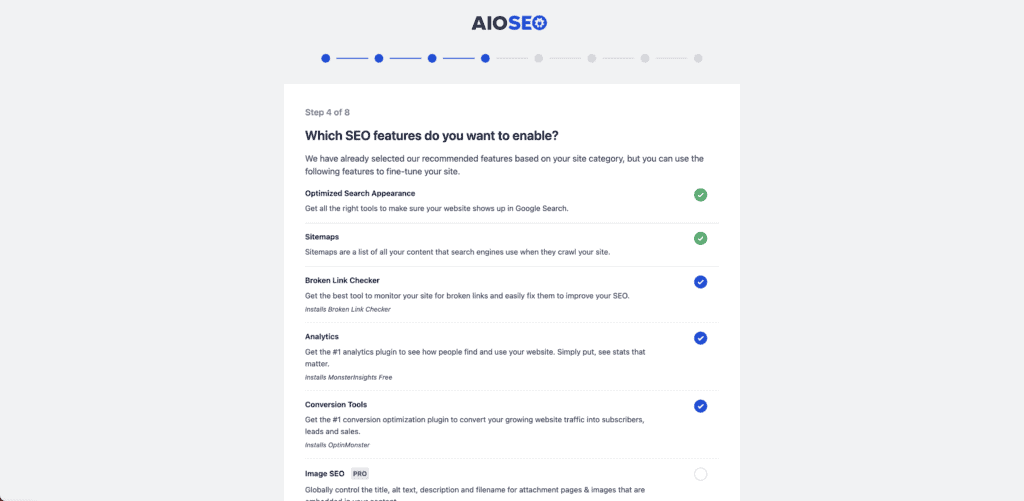
The features you need for your site based on your answers come preselected. If you wish to add/remove any, you can do so. Keep in mind that some are PRO features and you will be asked to purchase a license to use them.
Our impressions
Total setup time: under five minutes. The wizard eliminates technical overwhelm completely, and your site starts benefiting from proper SEO configuration immediately.
The TruSEO analysis begins working right away, giving you actionable feedback on existing content.
Pricing
AIOSEO starts free, letting you test the waters before spending money. The free version handles essential SEO tasks like meta tags and XML sitemaps.
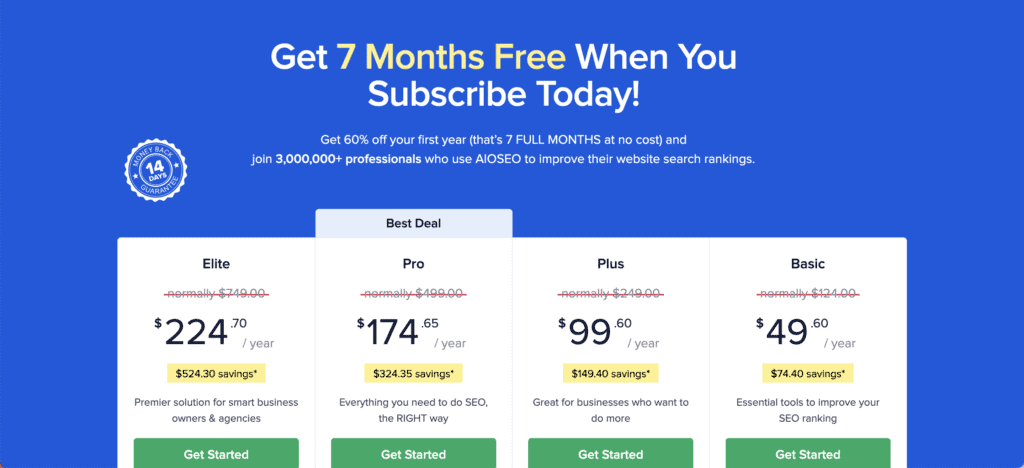
If you’re ready to upgrade:
- The Basic plan costs $49.60 yearly for one site and adds WooCommerce SEO.
- The Plus plan jumps to $99.60 for three sites with local SEO features.
- Pro costs $174.65 for ten sites and includes video sitemaps plus Link Assistant.
- Elite handles 100 sites at $224.70 with agency tools.
All paid plans include a 14-day money-back guarantee. Non-profits get discounts.
Pros and cons
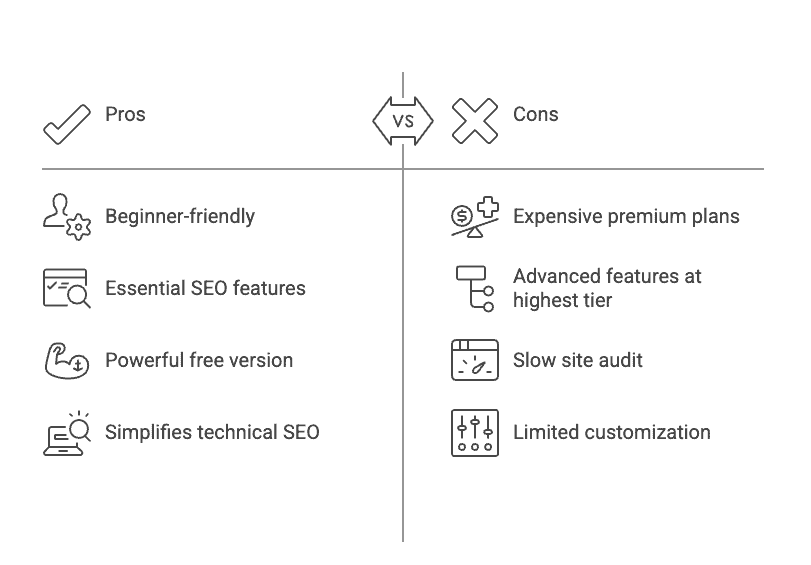
Is All in One SEO right for you?
AIOSEO works best if you:
- Are new to SEO and want a guided setup
- Run a local business with a physical location
- Use WooCommerce for your online store
- Don’t mind paying subscription costs for added features
- Want simplicity over advanced controls
Consider other options if you:
- Manage many websites on a tight budget
- Need granular technical customization
- Only need basic schema markup
- Prefer ultra-lightweight plugins
Bottom line: AIOSEO makes complex SEO accessible to regular people. If that matches your needs, it’s your answer. If you need specialized features or budget solutions, keep shopping.
Alternatives to All in One SEO
Choosing the right SEO plugin depends on your specific needs and preferences. Here are some popular alternatives to All in One SEO:
Yoast SEO
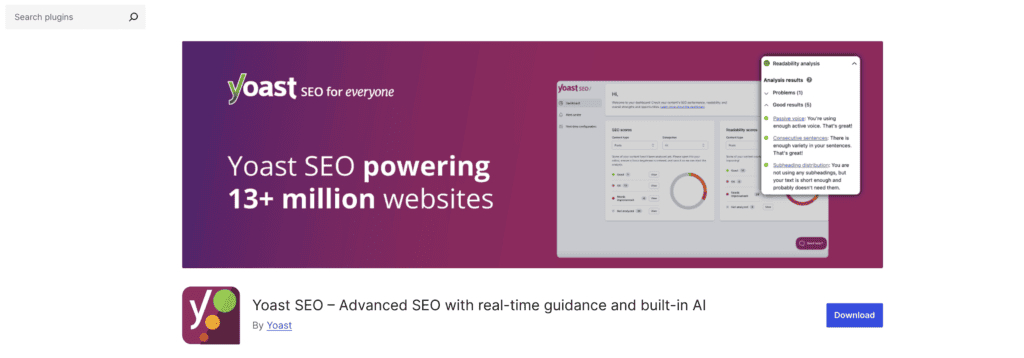
- Features: Comprehensive on-page optimization, readability analysis, and content insights. It offers a user-friendly interface with real-time suggestions.
- Best For: Users who want an easy-to-use tool with a focus on content quality.
- Cons: Some advanced features are locked behind a paywall.
Rank Math

- Features: Offers detailed SEO analysis, multiple keyword optimization, and built-in integration with Google Search Console.
- Best For: Those who want powerful features for free and detailed insights.
- Cons: Can be overwhelming with its extensive options for beginners.
SEOPress
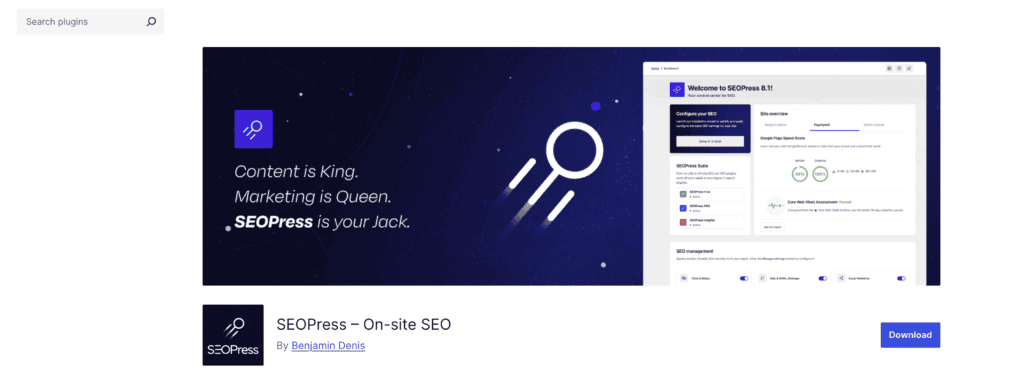
- Features: Includes all essential SEO functionalities, social media integration, and white-labeling options.
- Best For: Users looking for a balance between functionality and simplicity without recurring fees.
- Cons: Slightly steeper learning curve compared to other plugins.
Slim SEO
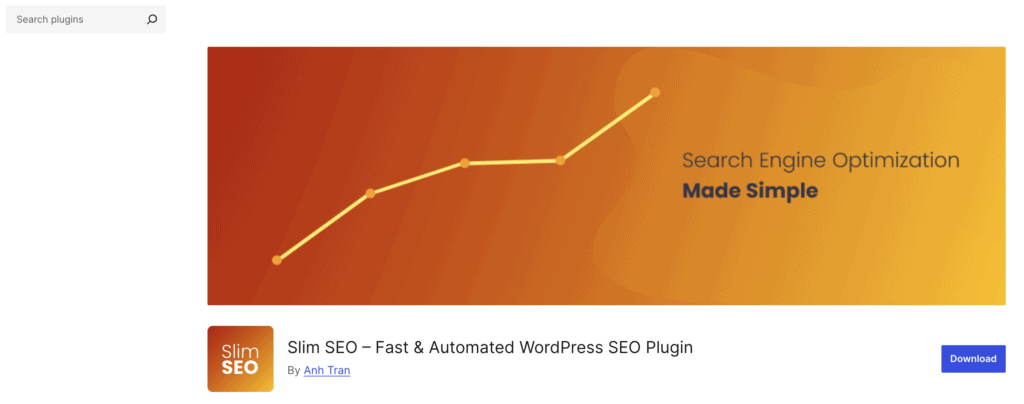
- Features: Lightweight with automatic configurations, covering essential SEO needs with minimal setup.
- Best For: Users who want a no-frills SEO solution that works out of the box.
- Cons: Limited customization and advanced features.
The SEO Framework

- Features: Focuses on automation and minimizing configuration, with an emphasis on performance and security.
- Best For: Users who want a fast, efficient plugin with an emphasis on AI-driven meta tag generation.
- Cons: Fewer features compared to more comprehensive plugins like Rank Math and Yoast.
Parting thoughts
All in One SEO excels at making technical SEO accessible to beginners and small businesses. The setup wizard removes the usual confusion, while the free version provides a solid foundation for basic websites.
Premium features offer genuine value for growing businesses, especially the local SEO and WooCommerce integration. Start with the free version to test if it meets your needs.
FAQs
Is All in One SEO plugin free?
Yes, the All in One SEO plugin offers a free version with essential features for optimizing your website. For advanced tools, a premium version is available, providing additional capabilities for enhanced performance.
Which is the best plugin for SEO?
The best SEO plugin depends on your specific needs and preferences; popular options include Yoast SEO and All in One SEO. Each offers unique features to improve site visibility and performance.
What is the All in One SEO Pack?
The All in One SEO Pack is a comprehensive plugin designed to optimize WordPress websites for search engines. It includes features like XML sitemaps, meta tag generation, and social media integration.
Which is better, Yoast or All in One SEO?
Choosing between Yoast and All in One SEO depends on individual needs, as both offer robust SEO features. Many users appreciate Yoast for its user-friendly interface, while others prefer All in One SEO for its flexibility.
Is Surfer SEO better than Yoast?
Surfer SEO and Yoast serve different purposes; Surfer focuses on content optimization using data-driven insights, while Yoast offers a broader range of SEO tools. Your choice depends on specific optimization needs and preferences.
What is the most effective SEO?
The most effective SEO integrates on-page, off-page, and technical strategies to holistically improve website visibility. Regular updates, quality content, and strategic keyword use are key components.

Shivani enjoys crafting guides that make every aspect of using WordPress simple and easy to follow. When she's not glued to her laptop, you can find her buried in a good book or occasionally, painting.