You know you need a better table for your WordPress site, something beyond the basic tools.
But now you’re sorting through table plugins, wary of biased reviews, potential plugin conflicts, and unsure where to invest your time.
This Ninja Tables review cuts through that noise, providing a balanced assessment so you can make a final, confident decision.
Ninja Tables is an excellent choice for building powerful tables visually. To avoid potential mishaps, make sure you have a backup plugin running before making significant changes to your data.
Ninja Tables review at a glance
Here’s the bottom line on Ninja Tables for those who need a quick answer.
| Aspect | Details |
| Core Features | Visual building, CSV/JSON import, Google Sheets (Pro) |
| Pro Features | Sorting, search, formatting, WooCommerce integration |
| Ease of Use | User-friendly, templates available, CSV import advised |
| Design | Modern styles, color/font tweaks, some Pro limitations |
| Performance | Lightweight, fast, AJAX loading for large tables (Pro) |
| Integration | Compatible with themes/builders, Google Sheets, Fluent Forms |
| Support | Pro support, regular updates, active but small community |
Core functionality and features
Ninja Tables helps you build tables visually, a process made much safer with a reliable backup in place before you start. You get a drag-and-drop interface to see your work as you build it. This is a huge relief if you are not a coder.
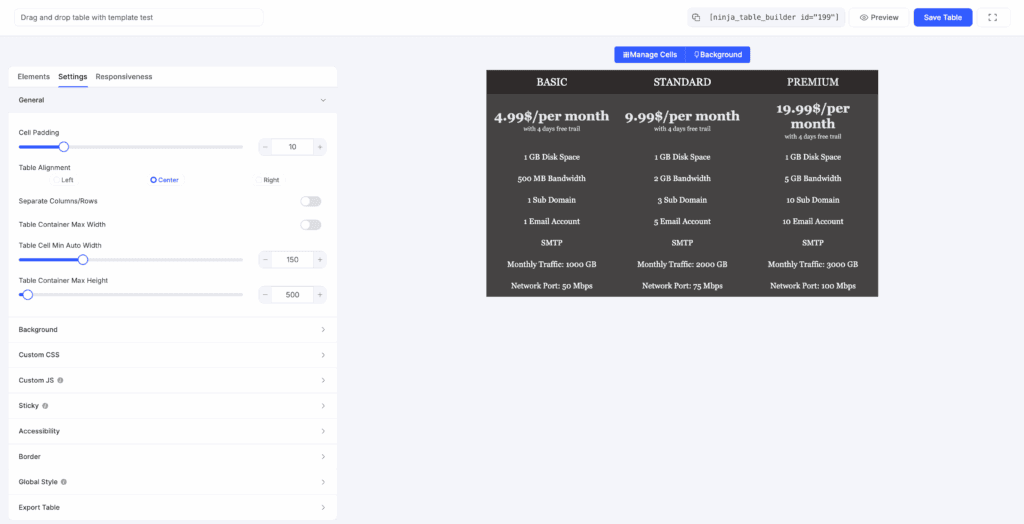
You can make tables from scratch or import data from CSV and JSON files. The Pro version even connects to Google Sheets.
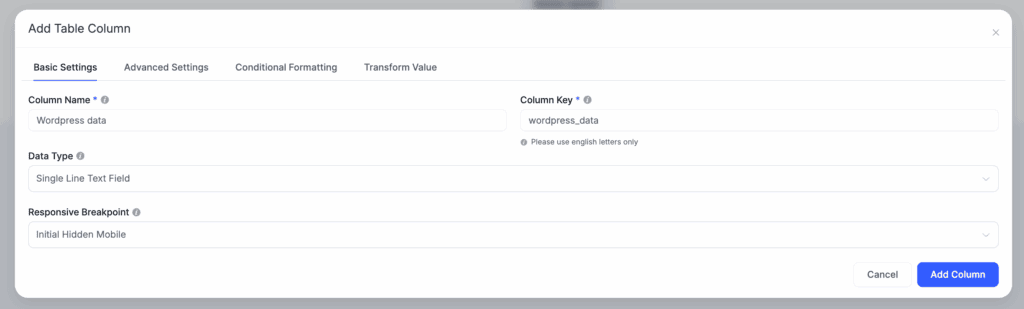
When you build a table by hand, you must define each column’s name and data type, or you can just duplicate it.
The Pro version adds powerful tools for your website visitors.
- Frontend sorting and filtering: Lets visitors organize the data themselves.
- Advanced search: Helps users find what they need in a large table.
- Conditional formatting: Lets you set rules to highlight cells, like coloring high prices red.
- Calculated columns: Creates columns that do math for you, like adding up totals.
If you have a WooCommerce site, its WooCommerce integration is a game-changer for online stores. You can build product tables from your inventory in just a few clicks.
The plugin also lets you control how tables look on phones. You can set responsive breakpoints to hide certain columns on small screens. This prevents unappealing scrolling.
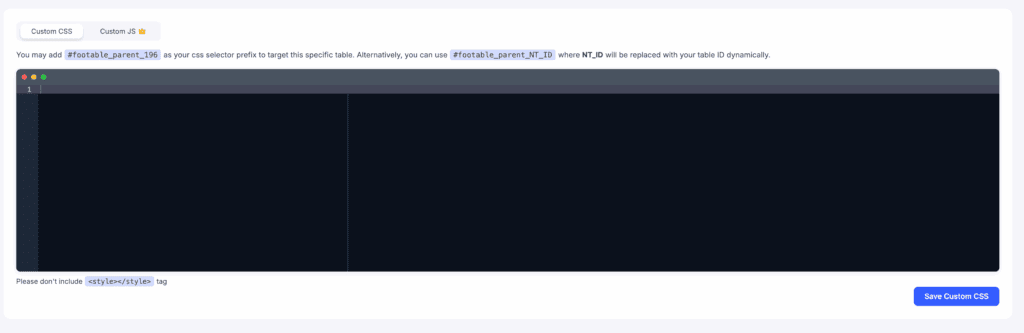
Just know that many key features require the Pro version. This includes extra CSS classes, Custom JS, setting column widths, and managing user permissions.
Ease of use and interface
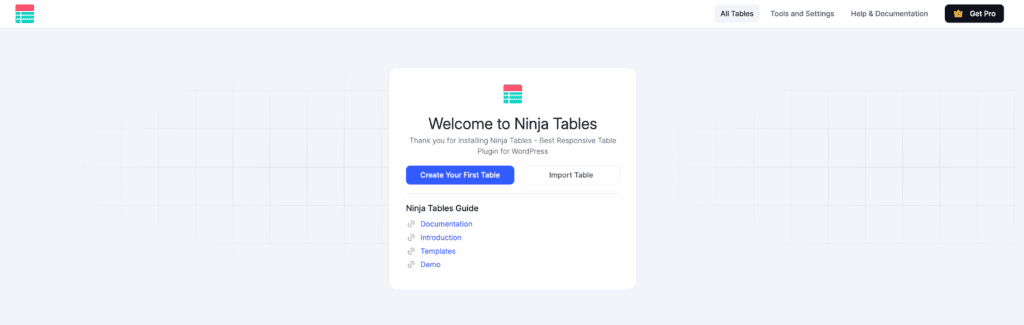
For the most part, Ninja Tables is very easy to use. A helpful onboarding guide greets you right after you install it.
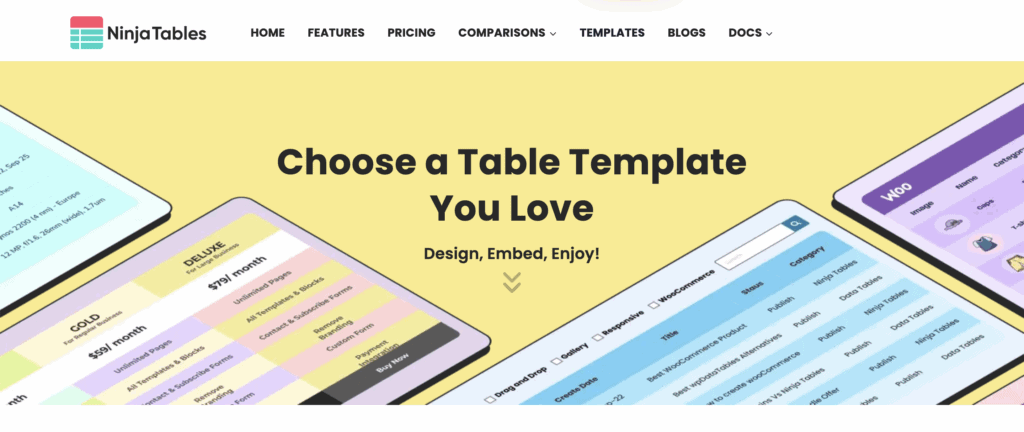
The pre-designed templates are a massive time-saver. You can pick a style, and it’s mostly ready to go. The catch is that templates are for structure.
You cannot heavily change their design; you can only replace the content with your own data. You can also sign up to get more downloadable template packs.
Now, a warning about manual data entry. While you can create a table from scratch, adding every piece of data by hand is slow. Because the builder doesn’t let you copy and paste data from a spreadsheet, the easiest path is to import a CSV/JSON file instead.
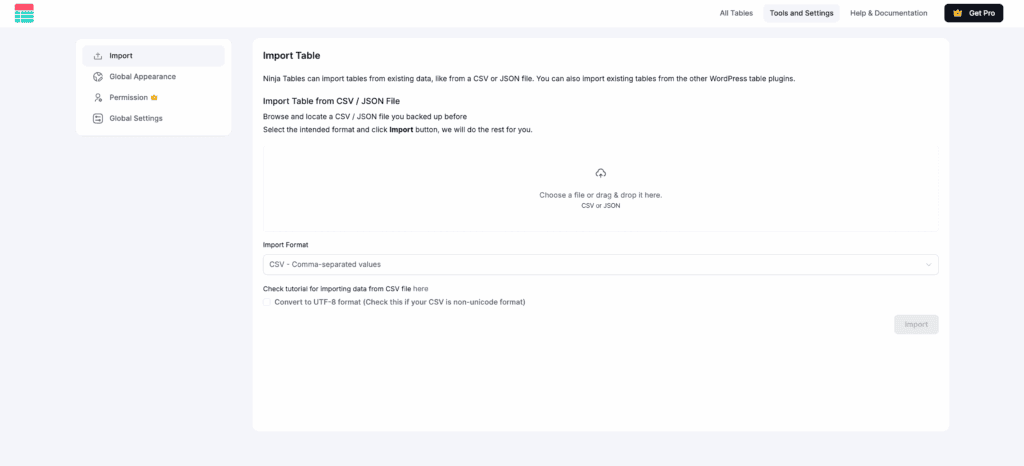
Honestly, typing in each cell one by one is repetitive, and this is where the import function becomes your best friend.
The learning curve for basic tables is practically zero. You will figure it out in just a few minutes.
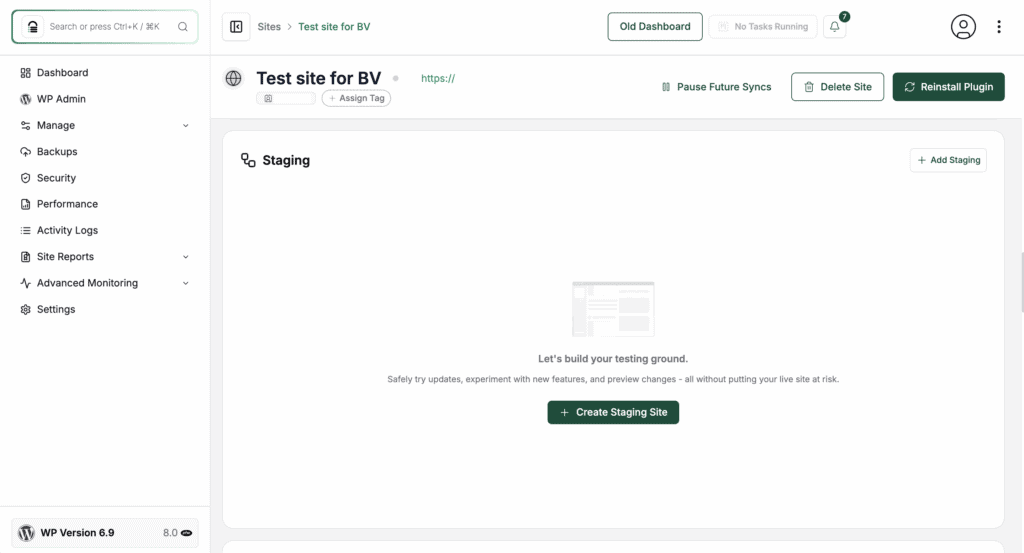
Some advanced settings may initially confuse you, which is the perfect reason to use a staging environment to test them risk-free. Once you get your data in, the next step is making it look good.
Design and customization
Ninja Tables has more design options than many other plugins. You get a good selection of modern styles. You can also tweak colors, fonts, and spacing with a simple visual panel. No code is needed, which reduces the risk of causing the white screen of death.
Here is something frustrating for free users. Some settings in the Styling panel are visible and selectable, but are actually Pro features. You can see them in the preview, but they won’t work on your live site. This is confusing.
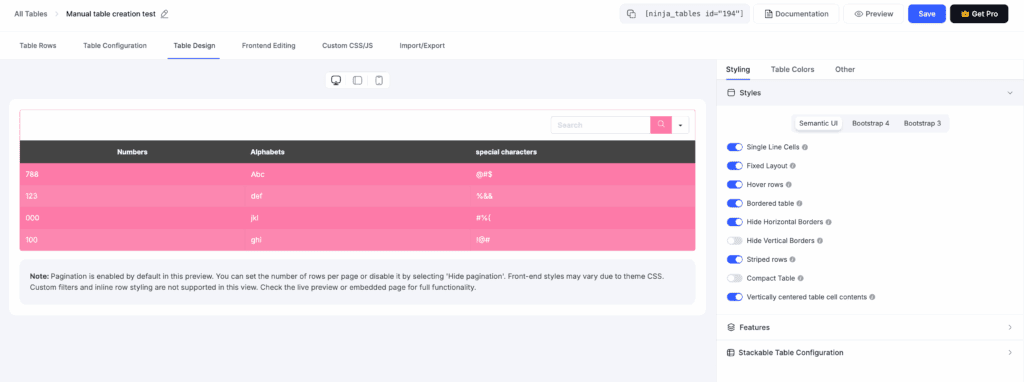
For free users, basic text alignment is one of the few design tweaks you can make. Cell merging and icon integration are also supported.
A small workflow quirk is that you only see a shortcode in your page editor, not the live table. This means you have to constantly hit Preview to see how the table looks with your content.
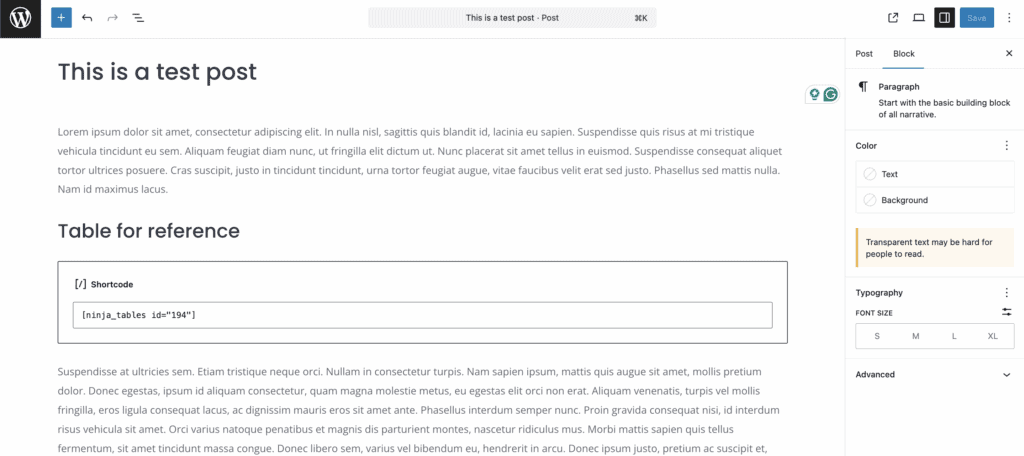
Even after previewing, if styles aren’t appearing, you may need to clear WordPress cache. It’s a minor annoyance, but good to know ahead of time.
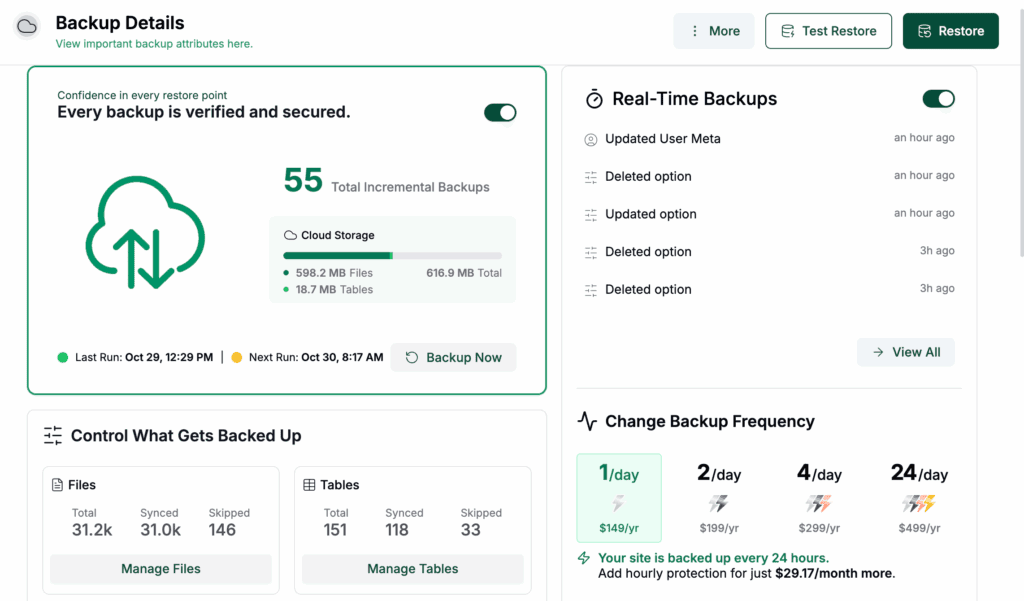
The visual options are excellent. But if you want deep CSS changes, you will still need to write your own custom code, and the first step before doing so should always be a full site backup.
Performance and technical impact
Nobody wants a plugin that slows down their website. The good news is that Ninja Tables is surprisingly light.
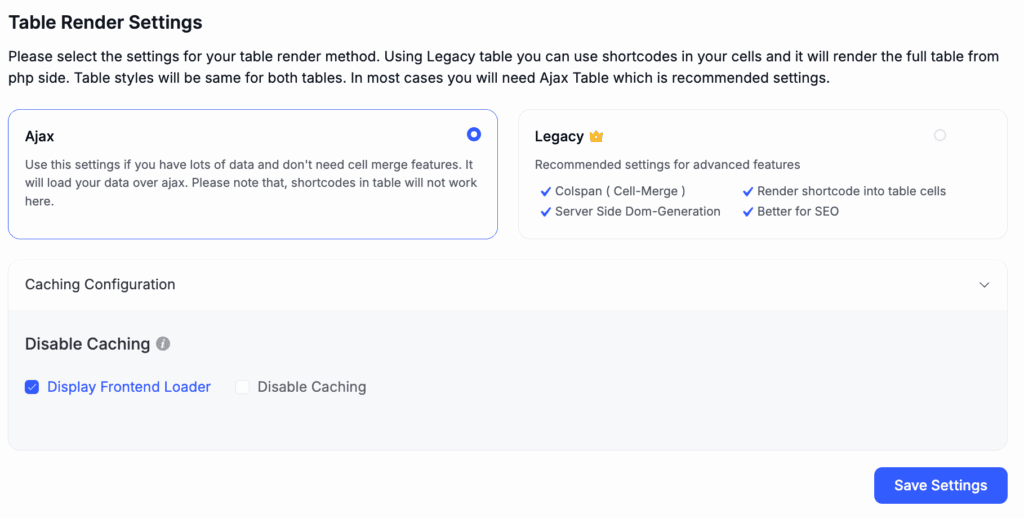
The developers used clean code, so it does not add unnecessary scripts to your site. For very large tables, the Pro version uses AJAX lazy loading. This means it only loads the data that’s visible on the screen. This is critical for keeping your page speed fast when you have thousands of rows.
Our tests show it has a minimal impact on page speed. The plugin runs well on its own, but it also needs to play nice with your other tools.
Integration and compatibility
A plugin is only as good as how well it works with other tools, and avoiding plugin conflicts is a major part of that. Ninja Tables does a solid job here.
It works well with all major WordPress themes and page builders like Elementor. It uses simple shortcodes, so you can place a table almost anywhere.

The Pro version’s direct integrations are a strong selling point. Connecting to Google Sheets is easy. Its integration with Fluent Forms lets you display form entries in a table.
The plugin is a bit light on deep integrations with tools like CRMs or email platforms. But for most WordPress tasks, it has what you need. When an integration does not work or you get stuck, you will need good support.
Support, updates, and community
The plugin is actively developed with regular updates and solid documentation, which is a great sign. For support, Pro users get a ticket system, while free users have the community forums.
Support can be inconsistent, so a quick restore from a backup is often your best bet. That premium support, however, comes at a price.
Pricing and value
Ninja Tables has a free and a paid version. The free version is remarkably capable. It handles all the essential table needs for many people. You can build good-looking tables without paying anything.
The Pro version is a yearly subscription. Pricing is based on the number of domains you have. Lifetime plans are also available, which offer great long-term value. The pricing is fair for the market.
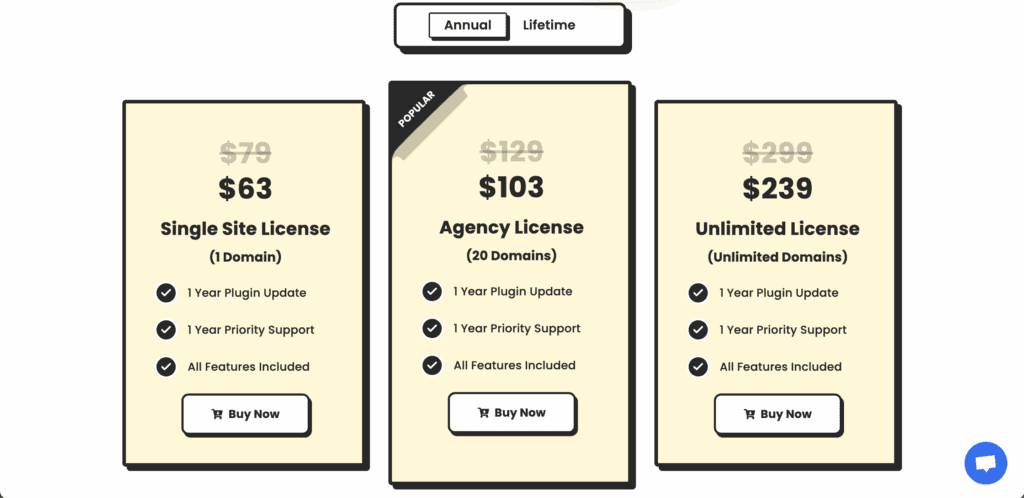
Is the Pro upgrade worth it? If you need to connect to outside data, build WooCommerce tables, or want advanced filters and search, then yes, the Pro pricing is justified. If Ninja Tables does not seem like the right value for you, there are other options.
Alternatives to consider
Ninja Tables is great, but it’s not your only choice.
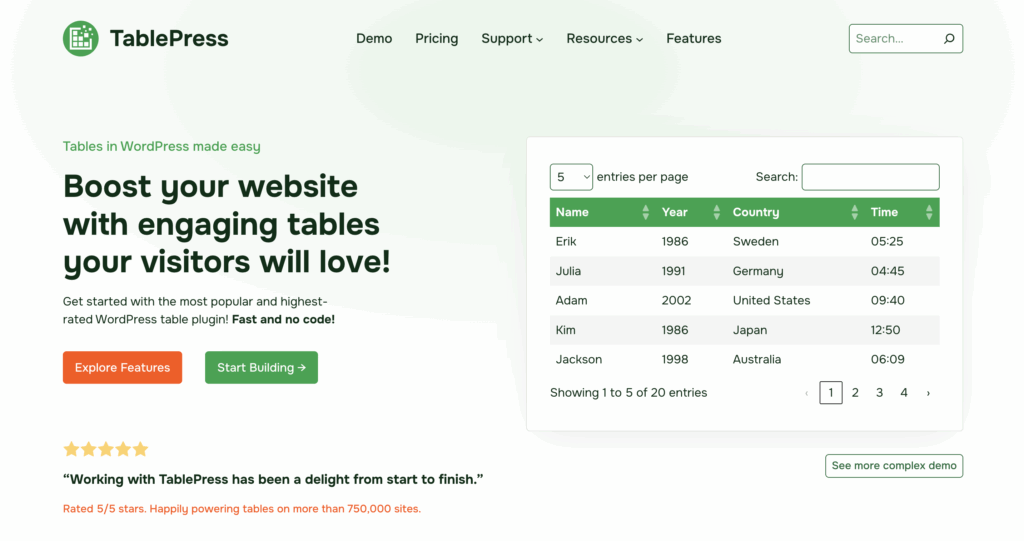
TablePress: This is a long-standing favorite. It’s very light and free, but it is not visual. You work in a simple interface and need CSS for styling.
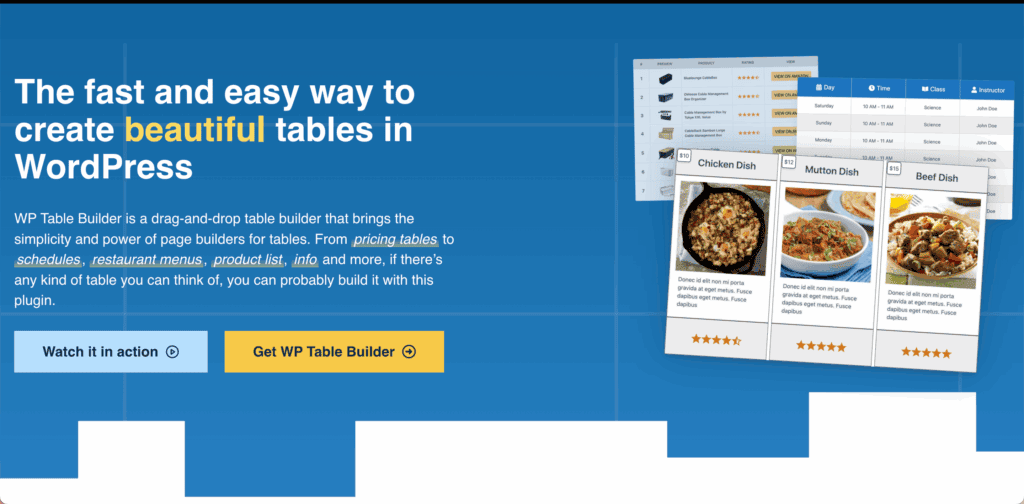
WP Table Builder: This is a direct visual competitor. The interface is a bit different, so it might come down to personal preference.
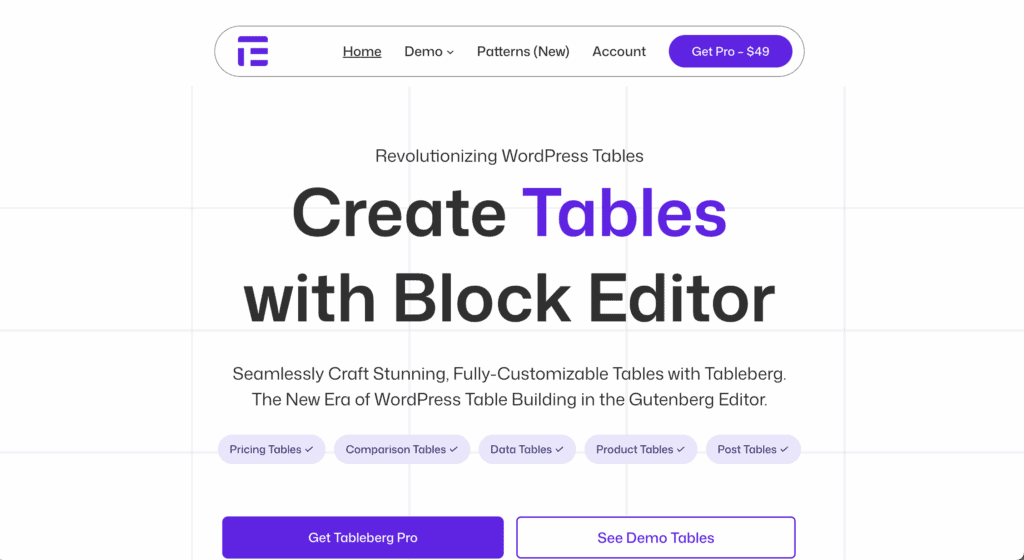
Tableberg: This adds an advanced table block to the Gutenberg editor, giving you more control than the native block without needing a separate plugin interface.

Gutenberg Blocks: For a simple, basic table, the native WordPress table block might be all you need.
With these alternatives in mind, where does that leave Ninja Tables?
Parting thoughts
Ninja Tables is an outstanding choice for visual users, with a free version that handles many standard needs. If you run a WooCommerce store, the Pro license is an essential, time-saving investment.
Developers who want minimal code might prefer other options, but that’s a small exception. For most business owners and marketers, it’s one of the best solutions available for its balance of features and simplicity.
FAQs
Is Ninja Tables free or paid?
Ninja Tables offers both a powerful free version and a paid Pro version. The free plugin covers basic table needs, while Pro adds advanced features like Google Sheets integration and frontend editing.
Is Ninja Tables better than TablePress?
It depends on your needs; Ninja Tables is better for visual users who want dynamic features without code. TablePress is lighter and often preferred by developers who are comfortable using CSS for customization.
Does Ninja Tables support WooCommerce product tables?
Yes, the Pro version includes a powerful WooCommerce integration for creating custom product tables. This feature allows you to build filterable and sortable product lists directly from your shop’s inventory.
Can I add images, videos, or buttons inside the table cells?
Yes, you can add images, links, buttons, and even videos by using basic HTML within the table cells. This helps you create more engaging and interactive tables beyond just displaying plain text.
Does the plugin slow down my website’s loading speed?
No, Ninja Tables is well-optimized and generally does not slow down your website’s performance. The Pro version includes features like AJAX lazy loading to ensure even very large tables load quickly.
Is there a lifetime license option available?
Yes, in addition to yearly subscriptions, Ninja Tables offers lifetime licenses (LTDs) for its Pro version. This one-time payment is a great long-term value for agencies and dedicated users.

Shivani enjoys crafting guides that make every aspect of using WordPress simple and easy to follow. When she's not glued to her laptop, you can find her buried in a good book or occasionally, painting.