With your WordPress installation complete, you’re ready to bring Elementor’s features to your site.
The question arises: how to install Elementor in WordPress?
Whether you’re a beginner or have purchased the PRO version and are stuck on how to proceed, this guide is here to help, providing a clear, step-by-step process for both scenarios.
To install Elementor, first add the free plugin via your WordPress dashboard, then use the automated Connect method or manual upload for the PRO version. Always use a backup plugin beforehand to prevent potential conflicts and ensure smooth installation.
Your pre-installation checklist
Having these things ready will prevent any snags and save you some time:
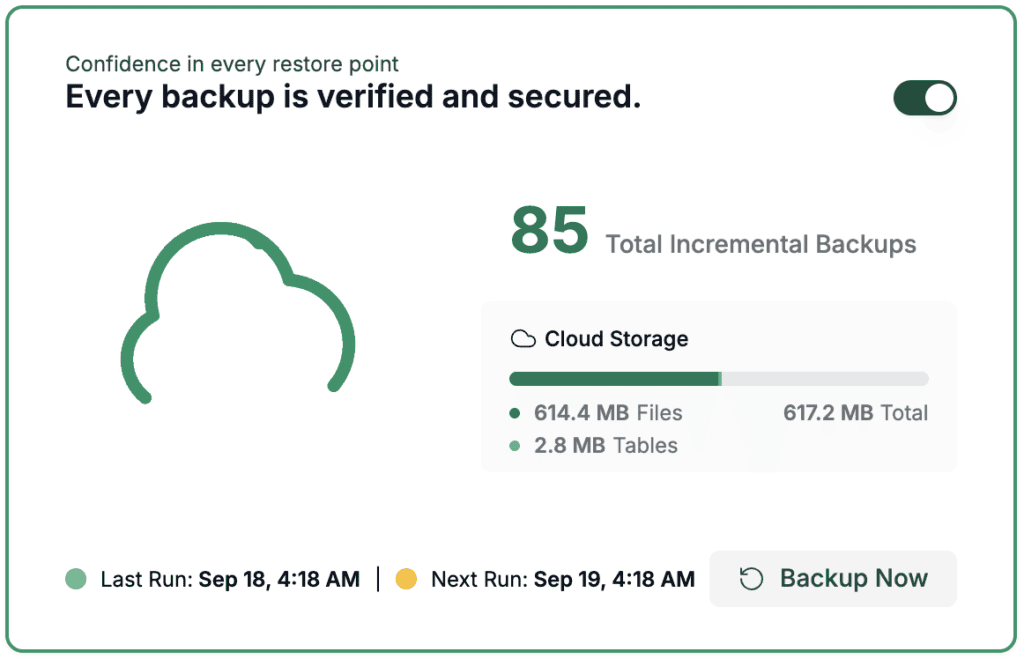
- A recent website backup: Before installing any new plugin, it’s wise to have a current backup. This acts as a safety net if anything goes wrong.
- An active and compatible WordPress installation: You must have a functional WordPress website set up.
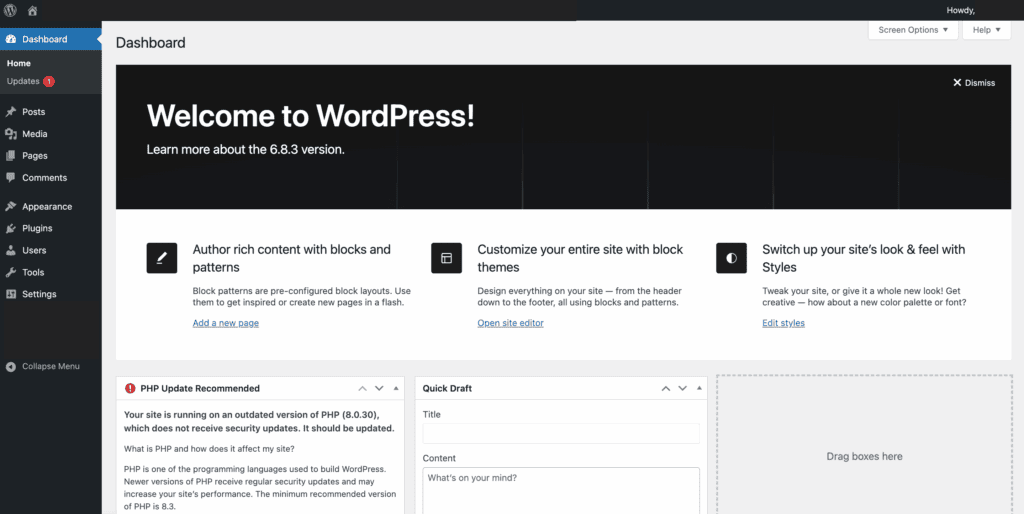
- Administrative access: You’ll need your admin login details to get into the dashboard.
Part 1: Installing the free version
There are two methods for this installation. Here is how to proceed with each.
Method 1: Search and install
This method is recommended for all beginners. Here’s how to go about it:
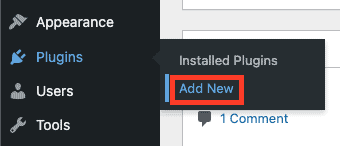
Navigate to plugins: First, sign in to your WordPress admin dashboard. On the left-hand side menu, head to Plugins and click Add New.
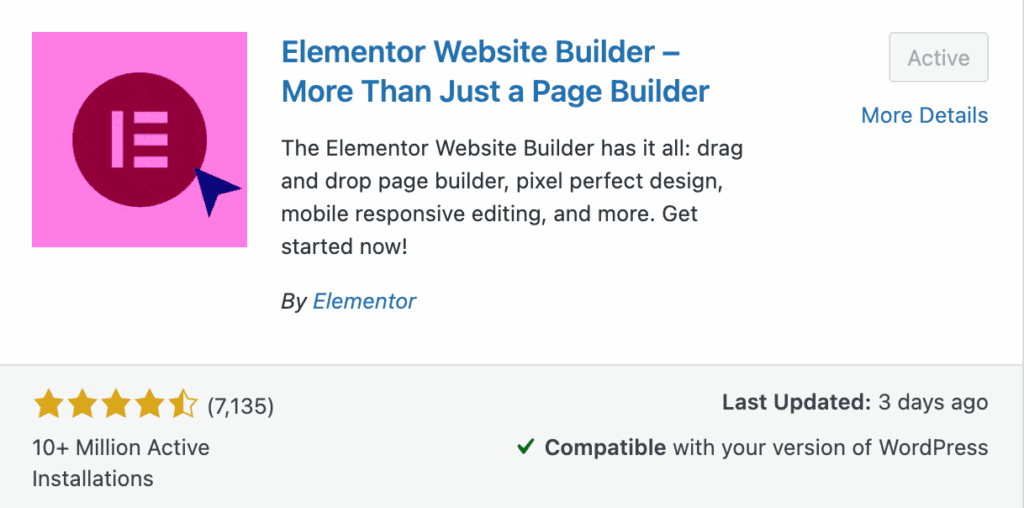
Install and Activate the plugin: Use the search bar on the right and type Elementor. Locate Elementor Website Builder and click the Install Now button. After installation, the button will change to Activate. Click it to finish.
Method 2: Manual upload via zip file
Use this method only if your hosting provider blocks direct installations from the WordPress repository.
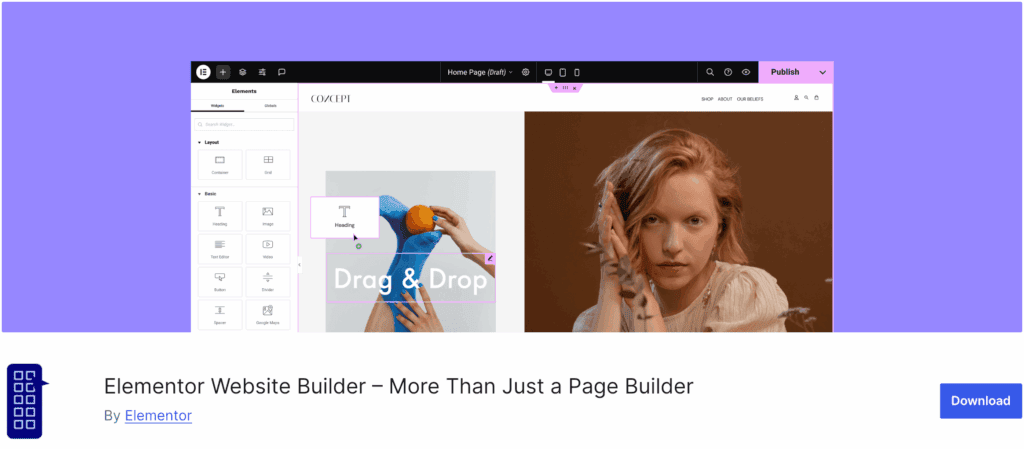
Download the plugin: Go to the Elementor page on WordPress.org and download the .zip file to your computer. Do not extract the file. You must leave the file in its original .zip format.

Upload the zip file: In your WordPress dashboard, go to Plugins > Add New and click the Upload Plugin button at the top. Click Choose File and select the Elementor ZIP file you just downloaded. Once done, install and activate the plugin.
Part 2: How to install Elementor in WordPress (PRO)
If you’ve already installed the free version and now want to connect your PRO purchase or just want to install the PRO plugin with the ZIP file, there are two primary methods. Here’s how to go about them.
Method 1: Install PRO via Elementor Connect (Automated)
This method connects your site to your Elementor account to verify your subscription and install the PRO add-on automatically.
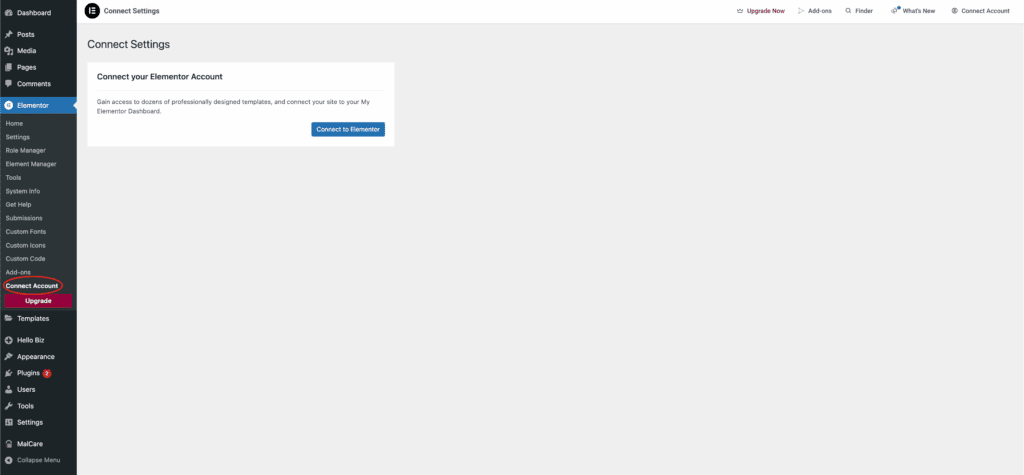
Initiate the connection: In your WordPress admin area, go to Elementor > Connect Account. Next, click the Connect to Elementor button.
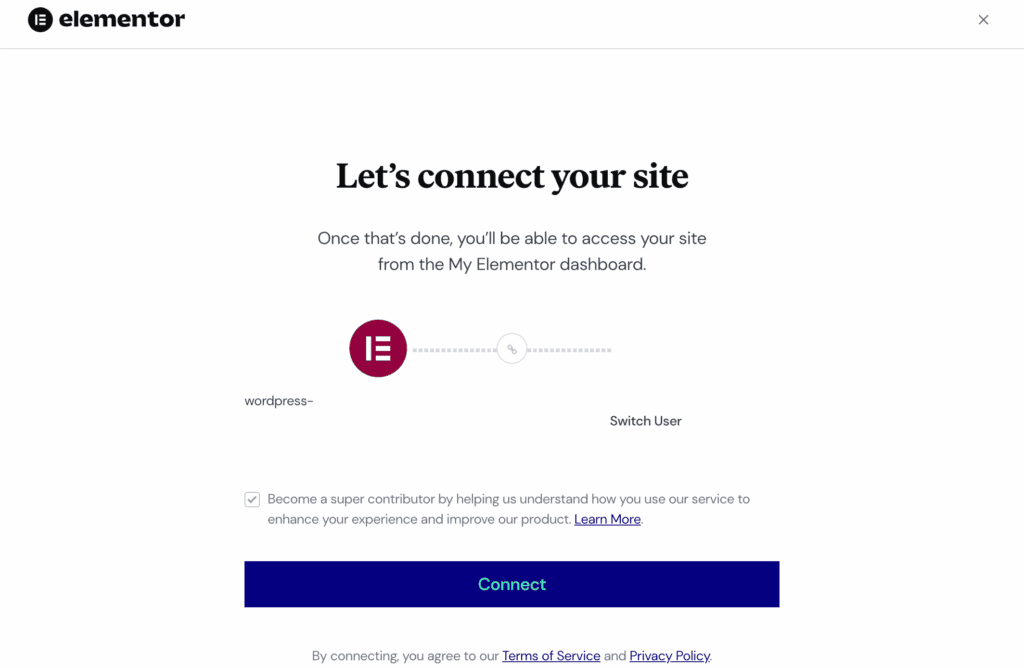
Log in to your account: You will be prompted to log in to your Elementor.com account. If the wrong account is shown, click Switch User.
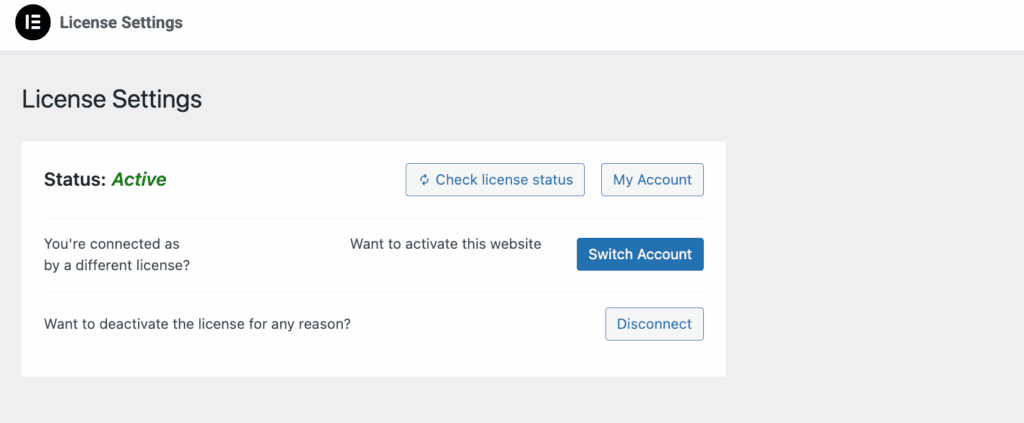
Validate your license: To finish, click Connect & Activate. Your license is now active.
Method 2: Manual upload via downloaded zip file
This fallback method follows the same procedure as a standard manual plugin upload. You’ll use this if the automated connection fails or if you simply prefer to handle the files yourself.
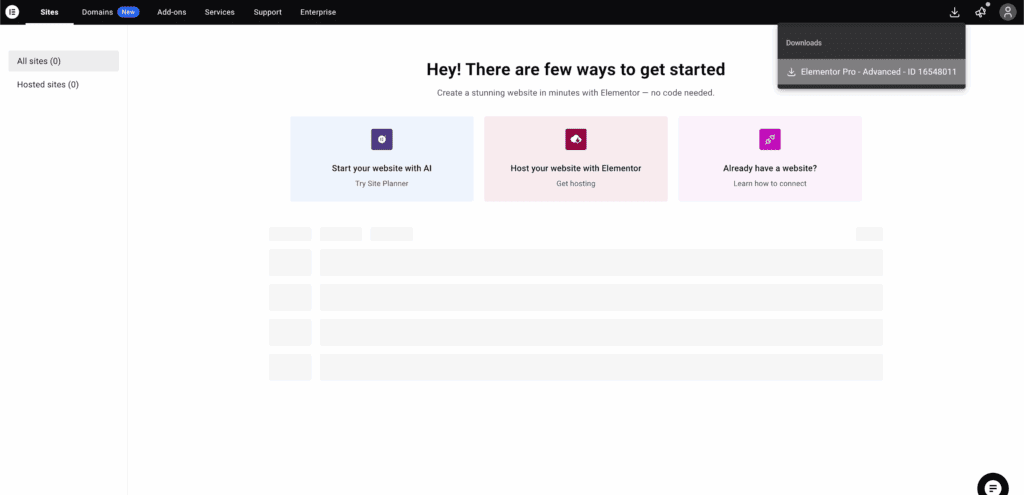
Download PRO: Log in to your My Elementor dashboard on Elementor.com and download the PRO ZIP file. Do not extract the zip file. Keep the file as is.
Upload the plugin: In WordPress, navigate to Plugins > Add New and click Upload Plugin. Next, click Choose File and select the Elementor PRO ZIP file from your computer.
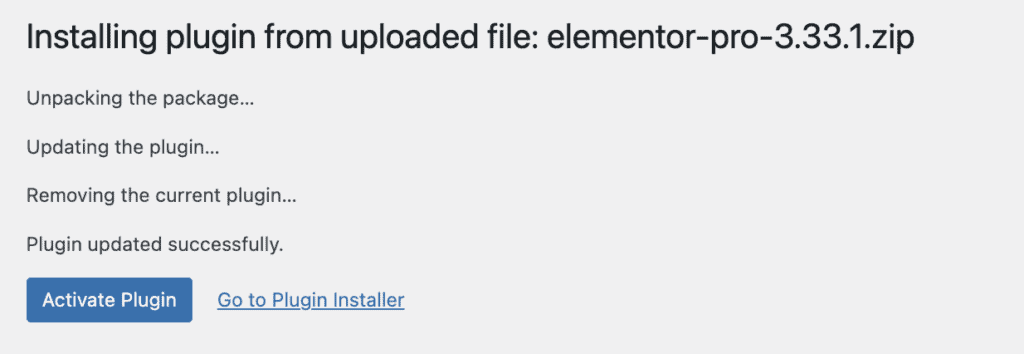
Install the plugin: Click Install Now and wait for the upload to complete.

Finalize the installation: Click the Activate Plugin button. After the page reloads, the final step is to validate your purchase. Click the Connect & Activate link and log into your Elementor.com account when prompted. Your PRO license is now active and ready to use.
What to do after installation
After installing, take a moment to confirm everything is working correctly.
- Verify your license: Go to Elementor > License in your WordPress dashboard to confirm the status is Active.
- Check for updates: Ensure both the free and PRO plugins are updated to the latest versions.
- Open the editor: Create a new page and click Edit with Elementor to confirm the editor loads.
- Confirm pro features: Look for PRO widgets in the editor panel; they should now be available without a lock icon.
- Explore new options: Check for the Theme Builder and Popup Builder in the Elementor menu.
Troubleshooting common installation issues
If you run into a problem, it’s likely one of the common issues below. Here’s what to do.
The editor is stuck on the loading screen
This is the most common issue users face, and it’s almost always a plugin conflict. It means Elementor is “disagreeing” with another plugin or your theme.
- The Fix: The goal is to find the culprit. Temporarily deactivate all other plugins. If the Elementor editor works, reactivate your plugins one by one until the editor breaks again. The last plugin you activated is the one causing the conflict.
The site shows a blank screen
This is often called the white screen of death and usually happens for one of two reasons: a severe plugin conflict or your website has run out of memory.
- The Fix: First, check for a plugin conflict (as described above). If you’re locked out of your dashboard, you’ll need to do this via FTP or your host’s file manager by renaming the plugins folder. If that’s not the issue, the fix is to contact your hosting provider and ask them to increase your website’s PHP memory limit.
Your PRO features are still locked
This simply means your license hasn’t been activated yet, even though the plugin is installed.
- The Fix: Go to Elementor > License in your WordPress dashboard. Click the “Connect & Activate” button and log into your elementor.com account to sync your purchase with your site.
Installation fails with an error (like “Destination folder exists”)
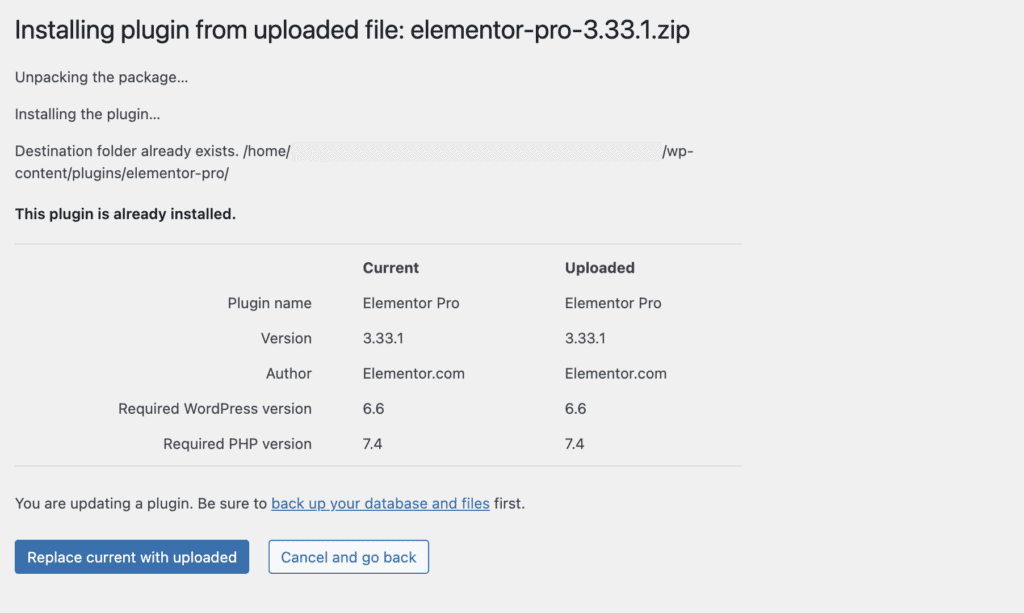
The destination folder exists error appears when WordPress tries to create the new plugin folder, but a folder with the same name already exists from a failed previous attempt.
- The Fix: On the error screen, check if an option to “Replace current with uploaded” appears. If it does, selecting it is the fastest way to fix the issue. If that option is not available, you will have to remove the folder manually. Use your host’s File Manager or FTP to go to the /wp-content/plugins/ directory, delete the old elementor or elementor-pro folder, and then try installing again.
Parting thoughts
With a solid WordPress backup as your starting point, the installation process for both beginner and PRO users is now a clear and straightforward procedure.
You have laid the necessary foundation with the free plugin and can enhance its capabilities with the PRO version. With the technical setup complete, your focus can now shift from installation to design and development.
FAQs
Can I use Elementor on WordPress for free?
Yes, the core Elementor plugin is completely free and provides powerful page-building features. A separate, paid PRO version is available for those who need more advanced functionality.
How do I install Elementor locally?
You install Elementor on a local site the same way you would on a live one. Just navigate to Plugins > Add New in your local WordPress dashboard and search for it in the repository.
How do I install Elementor?
You can install the free version directly from your WordPress dashboard by searching for it under Plugins. The PRO version is installed by uploading the ZIP file you download from your Elementor.com account.
Can I use Elementor on any WordPress site?
No, Elementor cannot be installed on just any WordPress site. It requires a self-hosted (WordPress.org) site or a WordPress.com site with their Business plan or higher.
How do I manually activate Elementor?
You manually activate your Elementor PRO license by going to Elementor > License in your WordPress dashboard. From there, click the Connect & Activate button and log into your Elementor.com account to validate it.
Is Elementor easy for beginners?
Yes, Elementor is considered very easy for beginners because of its visual drag-and-drop editor. You can see the changes you make in real-time without needing to know any code.
Why is Elementor not installing?
Elementor may fail to install due to server issues like a low PHP memory limit or incorrect file permissions. It will also fail if you are trying to install it on an incompatible WordPress.com plan.

Shivani enjoys crafting guides that make every aspect of using WordPress simple and easy to follow. When she's not glued to her laptop, you can find her buried in a good book or occasionally, painting.